When you run a virtual machine in VirtualBox, there is always a frame around the virtual machine’s desktop with a menu bar at the top and a status bar at the bottom.
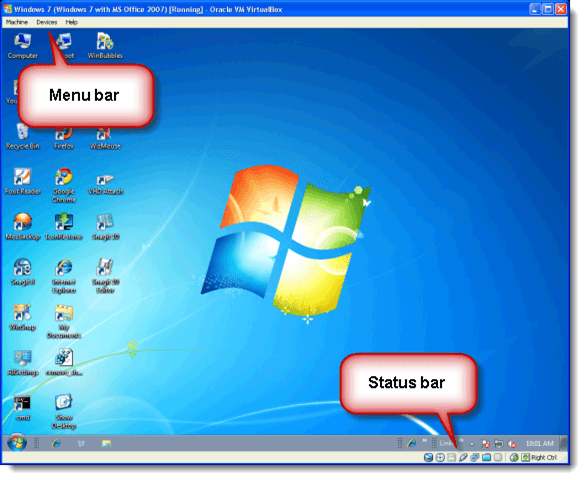
The menu bar and status bar prevent you from running at the maximum resolution (unless you use seamless mode). If you are using a computer with a small screen, such as a laptop, your screen real estate is very limited and you need to claim every inch of space you can.
There is a hack that allows you to switch off the menu bar and status bar and get your virtual machine to run in the maximum resolution.
NOTE: When you apply this hack, be sure there are no virtual machines running.
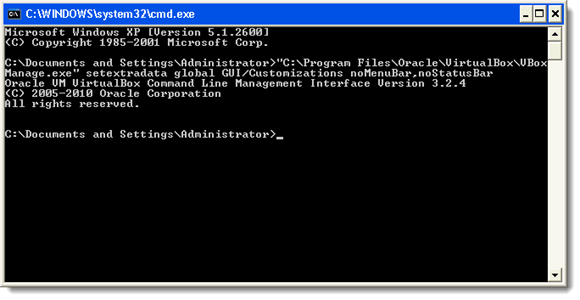
Open a command prompt (Windows) or a terminal window (Linux) and type the following command:
“C:\Program Files\Oracle\VirtualBox\VBoxManage.exe” setextradata global GUI/Customizations noMenuBar,noStatusBar
NOTE: The path to VBoxManage.exe may be different on your computer, especially Linux. Use the appropriate path. Be sure to use the quotes around the path to the executable if there are spaces in the path name.
The menu bar and status bar should now be gone.
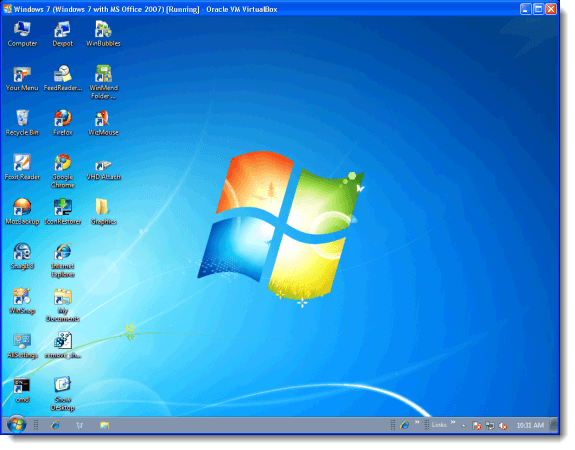
With the menu bar and status bar hidden, it might be helpful to know some VirtualBox keyboard shortcuts so you can quickly access the menu options.
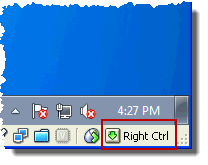
To bring up the VirtualBox menu options, press the Host key and the Home key on the keyboard. When the status bar is available, the Host key is displayed in the lower, right corner of the virtual machine window.
The menu options display with the keyboard shortcut listed for each.
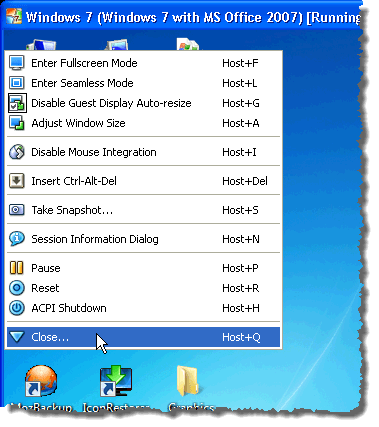
To show the menu bar and status bar again, enter the following command in the command prompt or terminal window:
“C:\Program Files\Oracle\VirtualBox\VBoxManage.exe” setextradata global GUI/Customizations MenuBar,StatusBar
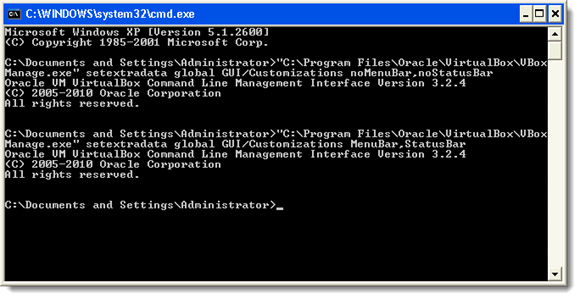
Again, remember to use the appropriate path to the executable file. Enjoy!
- How to Install and Use VirtualBox on Your Chromebook
- How to Completely Uninstall VirtualBox in Windows
- How to Install macOS Big Sur in VirtualBox on Windows
- Share Folders between Host and Guest OS in VirtualBox
- Change the Host Key in VirtualBox
Founder of Help Desk Geek and managing editor. He began blogging in 2007 and quit his job in 2010 to blog full-time. He has over 15 years of industry experience in IT and holds several technical certifications. Read Aseem’s Full Bio
