Adding a printer to a Mac is straightforward, but the process is different for wireless and wired devices. If your printer is AirPrint-enabled, it’s easier to add it to your Mac because macOS uses AirPrint to connect to printers or to download the printer’s software.
For wired printers, you can plug a wired USB into your Mac and use a couple of extra steps to set the printer up, provided it’s compatible with your Mac.
If you have an older printer that isn’t AirPrint-enabled, your Mac may install the printer driver software automatically, thereby allowing you to use the printer with your Mac.
Here’s what you need to know to add a printer to a Mac. You can add a wired printer that doesn’t have networking capabilities or a wireless printer on a Mac in a few easy steps.
Note : We’re using a Mac running macOS Big Sur for this guide.
Add a USB Printer to a Mac
If you have a USB printer, update macOS before adding the printer to your Mac otherwise you may get an error message that the software isn’t available when connecting the printer.
Your Mac will automatically detect the printer and download the required software to use the device.
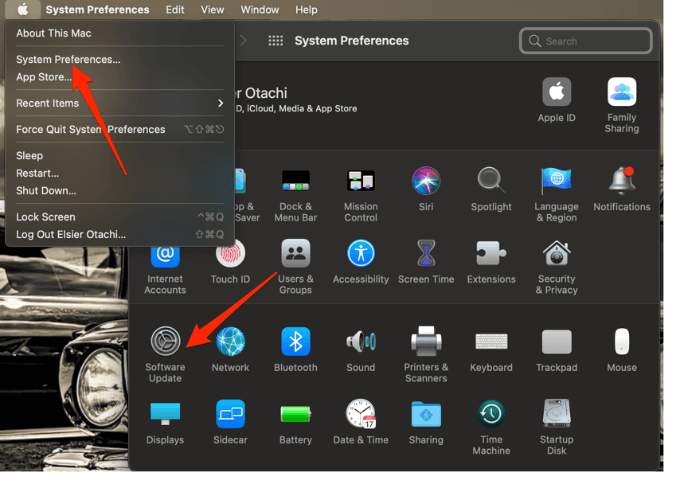
- Select the menu > System Preferences > Software Update on your Mac and install any pending updates listed. This way, macOS will have the latest information about the printer’s software and can download it from Apple.
- Power on the printer to ensure that it’s not showing any errors and then connect the USB cable to your Mac. Download and install any new software if you’re prompted to.
- Your Mac should automatically detect the printer and begin the installation process. If nothing happens, your printer may not be compatible with your version of macOS.
Note : If your Mac has one USB-C port, use an adapter cable or docking station to connect your printer.
Add a Network or WiFi Printer on a Mac
If you have a wireless printer, you can quickly add it to your Mac without any setup as long as both devices are on the same WiFi network.
Note : You may need to connect your printer via USB cable to your Mac to set up and install your printer’s software. Use the printer’s setup assistant to connect the printer to your WiFi network and then unplug the USB cable from both devices.
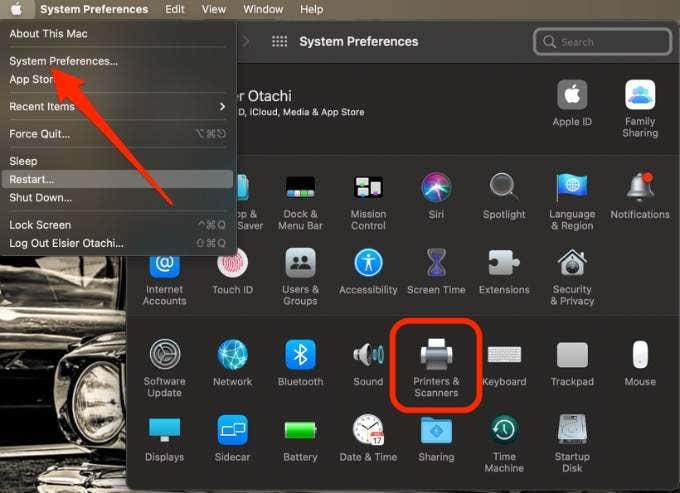
- Select Menu > System Preferences > Printers & Scanners .
- Next, select the Add (plus) icon to set up your wireless printer.
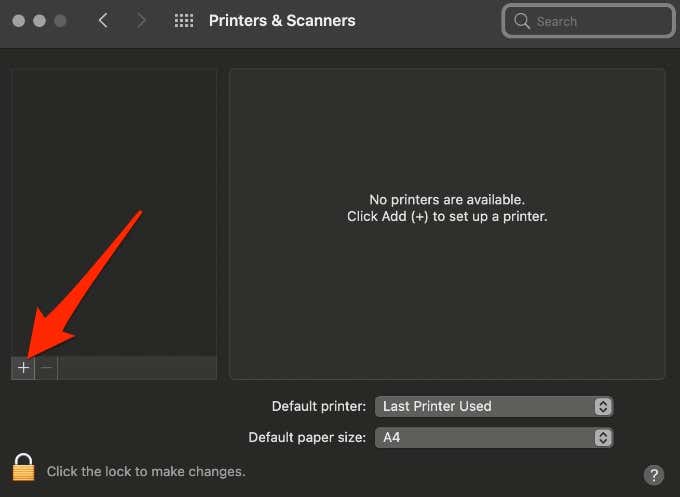
- Select the printer you want to add. macOS will automatically scan the network for any compatible wireless or network printers.
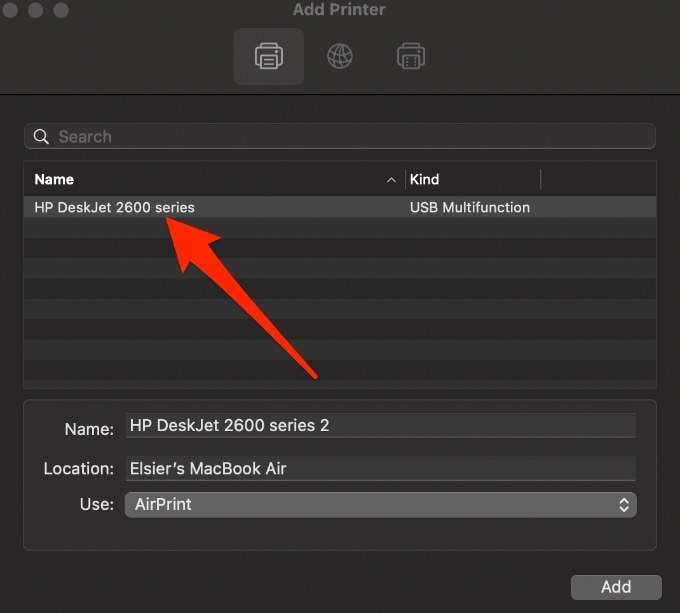
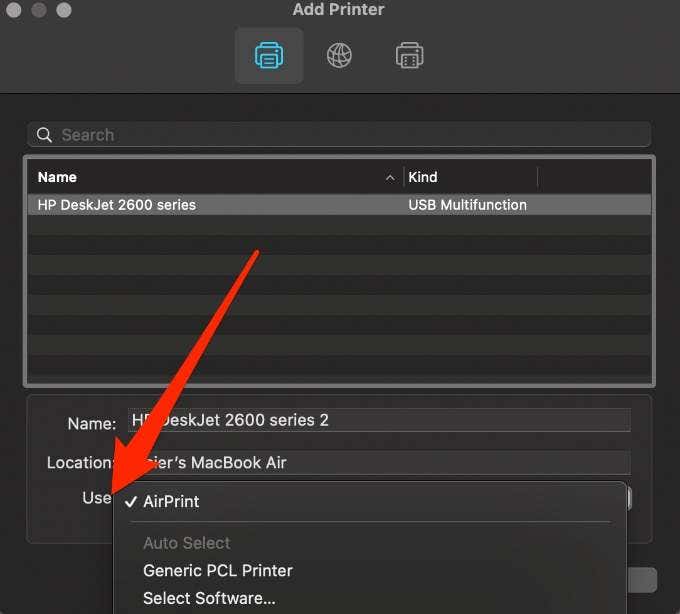
- In the Use field, select your printer’s software or driver. You can choose from AirPrint, your printer’s driver, or Auto Select for your Mac to download the correct driver once it updates.
- Select Add and your wireless printer will be added to the list of printers.
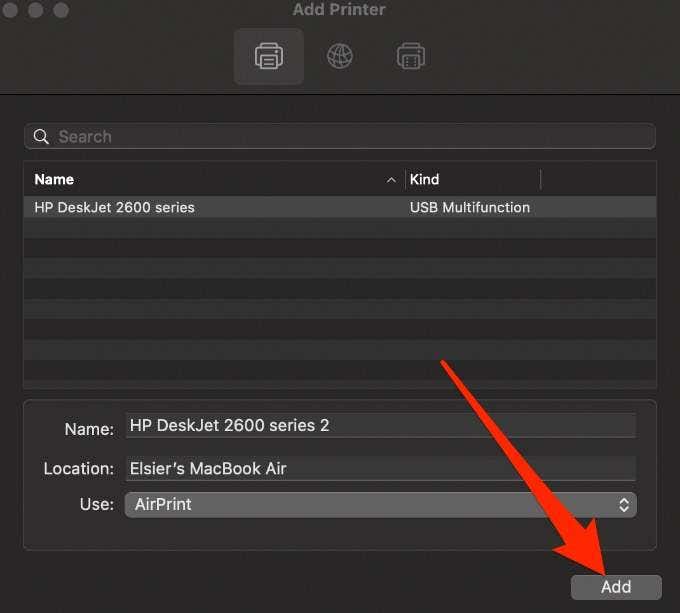
Note : If your printer isn’t listed, check if it’s connected to the WiFi network and then select the Add button. Wait a minute or two for the printer’s name to appear on the list and then choose Add again.
Add a Network Printer to a Mac Using an IP Address
Follow the steps below to add your printer by its IP address. For this to work, the printer must support AirPrint, Line Printer Daemon, HP Jetdirect (Socket), or Internet Printing Protocol.
Before adding your network printer by its IP address, find out its host name or IP address. You can find this information by going to your printer’s control panel and printing out the network configuration.
- Update the printer software on your Mac, turn on the printer, and then connect it to your network.
- Select Menu > System Preferences > Printers & Scanners > Add and then select the IP button .
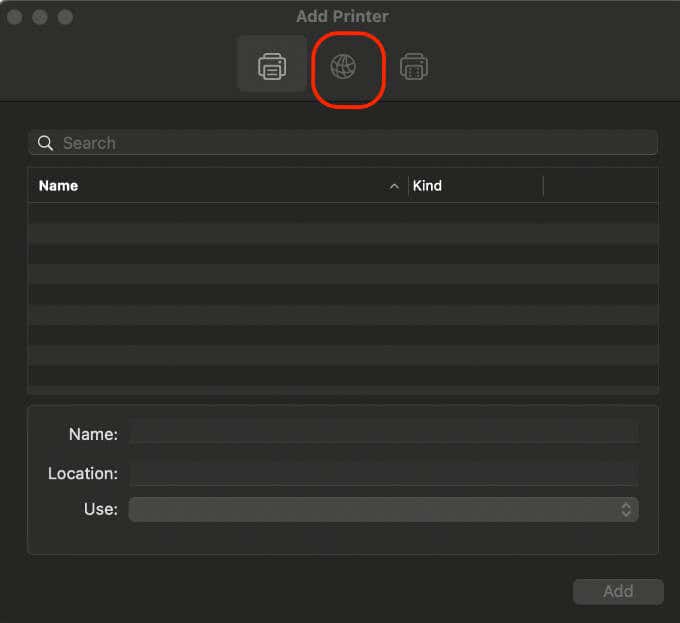
- Enter the printer information including the host name or IP address, which looks like 192.168.20.11.
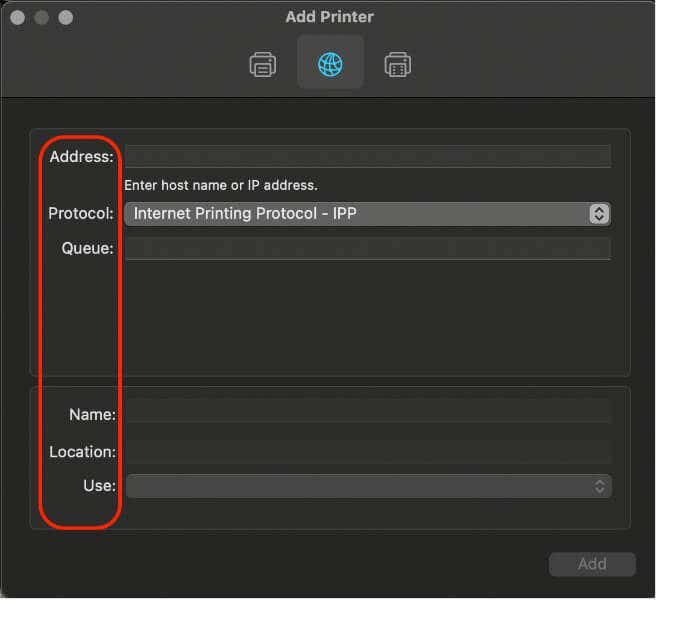
In the Use field, select the printer driver you would like to use.
Bonus Tips:
When you’re ready to print, check out our guides on how to print double-sided on Mac and how to print in black and white on Mac .
- How to Connect Xbox Controllers to Your Mac
- How to Chromecast From Mac to Your TV
- How to Install and Run Linux on Mac
- How to Turn Off or Delete Siri Suggestions (iPhone and Mac)
- How to Take Pictures on Mac
Why can’t my iPhone find AirPrint? Apple’s AirPrint technology makes it so easy to wirelessly send print jobs to a printer from your iPhone. You can print hard copies of web pages, images, notes, and other documents without moving an inch or plugging a cable. All you need is a Wi-Fi connection and a compatible printer.
However, sometimes iPhone can’t find your wireless printer. If your iPhone can’t find AirPrint or other wireless printers, we’ve compiled 11 troubleshooting steps that’ll help you fix the problem. The recommendations in this guide are also applicable to iPads.
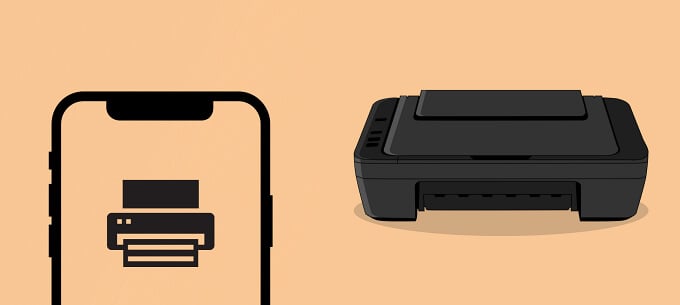
Note: AirPrint doesn’t work with cellular or mobile data.
1. Confirm That the Printer Supports AirPrint
If your printer isn’t showing up on your iPhone, check to make sure it supports AirPrint. Examine the printer’s body or instruction manual for a “Works with Apple AirPrint” label.
There are other ways to confirm if a printer is AirPrint compatible. Visit the product page on the manufacturer’s website or check the AirPrint info page on Apple’s website .
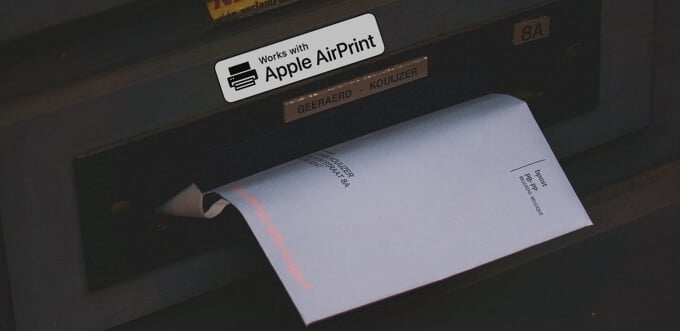
On the Apple website, you’ll find a comprehensive list of devices (printers, servers, etc.) that support the AirPrint technology. If your printer isn’t on the list, it most likely doesn’t support AirPrint.
2. Is the Printer Working Correctly?
You have an AirPrint-enabled printer but it’s not showing up on your iPhone. What do you do? For starters, ensure the printer is powered on and active. Some printers, depending on the type or model, enter a “sleep mode” or “low-power state” after a certain period of inactivity.
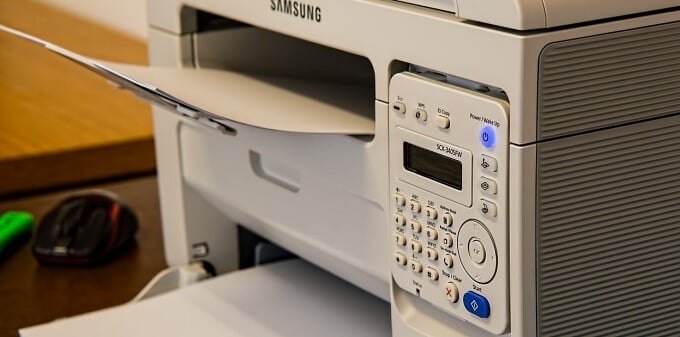
Press the printer’s power button to turn it on. You should also check the printer’s status lights or screen for any error message or warning. Usually, a flashing or solid red light indicates an issue with the printer.
3. Connect iPhone and Printer to the Same Network
For your iPhone to find your printer, your iPhone and the printer must be on the same wireless network. If an AirPrint-enabled printer isn’t showing up on your iPhone, head to the printer’s network settings and ensure its Wi-Fi is enabled. Most importantly, make sure the printer is connected to the same Wi-Fi network as your iPhone.
If the problem persists, the printer could be blocked or blacklisted on the network. Go to the router’s settings and whitelist the printer.
It’s also worth mentioning that your iPhone may fail to detect an AirPrint printer due to a weak Wi-Fi signal. Make sure both devices (the iPhone and printer) are in close proximity to the router with minimal interference.
4. Switch to a Private Network
Apple cares about the safety of your files and documents, so AirPrint doesn’t work on unsecured public networks. Hackers can easily intercept files that you send (to your printer) on a public network.
If your iPhone and printer are connected to a public Wi-Fi network, you’ll always get a “No AirPrint Printers Found” error. Switch your devices to a private, password-protected network and try again.
5. Re-Enable Wi-Fi
Refreshing the Wi-Fi connection for both devices (i.e. your iPhone and printer) might fix the issue. Turn off your iPhone’s Wi-Fi from the Control Center or the Settings app—go to Settings > Wi-Fi and toggle off Wi-Fi . Re-enable Wi-Fi after some seconds and join a wireless network.
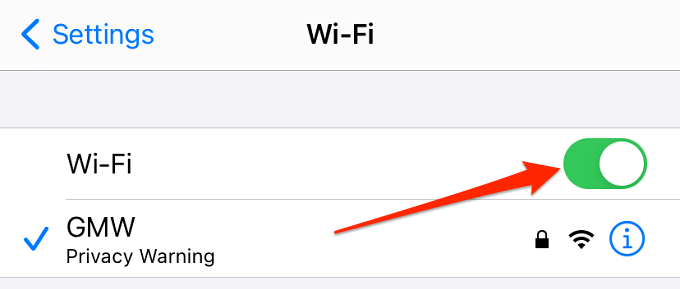
Head to your printer’s settings menu and do the same: Disable Wi-Fi, wait some seconds, turn it back on, and join the same wireless network that your iPhone’s connected to.
If your wireless printer doesn’t have an LED display or screen, look out for a physical Wi-Fi button. Check the printer’s instruction manual if you can’t find a Wi-Fi button or don’t know which button controls the printer’s Wi-Fi.
6. Restart Your iPhone
Before you shut down your phone or you’re using a different iPhone (or iPad) to send files to the AirPrint printer. If other iOS devices can find the printer, that means your iPhone is the problem. Shut down your phone and try connecting to the printer again.
7. Restart the Printer
Power-cycling your printer can resolve common printer-related issues. If your AirPrint printer doesn’t show up on multiple iPhones despite being on the same Wi-Fi network, restart the printer and try again.
8. Restart or Reset Your Router
Your router could also be the problem. Shut down the router and turn it back on. Afterward, connect your iPhone and printer to the network and try printing a file wirelessly.
If the AirPrint printer is still missing, or your iPhone keeps displaying a “No AirPrint Printers Found” error, reset the router and try again.
9. Hard Reset the Printer
Should the printer remain undetectable, consider resetting it to factory default settings. Note that hard resetting your printing may erase some configurations like tray size, page count, language, etc. You’ll need to redo these settings and preferences when you reset your printer.
10. Reset iPhone’s Network Settings
Performing a network reset worked magic for some iPhone users . Go to Settings > General > Reset > Reset Network Settings and enter your iPhone’s passcode to proceed. Click Reset Network Settings on the confirmation prompt and your device will restart.
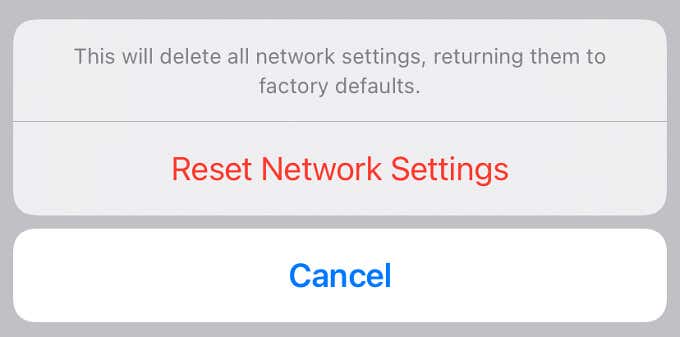
When your iPhone comes back on, join the same Wi-Fi network hosting the AirPrint printer and try printing a file.
11. Downgrade or Update Your iPhone
iOS updates also have a history of destabilizing the AirPrint functionality . So, if you noticed your iPhone stopped detecting your printer after installing a new OS update, you can roll back to a previous iOS version .
Also, AirPrint can also fail to work if you’re running an old or outdated iOS version. Go to Settings > General > Software Update and install any available update on the page.
AirPrint Without a Router
Some high-end AirPrint-enabled printers can host a Wi-Fi hotspot. If you have one such printer, create a hotspot, go to your iPhone’s Wi-Fi menu and tap your printer’s name to join the network. When you want to print a file, you’ll find the printer on the Printer Options page.
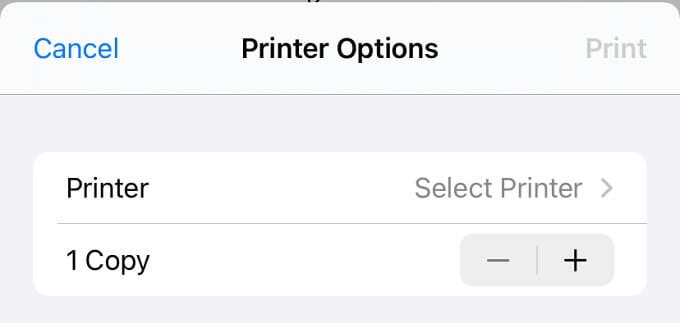
Use this workaround to quickly print a file if you don’t have time to try the troubleshooting techniques listed above. However, if your iPhone still can’t find the printer, you should get in touch with the (printer’s) manufacturer.
- How to Use Your iPhone as a USB Drive on Mac and PC
- How to Turn Off Password Suggestions on iPhone
- How to Accept Invite to Shared Album on iPhone
- How to Send Emails on iPhone
- iPhone Not Sending Emails? 10 Fixes to Try
Double-sided or duplex printing is a good choice if you’re environmentally conscious or want to economize on paper. Plus, knowing how to print double-sided on your Mac can also elevate the presentation of your documents.
Many inkjet and laser printers have the duplex printing function built in, but the way you access it may differ depending on where you’re printing from. If you’re using a Mac, you can print double-sided whether or not the printer has this feature.
We’ll walk you through the different methods you can use to print double-sided on Mac whether you’re using a program or browsing online.
How to Print Double-Sided on Mac from an App
You can print double-sided on your Mac when using an application such as Notes, or Microsoft Office apps.
Microsoft Office apps output their own printing dialog window, which makes the double-sided printing process simpler, with fewer steps. However, this dialog window may confuse you at first if you haven’t printed on Mac before.
How to Print Double-Sided on Mac Using Microsoft Applications
For this guide, we’ll show you how to print double-sided using Microsoft Word. The steps below are the same for other Microsoft apps including Excel and PowerPoint.
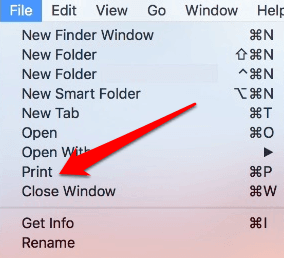
- To do this, select File > Print . Alternatively, press Command+P on your keyboard to go straight to the Print window.
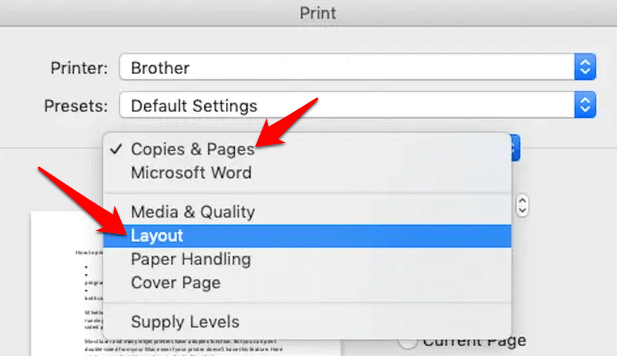
- Under the Presets section, you’ll see the Orientation box. Select Copies & Pages > Layout .
- In the Two-Sided submenu, you’ll find the Long-Edge binding and Short-Edge binding options. Select Long-Edge binding .
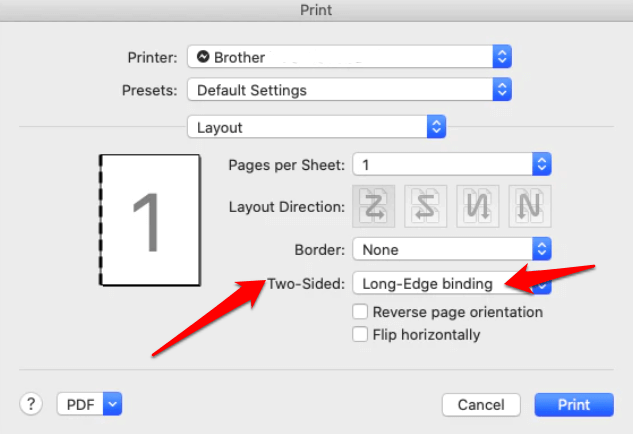
Note : Long-edge binding allows you to print double-sided sheets and its margins are adjusted for binding on the left. This way, you can turn pages sideways as you would with a long-form document or book. On the other hand, short-edge binding margins adjust for binding at the top, and pages are printed such that you can flip them over vertically as you would with a calendar or notepad.
- Select Print .
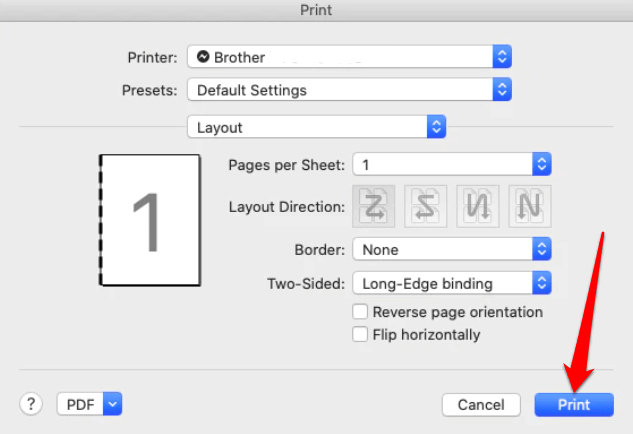
Note : Most Mac apps call out a somewhat standard printing dialog window compared to Microsoft apps, which have a rather custom printing process.
Open File > Print . In the Print window, check the Two-sided box and then select Print .
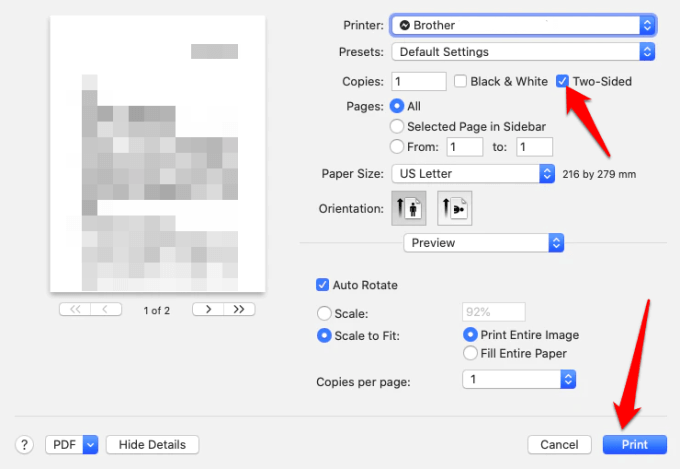
Note : You can also print double-sided on Mac from an app like the Notes app. To do this, launch the app you want to print from, select File > Print, check the two-sided box, and select the Print button.
How to Print Double-Sided on Mac from Google Docs
If you’re working on a document in Google Docs (or any other web app or web page), you can still print double-sided from there.
- To do this, use the ⌘ + P keyboard shortcut, or go to File in the Google Docs menu and select Print .
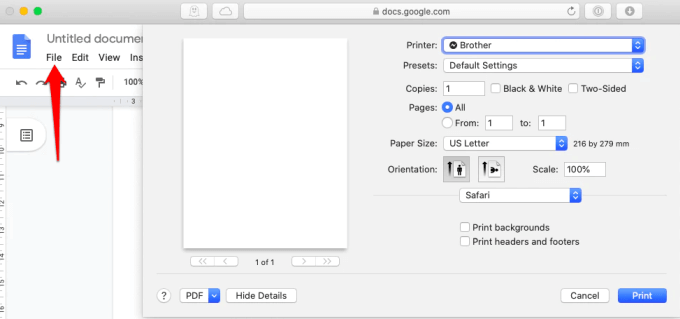
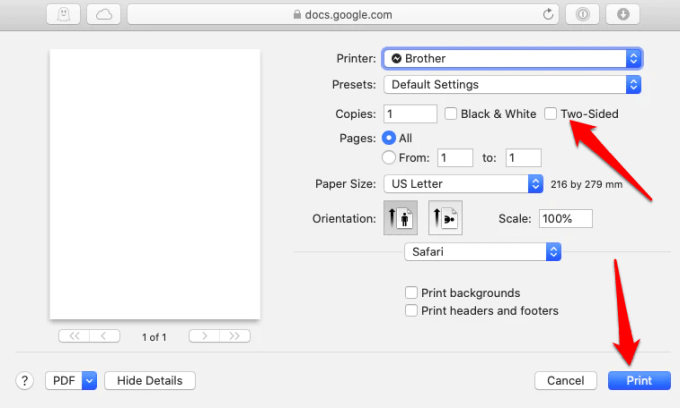
- Next, check the Two-Sided box and then select Print .
How to Print Double-Sided on Mac Using a Non-Duplex Printer
If your printer doesn’t support duplex printing, you can still print double-sided in a few steps.
The first step is to check whether the duplexing feature is enabled on your printer.
- To do this, select the Apple menu > System Preferences > Printers & Scanners in the System Preferences window.
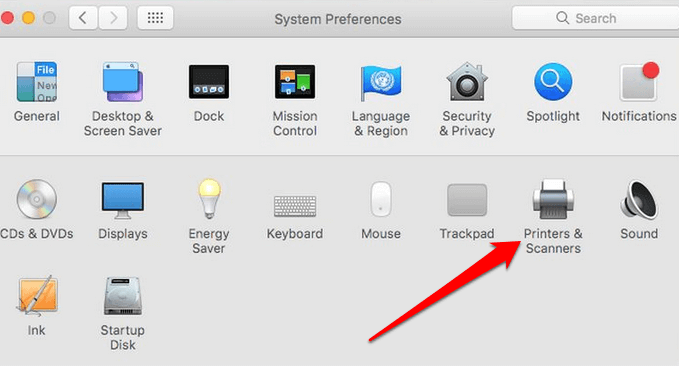
- Select your printer from the list and then select Options & Supplies .
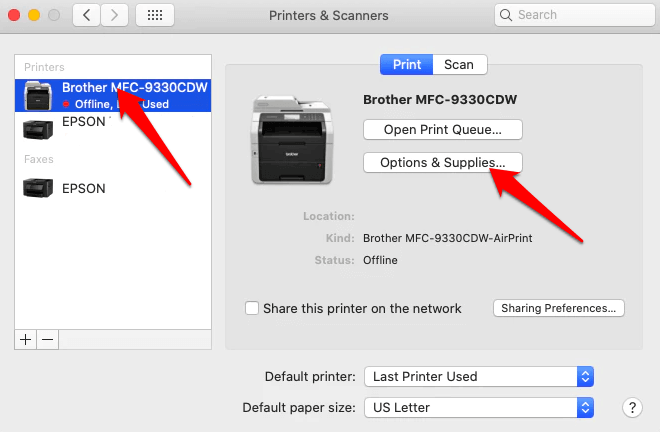
- Check the Duplex Printing Unit feature under the Options tab, and then select OK .
- Open the Print menu. Select File > Print on your Mac, or press the ⌘ + P keyboard shortcut.
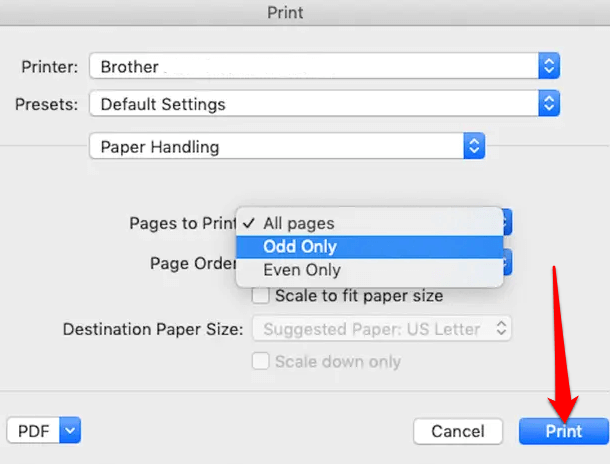
- Under Orientation , select Paper Handling .
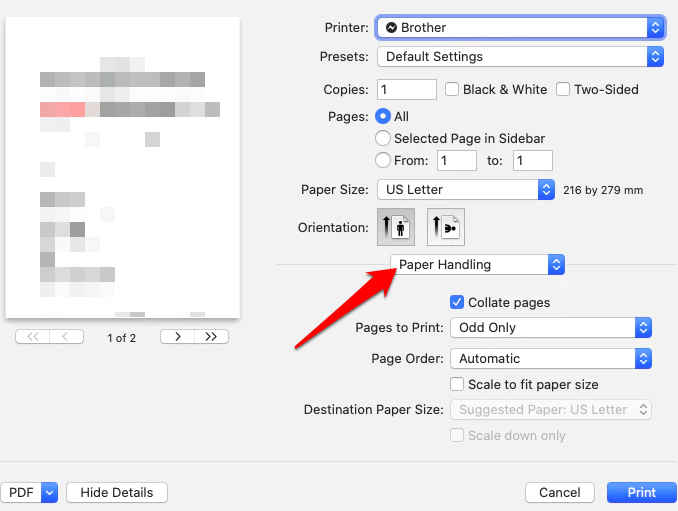
- Set the value to Odd Only in the Pages to Print section.
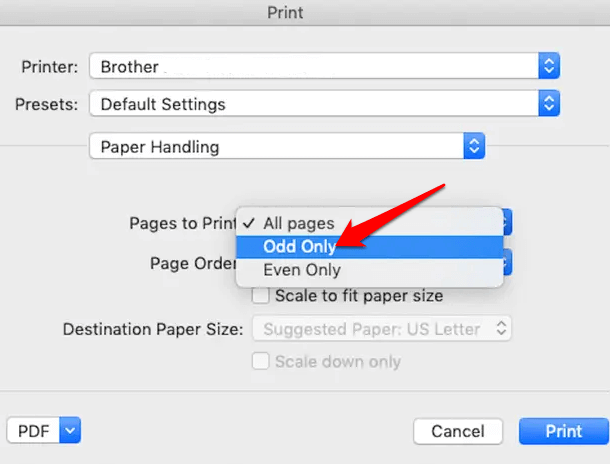
- Select Print to select Odd Only to print only odd-numbered pages.
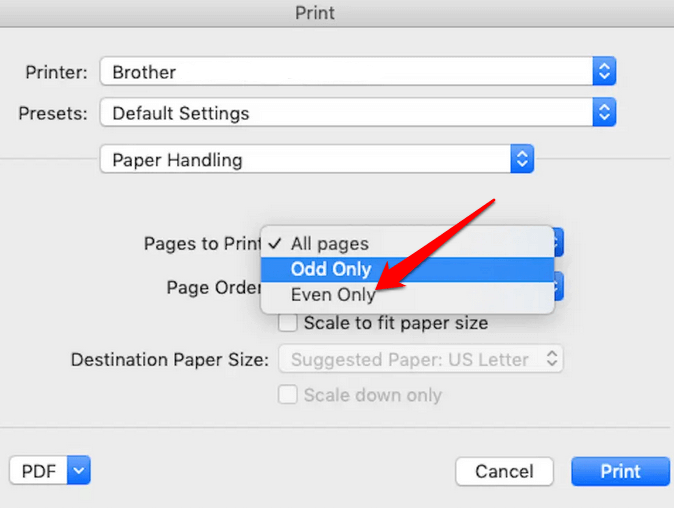
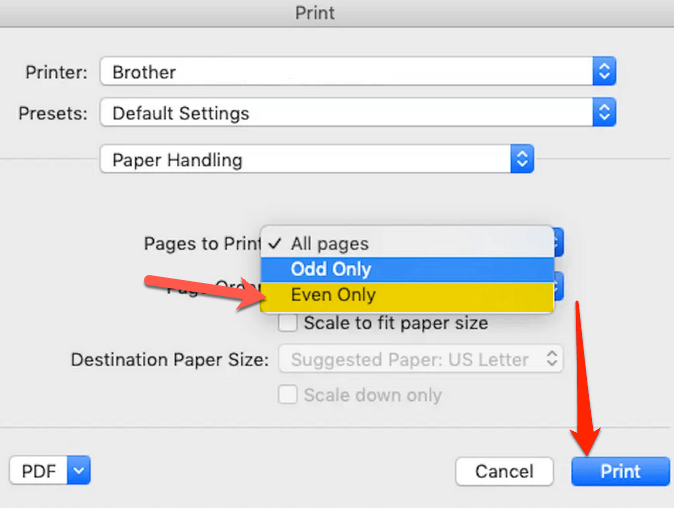
- Next, flip your printed pages over and put them back into your printer. Open the Print menu again, and select Even Only in the Pages to Print section.
- Select Print .
Note : Using a non-duplex printer to print double-sided can involve some trial and error to get it done right. If you have a large document, try it with two or four pages before printing the entire document. Duplex printing may not work well with older laser printers where heat is involved, because you can’t safely put your paper through twice.
Save Paper and Money
Whether your printer has a duplex feature or not, you can easily print double-sided on Mac. It will help you save paper and money, and you don’t have to worry about running out of paper all the time.
- How to Connect Xbox Controllers to Your Mac
- How to Chromecast From Mac to Your TV
- How to Install and Run Linux on Mac
- How to Turn Off or Delete Siri Suggestions (iPhone and Mac)
- How to Take Pictures on Mac
Printing something in black and white on a Mac sounds simple but if you’ve ever tried to do it yourself, you know that it’s not as easy as it sounds. There are certain things that need to be modified before your printer prints your documents without any colors.
By default, most printers are set up to use the color cartridges to print your documents. It means that even if your entire document is in black and white colors, it’ll still use your color cartridge as that’s what’s been instructed to do by your Mac.
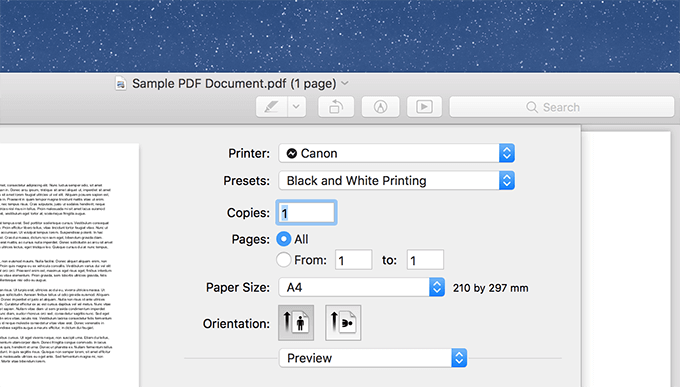
You can change that default behavior, though, and have your printers use their black and white cartridges to print your colorless documents. The option to do so is found in the default printing dialog box on your Mac.
Use The Default Option To Print In Black & White On Mac
The default dialog box that you see when you print a document does have the option to print your documents in black and white. However, the option is hidden for most printers and you need to dig a bit deeper to find and use it on your machine.
This method should work just fine if there are only a few documents that you wish to print without any colors. If you have dozens of files to print, you’re recommended to use the preset method below for more convenience.
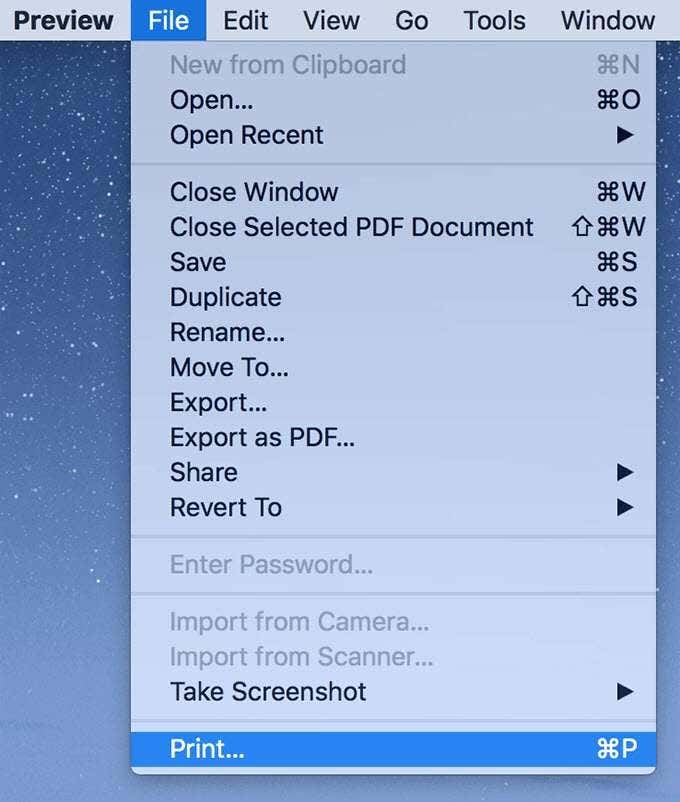
- Open the document you want to print in black and white in any of your favorite apps. Then, click on the File menu and select Print . Alternatively, press the Command + P key combination.
- When the print dialog box opens, you’ll find several options you can configure for your print job. In some cases, you’ll find the tick-box for black and white print on the main screen. Simply tick-mark the box and hit Print to get your document printed.
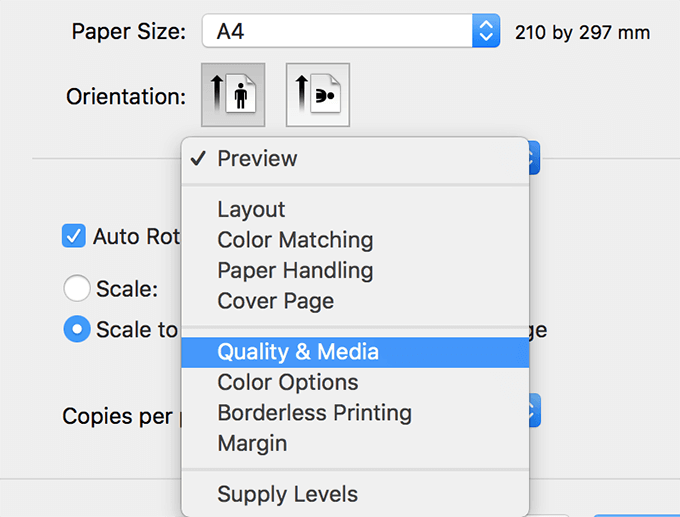
- In case you don’t find the option, it’s located inside the submenus. To get to the option, click on the main dropdown menu where you see various printing options and select the option that says Quality & Media .
- It’ll open a new pane right beneath the dropdown menu. Here you’ll find a tick-box that says Grayscale Printing . Tick-mark the box and the option for black and white printing will be enabled.
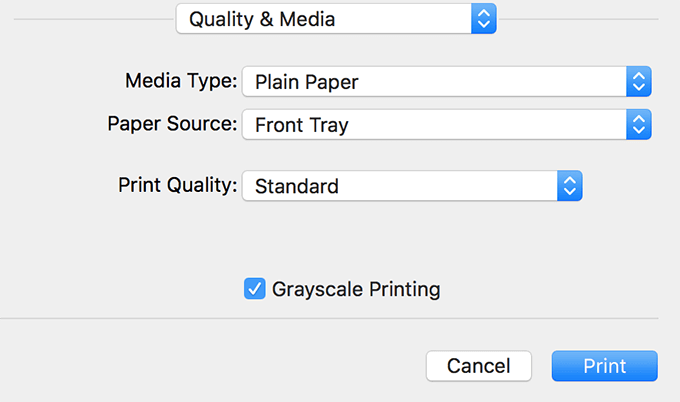
- Hit the Print button at the bottom and your document will be printed in black and white.
There are some apps that have the black and white print option right on the main printing dialog box. Adobe Acrobat Reader, for example, is one of them, and in these cases, you can simply tick-mark the Print in grayscale option and that should do the job for you.
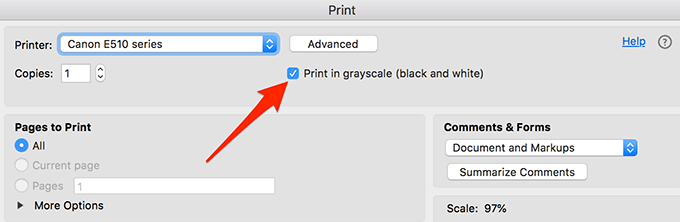
The options you’re looking for should say something like black and white, grayscale, and other similar words — you get the idea.
Create And Use a Preset To Print In Black & White on Mac
A preset is a set of configurations that automatically applies all of your saved settings to the document you’re printing. You can actually create a preset that when selected, prints your documents in black and white on your Mac.
Creating a preset doesn’t require any special skills. All you need to do is select your configuration, save it, and call it a preset.
- Launch your document and press Command + P to open the default print dialog box.
- When the dialog box opens, click on the main dropdown menu and select Quality & Media . It’ll let you choose your print type.
- Enable the option that says Grayscale Printing . It prints your documents in black and white.
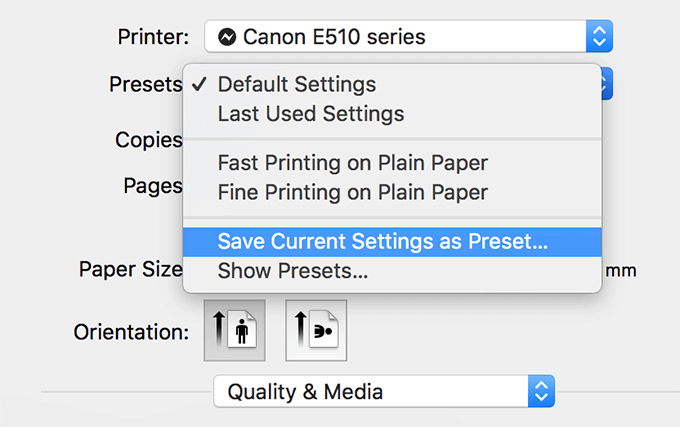
- At the top of the dialog box, you’ll find a dropdown menu with the label that says Presets . Click on the menu and then choose the option that reads Save Current Settings as Preset .
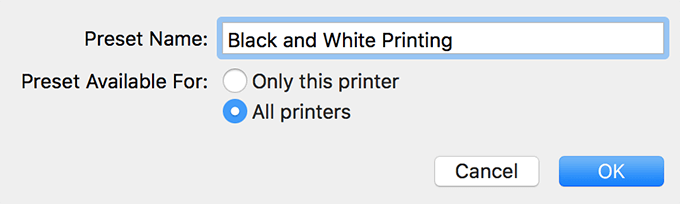
- You’ll be asked to enter a name for your preset and the availability of this new preset. You can enter any value in the name field but make sure it’s something you can recognize at a later time. In the availability section, you can choose to make the preset available for either all the printers on your Mac or only for the currently selected printer. Then click on OK to save the preset.
- Next time you want to print something in black and white, simply open the print dialog box, select your preset from the Presets menu, and hit the Print button. It’ll auto-apply your print settings to your print job.
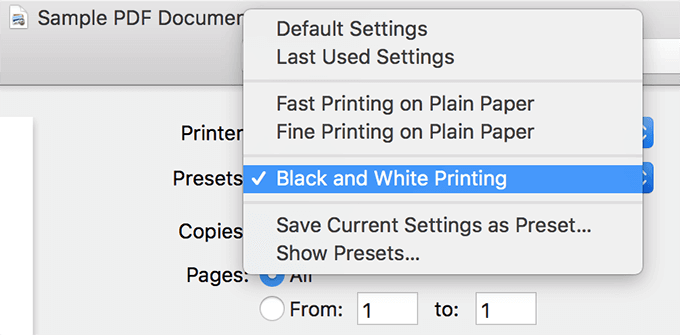
Since the preset is created in the default printing dialog box, it’ll be available for you to use in all the apps where you can open the default print dialog box.
Fix Black & White Printing Issues On Mac
It sometimes happens that your printer refuses to print your documents in black and white. In that case, you can do a few things like the ones mentioned below to get rid of the issue.
Remove The Printer From Your System
One of the ways to fix a broken black and white print feature is to remove the printer and then add it back to your system.
- Click on the Apple logo at the top and select System Preferences .
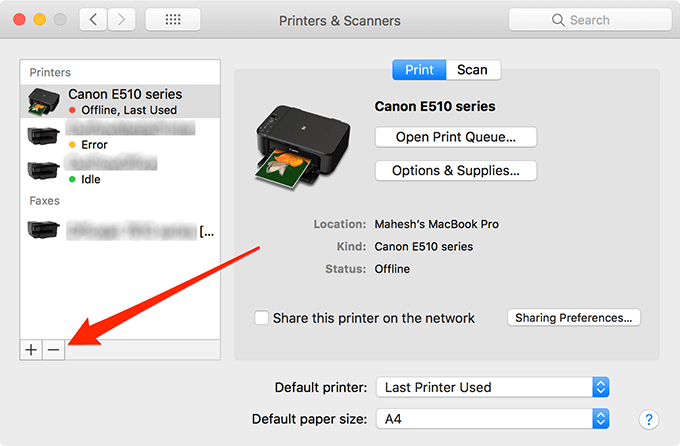
- Click on Printers & Scanners on the following screen.
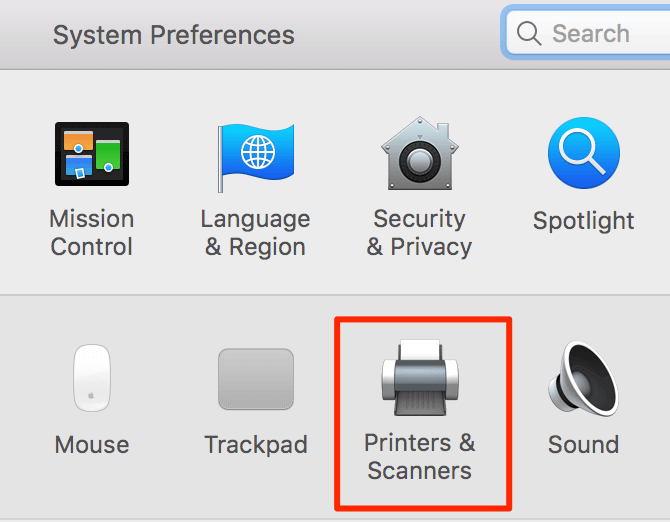
- Select your printer from the list in the left sidebar and then click on the – (minus) sign at the bottom.
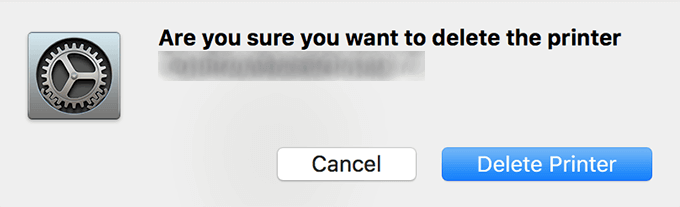
- A prompt will appear asking if you’d like to remove the printer. Hit Delete Printer and your printer will be removed.
- Follow the instructions for your printer to add it back to your machine.
Reset The Entire Printing System On Mac
If removing and adding the printer didn’t fix the issue for you, you might want to reset the entire printing system.
- Head into System Preferences and select Printers & Scanners .
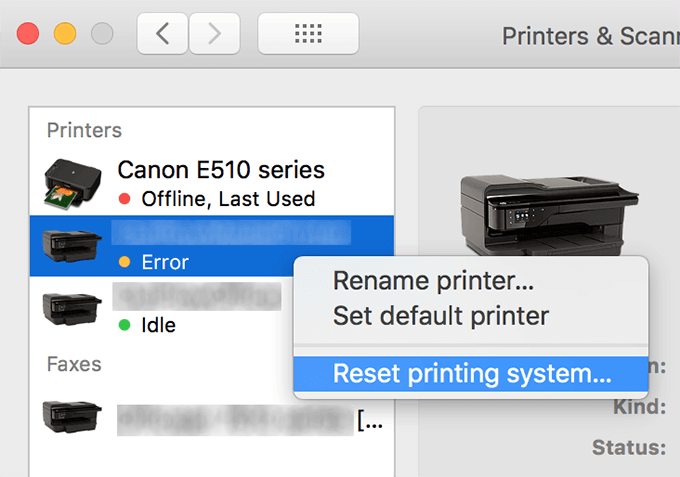
- Right-click on any of your printers and select Reset printing system .
- Choose Reset in the prompt that appears on your screen.
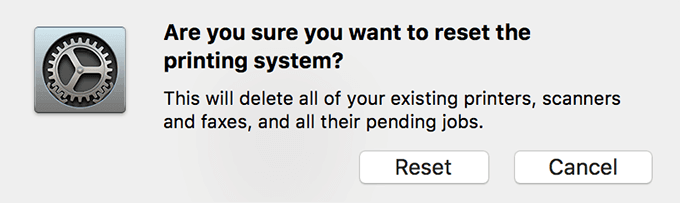
You’ll then need to re-add your printers to your Mac.
- How to Connect Xbox Controllers to Your Mac
- How to Chromecast From Mac to Your TV
- How to Install and Run Linux on Mac
- How to Turn Off or Delete Siri Suggestions (iPhone and Mac)
- How to Take Pictures on Mac
