
Now that I’m back in school again after a long time, I’m also back to having to create various PowerPoint presentations and write reports up in Word. There are a lot of features in Word that most people never use unless they are in school.
Setup and View Headers in Word
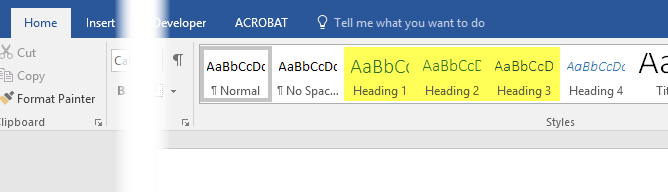
You can find these headings in the Styles box on the main Home tab in the ribbon. These are the only three you can use for a default TOC. If you add a custom TOC, you can also use H4 (Heading 4) , H5 (Heading 5) , H6 (Heading 6) , Subtitle , Title , and TOC Heading .
When you are going through your document to add the different headings, feel free to pick from any of the above-mentioned headings if only H1, H2 and H3 feel too restricted. You’ll just have to insert a custom TOC and change a few settings, which I will also mention.
It’s very easy to apply headings to text in Word. Just click on the line with the text and then click on the heading style you want to apply.
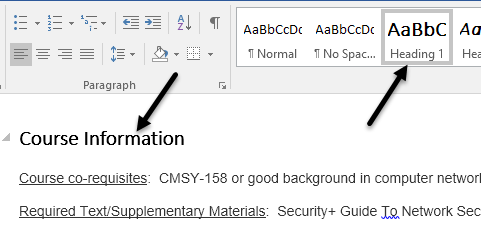
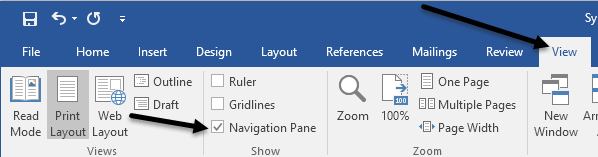
Go through the document and add as many of these headings as you would like. Note that when you add headers, it will be hard to see the headers, even if you have paragraph marks visible. In order to quickly see all headers in a Word document, click on the View tab and then check the box under Navigation Pane .
When you do this, a pane will appear on the left hand side of the document and you’ll be able to see the various headings, sub-headings, etc.
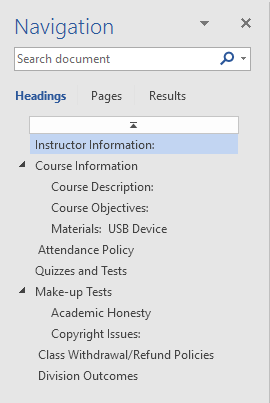
Clicking on any of the items in the list will take you to that heading in the Word document. This is a great way to quickly see your heading structure before creating your final TOC.
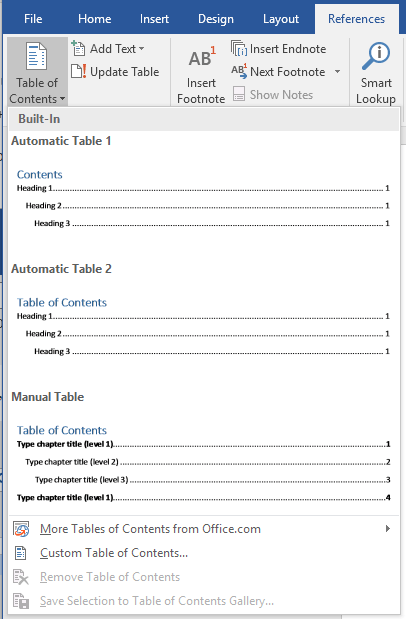

Awesome! Now you have a nicely formatted TOC in your Word document! Once you have inserted the TOC, you can still make changes to the headings in your document, but the changes won’t be automatically reflected in the TOC.
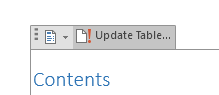
In order to update the TOC, just click inside of it and then click on Update Table at the top.
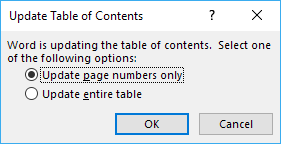
It will ask you if you want to update just the page numbers or the entire table. If you have modified, inserted or deleted headings, you should choose entire table . If you just added more content to your document, but haven’t added or removed any headings, you can choose page numbers only .
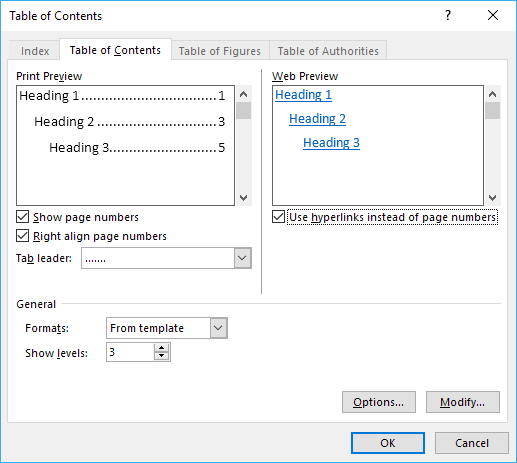
This will bring up the options dialog for the TOC. You can change some basic settings like whether to show the page numbers and whether to right-align the numbers or not. Under General , you can choose from multiple styles and you can also choose to show more levels beyond three, which is the H3 heading.
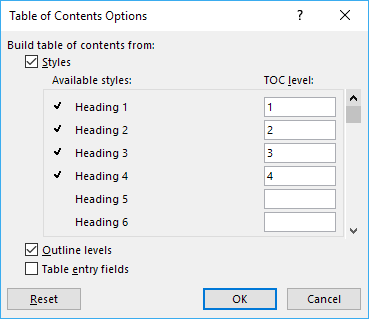
If you click on Options , you can choose extra items to build the TOC with. If you scroll down, you’ll be able to select Subtitle and TOC heading .
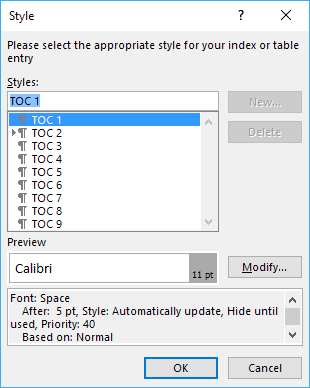
Click on the second Modify button and you’ll be able to change the formatting for that particular heading. So if you want, you could make all H1 headings bold and a different font size.
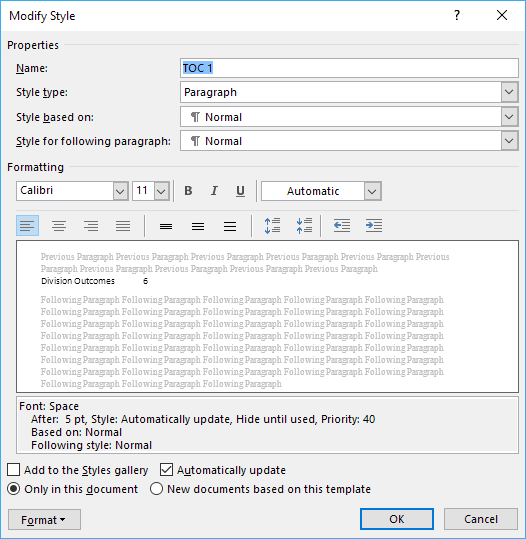
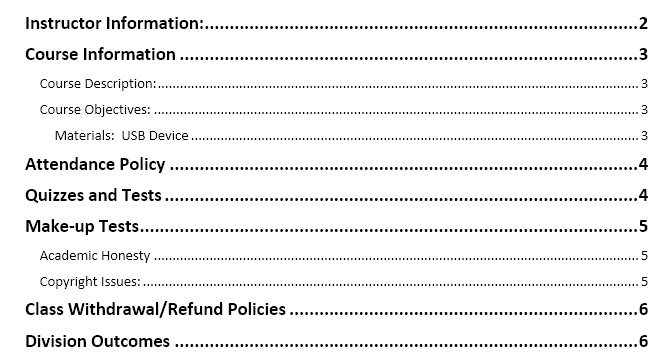
If you click on the Format button at the bottom, you can customize even more settings like paragraph, tabs, border, frame, numbering, etc. Here’s my TOC with H1 as bold and with a bigger font size.
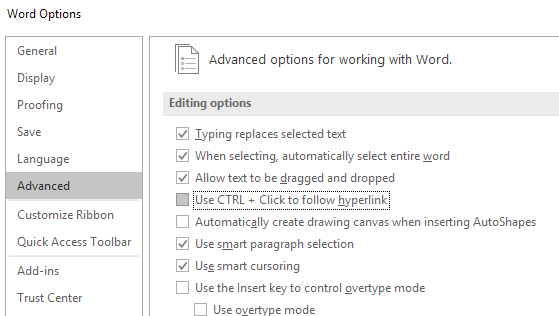
Lastly, if you press the CTRL key and then click on anything in the TOC, you’ll be brought to that page. However, if you find it annoying to have to press the CTRL key, you can change this by going to File – Options and then clicking on Advanced .
- How to Remove Headers and Footers in Word Documents
- How to Clear Formatting in Word
- How to Remove Unwanted Lines in Word Documents
- How to Select All Text in Word Documents
- How to Insert Arrows in Microsoft Word Documents
Founder of Help Desk Geek and managing editor. He began blogging in 2007 and quit his job in 2010 to blog full-time. He has over 15 years of industry experience in IT and holds several technical certifications. Read Aseem’s Full Bio
