Add a Review on the Web
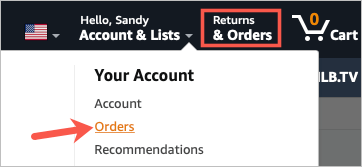
- Select either Account & Lists > Orders in the drop-down menu or use the Returns & Orders button.
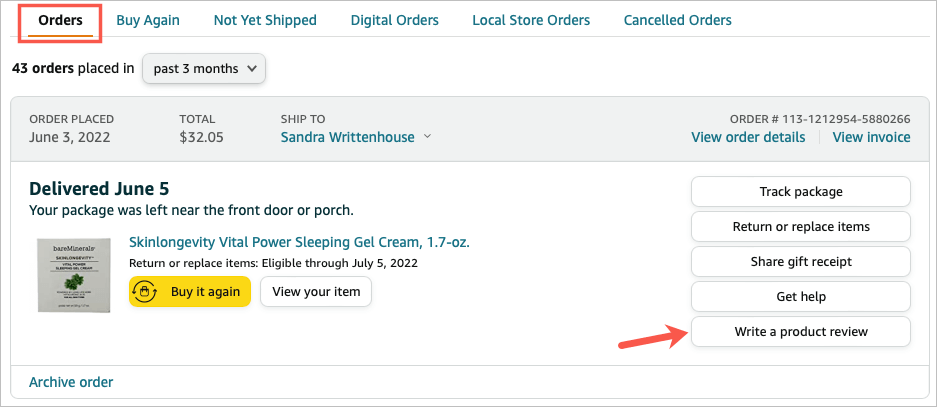
- On the next page, confirm that you’re on the Orders tab.
- To the right of a product, select Write a Product Review .
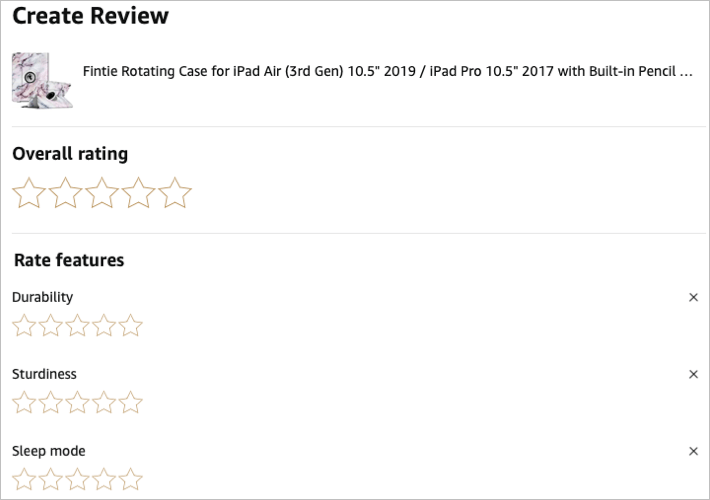
- Start by adding an overall star rating for the product. You can then rate the product per individual category if you like. These categories vary depending on the type of product you’re reviewing.
- Add a headline for the title of your review and optionally include photos or videos if you believe it’ll help other shoppers.
- Finally, you can add a written review if you’d like to leave feedback.
- When you finish, select Submit .
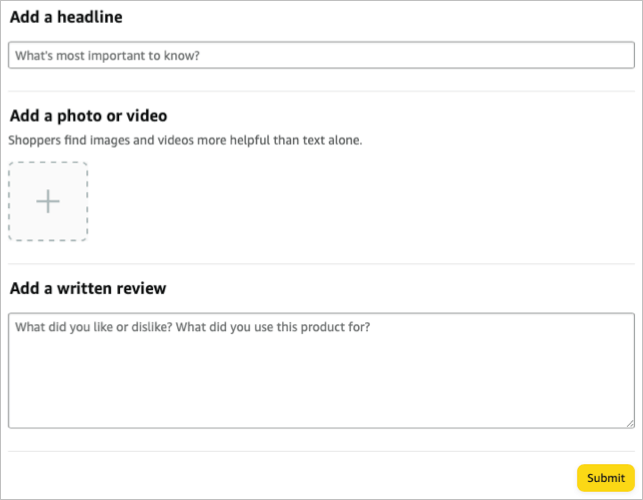

When your review is accepted, you’ll receive an email informing you that it’ll appear on the product page with the other customer reviews.
Add a Review in the Mobile App
- Go to your profile tab and select Your Orders to choose the product.
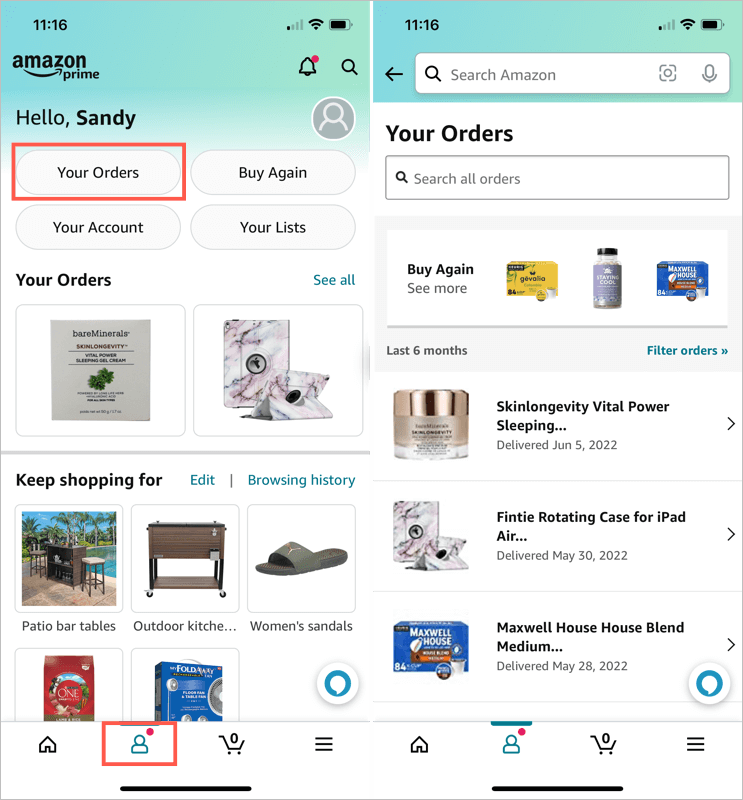
- In the How’s Your Item? section, select Write a Product Review .
- Provide an overall review using the stars at the top and a rating for each category optionally.
- Enter a title and optionally add a photo, video, or written review.
- Tap Submit .
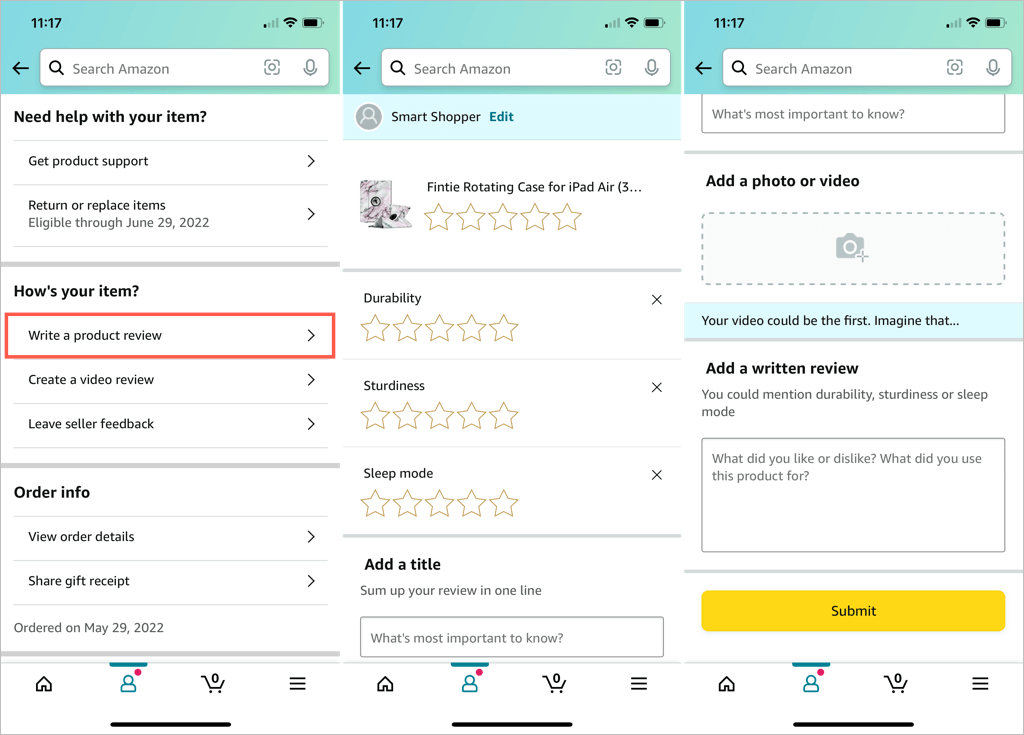
Like submitting a review on the web, you’ll receive an email when your review is attached to the product.
See Reviews on the Web
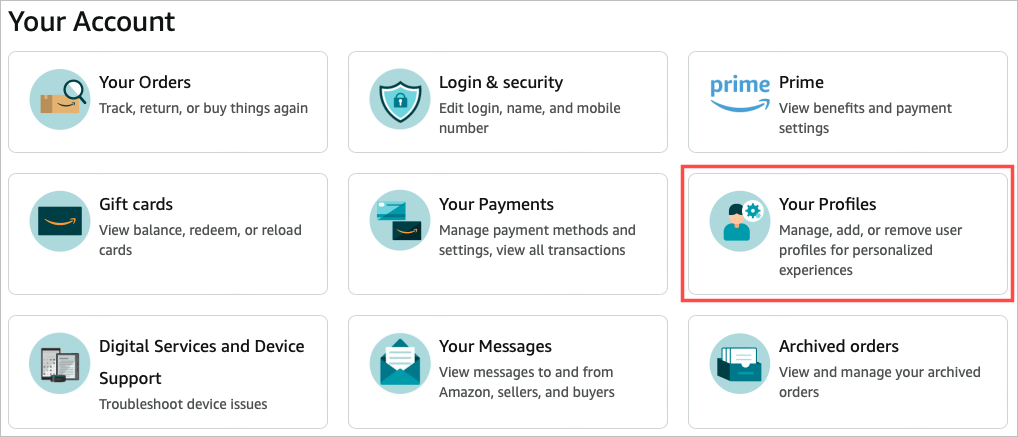
- Visit Amazon.com and sign in. Select Account & Lists > Account in the drop-down menu on the top right.
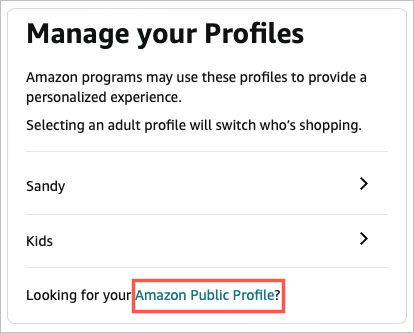
- On the next screen, choose Your Profiles .
- Then, select the link for Amazon Public Profile . Be sure you see a message at the top stating that you are seeing a private view of your public profile.
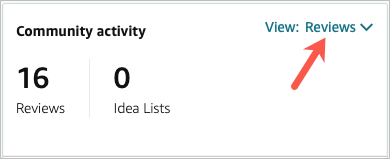
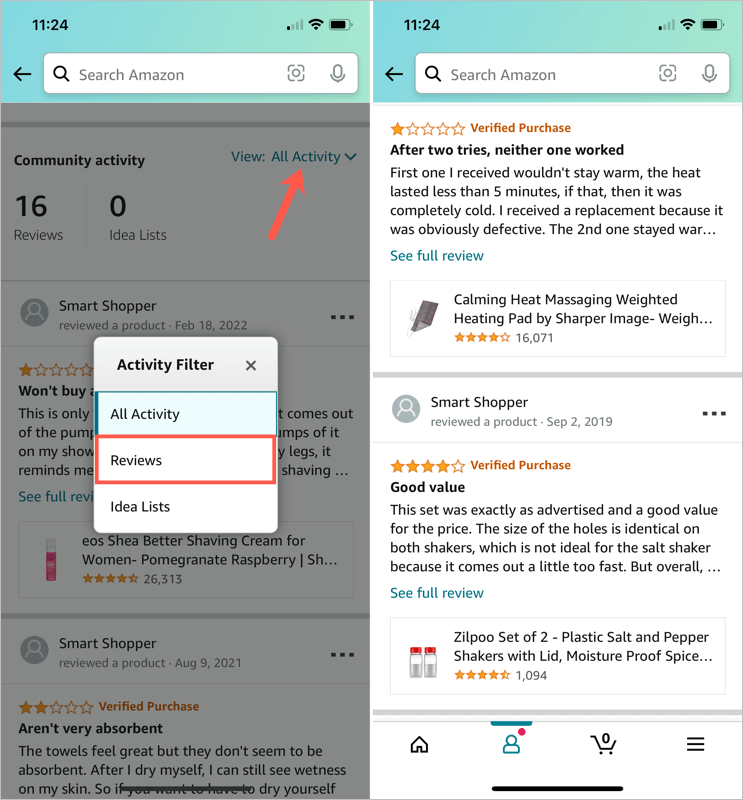
- In the Community Activity section on the right, choose View: All Activity and pick Reviews .
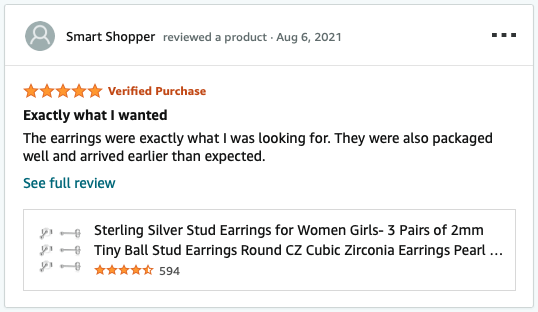
You’ll then see a list of all your submitted reviews. You can use See Full Review to see just that or select the product you reviewed to view its detail page.
See Reviews in the Mobile App
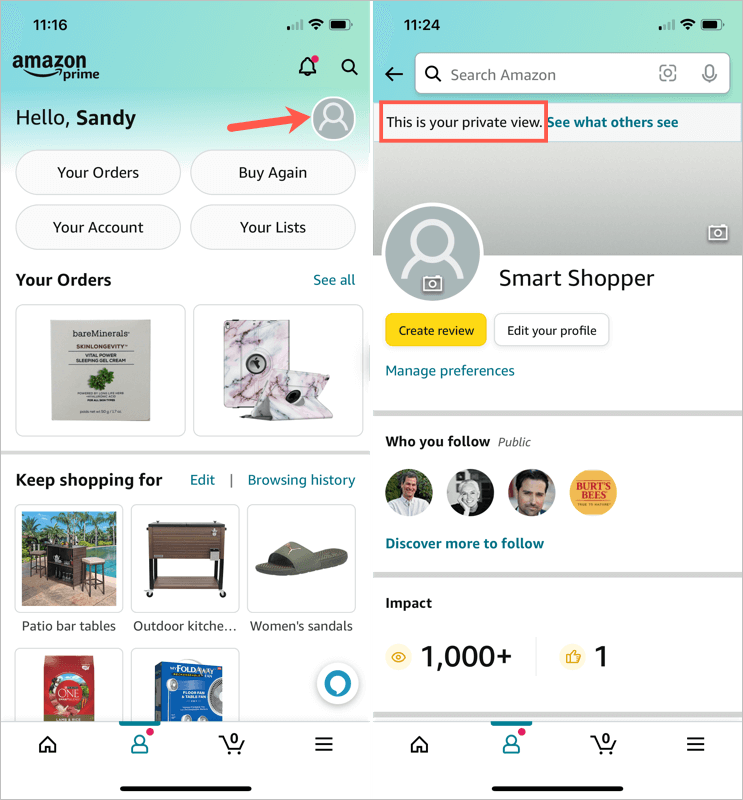
- Open the Amazon mobile app and go to the profile tab.
- Tap your Amazon profile icon in the top right corner. You should see a message at the top letting you know this is the private view of your public profile.
- In the Community Activity section, choose View: All Activity and pick Reviews .
You’ll then see all of your submitted reviews. You can tap See Full Review or select the product to view its detail page.
Maybe you left a positive review for a product and have changed your mind. Or perhaps you did the opposite and left a negative review and have a change of heart. You can edit or delete your own reviews easily.
Edit or Delete a Review on the Web
- Either select the three dots on the top right of a review or use See Full Review .
- Then pick Edit Review or Edit . To remove the review, select Delete Review or Delete instead and then confirm the deletion.
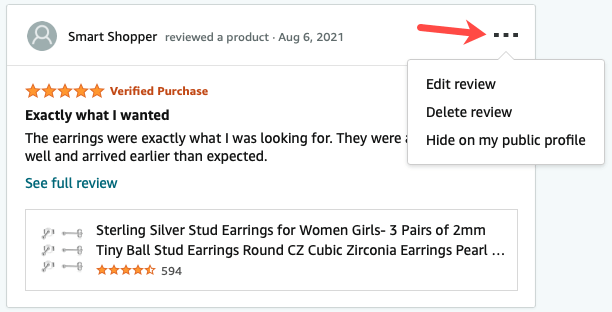
- If you choose to edit the review, you’ll see your review, including stars, photos, and written content as you submitted it. Make your changes and select Submit .
Edit or Delete a Review in the Mobile App
- Tap the three dots on the top right of a review or select See Full Review .
- Pick Edit Review or Edit . To remove the review instead, select Delete Review or Delete and then confirm the deletion.
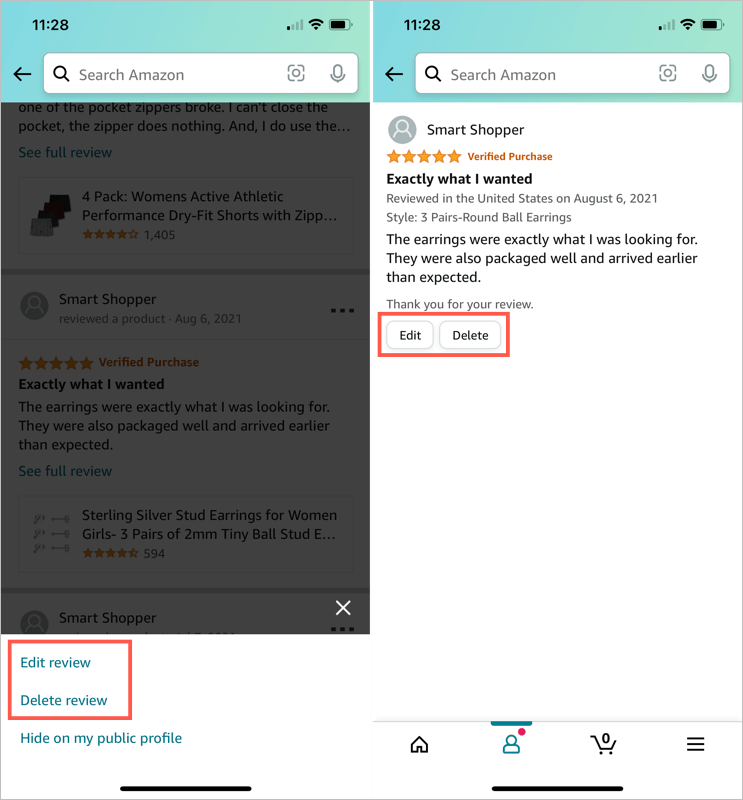
- If you decide to edit the review, make your changes and select Submit .
- Amazon Fire Stick Home Screen Not Loading? 9 Ways to Fix
- How to Share Your Amazon Cart
- How to Delete a Delivery Address From Amazon
- Deleting Order History from Amazon: All You Need to Know
- How to Cancel Amazon Gift Card Order (and Get a Refund)
