You can link texts to a webpage, email address, files, and folders in Microsoft Word. It’s also possible to hyperlink to a section of your current document. We’ll show you how to add different hyperlinks to Microsoft Word documents on Windows and Mac computers.
Hyperlink to a Website or Webpage
- Use your mouse, keyboard arrow keys, or computer’s touchpad to highlight/select the text(s) you want to hyperlink.
- Right-click the selected text and select Link to open the “Insert hyperlink” window.
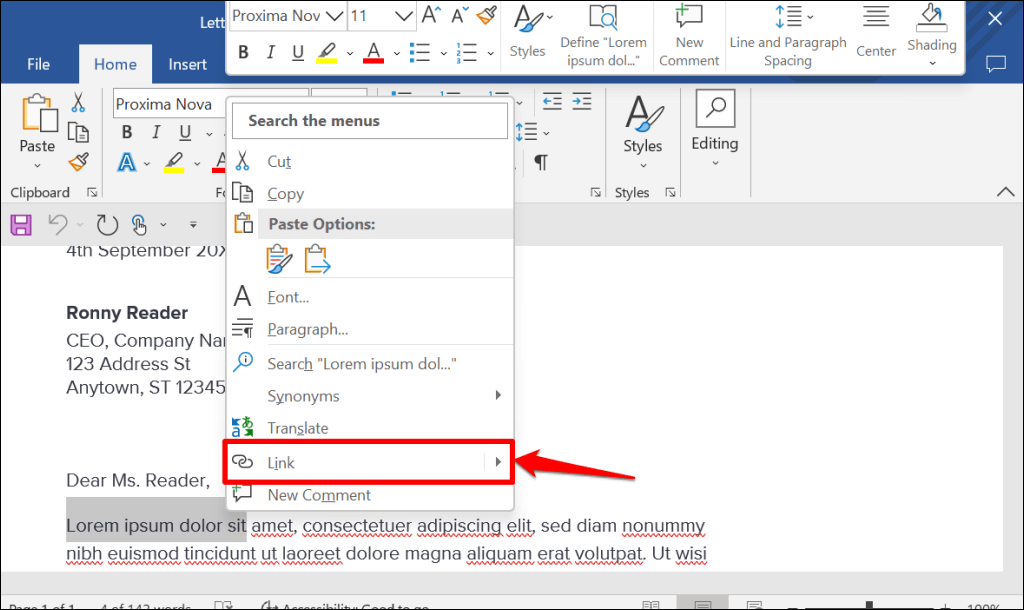
Quick Tip: Use the Ctrl + K (Windows) or Command + K (Mac) keyboard shortcut to open the Insert Hyperlink window quickly.
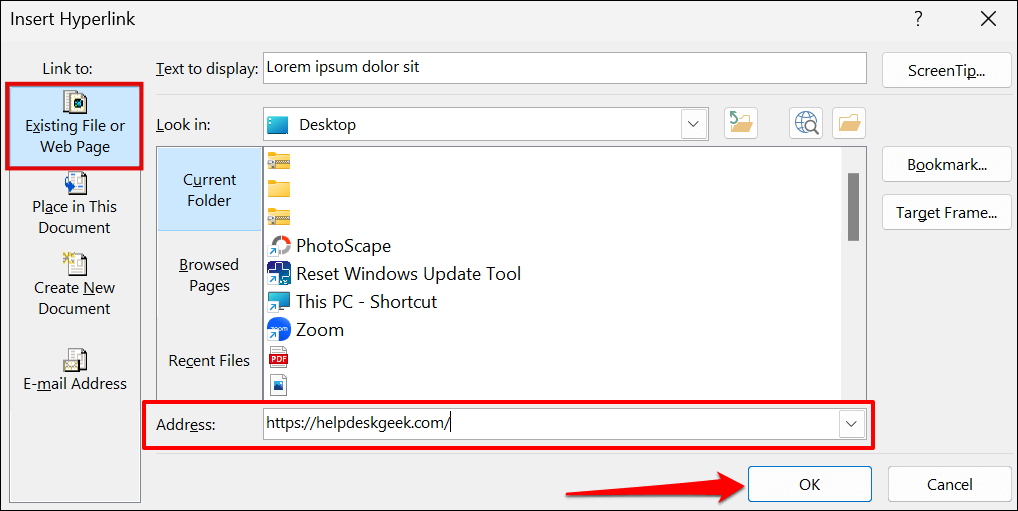
- Select Existing File or Web Page on the “Link to:” sidebar. Next, enter the URL of the webpage you want to hyperlink in the “Address” text box and select OK .
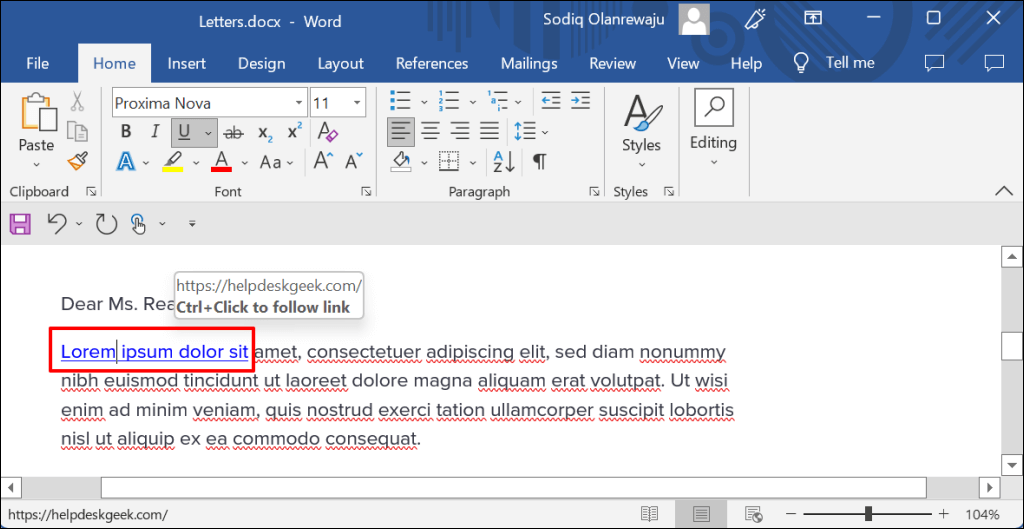
- The hyperlink will have a blue text color and be underlined. Press Ctrl (Windows) or Command (Mac) and click the link to open the webpage in your computer’s default web browser.
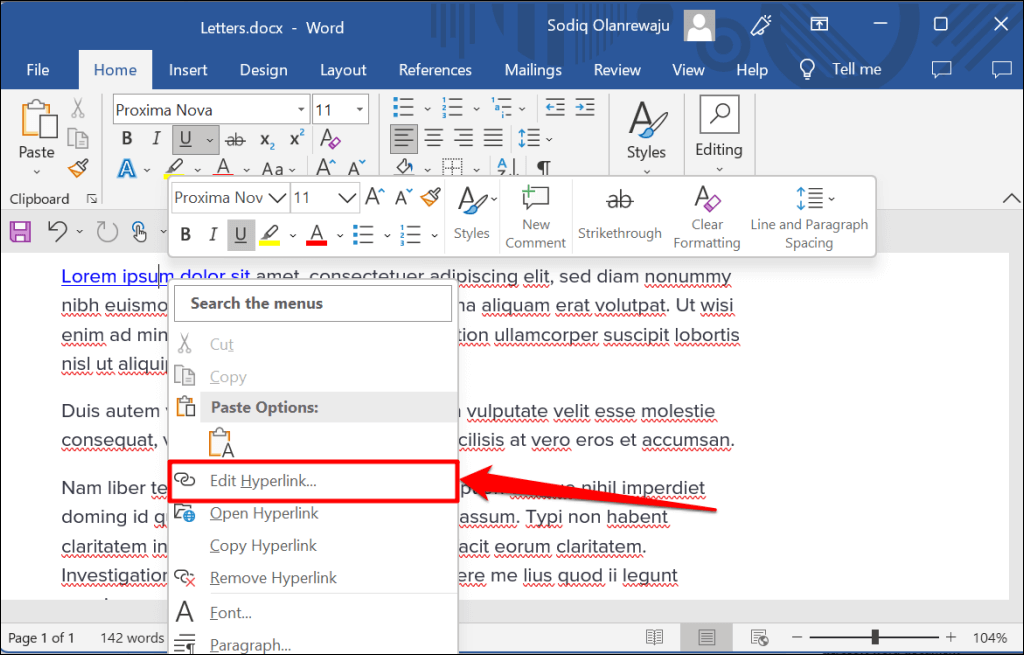
- To change the webpage or website URL, right-click the hyperlink, and select Edit Hyperlink .
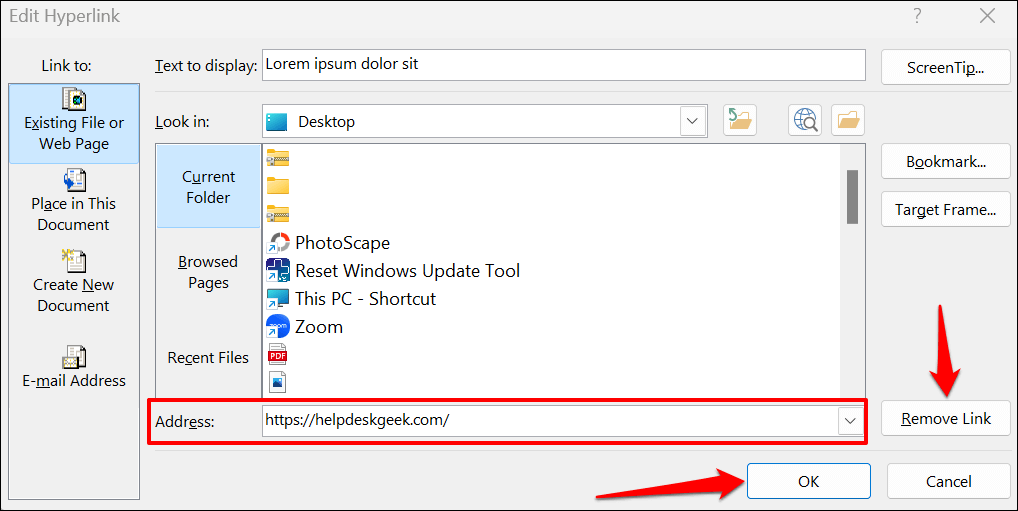
- Enter a new website URL in the address box and select OK —select Remove Link to delete the hyperlink.
Hyperlink to an Existing File
Follow the steps below to hyperlink texts to an existing file or folder.
- Highlight or select the text you want to hyperlink and press Ctrl + K (Windows) or Command + K (Mac).
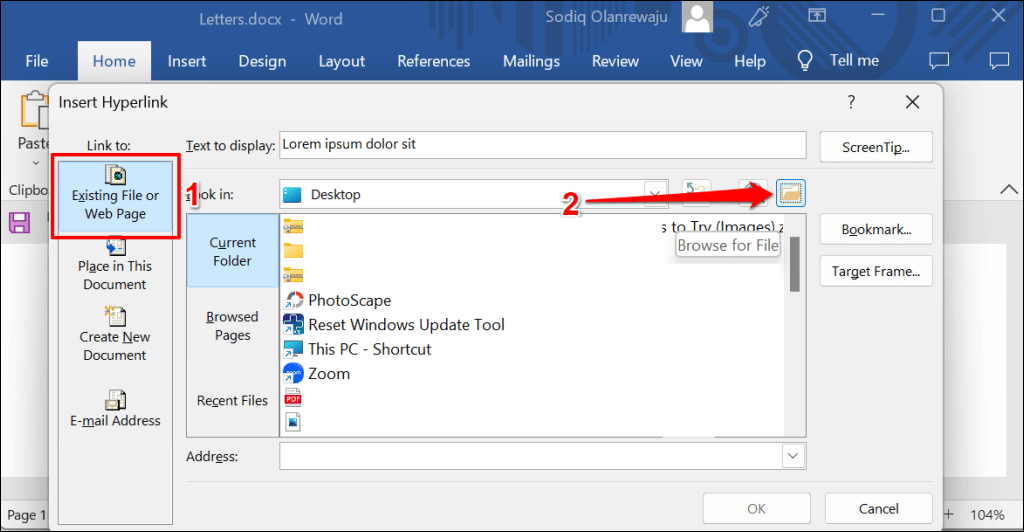
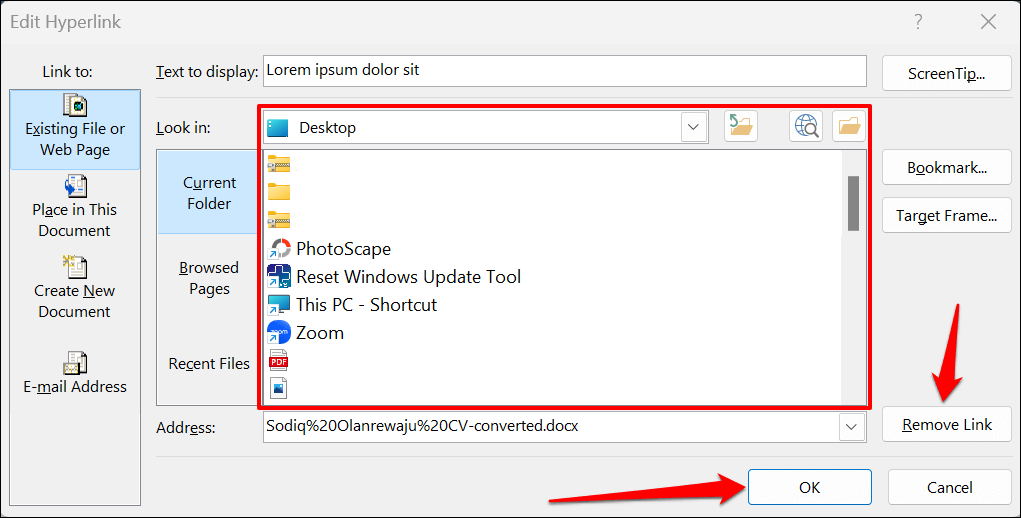
- Select Existing File or Web Page on the sidebar, select the Browse for File icon, and choose the file or folder you want to hyperlink.
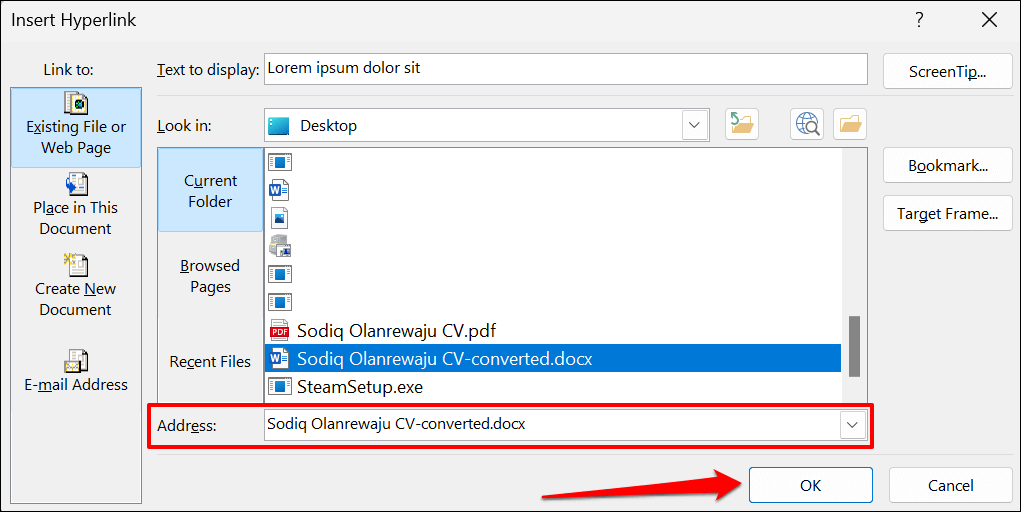
- The file/folder name should be in the “Address” box. Select OK to hyperlink the file/folder to the text in your Word document.
- To open the hyperlinked file/folder, press Ctrl (Windows) or Command (Mac) and click the anchor text.

- To change the file/folder, right-click the hyperlink and select Edit Hyperlink .
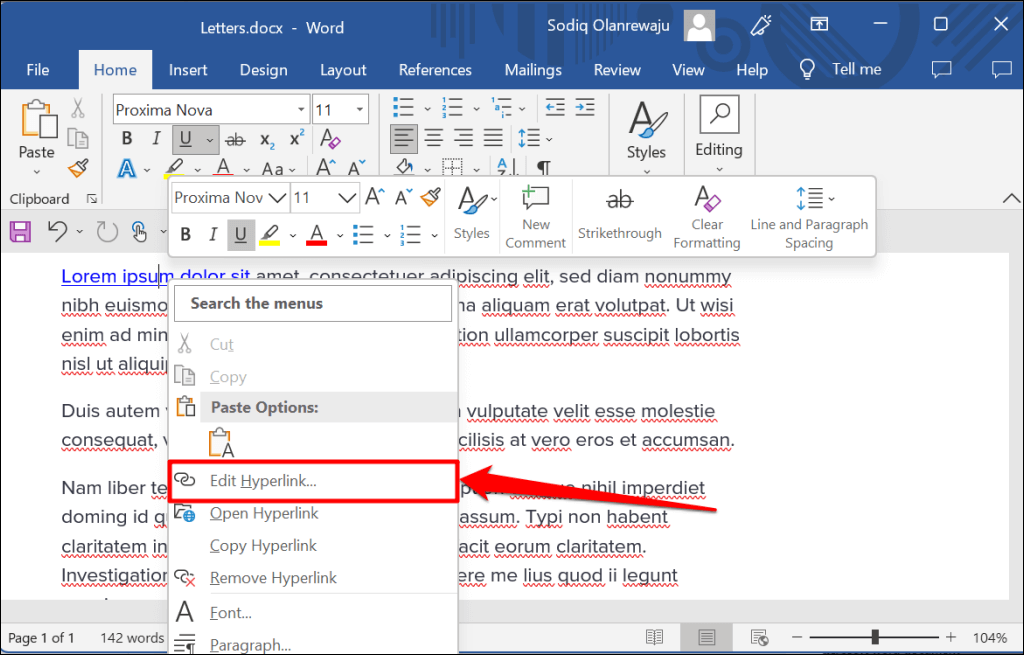
- Choose a new file or folder and select OK . Select Remove Link to unlink the file/folder from the text.
Hyperlink to a New Document
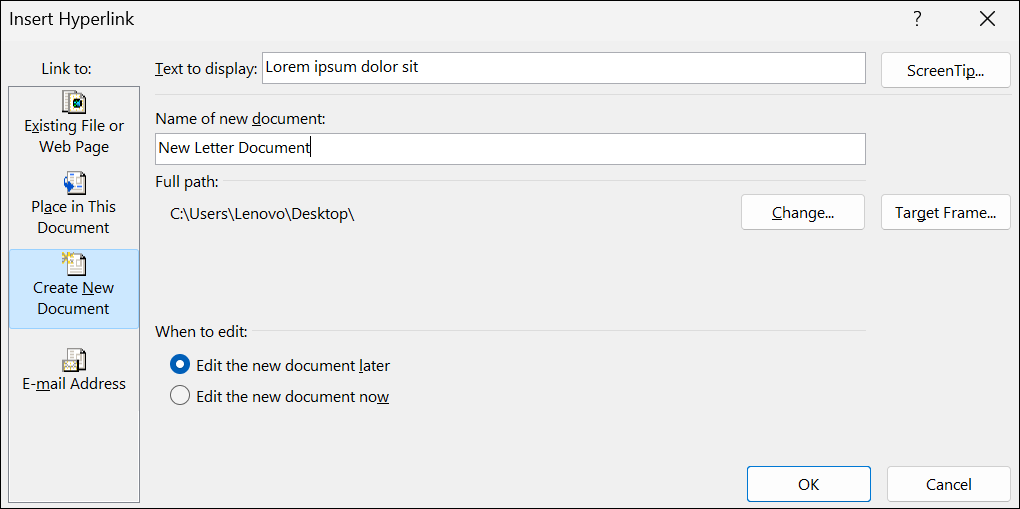
Word has a hyperlink feature that creates a new, blank document.
- Select the text you want to hyperlink and press Ctrl + K (Windows) or Command + K (Mac).
- Select Create New Document on the sidebar and enter a name for the new document. Also, choose the folder where Word saves the document and whether you want to edit the document immediately or later.
- Select OK to create the hyperlink.
Hyperlink to a Place or Section
As mentioned earlier, it’s possible to link a text to a section in your Word document . When you click the hyperlinked text, Word immediately takes you to that section (heading, bookmark, etc.) of your document.
- Select or highlight the text you want to hyperlink and press Ctrl + K (Windows) or Command + K (Mac).
- Select Place in This Document on the sidebar and choose the section of the document you want to hyperlink. Select OK to proceed.
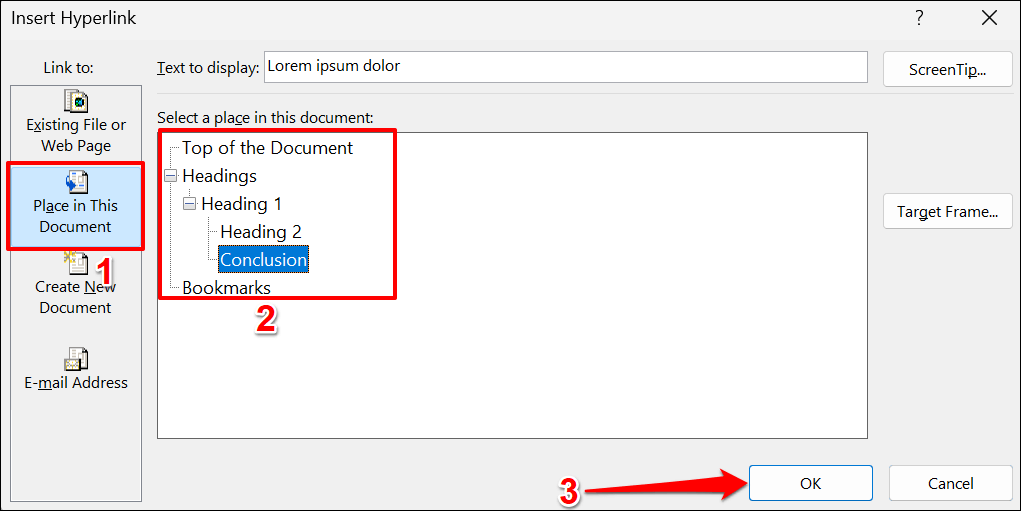
- Press Ctrl (Windows) or Command (Mac) and click the hyperlinked text to jump to the target section of the document.
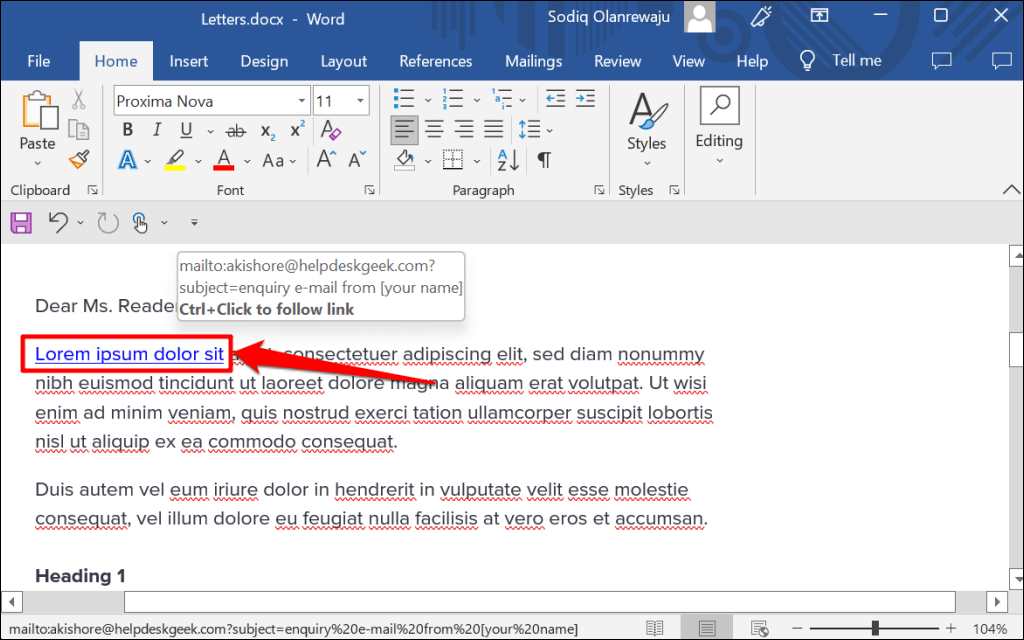
Hyperlink to an Email Address
When a reader clicks a hyperlinked email address, Microsoft Word creates a new email message to the address through the device’s default email app . Follow the steps below to hyperlink texts in a Microsoft Word document to an email address.
- Select or highlight the text you want to hyperlink and press Ctrl + K (Windows) or Command + K ( Mac ).
- Select Email Address on the sidebar, type the target email address, enter a custom subject if you wish, and select OK .
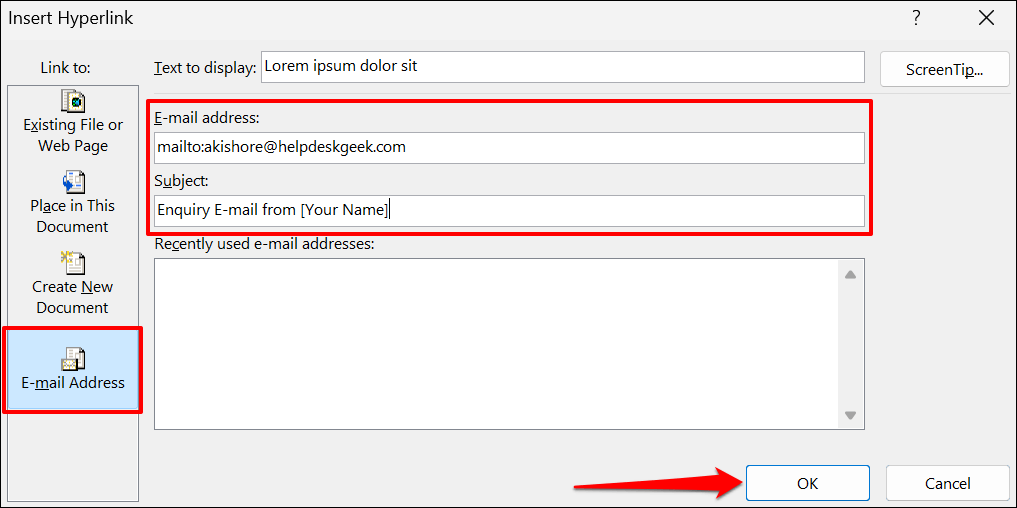
Note: When you type in the “E-mail address” box, Microsoft Word automatically adds a “mailto:” prefix before the target email address.
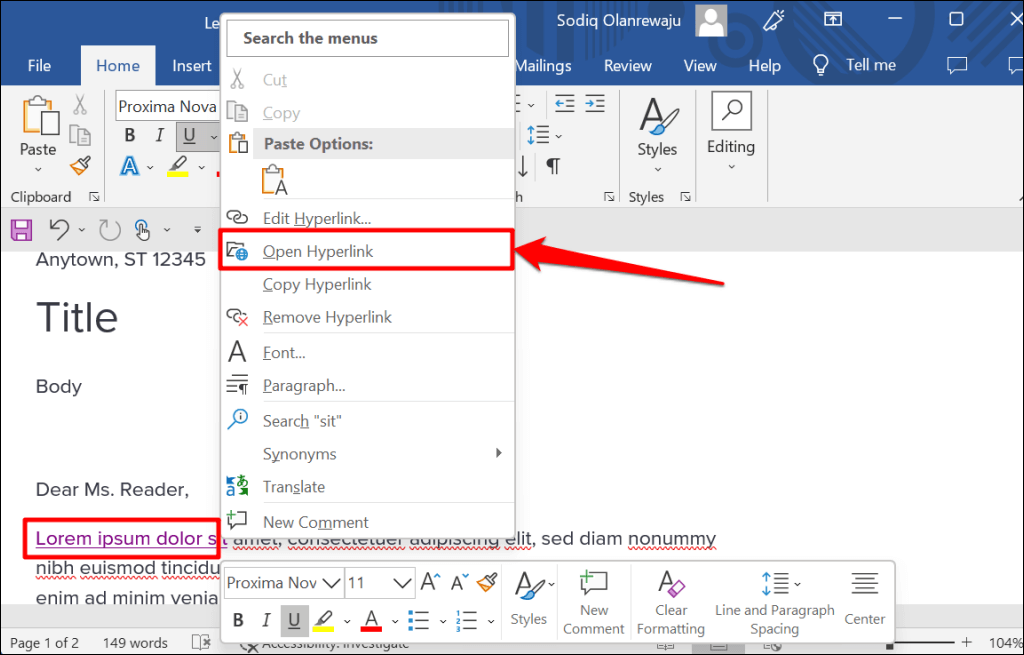
- Microsoft Word should open your email app when you press Ctrl (Windows) or Command (Mac) and click the hyperlinked text. Alternatively, right-click the anchor text and select Open Hyperlink .
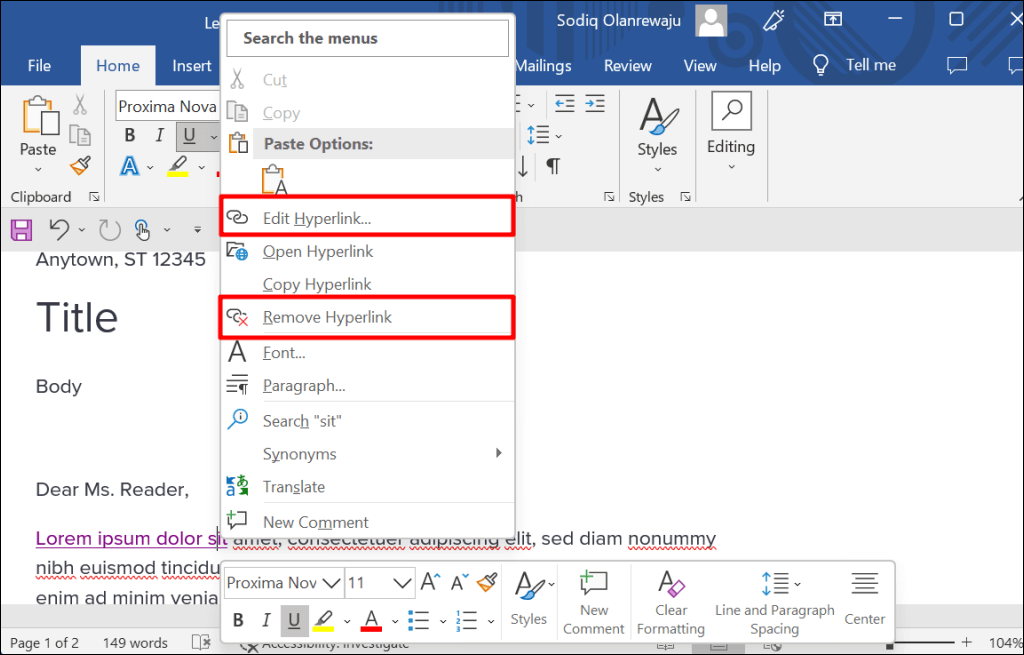
- Right-click the hyperlink and select Edit Hyperlink or Remove Hyperlink to change or delete the linked email address.
Hyperlink in Microsoft Office Applications
You can also use these methods to create or manage hyperlinks in Microsoft Word applications like Excel, Powerpoint, Outlook, etc. Microsoft 365 Online apps have a simplified set of hyperlink features. On the web, you can only link to a web address and sections in your document.
- How to Remove Headers and Footers in Word Documents
- How to Clear Formatting in Word
- How to Remove Unwanted Lines in Word Documents
- How to Select All Text in Word Documents
- How to Insert Arrows in Microsoft Word Documents
Sodiq has written thousands of tutorials, guides, and explainers over the past 4 years to help people solve problems with Android, iOS, Mac, and Windows devices. He also enjoys reviewing consumer tech products (smartphones, smart home devices, accessories, etc.) and binge-watching comedy series in his spare time. Read Sodiq’s Full Bio
