Microsoft OneDrive is an excellent choice for backing up and syncing your files to the cloud on Windows. It integrates smoothly with Windows File Explorer, making interacting, managing, and sharing files a breeze.
If you’re just starting with OneDrive, this tutorial will show you how to set up, add, and use Microsoft’s cloud storage service in File Explorer.
Before You Begin
The best thing about using OneDrive on a PC is that it comes pre-installed on Windows. But if you can’t find OneDrive, you can easily download it from the Microsoft Store or the official OneDrive website .
That said, you need a Microsoft Account to use OneDrive. If you don’t have an account, you must create one while setting up the cloud storage service—it’s free.
Storage-wise, the base OneDrive plan is only 5GB. You can bump that up to 100GB with Microsoft 365 Basic for $19.99 /year or 1TB with Microsoft Microsoft 365 Personal for $69.99 /year.
Sign In to OneDrive
Select the OneDrive icon on the Windows system tray to get started and choose Sign in . You can also search for and open OneDrive via the Start menu.
A Microsoft OneDrive setup screen will show up—enter your Microsoft Account ID into the Email address field to continue. Or, select Create account to create a new account.
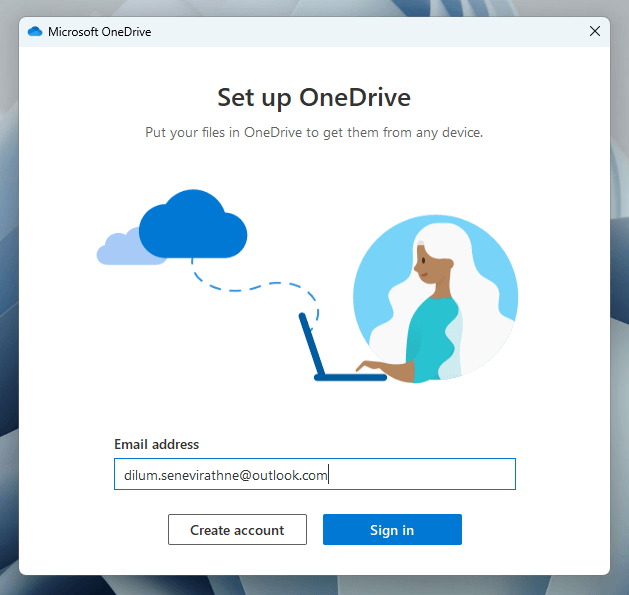
You must then enter your Microsoft Account password. You won’t have to do that if you’re already signed into Windows with the same Microsoft Account.
Set Up OneDrive
Immediately after signing into OneDrive, you must specify your privacy preferences by deciding whether to share diagnostic and usage data with Microsoft. Once you do that, you must determine where you want the cloud storage service to sync your data.
The default location is the root of your Windows user account—select the Change location option if you’d like to pick a different directory.

If you already use OneDrive on other devices, you must decide between syncing all cloud data or only specific items to your PC. If you want to sync everything but have storage concerns, you should be able to use Files On-Demand functionality to manage space (more on that later).
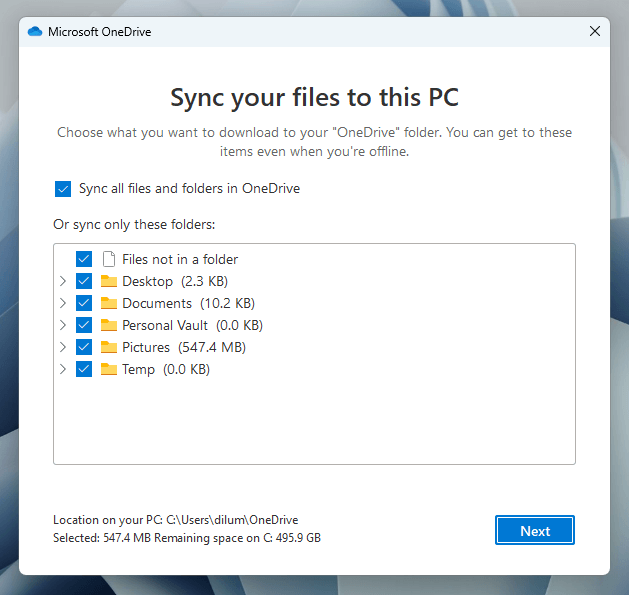
OneDrive will also ask your permission to perform real-time data backups of your Windows user account’s Documents , Pictures , Desktop , Music , and Videos folders.
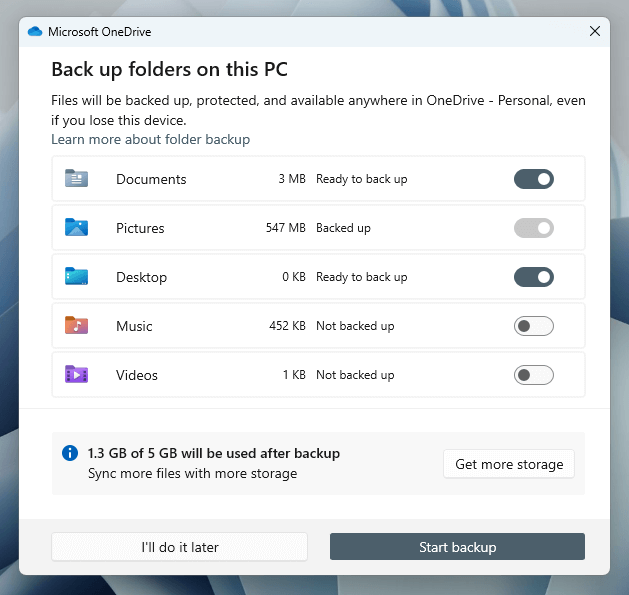
Use the storage estimator to determine the impact on your cloud storage quota after selecting or deselecting each item. If storage is not an issue, choose Start backup . You can always enable and disable backups for each folder later, so feel free to skip this part.
Access OneDrive in File Explorer
Once you finish setting up OneDrive, you’ll find a new entry called OneDrive in the navigation pane on the left-hand side of File Explorer. Selecting it reveals contents already stored on OneDrive, including your user account folders if you opted to sync them during setup.
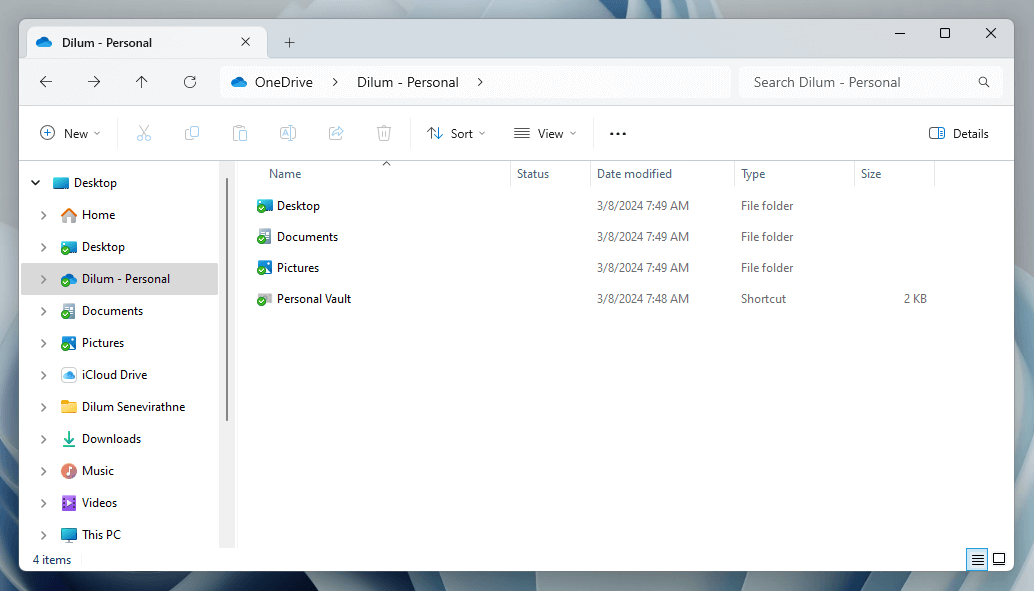
Because of File Explorer integration, you can manage your OneDrive files just like any local file. Right-clicking provides options for sharing, copying, deleting, and more.
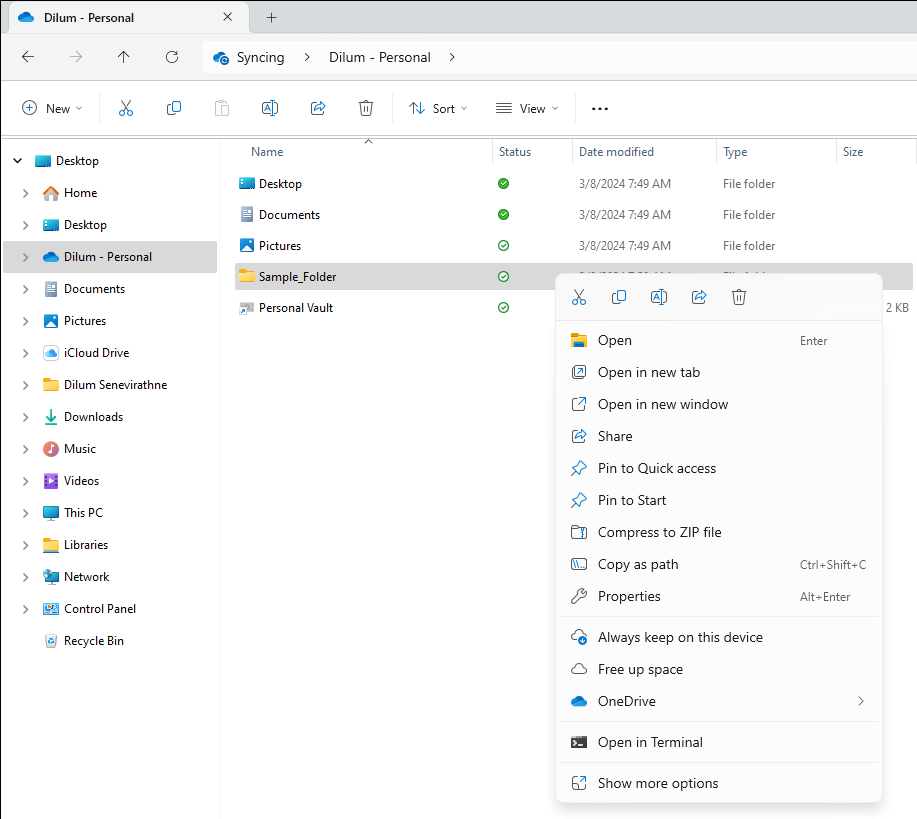
The symbols underneath the Status column denote the sync statuses of files and folders. A green check mark means a fully synced item, while a cloud icon translates to an item stored in the cloud. A rotating circle indicates an item that is actively syncing.
Use Files On-Demand Functionality
OneDrive supports Files On-Demand, meaning that you can store files and folders in placeholder format to conserve storage. Just right-click an item and select Free up space to remove locally stored data and display an online-only thumbnail instead.
File Explorer will fetch the data from the OneDrive servers when you access an online-only item. If you’d like to always make a file or folder available locally, select the Always keep on this device option on the right-click contextual menu.
Share Files and Folders With Others
OneDrive allows you to quickly share files and folders with others directly from within File Explorer. Start by right-clicking an item and selecting Share .
On the Share pop-up, specify who you want to share the item with by adding their name, group, or email. Select the Edit icon and choose between Can edit (default) and Can view to specify the permission level. If you have a paid storage plan, select Sharing settings to add an expiration date and password.
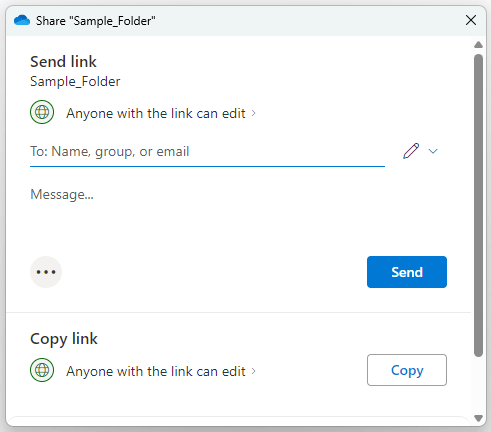
Next, select Send to email a link to the people you want to share the item with or Copy to add a shareable link to the Windows clipboard.
Use OneDrive’s Personal Vault
Personal Vault is a feature in OneDrive that allows you to store sensitive files—e.g., your insurance information—with your Windows user account password or Windows Hello acting as an extra layer of security.
Double-click Personal Vault within the OneDrive folder in File Explorer and follow the on-screen prompts to activate Personal Vault. You can then store up to three files (or more if you pay for extra storage).
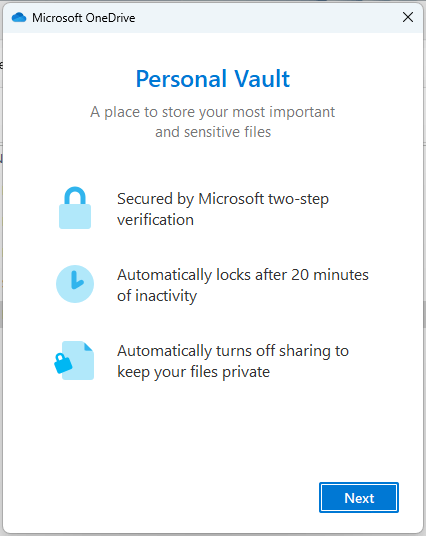
Personal Vault times out after 20 minutes. To lock it before that, select the Lock Personal Vault option on OneDrive’s system tray flyout.
OneDrive’s System Tray Flyout
OneDrive comes with a handy flyout on the Windows system tray. It features shortcuts to your OneDrive folder (opens up in File Explorer), an online recycle bin (you have 30 days to retrieve deleted items), and the OneDrive web app. It also lists the sync statuses of recent items.
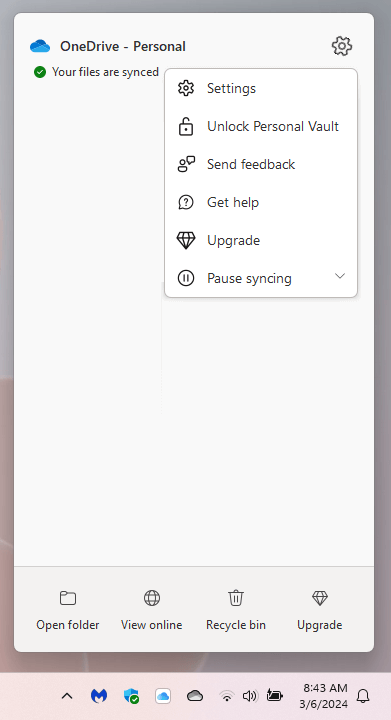
Selecting the Gear icon on the top right of the OneDrive flyout gives you access to the cloud storage’s Settings pane, an option to lock the Personal Vault, and the ability to pause and resume syncing.
Re-Configure Microsoft OneDrive
OneDrive has multiple settings that you can modify to change how the cloud storage service works on your Windows computer. To get to them, select Settings on OneDrive’s system tray flyout.
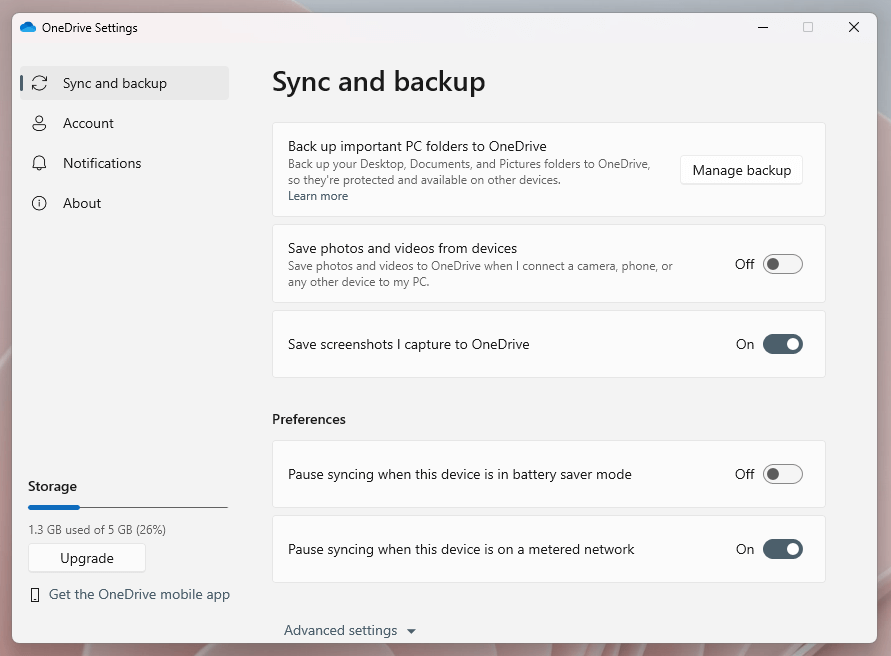
The default Sync and Backup section of the OneDrive Settings pane lets you do the following:
- Choose Windows account folders— Documents , Pictures , Music , etc.—to back up to OneDrive.
- Decide if you want to automatically back up photos and videos from external devices when you connect them to your PC.
- Allow screenshots to save to OneDrive automatically.
- Allow OneDrive to pause syncing on battery saver mode and metered networks.
- Determine the download and upload rates for OneDrive.
- Exclude items with specific file extensions from syncing.
- Enable or disable Files On-Demand functionality.
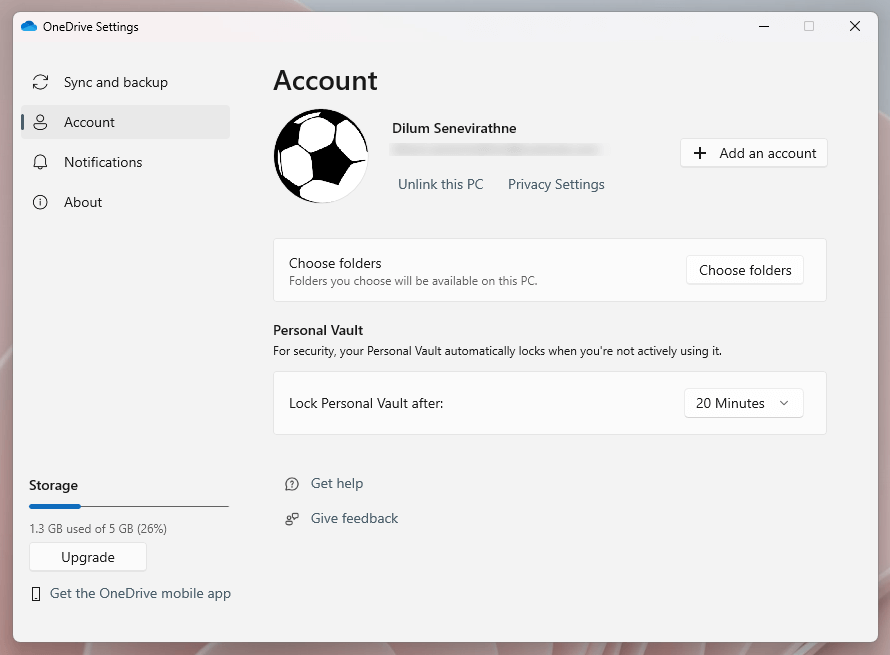
If you switch to the Account section, you can add additional accounts, enable and disable folders in OneDrive from syncing, and determine how quickly the Personal Vault locks itself.
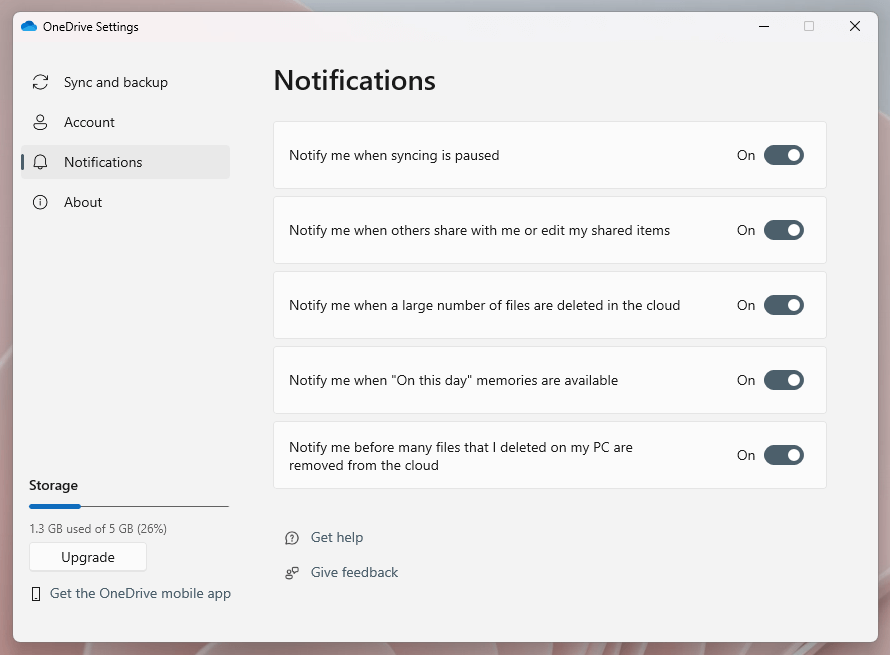
Then there’s the Notifications tab, where you can specify when you want OneDrive to send you notifications—e.g., when syncing is paused, when others share items with you when you have new “On this day” memories , etc.
- How to Reset OneDrive in Windows
- How to Fix a OneDrive Error 0x8004de40
- Sluggish Windows 11 PC? Try These 5 Windows 11 Tricks to Free up Virtual Memory
- How To Turn Off Notifications On Windows 11?
- How to Fix Windows 11 Boot Loops After Jan 2026 Update
Dilum Senevirathne is a freelance tech writer and blogger with three years of experience writing for online technology publications. He specializes in topics related to iOS, iPadOS, macOS, and Google web apps. When he isn’t hammering away at his Magic Keyboard, you can catch him binge-watching productivity hacks on YouTube. Read Dilum’s Full Bio
Windows Hello is a more secure way of logging into your Windows 10 device without struggling to remember your password . The futuristic login technology uses biometric authentication that’s faster, more secure and easier to access your computer using fingerprint or facial recognition, with enterprise-grade security to boot.
These biometric markers allow you to sign into online devices, apps or networks, plus you can pair a Bluetooth device like your smartphone to your computer and use the Dynamic Lock feature in Windows Hello to lock your computer automatically.
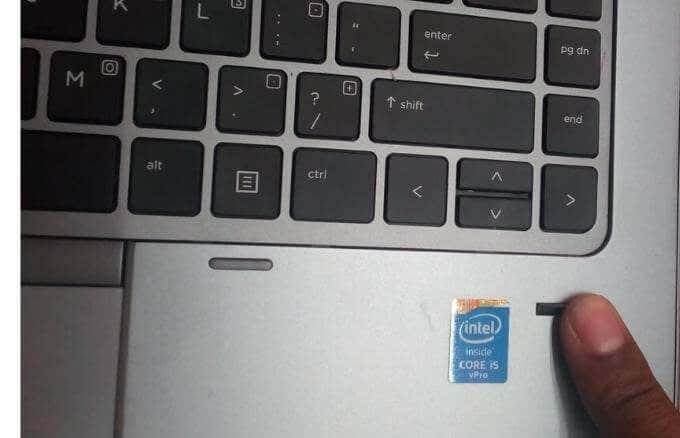
As great as this service sounds, you may sometimes find that the Windows Hello fingerprint is not working because of hardware issues, system corruption, software conflicts, incorrect settings, or faulty, obsolete and incompatible drivers.
If your computer’s fingerprint sign-in with Windows Hello isn’t working, maybe after an update or other changes on your computer, try some of the workarounds in this guide to help you restore the function.
Fixes For Windows Hello Fingerprint Not Working In Windows 10
- Install updates manually.
- Run Hardware & Devices troubleshooter.
- Reset fingerprint & facial recognition options.
- Enable Biometrics in Group Policy Editor.
- Modify Windows Hello Group Policy settings.
- Update System Drivers.
- Perform a Windows Reset.
- Turn off Fast Startup.
- Check for & uninstall updates that caused the problem.
- Reset fingerprint login.
- Reinstall fingerprint software.
- Repair System Files.
- Restart Credentials Manager Service.
How To Fix Windows Hello Not Working In Windows 10

Many reported cases of fingerprint malfunction in Windows Hello are experienced after installing Windows updates, like the 1809 version that caused many issues like system crashes, data loss, failure to boot up, and application crashing among other problems.
Before you use any of the fixes below, check for the following:
- Your device is running Windows 10 and not another version of the operating system; otherwise you can’t use Windows Hello. Consider upgrading to Windows 10 in this case.
- Check that your device has a fingerprint sensor or reader. Some machines may have but they’re probably too old and there’s no available Windows 10 driver for it so the service won’t work.
- Check that your device is compatible with Windows Hello service.
- Check that your internet connection is strong and your device is connected, otherwise Windows Hello won’t work.
- Check for any dust or dirt on the fingerprint scanner as this would affect the reading. If it has any scratches on the sensor, get the machine repaired.
- Use the same finger and position you used when registering your fingerprint with Windows Hello to sign in.
Install Updates Manually
With the Windows Hello fingerprint sign-in not working, you’ll need to revert to using your password or PIN to login and check for Windows Updates manually.
- Once signed in, go to Settings > Update & Security > Windows Update
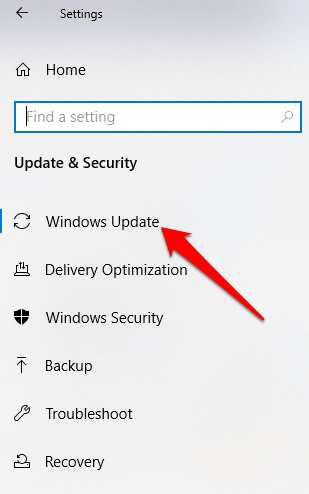
- Install all pending and detected updates, and restart your computer. Try signing in with fingerprint authentication again.
Run Hardware & Devices Troubleshooter
This will scan and detect any possible hardware and devices issue in the system.
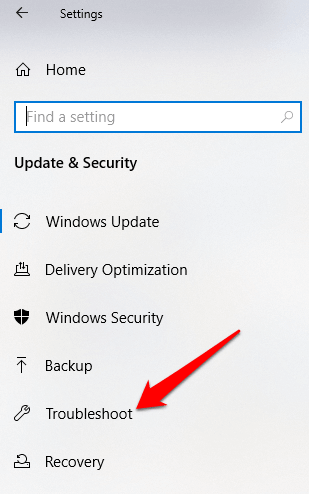
- Click Start > Settings > Update & Security > Troubleshoot .
Reset Fingerprint & Facial Recognition Options
- Click Start > Settings > Accounts .
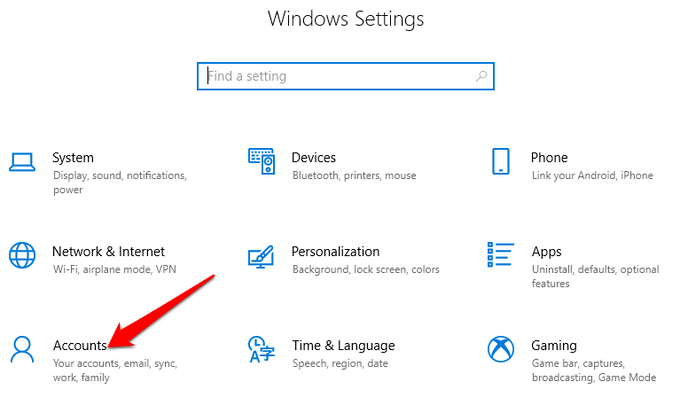
- Click on Sign-in options .
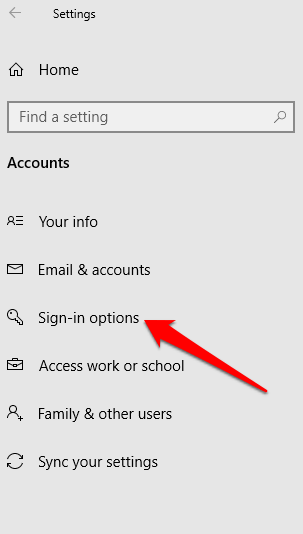
- Find Facial Recognition or Fingerprint options, and click on the Fingerprint option.
- Select Remove , and do the same for Facial Recognition .
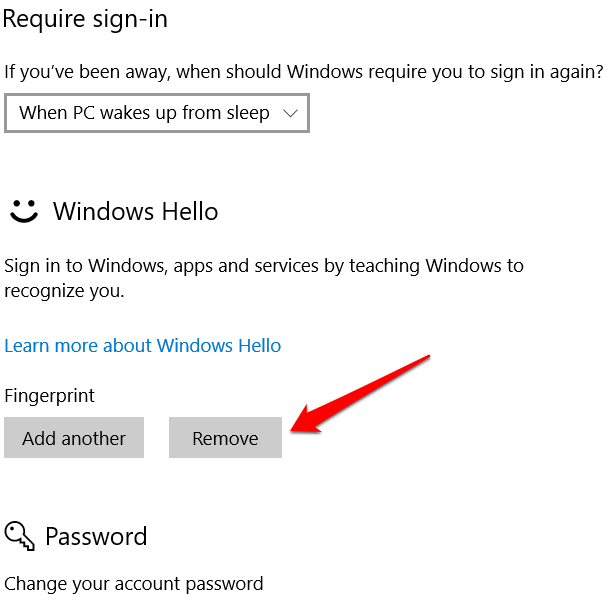
- Next, click Get Started and follow the instructions to reset the Facial Recognition and Fingerprint sign-in options, and then restart your computer.
Enable Biometrics In Group Policy Editor
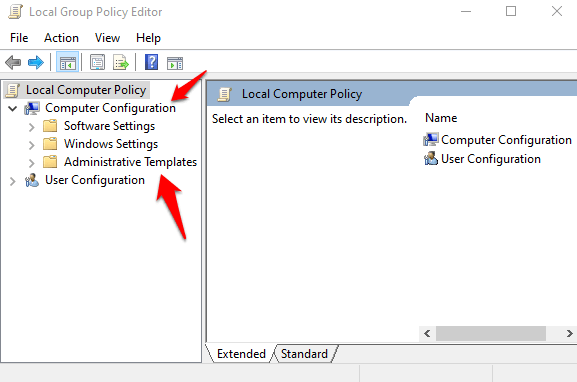
- Type gpedit in the search box and click Edit Group Policy .
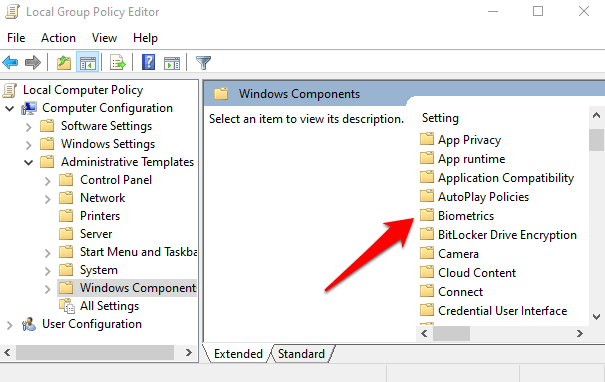
- Click Computer Configuration > Administrative Templates .
- Double-click Windows Components .
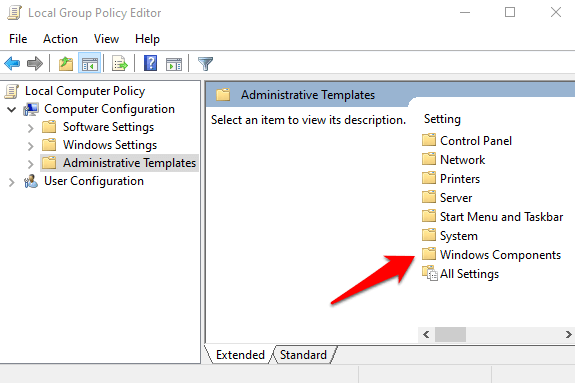
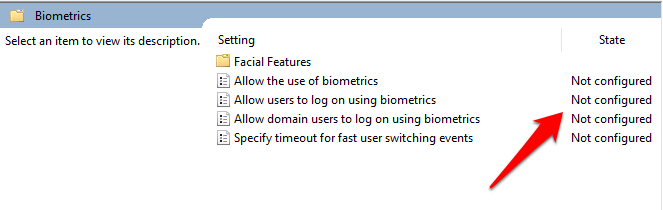
- Double-click Biometrics in the right pane and check whether all its settings are configured.
- If they show Not Configured , this is probably why the Windows Hello fingerprint sign-in isn’t working.
- Right-click each Biometric setting, select Enabled and then click Apply > OK .
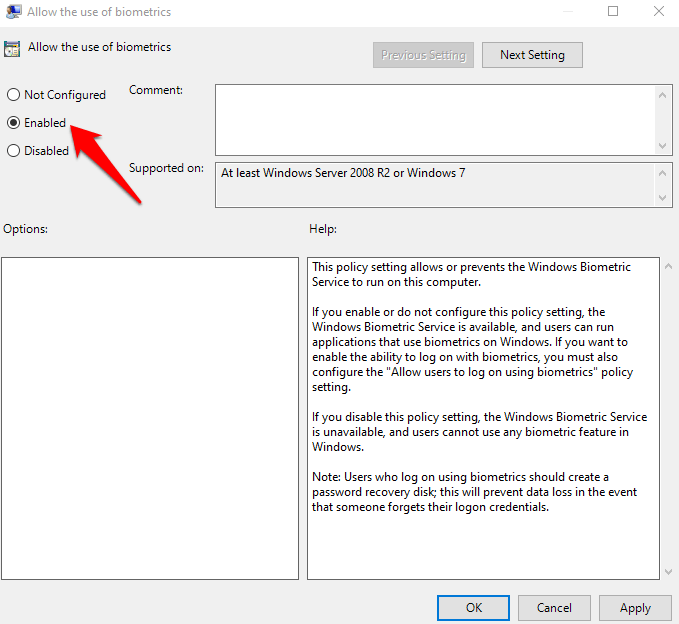
- Double-click Allow user to login using biometrics and select Enabled .
- Click Apply > OK .

Modify Windows Hello Group Policy Settings
A Windows Update may have made some changes to some important Group Policy settings, so you may want to check Windows Hello settings in the Group Policy Editor. The first four steps are the same as the example above.
- Right-click Start > Run . Type gpedit and press Enter .
- Click Computer Configuration > Administrative Templates .
- Next, double-click Windows Components .
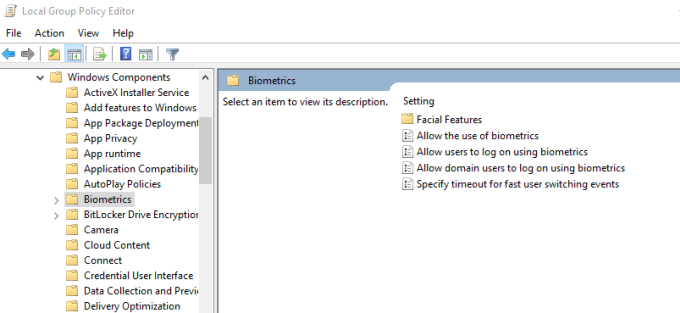
- Double-click Biometrics .
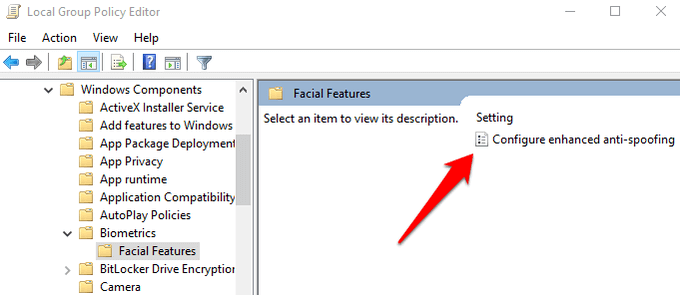
- Double-click Facial Features .
- Right-click Configure enhanced anti-spoofing and select Edit .
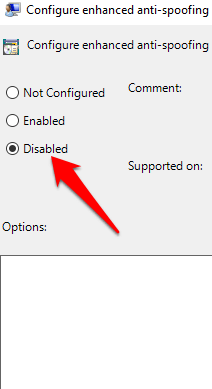
- Disable Configure enhanced anti-spoofing and restart your computer to see if it resolves the Windows Hello fingerprint sign-in problem.
Update System Drivers
Some drivers, in this case the fingerprint reader driver, may have been corrupted at some point, either during an update or other process, causing the fingerprint sign-in to malfunction.
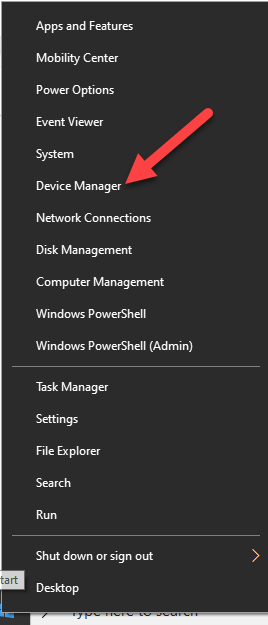
- To resolve that, you can update the drivers by right-clicking Start > Device Manager .
- Find the relevant drivers under Biometric devices , right-click your device and select Remove driver software .
- Do this for all drivers related to Windows Hello and restart your device.
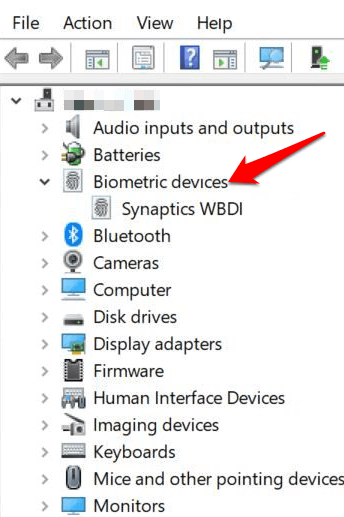
- Right-click and select Scan for hardware changes and the system will detect and install the drivers again.
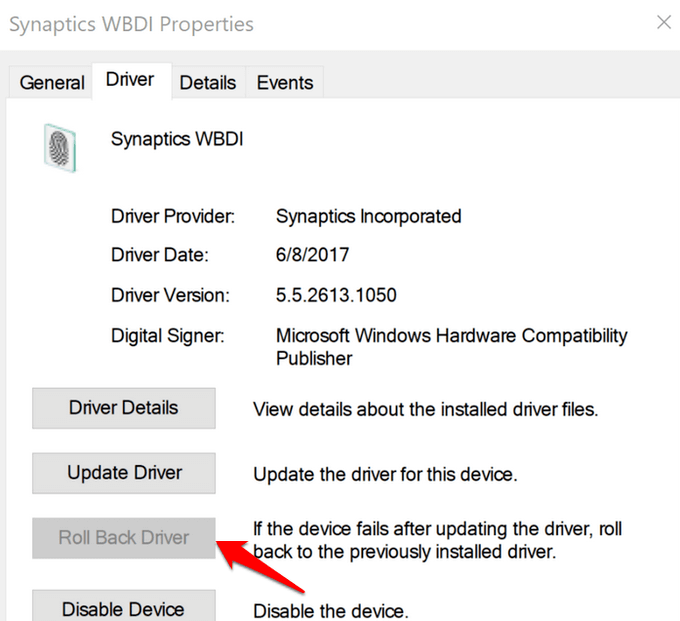
- You can also roll back the corrupted or outdated driver to its previous version by double clicking Biometric Devices and select Roll Back Driver in the properties section.
- Click OK once it’s done.
Perform a Windows Reset
When you reset your Windows device, it repairs damages to all the system files so that Windows Hello can work normally again. It also resets your device settings to the default Windows settings.
- To refresh the device, go to Settings > Update & Security > Recovery > Reset this PC and click Get Started .
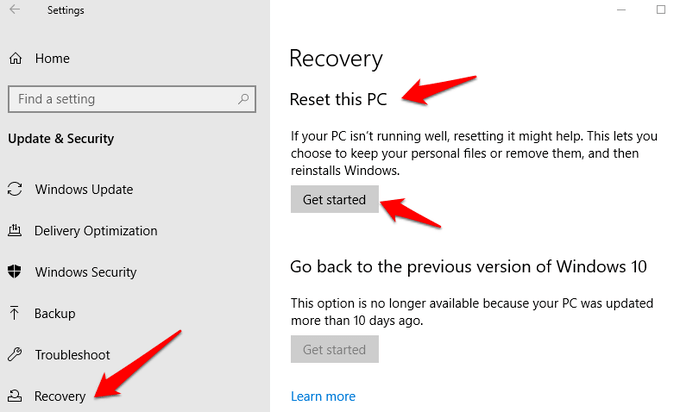
Note: This action will permanently erase your computer data so ensure you backup or copy your data to external or cloud storage before doing anything.
Turn Off Fast Startup
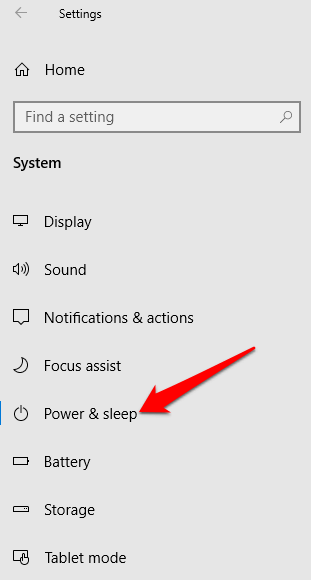
- Click Start > Settings > System > Power & Sleep
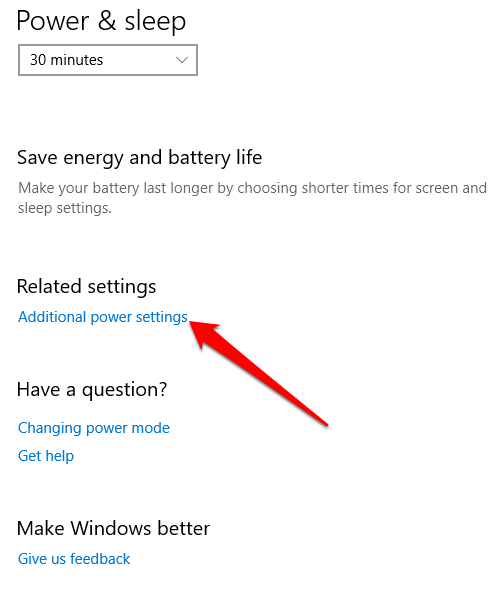
- Click Additional Power Settings .
- Next, click Choose what Power button does .
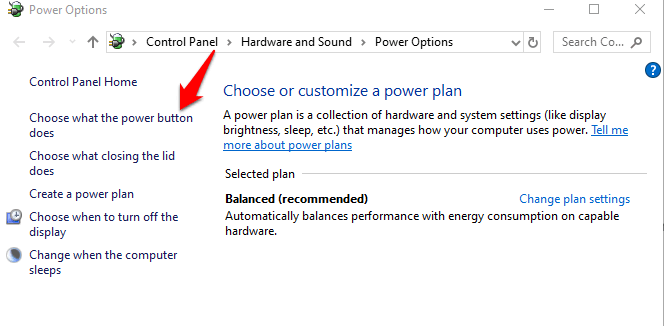
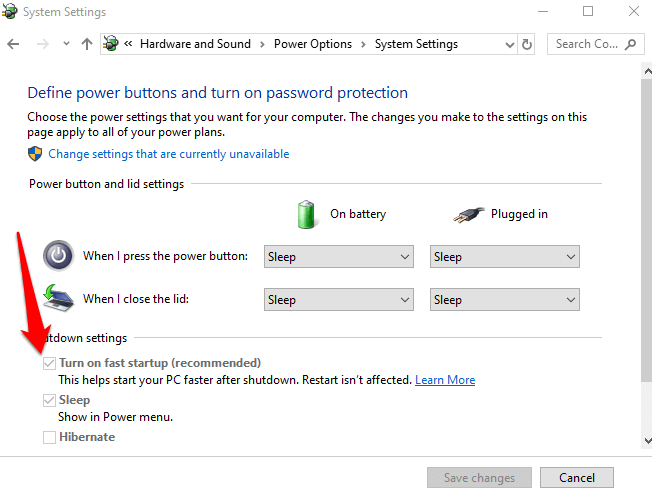
- Click Change Settings that are unavailable and uncheck the Fast Startup box if it’s selected, and click Save changes .
Check For & Uninstall Updates That Caused The Problem
If the fingerprint sign-in issues first started after installing Windows Updates, check for the installed updates and uninstall them.
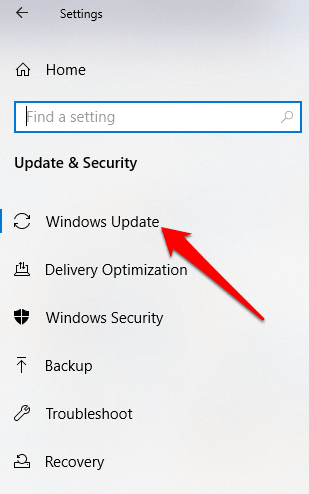
- Click Settings > Update & Security > Windows Updates .
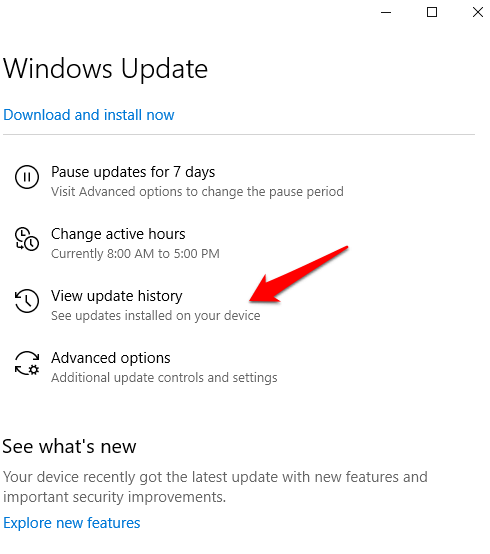
- Go to View Update History .
- Click the Uninstall Updates link.
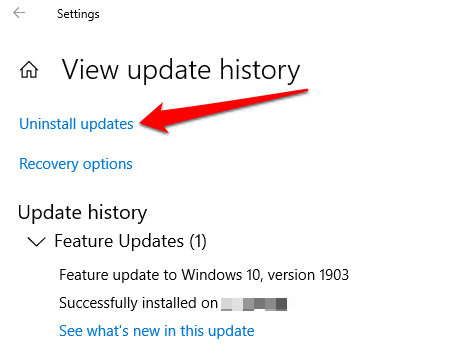
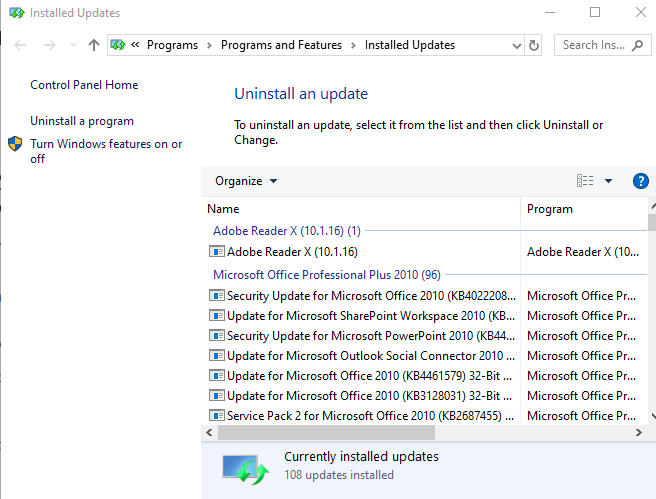
- A new screen will open showing the Installed Updates . Right-click each and select Uninstall .
- Restart your computer and check if Windows Hello fingerprint sign-in works again.
Reset Fingerprint Login
If the issue persists, you can reset your fingerprint login and see if that helps.
- In the search box, type sign-in and press Enter to open the Accounts menu.
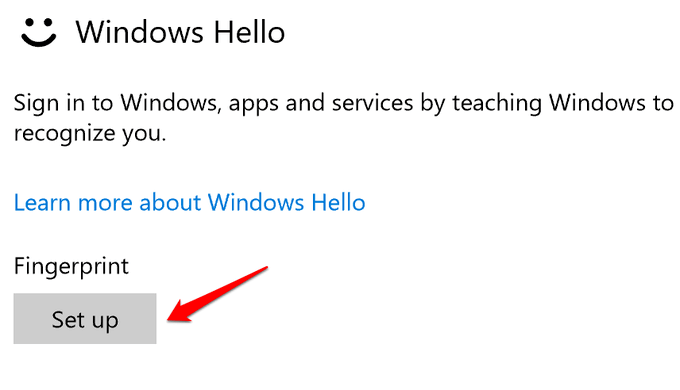
- Go to Sign-in options and click Set up under the Windows Hello Fingerprint section.
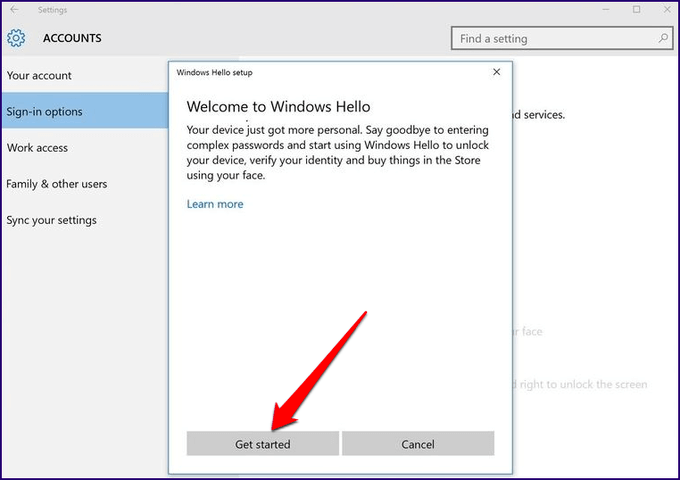
- Click Get Started and follow the instructions to set up your fingerprint sign-in again.
Reinstall Fingerprint Software
- Click Start > Settings > Apps . In Apps and Features .
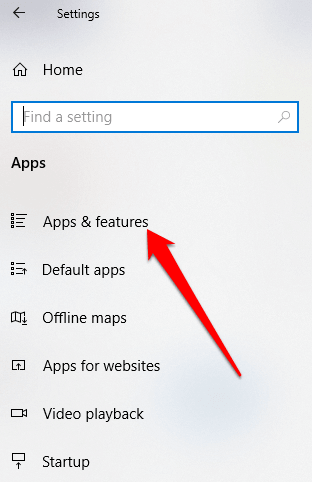
- Find your fingerprint reader and click on it. Click Uninstall and confirm the action.
- Right-click Start > Device Manager and expand the Biometric devices category.
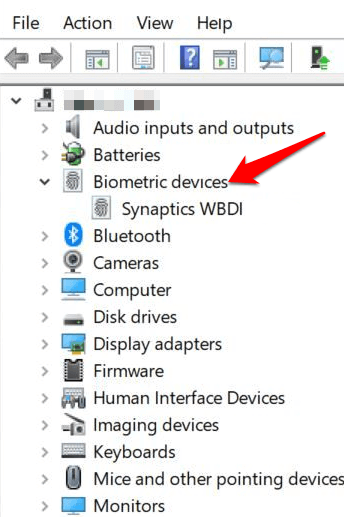
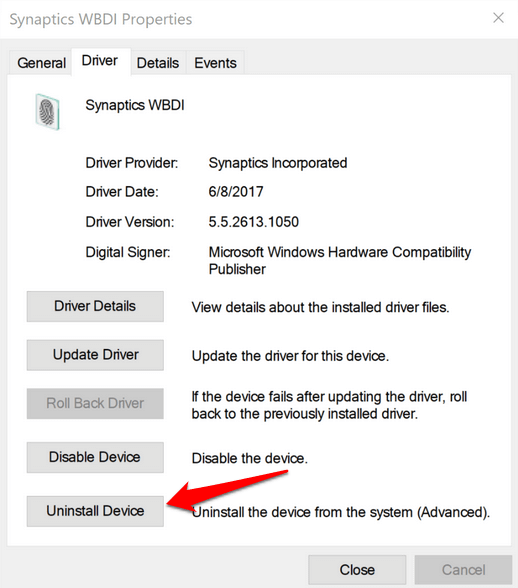
- Find your fingerprint reader, right-click, then select Uninstall device, and confirm the action.
- Restart your computer to apply the changes and check if fingerprint works again.
- You can prevent your computer from disabling the fingerprint reader by going to Device Manager > Universal Serial Bus Controllers category and find the USB Root Hub .
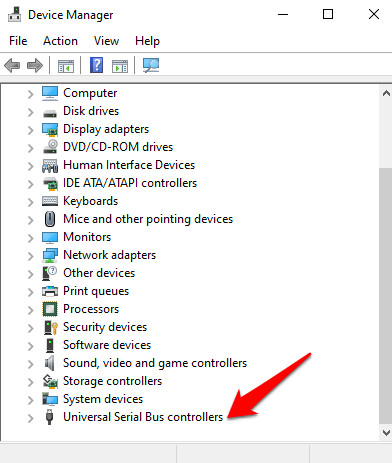
- Double-click USB Root Hub to open its Properties .
- Uncheck the Allow the computer to turn off this device to save power option box under the Power Management tab. Repeat for all USB Root Hub entries.
Repair System Files
File corruption is one of the causes of the fingerprint reader malfunctioning when you’re trying to sign in using the Windows Hello service. you can use the built-in System File Checker to rectify things.
- Type CMD in the search box and select Command Prompt>Run as administrator.
- In the Command Prompt dialog box, type sfc /scannow and press enter to run the command.
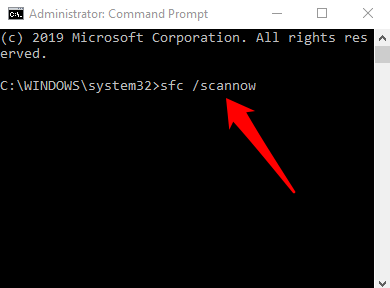
The system files will be scanned, after which you can restart your computer and see if the fingerprint issue is resolved.
Restart Credentials Manager Service
- Right-click Start > Run and type services.msc. Press Enter to open the Services window and search for the Credential Manager Service .
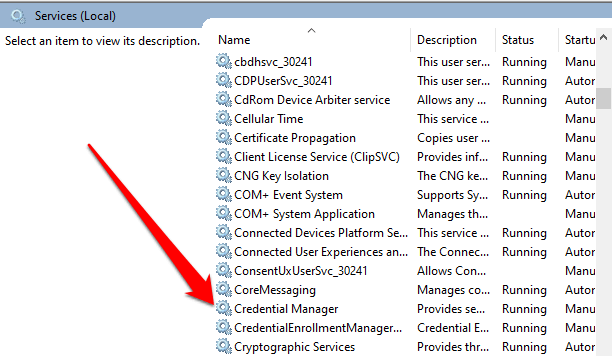
- Double-click the Credential Manager Service to open the Properties window and go to Service Status .
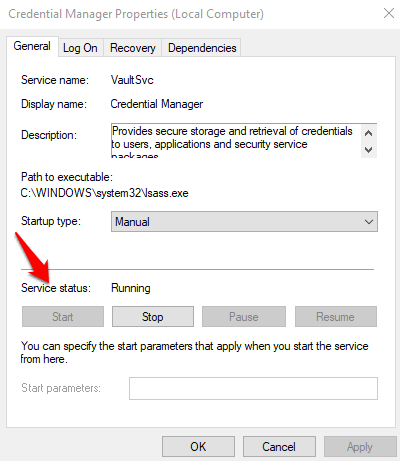
- Click Stop , and then click the Start button again to restart the service.
- Click Apply>OK and check if the fingerprint works again.
If nothing else works, you can switch to a different fingerprint reader.
- Preparing for Windows 10 End of Support: Upgrading to Windows 11
- How to Fix a “This file does not have an app associated with it” Error on Windows
- How to Fix an Update Error 0x800705b4 on Windows
- How to Resolve “A JavaScript error occured in the main process” Error on Windows
- How to Fix the Network Discovery Is Turned Off Error on Windows
Elsie is a technology writer and editor with a special focus on Windows, Android and iOS. She writes about software, electronics and other tech subjects, her ultimate goal being to help people out with useful solutions to their daily tech issues in a simple, straightforward and unbiased style. She has a BCom degree in Marketing and currently pursuing her Masters in Communications and New Media. Read Elsie’s Full Bio
