If you’re active online, keeping your Gmail address hidden is quite difficult. Someone’s going to add you to their email blast list, or they’ll start emailing you directly. There also might be a time when you don’t want to receive emails from someone you’ve previously talked to.
How To Block Emails On Gmail Web
You can block emails directly from the email interface (just like you can on Instagram and Facebook). There’s no need to create a special filter to send an email address to the Spam folder. The block email feature in Gmail will do it for you.
- Open the Gmail website in the browser of your choice and log in with your credentials.
- Open an email from the sender you want to block.
- Click the Menu button from the top-right corner.
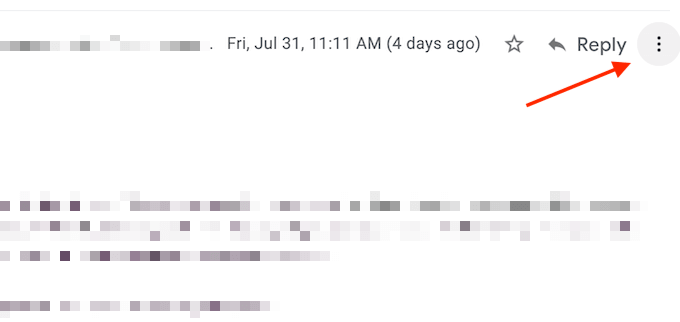
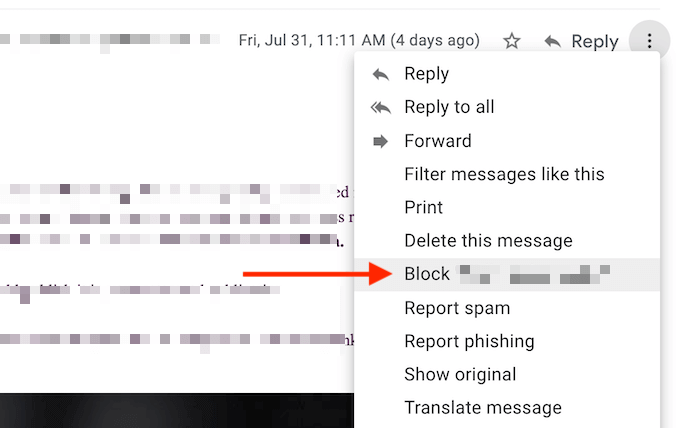
- Select the Block (Sender) option.
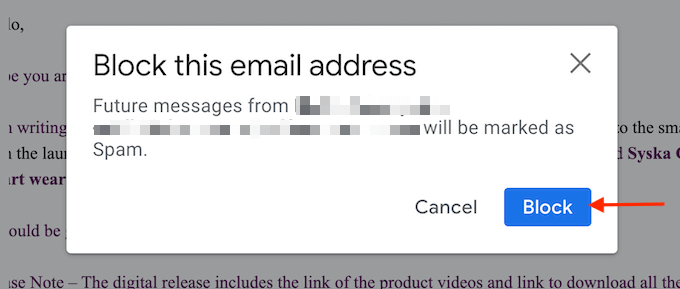
- From the popup, confirm by clicking the Block button.
- Gmail will now tell you that all new emails from this sender will go to spam. If you want to send the current email to spam, you can click the Move to Spam button.
How To Block Emails On Gmail On Mobile
The process of blocking emails on the Gmail app for iPhone and Android is very similar.
- Open the Gmail app on your iPhone or Android smartphone and make sure you’re logged in with the right account.
- Open the email you want to block.
- Tap the Menu button from the top-right corner.
- From the popup, tap the Block (Sender) button.
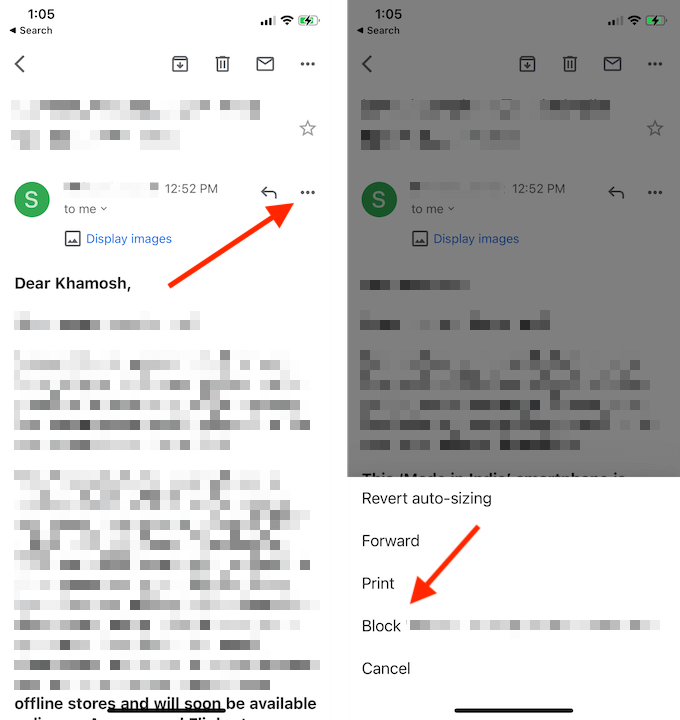
- The sender will be blocked instantly (unlike Gmail for the web, you don’t need to confirm the action).
- If you want to send the email to spam, you can tap the Report Spam button.
How To Unblock An Email Sender
Want to receive emails from a blocked sender? You can reverse your decision and unblock an email sender at any time.
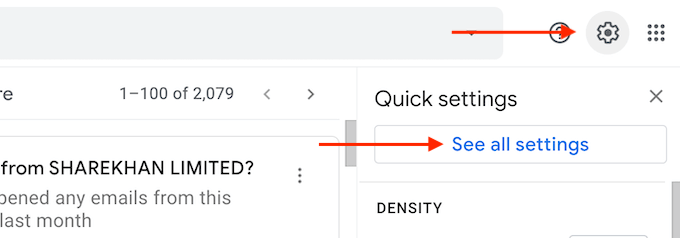
- Open the Gmail website in your browser. From the Inbox, click the Settings icon and choose the See All Settings option.
- Here, go to the Filters and Blocked Addresses section.

- Scroll down to the bottom of the section. Here, you’ll see a list of all the blocked addresses. To unblock one, click the Unblock button.
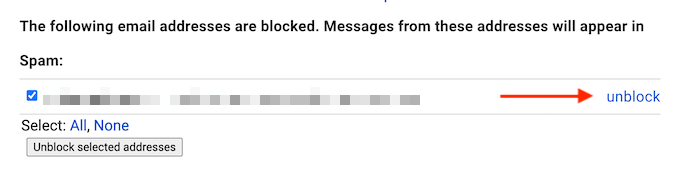
- If you want to unblock multiple addresses, select them, and then choose the Unblock Selected Addresses button.
- From the popup, confirm your action using the Unblock button.
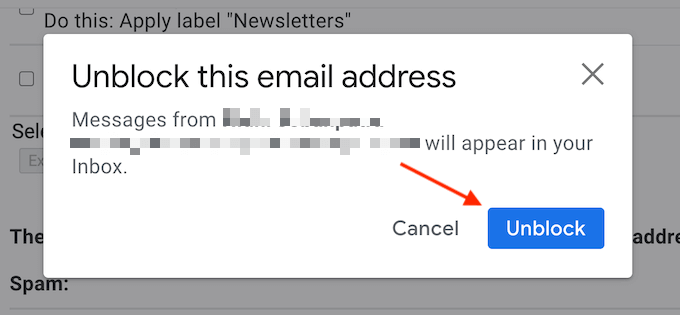
Now, the email address won’t be marked as spam. New messages from the email will now end up in the Inbox instead of the Spam folder.
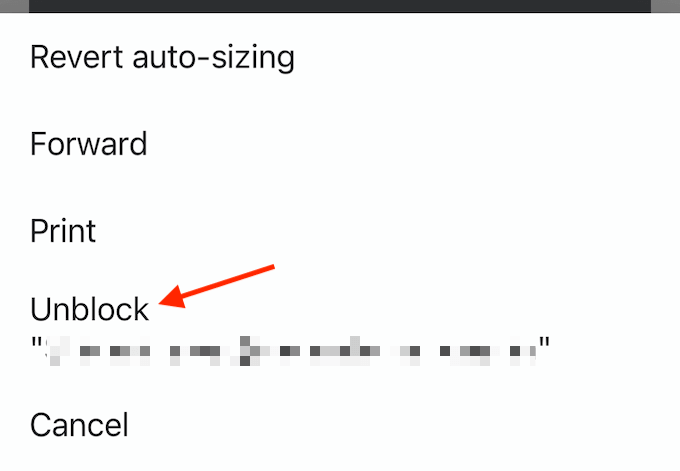
You won’t find the same option in the Gmail app for iPhone and Android. To unblock a sender on mobile, you’ll need to find an email from the sender. Then tap the Menu button from the email and choose the Unblock (Sender) option to unblock them.
To do this using the Gmail web client, use the following steps.
- On the Gmail web client, log in with your account.
- Open the email that you want to unsubscribe from.
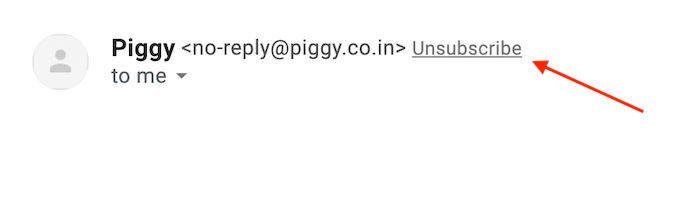
- Spot the Unsubscribe button next to the sender’s name and click on it.
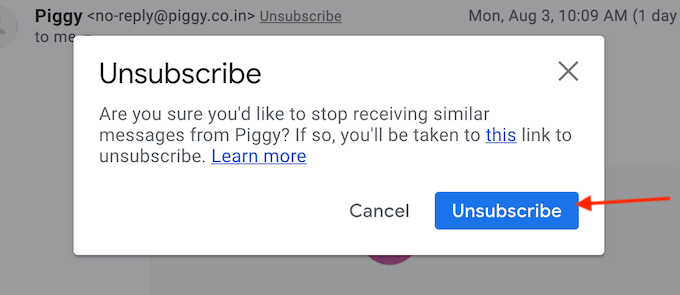
- From the popup, click the Unsubscribe button to confirm.
- If you don’t see the Unsubscribe button in the Gmail interface, go to the bottom of the newsletter email and look for an Unsubscribe link. Click on it to unsubscribe from the email.

- Open the Gmail app on your iPhone or Android smartphone.
- Open the email you want to unsubscribe from.
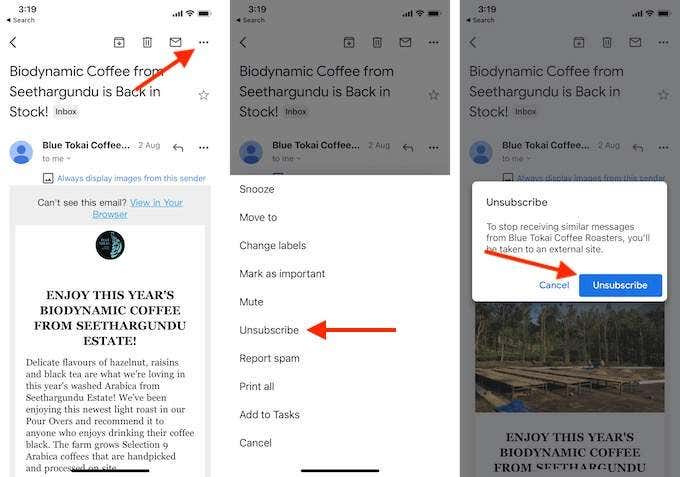
- Tap the Menu button from the top toolbar (above the email interface).
- Choose the Unsubscribe option.
- From the popup, confirm by tapping the Unsubscribe button.
If you don’t want anything to do with Gmail anymore, you can easily delete your Gmail account as well.
- How to Backup an iPhone Without iCloud?
- Sluggish Windows 11 PC? Try These 5 Windows 11 Tricks to Free up Virtual Memory
- macOS Tahoe Privacy Settings You Need to Secure Your Mac
- How To Turn Off Notifications On Windows 11?
- How to Recover Lost Files After Windows Update?
Khamosh is a technology writer and a how-to expert with more than 7 years of experience. He specializing in writing guides and tutorials that are to the point and easy to understand. While he specializes in the Apple ecosystem, his passion for technology is platform agnostic. He strives to simplify technology so that anyone and everyone can use technology to improve their lives. Read Khamosh’s Full Bio
