Ad blockers often develop a way to block ads, only for Twitch to update their streaming service so that ads appear once more. It’s a constant game of cat-and-mouse, but there are things you can do to block Twitch ads.
How to Block Twitch Ads
If Twitch updates and your ad blocker no longer works, try one of these methods.
Join Twitch Turbo
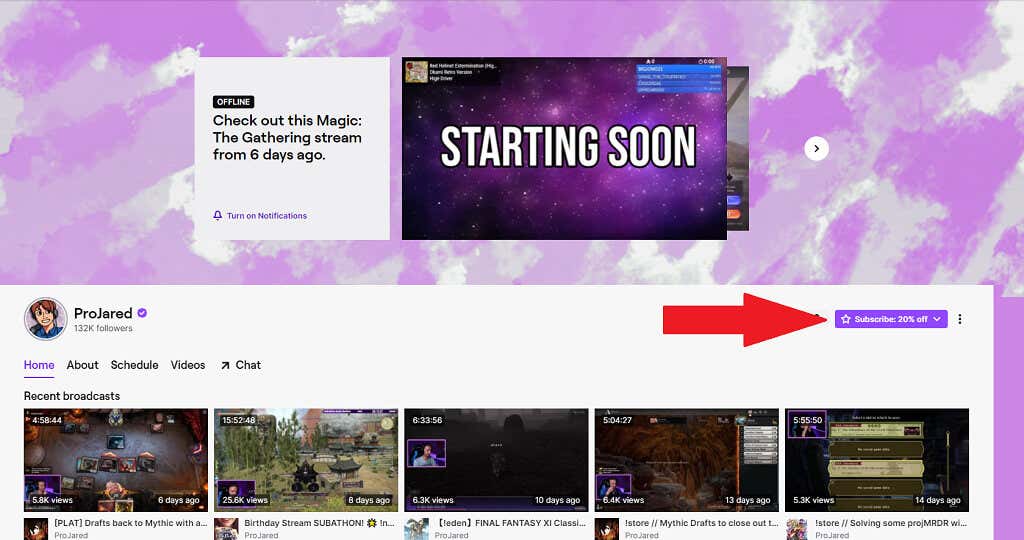
- Select the channel you want to watch.
- On the right-hand side of the channel, select the button labeled Subscribe.
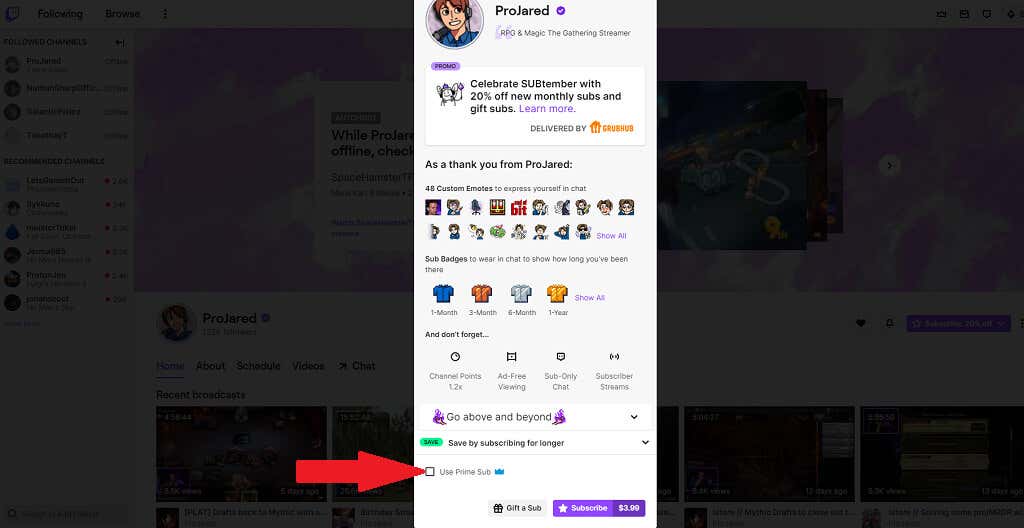
- If you want to use a Prime Sub, select the checkbox beside Use Prime Sub.
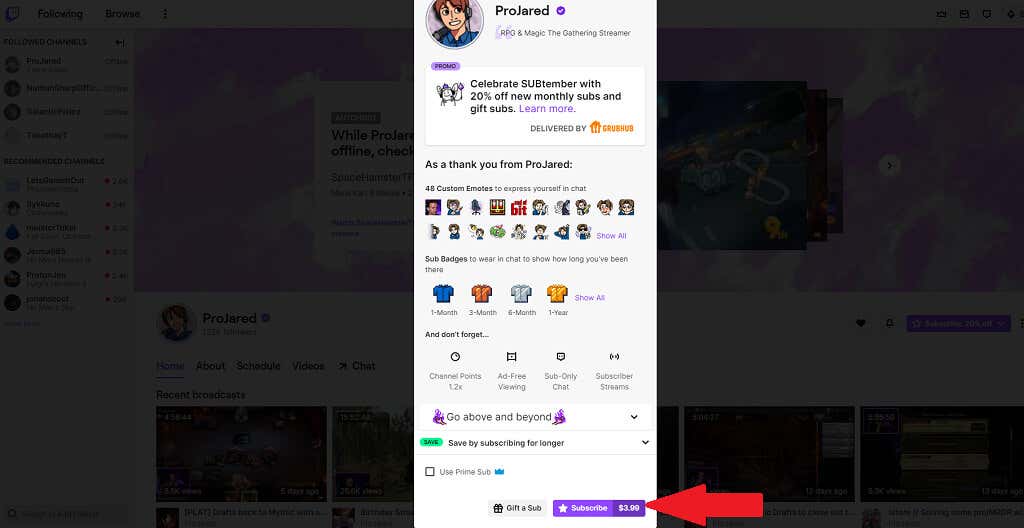
- If you are subscribing the traditional way, select Subscribe ($4.99). (Note: during September, Twitch is running a promotion where subscription fees are 20% lower.)
Update Your Adblocker
One of the reasons Twitch is able to circumvent ad blockers is because they have a team that constantly works to find ways around them. If you’re using an older version of your ad blocker , it might not have the needed updates to block new Twitch ads. Updating your ad blocker extension can help fix this.
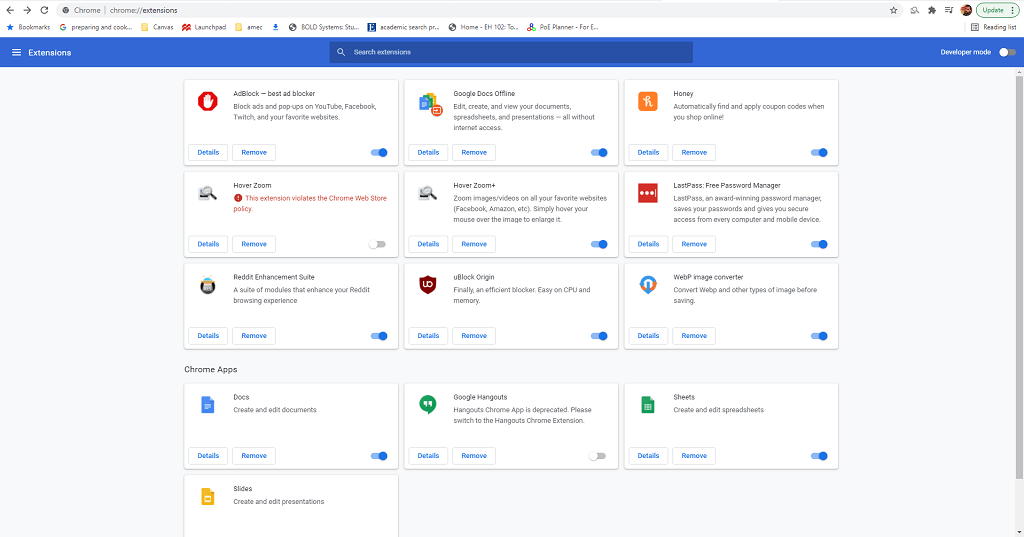
- Select the three dots to the right of your profile picture and select More tools > Extensions.
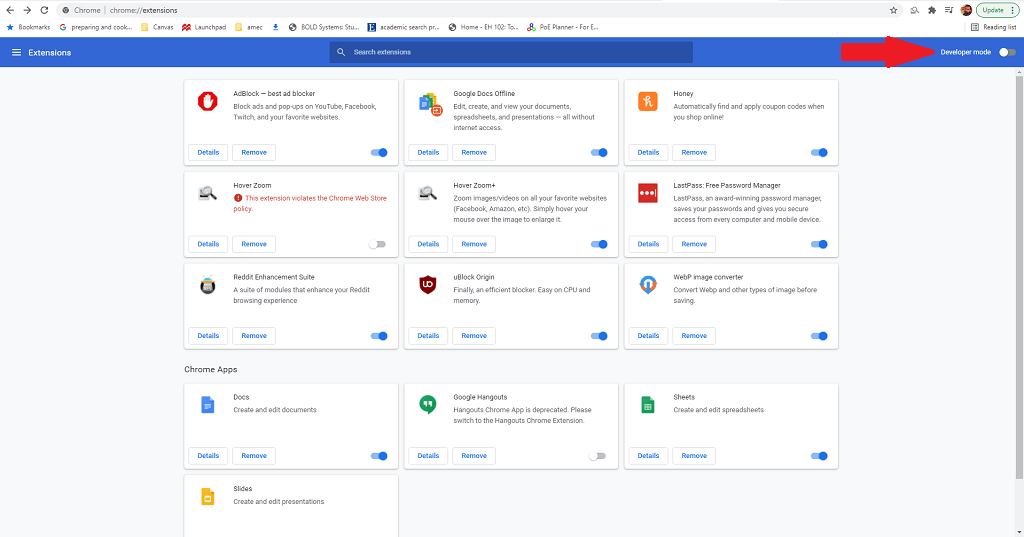
- in the upper-right corner of the screen, select Developer Mode.
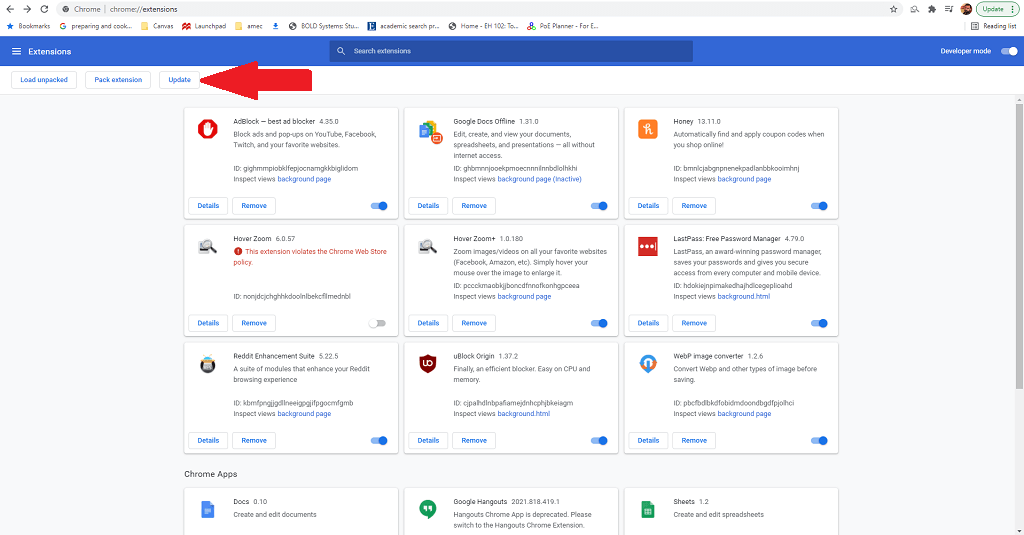
- In the upper-left corner, select Update.
Ensure Your Adblock Settings Are Correct
This step applies strictly to the Adblock extension itself, and only for Chrome, Firefox, and Edge. The Adblock extension allows you to set specific guidelines regarding which ads are blocked and which ones are not. Making sure Twitch is included is important.
- Select the three dots to the right of your profile picture and select More tools > Extensions.
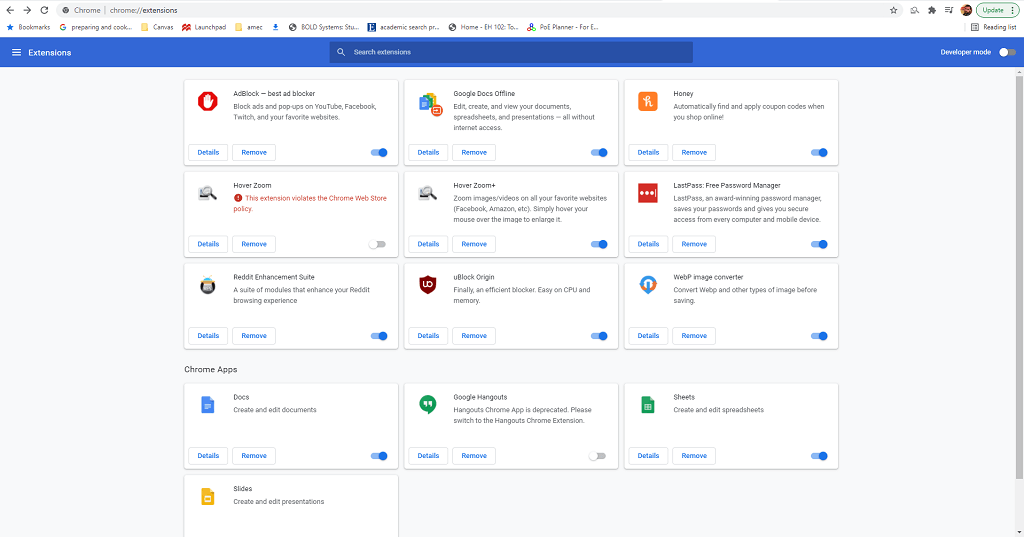
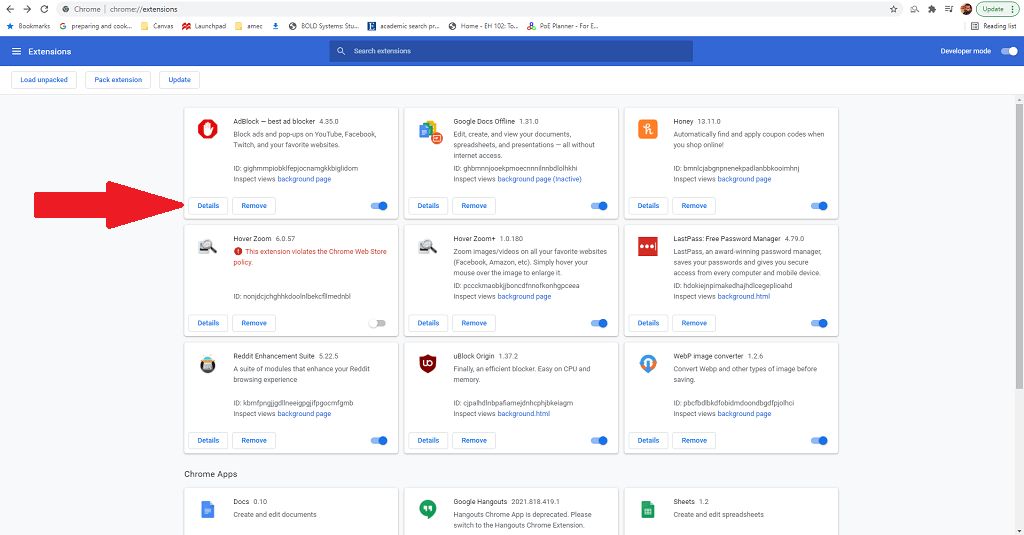
- Select Adblock and then select Details.
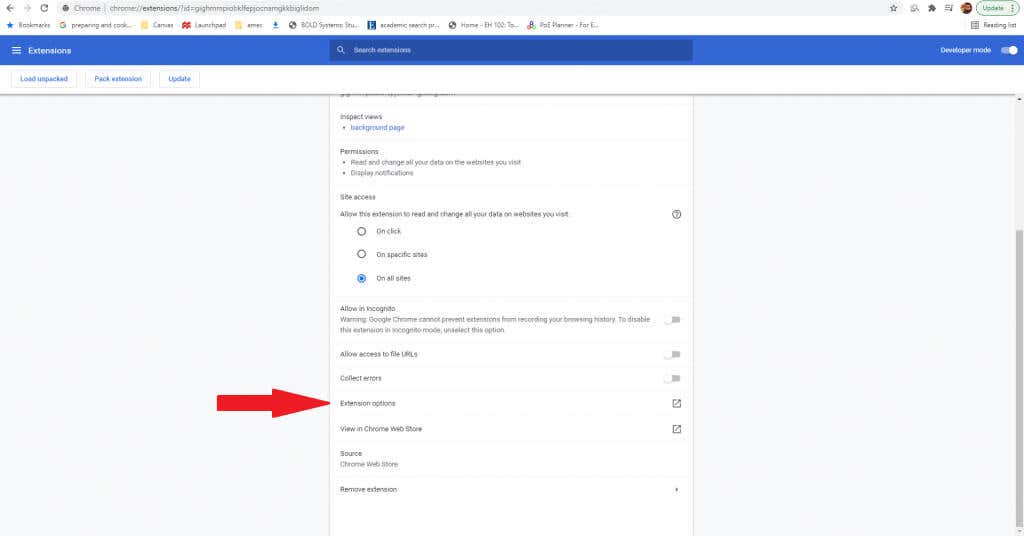
- Scroll down the options and select Extension options.
- Make sure the option to Allow ads on specific Twitch channels is toggled off.

Add a Custom Script
This is an advanced technique best left to users that are comfortable tinkering with scripts. It allows you to modify and tweak existing extensions with additional scripts that can help block Twitch ads.
Select the three dots to the right of your profile picture and select More tools > Extensions.
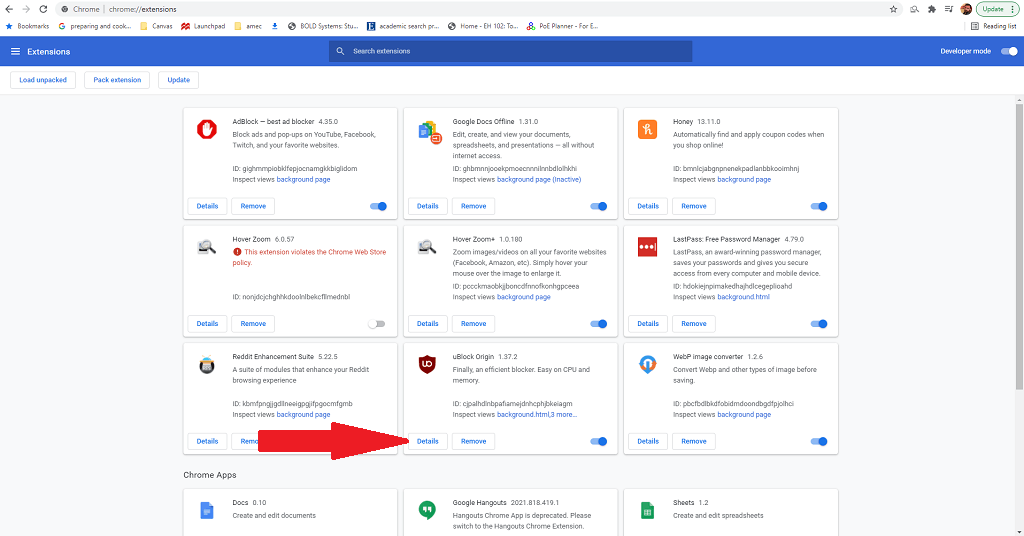
Select uBlock Origin and then select Details.
- Scroll down the options and select Extension options.

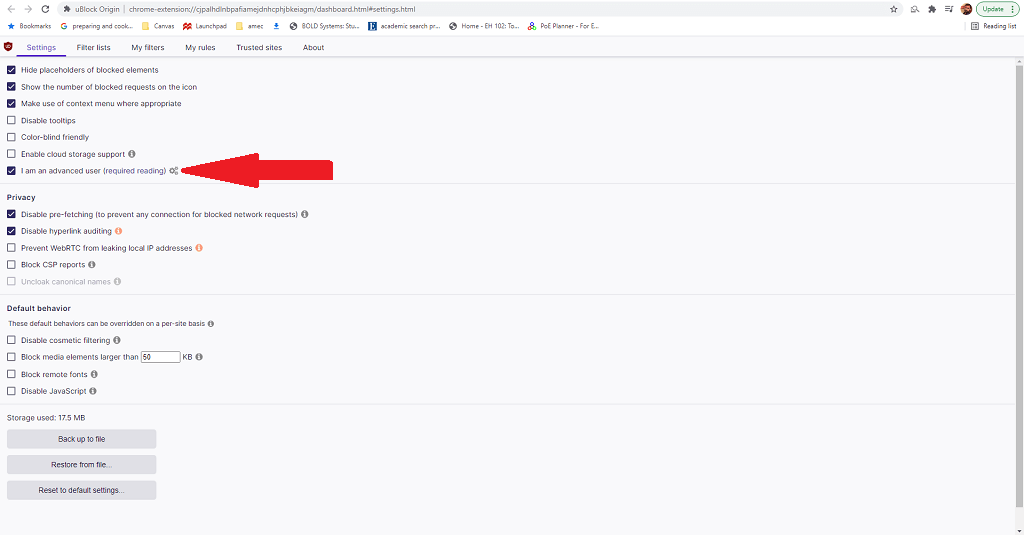
- Select I am an advanced user and then select the cog icon.
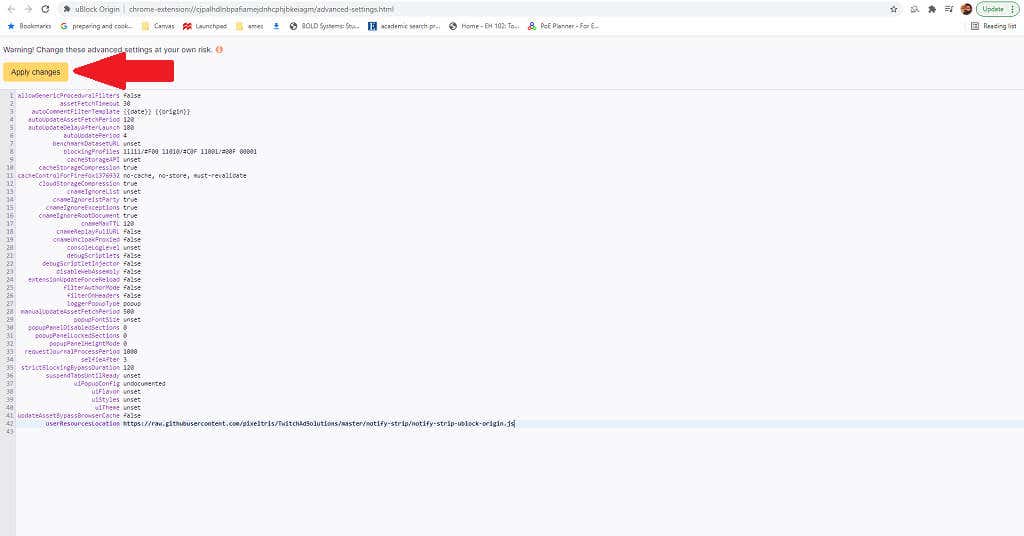
- You will see a screen of code. Line 42 is userResourcesLocation. By default, it should be unset. Replace this with the URL of the script you want to use; for example, if you wanted to use the notify-strip script, the URL would be https://raw.githubusercontent.com/pixeltris/TwitchAdSolutions/master/notify-strip/notify-strip-ublock-origin.js .
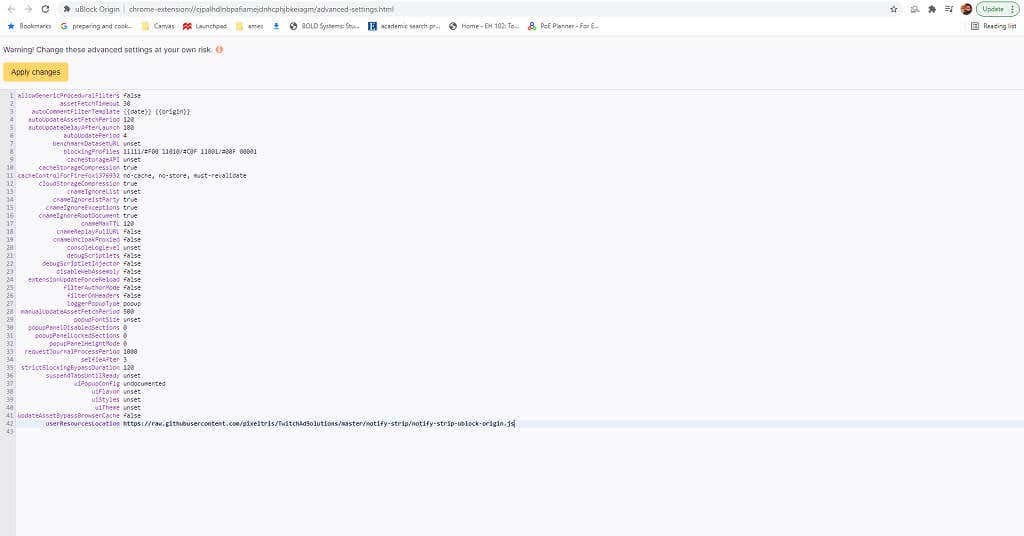
- Select Apply changes at the top of the screen.
Github user pixeltris has created several different scripts for uBlock Origin that can help combat Twitch ads. The three most prominent are:
- notify-strip : Replaces ads with low-resolution segments and tells Twitch that ads have already been viewed.
- notify-reload : Tells Twitch that ads were viewed and then reloads Twitch player, repeating until all ads have been eliminated.
- low-res : Reduces the stream to 480p but removes all ads.
You can find all of these scripts and more details at the GitHub page .
Try a Different Ad Blocker
If all else fails, try a different ad blocker. There are a lot of different options that may block ads slightly differently, and you might find the solution in one of these variations — especially those custom-made to block Twitch ads.
A few options to keep in mind are:
- Video Ad-Block for Twitch
- Alternate Player for Twitch.tv
- Purple Ads Blocker
- TTV LOL
- TTV AdEraser
If you’re sick of watching the same Twitch ads over and over again, try one of these methods to watch the service (hopefully) ad-free.
- How to Backup an iPhone Without iCloud?
- Sluggish Windows 11 PC? Try These 5 Windows 11 Tricks to Free up Virtual Memory
- macOS Tahoe Privacy Settings You Need to Secure Your Mac
- How To Turn Off Notifications On Windows 11?
- How to Recover Lost Files After Windows Update?
Patrick is an Atlanta-based technology writer with a background in programming and smart home technology. When he isn’t writing, nose to the grindstone, he can be found keeping up with the latest developments in the tech world and upping his coffee game. Read Patrick’s Full Bio
