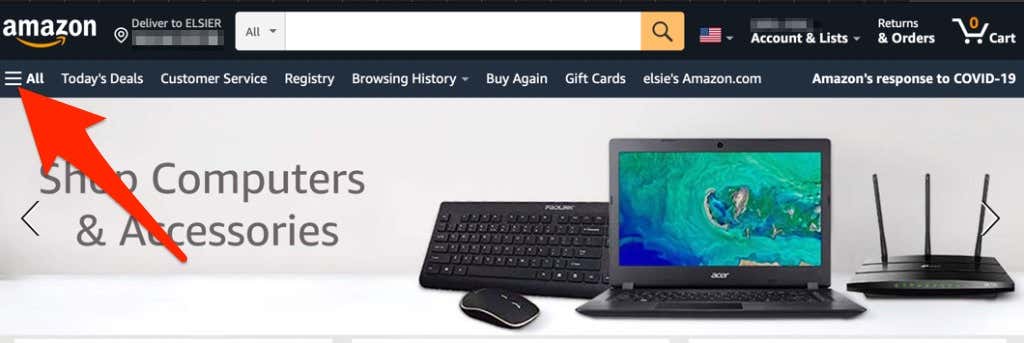
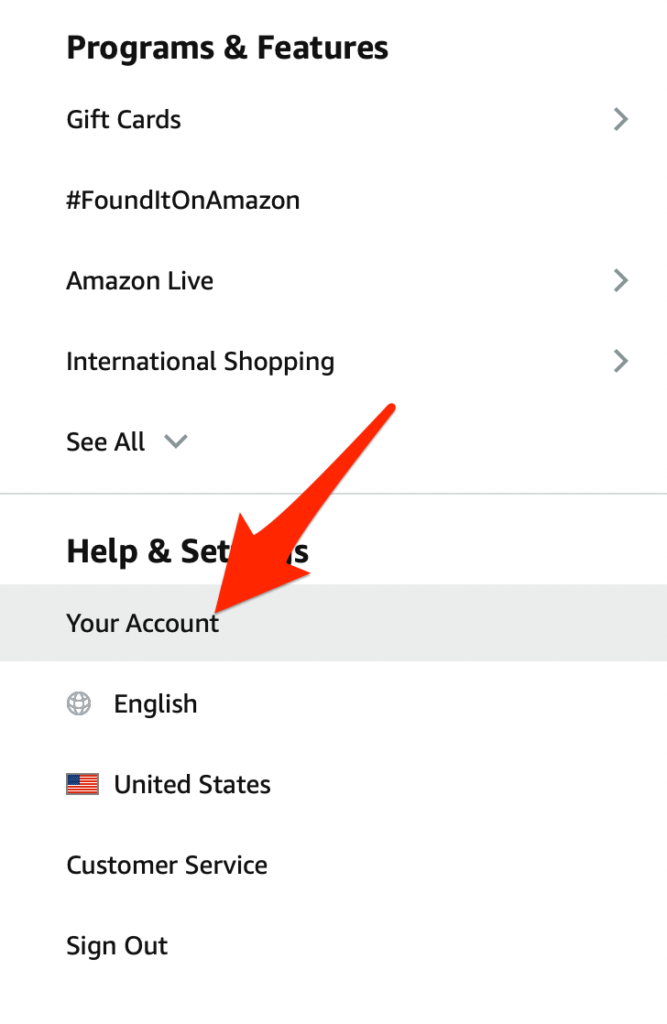
- Select Account .
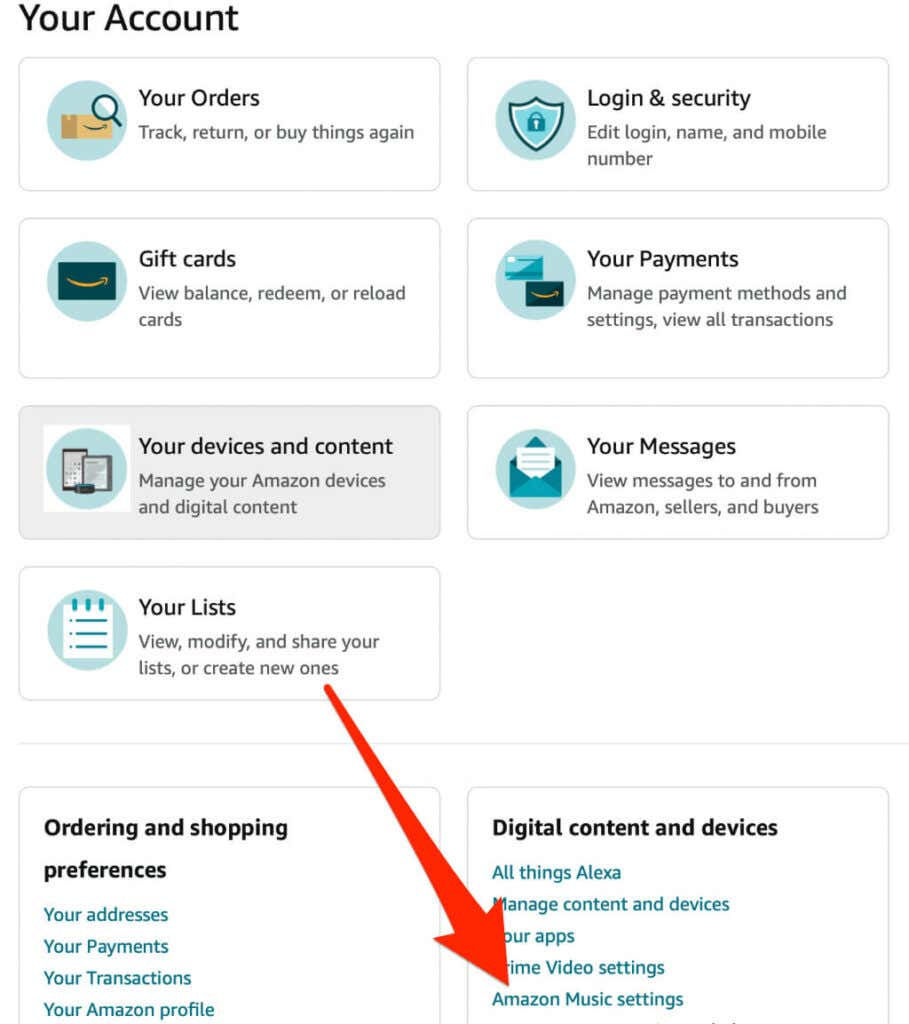
- Under the Subscription Renewal section, select Cancel Subscription .
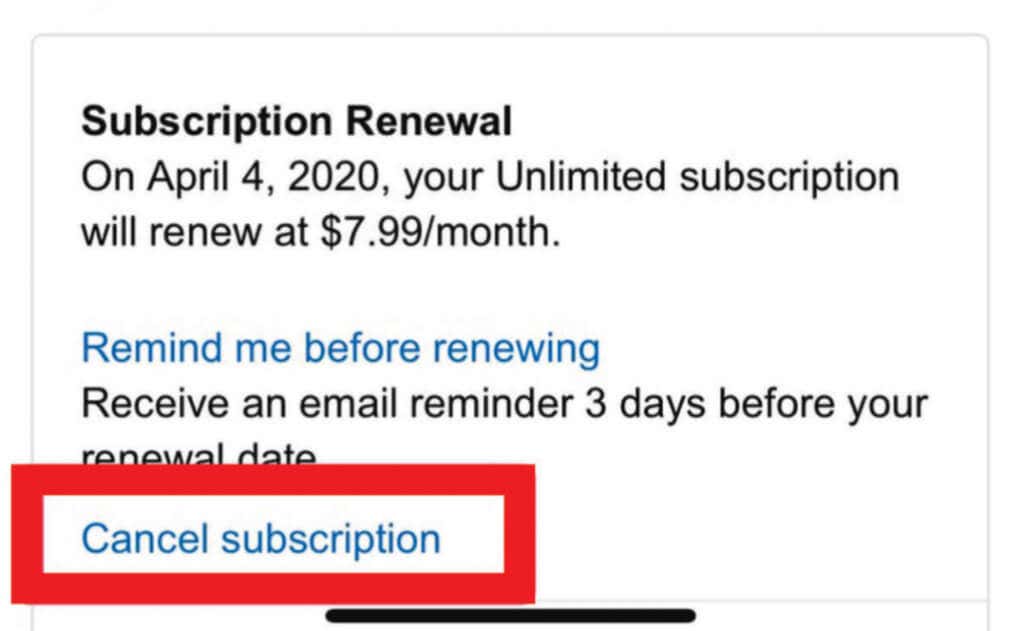
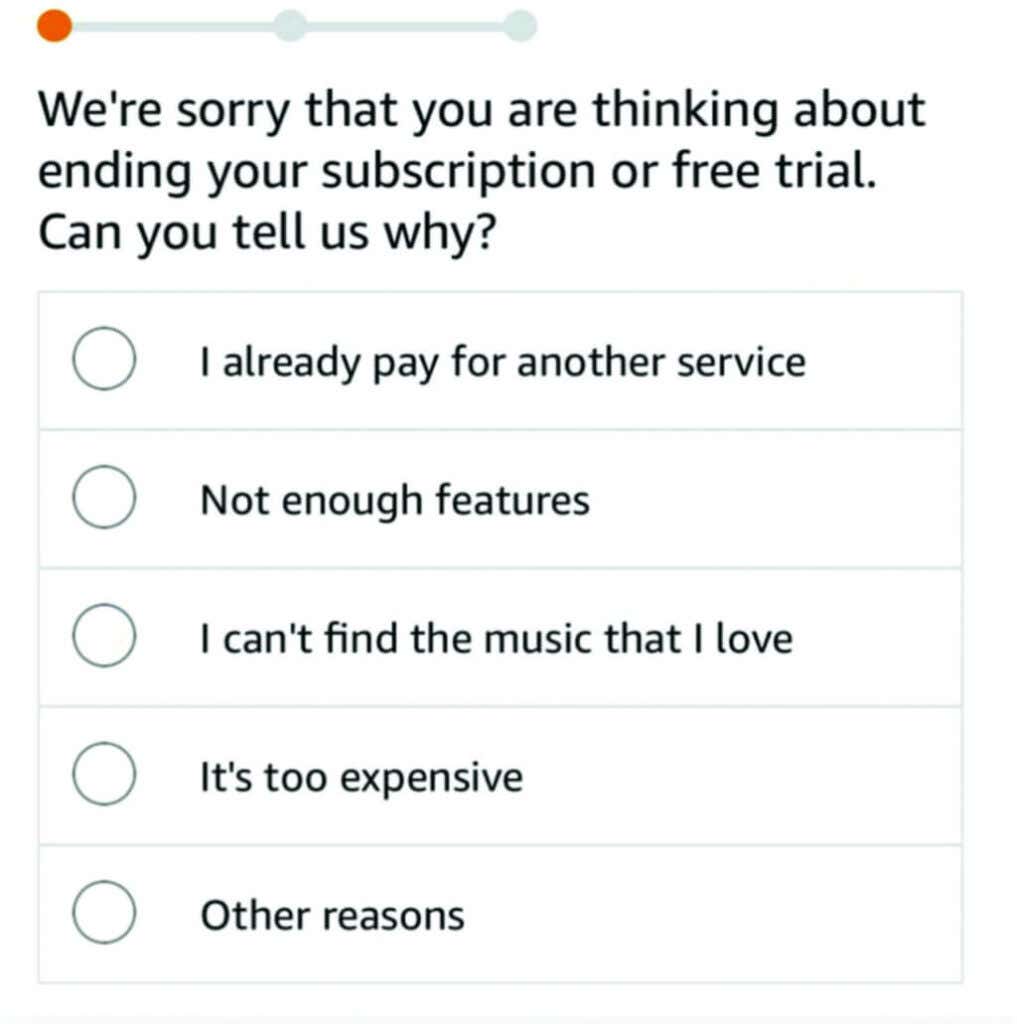
Select Continue to Cancel and then confirm the cancelation.
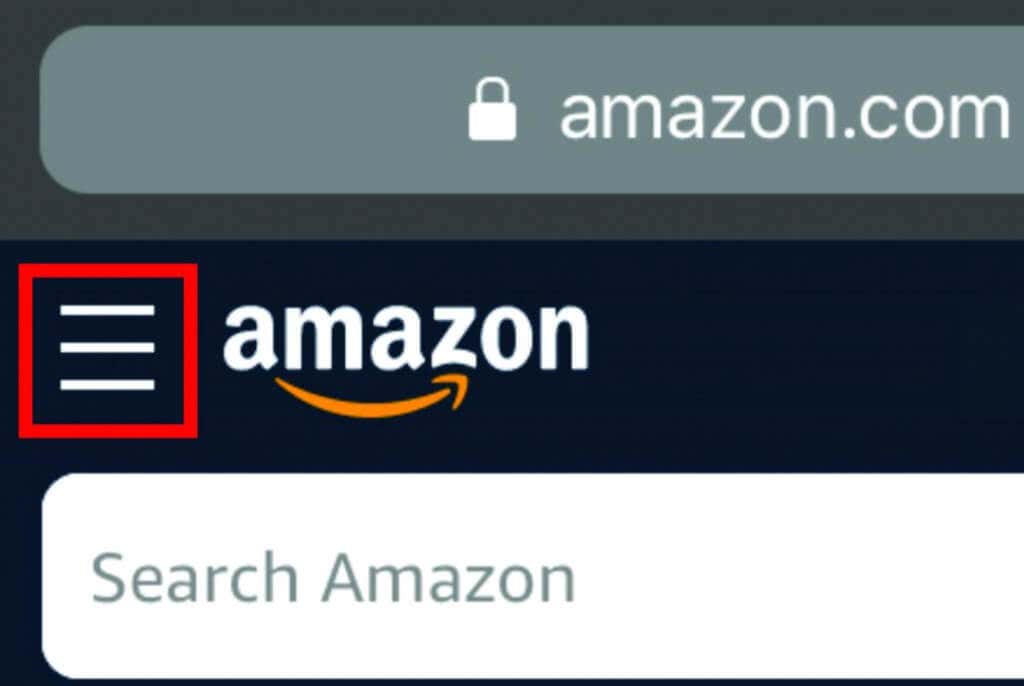
Open Amazon.com on your iPhone’s browser, sign in and tap the Amazon menu .
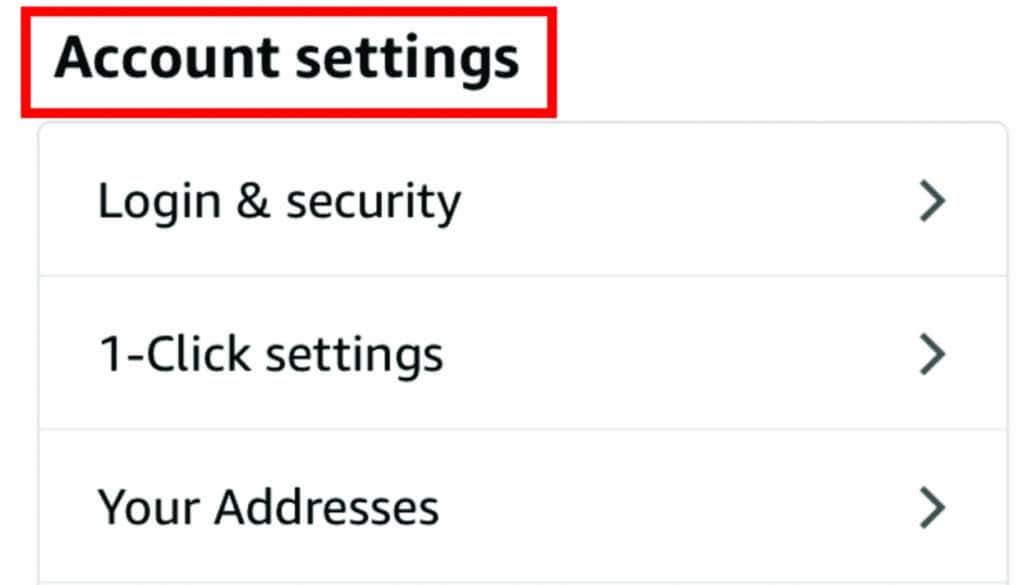
- Next, tap Accounts and go to the Accounts Settings section.
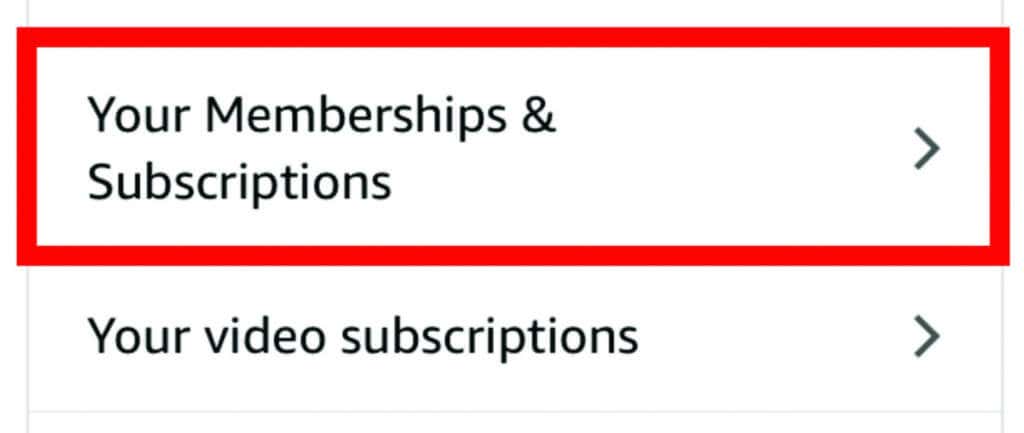
- Next, tap Memberships and Subscriptions .
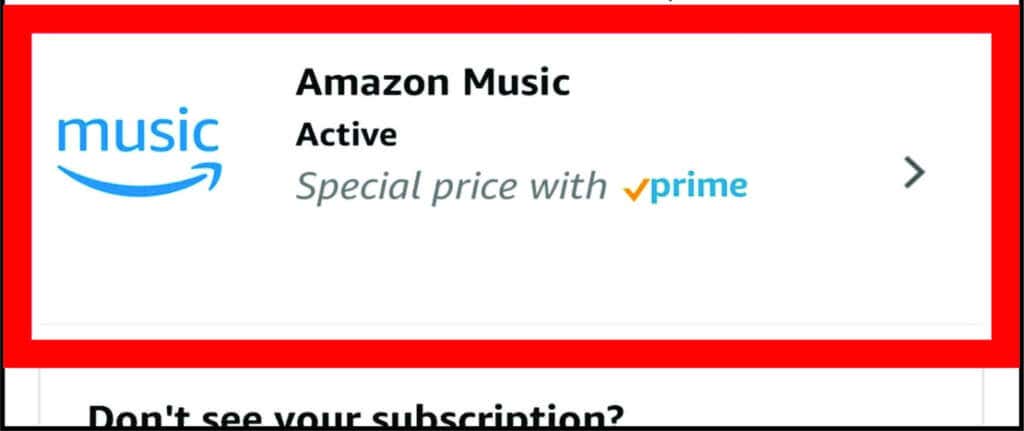
- Tap Amazon Music .
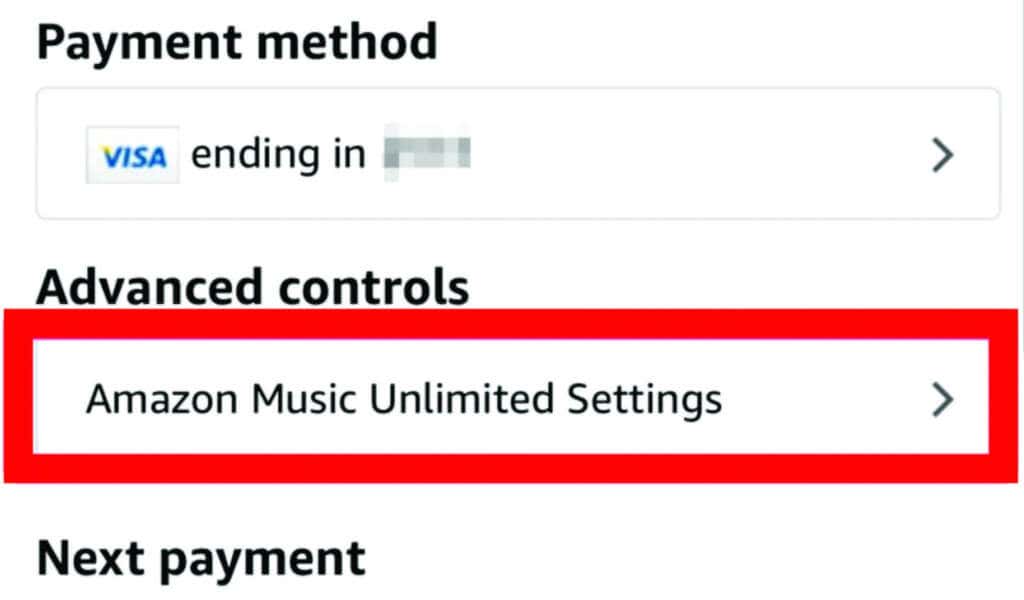
- Next, select Amazon Music settings .
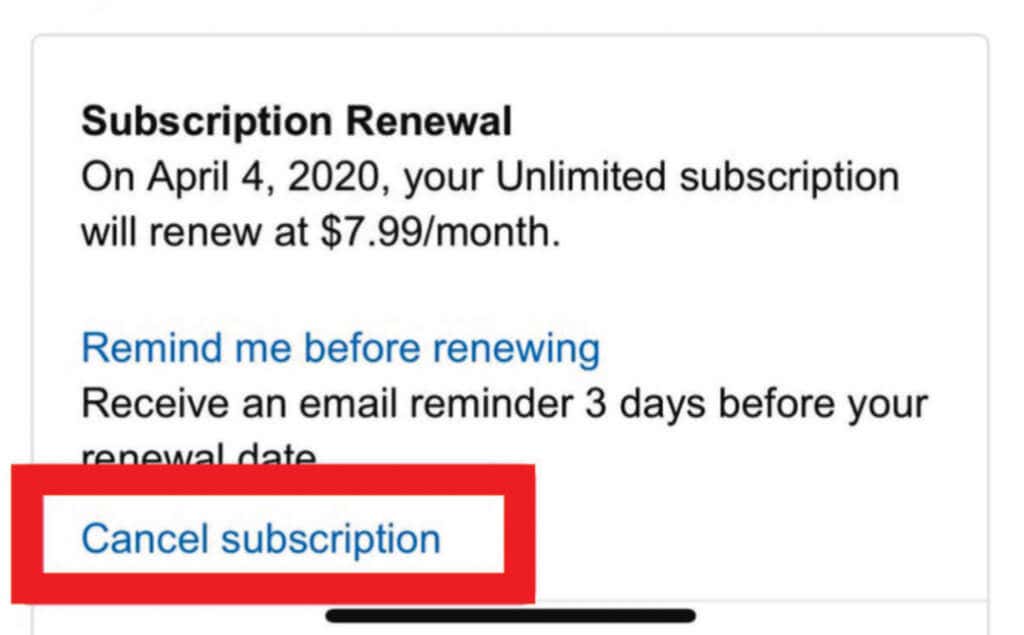
- Select Cancel Subscription .
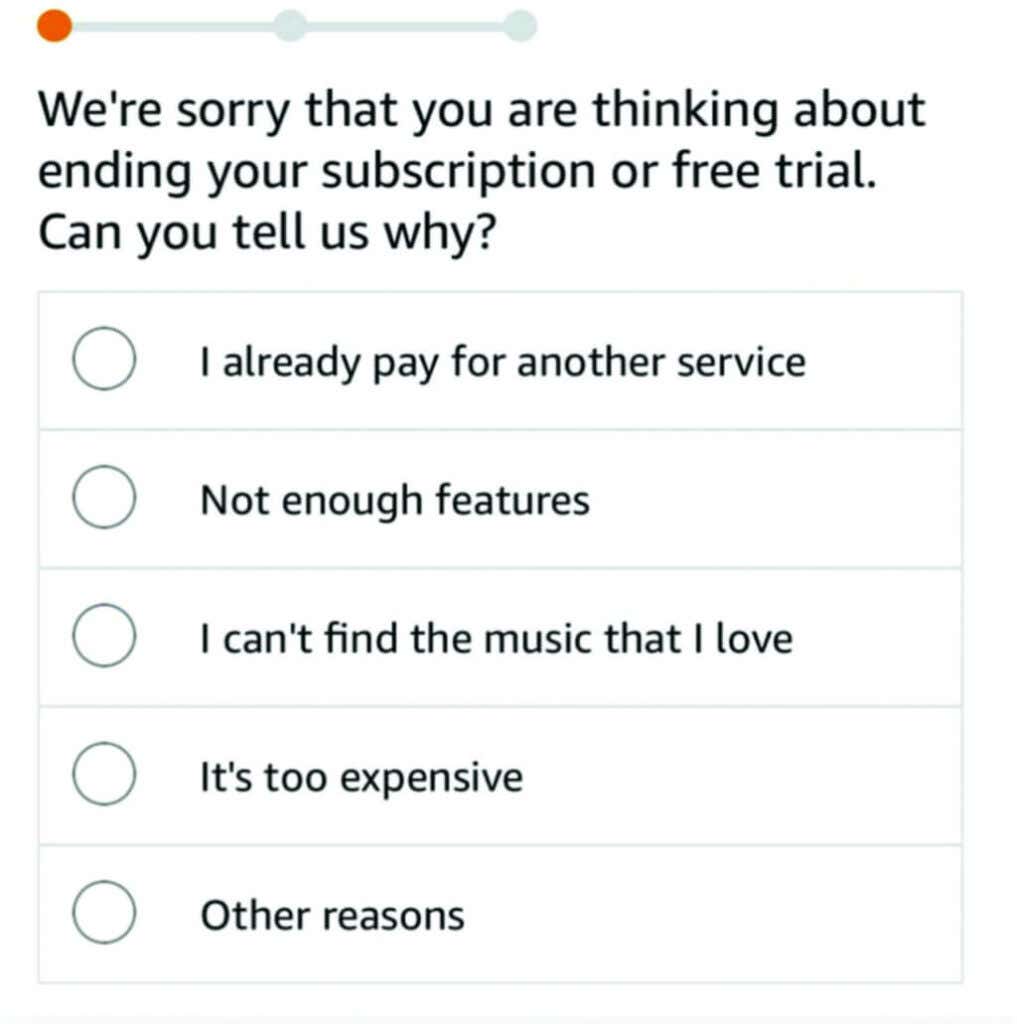
- Select and submit your reason for wanting to cancel your subscription and then confirm your cancelation.
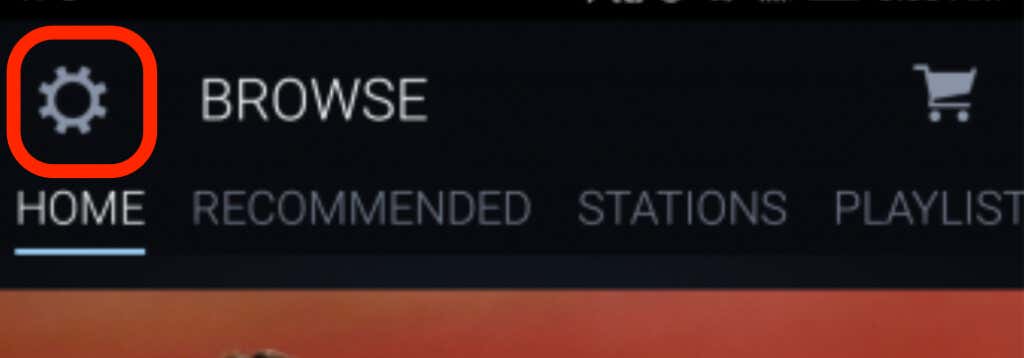
- Launch the Amazon Music app and tap the Settings ( gear ) icon.
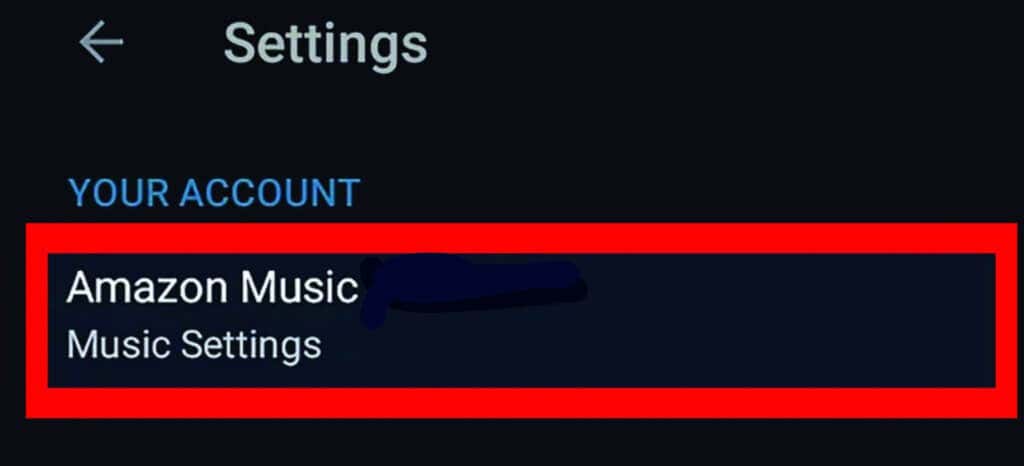
- Tap Amazon Music .
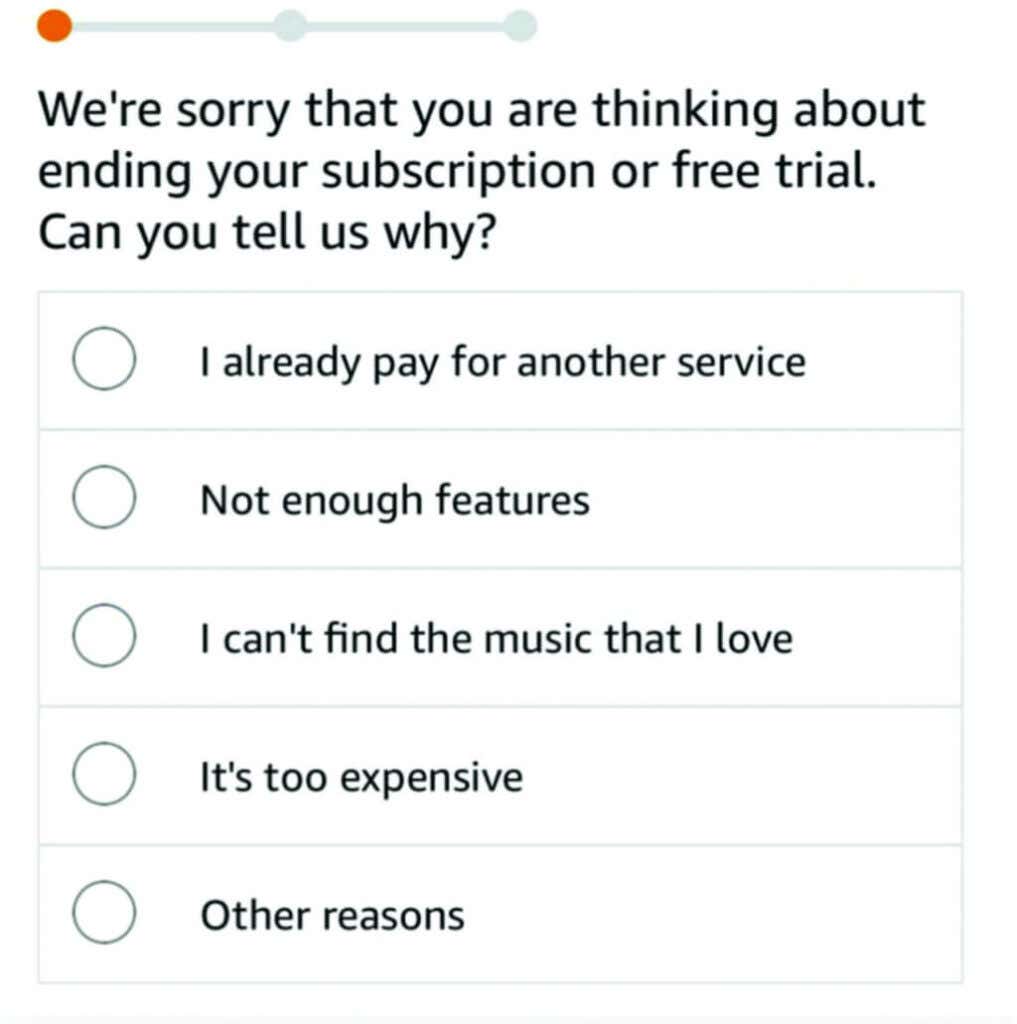
- Next, select Cancel Subscription , give a reason why you want to cancel your subscription, and tap Submit and Confirm Cancelation .
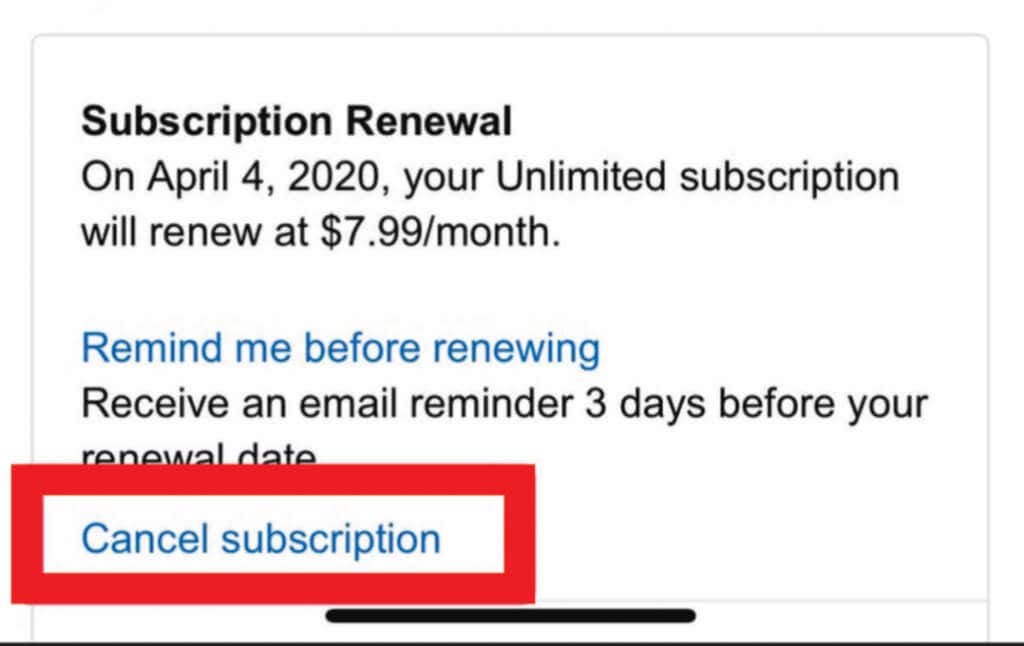
- Open the Amazon Music Settings page and select the Cancel Subscription option.
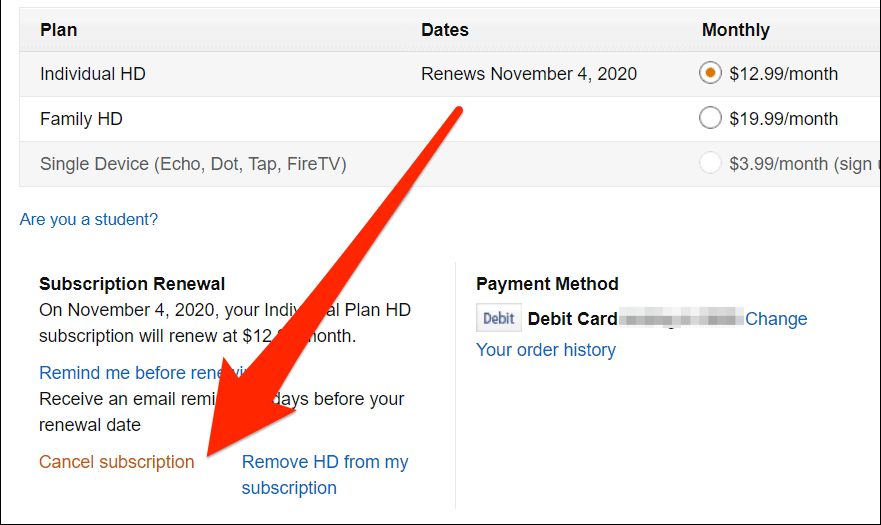
- Confirm that you want to cancel all Amazon Music subscriptions.
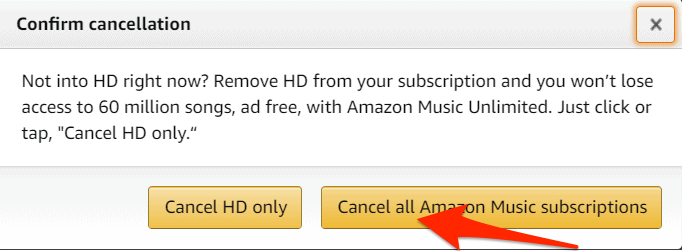
- Select Cancel HD only .
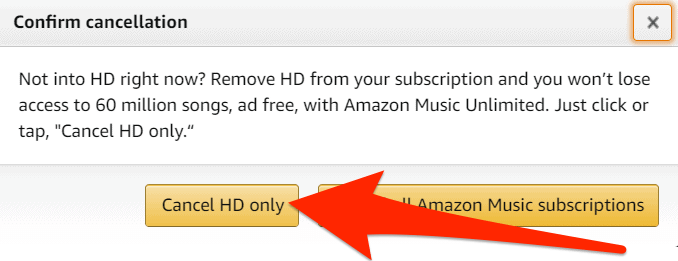
- Confirm your cancellation.

- Open Amazon Music settings > Amazon Music Unlimited > Subscription Renewal and select Cancel subscription .
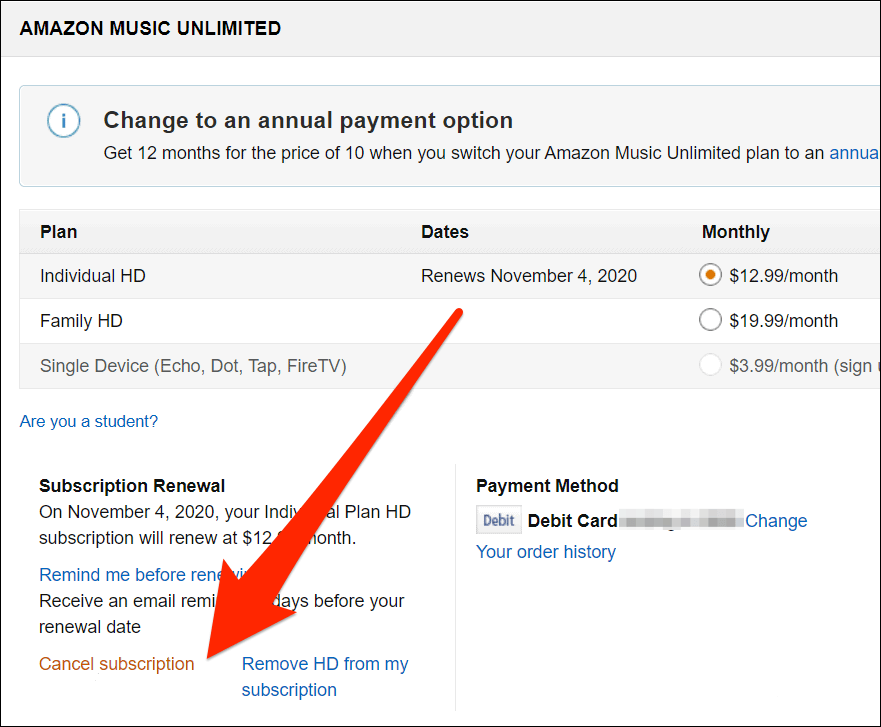
- Select and submit your reason for canceling your subscription, and then confirm the cancellation.
Try Other Music Streaming Options
There are other music streaming services or podcast apps that can keep you going. Plus, you can listen to free music online without downloading .
- How to Install the Amazon Appstore in Windows 11
- How to Fix Amazon CS11 Error Code in Android and iOS
- How to Set Up an Amazon Echo Dot
- Amazon Fire Tablet Won’t Turn On? How to Fix
- The Amazon Fire Tablet Web Browser: A Full User Guide
Elsie is a technology writer and editor with a special focus on Windows, Android and iOS. She writes about software, electronics and other tech subjects, her ultimate goal being to help people out with useful solutions to their daily tech issues in a simple, straightforward and unbiased style. She has a BCom degree in Marketing and currently pursuing her Masters in Communications and New Media. Read Elsie’s Full Bio
