A YouTube Premium subscription unlocks a number of must-have features for YouTube fans, including ad removal, offline video playback, and access to YouTube Premium Music with millions of available songs. These features come at a cost, however, with subscriptions starting at $11.99 a month after an initial 30-day trial.
If the perks (or the price) are too much for you to handle, however, you might want to cancel your subscription. If you want to know how to cancel your YouTube subscription permanently, or you’re just looking to pause it for a limited period and then resume it later, you can do so by following these steps.

Pause or Cancel a YouTube Premium Subscription on PC or Mac
A YouTube Premium subscription is limited to the account holder—standard Premium users can’t share it without subscribing to the Family subscription plan. If you’re looking to pause or cancel a YouTube Premium subscription, you’ll need to be able to sign in using the Google account that pays for the subscription.
Accessing Your YouTube Memberships
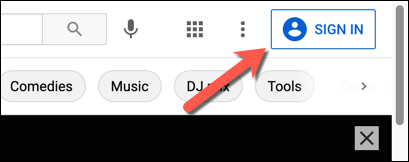
- To begin, open the YouTube website in your browser. If you’re not already signed in, select the Sign In button in the top right. You’ll need to sign in using the account details linked to your YouTube Premium subscription.
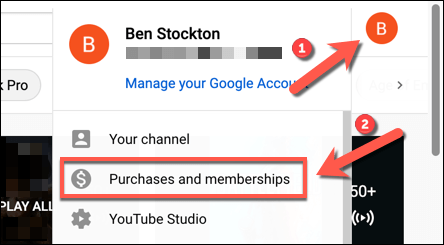
- After signing in, return to the YouTube homepage (if you’re not taken there directly) and select your profile icon in the top right. From the drop-down menu, select the Purchases and memberships option.
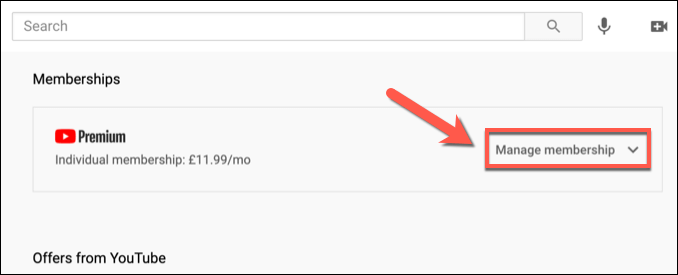
- If your account has an active Premium membership, Premium should be listed under the Memberships section. Select Manage membership next to view your subscription options.
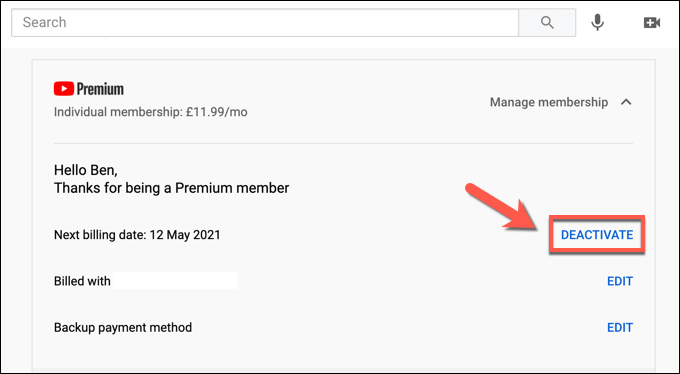
- Your current subscription terms (including your billing date) will appear below. If you cancel or pause a YouTube Premium subscription, the subscription itself will remain active until the next billing date is passed. To cancel or pause the subscription, select the Deactivate button.
Pausing or Cancelling YouTube Premium
- Selecting the Deactivate button will provide you with options to cancel or pause your YouTube Premium subscription. Cancelling the subscription is permanent, removing access to all subscription perks and deleting any videos or music you’ve downloaded (including any saved playlists). To cancel your subscription, select Continue to Cancel . If you’d prefer to temporarily pause your subscription for up to six months, select the Pause instead option.
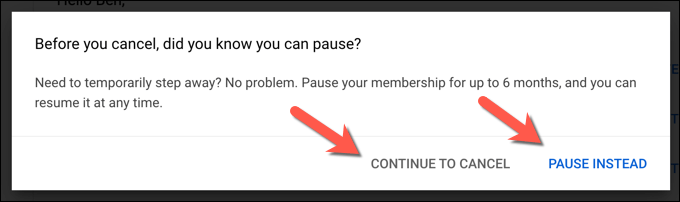
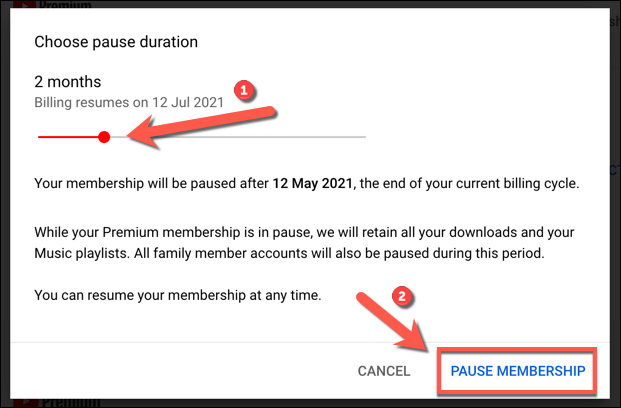
- If you select Pause instead , you’ll have the option to select when your membership will automatically resume. You have between 1 and 6 months to choose from—move the slider in the Choose pause duration menu to select how long you’d prefer to pause the membership for, then select Pause membership to confirm.
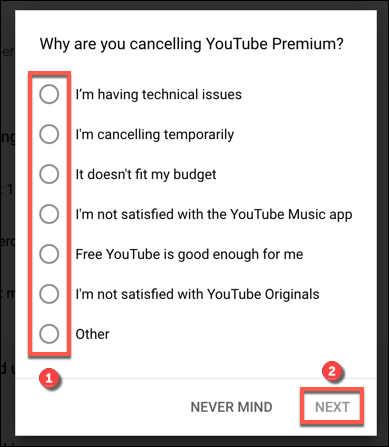
- If you decide to cancel your subscription by selecting Continue to Cancel , YouTube will ask you for a reason why. Choose one of the options listed and select Next to proceed, or select Never Mind to return to the Memberships menu.
- To confirm the cancellation, select Yes, Cancel .

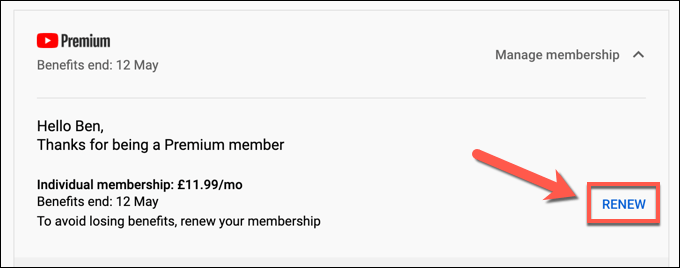
- Once your subscription is paused or cancelled, your subscription (and any included perks) will continue until the next billing date shown on the Memberships page. Should you wish to restore your membership before that date passes, however, select the Renew button in the Memberships menu.
How to Pause or Cancel a YouTube Premium Subscription on Mobile Devices
You can also pause or cancel a YouTube Premium subscription in the YouTube app on Android, iPhone, or iPad devices. The same rules apply, with cancellation resulting in the removal of your saved playlists and downloads after your billing date passes, while pausing your subscription suspends access to them until it resumes.
If you’re looking to cancel or pause your subscription in the YouTube app, here’s what you’ll need to do.
Cancelling or Pausing YouTube Premium on Android
- To change your YouTube Premium subscription on Android, open the YouTube Android app. You’ll need to switch to the account that holds the subscription (if it isn’t active already). To do this, select your profile icon in the top right, then select your account name at the top of the Account menu.
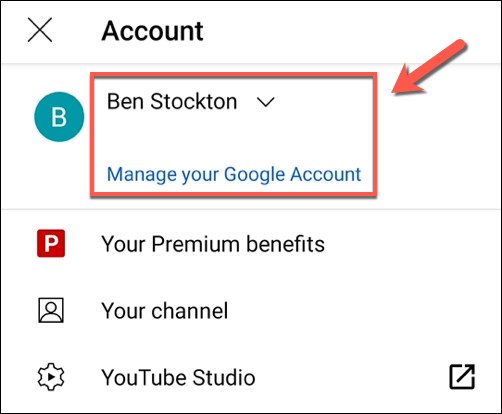
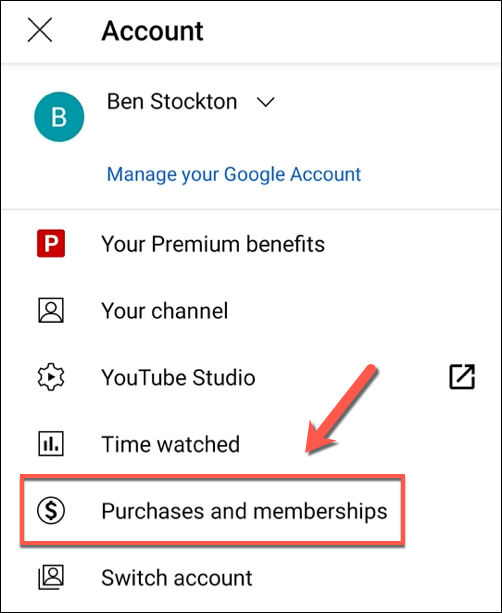
- With the correct account visible in YouTube, select the profile icon > Purchases and memberships to access your subscriptions.
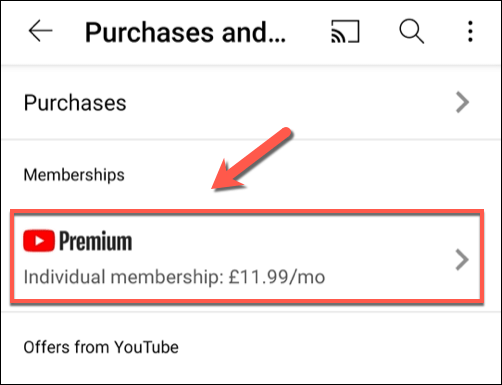
- Any active YouTube memberships (including YouTube Premium) will be listed in the next menu. Select the Premium option to access your subscription options.
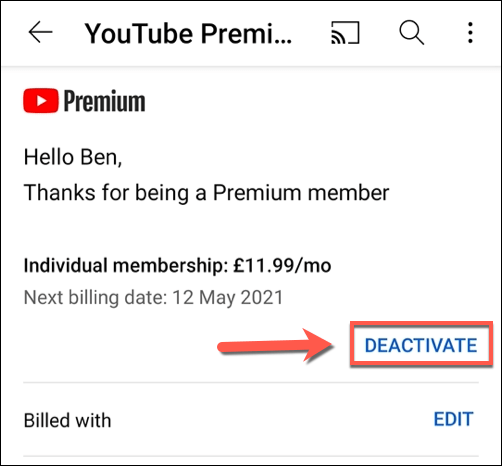
- To cancel or suspend your membership, select Deactivate .
- You’ll need to choose whether to cancel or pause your subscription. To pause, select Pause Instead . To cancel, select Continue to Cancel .

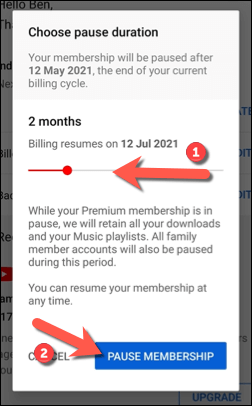
- If you choose to pause, move the slider in the Choose pause duration menu to determine the length of the suspension (between 1 and 6 months). Your Premium membership will remain active until the next billing date and won’t reactivate until the suspension period ends. Select Pause Membership when you’re ready.
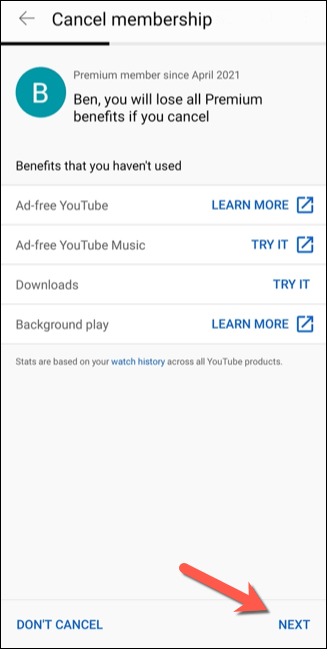
- If you choose to cancel your subscription by selecting Continue to Cancel , YouTube will list a number of perks you’ll lose access to on the next menu. Select Next to proceed.
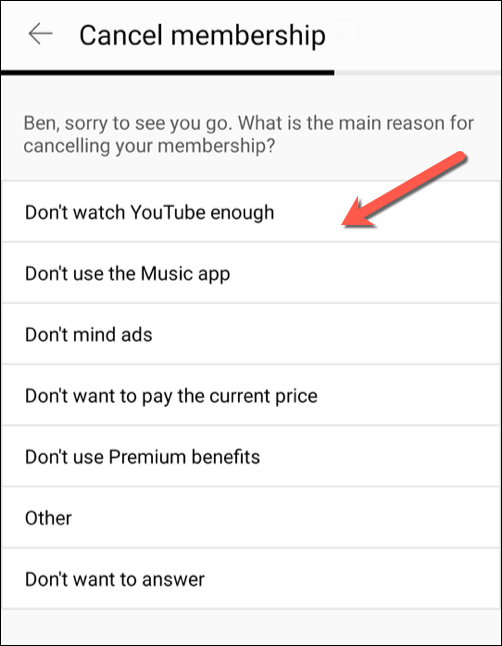
- Select a reason for cancelling your membership from the options provided in the next menu. If you’d prefer not to give a reason, select Don’t want to answer instead.
- Finally, select Cancel Premium to end your subscription. Your subscription will remain active until your next billing date.

Cancelling or Pausing YouTube Premium on iPhone or iPad
If you activated your subscription elsewhere, however, you’ll need to use your device’s web browser to cancel or pause the subscription using the steps above. You can do this from a PC, Mac, or from your mobile device browser.
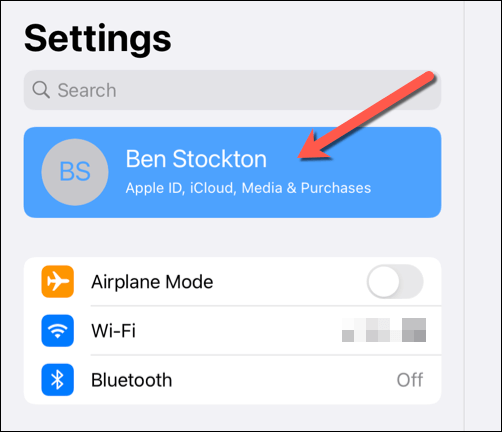
- If you want to cancel a YouTube Premium subscription made in the YouTube app on an iPhone or iPad, open your device’s Settings app and select your name at the top of the menu to access the Apple ID menu.
- In the Apple ID menu, select Subscriptions.
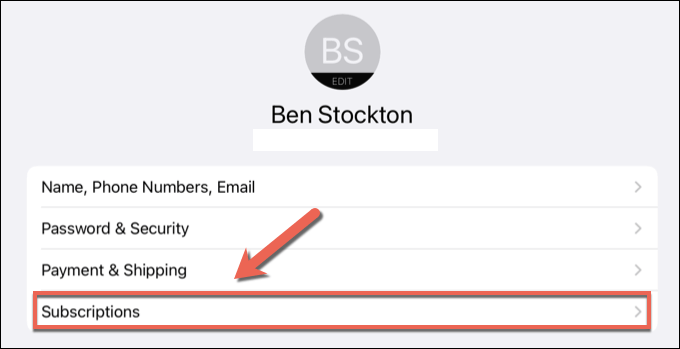
- In the Subscriptions menu, an Apple-activated YouTube Premium subscription will be listed here—select it to view your options. If it isn’t listed, you’ll need to follow the steps above to cancel your subscription using your browser.

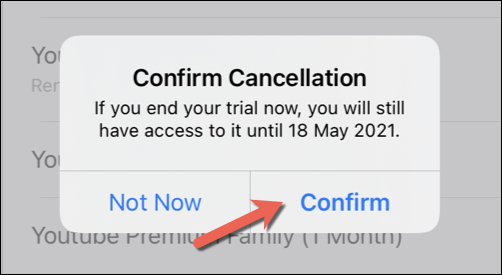
- In the Edit Subscription menu for your Apple-activated YouTube Premium subscription, select Cancel to cancel the subscription.

- You’ll need to confirm that you want to end the subscription. Select Confirm to do this, then authenticate using your password, Face ID or Touch ID credentials (if required). Once the cancellation is confirmed, the subscription will remain active until your next billing date.
Alternatives to YouTube Premium
If you decide to pause or cancel your YouTube Premium subscription, you may be in the market for an alternative. There are alternatives to YouTube out there, depending on the content you enjoy. For instance, TV and movie lovers may want to give Netflix or Hulu a go, while streamers may appreciate the features that Twitch has to offer.
Music fans, meanwhile, may prefer to spend their cash on a Spotify Premium subscription , thanks to the wide selection of songs and artists available to stream. You could also try Apple Music or a number of other Spotify alternatives instead to play your favorite songs on the go without needing to purchase them first.
- How to Remove Shorts From YouTube
- How to Fix It When YouTube Won’t Open in New Tab
- How to Fix YouTube’s “Something went wrong” Error
- How to See Dislikes on YouTube Videos
- A Guide to How YouTube Monetization Works
