If you want to spruce up your emails, you can use a Microsoft Outlook theme. Sometimes called “stationery,” a theme can include font styles, colors, backgrounds, and images which you can customize if you wish.
You can pick a theme that applies to all new emails you compose for a simple way to make your messages more attractive. Once you apply one, you can easily change the Outlook theme for a single message or just remove it.

If you’re ready to add some style to your messages, here’s how to change the theme on Outlook emails.
Use the HTML Mail Format
To use a theme in Outlook, you must use HTML as the format for new messages.
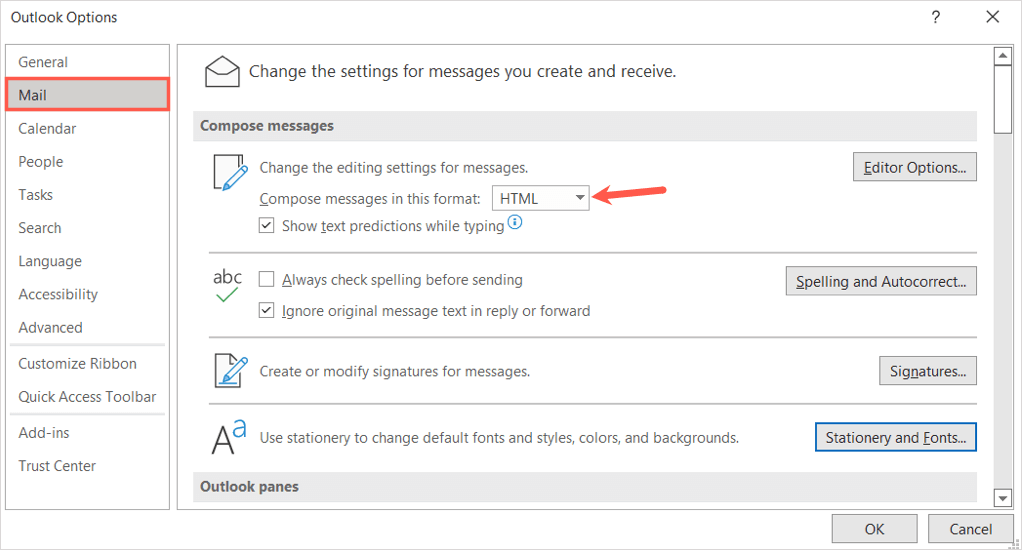
- To confirm or change this format, open Outlook, select the File tab, and choose Options .
- In the Outlook Options window, pick Mail on the left.
- On the right side below Compose messages , select HTML in the drop-down list for Compose messages in this format .
- Select OK to save your change, or continue below to pick your theme.
Apply a Default Email Theme in Outlook
Whether you want a bright background with various colors, subtle background color with soothing fonts, or even a dark or black theme, you have plenty to pick from in Outlook.
- Open Outlook and select File > Options .
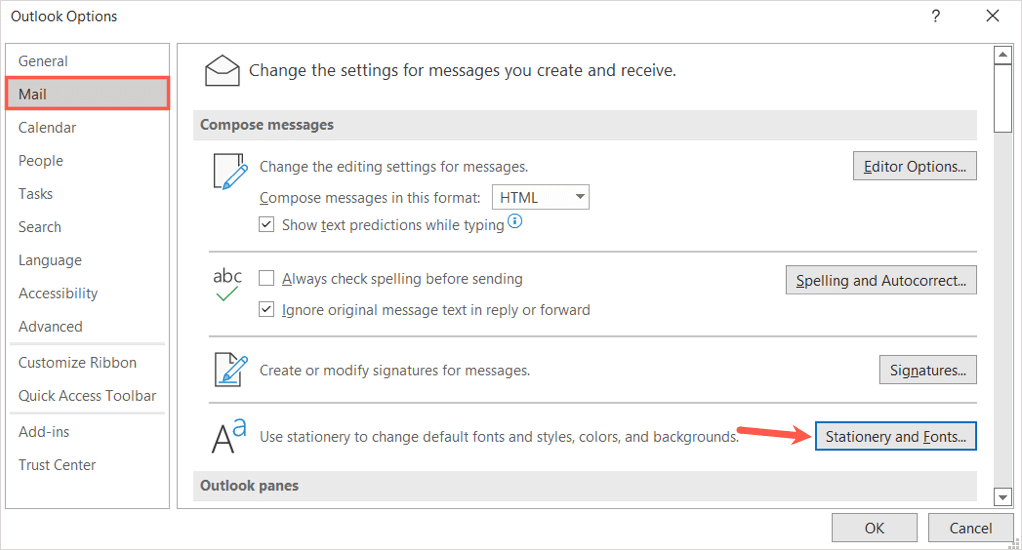
- In the Outlook Options window, pick Mail on the left.
- On the right side below Compose messages , select the Stationery and Fonts button.
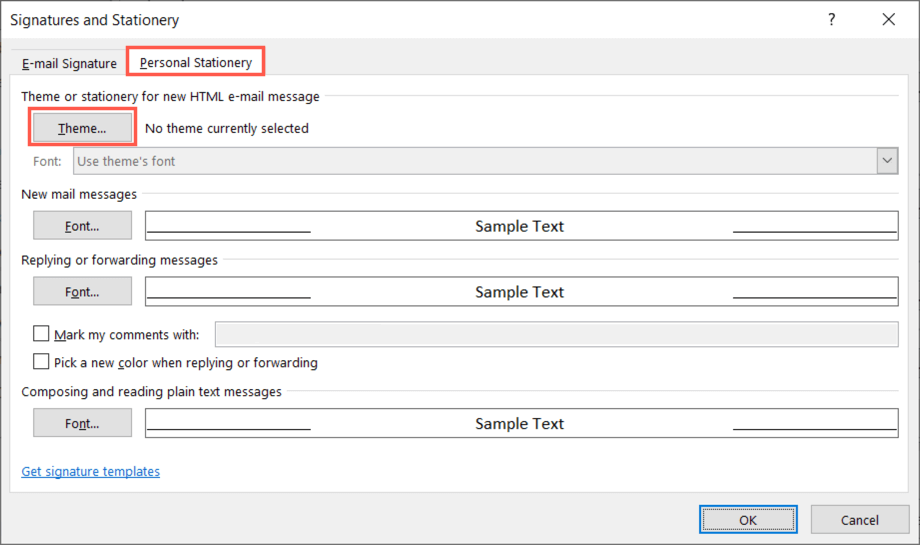
- In the next pop-up window, confirm you’re on the Personal Stationery tab.
- Select Theme at the top, below Theme or stationery for new HTML e-mail message .
- You’ll see a large collection of themes along the left side. Choose one to see a preview of it on the right.
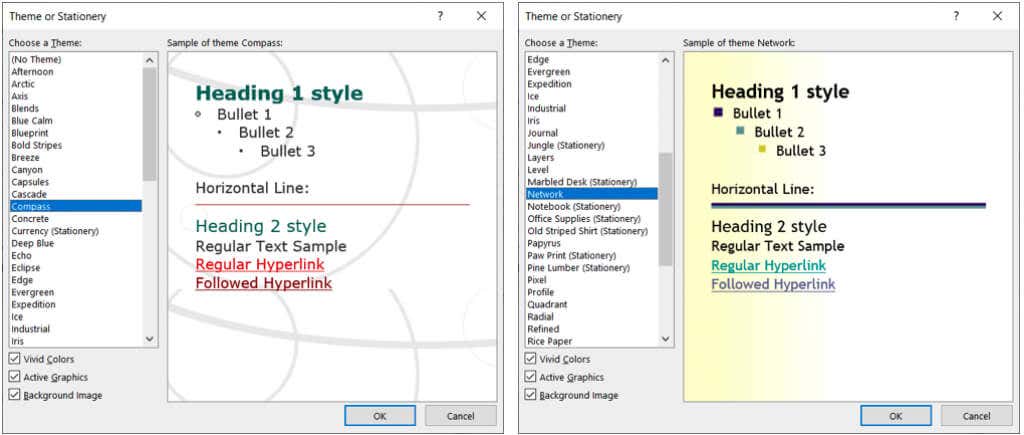
- On the bottom left, below the themes, you’ll see three options you can adjust. These include Vivid Colors, Active Graphics, and Background Image. Mark or unmark a check box to see the preview with or without that feature.
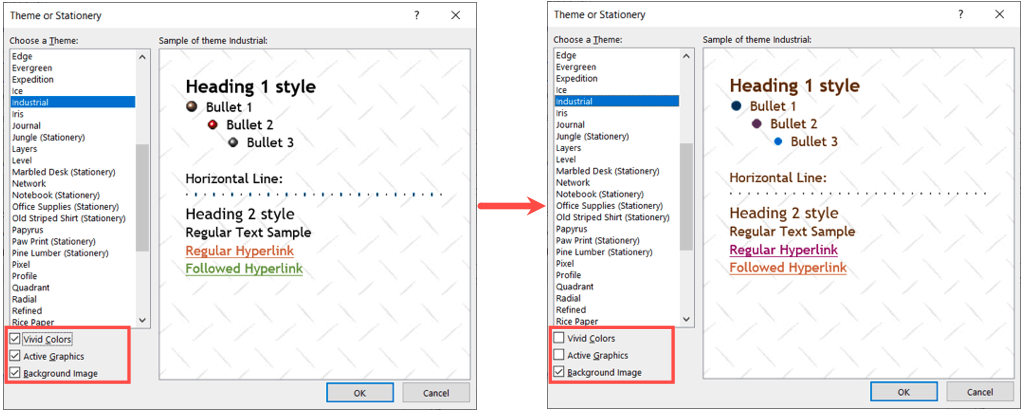
- When you find the theme you want and have adjusted those additional options, keep it selected and pick OK in that window and the next two.
Customize an Outlook Email Theme
By default, new messages, replies, and forwards use the theme’s font. However, you can change these if you like.
In the Signatures and Stationery window, select the Font drop-down box and pick one of the following.
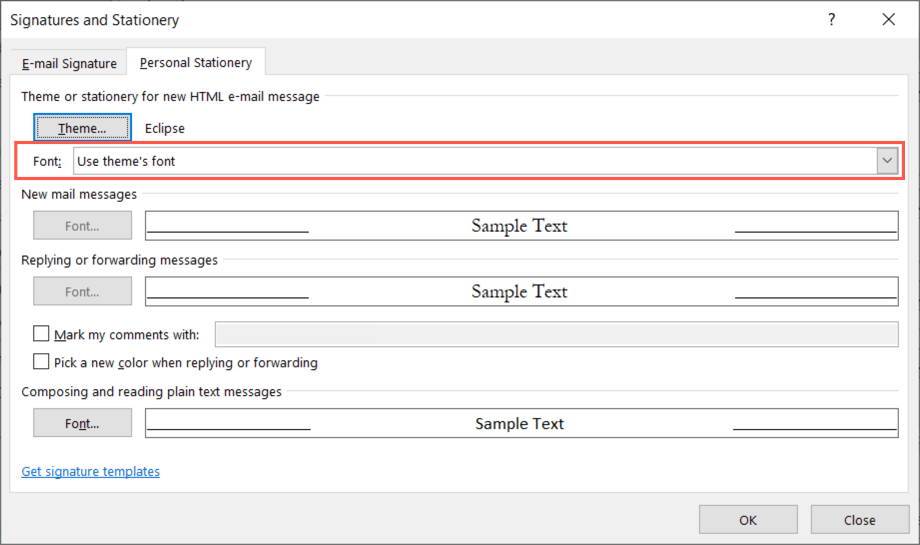
Use My Font For Replies and Forwards
If you choose Use my font when replying and forwarding messages , the Font button becomes available in the Replying and forwarding messages section.
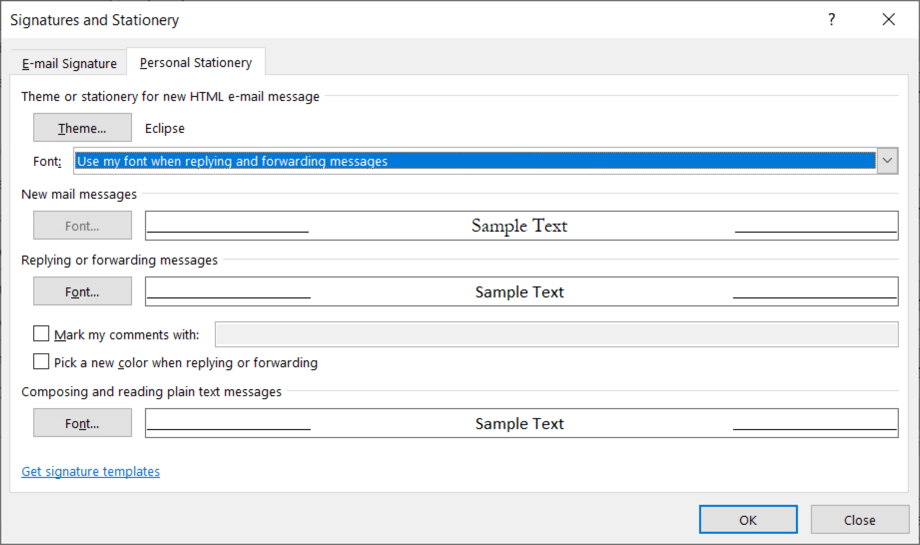
Select that button, pick the font you want to use, and press OK .
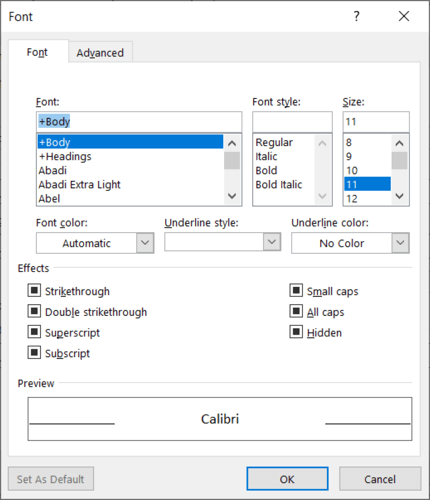
Optionally, you can mark the setting for Pick a new color when replying or forwarding . This setting automatically changes the color of the font when you reply or forward a message.
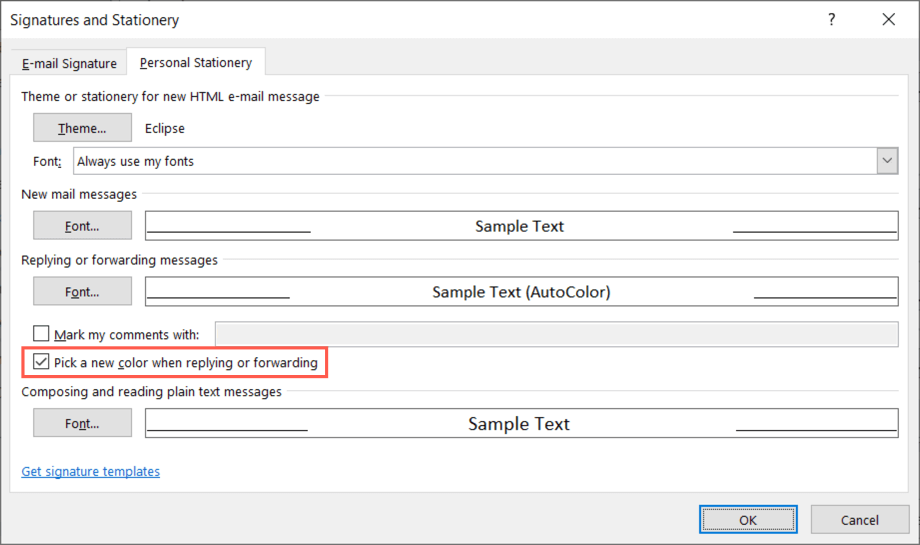
Always Use My Fonts
If you choose Always use my fonts instead, the Font buttons for New mail messages and Replying and forwarding messages become available.
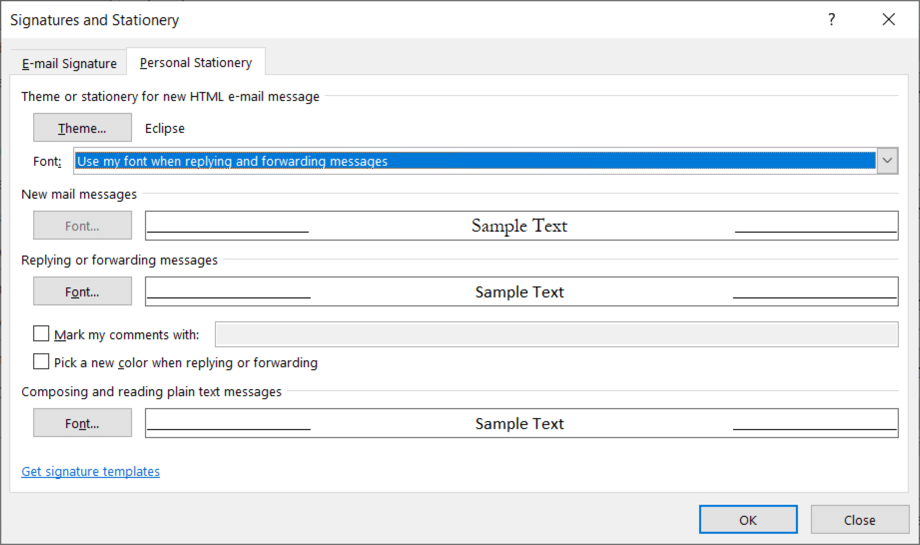
Select the button for the message font you want to change, pick the new one, and press OK .
Remove a Default Outlook Email Theme
If you decide later that you want to remove a theme you’ve applied, you’ll return to the same area of the Outlook options and change the default setting for the theme.
- Open Outlook and select File > Options .
- In the Options window, pick Mail on the left.
- On the right side, select the Stationery and Fonts button.
- In the next pop-up window, confirm you’re on the Personal Stationery tab.
- Select Theme at the top, below Theme or stationery for new HTML e-mail message .
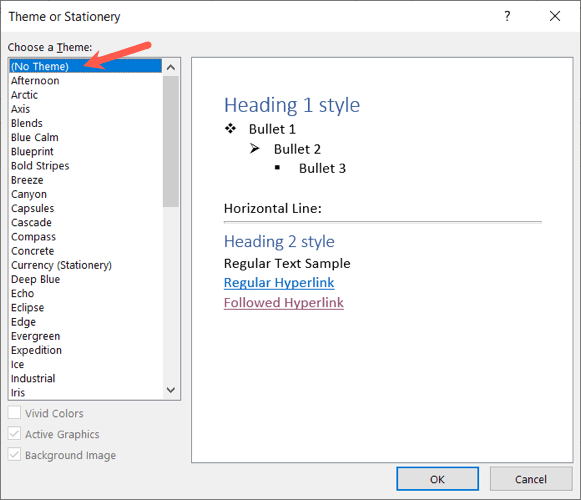
- At the top of the list of themes, select (No Theme) and press OK in that window and the subsequent ones.
Apply or Remove a Theme From a Single Email
Maybe you’d prefer to pick a theme on the fly, depending on the type of email you’re composing, or simply remove the default theme you’ve set. You can do both for a single email.
Change the Outlook Theme
- To pick a theme for a particular email, go to the Outlook Home tab.
- Select the New Items drop-down menu, move your cursor to Email Message Using , and pick More Stationery in the pop-out menu.
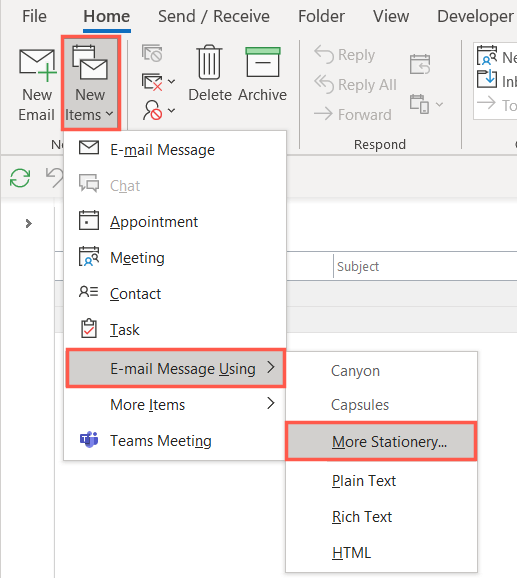
Note : You’ll see any recent themes you’ve used in the pop-out as selectable options.
- Pick the theme you want to use in the pop-up window, optionally check or uncheck the colors, graphics, and image boxes, and select OK .
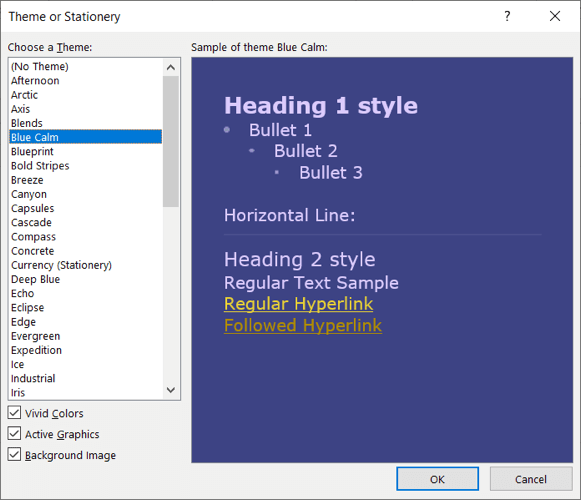
You’ll then see the new theme in the compose message window.
Remove the Outlook Theme
If you just want to remove a theme you’ve applied by default from a new message, you can do this on the Home tab as well.
Select the New Items drop-down menu, move your cursor to Email Message Using , and pick Plain Text , Rich Text , or HTML per your preference.
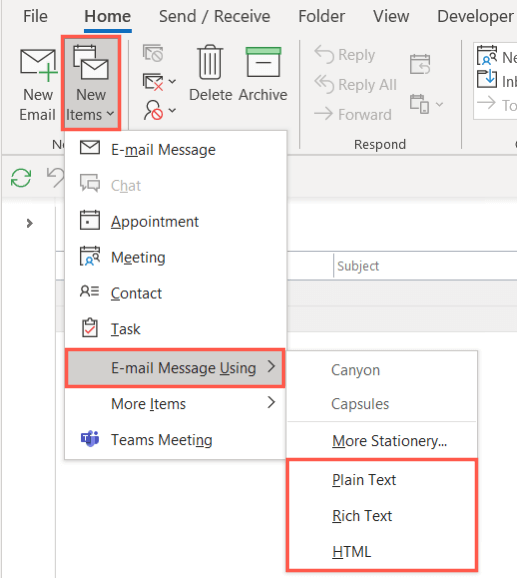
You’ll then see your new email appear without a theme and the original white background.
Whether you want a seasonal theme color, one to match your industry, or just an appealing color scheme, you can pick and change an Outlook email theme easily. For more, look at our tutorial on adding a signature in Outlook .
- How to Report Phishing Emails in Outlook
- Top 6 Ways to Fix Outlook Error 0x8004010f
- How to Make an Email Group in Outlook
- How to Change the Default Browser in Outlook
- How to Pin Emails in Outlook
Sandy Writtenhouse is a freelance technology writer and former Project, Department, and Program Manager. She turned her education, job experience, and love of technology into a full-time writing career. With all sorts of gadgets in her home and her hands, she seeks to help others make life easier through technology. Read Sandy’s Full Bio
