Microsoft Outlook is an email app that is a part of the Microsoft Office 365 product line. Key features include adding Zoom meetings directly to your calendar and creating email templates. While designed for Windows, Microsoft Outlook can be used on browsers like Google Chrome or can be downloaded on Mac, Android, and Apple iOS.
One of the benefits of Outlook is its customization, allowing the user to change the look and feel of their emails . You can customize font settings such as size and color or other settings such as notifications and sounds. In this tutorial, we’ll show you how to change the default font in Outlook.
How to Change Fonts and Font Size in Microsoft Outlook for Windows
To change font and font size in Outlook using a Windows device:
- Open Microsoft Outlook .
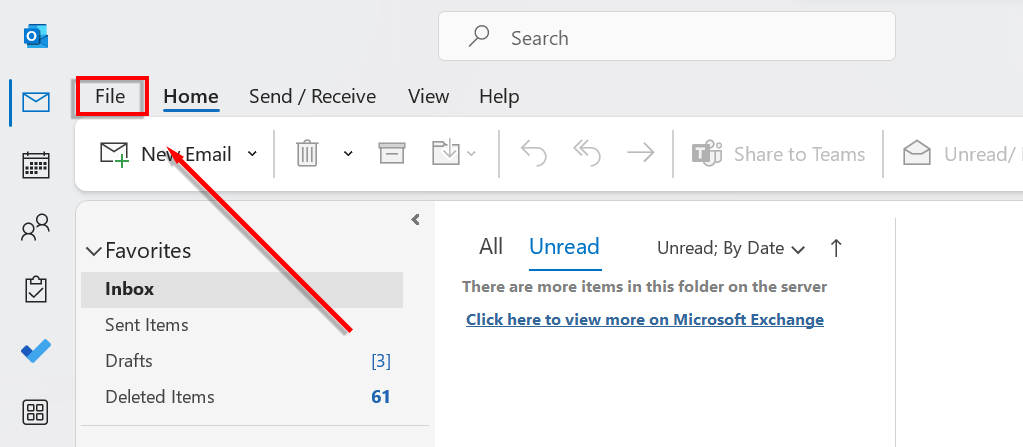
- Click File .
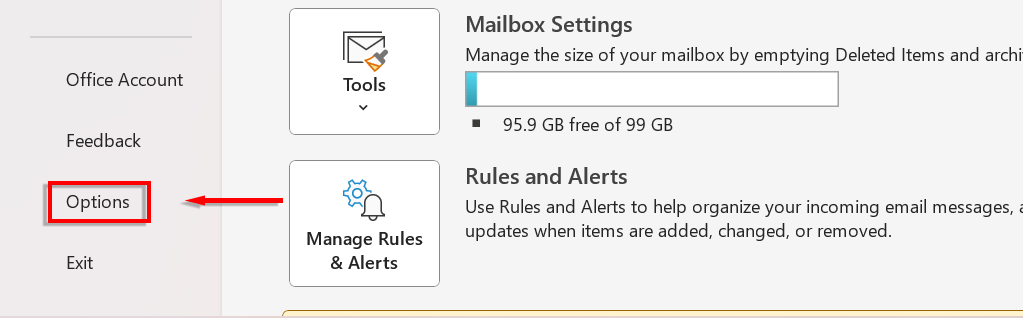
- Navigate to the Options menu.
- On the left-hand side of the new dialog box, select Mail .
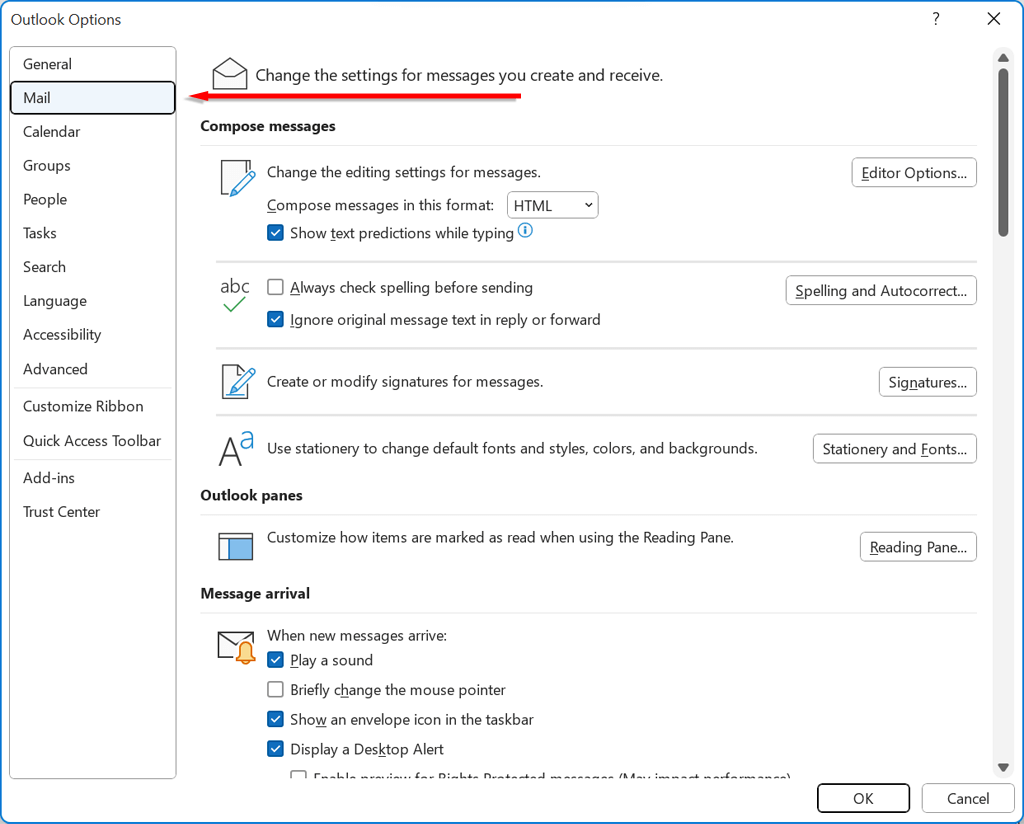
- Click Stationery and Fonts .
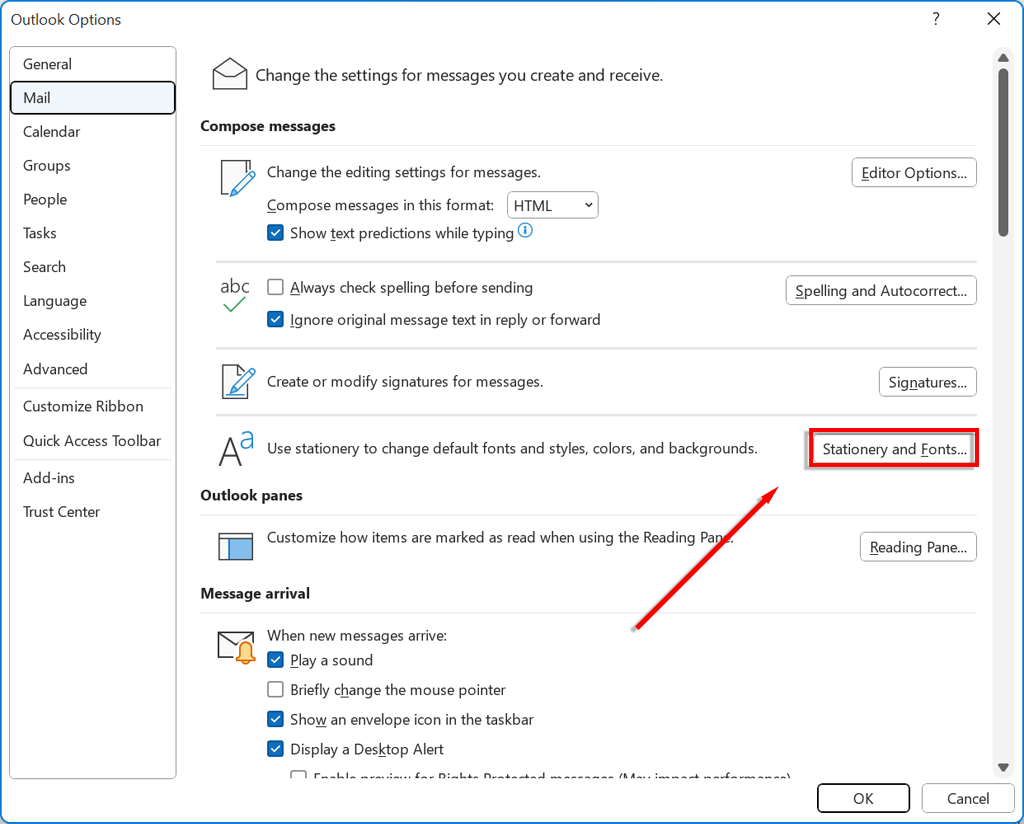
- Click New mail messages to change the default font in new emails.
- Click replying or forwarding messages to change the font for replying or forwarding an email.
- Click composing and reading plain text messages to change how plain text messages appear to you only. Messages will appear in plain text for recipients.
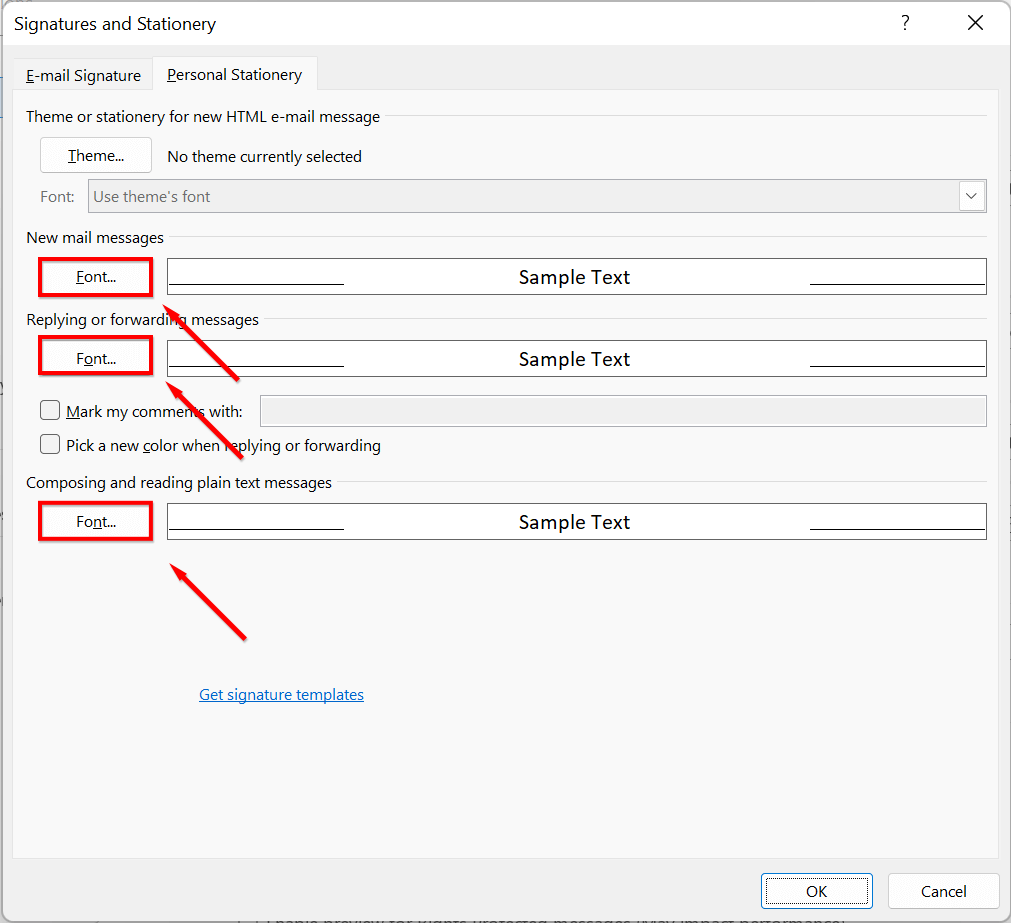
- Choose the font you would like to use. You can use any font that is downloaded to your computer. If you would like to change from the default font size, select the text size of your choice.
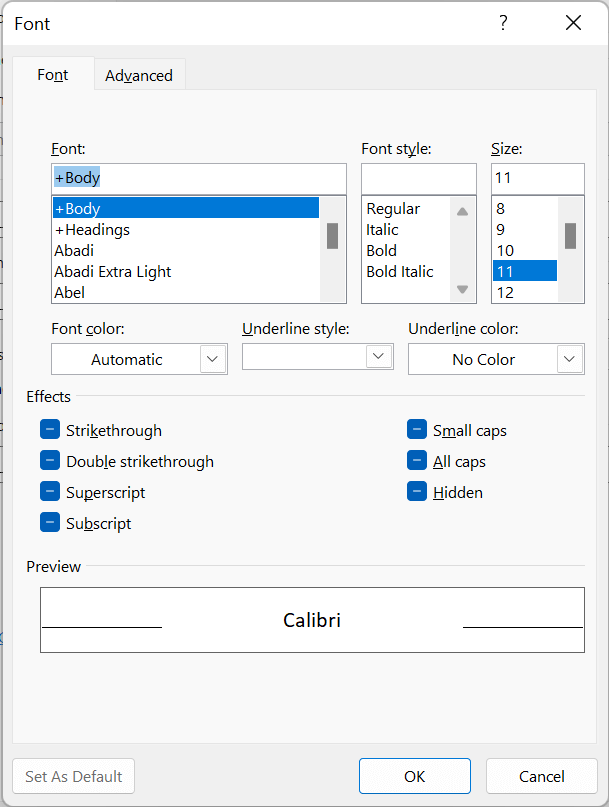
- You can also customize the text color under the font color heading, the font style under the Style heading, add underlines, change spacing and apply a number of effects.
How to Change Fonts and Font Size in Microsoft Outlook for macOS
To change fonts on Outlook for Mac:
- Open Microsoft Outlook on your macOS device.
- Go to Preferences and select Fonts.
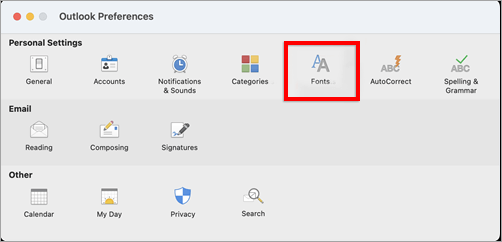
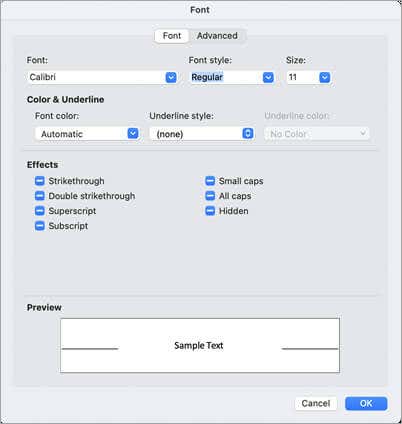
- Click Font on the category you would like to change:
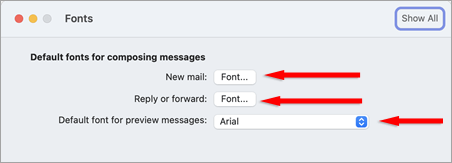
- New mail: Change the default font in new emails.
- Reply or forward: Change the font for replying or forwarding an email.
- Plain text: Change how plain text messages appear to you only. Messages will appear in plain text for recipients.
How to Change Fonts and Font Size in Microsoft Outlook for Web/HTML
If you use the web-based version of Outlook, here’s how to change your font:
- In your browser, navigate to Outlook.com .
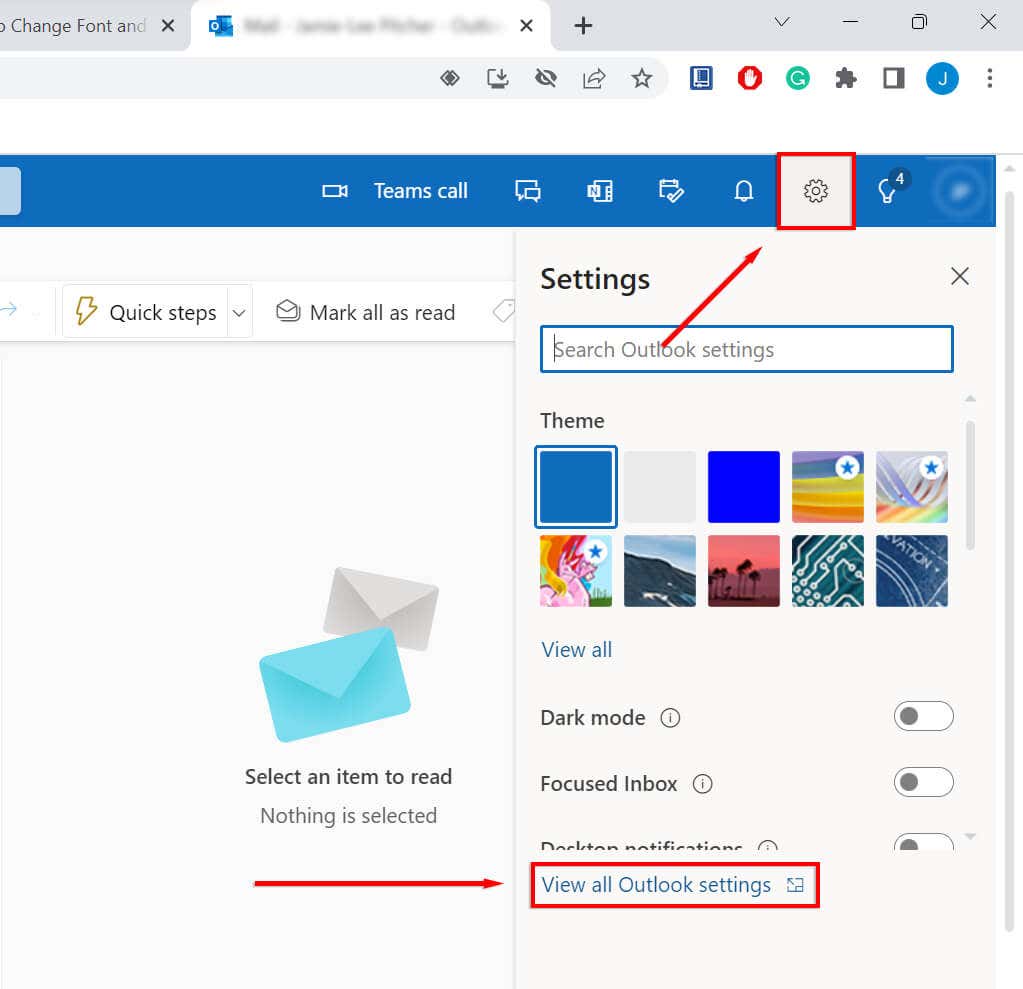
- Select the Cog icon at the top-right corner and select View all Outlook settings .
- Choose Compose and reply .
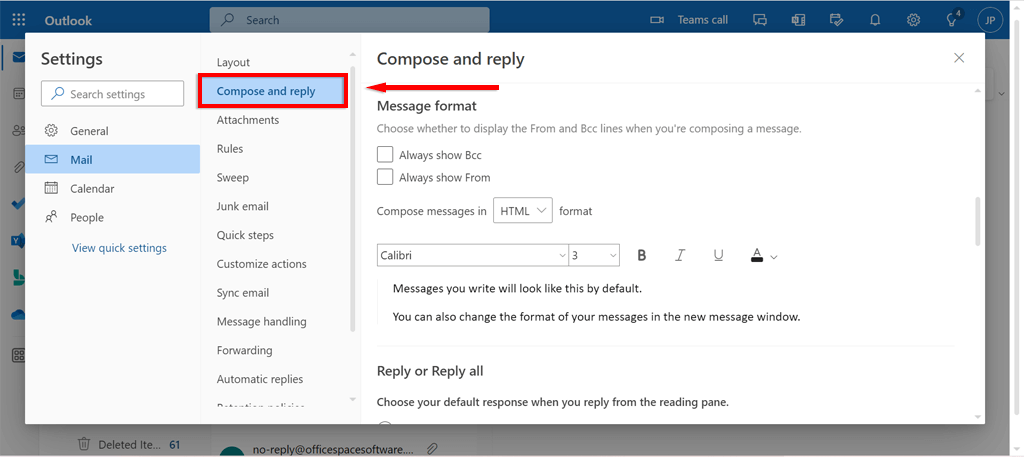
- Under Message Format , select your desired font from the drop-down box.
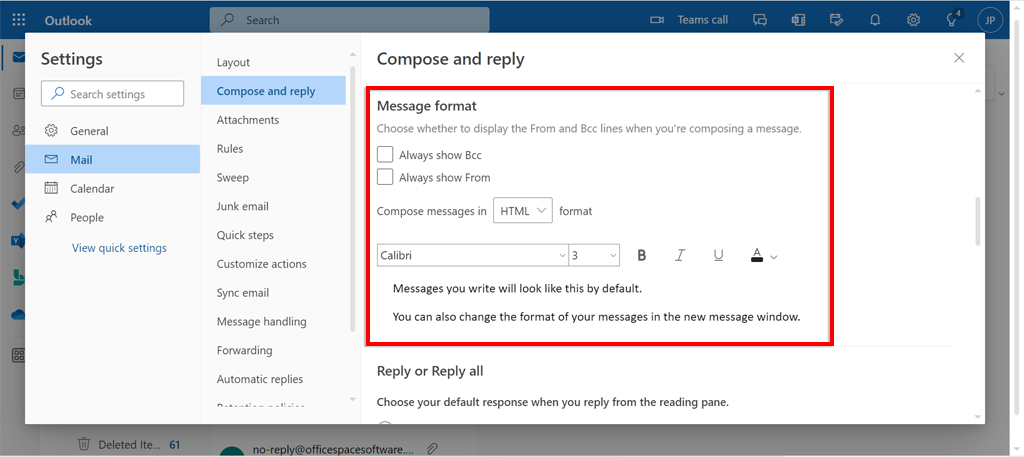
- Select Save .
How to Change the Font and Font Size in the Microsoft Outlook Message List
If you would like change the font and font size in your message list:
- Open Microsoft Outlook on your device and navigate to View .
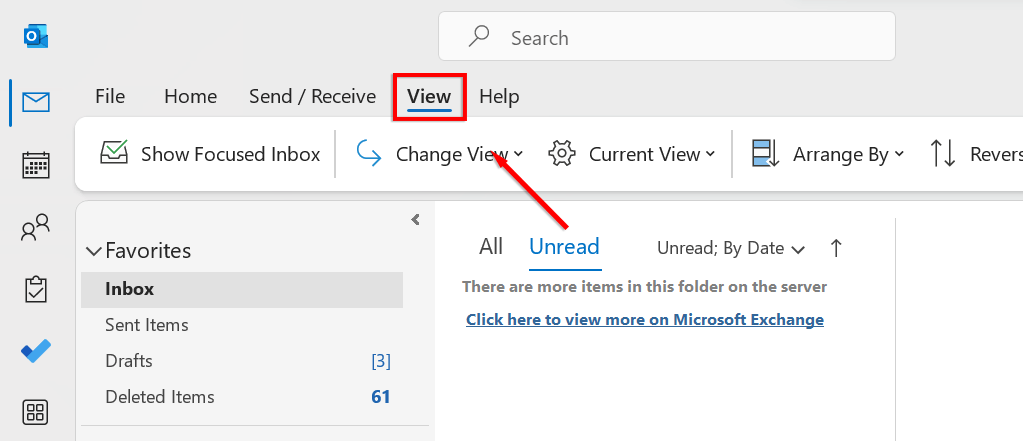
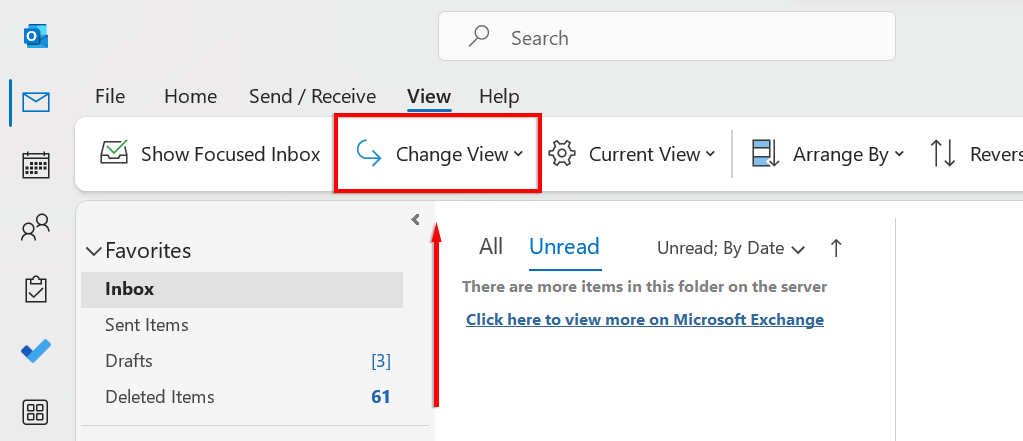
- Click Change View and select Manage Views from the drop-down menu.
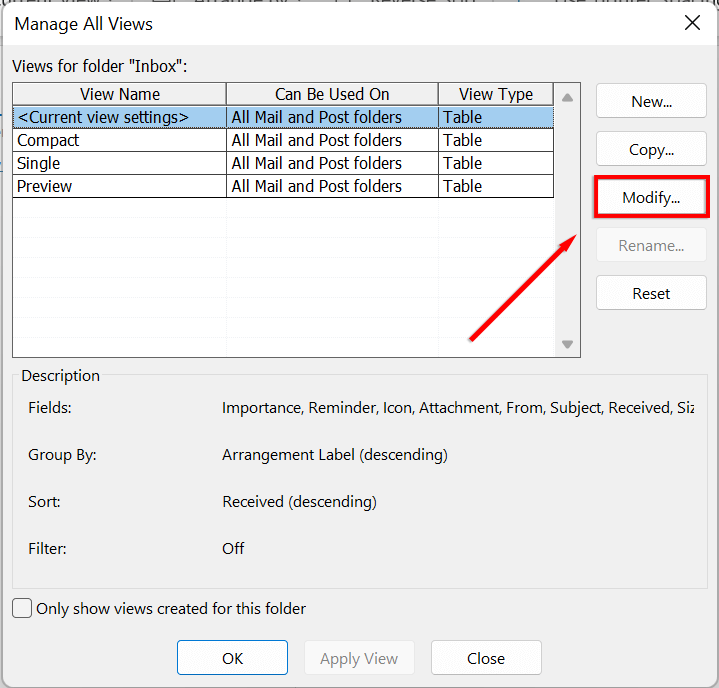
- Click Modify .
- Click Other Settings .
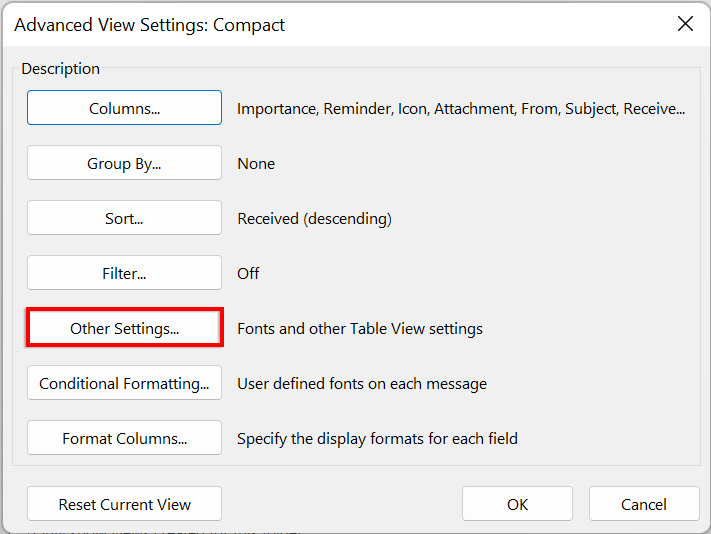
- To change the font or font size for the column headers in your Inbox click Column Font . Choose the font and size you desire.
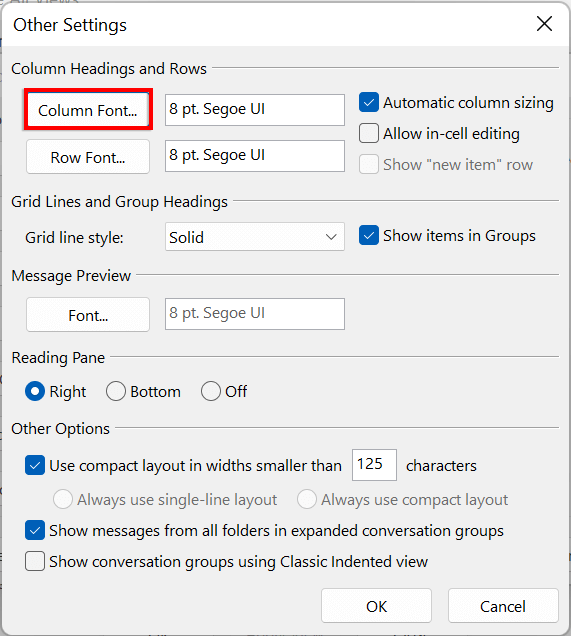
- To change the font or font size of the message subject lines in your Inbox, click Row Font . Choose the font and size you want.
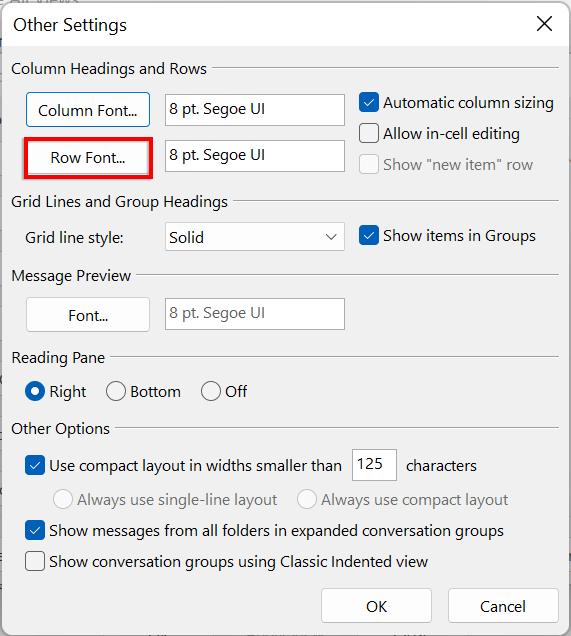
- Click OK .
Make Your Emails Stand Out
That’s it! You should now be able to customize the font and font size in Outlook on any device that you own. You can use this functionality to make your emails more professional, make your email signature unique , or just have a bit of fun.
- How to Report Phishing Emails in Outlook
- Top 6 Ways to Fix Outlook Error 0x8004010f
- How to Make an Email Group in Outlook
- How to Change the Default Browser in Outlook
- How to Pin Emails in Outlook
Jake Harfield is an Australian freelance writer whose passion is finding out how different technologies work. He has written for several online publications, focusing on explaining what he has learned to help others with their tech problems. He’s an avid hiker and birder, and in his spare time you’ll find him in the Aussie bush listening to the birdsong. Read Jake’s Full Bio
