Microsoft has designed the Windows 11 operating system with customization in mind. One thing that can be customized but often goes underlooked is the mouse pointer. Users are able to change their mouse cursor theme, size, and color – and that’s not all.
In this tutorial, we’ll describe how you can change the mouse cursor in Windows 11.
Change Cursor Size and Color in Windows 11
- Right-click the Start button and select Settings .
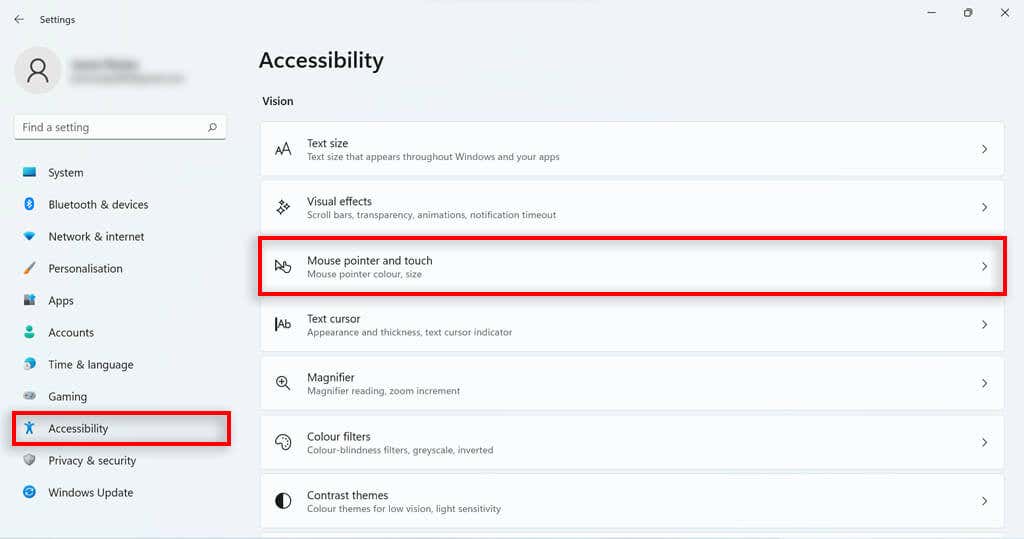
- Press Accessibility on the left-hand menu then navigate to Mouse pointer and touch .
- Under Mouse Pointer Style , select the cursor color you would like. You should have the choice between white, black, inverted, or custom color. If you select custom, some preset pointer color options will appear. Press Choose another color to select any color.
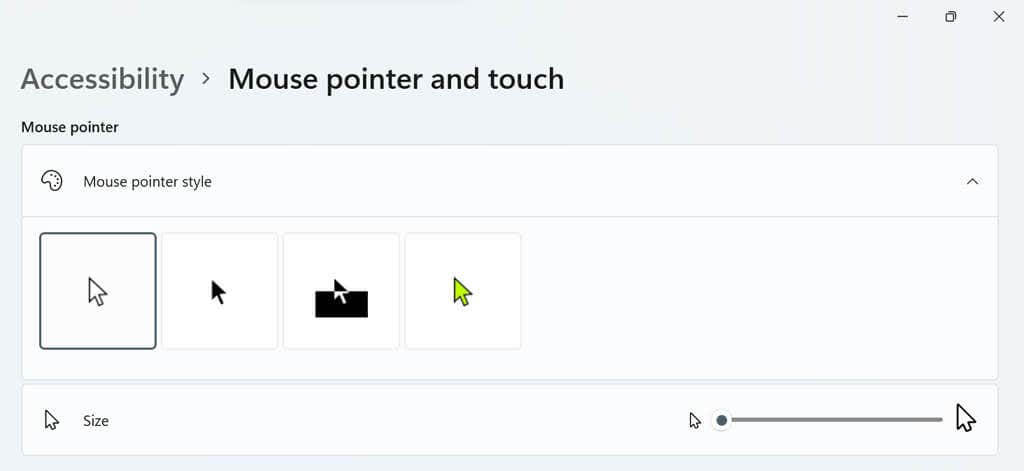
- Go to the slider to the right of the Size option. Move the slider to the value of your choice, 1 being the smallest (and the default cursor size) and 15 being the largest.
Change the Cursor Style
- Open Windows Settings by pressing the Windows key + I .
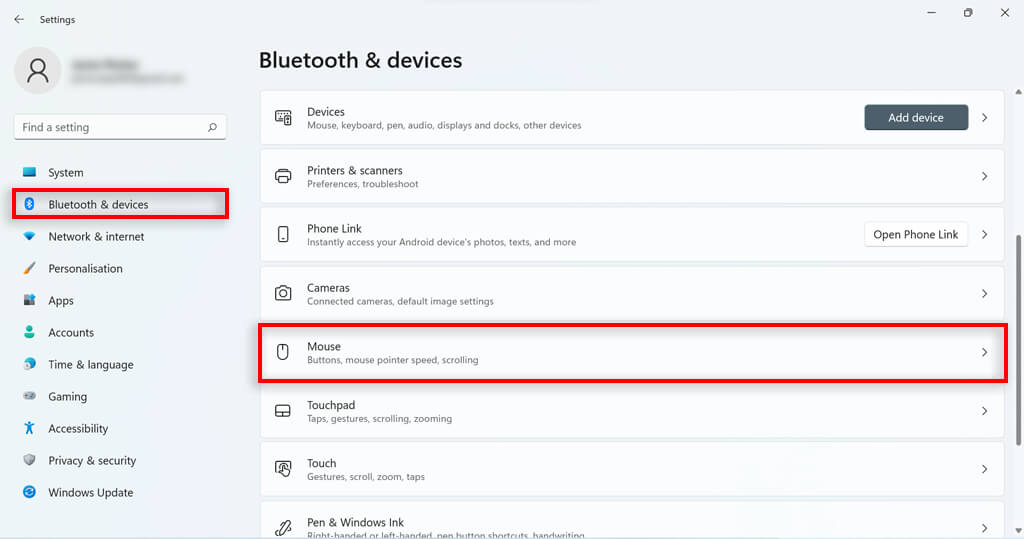
- Select Bluetooth & Devices from the left sidebar. Scroll down and Select Mouse .
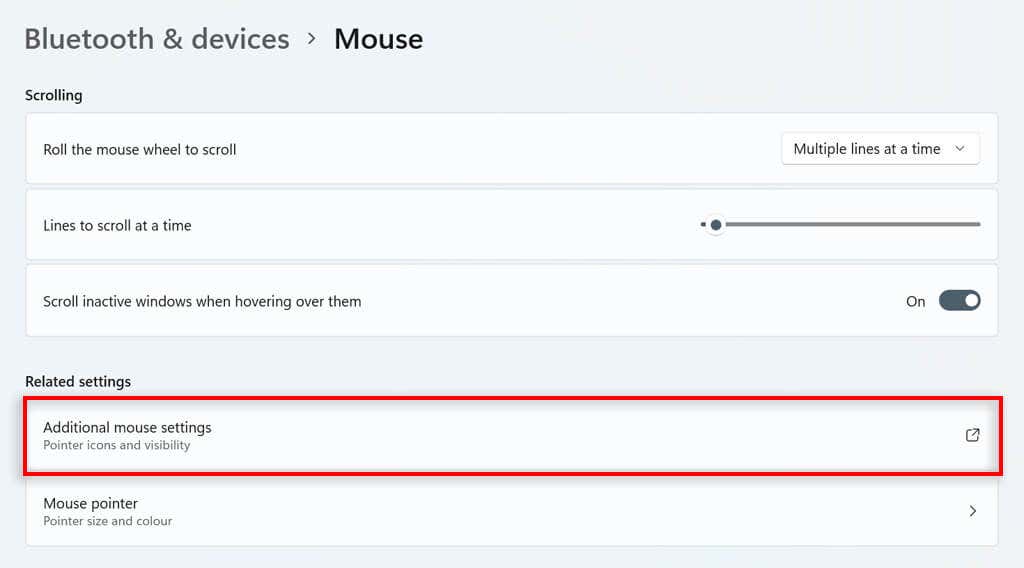
- Scroll down and click Additional mouse settings .
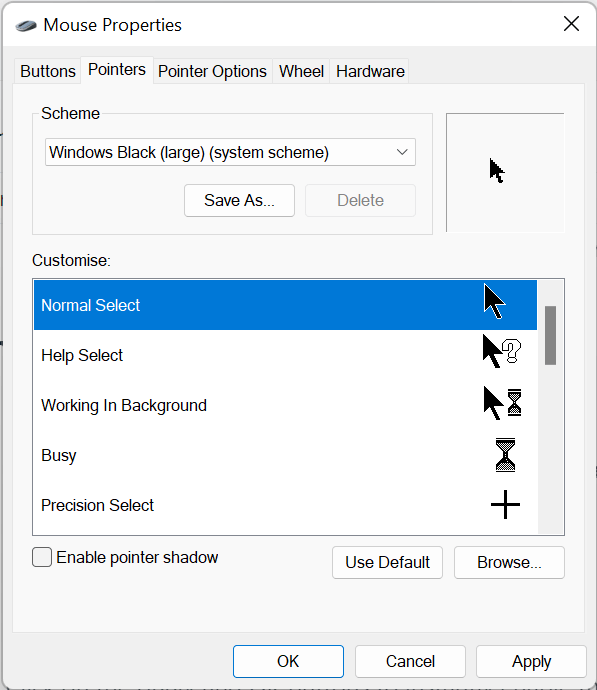
- Navigate to the pointers tab. Select a pointer from the list underneath Customize . If none of those appeal to you, you can download a custom mouse cursor from a trusted source online and load it into the system by clicking browse…
Change the Cursor Scheme
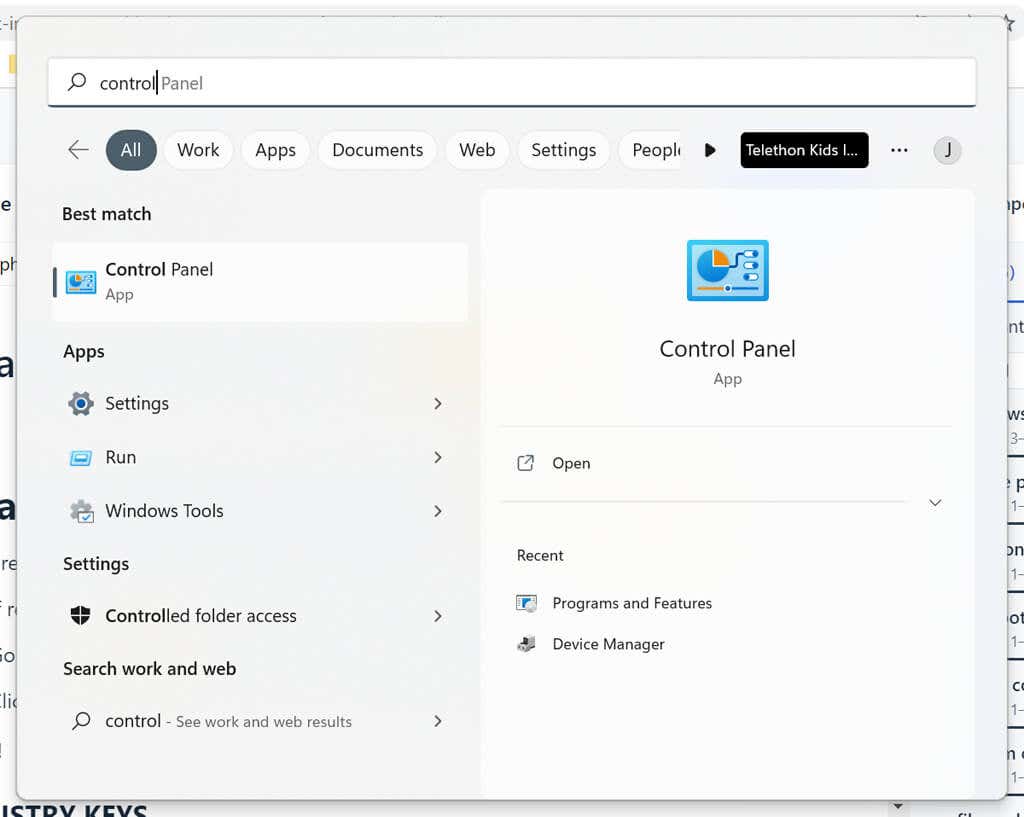
- In the Windows taskbar search box, type Control Panel and double-click the result.
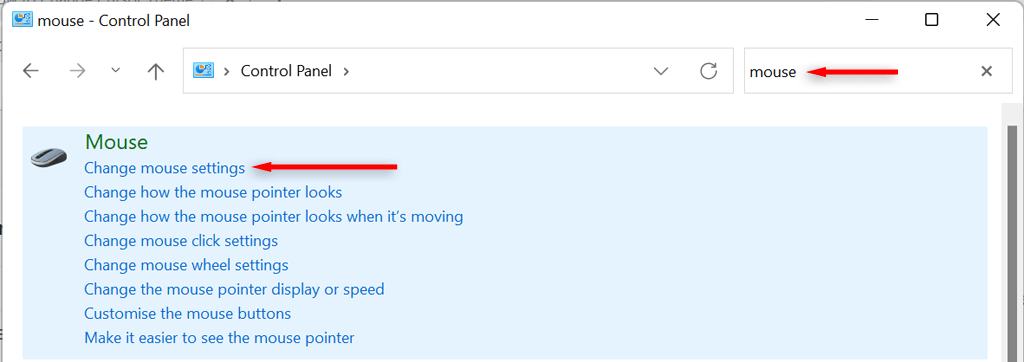
- Type Mouse into the Control Panel search bar. Select Change Mouse Settings.
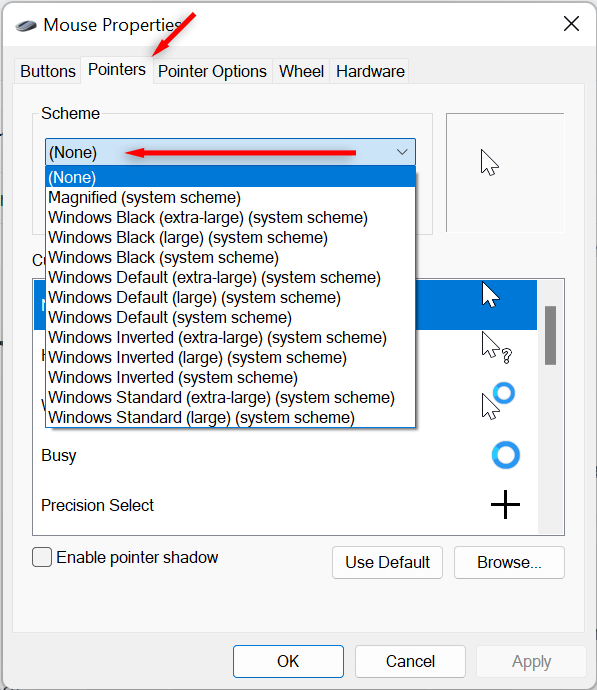
- In the mouse properties window, navigate to the Pointers tab and select the drop-down menu under the Scheme section. Choose a cursor scheme, then press OK to save your choice.
Change the Cursor Speed
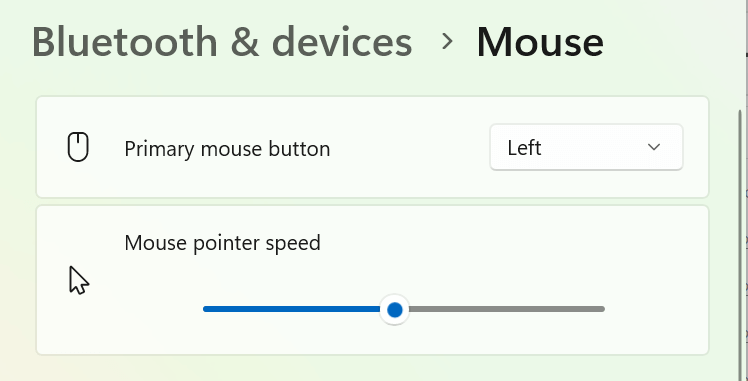
- Open Windows Settings by selecting Settings in the Start Menu. Select Bluetooth & Devices from the left sidebar, then scroll down and select Mouse .
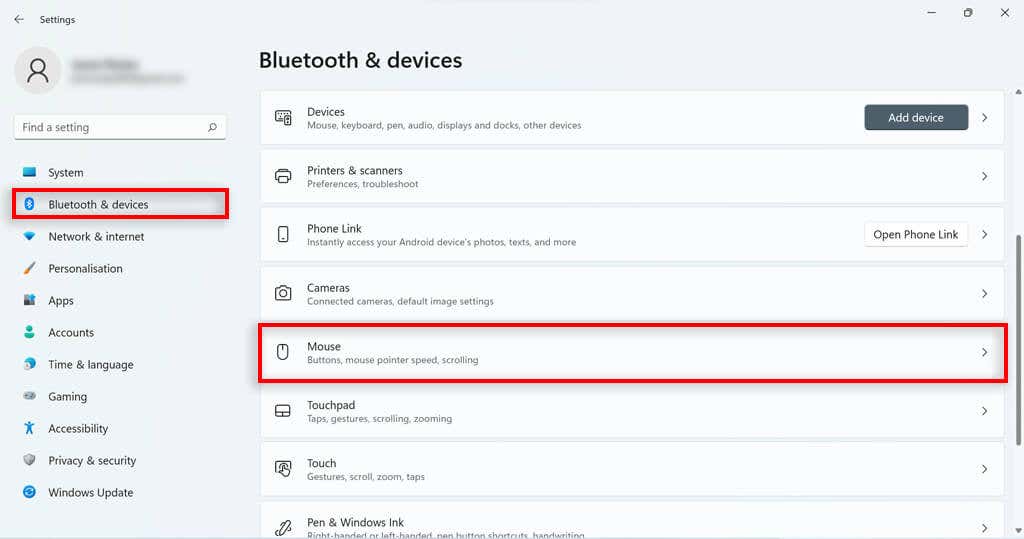
- Adjust the Mouse Pointer Speed slider to increase or decrease the speed.
Change the Cursor Trail
- Open Windows Settings.
- Select Bluetooth & Devices from the left sidebar then scroll down and select Mouse .
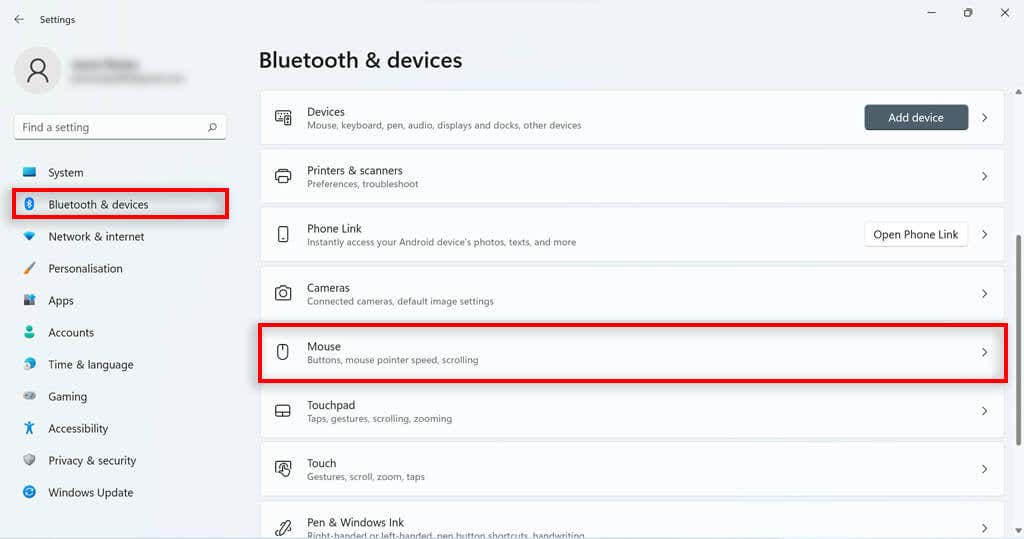
- Scroll down and click Additional mouse settings .

- Navigate to the pointer options tab.
- Under Visibility check the Display pointer trails box.
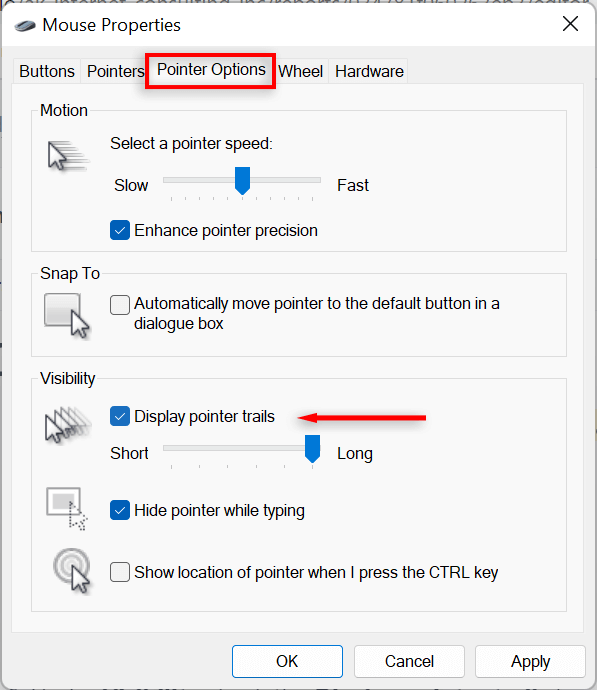
- Adjust the slider underneath to change the length.
How to Customize Text Cursor in Windows 11
- Open Windows Settings by clicking Settings in the Start Menu.
- Click on Accessibility on the left-hand side.
- Select Text cursor on the right-hand side.
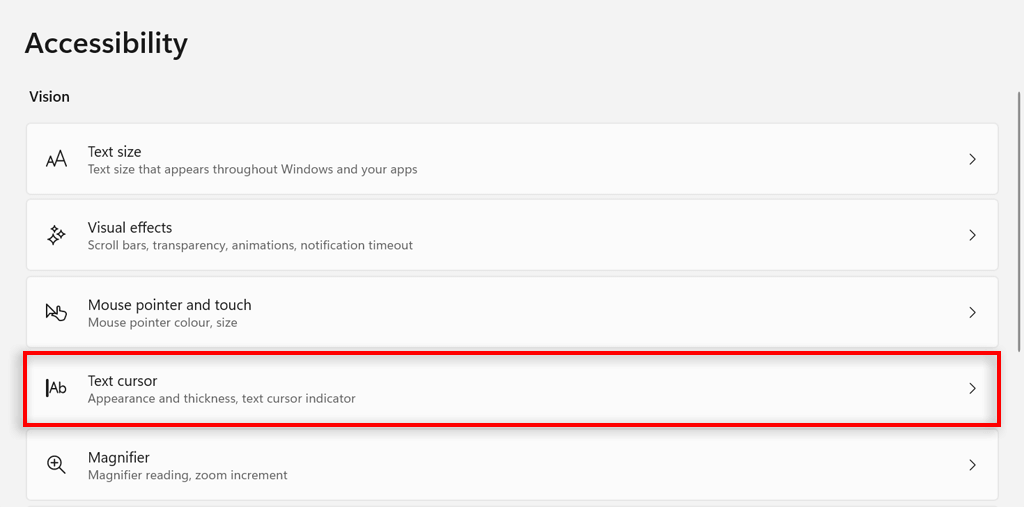
- Toggle the Text cursor indicator option on or off.
- To change the text cursor indicator size, adjust the slider next to Size to the size that you want. 3 is the default size.
- To change its color, select a color under Recommended Colors or select Choose another color to pick a different color.
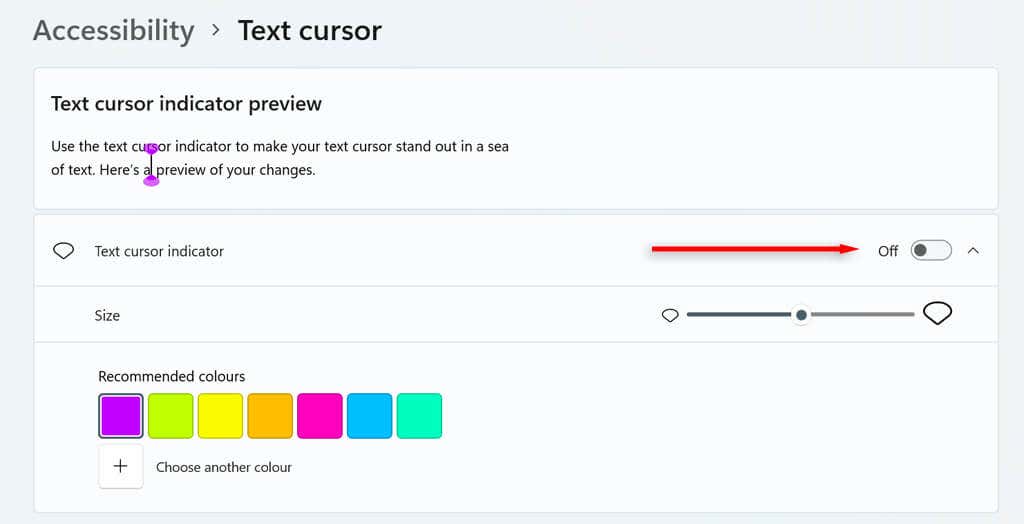
- Finally, adjust the Text cursor thickness slider to the thickness of your choosing.
- Select a color under Recommended Colors or select Choose another color to pick a different color.
Click With Style
With this tutorial, you should be able to personalize your mouse cursor and make it however you like. But don’t stop there. There are plenty of other ways to customize your Windows 11 experience (including the Start Menu , context menu , and widgets ) and make your PC look and feel exactly how you want it.
- Sluggish Windows 11 PC? Try These 5 Windows 11 Tricks to Free up Virtual Memory
- How To Turn Off Notifications On Windows 11?
- How to Fix Windows 11 Boot Loops After Jan 2026 Update
- How to Remove Copilot AI in Window 11? New Update Available in Beta
- January 2026 Patch Tuesday: 7 Things Windows Users Should Do Before and After Updating
Jake Harfield is an Australian freelance writer whose passion is finding out how different technologies work. He has written for several online publications, focusing on explaining what he has learned to help others with their tech problems. He’s an avid hiker and birder, and in his spare time you’ll find him in the Aussie bush listening to the birdsong. Read Jake’s Full Bio
