Are you looking to change Microsoft Word from English to another language? This tutorial will teach you how to do that in the Word app for desktop and its free online version at Office for the web.
By default, Microsoft Word matches its display and editing languages with your computer’s system language. In Word for Windows, however, you can easily have different languages available.

If you use Word for macOS or Word Online, you can still change the display and editing languages, although the process isn’t straightforward and convenient as on PC.
Change Language in Word for Windows
Word for Windows allows you to set a display and editing language independent of the system language through the program’s Options configuration pane.
For example, you can make Windows display its user interface in French despite the operating system appearing in English. Additionally, you can use the same or a different language to author and proof documents—e.g., Spanish.
Note : Changes you make to Word’s language preferences affect other Microsoft Office applications like Excel and PowerPoint.
Change Display Language in Word for Windows
The display and help language impact the Word user interface (or UI), such as the buttons, menus, and documentation. To change it:
- Open Word and select Options on the Home screen. If a document is open, select the File tab and choose Options or More > Options .
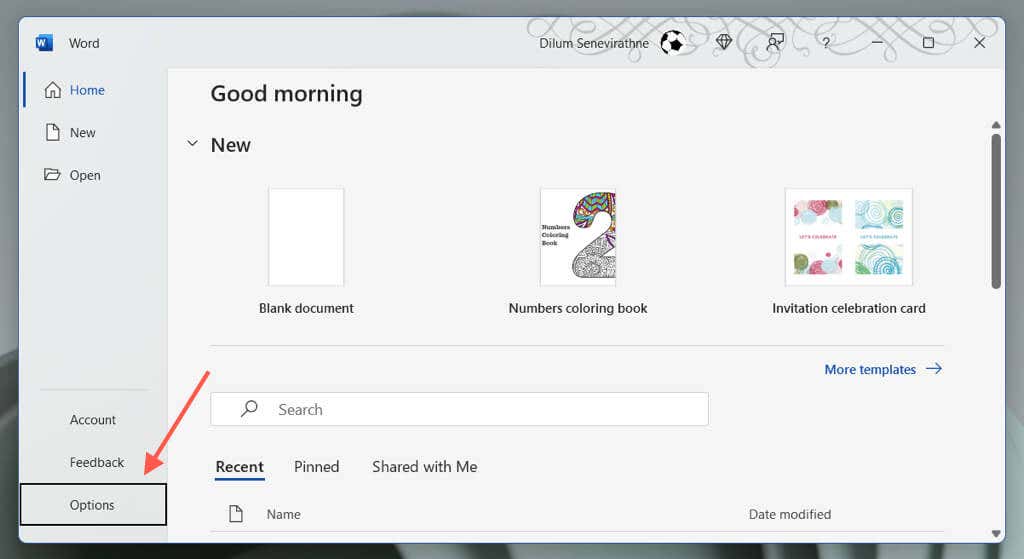
- Select Language on the Word Options sidebar, and choose Add a Language under the Choose display language section.
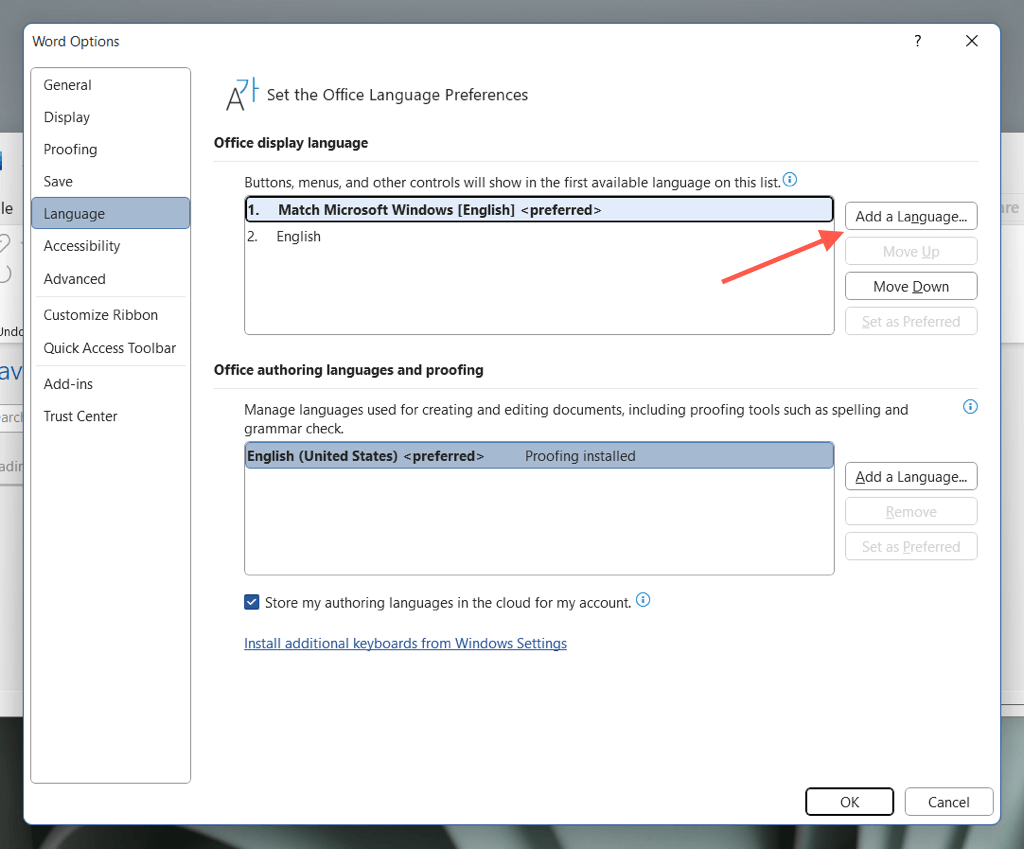
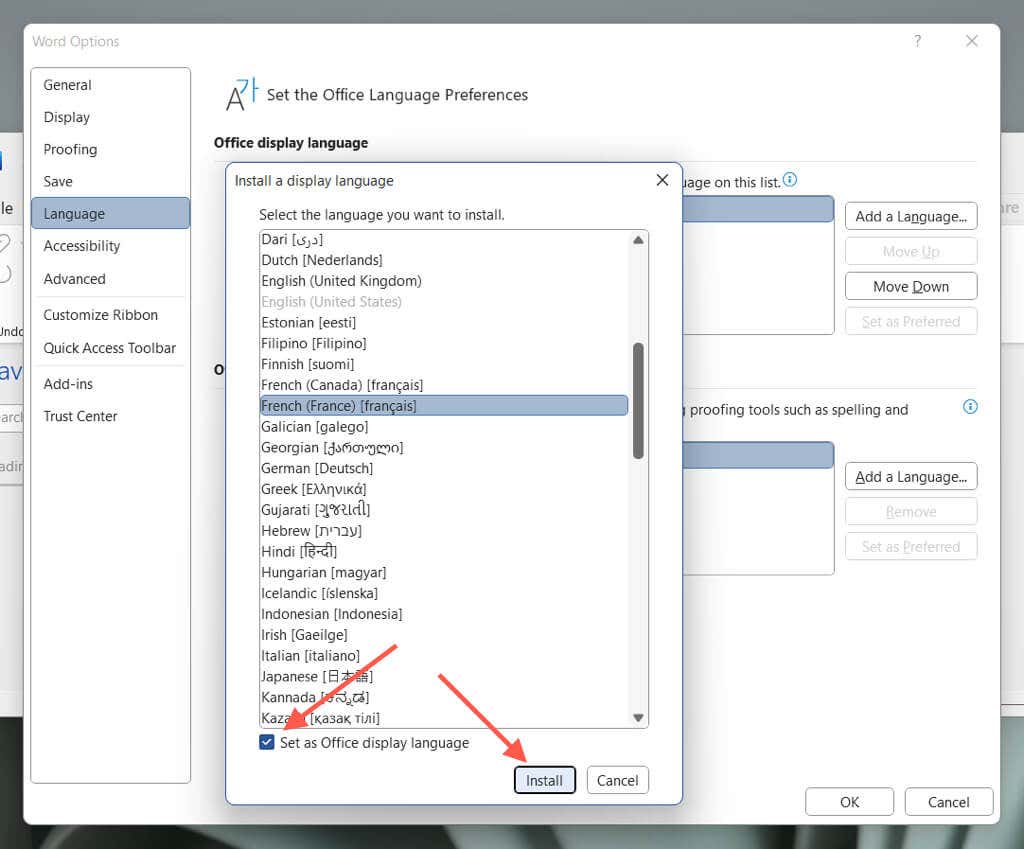
- Sift through the list of available language options and pick your desired language. Then, check the box next to Set as Office display language and select Install .
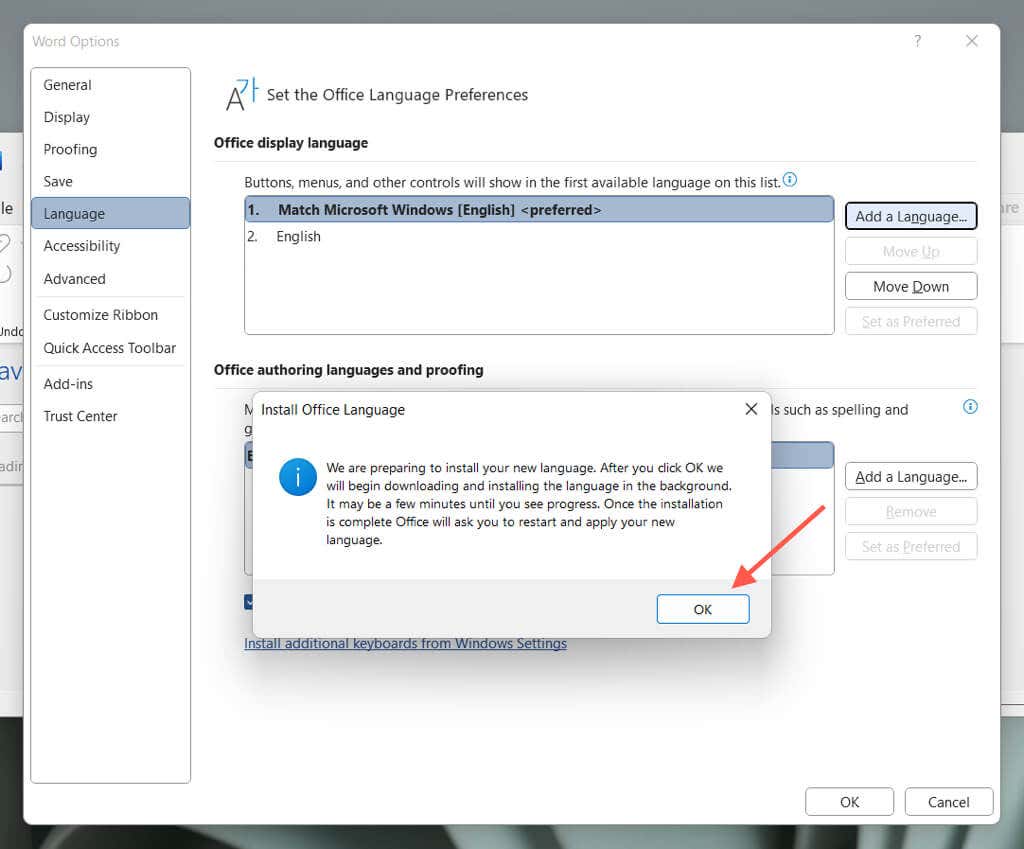
- Select OK to allow Microsoft Office to download and install the language accessory pack on your PC.
- Select Continue to proceed with the display language change. Microsoft Word will automatically shut down.
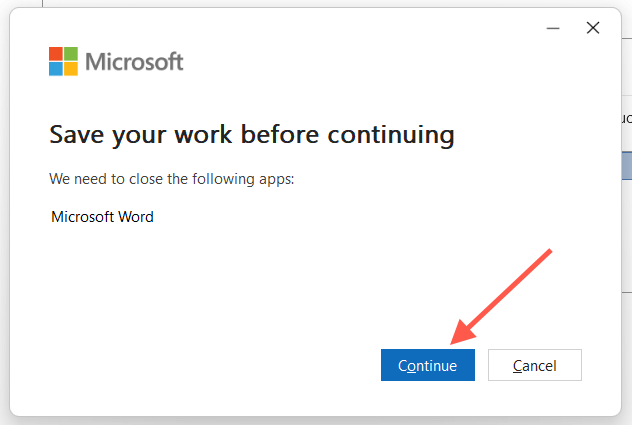
- Wait until Microsoft Office finishes installing the language. Then, relaunch Word to view it in the selected language.
Choose Editing Language in Word for Windows
The editing language (or the authoring and proofing language) in Word is what you use to create and edit documents. Not all languages have proofing tools and dictionaries for grammar and spell check. To change it:
- Revisit Word’s Language dialog box via Word Options, and select Add a Language under the Office authoring languages and proofing section.
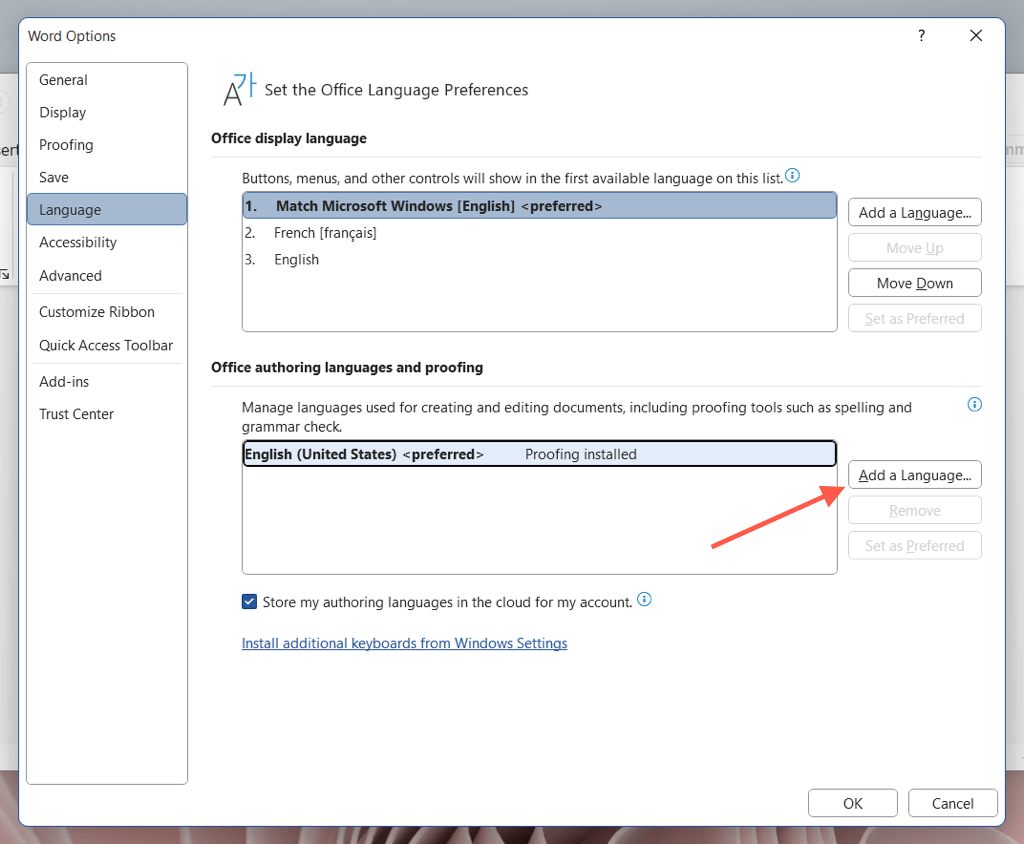
- Select your preferred language. If the language supports proofing, you’ll see a “Proofing tools available” box that you can check.
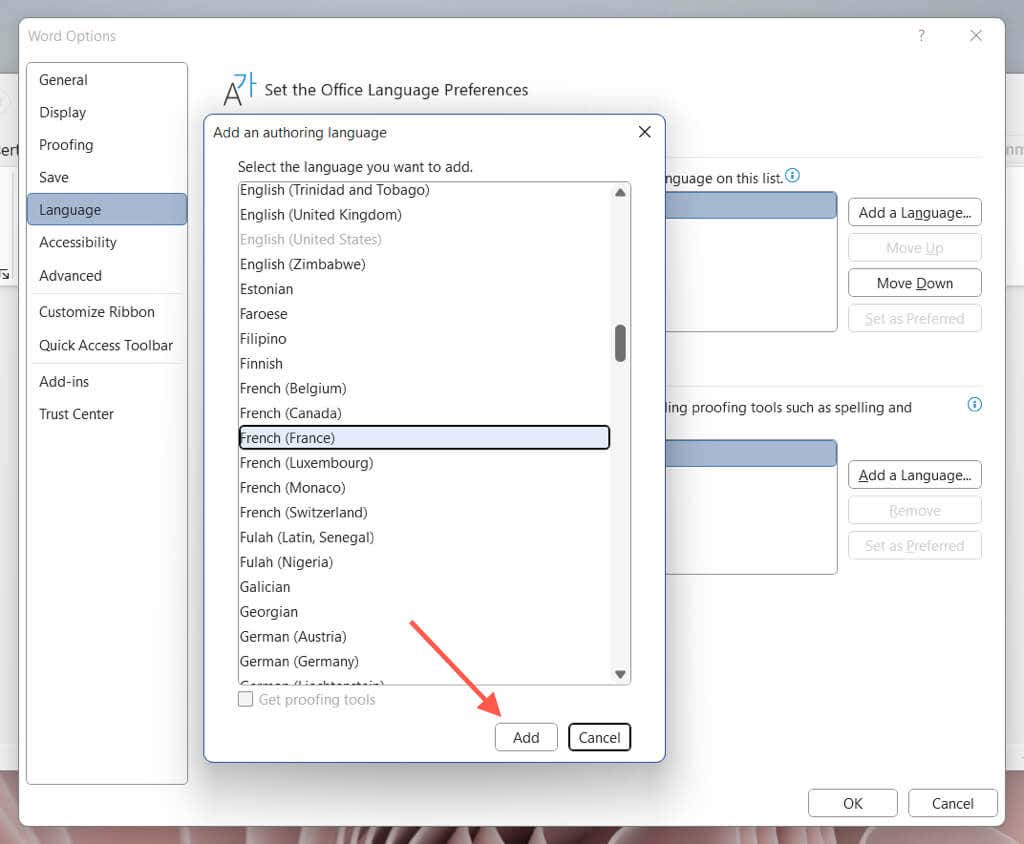
- Wait until Office fetches the language accessory pack from the Microsoft servers—if it’s not installed already. Then, highlight the language within the list and select Set as Preferred .
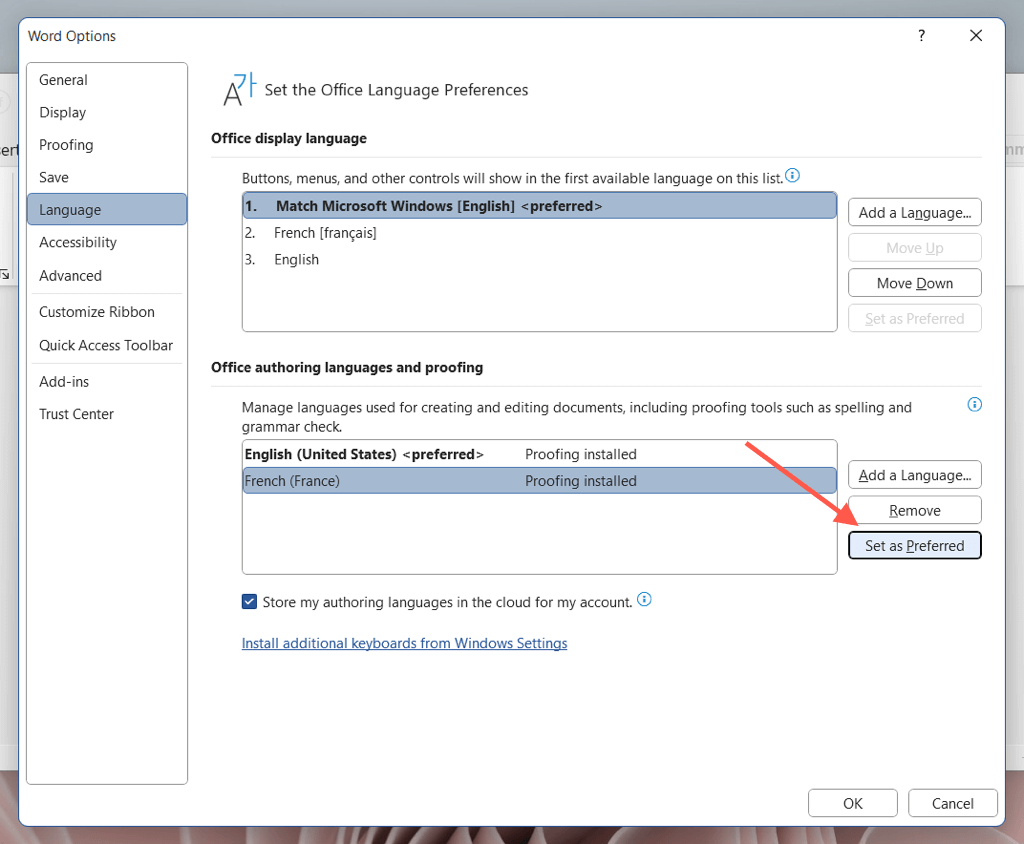
- Select OK on the confirmation dialog.
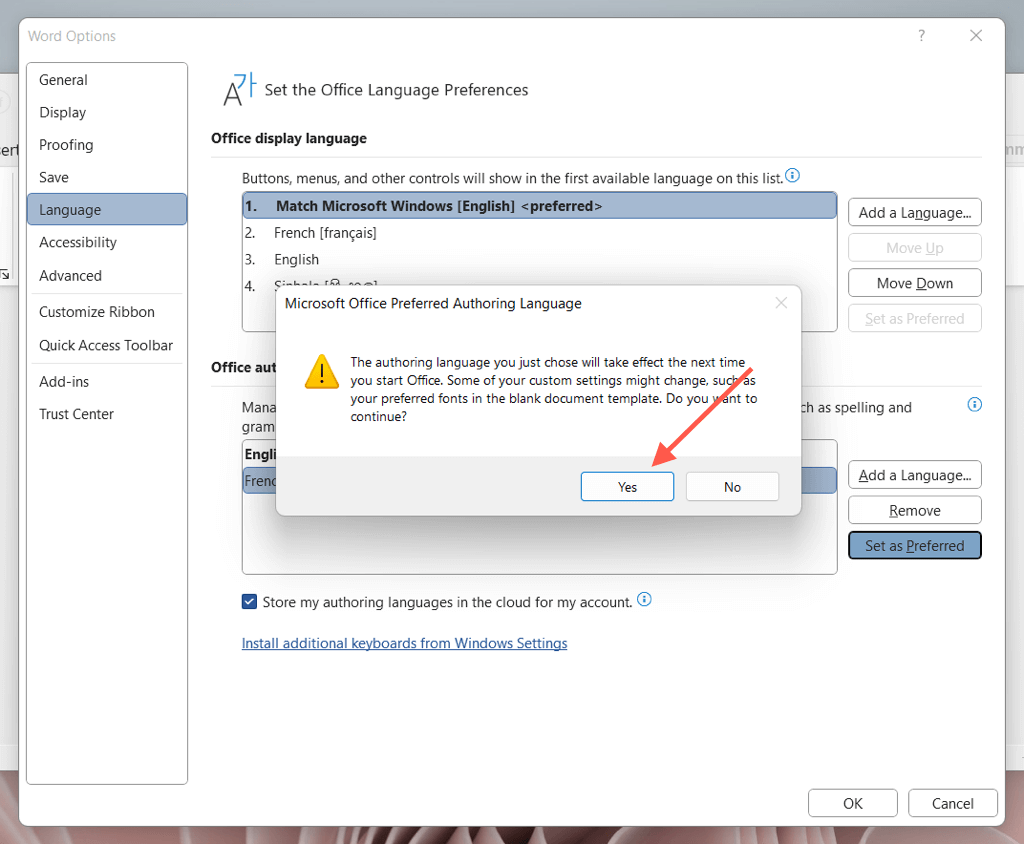
- Restart Word to finalize the language change.
How to Change Word Language on a Mac
Word for macOS doesn’t come with versatile language controls like Windows. Hence, the only way to change the display language from the program requires you to switch the system language itself. You shouldn’t have trouble changing Word’s editing and proofing language, though.
Changing Display Language in Word for Mac
Changing the macOS language impacts the Word user interface and other programs that switch languages based on system preferences. If you want to go ahead, save your work and quit all open programs. Then:
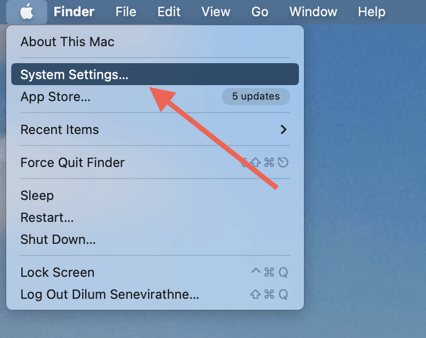
- Open the Apple menu and select System Settings .
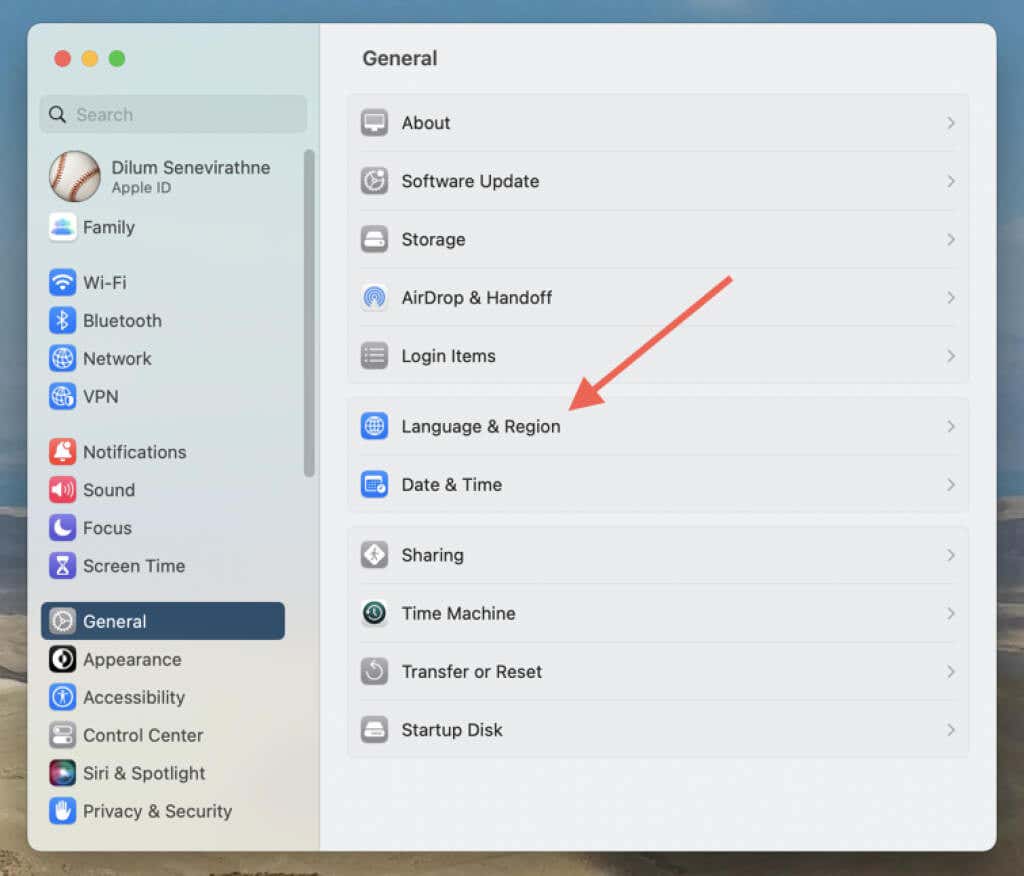
- Select General > Language & Region .
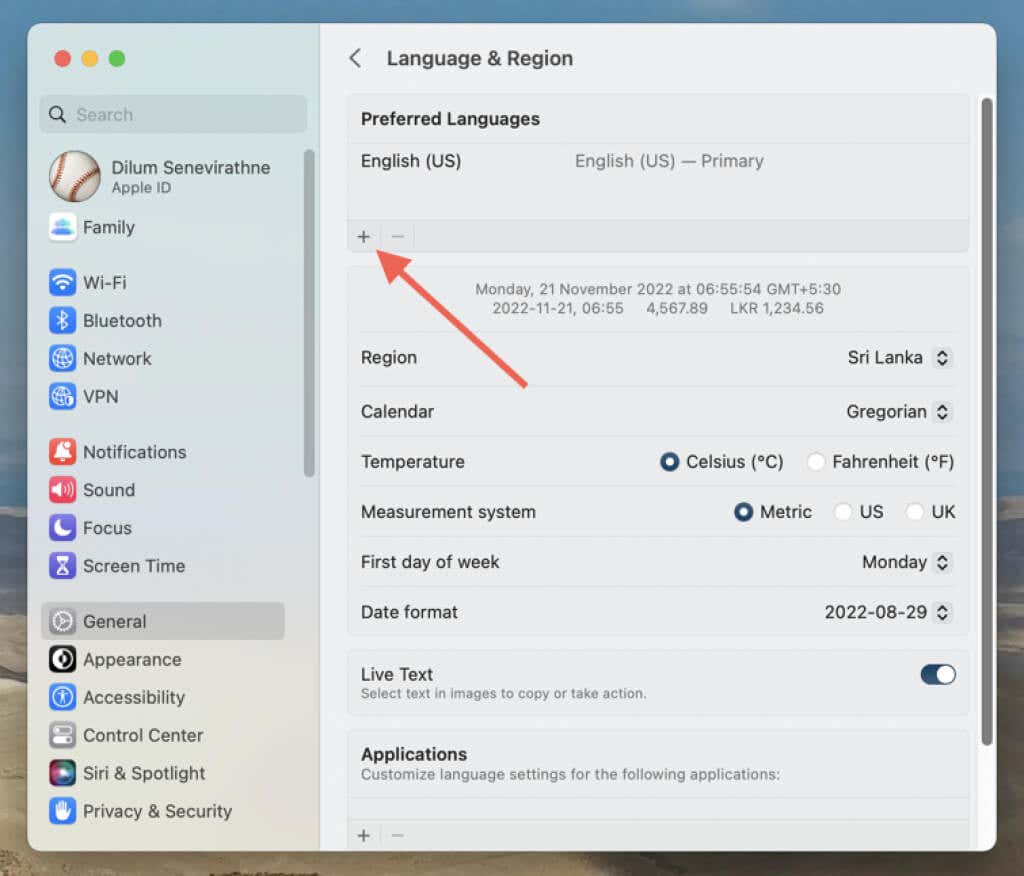
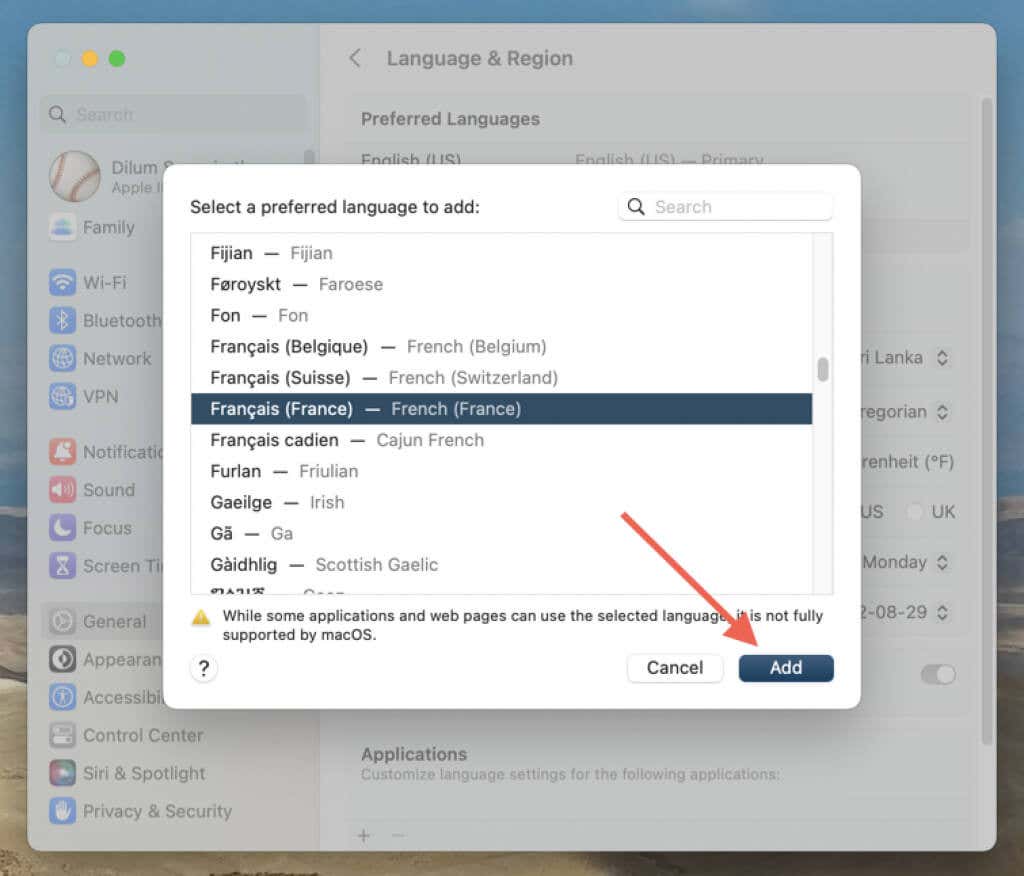
- Select the Plus icon under the Preferred Languages s ection.
- Pick the language you want and select Add .
- Select Restart Now .
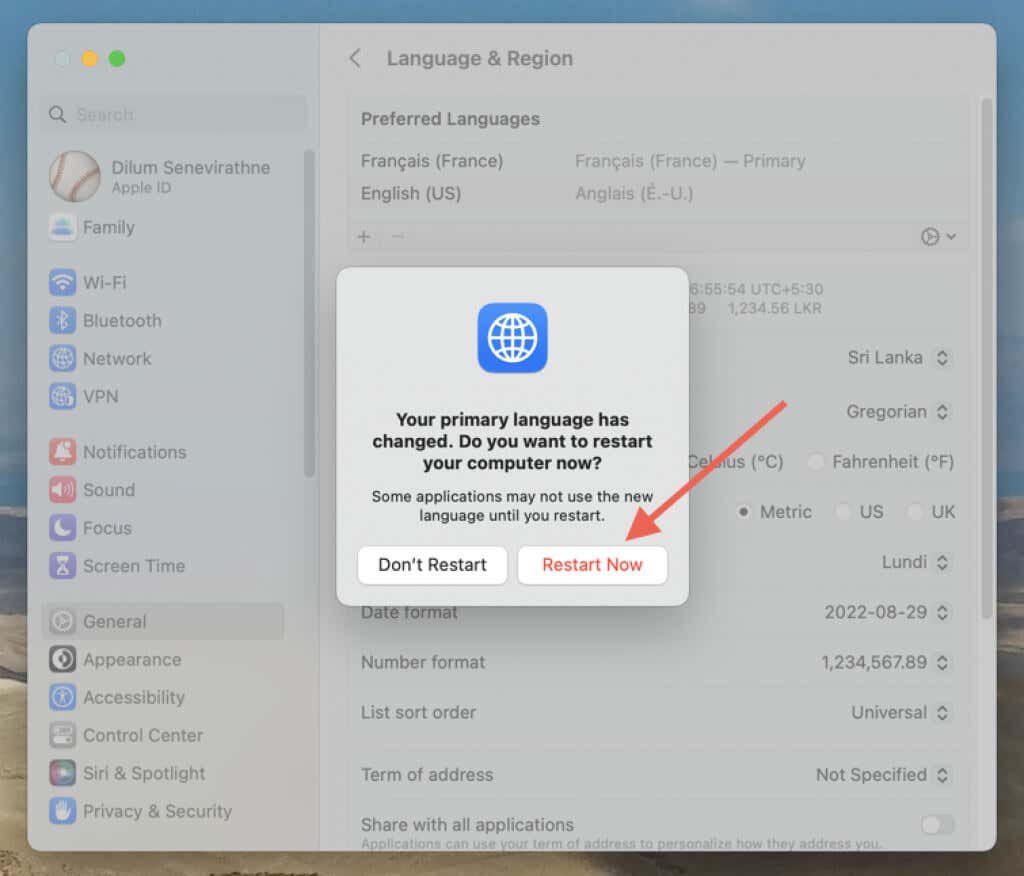
- Wait until your Mac restarts. Then, you should see the entire macOS UI and the programs that run on it—including Word—in the new language.
Choose Editing Language in Word for Mac
You can change the editing language directly via Word for macOS. Proofing tools are only available in some languages.
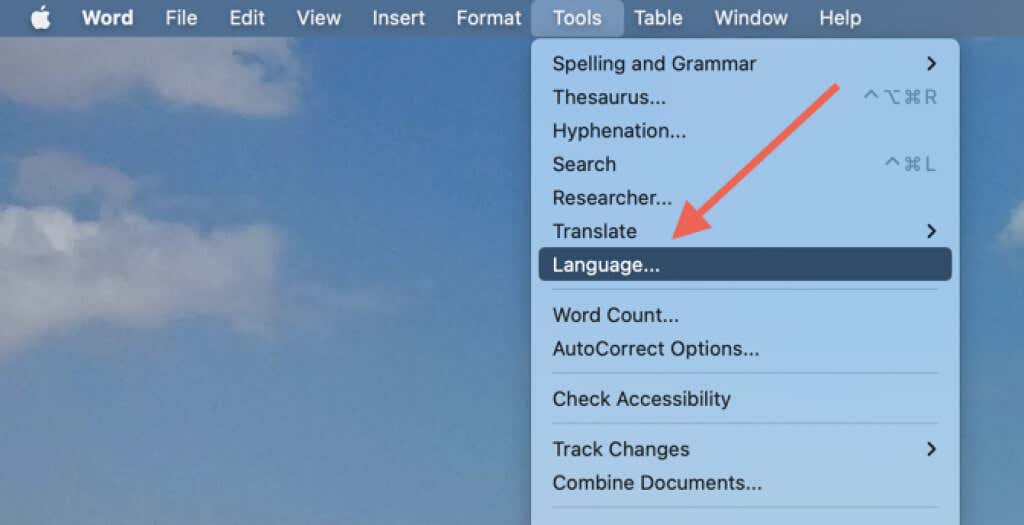
- Open an existing or new document in Microsoft Word and select Tools > Language on the menu bar.
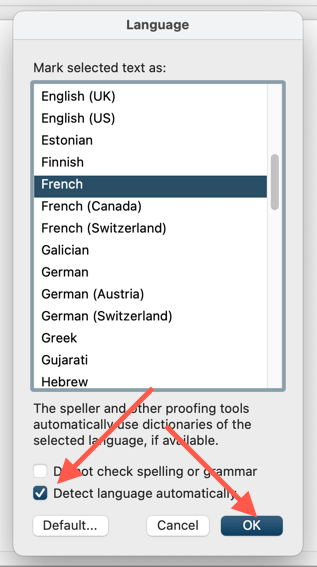
- Pick an editing language, ensure the Detect language automatically checkbox is active, and select OK . Select the Default button if you want to make the language the default for all documents.
Change the Language in Word Online
If you use Word via Office for the web, you can change the display and editing languages using the following instructions.
Changing the Display Language in Word Online
To make the Word Online user interface appear in a different language, you must change the Office display language through your Microsoft Account profile.
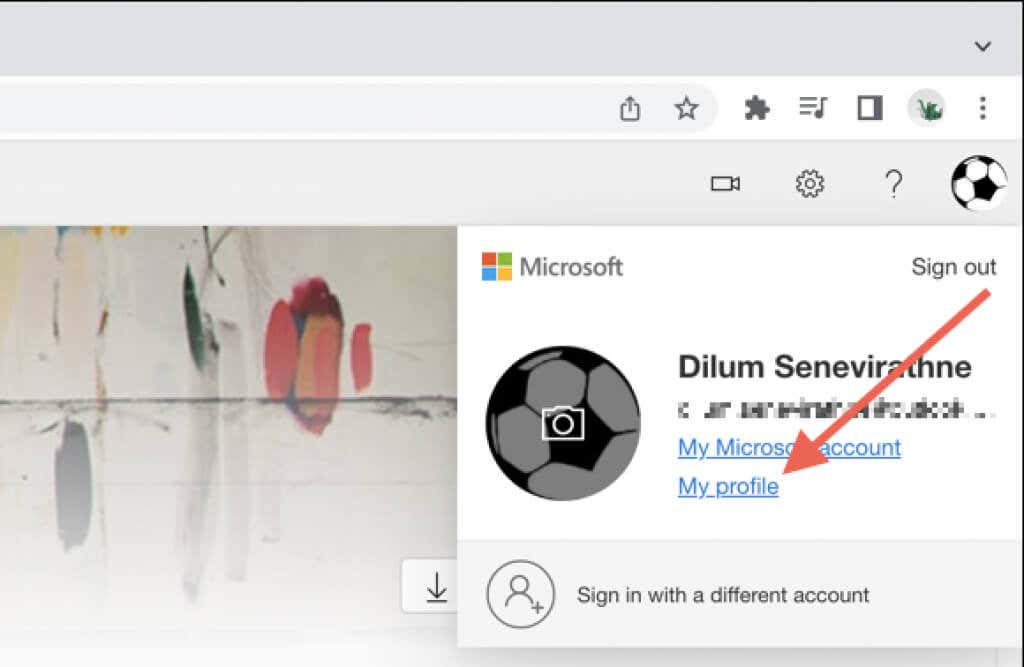
- Visit Office.com, select your profile picture on the top right of the screen, and choose My profile on the drop-down menu.
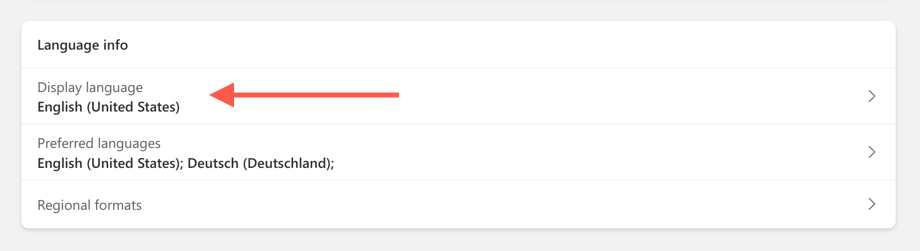
- Scroll down to the Language info section and select Display language .
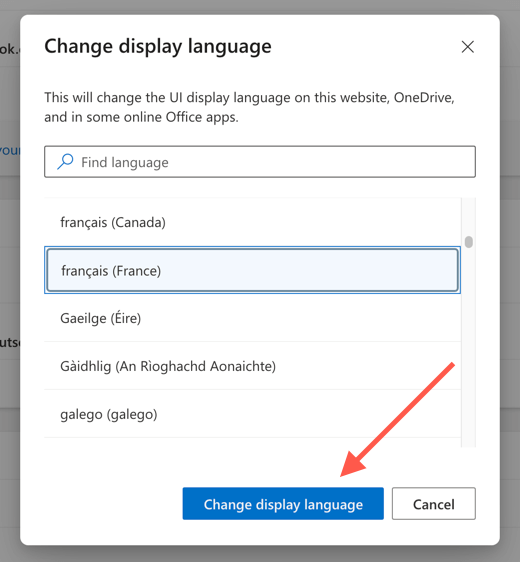
- Pick the display language you want and select Change display language .
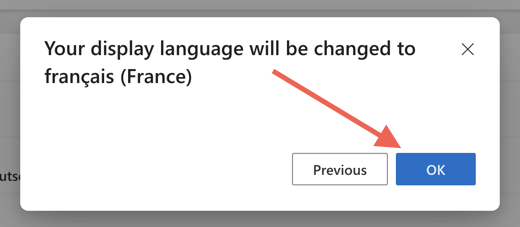
- Select OK on the confirmation dialog.
- Load Word Online, and it should automatically appear in the new display language.
Set Proofing Language in Word Online
Word Online uses the display language as its editing language. If you want to use a different language for proofing, you must change that for each document you open.
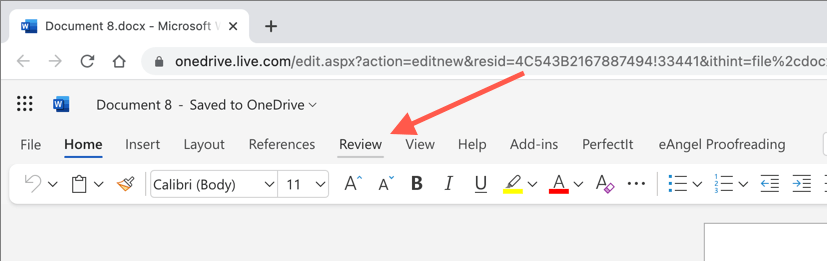
- Open a Word document in Word Online and switch to the Review tab.
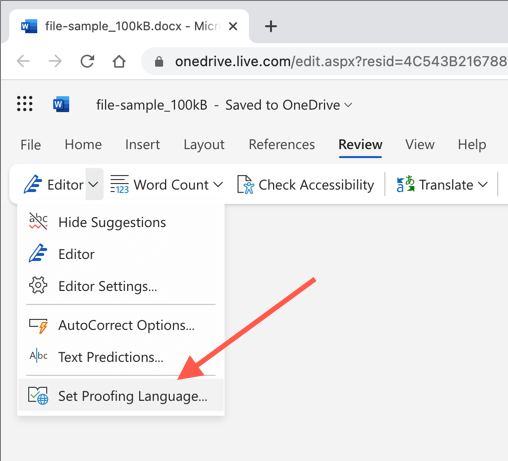
- Select the Down arrow next to Editor and pick the Proofing Language option.
- Pick a language and select OK .
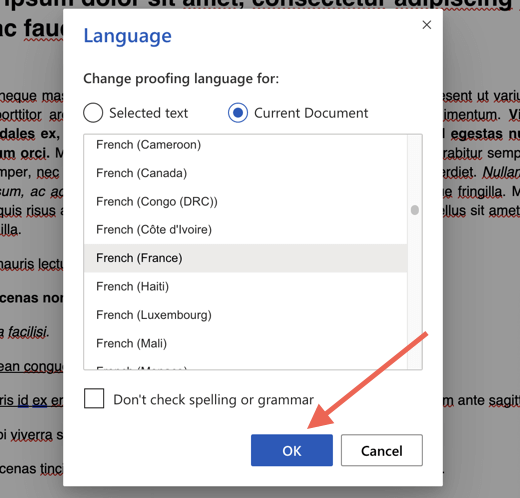
To reiterate, you must pick an editing language each time you want to use one different from the display language.
Use Your Preferred Display and Editing Language in Word
As you just saw, changing the display language, the editing language, or both in Microsoft Word is more than possible. That should come in handy if you’re bilingual or multilingual. Sure—the macOS and online versions of Office don’t make things painless, but it shouldn’t give you too much trouble. Don’t forget to install a matching keyboard language for your Windows or macOS computer if you change the editing language.
- How to Remove Headers and Footers in Word Documents
- How to Clear Formatting in Word
- How to Remove Unwanted Lines in Word Documents
- How to Select All Text in Word Documents
- How to Insert Arrows in Microsoft Word Documents
Dilum Senevirathne is a freelance tech writer and blogger with three years of experience writing for online technology publications. He specializes in topics related to iOS, iPadOS, macOS, and Google web apps. When he isn’t hammering away at his Magic Keyboard, you can catch him binge-watching productivity hacks on YouTube. Read Dilum’s Full Bio
