If you’ve just bought a new monitor or something isn’t looking right, your screen resolution might be at fault. Windows will occasionally set the wrong resolution for your monitor, causing your screen to become blurry.
In this tutorial, we’ll explain how to change screen resolution in Windows 11.
Why Does Screen Resolution Matter?
Your screen resolution determines the number of pixels on your screen. Therefore, it impacts the sharpness of your display. For example, with lower resolutions, you’ll notice things like the text size will be affected. If your screen resolution is incorrect, your display might appear blurry .
Usually, this isn’t an issue because Windows automatically sets the native resolution to that of your monitor. However, it can get it wrong. And if you’re playing games or watching videos, you might want to change your screen resolution manually.
With that out of the way, here’s how you can change your resolution in Microsoft’s Windows 11.
How to Change Screen Resolution in Windows 11
The Windows Settings menu is the best way to change their screen resolution. Here, you can easily switch screen resolutions and change other display settings like your monitor refresh rate.
How to Change Screen Resolution Through the Windows 11 Settings App
The Display section of Windows Settings allows you to configure the resolution for one or multiple monitors.
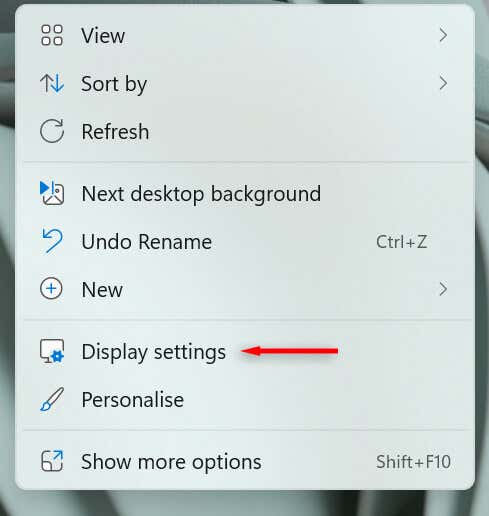
- Go to the Desktop and right-click an empty space. Then, select Display settings from the drop-down menu.
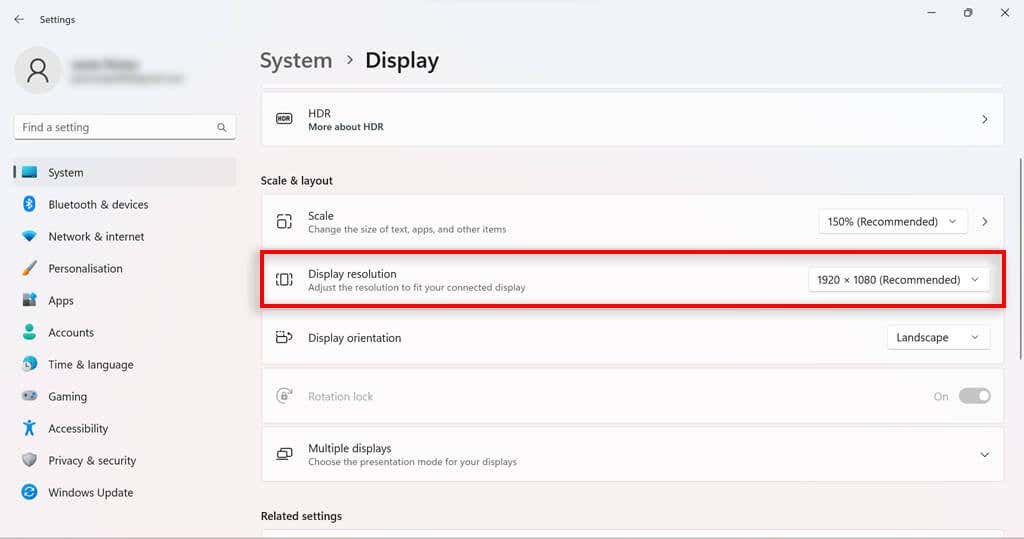
- In the new window, scroll down to the Scale & layout section . Select the dropdown box on the right side of the Display resolution box.
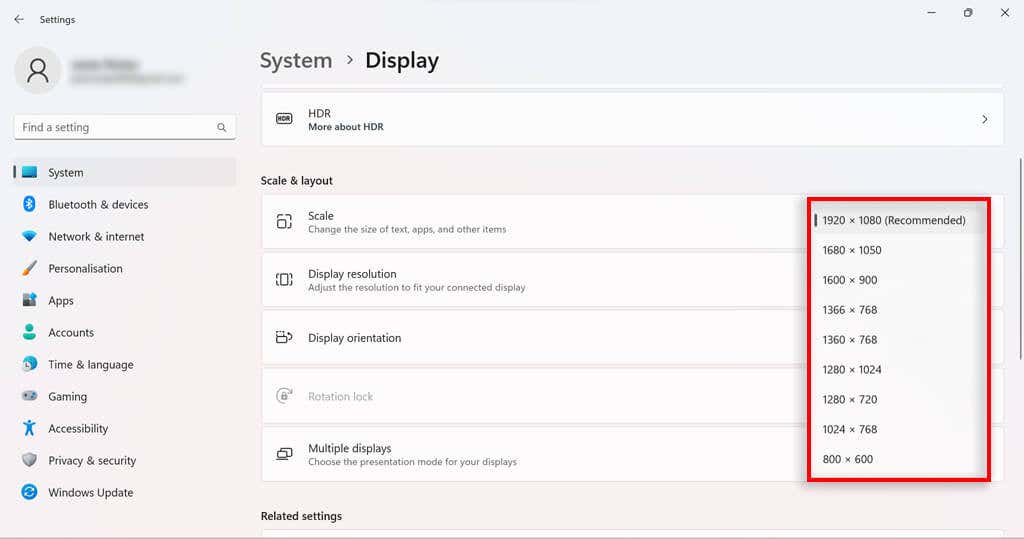
- You need to find out the native resolution that your monitor and graphics card support. If you switch to a resolution higher than your monitor supports, you might cause display issues . The resolution that Windows believes is best will appear with a recommended tag (for instance, 1920 x 1080 (Recommended) ).
- Select your desired resolution from the list. The screen will show you what the new resolution will look like.
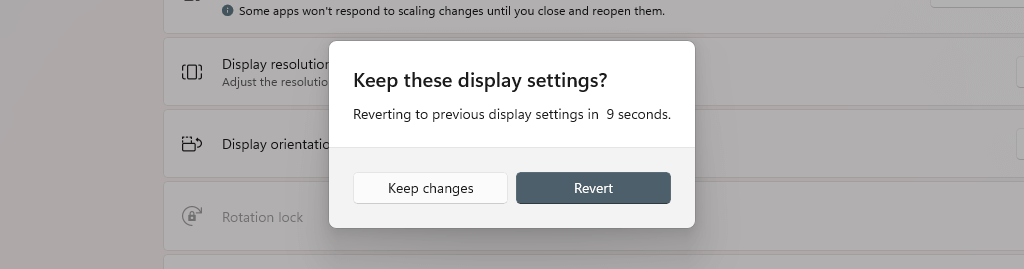
- If you want to keep it, select Keep changes . If you would like to go back to your current screen resolution, select Revert .
How to Change Screen Resolution Through the Display Adapter Properties in Windows 11
If the Settings approach isn’t for you, you can also change screen resolution in Windows 11 using the display adapter properties menu.
- Press the Windows key to open the Start Menu .
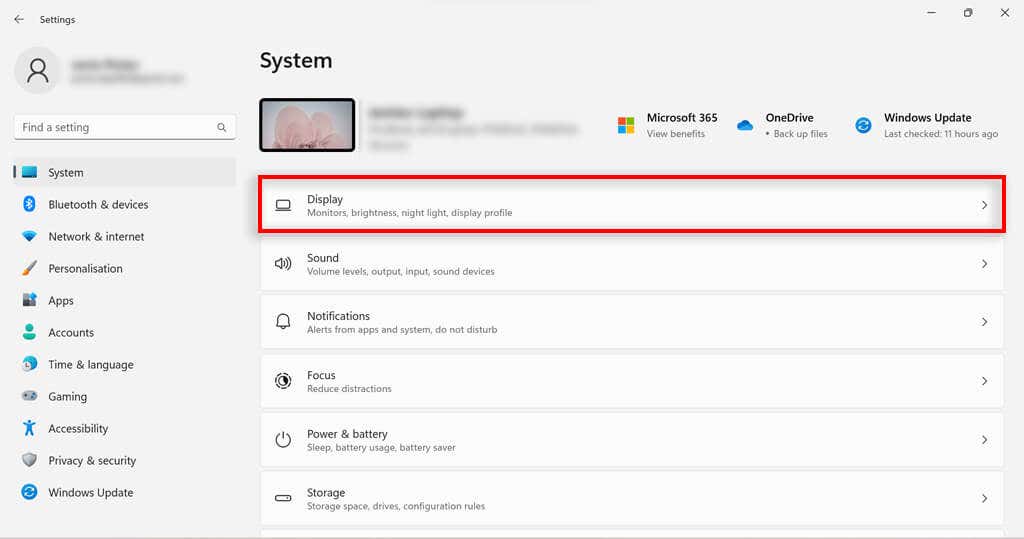
- Open Settings and click Display .
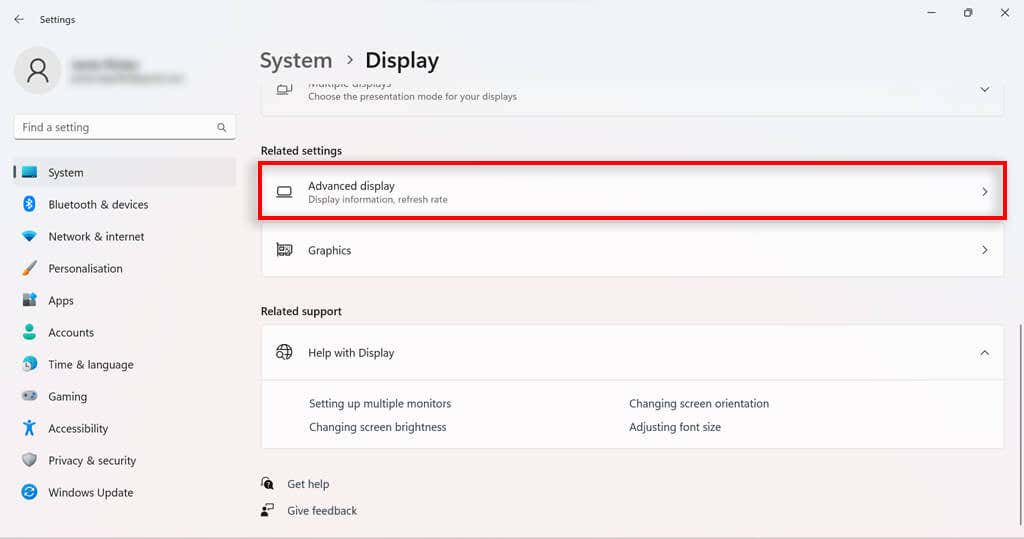
- Scroll down until you reach the Related settings section. Select Advanced display .
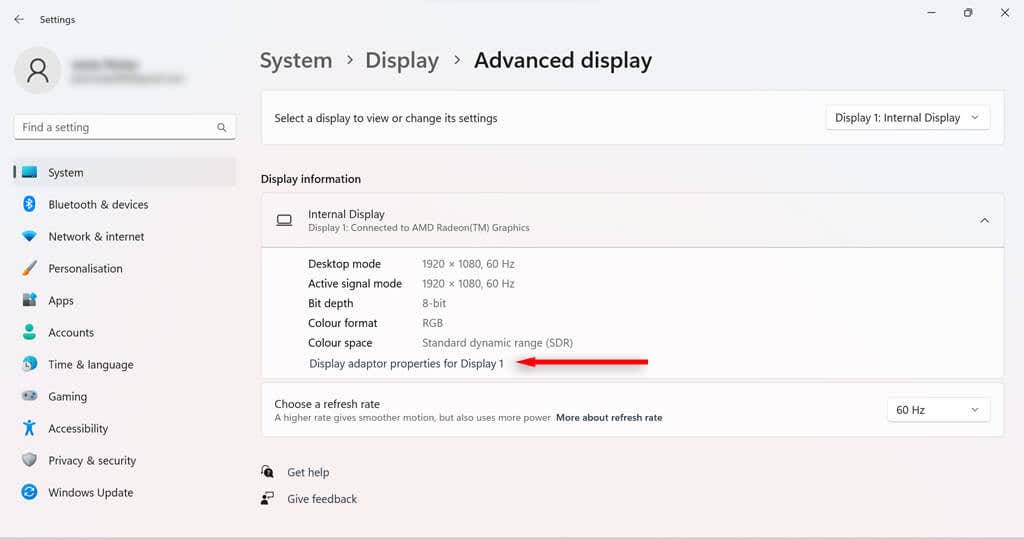
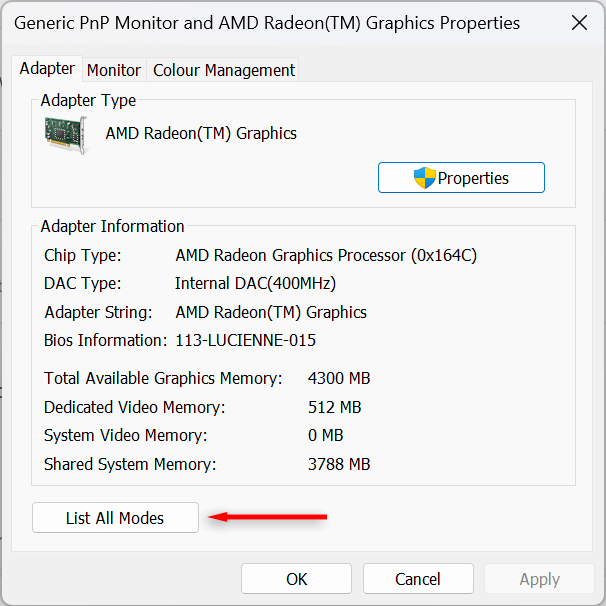
- In the Display information section, select Display adapter properties .
- Select List All Modes .
- Choose the desired resolution from the list and select OK .
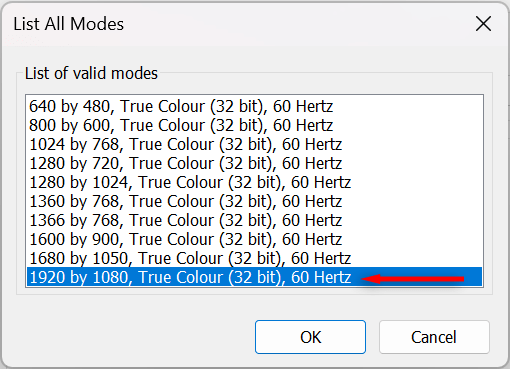
- Click Apply or OK in the Graphics properties window.
How to Change Screen Resolution Through the Intel Graphics Command Center
If your PC has an Intel graphics card, you can use the Intel Graphics Command Center app to change screen resolution.
- Type “Intel Graphics” into the Taskbar search bar. Select the Intel Graphics Command Center app .
- Select Display from the left-hand menu.
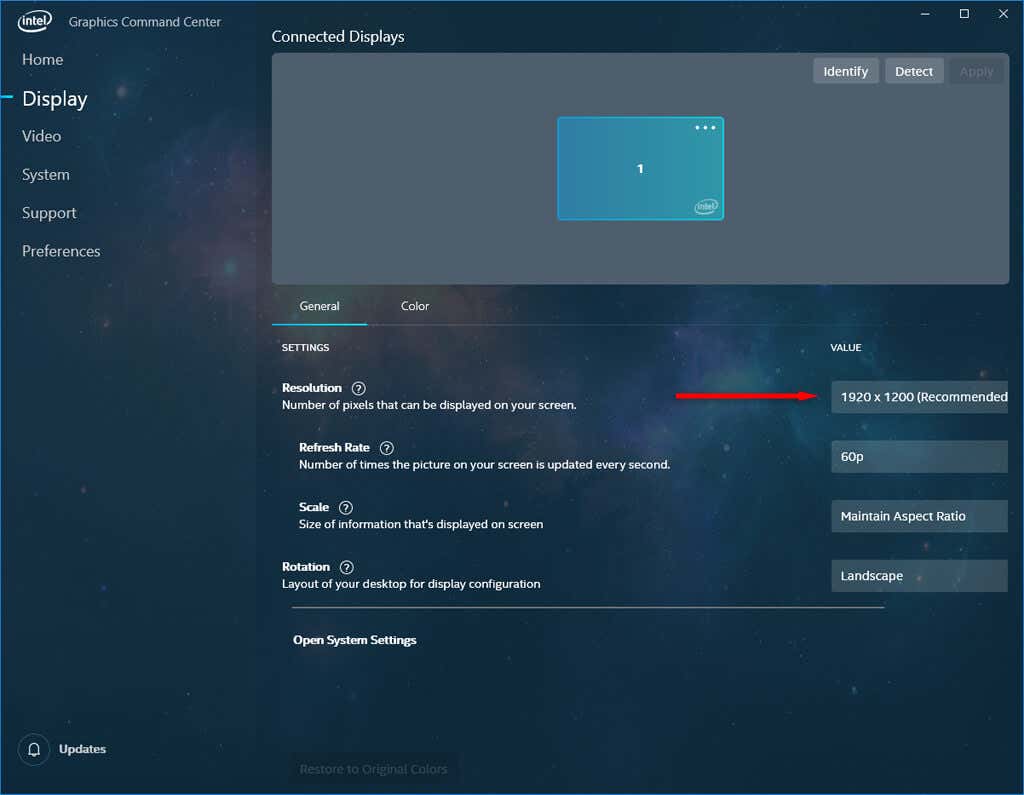
- In the General tab, select the Resolution drop-down menu .
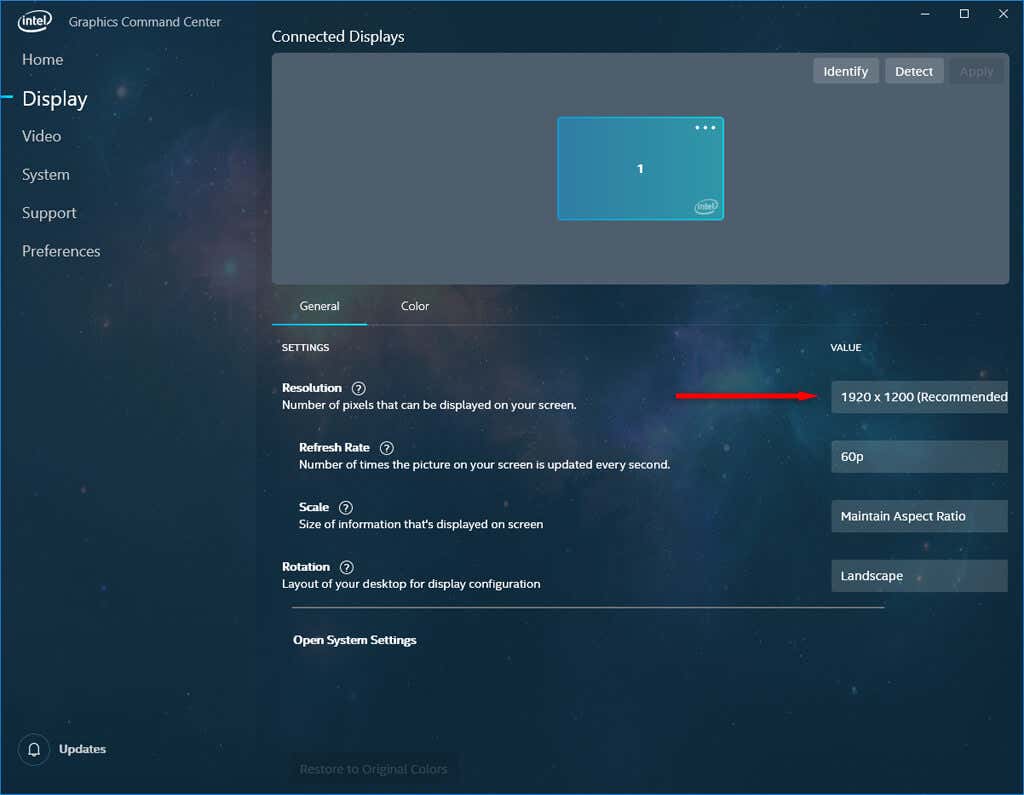
- Select the desired resolution you want to use for your display.
How to Change Screen Resolution Through the NVIDIA Control Panel
If your PC uses an NVIDIA GPU for its graphics, you can use the NVIDIA Control Panel to change the screen’s resolution settings.
- Type “nvidia” into the taskbar search bar. Select the NVIDIA Control Panel .
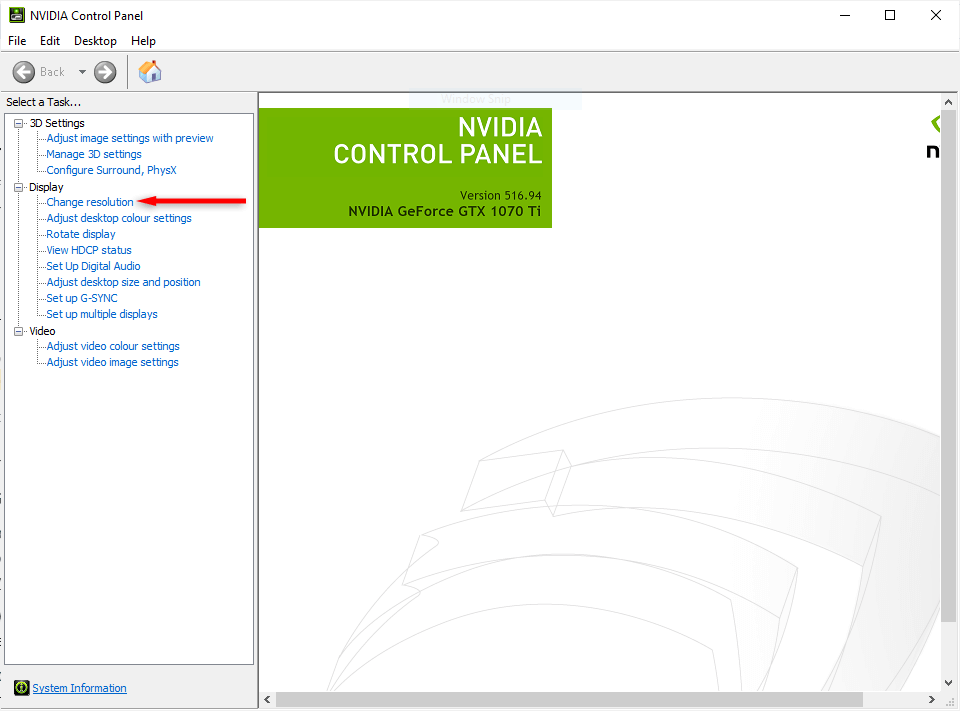
- Under Display in the left-hand task list, select Change resolution.
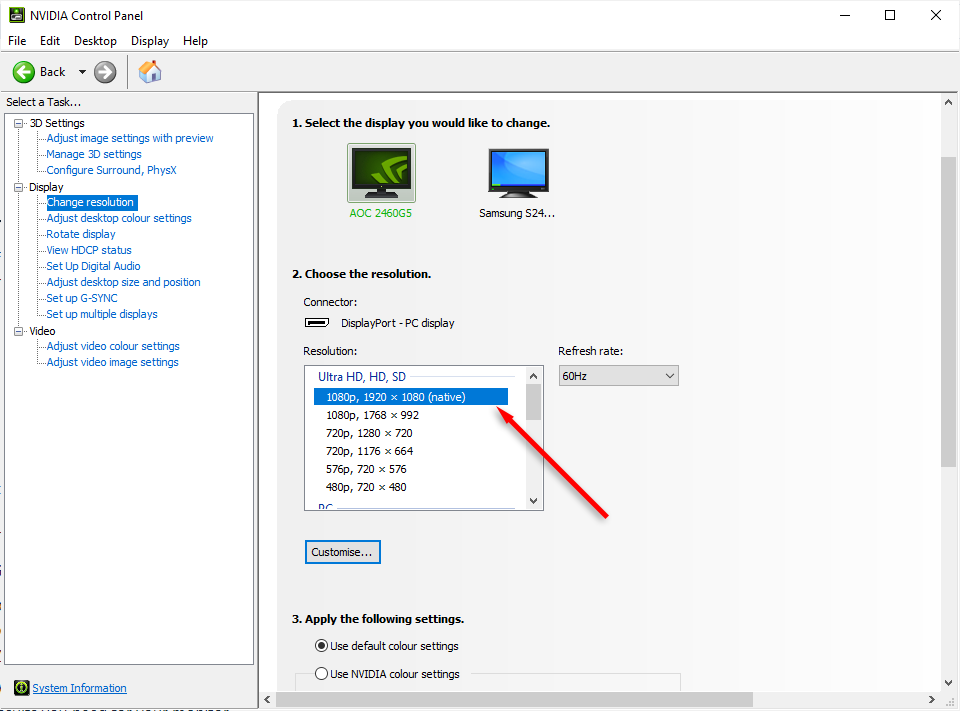
- Select the monitor you wish to alter and choose the screen resolution you want to use. If you wish to try a custom resolution, select Customize.
- Select Apply .
Find the Resolution That’s Right for You
Depending on how you use your PC, sometimes your screen’s native resolution isn’t the most suitable. Whether you’re a gamer looking to get the best graphics or just want to give your eyes a rest, adjusting your monitor resolution can make all the difference.
If you’ve changed your screen resolution and something is still not right, try adjusting other aspects of your display, such as your font size, brightness, and refresh rate.
- Sluggish Windows 11 PC? Try These 5 Windows 11 Tricks to Free up Virtual Memory
- How To Turn Off Notifications On Windows 11?
- How to Fix Windows 11 Boot Loops After Jan 2026 Update
- How to Remove Copilot AI in Window 11? New Update Available in Beta
- January 2026 Patch Tuesday: 7 Things Windows Users Should Do Before and After Updating
Jake Harfield is an Australian freelance writer whose passion is finding out how different technologies work. He has written for several online publications, focusing on explaining what he has learned to help others with their tech problems. He’s an avid hiker and birder, and in his spare time you’ll find him in the Aussie bush listening to the birdsong. Read Jake’s Full Bio
