Your browser’s startup page plays a significant role in how you begin web searching. Taking the time to set it up with the right site or page can go a long way toward minimizing distractions and improving focus.
Every major desktop browser allows you to change the start page to display something other than the default new tab (or vice versa).
Here’s how to change the start page in Google Chrome, Firefox, Edge, and Safari.
How to Change the Start Page in Google Chrome
Google Chrome allows you to set the startup page as a new tab, pages from your last browsing session, or a custom page or set of pages.
- Open the Chrome menu (select the icon with three dots to the top-left of the screen) and select Settings .
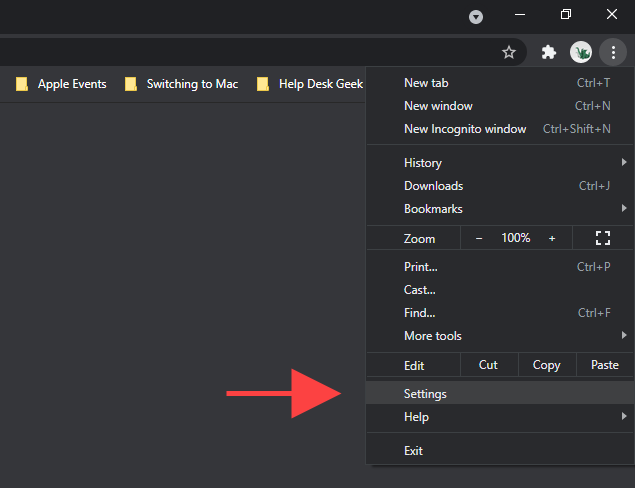
- Select On startup on the sidebar.

- Under the On startup section, you should find the following options:
- Open the New Tab page
- Continue where you left off
- Open a specific page or set of pages

Open the New Tab page
Chrome opens with a new tab, so this is the default startup option. Select it if you (or a third-party extension or program) made any changes to the start page in Chrome and want to revert that.
Continue Where You Left Off
Select this option if you want Chrome to resume where you left off during the previous browsing session. In case you had multiple tabs open, the browser shall re-open each of them automatically.
Open a Specific Page or Set of Pages
Allows you to open a specific page or set of pages at startup in Chrome. After selecting the option, select Add a new page repeatedly to enter the addresses of the pages you want the browser to open.

Alternatively, you can select Use current pages to add all sites within any open Chrome windows as your startup page or pages.
How to Change the Start Page in Mozilla Firefox
Mozilla Firefox features several ways to change the default start page. For example, you can pick between a new tab (what Mozilla likes to call Firefox Home ), a custom page or pages, or a blank page. You can also configure the browser to restore your previous browsing session at startup.
- Open the Firefox menu and select Settings .

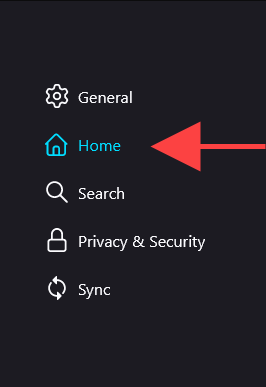
- Switch to the Home tab.
- Use the pull-down menu next to Homepage and new windows to switch between the three options as follows:
- Firefox Home (Default)
- Custom URLs
- Blank Page
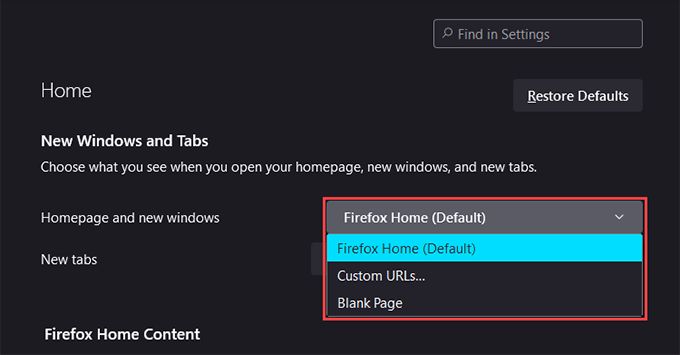
Note: All three options also apply to the homepage and new windows in Firefox.
Firefox Home (Default)
Firefox Home (Default) is the default new tab page you see at startup and in new windows. Pick it if you want to revert a previous change to the start page.
Custom URLs
You can set up a custom page or set of pages to load at startup. If you choose to set up multiple pages, you must separate each URL by a vertical slash.
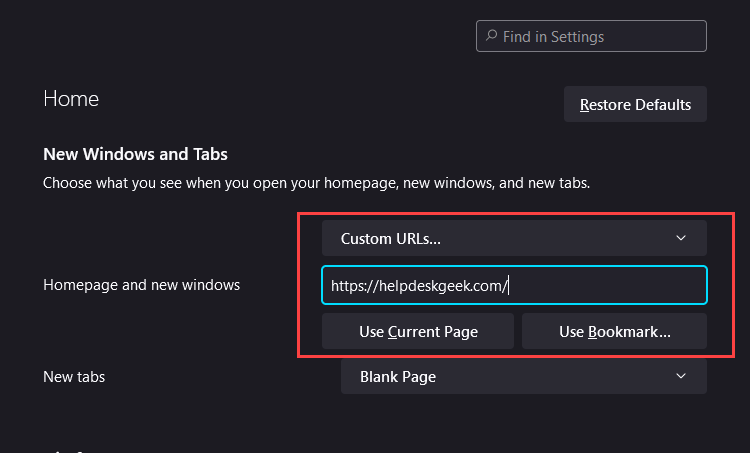
You can also use the Use Current Pages button to insert the addresses of all open pages in Firefox. Or, you can select Use Bookmark to add pages from your Bookmarks Library.
Blank Page
Select this option if you want to set up a blank tab as the default start page. That’s ideal if you prefer zero distractions at startup.
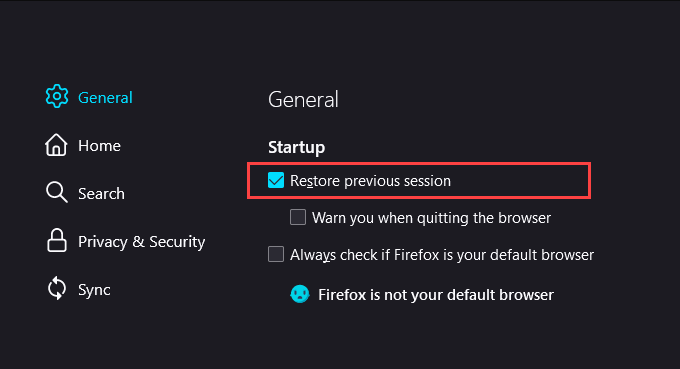
Restore previous session
To access this option, you must switch to the General tab on the sidebar. Then, check the box next to Restore previous session if you want Firefox to load your last browsing session whenever you relaunch the browser.
How to Change the Start Page in Microsoft Edge
Being a Chromium-based browser, Microsoft Edge features a set of startup options similar to Google Chrome. You can pick between the default new tab page, open tabs from the previous session, or multiple custom pages.
- Open the Edge menu and select Settings .
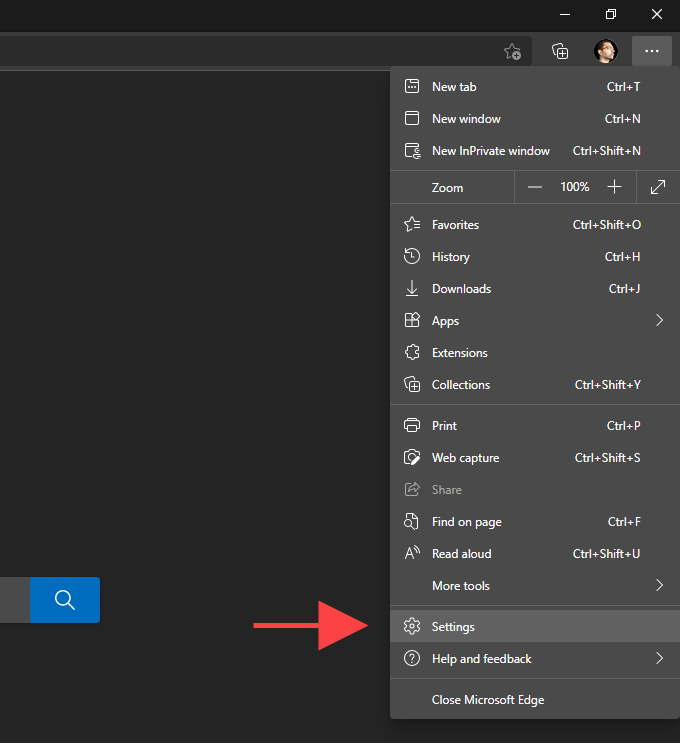
- Select Start, home, and new tabs on the Settings sidebar.
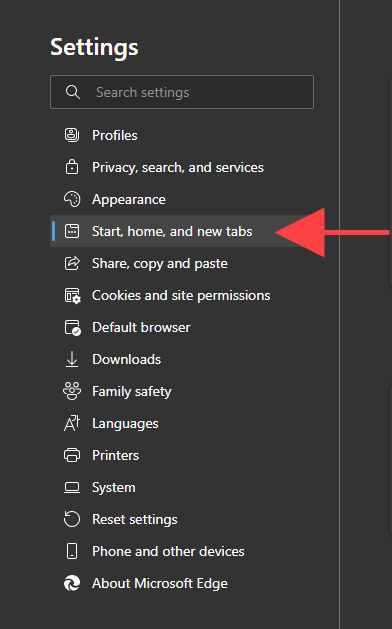
- Under the When Edge starts section, switch between the following options:
- Open the New Tab page
- Open tabs from the previous session
- Open these pages
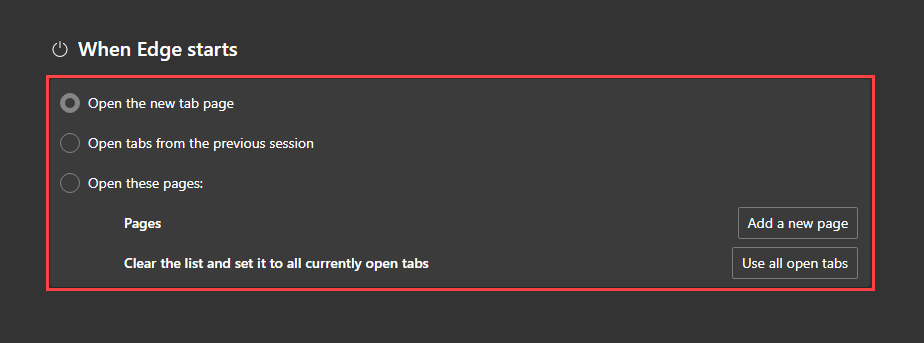
Open the New Tab page
The default new tab page opens when you launch Microsoft Edge. Select it to undo any previous changes to the start page.
Open tabs from the previous session
Automatically opens all tabs from your previous browsing session.
Open these pages
Allows you to set up a web page or multiple pages to load at startup. Use the Add a new page button to add new pages manually.

Or, select Use all open tabs to add the addresses in all open tabs and windows automatically.
How to Change the Start Page in Apple Safari
On the Mac, Safari features multiple options that can help you determine how the browser’s start page works.
Open Safari.
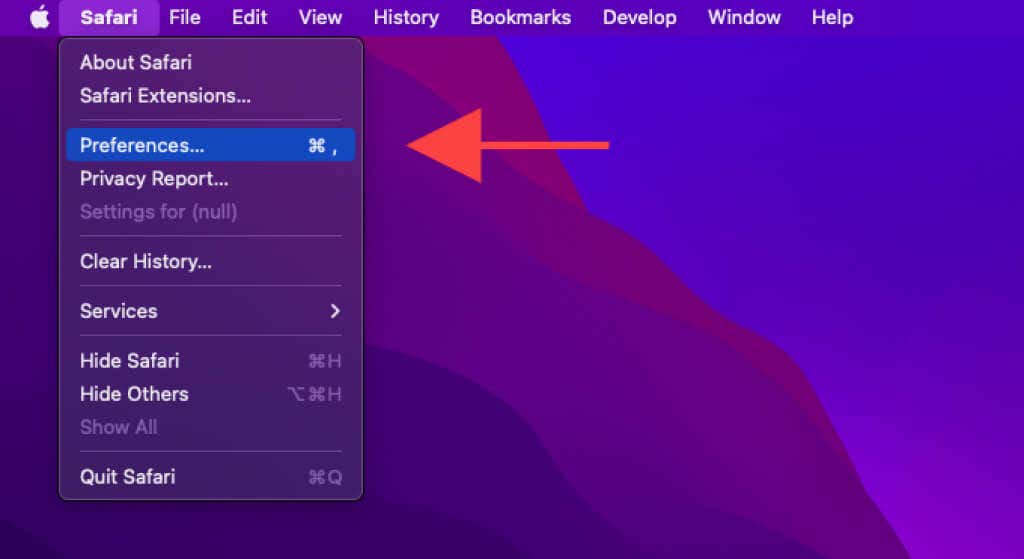
Select Safari > Preferences on the menu bar.
- Under the General tab, use the pull-down menus next to Safari opens with and New windows open with options to modify the start page:
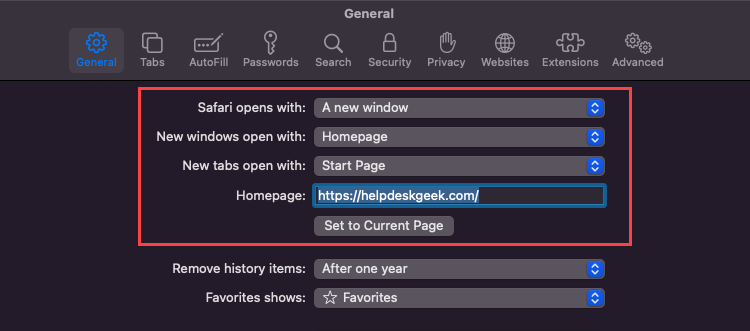
Safari opens with
Open the pull-down menu and select between a new window (default), a new private window, all windows from the last session, or all non-private windows from the previous session.
New windows open with
Only use this option if you set Safari opens with to A new window .
- Start Page: The default new tab page in Safari.
- Homepage: Open a specific page at startup. Enter a custom page into the field next to the Homepage if you select the option.
- Empty Page: Start Safari with a blank tab.
- Same Page: Start Safari with the page you viewed last.
- Tabs for Favorites: Start Safari by loading items in your Favorites folder.
- Choose tabs folder: Pick a bookmarks folder to load Safari.
Can You Change the Startup Page in Mobile Browsers?
Mobile browsers always stay open in the background (unless you take the time to quit them forcibly). So they don’t include options to change the startup page. But you can modify how the homepage or and tabs behave in select browsers and platforms.
Google Chrome (Android Only)
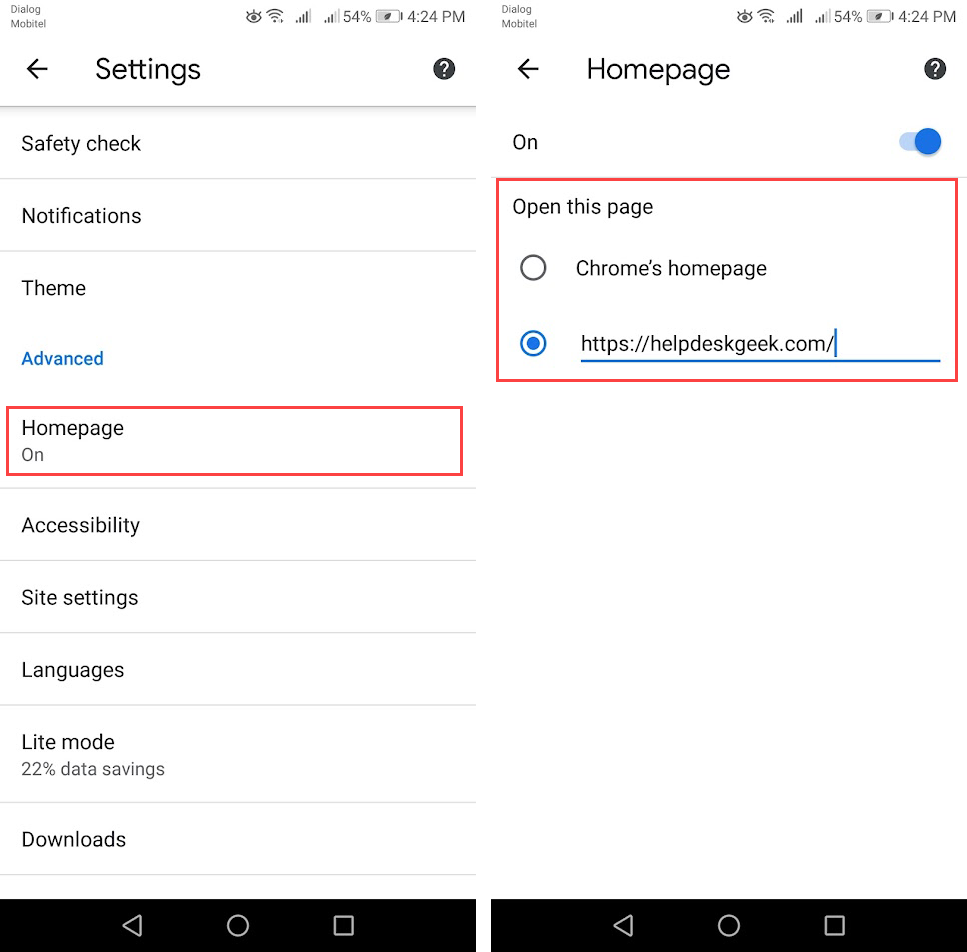
If you use Chrome on Android, you can set up a default homepage with a custom URL. You can then tap the Home icon to start with a specific page instead of the default Chrome tab.
Open the Chrome menu (select icon with three dots) and select Settings .
Tap Homepage .
Activate the switch next to On . Follow that by entering a custom web address into the Enter custom web address field.
Mozilla Firefox (iOS Only)
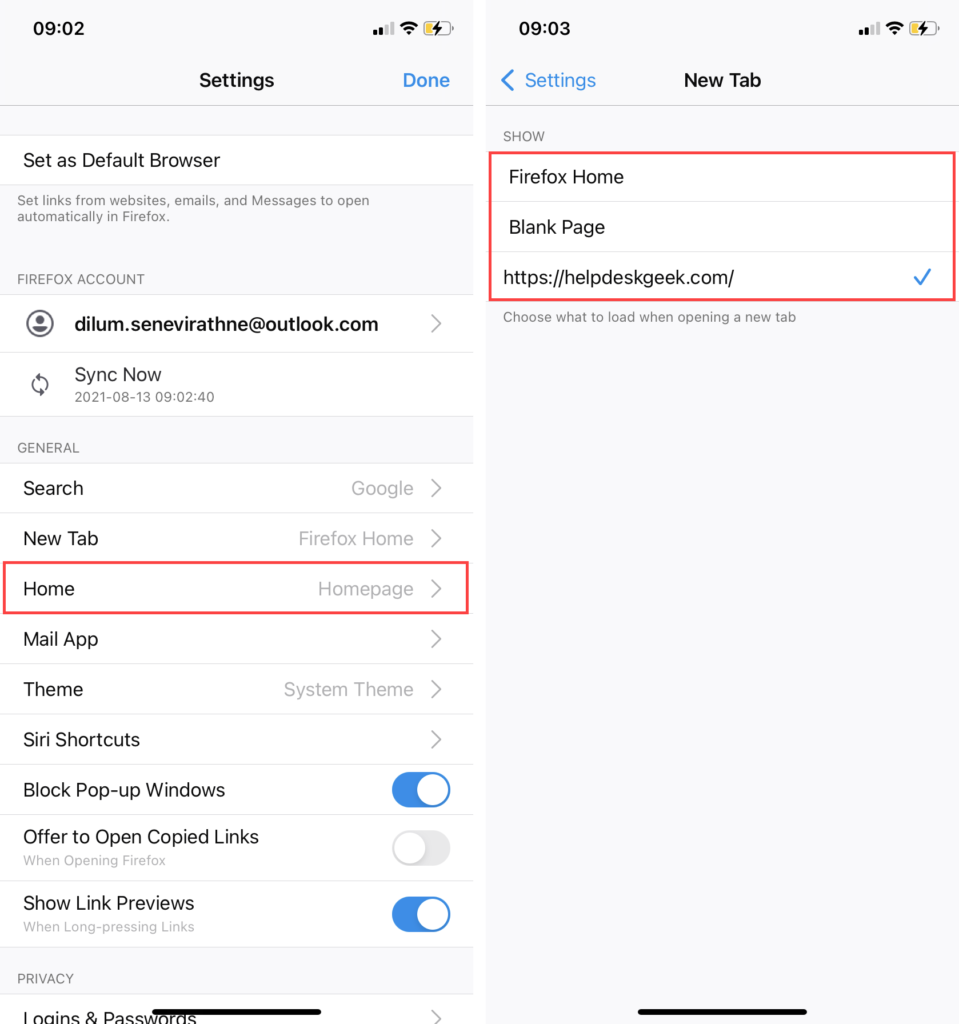
Mozilla Firefox on iOS lets you determine how new tabs start by default.
Open the Firefox menu and select Settings .
Select New Tab .
Switch between the following options:
- Firefox Home : The default Firefox new tab page.
- Blank Page : A default blank page.
- Custom URL : Set up a specific site or page.
Microsoft Edge (Android & iOS)
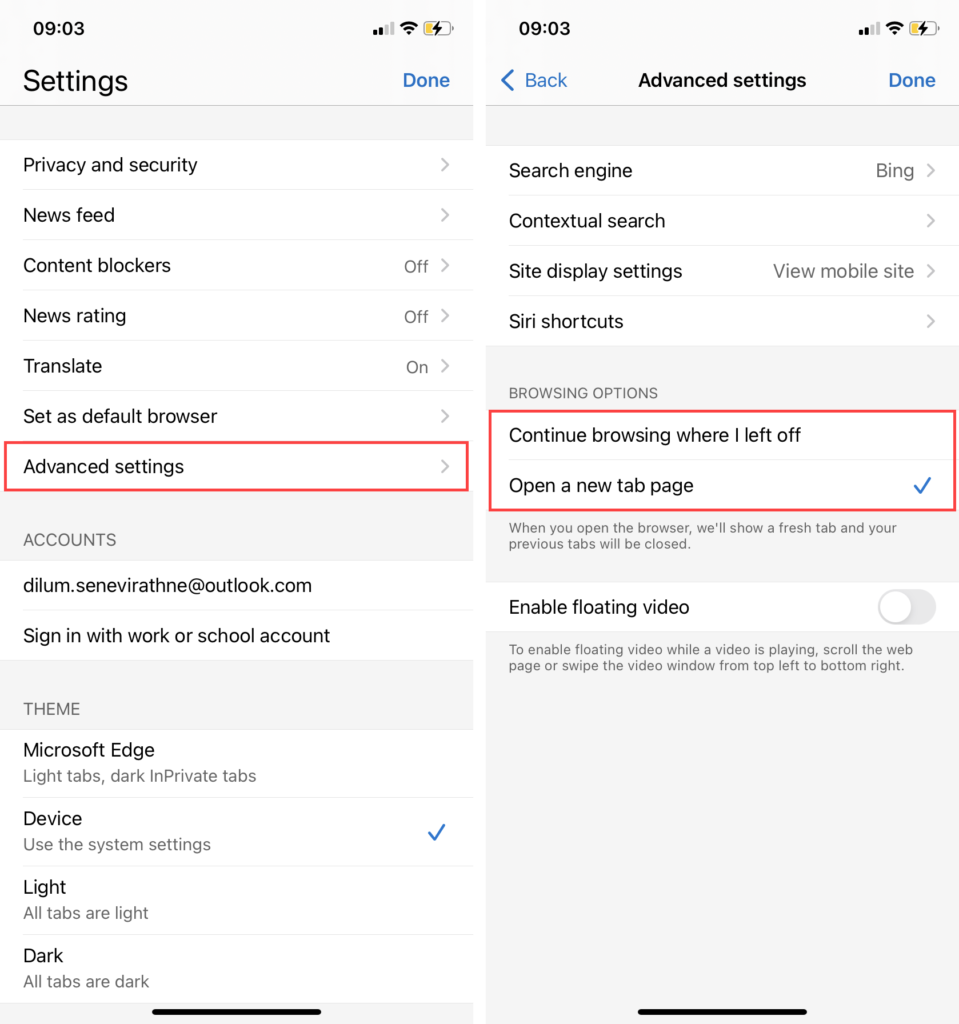
If you use Microsoft Edge on your Android or iOS device , you can configure Microsoft Edge to continue with your previous page or just a new page whenever you reopen the browser after exiting to the device’s Home screen.
Open the Edge menu and select Settings .
Tap Advanced settings .
Select Continue browsing where I left off (default option) or Open a new tab .
Get the Perfect Start to Your Browsing Session
Getting the start page set up correctly the way you want can positively impact your experience with Chrome, Firefox, Edge, and Safari. Don’t forget to experiment with each available startup setting to figure out what works the best for you.
- How to Disable Efficiency Mode for Google Chrome in Windows
- 7 Ways to Fix Chrome’s “Result_Code_Hung” Error
- Chrome Lags When Downloading Files? How to Fix It
- How to Fix a chrome-error://chromewebdata/ Error
- How to Fix a Chrome Error Code 5
Dilum Senevirathne is a freelance tech writer and blogger with three years of experience writing for online technology publications. He specializes in topics related to iOS, iPadOS, macOS, and Google web apps. When he isn’t hammering away at his Magic Keyboard, you can catch him binge-watching productivity hacks on YouTube. Read Dilum’s Full Bio
