When you first created your Mac user account, you probably didn’t bother to change the auto-generated username (a.k.a. short name) during the setup process. Well, now you might regret that and want to change it to something more personal. But is that even possible?
The good news is that yes, it is possible to change your macOS username. The bad news is that it’s complicated, requires a different account with administrative privileges, and could corrupt your user account if you do it wrong.

But don’t worry. This step-by-step tutorial will walk you through exactly what you must do to safely change your macOS username on a MacBook, iMac, or Mac mini.
Back Up Your Mac
Before you begin, we strongly recommend you back up your Mac since you then have the option of restoring your data in case you end up corrupting your user profile. That’s easy if you have Time Machine set up on your Mac .
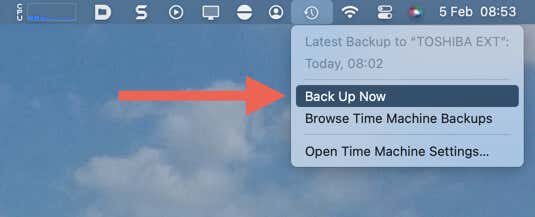
To create a fresh Time Machine backup:
- Select the Time Machine icon on the Mac’s menu bar.
- Select Back Up Now .
- Wait until the Time Machine backup finishes before you proceed.
Alternatively, you can back up your via Disk Utility or iCloud . You can also manually copy the documents and data within your Mac user account to an external hard drive .
Create a New User Account
The only way to change the username on a Mac account is through another administrator account. If you don’t have an additional admin account, then you must create one. You can always delete it after changing your macOS username.
To set up a new admin account:
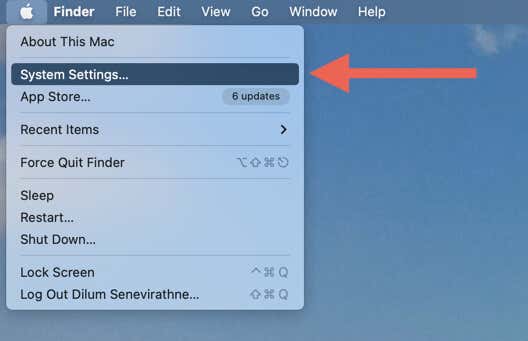
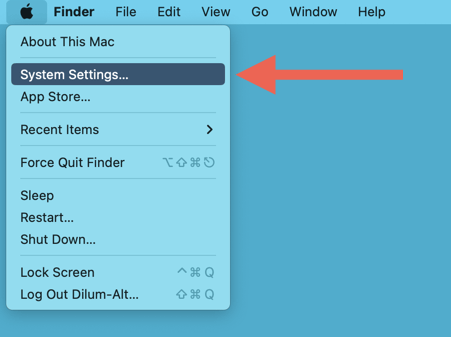
- Open the Apple menu from the top left of the screen and select System Settings (macOS Ventura and newer) or System Preferences (OS X Monterey and older).
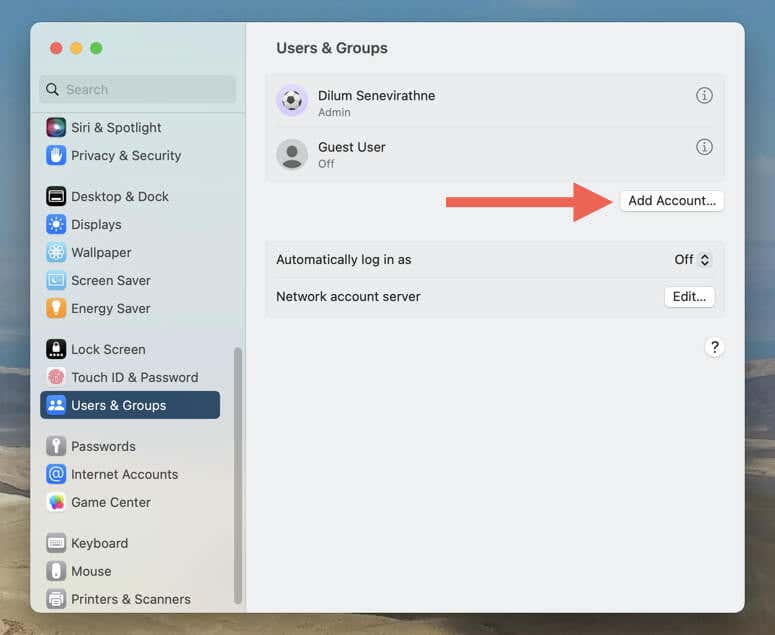
- Choose the Users & Groups category and select Add Account or the Plus icon.
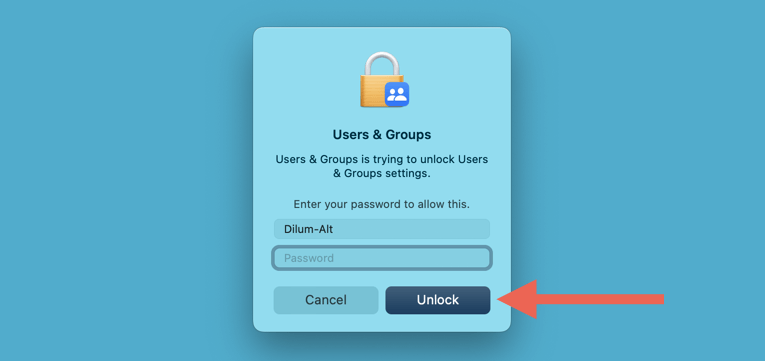
- Enter your macOS administrator account password and select Unlock . In macOS Monterey and older, select the Lock icon on the bottom of the screen to enter your administrator password.
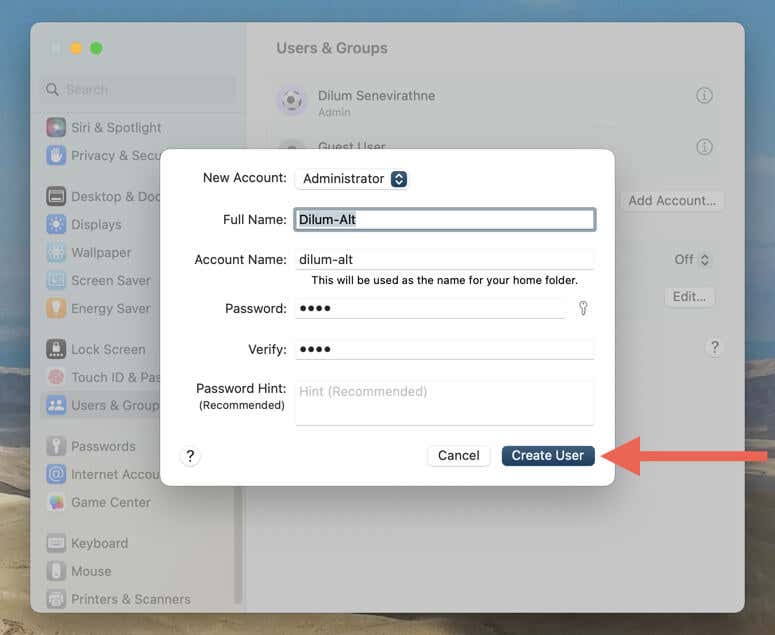
- Fill the Full Name , Account Name , and Password fields, set New Account to Administrator , and select Create User .
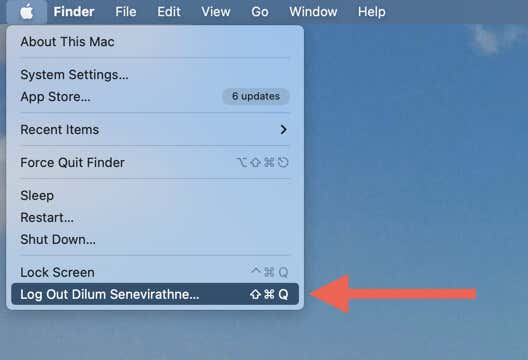
- Save your work and select Log Out [Your Account Name } on the Apple menu .
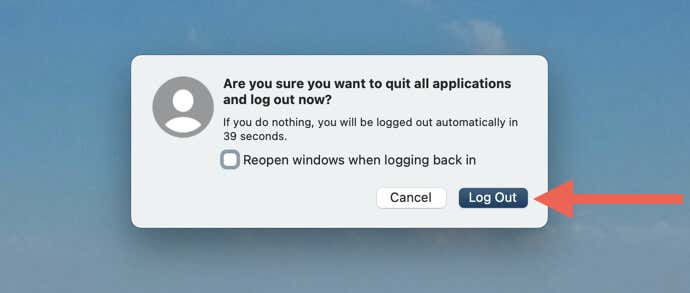
- Uncheck the box next to Reopen windows when logging back in and select Log out .
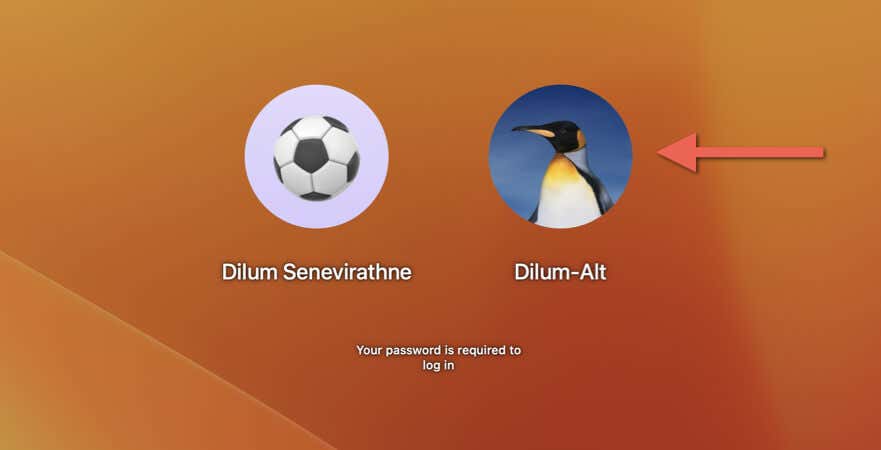
- Select the new administrator account on the screen with the list of users and sign in to it.
Since you won’t be using the account for anything other than renaming your main account, feel free to skip the prompts that ask you to sign in with an Apple ID, activate Siri, set up Screen Time, etc.
Change Mac Username
Now that you’ve created and signed into the newly created administrator account, you can change your Mac username on your main account. However, macOS requires the username to match the Home folder name of the account, so you must change the latter first.
Change the Home Directory Name
- Control -click or right-click the Finder icon on the Mac’s Dock and select Go to Folder .
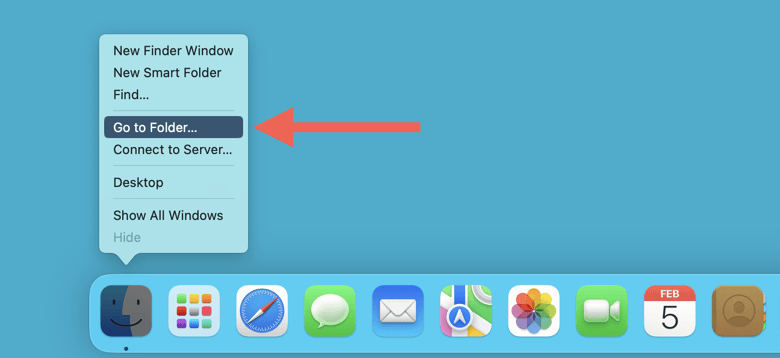
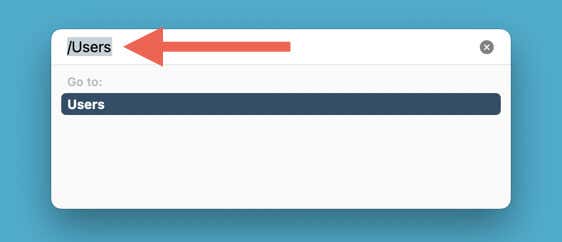
- Type the following and press Return to open the Users folder on the startup drive:
/Users
- Control -click or right-click the Home folder of the Mac user account you want to rename and select Rename .
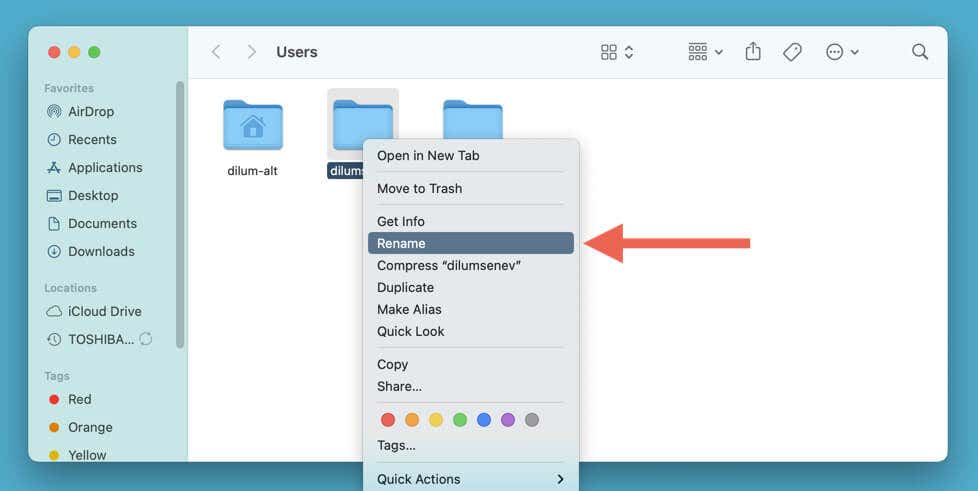
- Type your new preferred username and press Return .
Change Account Username
- Open the Apple menu and System Settings / Preferences .
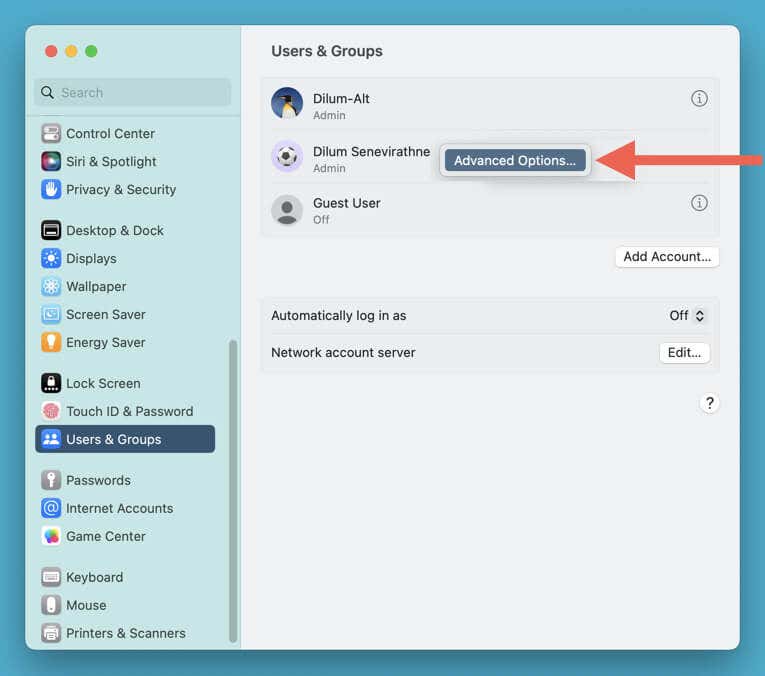
- Under the Users & Group category, Control -click or right-click the administrator account you want to rename and select Advanced Options .
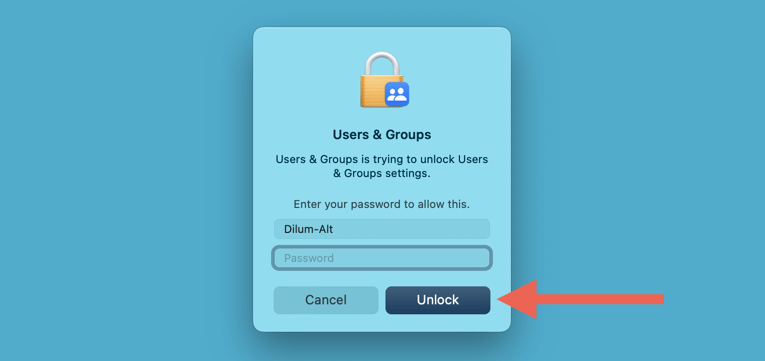
- Enter your Mac user account password for the current account and select Unlock .
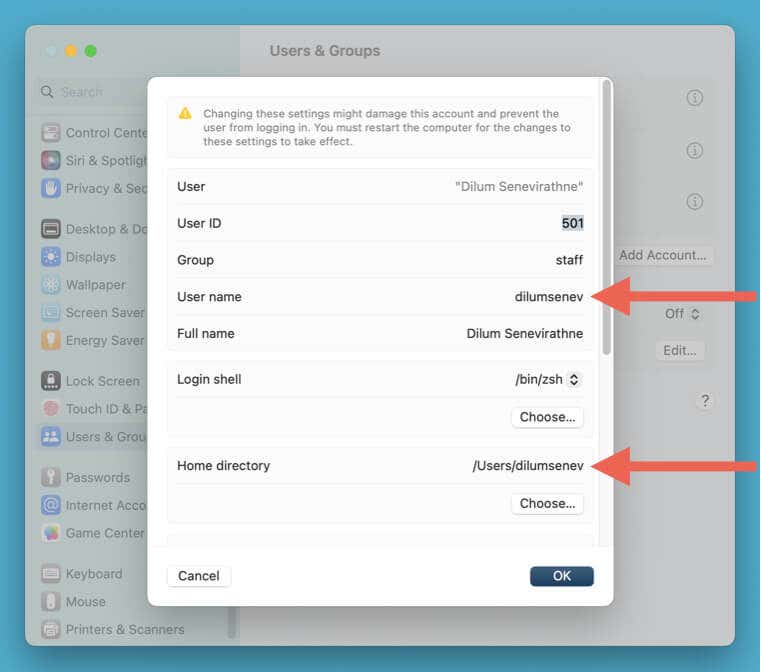
- Modify the User account name field, and then the Home directory field. Make sure that both match the new name you specified for the Home directory earlier.
- Select OK .
That’s it! You’ve changed your macOS user name. Log in to the renamed account now and check if everything’s in working order. If you did something wrong, you’ll have to use your Time Machine backup to restore the account data .
If you want to delete the secondary administrator account you created earlier, go to System Settings / Preferences > Users and Groups , select the account, and pick the Delete Account option.
Change Your Mac Account’s Full Name
Changing your Mac user account’s full name is not as complicated as changing the username. If that’s what you want, you must:
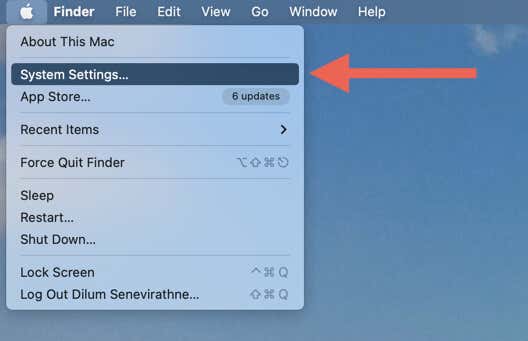
- Open the Apple menu and select System Settings .
- Under the Users & Groups category, Control -click or right-click your account and select Advanced Options .
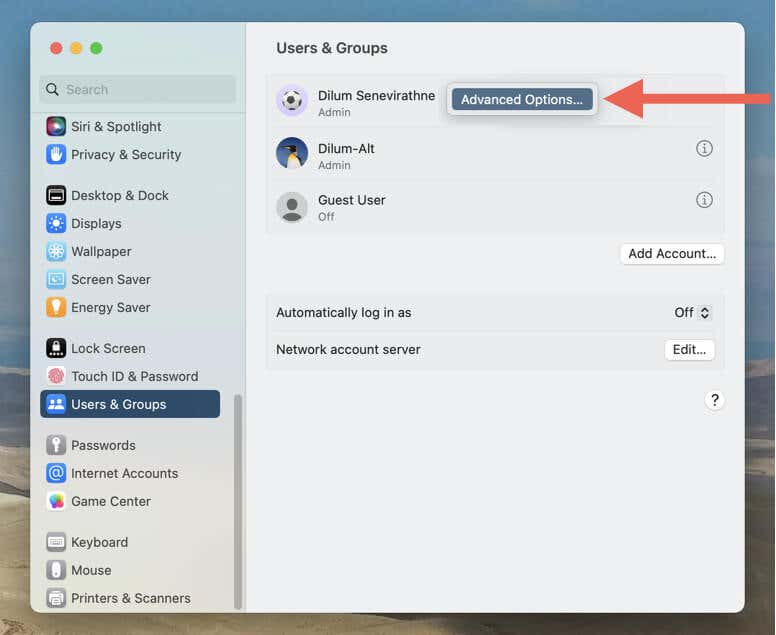
- Edit the Full name field and select OK .
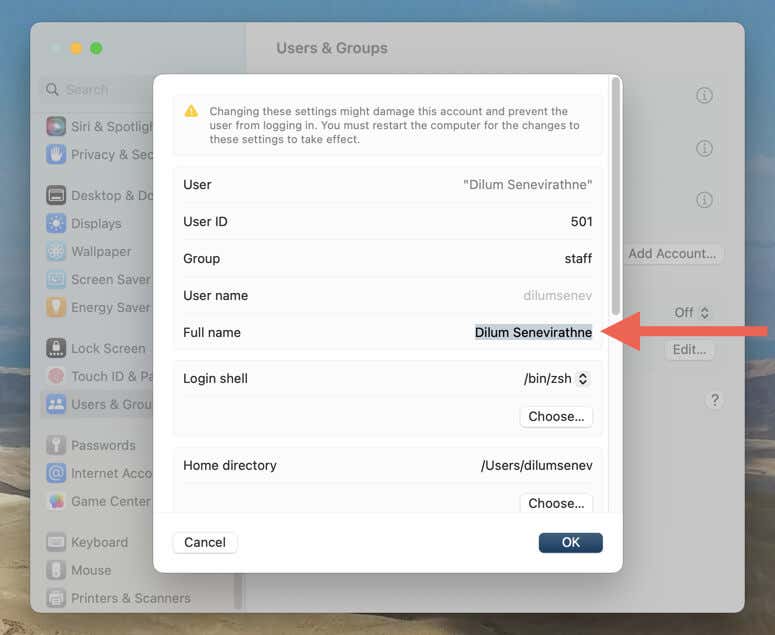
Enjoy Your New macOS User ID
As long as you follow the instructions above, you shouldn’t run into any issues renaming your macOS username or stress out about corrupting your account data. However, it’s always good to have a backup at hand so you can quickly restore everything in case the worst happens.
- How to Connect Xbox Controllers to Your Mac
- How to Chromecast From Mac to Your TV
- How to Install and Run Linux on Mac
- How to Turn Off or Delete Siri Suggestions (iPhone and Mac)
- How to Take Pictures on Mac
