Are you a regular or robust user of Google tools? Have you used your Google account to sign into third party apps? Do you often take quizzes sent by friends on Facebook? Or, as with Google, have you used your Facebook account to log in to third party apps or websites?
Last, are you alarmed by the recent news about the social media companies in privacy breaches? Apart from rigorous password hygiene and mandatory two factor authentication or simply jettisoning these companies entirely, you can take another step to greater security by periodically policing the apps/modules/websites that you’ve allowed to access your Google and Facebook accounts.
Below, we show you how to review, check, calibrate, and remove connected apps from your Google account and Facebook accounts.
Google Connected Apps
Assume that from time to time, you use your Google account to sign into third party apps. Even if you can’t recall doing this, a lot of times you won’t even realize you are giving an app access to your Google account.
Here is Google’s guidance:
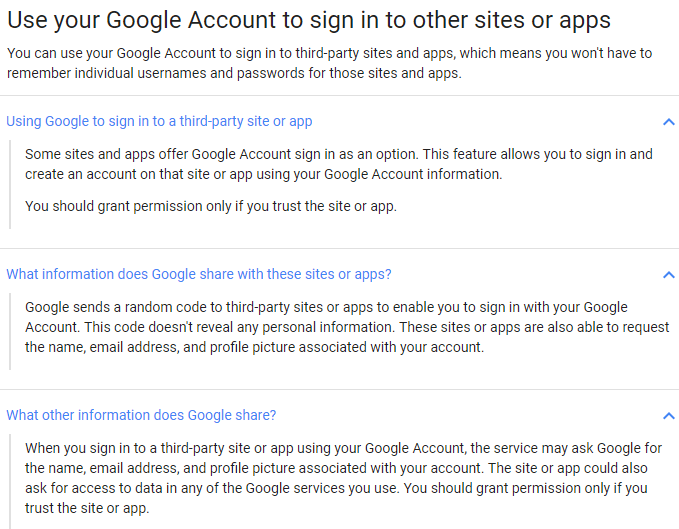
Remove Third Party Access
Now, let us explore how to monitor and remove these Google connected apps. Sign in with your Google Account using a web browser.
At the top right of the screen, you’ll see your profile photo. Click on it, and then click on My Account .

This My Account page includes several modules such as security, privacy, and preferences; it is well worth reviewing, especially the Security Checkup wizard.
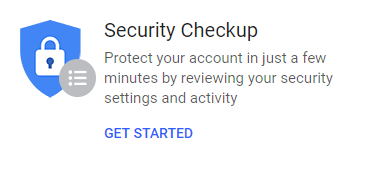
For purpose of this article, look down along the left under Sign-in & Security and select Apps with account access .
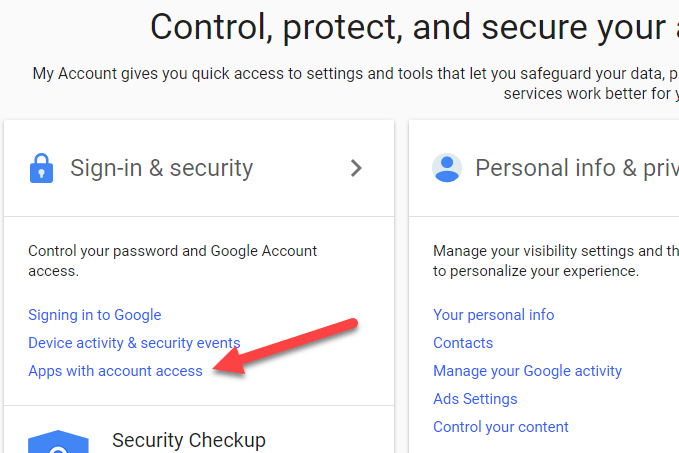
On the Apps with account access page, click on Manage Apps to get a full list of connected apps.
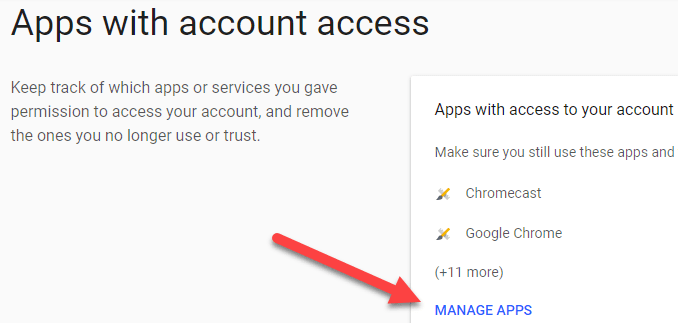
Notice how Google groups the connected apps, displaying first the 3 rd party apps that have access to your account. Below these 3 rd party apps, you’ll see a list of apps that are trusted by Google that have access.
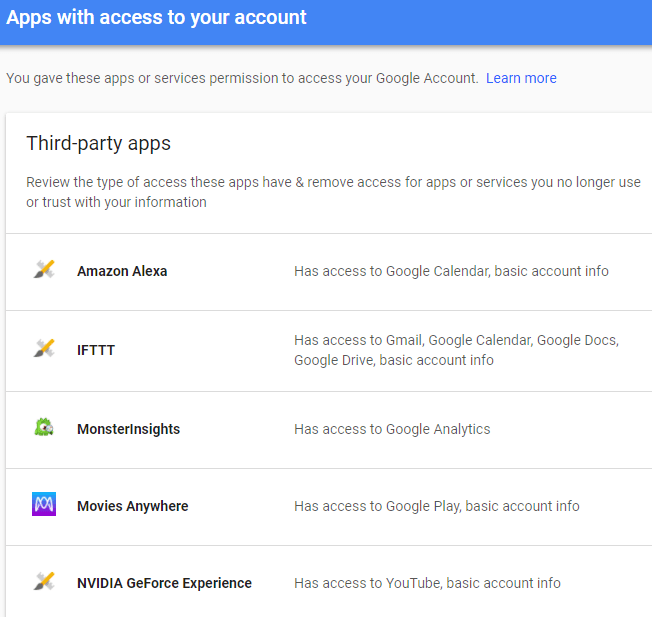
Now check these lists for apps that are unfamiliar or that you no longer use. Click on one of the apps. Here you will see details, including when the app was authorized and what level of access it has. To remove it, click on Remove Access .
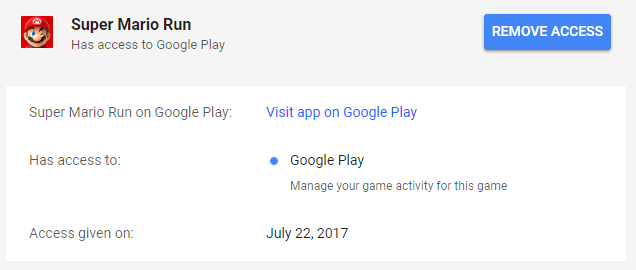
Google then displays a pop up explaining that you are removing the apps access to your account and to use this app or service again, you will need to grant access. Click OK, and Google removes the apps access and removes it from the list.
Continue to remove access for all apps you do not actively use. And remember that if you need to use a third party or Google app again that you’ve removed, you simply have to authorize it again.
Facebook Connected Apps
Many website logins ask new users to sign in using Facebook. Also, if you have used the many popular shared game and quiz apps on Facebook, these apps also access your personal information. Facebook is prominent in the news now because of how this data is being misused. In response, Facebook may soon be simplifying the privacy settings. But for now, here is the current, not so easy, way to check and remove these Facebook connected apps.
Once logged into Facebook, pull down the toggle/arrow at the right top of the Facebook screen. This will expose your Facebook account and other features. Near the bottom of this list, choose Settings .

On Facebook General Account Settings page, scroll down and select Apps and Websites in the left-hand menu.
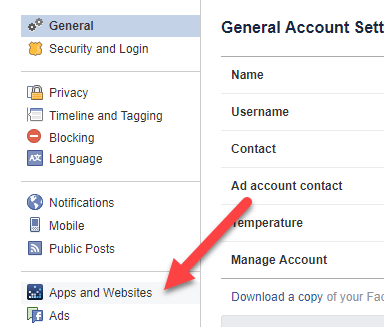
The next page shows the Facebook applications that have been given account access, via the ways discussed above. These range from fun apps like Words with Friends to automating integrations like If This Then That (IFTTT), and productivity apps like Hootsuite.
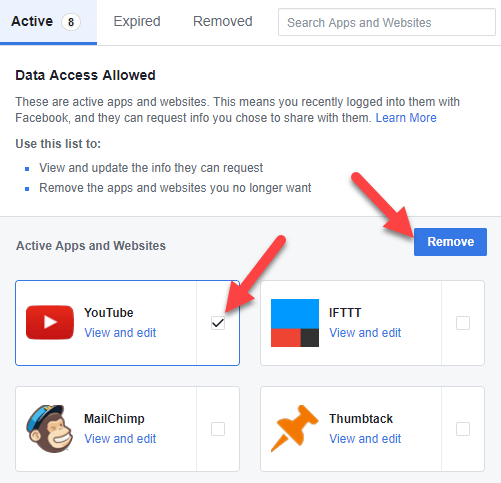
You may easily remove the app entirely by checking the box to the right and selecting Remove as shown above.
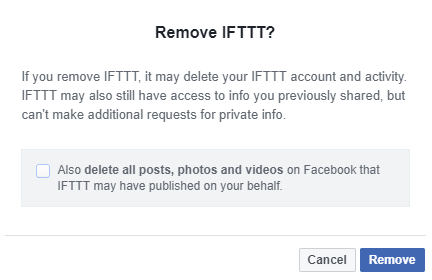
Facebook makes it easy for users to contact app developers, by selecting “Report/Contact” in the bottom right when you click on the app. Thus, if you are concerned, you may want to first use this contact tool before removing the app.
Edit Facebook App Privacy Settings
Note too that Facebook allows users to specify the exposure that each connected app is allowed. So even after removing apps entirely, consider visiting and changing the privacy settings for each app that remains. Here’s how.
For one of the apps, click on View and edit .
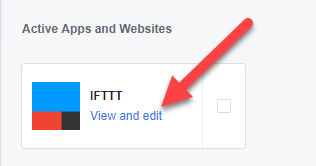
First, check App visibility , meaning who on Facebook will be able to see that you use this app. For this visibility, you can pick from Public , Friends , Friends except acquaintances , Only Me or Custom .
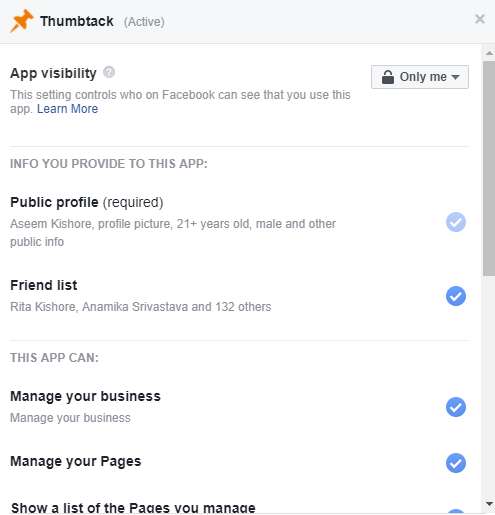
Even more important, check the personal information provided to the app. For many apps, the public profile may be required, but other info such as your list of Facebook friends, birthday, hometown, and your email address can be deselected. Also, most of the time, there is no need for the app to access your pages or manage your business.
So trim the access for each app or remove them entirely. Upon removal, you will no longer see this app or website in your Facebook connected apps list.
- How to See Who Blocked You on Facebook
- How to Stop Friend Suggestions on Facebook
- Does Facebook Tell You if Someone Screenshots Your Story?
- How to Clear Facebook Cache on iPhone
- How to Stop Instagram and Facebook Tracking Online Activity
