Did you know you should regularly clean the Facebook app cache on your iPhone or iPad? The cache folder contains files that tell the app all about your Facebook activity, from the posts you made, pages you visited, and links you clicked. The app can then use these files to load the content quicker next time you use the Facebook app.
However, these temporary files can easily pile up and fill your iPhone’s storage space . This will significantly slow down your iOS device. Cache files can also get corrupted, further impairing your phone’s ability to work properly. That’s why you should regularly clean the Facebook app cache on your iPhone.

How to Clear Facebook Cache on iPhone
The iOS Facebook app offers cache purging and you can use it to clear the website data, or the browser cache , gathered by the Facebook app. Clearing the Facebook App cache will get rid of the data that Facebook stored from the websites you visited using the in-app browser. The data regarding posts, ads, or product pages will remain. To clear these, you’ll have to reinstall the Facebook app.
How to Clear the Facebook App Cache: Method 1
- Launch the Facebook app.
- Tap the menu icon represented by three lines . It should be in the bottom-right corner.

- Tap Settings & Privacy in the menu.
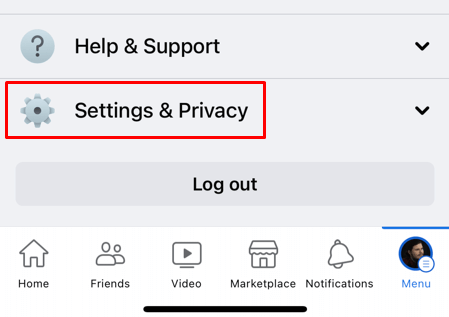
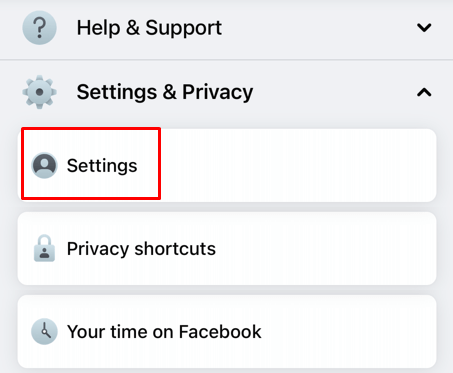
- Tap Settings .
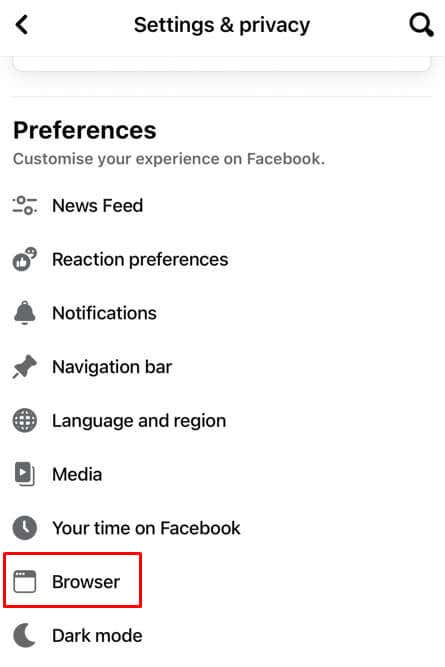
- Scroll down to find the Preferences section, and tap Browser .
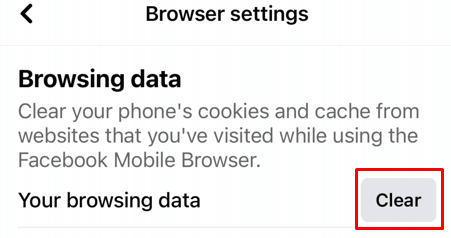
- Tap the Clear button under the Browsing Data section.
Clearing the Facebook app cache won’t delete any of your pictures, videos, or posts. In fact, you won’t notice any difference in the Facebook app or what content is visible on Facebook pages. But the app will work faster and overall better.
How to Clear the Facebook App Cache: Method 2
To get rid of all possible cache files that could affect how well your iPhone works you’ll have to uninstall the app and install it again.
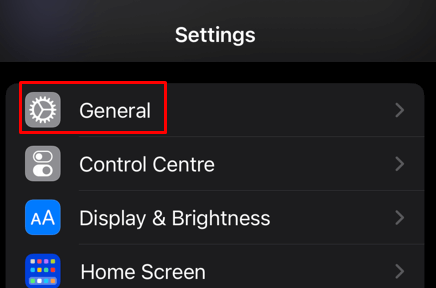
- Open the Settings app on your iPhone.
- Tap General .
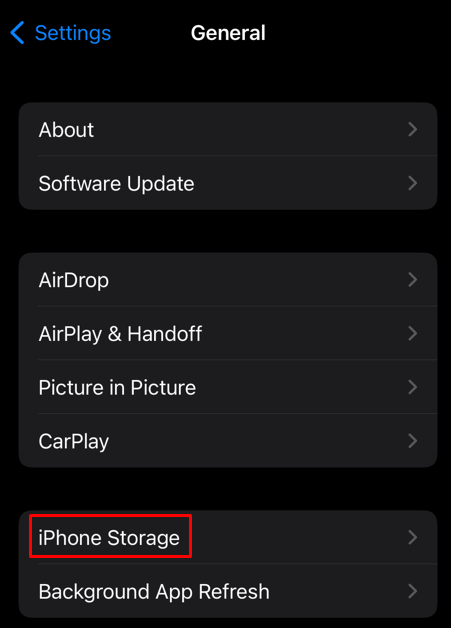
- Select Iphone Storage .
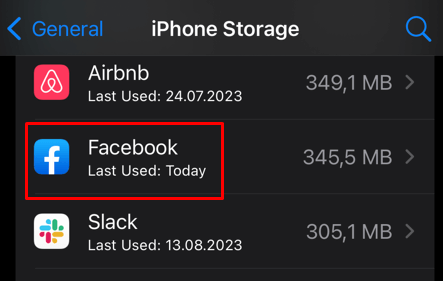
- Select Facebook from the list of installed apps, and swipe it to the left.
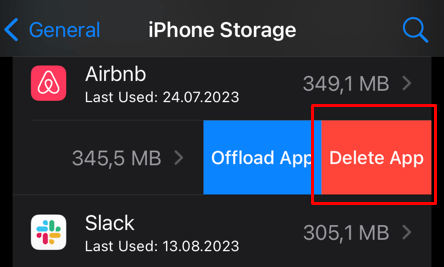
- Select Delete from the side menu and tap Delete App when prompted to confirm.
- Go back to the Home Screen and launch the App Store .
- Type Facebook into the search bar and reinstall the app.
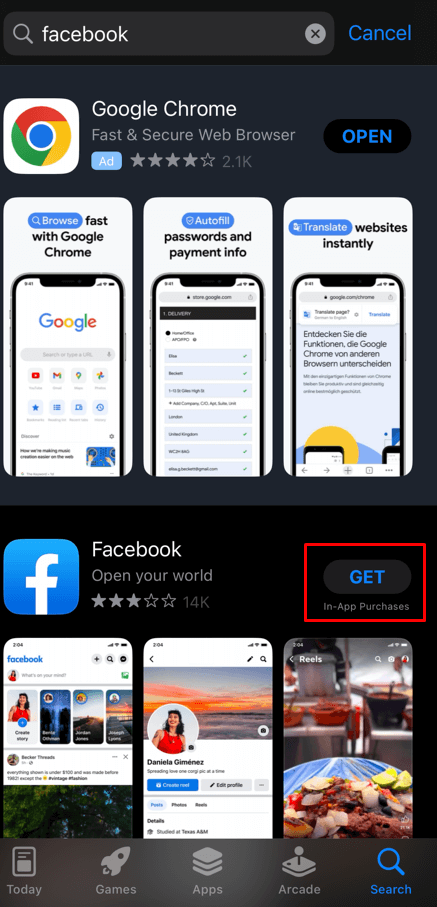
You can also use the alternate way of deleting the apps on your iPhone and iPad.
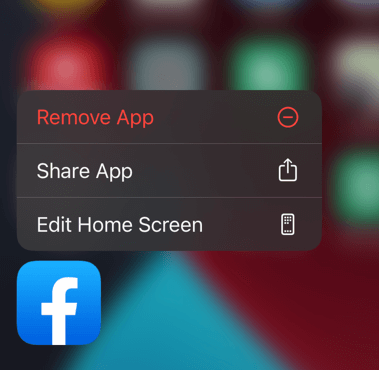
- Press and hold the Facebook app on your iPhone’s home screen until the menu appears. Tap Remove App .
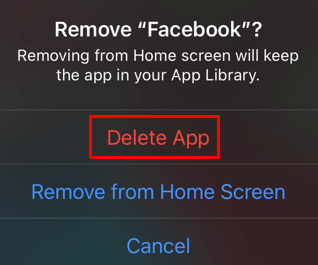
- Tap Delete App .
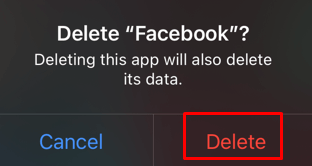
- Select Delete to confirm.
Even if you reinstall the app, your Facebook account data, photos, videos, and posts will remain intact.
- How to Access Facebook Desktop Version on iPhone and iPad
- How to Delete Your Instagram Account on iPhone
- How To Download Photos From Instagram To iPhone
- How to Use Your iPhone as a USB Drive on Mac and PC
- How to Turn Off Password Suggestions on iPhone
