If the Microsoft Store on your Windows PC starts behaving unusually, resetting the Windows Store cache could make it work again. Here’s how to do that in Windows 11 and 10.
The Microsoft Store app in Windows 11 and 10 is susceptible to various issues. For example, it could fail to download apps or updates , crash or freeze at startup , or throw out cryptic store errors . These often stem from an obsolete Microsoft Store cache.
Thankfully, Windows features a built utility called WSReset.exe that can clear the Microsoft Store cache. This tutorial covers all the ways to launch WSReset.exe, some other methods for resetting Microsoft Store to its defaults, and some additional fixes for other Microsoft Store issues.
What Happens When You Run WSReset.exe
When you invoke WSReset.exe, it shuts down the Microsoft Store and reverts all application and account settings to factory defaults. It also clears Window’s Store cache. That helps fix issues caused by outdated or corrupt app data.
The process is straightforward and automatic; you only need to run WSReset.exe. You won’t lose any installed apps and don’t need to sign in with your Microsoft Account again.
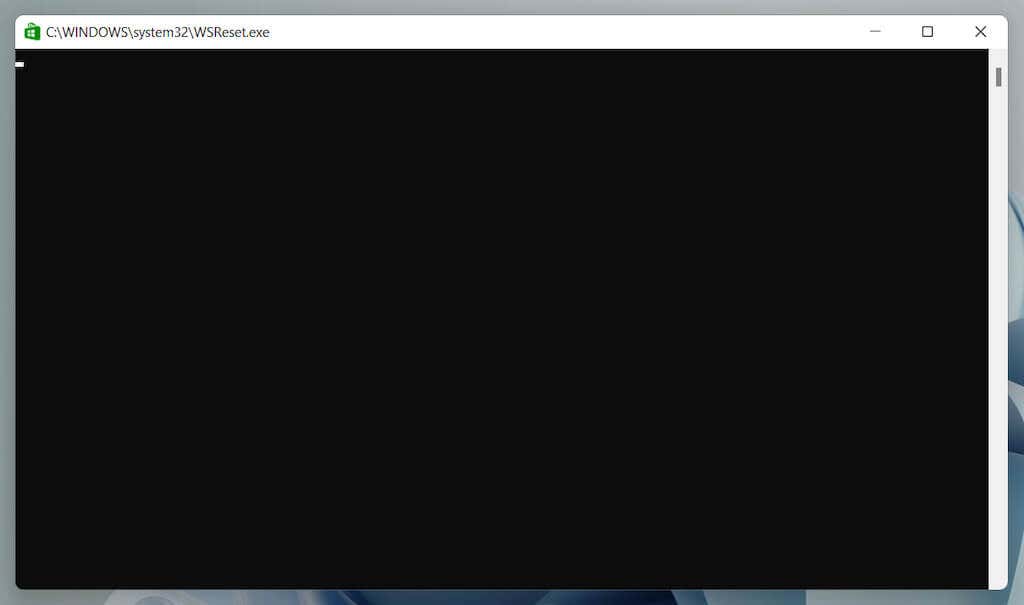
WSReset.exe doesn’t feature a graphical user interface. Instead, it shows up as a blank Command Prompt window. It will eventually disappear, and the Microsoft Store app automatically opens soon after to confirm a successful reset.
You can launch WSReset.exe via the Start menu or with a Run, Windows PowerShell, or Command Prompt command. You can even launch it directly via File Explorer.
Additionally, you can clear the Microsoft Store cache using other means such as the Settings app, the Registry Editor, or by deleting the Store folder that holds the cache files.
Clear the Microsoft Store Cache via the Start Menu
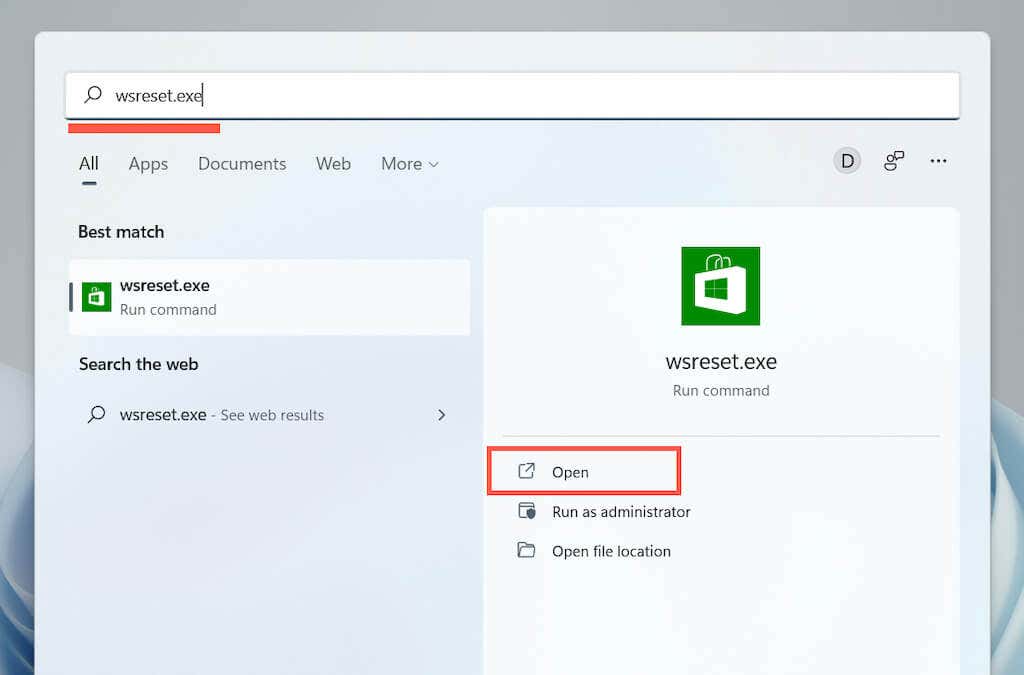
The quickest way to invoke the WSReset.exe tool is to run it via the Start menu or Windows Search.
- Open the Start menu or Windows Search .
- Type wsreset.exe into the search bar.
- Select Open or press the Enter key.
Clear the Microsoft Store Cache with the Run Command
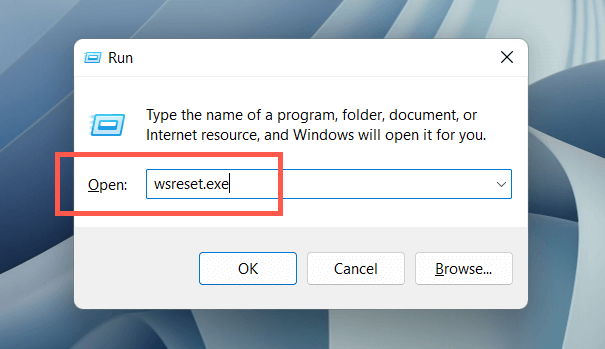
Another quick way to get to WSReset.exe is to launch it as a Run command.
- Press the Windows + R keys to open the Run box .
- Type wsreset.exe .
- Select OK .
Clear the Microsoft Store Cache via Windows PowerShell
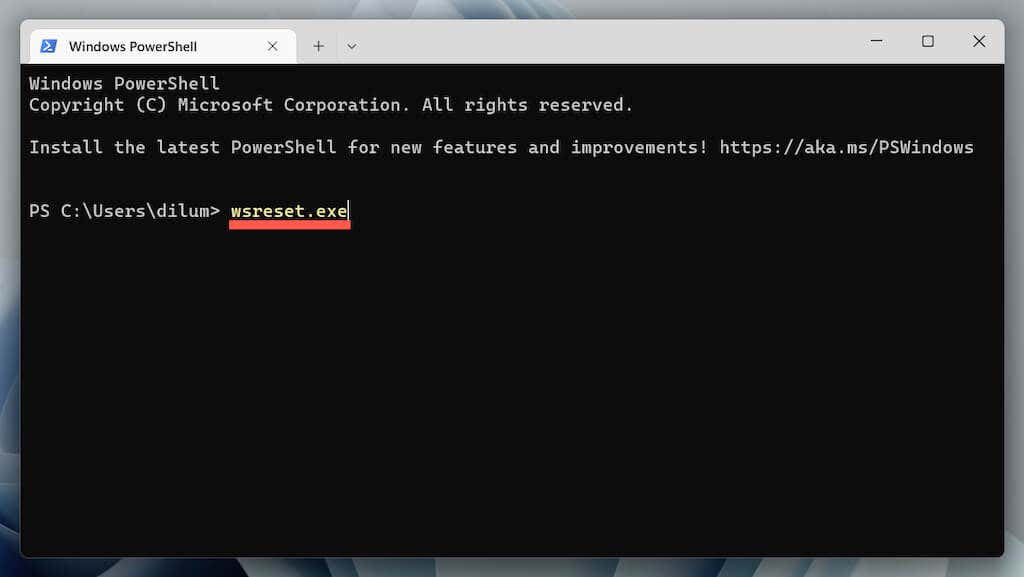
If the two methods above fail to launch WSReset, try running it via Windows PowerShell.
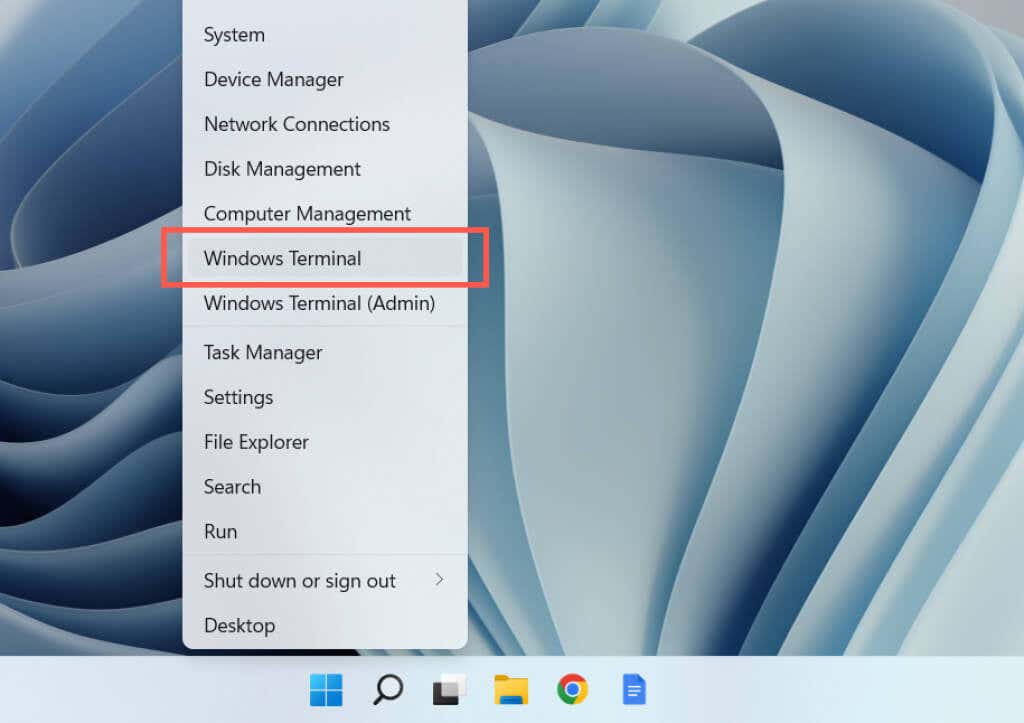
- Right-click Start and select Windows PowerShell (Windows 10) or Windows Terminal (Windows 11).
- Type wsreset.exe and press Enter .
Clear the Microsoft Store Cache via Command Prompt
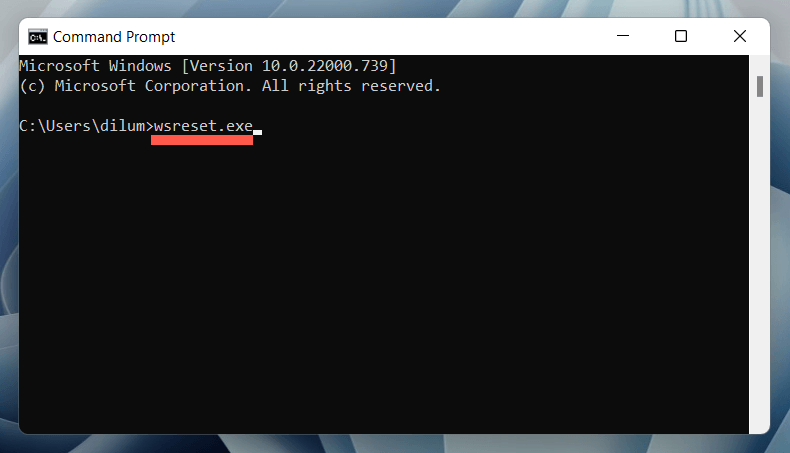
It’s also possible to invoke WSReset.exe via the older Command Prompt console.
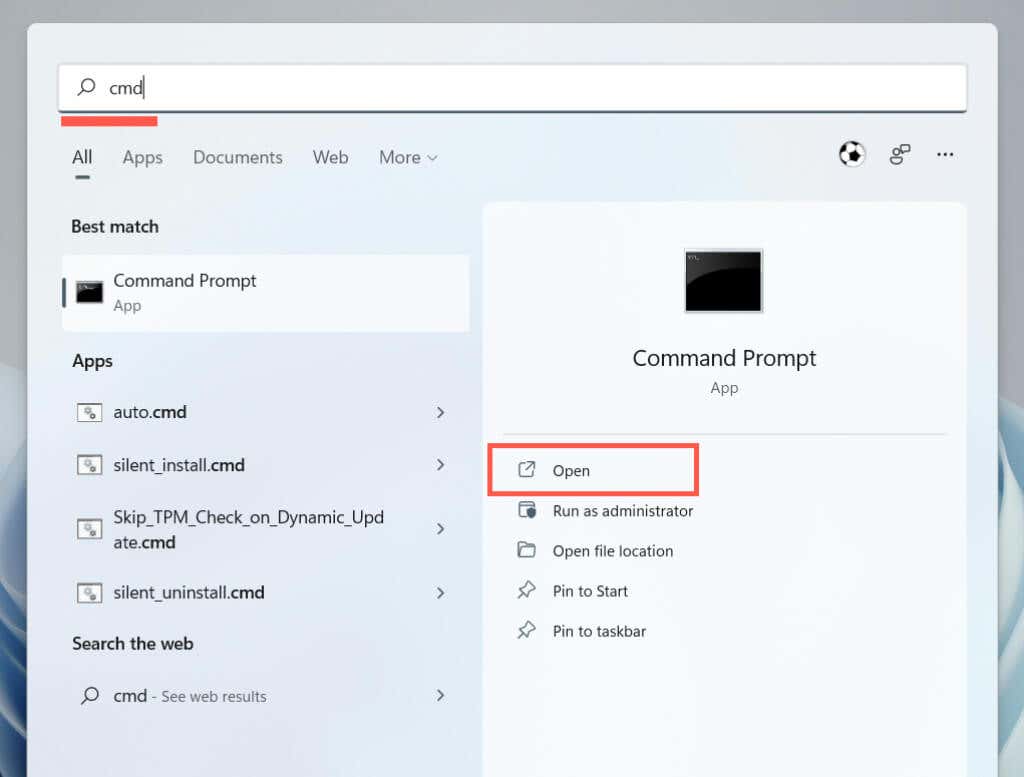
- Open the Start menu , type cmd , and select Open .
- Type wsreset.exe and press Enter .
Clear the Windows Store Cache via File Explorer
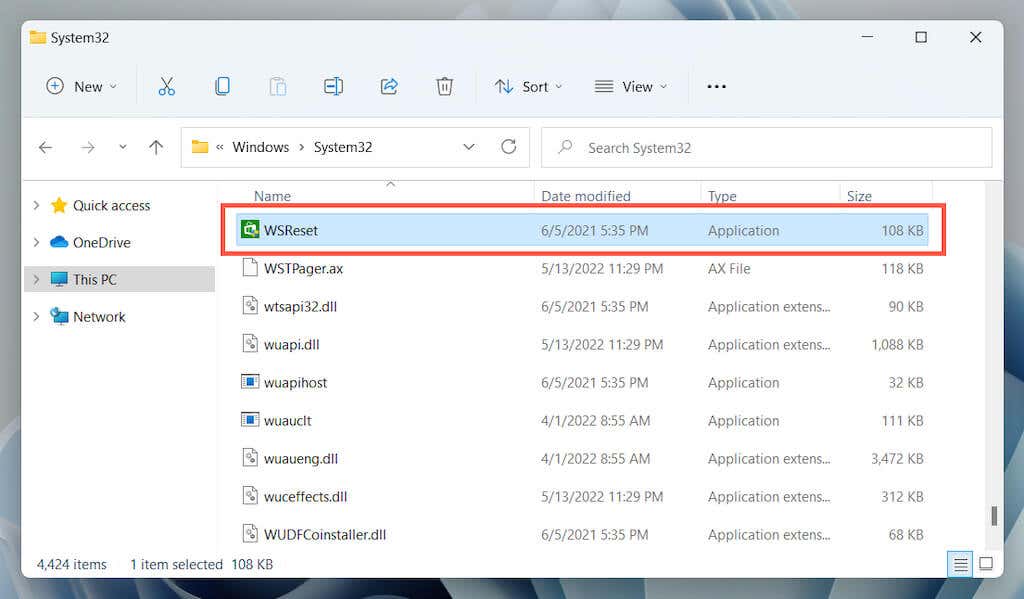
You can reset the Microsoft Store by running the WSReset.exe utility directly via File Explorer.
- Open File Explorer .
- Navigate to the following directory:
C: Windows System32
- Locate and double-click the WSReset executable.
Other Ways to Reset the Microsoft Store
Sometimes, the WSReset.exe fails to open or generates additional error codes—e.g., “ms-windows-store:PurgeCaches.” Use the following alternative methods to reset the Microsoft Store and clear its cache.
Reset the Microsoft Store via the Settings App
The Settings app in Windows offers a straightforward and user-friendly way to reset the Microsoft Store. You can also repair the application while you’re at it.
- Open the Start menu and select Settings .
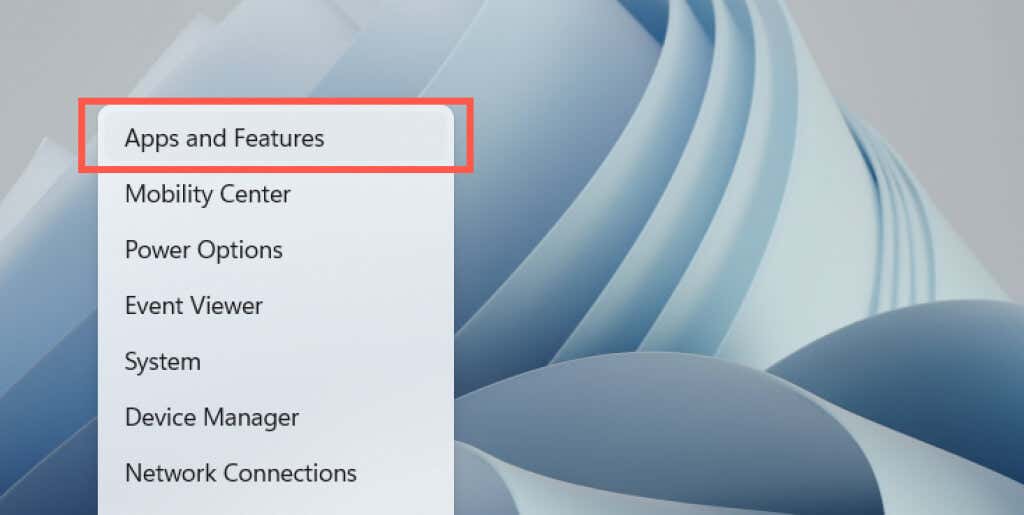
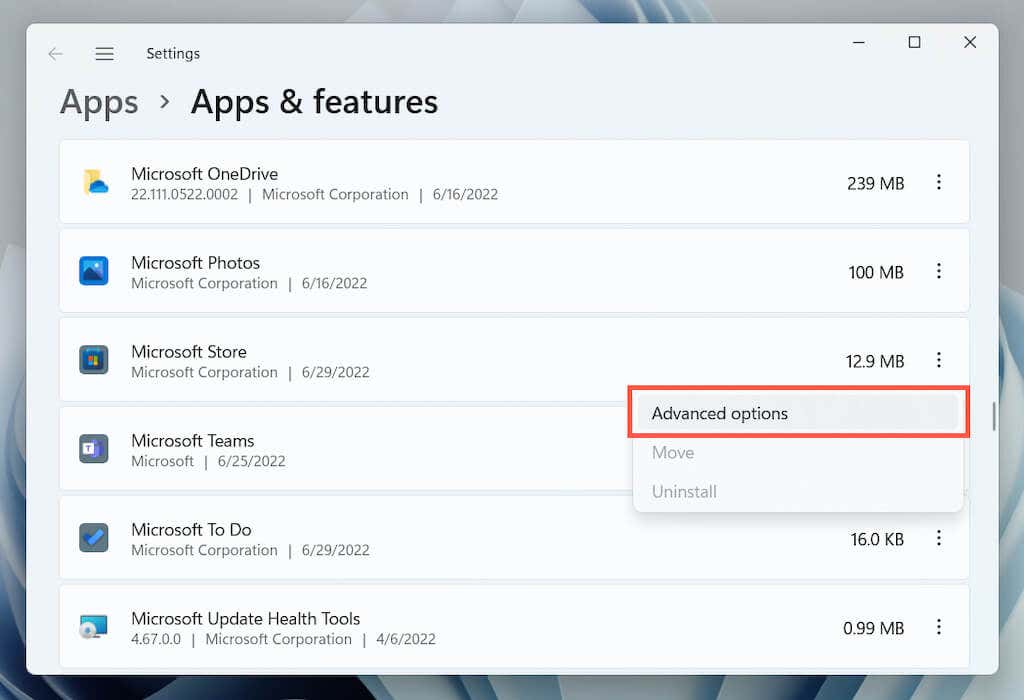
- Scroll down the Apps & Features screen, select Microsoft Store or the More icon (three dots) next to it, and choose Advanced options .
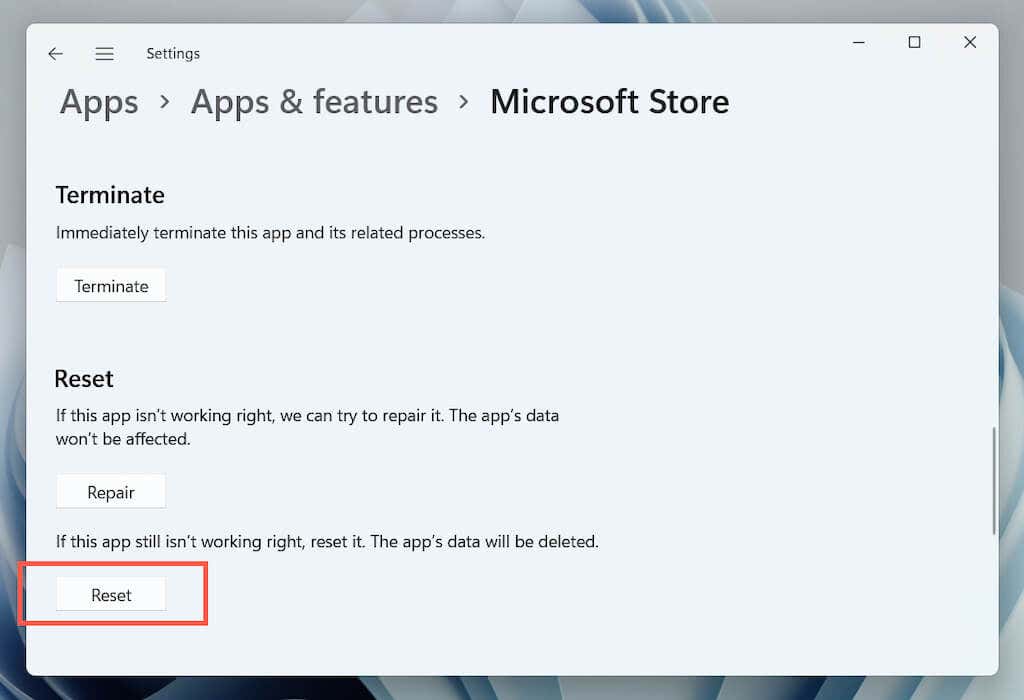
- Selectthe Reset button to delete the Store cache and revert the browser to factory defaults. If that fails to fix the Microsoft Store, select the Repair button to repair the Microsoft Store installation.
Reset the Microsoft Store via Registry Editor
You can force the Microsoft Store to reset by deleting your account’s registry keys from your PC. Make sure to back up your system registry before you begin.
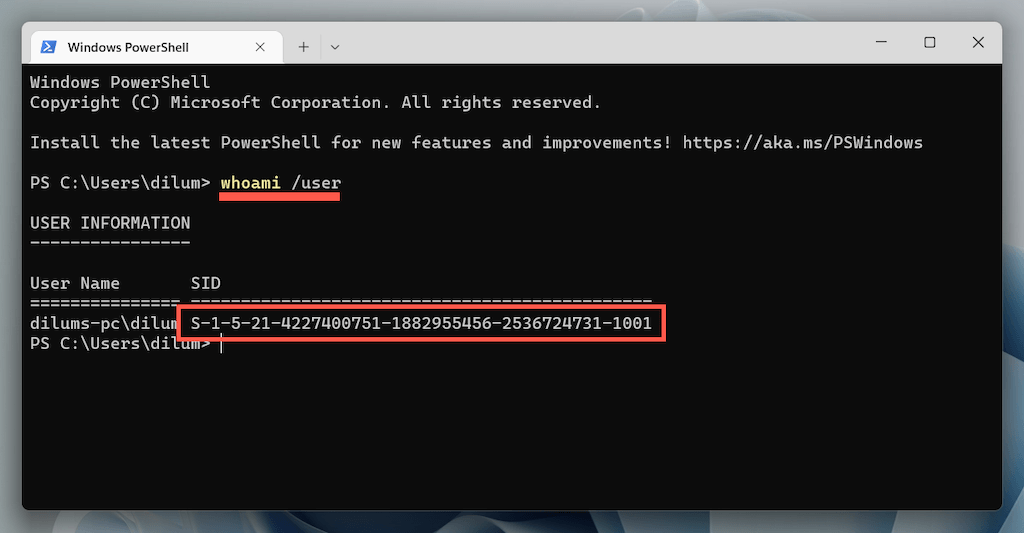
- Open a Windows PowerShell or Command Prompt console. Then, run the whoami /user command and note the string under the SID column.
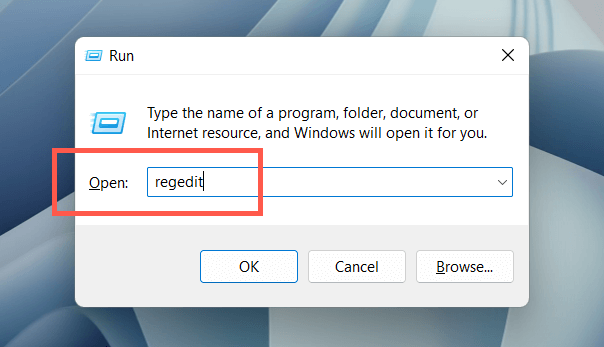
- Open a Run box, type regedit , and select OK .
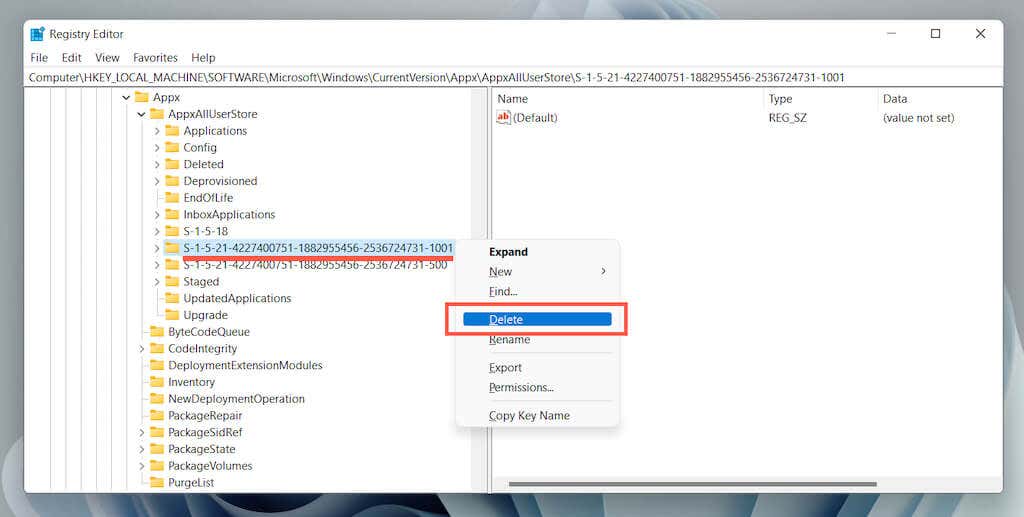
- Navigate to the following folder:
HKEY_LOCAL_MACHINE > SOFTWARE > Microsoft > Windows > CurrentVersion > Appx > AppxAllUserStore
- Right-click the SID you noted earlier on the left column and select Delete .
Reset the Windows Store Cache via File Explorer
The following approach lets you delete the Microsoft Store’s cache files directly via File Explorer.
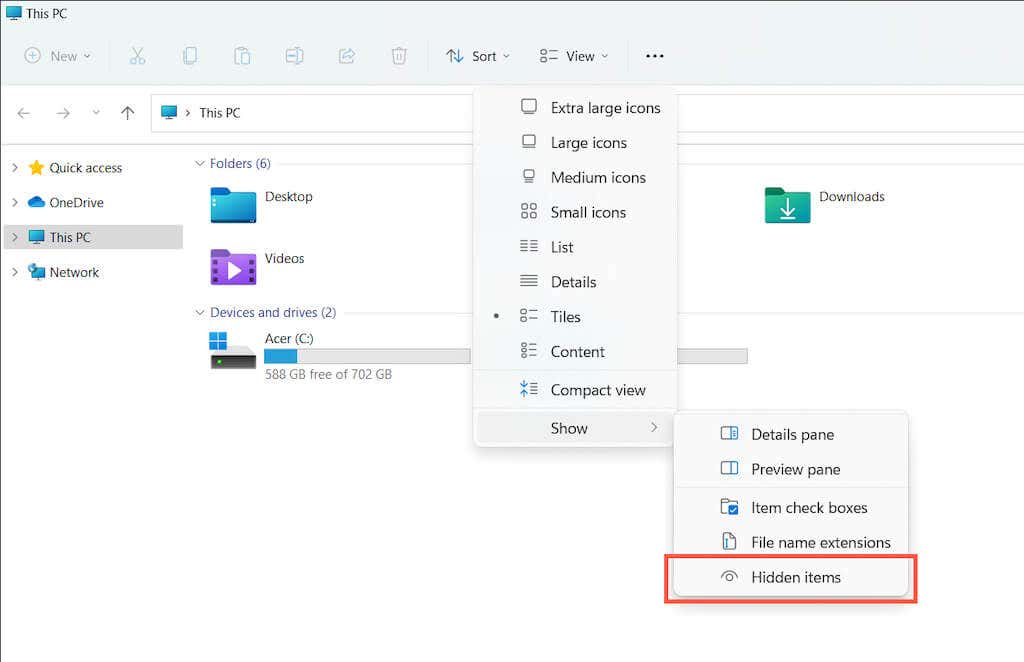
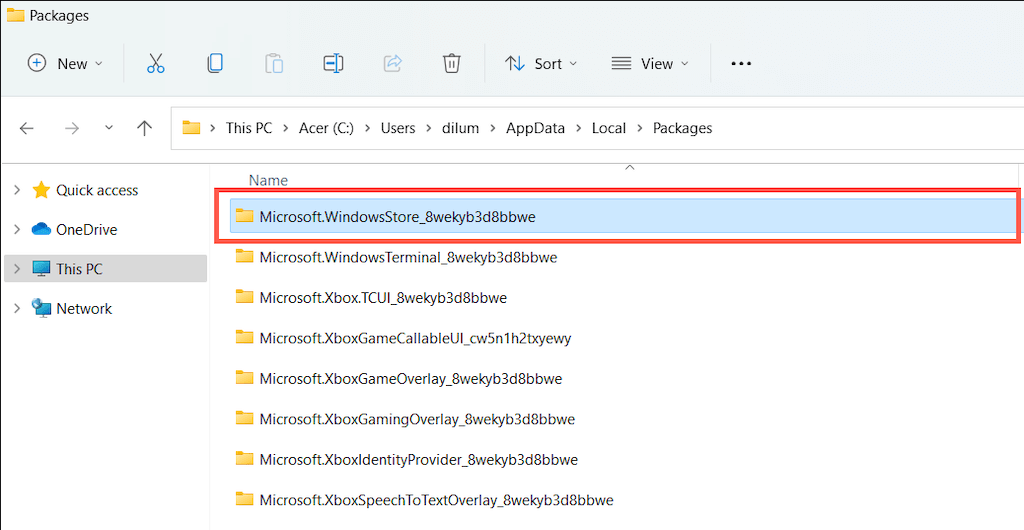
- In File Explorer, open the View menu and select Show > Hidden items .
- Navigate to the following directory:
Local Disk (C:) > Users > [Your Username] > Appdata > Local > Packages
- Open the following folder:
Microsoft.WindowsStore_8wekyb3d8bbwe
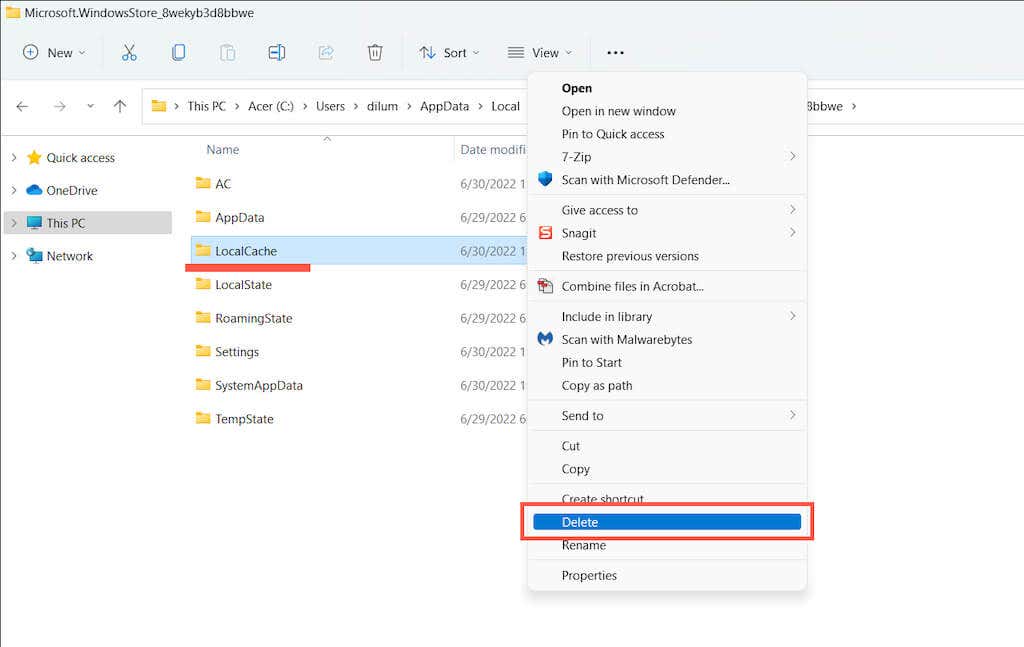
- Delete the LocalCache folder.
Additional Microsoft Store Fixes to Try Out
If clearing the Microsoft Store cache didn’t help, here are several additional fixes you can try to get the application working again. Some of them are only possible if you can open the Microsoft Store.
Perform Automatic Repairs With Windows Store Apps Troubleshooter
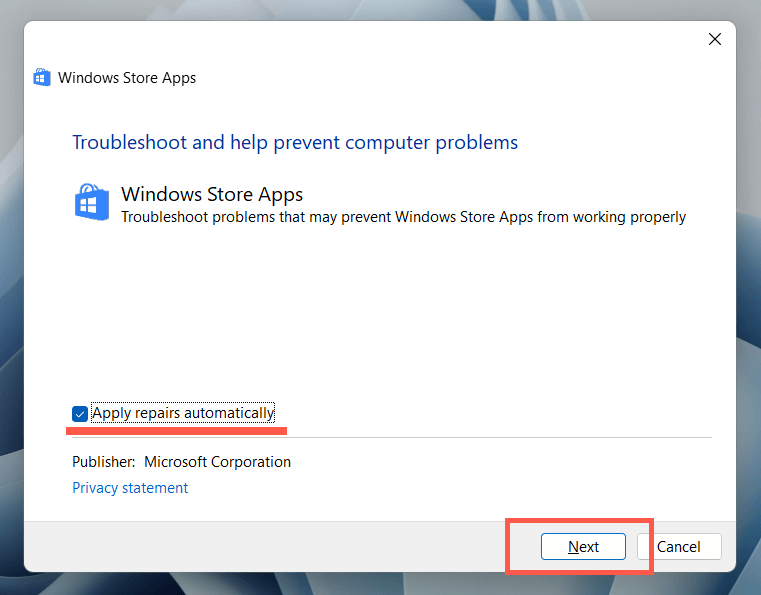
Open the Start menu , type Windows Store Apps , and select Open . Then, select Advanced > Apply repairs automatically > Next to detect and fix Microsoft Store-related issues.
Update the Microsoft Store to Fix Known Issues With the Application
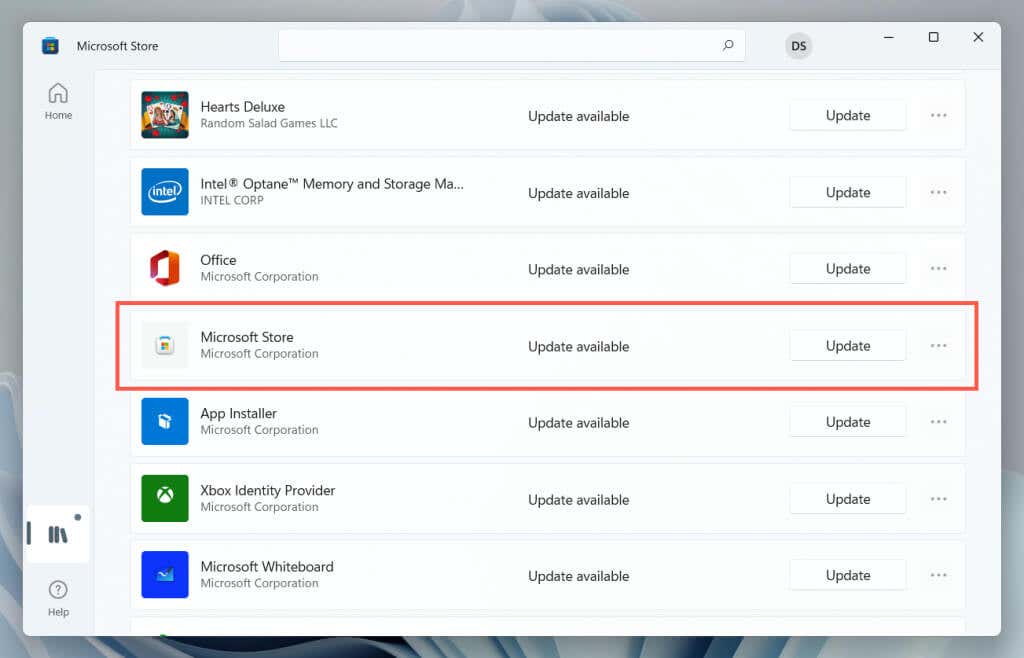
Open the Microsoft Store. Select Library at the lower-left corner and choose Update next to Microsoft Store .
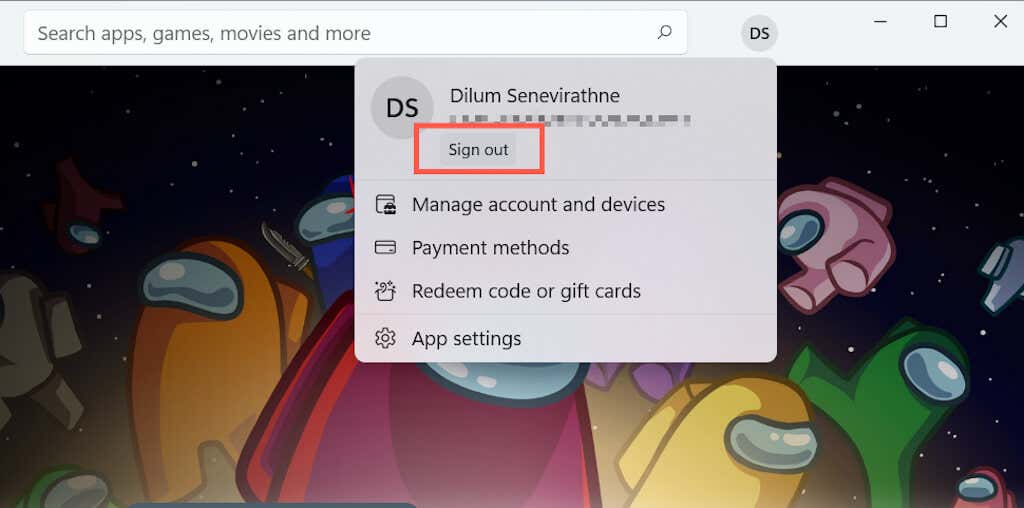
Sign Out and Back In to Fix Stuck Store Downloads and Updates
Open the Microsoft Store. Choose your profile portrait and select Sign out under your Microsoft Account. Next, restart your PC and sign back into the application.
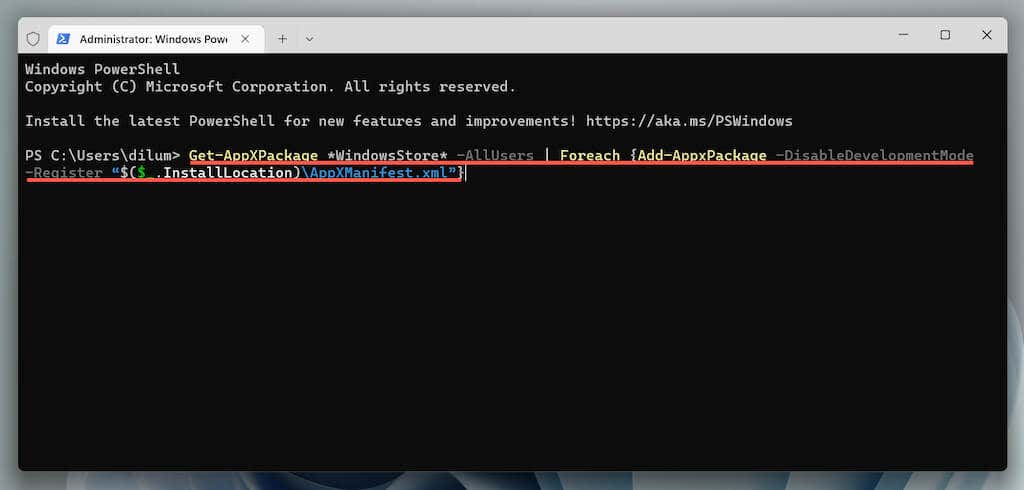
Re-register the Microsoft Store to Fix Broken Registry Entries
Right-click the Start button , select Windows PowerShell/Terminal (Admin) , and run the following command:
Get-AppXPackage WindowsStore -AllUsers | Foreach {Add-AppxPackage -DisableDevelopmentMode -Register “$($_.InstallLocation)AppXManifest.xml”}
Reinstall the Microsoft Store to Fix a Corrupt App Installation
Open an elevated Windows PowerShell console and run the two commands below:
- Get-AppxPackage -allusers WindowsStore | Remove-AppxPackage
- Get-AppxPackage -allusers WindowsStore | Foreach {Add-AppxPackage -DisableDevelopmentMode -Register “$($_.InstallLocation)AppXManifest.xml”}
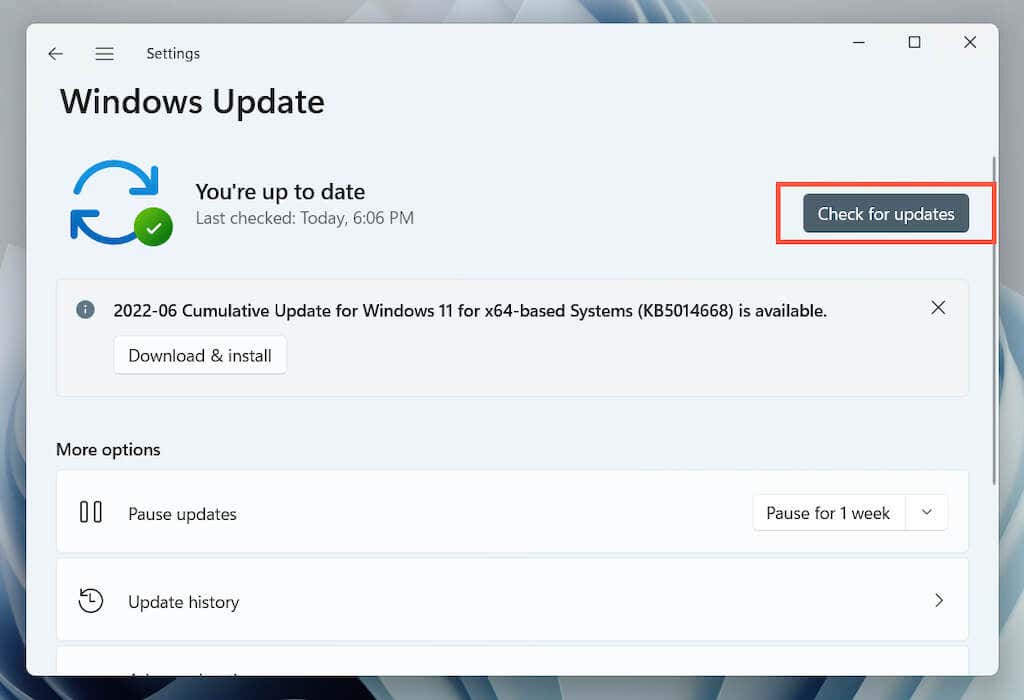
Update Microsoft Windows to Fix System-Related Issues
Open the Settings app, select Windows Update , and select Check for Update . If you see any pending updates, select Download & Install .
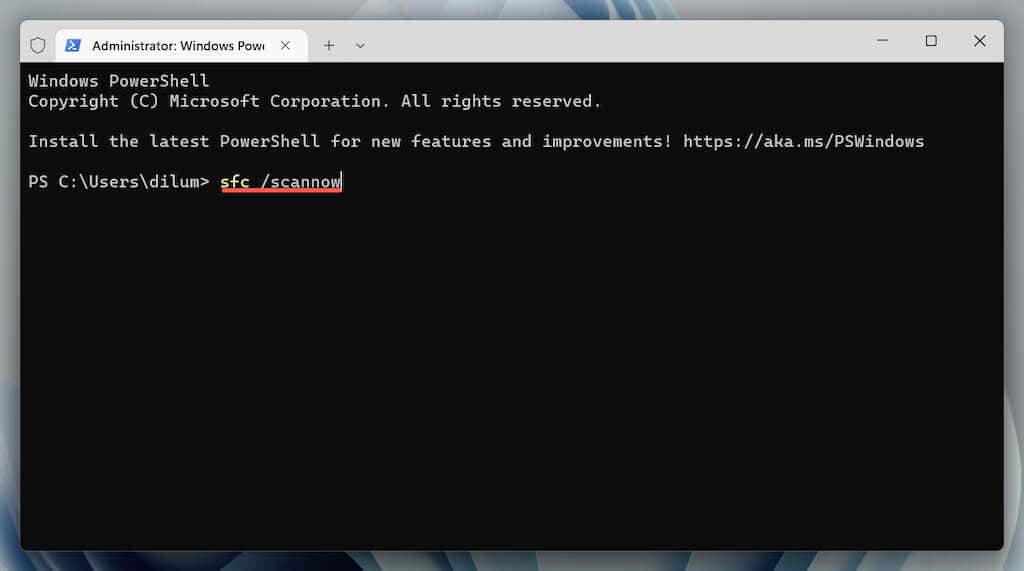
Perform an SFC and DISM Scan to Fix Corrupt System Files
Open an elevated Windows PowerShell console. Then, run the System File Checker and the DISM tool one after the other:
- sfc /scannow
- DISM /Online /Cleanup-Image /RestoreHealth
Microsoft Store Cache Clear
Using the WSReset.exe tool to clear the Microsoft Store cache is the best way to resolve persistent issues with the application. However, some problems will require additional troubleshooting, and the above fixes are an excellent place to start.
- Preparing for Windows 10 End of Support: Upgrading to Windows 11
- How to Fix a “This file does not have an app associated with it” Error on Windows
- How to Fix an Update Error 0x800705b4 on Windows
- How to Resolve “A JavaScript error occured in the main process” Error on Windows
- How to Fix the Network Discovery Is Turned Off Error on Windows
Dilum Senevirathne is a freelance tech writer and blogger with three years of experience writing for online technology publications. He specializes in topics related to iOS, iPadOS, macOS, and Google web apps. When he isn’t hammering away at his Magic Keyboard, you can catch him binge-watching productivity hacks on YouTube. Read Dilum’s Full Bio
