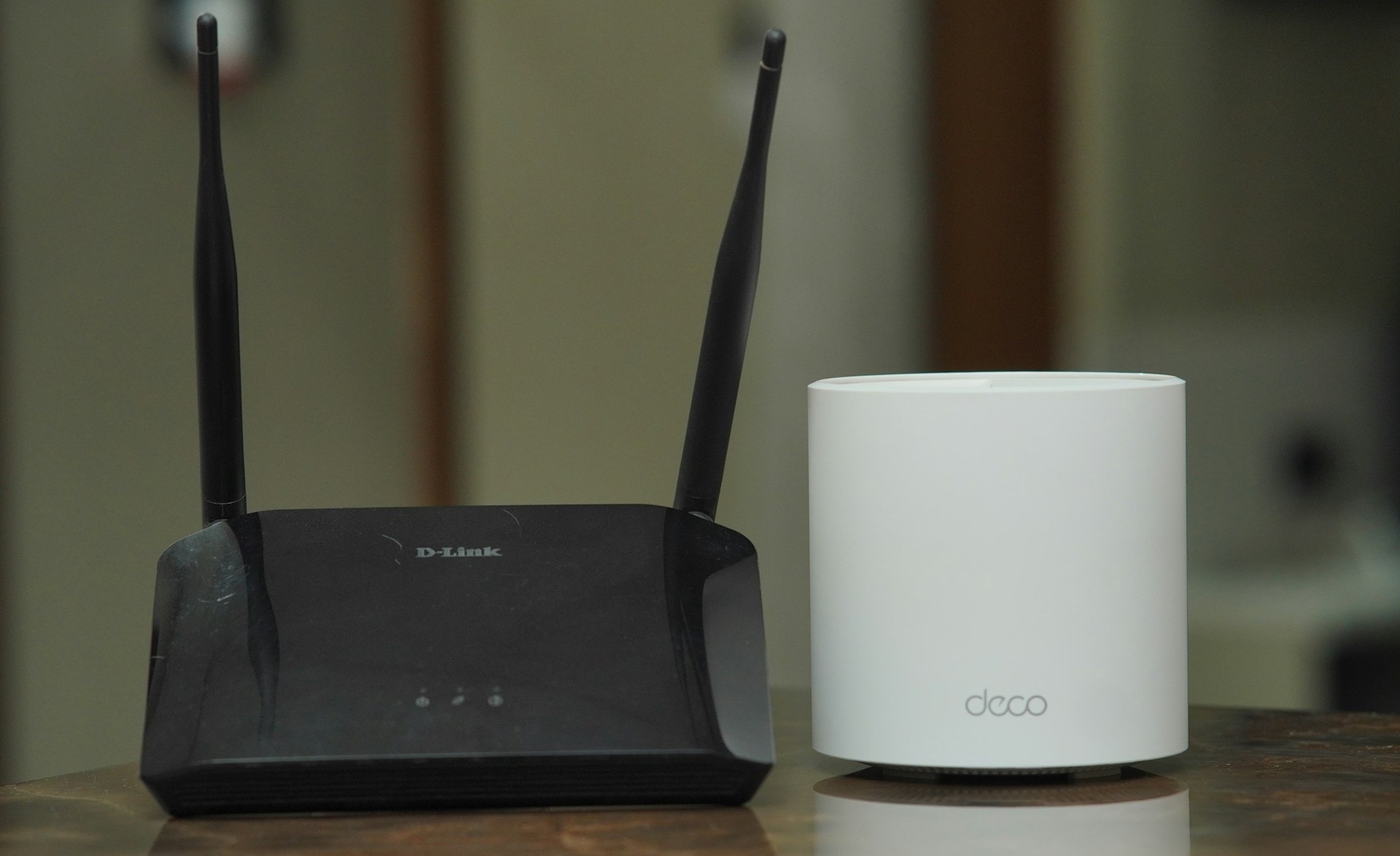
Do you have more devices in more places in your home and more people sharing the same network connection? Then, you may need a wired or wireless network in parts of your home that you previously didn’t. This tutorial will show you how to connect a router to another router to make your home network more robust .
Can You Connect a Router to a Router?
The short answer is “yes,” and there are several reasons why you should add a secondary router to your home network. Two interconnected routers in your home might solve poor internet connection issues. A secondary router could serve as an access point (AP) or wireless repeater to extend coverage of an existing network. You could also use the secondary router as a switch to add more Ethernet ports to your network.
Requirements for Setting Up a Second Router at Home
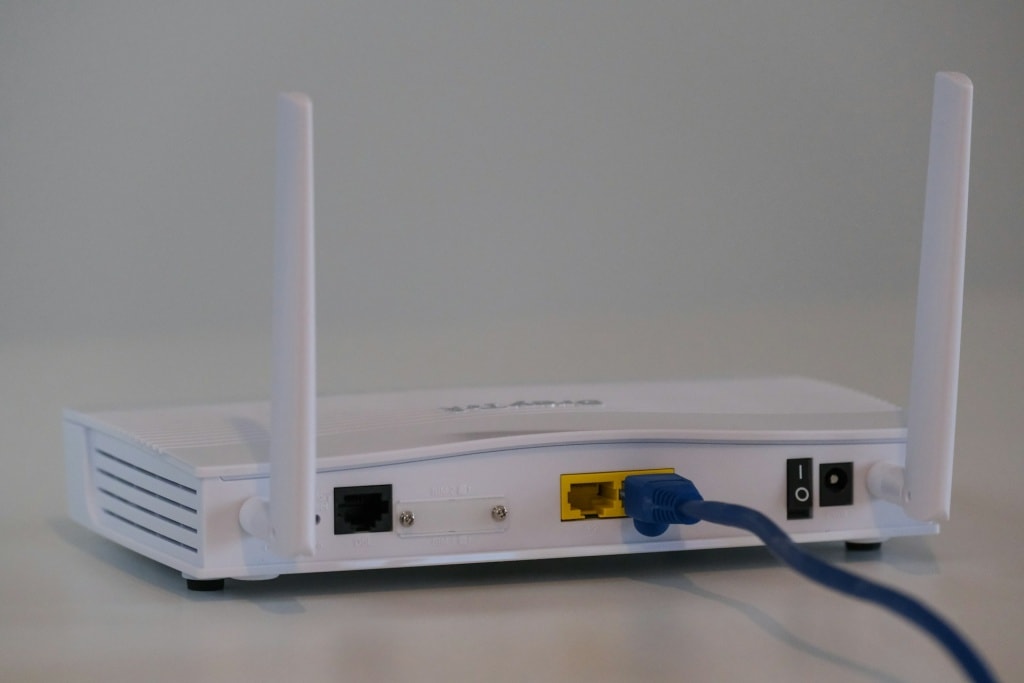
Not every Wi-Fi router can be set up as a secondary router for extending wireless range or as an access point (AP). Here’s what you need:
- Administrator access to your primary and secondary router.
- To set up an AP or switch, an Ethernet cable to connect the two routers.
If your secondary router isn’t capable of being used in these different modes because it’s older, look for a firmware update. The update may expand its capabilities.
We’re using an Asus RT-N300 as our secondary router for this tutorial. The instructions in this tutorial will vary depending on your router’s brand and model. However, the same concepts apply whether it’s a D-Link, TP-Link, Linksys, Netgear, or any of the many good router models available.
How to Set Up a Second Router as a Wireless Access Point
Is your home wired for Ethernet? Do you want excellent wireless coverage and internet access everywhere in your home network? If you answered “yes” to both questions, consider using a secondary router as an access point (AP).
Setting up a wired connection between your secondary and primary router results in excellent and stable Wi-Fi coverage. Follow these steps to set up a wireless access point from your primary router.
- Log in to the secondary router’s admin page and head to Administration > Operation Mode > Access Point Mode . Select Save to proceed.
<img loading=“lazy” src=“https://images.surferseo.art/71d544f5-908b-4f46-83aa-795e619b4cca.png" onerror=“this.onerror=null;this.src=‘https://blogger.googleusercontent.com/img/a/AVvXsEhe7F7TRXHtjiKvHb5vS7DmnxvpHiDyoYyYvm1nHB3Qp2_w3BnM6A2eq4v7FYxCC9bfZt3a9vIMtAYEKUiaDQbHMg-ViyGmRIj39MLp0bGFfgfYw1Dc9q_H-T0wiTm3l0Uq42dETrN9eC8aGJ9_IORZsxST1AcLR7np1koOfcc7tnHa4S8Mwz_xD9d0=s16000';" alt=““Operation Mode” settings in a router’s advanced settings screen - 3”>
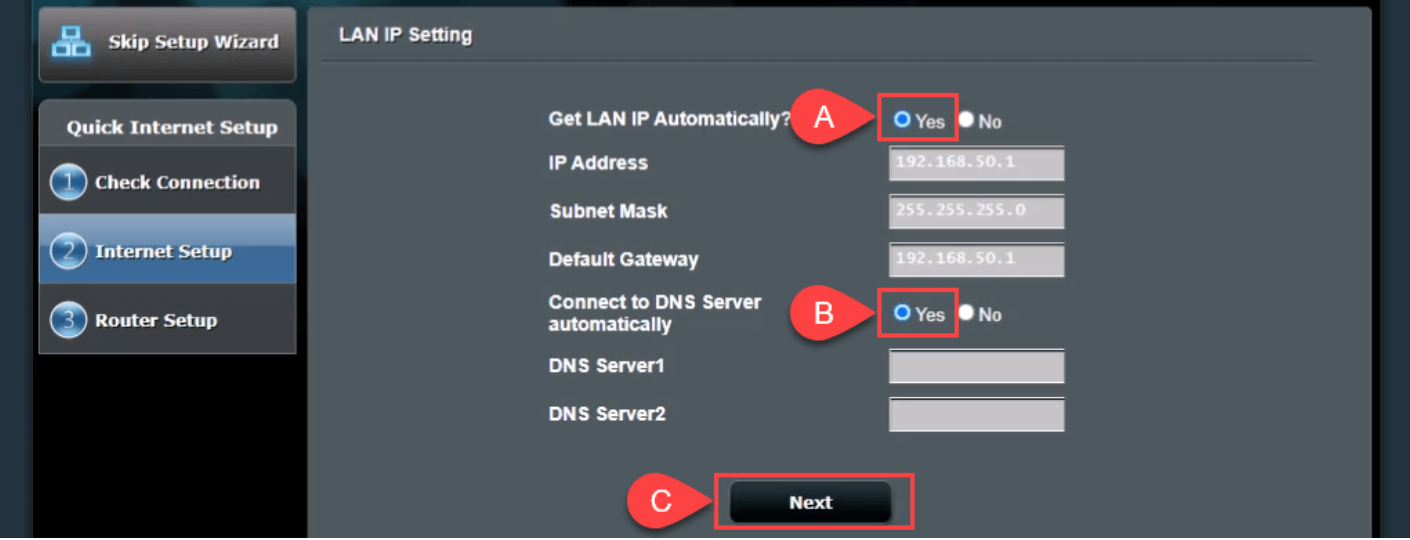
- Choose the option that allows the router to automatically set the LAN IP and connect to the Domain Name Server (DNS), then select Next to continue.
- On the “Wireless Setting” screen, set the “Do you want to use the previous wireless security settings?” option to Yes .
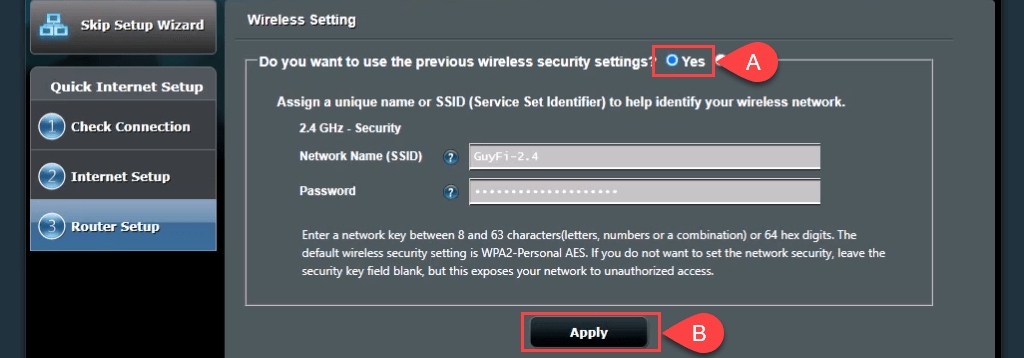
That lets you connect to the AP with the same network SSID and password as the primary router, making for a seamless transition between the two routers when moving around.
If you want to make a guest network with a different SSID and password, select No and change the values as needed. The guest network wouldn’t be completely separate from your personal network; it would just mean you don’t have to share your personal network’s password.
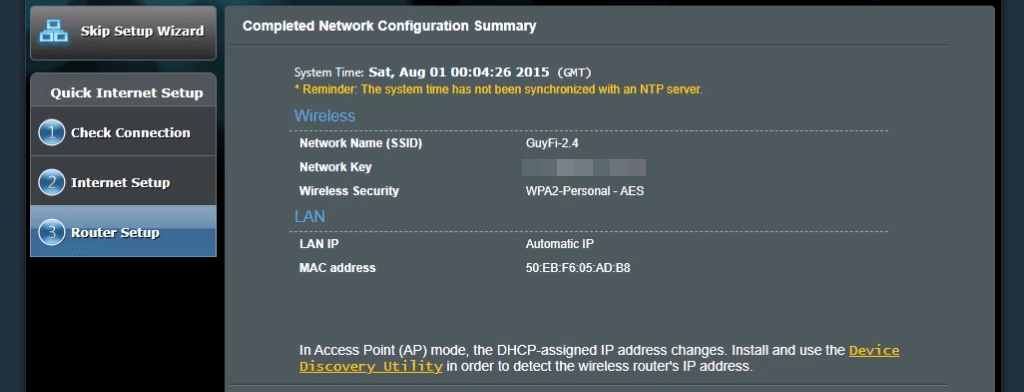
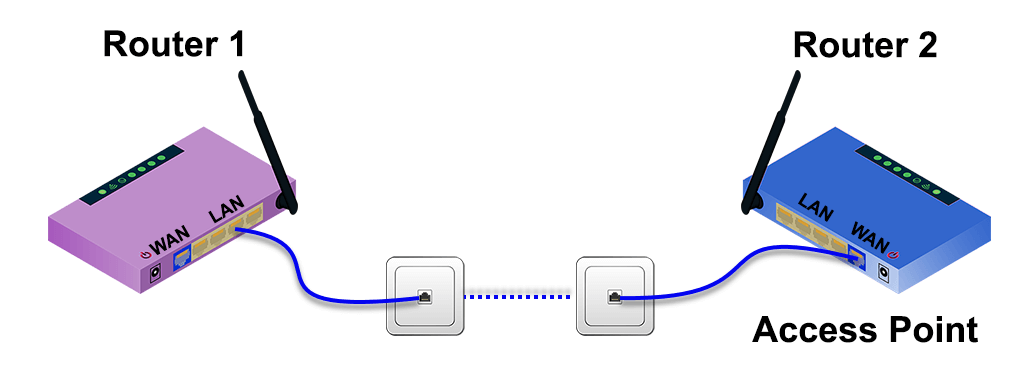
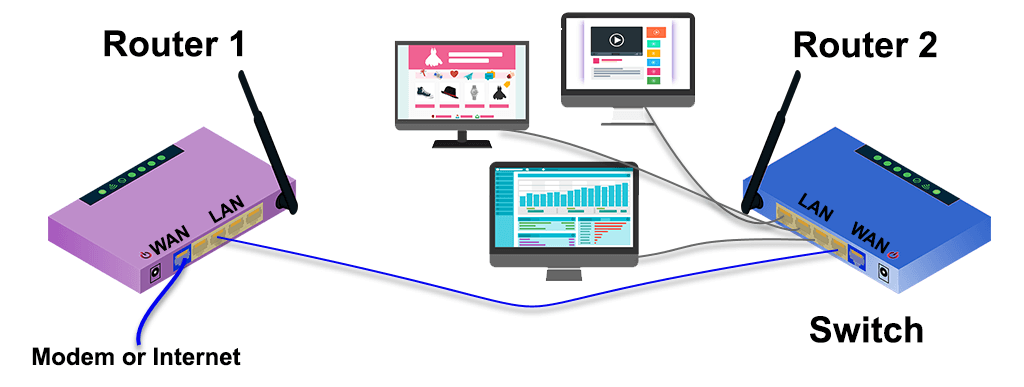
- Connect router #2’s WAN port to a LAN port on router #1 directly (see Image #1 ) or through the wired home network (see Image #2 ). Now you have wireless access point.
Image #1 :
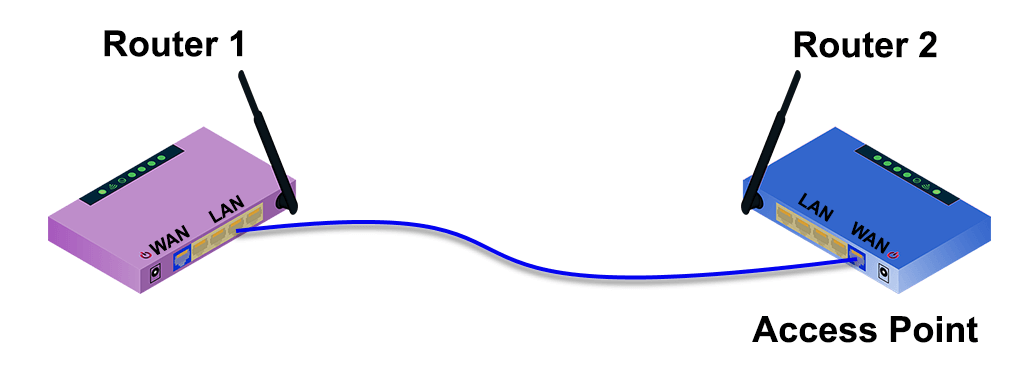
Image #2:
How to Setup a Second Wi-Fi Router to Extend the Range
Wireless routers are often (set up) on one end of the house, where services come into the home. The setup results in uneven signal distribution and fluctuating internet speed around the house. Rooms close to the (primary) router enjoy fast internet speed, while the far end of the home has poor or no Wi-Fi signal.
Using a secondary router as a Wi-Fi range extender (in a central location) will improve your home’s wireless connection. The best part is that the setup doesn’t require a wired Ethernet connection to the primary router.
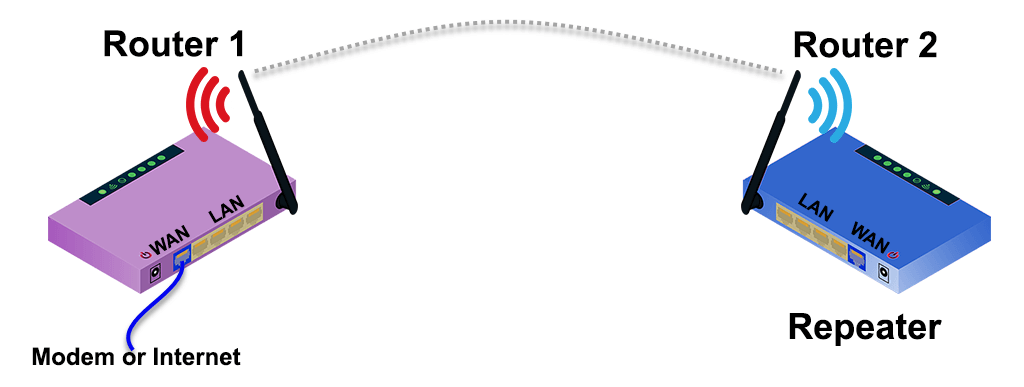
Fortunately, many new routers have a wizard process to set it up as a wireless range extender. For example, the Asus RT-N300 provides a simple repeater mode option during the initial setup. To estimate where to place the second wireless router, use an app to measure the wireless signal strength and find where it starts to drop. Go back a few feet to the area with a better signal area, and that’s a good spot to put it.
- Choose Repeater mode on the “Internet Setup” screen and select Next .
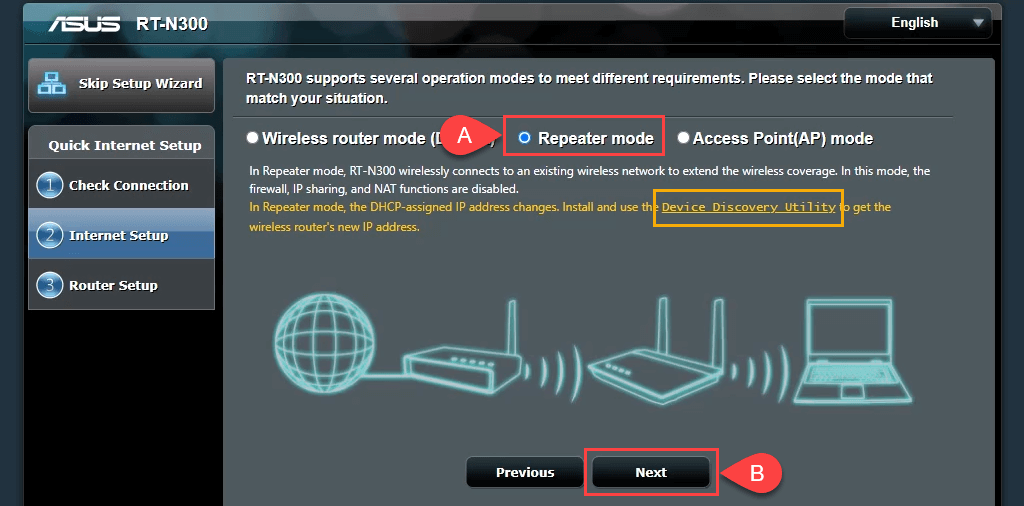
Note the link to a Device Discovery Utility . That link is dead; however, we found a new link for the Device Discovery Utility . There’s also an ASUS Device Discovery app for iOS for iPhones and iPads. The Device Discovery Utility makes finding the router’s IP address easier after setting it up as a wireless repeater.
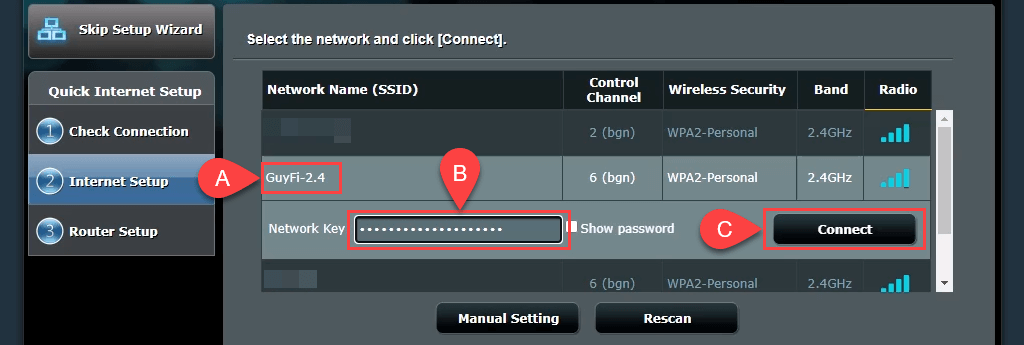
- The wizard scans nearby wireless signals and shows their networks. Select yours from the list. Enter your Wi-Fi network password and select Connect .
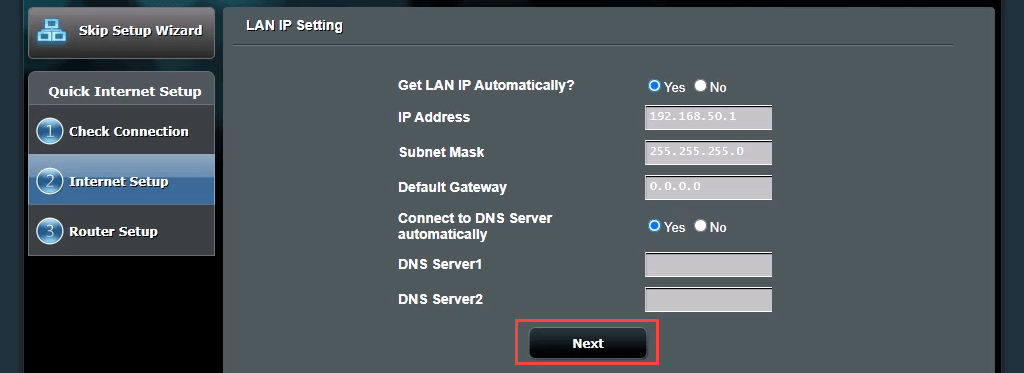
- The wizard sets a static IP address and collects the local network’s subnet mask and default gateway. These settings are fine; leave them as they are and select Next .
- The Wireless Setting defaults are also fine for most people. Leave them as they are and select Apply. That ensures the wireless password connects to your home network on either router.
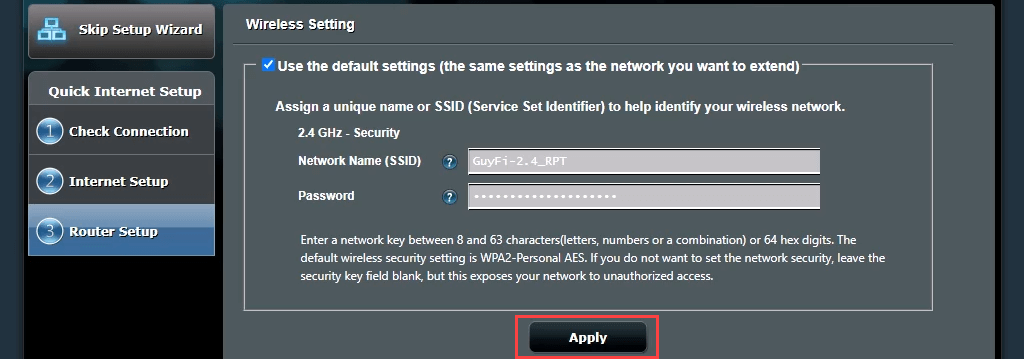
The secondary router now connects to the primary router. It doesn’t return to the router management page when this is complete because the secondary router’s IP address has changed. This is where you need the Device Discovery Utility.

- Open the Device Discovery Utility downloaded in Step #1to get your secondary router’s new IP address. Enter that IP address into your web browser to access the router management site and log in.
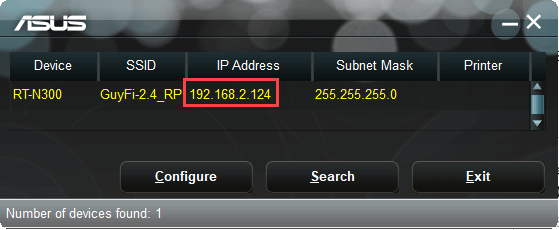
- Go to Advanced Settings > Wireless and switch Roaming assistant from Disable to Enable .

The default RSSI setting of -70 dBm is suitable for most situations. That means your secondary router will disconnect any device with a signal strength lower than -70 dBm. The device can now try to connect to your primary router, giving a seamless transition between the two. It’s similar to how your cellphone call gets passed from tower to tower as you’re driving.
- Select Apply to save the changes.
It can take a few minutes to finish. You now have wireless coverage around your secondary router.
How to Setup a Second Router to Act as a Switch
Most home networks have a combination modem/router with four or five Ethernet ports on the back for wired connections. Once those ports are full and you still want wired connections, you can use your router as a switch. You can also use an Ethernet router for this.
- Connect router 1 to router 2 with an Ethernet cable. Plug one end of the cable into a LAN port on the primary router and the other into a LAN port on the secondary router. Ignore the WAN port. Use another Ethernet cable to connect the second router to your computer.
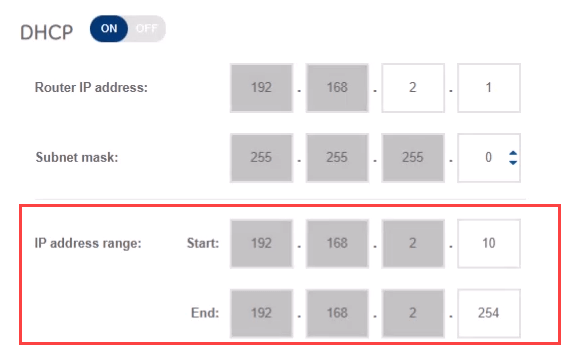
- Log in to the first router and note the IP range it covers. In this example, the subnet is 192.168.2.0/24, and the range of assignable IP addresses is from 192.168.2.10 to 192.168.2.254. IP addresses ending in 1 to 9 aren’t available to the DHCP server, so they can be given as static IP addresses and not cause an IP conflict in the network.
<img loading=“lazy” src=“https://www.online-tech-tips.com/wp-content/uploads/2022/09/how-to-setup-a-second-router-on-your-home-network-18-compressed.png" onerror=“this.onerror=null;this.src=‘https://blogger.googleusercontent.com/img/a/AVvXsEhe7F7TRXHtjiKvHb5vS7DmnxvpHiDyoYyYvm1nHB3Qp2_w3BnM6A2eq4v7FYxCC9bfZt3a9vIMtAYEKUiaDQbHMg-ViyGmRIj39MLp0bGFfgfYw1Dc9q_H-T0wiTm3l0Uq42dETrN9eC8aGJ9_IORZsxST1AcLR7np1koOfcc7tnHa4S8Mwz_xD9d0=s16000';" alt=““IP address range” on a router’s web-based management page - 18”>
- Connect to the second router’s management page and navigate to Advanced Settings > LAN > LAN IP . To make it easier to find and connect to the router again, assign a static IP address different from your first router but in the same subnet. We’re using 192.168.2.2. Ensure the subnet mask matches the first router’s subnet mask. Select Apply to save the changes. You must enter 192.168.2.2 in the browser’s location bar to reconnect.
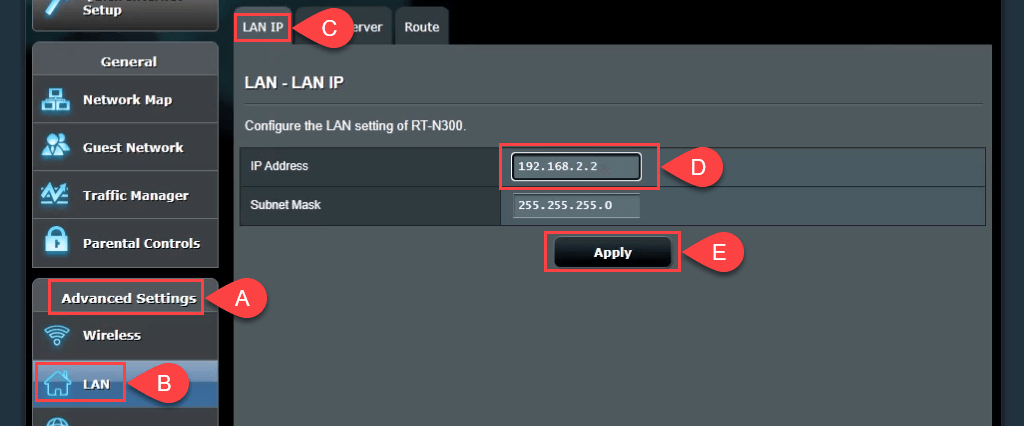
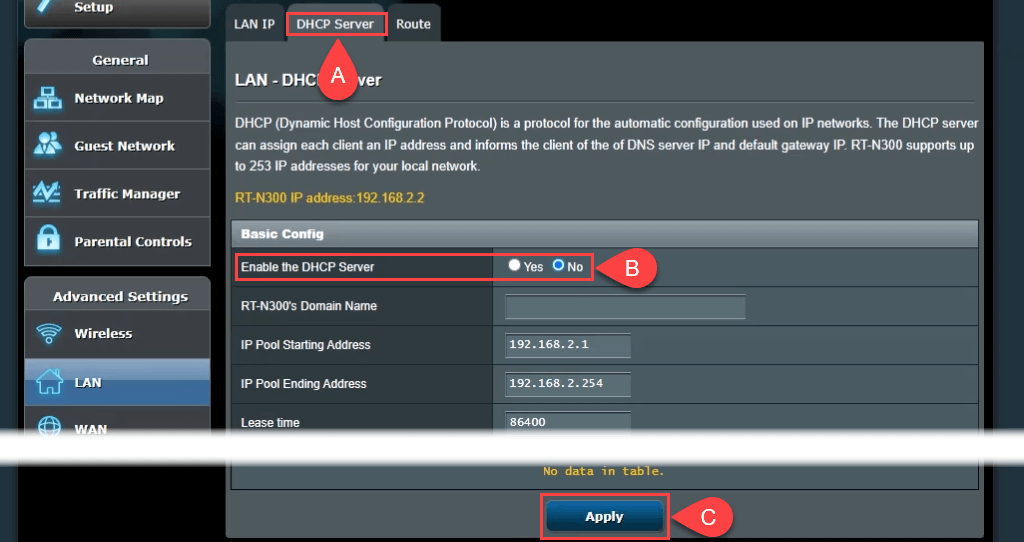
- Move to the DHCP Server tab and disable DHCP. Only router #1 should act as a DHCP server and assign IP addresses.
If possible, turn off wireless access. Go to Wireless > Professional and set Enable Radio to No .
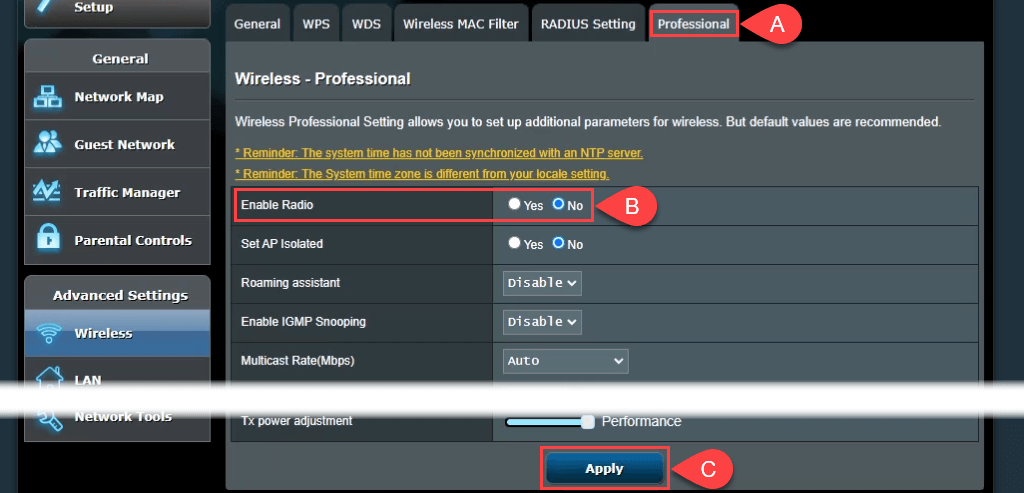
If your router doesn’t have this option, secure the wireless access by setting ridiculously strong passwords and hiding the network’s Service Set Identifier (SSID) , also known as the name of your Wi-Fi. That prevents anyone from connecting to it as a wireless device, accidentally or on purpose.
Now, can connect more devices via Ethernet to your network by plugging them into the remaining LAN ports.
Connect Two Routers for Faster Internet
Now you have a use for one thing in your electronics doom pile and a better internet connection in your home. Remember that these instructions will vary depending on your router model or brand. Check your router manufacturer’s website or instruction manual for tutorials on setting up a secondary router. Otherwise, contact your router manufacturer or internet provider for technical support.
- How to Reboot a WiFi Router
- What Is Port Forwarding and How to Set It Up On Your Router
- How to Disable SSID Broadcast on Your Wireless Router
- How to Reset Your Wireless Router
- How to Fix Slow Wi-Fi on Your Smartphone
It’s handy and straightforward to let the router use DHCP to decide what IP addresses devices get. We don’t have to pick them, assign them, and better yet, try to remember them.
Devices like printers often have web-based management, which can be configured and maintained from anywhere. That makes printers a top candidate for static IPs .
Why Assign a Static IP Address to a Device?
It seems like more work, yet it does make life simpler and easier. If the device needs to be accessible from other devices, a static IP address is the way to go. Imagine having a web server where the IP address changes daily. It’s like changing your phone number every day.
When thinking of other devices that need to be accessible from anywhere, smart TVs , security systems , home automation , and camera systems come to mind.
Another reason, to a lesser extent, is security. A router can issue hundreds, if not thousands of IP addresses. It doesn’t care whose device it is. By using static IPs and limiting the number of IP addresses available, rogue devices have a harder time getting on the network. It can also help resolve an IP address conflict .
What IP Addresses Can I Use?
The Internet Assigned Numbers Authority (IANA) has set aside the following blocks of IPs for private use. Private use means you can only use the IP addresses in a private network. They aren’t for the outside world. IANA defines the following ranges for private IPs:
- 10.0.0.0 to 10.255.255.255 – equals 16,777,214 IP addresses
- 172.16.0.0 to 172.31.255.255 – equals 1,048,574 IP addresses
- 192.168.0.0 to 192.168.255.255 – equals 65534 IP addresses
If the router is being used already, it has a range. It’s easiest to stick with that range. Some routers pre-define the range.
Make a Static IP Plan
If the network has ten or fewer devices connected, a plan isn’t necessary. Just put them all in a single range, like 192.168.2.10 to 192.168.2.19. Skip the rest of this section.
If the network has more than ten devices, it’s wise to make a plan. This is just one way to make a plan. If it doesn’t work for you, change it.
- Count all the devices that will connect to the network.
- Group the devices by type. For example, there may be 3 phones, 2 smart TVs, 4 cameras and a DVR, 2 IoT devices like smart fridges, and a printer.
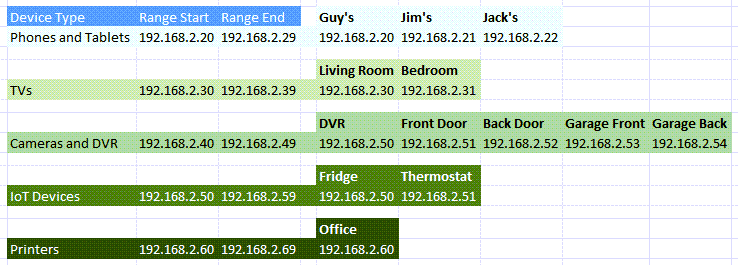
- Assign blocks of IP addresses for each device type and leave room for growth. If the 192.168.2.0 to 192.168.2.255 range is being used, the blocks might be assigned like: Phones and tablets: 192.168.2.20 to 192.168.2.29 TVs: 192.168.2.30 to 192.168.2.39 Cameras and DVR: 192.168.2.40 to 192.168.2.49 IoT devices: 192.168.2.50 to 192.168.2.59 Printers: 192.168.2.60 to 192.168.2.69
Some best practices for using ranges:
- Begin a device type IP range with a number ending in zero and end the range with a number ending in 9
- Increment ranges in tens. Any less can become confusing, and you can easily outgrow them. Plus, it allows for additional devices of the same type in that range. If the number of devices is already close to 10, make the range cover 20 IP addresses, like 192.168.2.40 to 192.168.2.59.
- Whatever the router’s IP address is, leave its entire block open for the addition of networking equipment, like other routers, switches, firewalls, etc. For example, if the router uses 192.168.2.1, then reserve 192.168.2.2 to 192.168.2.9 for networking equipment.
- In a spreadsheet, assign the devices their IP addresses. This becomes an inventory of devices and makes it easier to identify the devices on the network. It’s a good idea to assign the first IP in a range to controller devices. For example, the DVR is the controller of the cameras, so it will have an IP of 192.168.2.50.
If you plan it on a spreadsheet, it may look like this:
How to Assign Static IPs to Devices in the Router
- Consult our article on how to find the IP address of the router if you’re using a Mac or not comfortable using the Command Prompt. Select the Start menu and search for CMD . Command Prompt will be the top result, so select it.
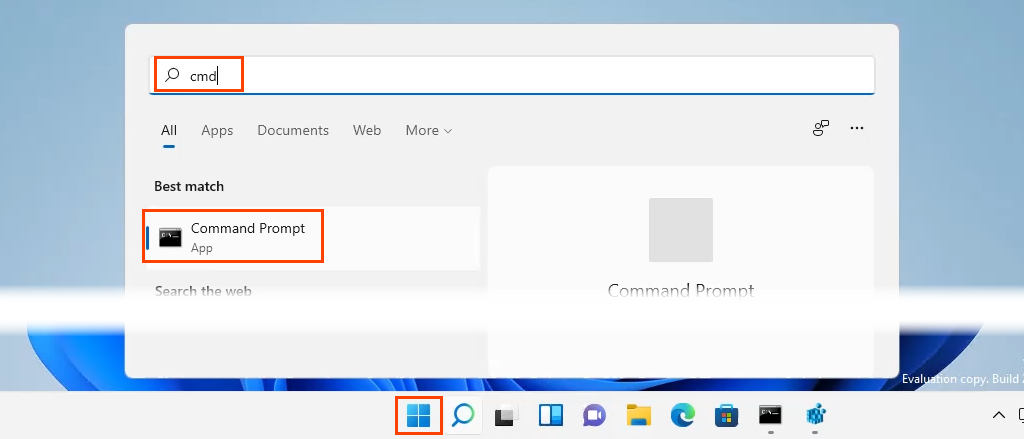
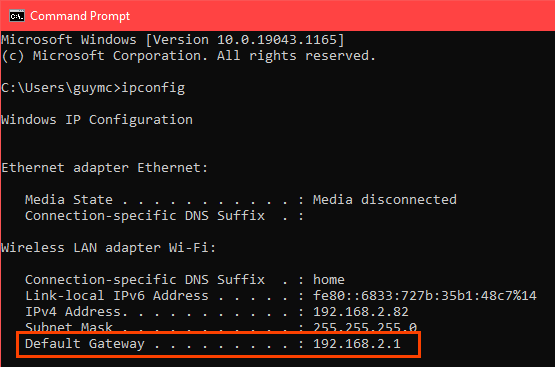
- When the Command Prompt window opens, enter the command
ipconfig
and press Enter .

The value for Default Gateway is the IP address of the router. Write this down somewhere.
- Open a web browser and enter the IP address of the router in the location bar , then press Enter . This will open the router’s web-based management page.

Assign Static IPs – Asus Router
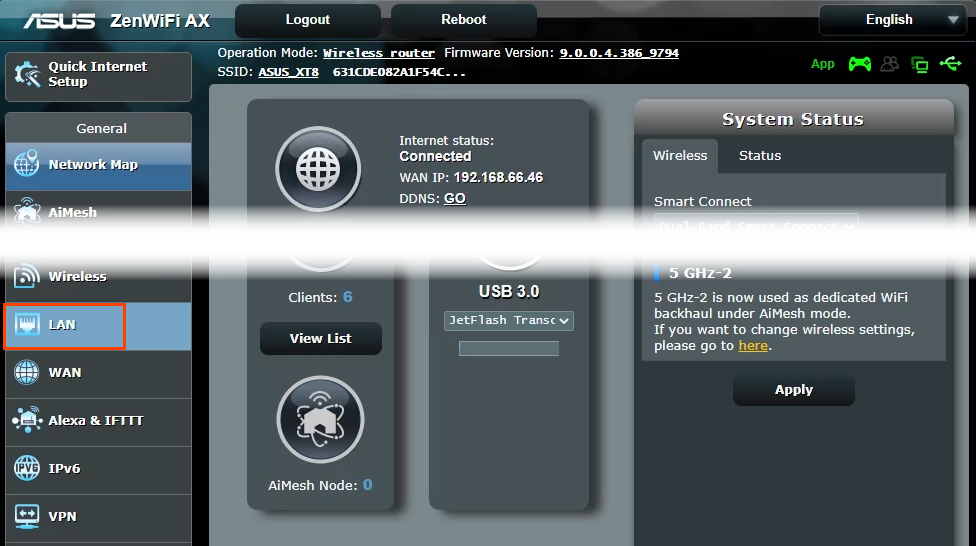
- Login to the Asus router, find the LAN button, and select it.
- Select the DHCP Server tab. This router allows for staying in DHCP mode while assigning static IPs to selected devices. If desired, it can be configured to use only static IPs.

- Scroll to the Manual Assignment section. Where it reads Enable Manual Assignment , select Yes .

- Select the drop-down box under Client Name (MAC Address) and choose a device in the Manually Assigned IP around the DHCP list. All devices currently connected to the router are listed. To see devices that you previously connected, select Show Offline Client List .
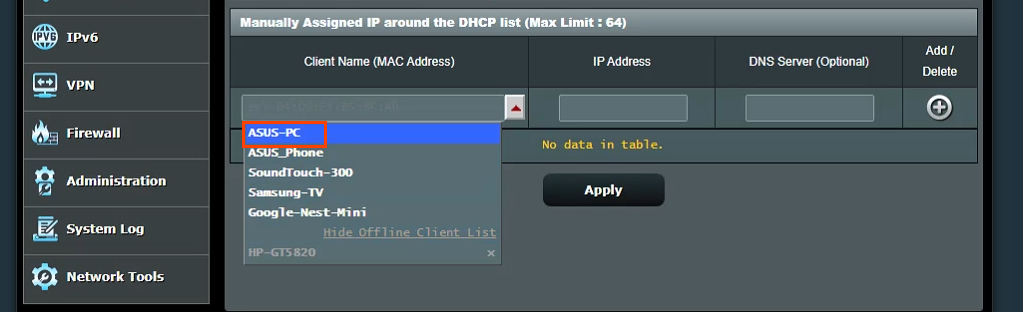
It will show the device’s current IP address in the IP Address field. This can be left as is, or it can be changed at this point. Add the IP address of a DNS server in the DNS Server (Optional) field, if needed. Select the plus sign button to add the device to the list of manually assigned IP devices. Repeat this for all the desired devices.
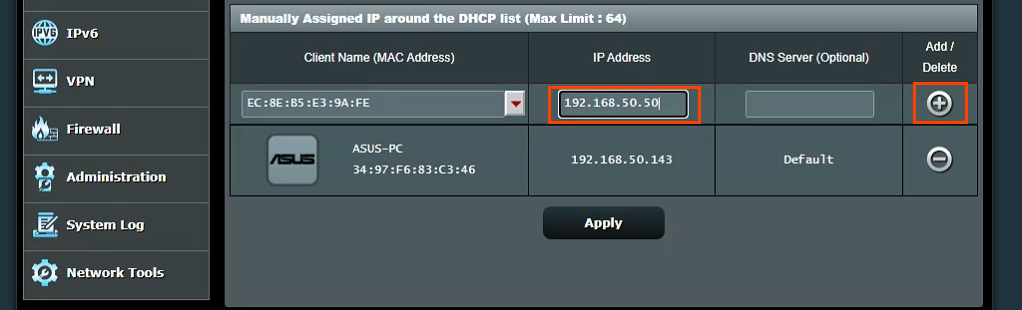
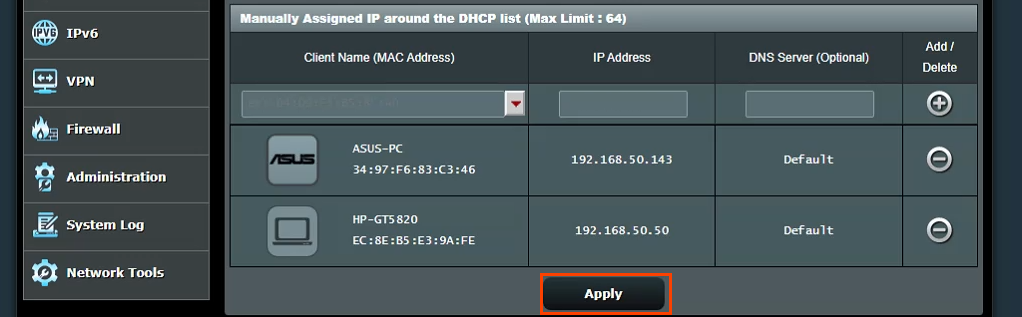
Once all the desired devices have been assigned static IPs, select the Apply button to set the changes.
Assign Static IPs – TrendNet Router
- Log in to the TrendNet router and select the Advanced tab.
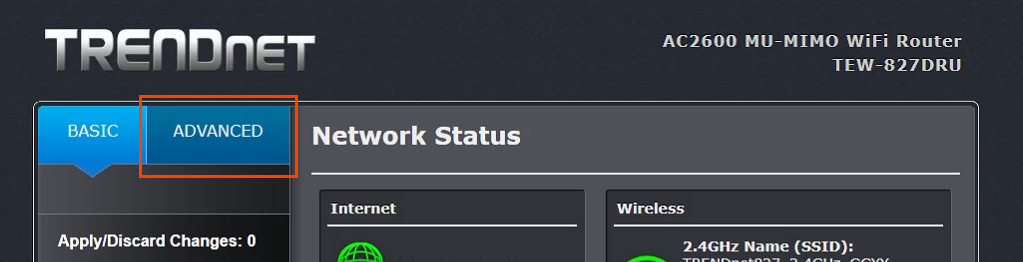
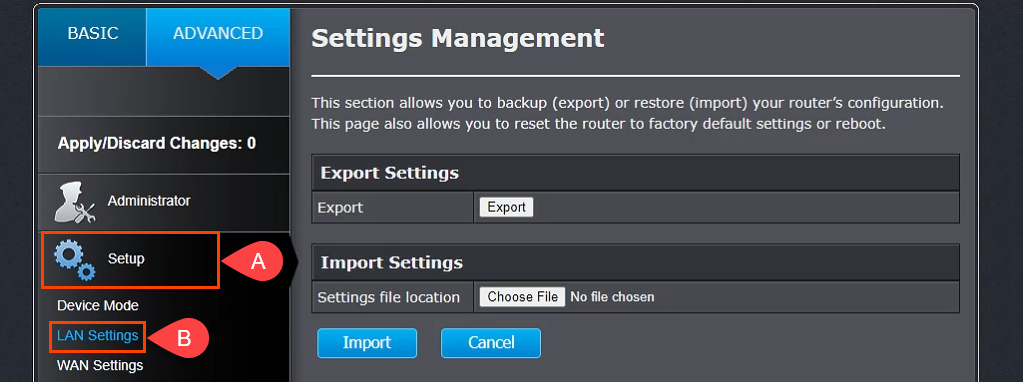
- In the left-side menu, select Setup , then select LAN Settings .
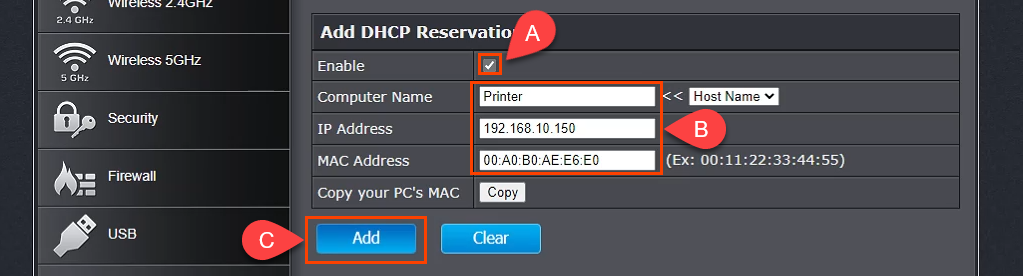
- Scroll down to the Add DHCP Reservations section. Check the Enable box, then enter the details of the device to receive a static IP address. Ensure the details are correct and then select Add .
- The device just added will show in the DHCP Reservations Ready Group . If everything is correct, select Apply and the device will have a static IP.

Assign Static IPs – Belkin Router
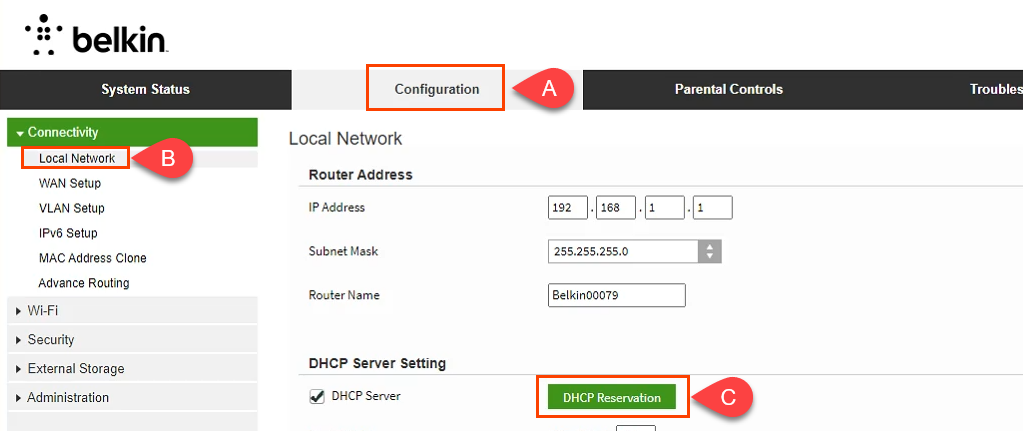
- Log in to the Belkin router and select the Configuration tab. Then under Connectivity select Local Network. Now select the DHCP Reservation button.
- In the DHCP Client Table window, any devices that are currently connected are shown. If it’s the device that requires a static IP address, check the Select box, then select Add Clients .

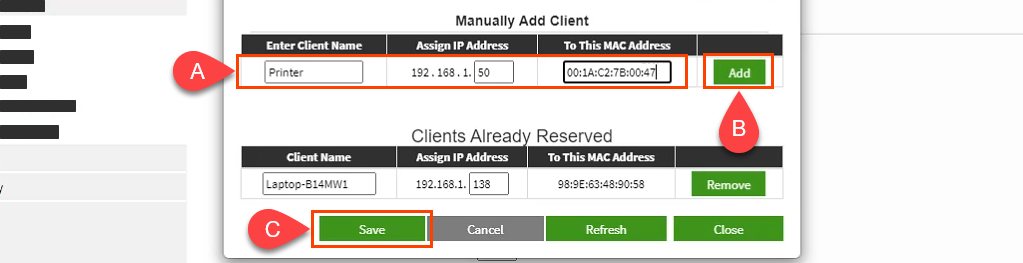
- In the same window, you can manually add clients as well. First, enter the device details, then select the Add button. Once all the devices requiring static IP addresses are defined, select Save to commit the changes.
What About Assigning Static IPs on Other Routers?
There are at least a dozen router makers out there, and each has several models of routers. It’s just far too many to cover all of them. Reading through the instructions above, though, you’ll see that there’s a pattern; find out where to work with the LAN, look for something named like DHCP Reservation, then follow through to assign IP addresses. If you’re running into issues, please let us know. One of our writers or knowledgeable readers will likely have the answer.
- How to Fix Slow Wi-Fi on Your Smartphone
- How to Reboot a WiFi Router
- How to Splice an Ethernet Cable
- Cellular Data or Wi-Fi: Which Should You Use on Your Smartphone?
- How to Connect a Router to Another Router