Microsoft Publisher is a desktop publishing program that lets you create publications for web or print.
However, not everybody uses Publisher these days. For example, you may want to send a PUB file for review or printing, but the recipient can’t open it because they don’t have Publisher installed on their device.
One of the best ways to share the file and ensure that others can open your publication is to convert the Publisher file to a PDF file.
Whether you’re working on an eBook, greeting card, or other publication, we’ll show you how to convert Publisher files to PDF format and make it shareable.
How To Convert a Publisher File to PDF
There are three main methods of converting your file from Publisher to PDF:
- Use Save as PDF in Publisher
- Print the PUB file to PDF
- Use an online tool
1.Use Save as PDF in Publisher
By default, Publisher creates .pub files, which you can only open in Publisher.
Fortunately, you can easily resolve this by saving the PUB file as a PDF so others who don’t have Publisher can open it.
Newer Versions of Publisher
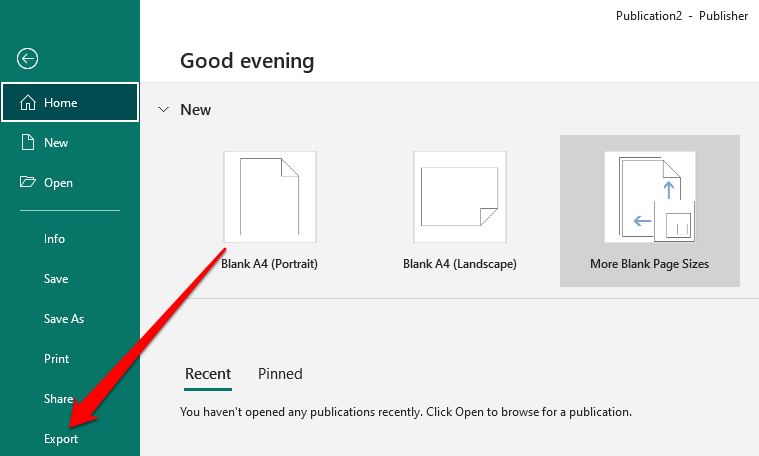
- Select File > Export .
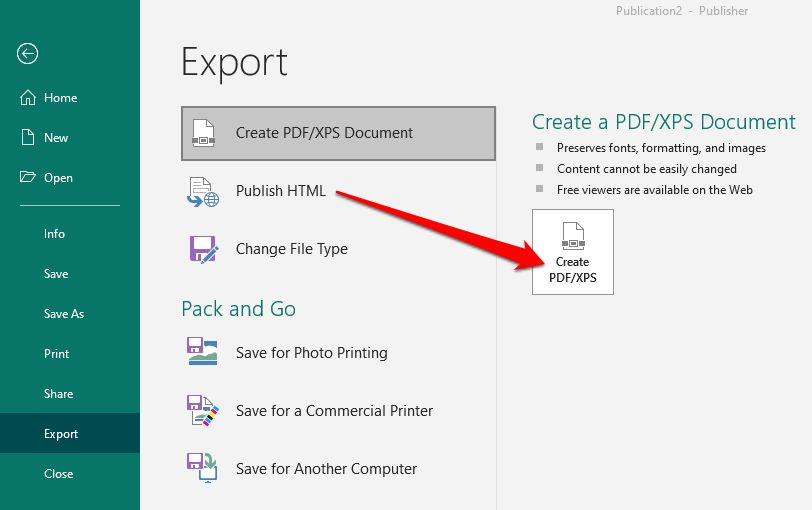
- Next, select Create PDF/XPS Document .

- Select Create PDF/XPS .
- Enter a name for your PUB file in the File name field.
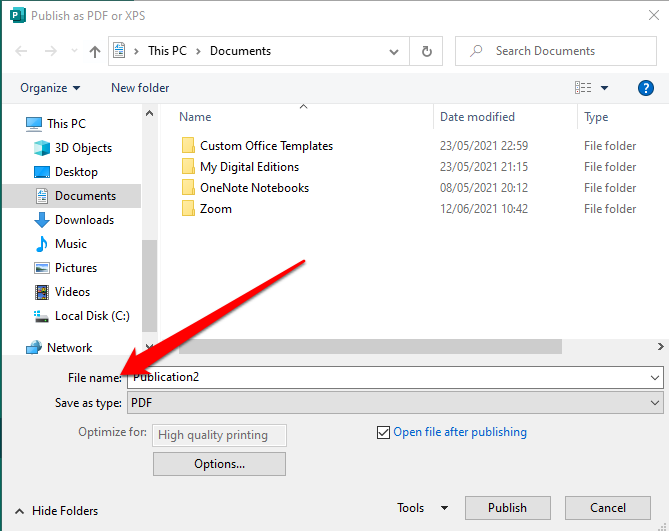
- Select PDF in the Save as type field.

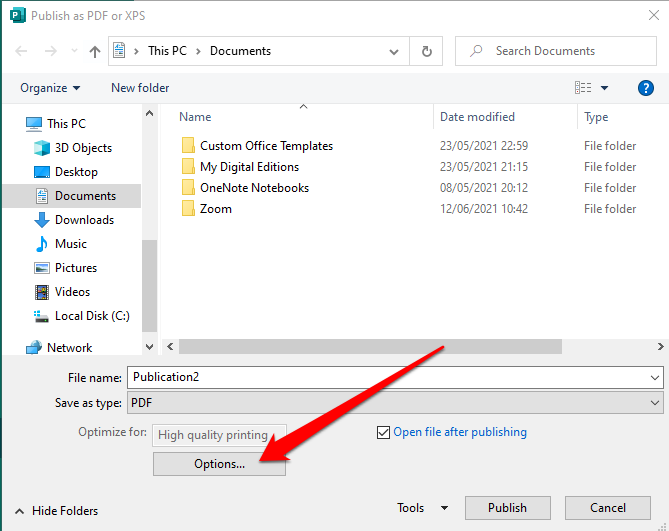
- Next, select Options .
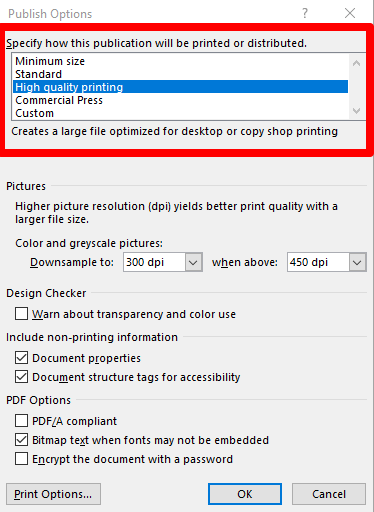
- Select a Publish option for online or print viewing:
- Minimum size : To view online as a single page.
- Standard : For online distribution when you want to print on a desktop printer.
- High-quality printing : For copy shop or desktop printing.
- Commercial press : to create large and high-quality files for commercial printing.
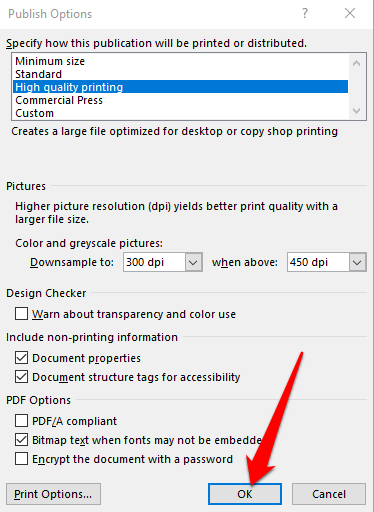
- Select OK .
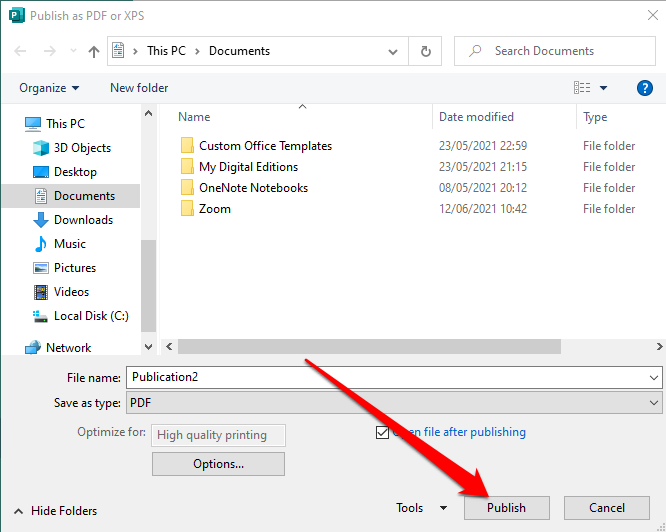
- Select Publish
Publisher 2010 Version
If you’re using the 2010 version of the Publisher application, the steps are slightly different.
- Select File > Save & Send .
Image: 10-how-to-convert-microsoft-publisher-files-to-pdf-save-send
- Next, select Create PDF/XPS Document .
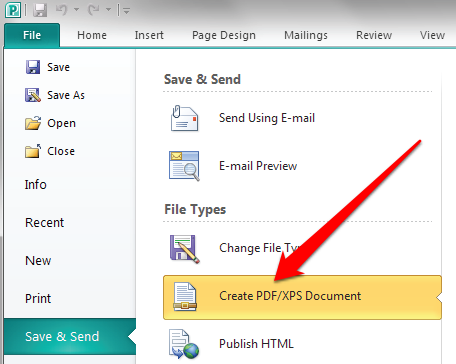
- Select Create PDF/XPS .
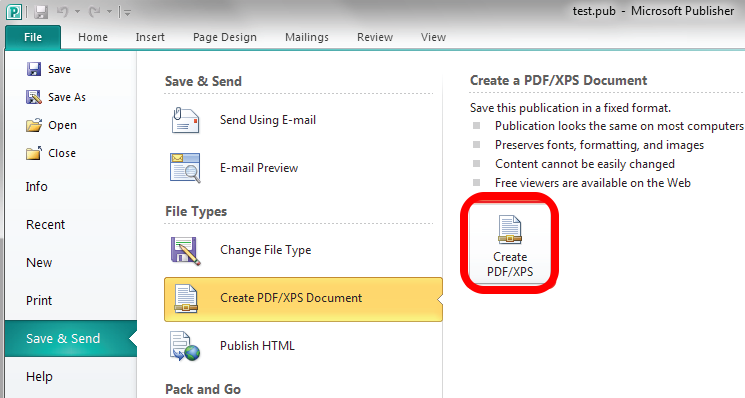
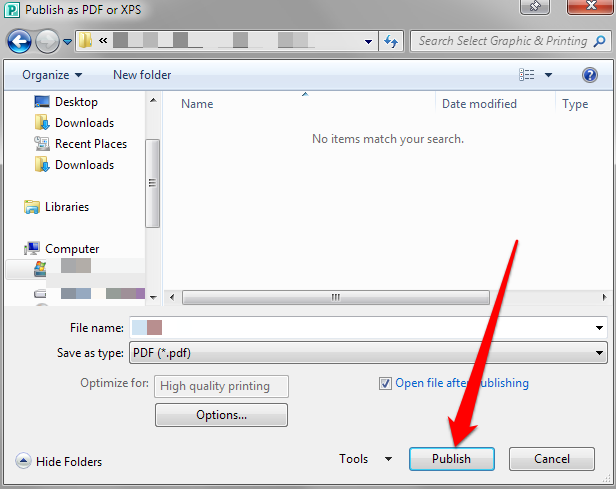
- Enter a name for your PUB file in the File name field.
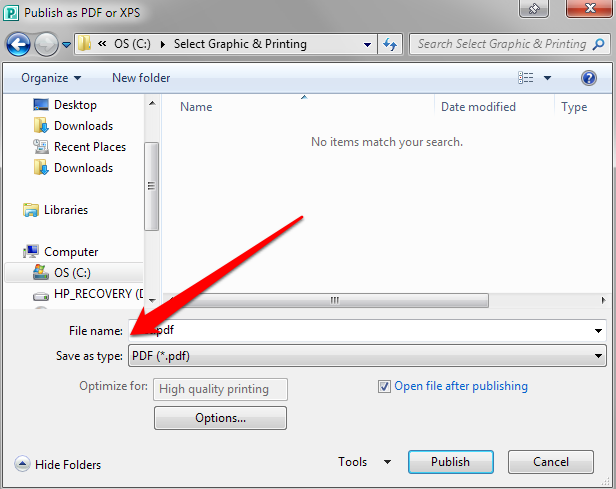
- Select PDF in the Save as type field.
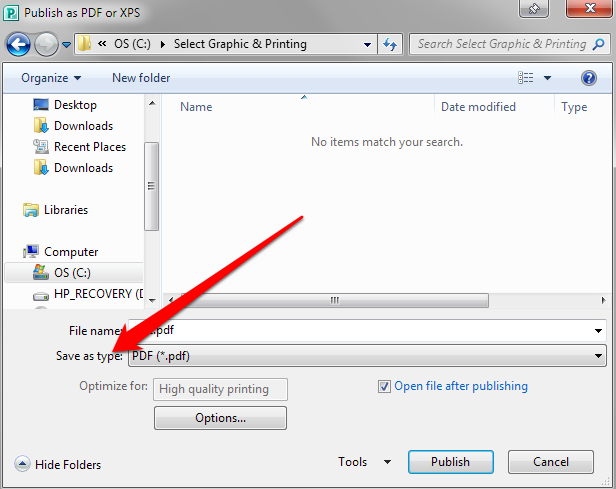
- Next, select Options and then choose a publishing option for online or print viewing. Minimum size, standard, high-quality printing, or commercial press.
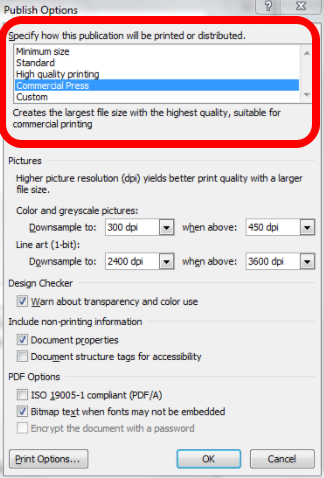
- Select OK and then select Publish .
Publisher 2007 Version
In the Publisher 2007 version, you can convert a PUB file to PDF format in a few quick steps.
- Select File > Publish as PDF or XPS .

- Next, select PDF in the Save as type section. By default, the publication will be saved with the .pdf extension and optimized for high-quality printing.
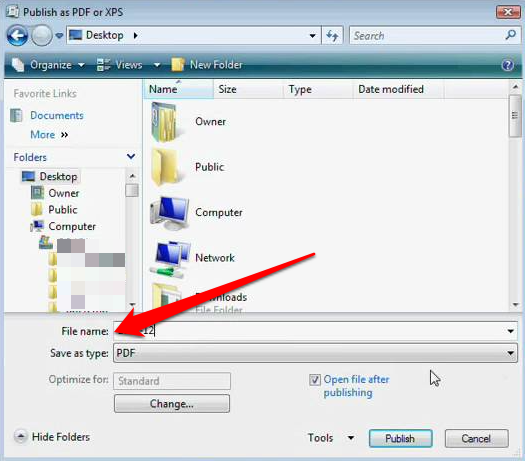
- You can select Change to change the default setting in the Publish Options dialog box.
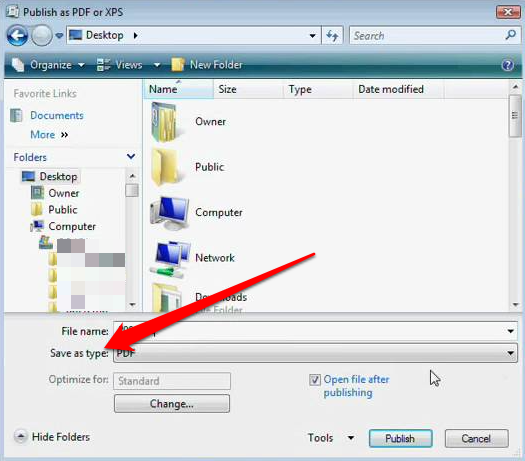
- Select Publish .

2.Print Publisher File to PDF
You can also convert PUB files to PDF using the print to PDF function.
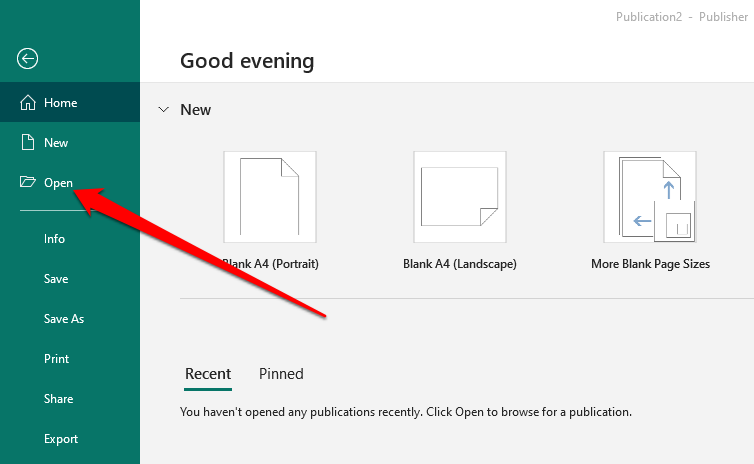
- Select File > Open to open your publication in Microsoft Publisher.
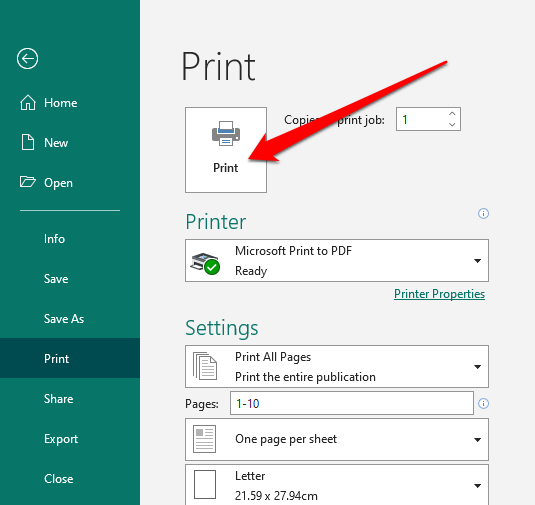
- Select File > Print .

- Next, select Microsoft Print to PDF or Adobe PDF under the Printer section.

- Select Print .
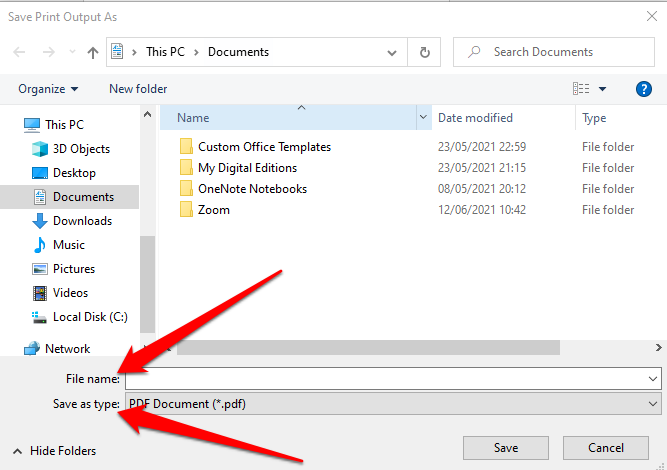
- In the Save Print Output as dialog box, enter the file name and select PDF in the Save as type field. The file will be stored on your computer.
3.Use a Third-Party Tool to Convert PUB to PDF
If you want a quicker way to convert Publisher files to PDF, you can do that using an online tool or third-party application.
Some of the popular tools include Zamzar , PublishertoPDF , or NovaPDF .
Many of these all-in-one PDF online tools are convenient to use and don’t have complicated steps. Plus, some are free to use regardless of the number of files you’re converting to PDF.
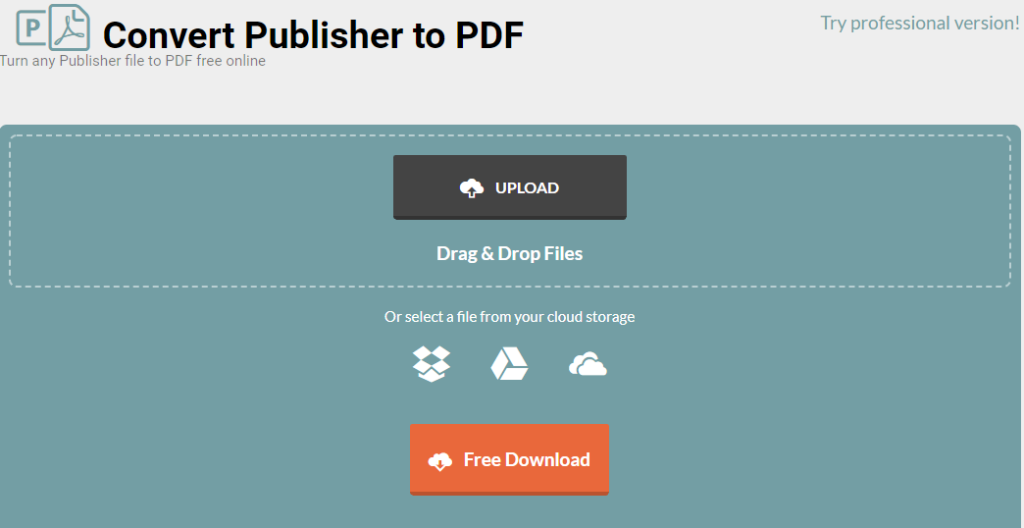
The process is as simple as uploading or dragging and dropping your PUB file to the software and selecting the PDF format as the output. Once the conversion is completed, you can download your PDF file to your device, email it to yourself, or save the file in the cloud.
Most of these tools delete the files after several hours so you don’t need to worry about privacy issues.
Document Sharing Is Easier Using PDF
Converting your PUB file to PDF comes with several benefits. Not only does it save the color formats preferred by commercial printers, but it also provides high-quality documents, preserves metadata associated with the file, and is easy to secure your PDF using passwords.
If you want to modify it to correct any errors, you can edit the PDF using a variety of PDF editors , or add a signature to the PDF file before sending it out.
- How to Backup an iPhone Without iCloud?
- Sluggish Windows 11 PC? Try These 5 Windows 11 Tricks to Free up Virtual Memory
- macOS Tahoe Privacy Settings You Need to Secure Your Mac
- How To Turn Off Notifications On Windows 11?
- How to Recover Lost Files After Windows Update?
Elsie is a technology writer and editor with a special focus on Windows, Android and iOS. She writes about software, electronics and other tech subjects, her ultimate goal being to help people out with useful solutions to their daily tech issues in a simple, straightforward and unbiased style. She has a BCom degree in Marketing and currently pursuing her Masters in Communications and New Media. Read Elsie’s Full Bio
