You don’t need to hire a professional video maker to whip up your own movie. You can do it on your own and if you think you need to spend a dime for this project, you’re mistaken.
Today, you’ll learn how to make pictures into a movie the easy way. With this approach, you can admire your pictures in a more enjoyable way.

What You Need
A USB cable, pictures (in a folder or digital camera), and video-editing software are the things you need to make a movie out of your pictures.
You can go with any video editor, but you should consider using Windows Movie Maker or a built-in program. Doing so means you won’t have to download a third party tool for this project.
The Process
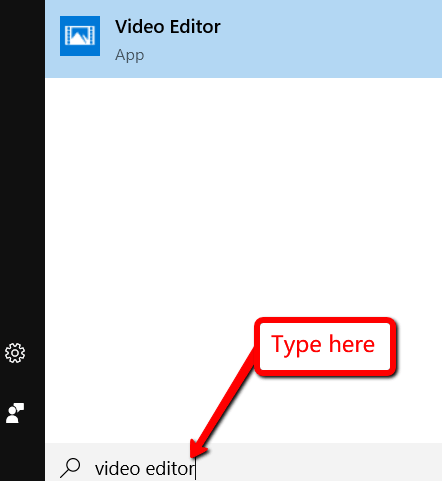
- To begin, launch your video editor. You can do this by typing video editor once you press the Win key.
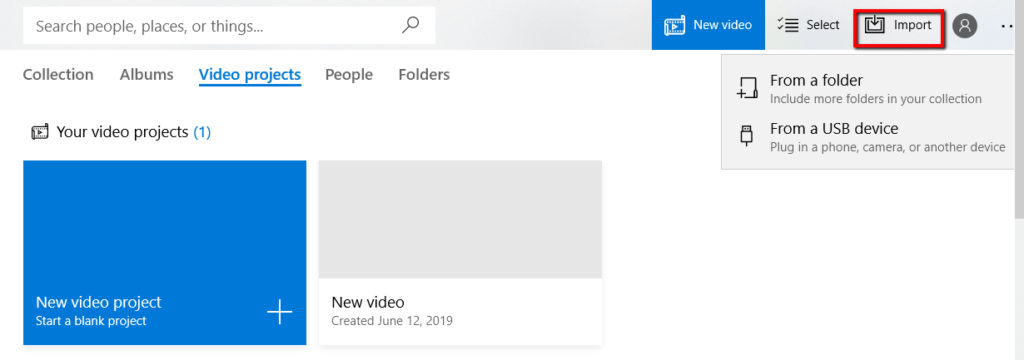
- Then click on Import .
- If you’ve already loaded the pictures that you want to use into a folder in your computer, choose to Import from a folder . If they are still in your digital camera’s memory card, choose to Import from a USB device .
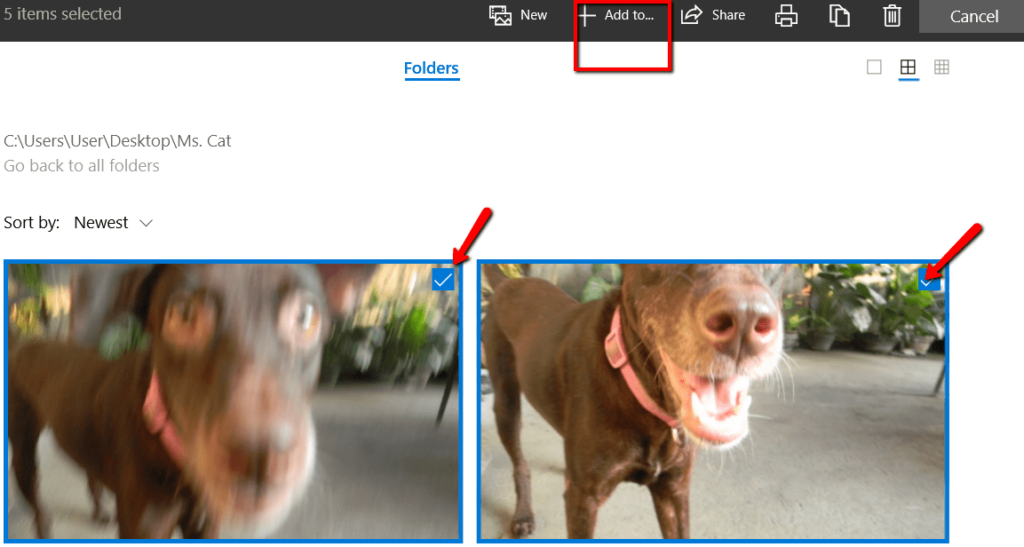
- Select the pictures that you want to add to your movie by ticking the box on the upper right of the photo. Then, choose + Add to.
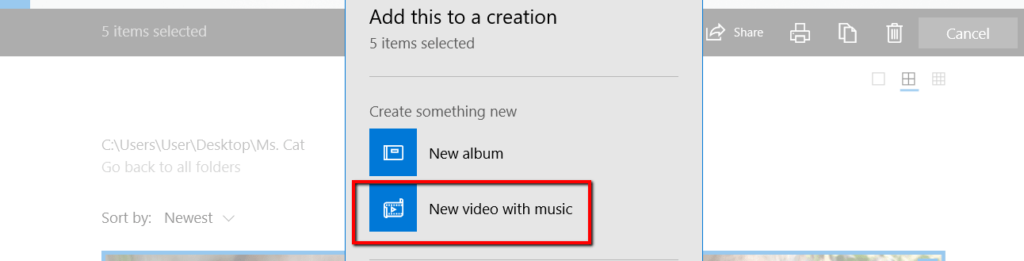
- A window will then appear. It asks you to specify where you want to add the selected pictures. There, choose New video with music .
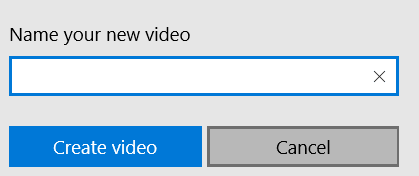
- You will then Name your new video . After you enter a name, click Create video .
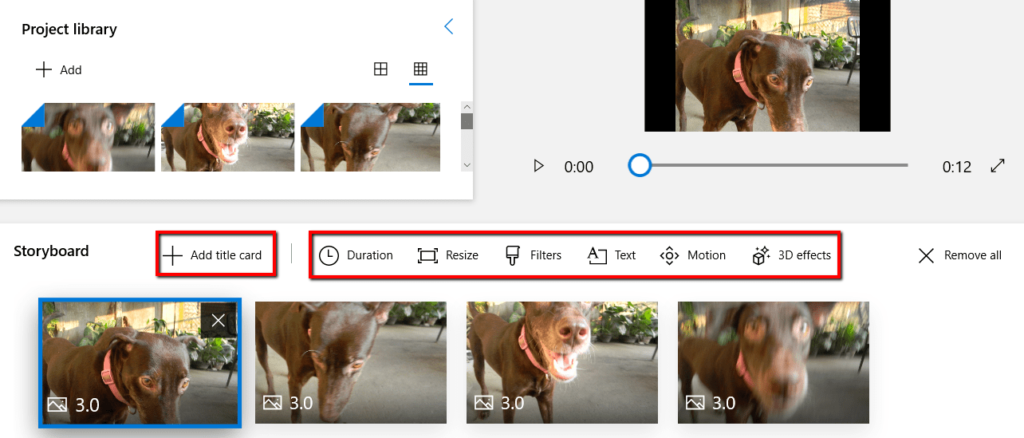
- Once you enter the basic details for your movie, you will get access to your Storyboard . Here, you can edit your movie using the many options presented to you.
- Here, you get to play around as much as you want. You can + Add title card , set your movie’s Duration , Resize , use Filters , add Text , select Motion , and add 3D effects .
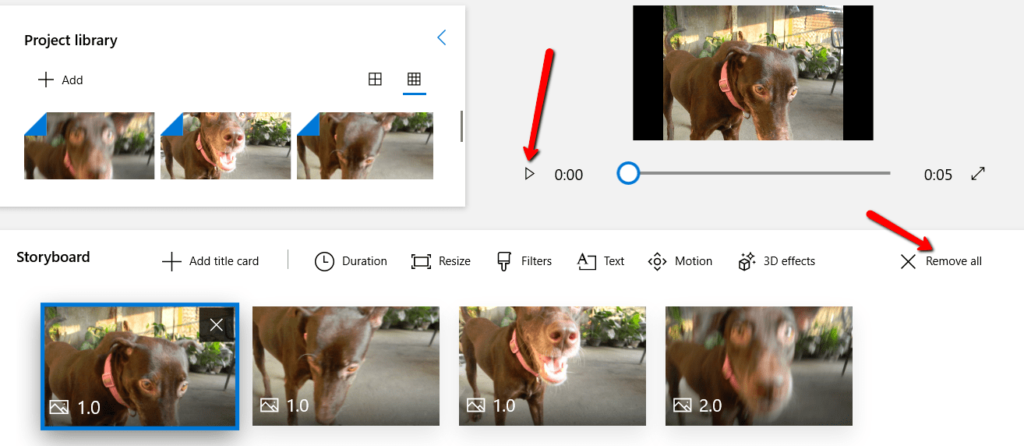
- What you do during this stage is not final. You can always check out your progress by clicking the play button. Doing so lets you watch your movie in action.
- If you want to erase all the edits you made, that’s fine, too. Just hit Remove all .
Reminder
Remember not to follow the instructions here word for word. As mentioned, the video editor used here is a Windows built-in program. You need to be mindful of the device you’re using.
If you’re using a Mac, you can also use its built-in movie maker. While the exact process may be different, the concept still remains.
Finishing Your Movie
- If you’re 100% satisfied with the movie, you can wrap things up. Choose Finish video from the top.
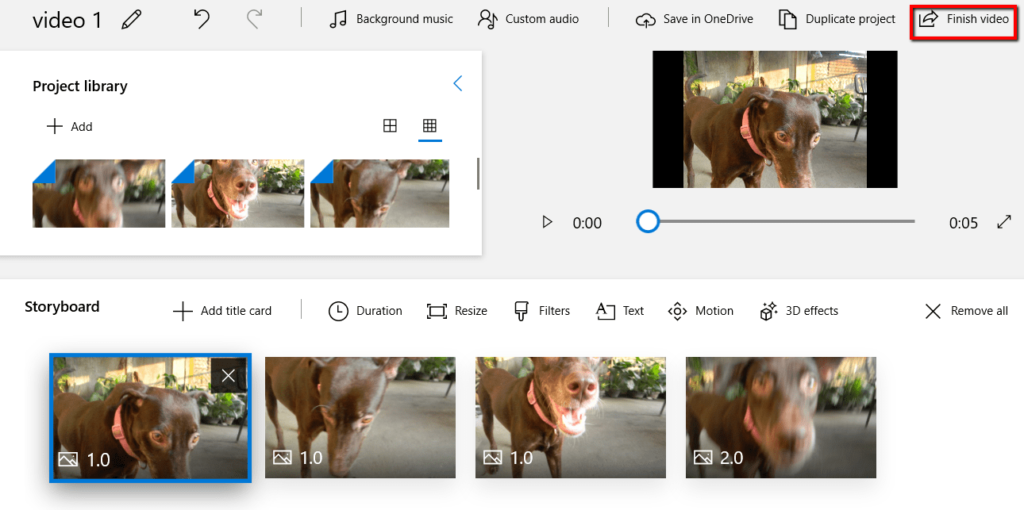
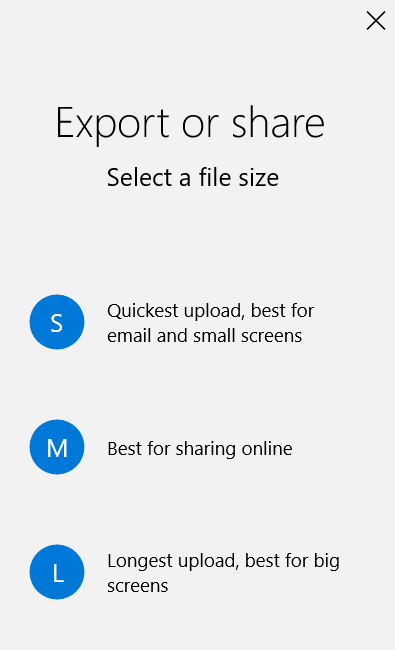
- A window will then appear. It will present you with the different options for your finished project. Choose the one that fits your purpose.
- How to Fix Slow Wi-Fi on Your Smartphone
- 7 Best Machine Translation Software (or AI) to Try in 2025
- What Does the Green Dot Mean on Facebook?
- How to Turn off Hardware Acceleration in Chrome
- How to Check VRAM in Windows 10, 11, and macOS?
