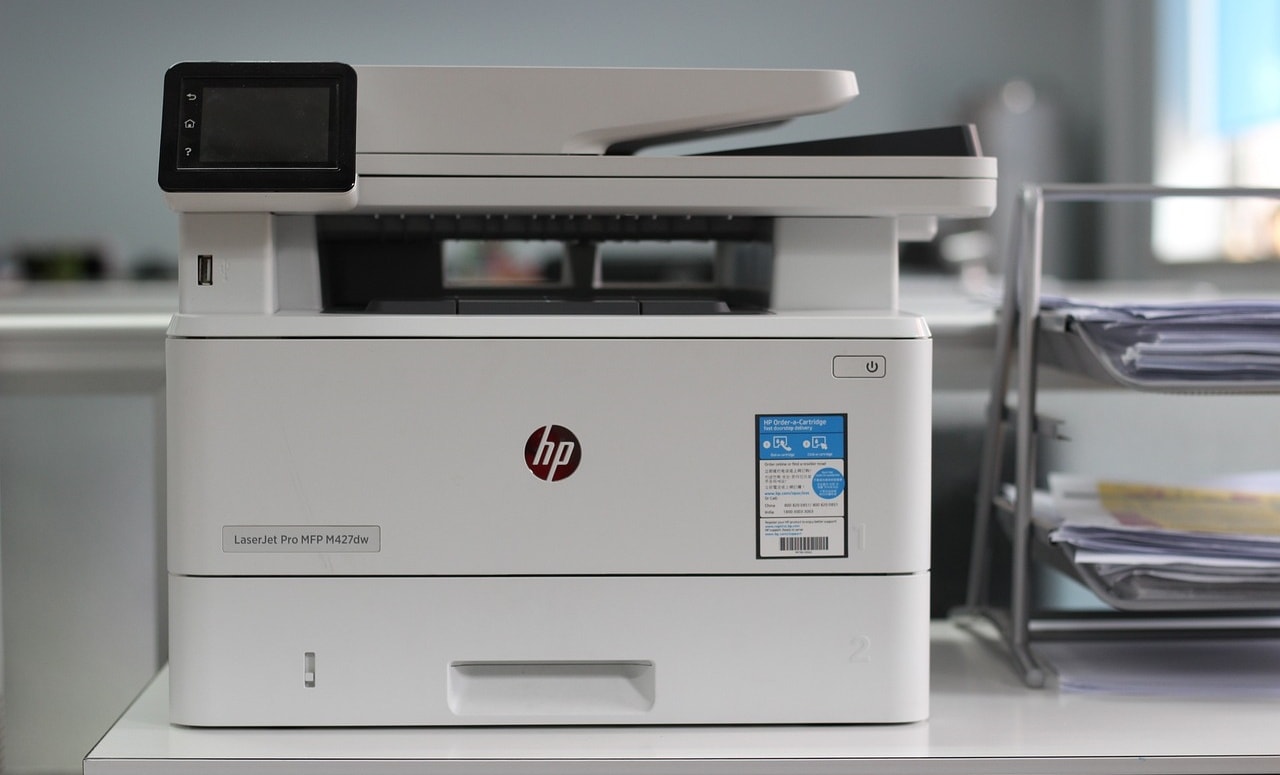
Wirelessly hooking multiple devices to one printer is now common practice in many homes and offices. Printing from a designated computer attached in this age and time is impractical and inconvenient. If your printer only supports wired/cable printing, there are ways to make it print wirelessly. This tutorial will show you how to convert a wired printer to a wireless one
How to Make Wired Printer to Wireless?
Many new-generation printers have Wi-Fi support or wireless capability for wireless printing. But what if you have a wired printer without Wi-Fi support? You don’t have to buy a whole new printer, and that’s because there’s a way to make virtually any wired printer wireless . Listed below are some ways to make wired printers print wirelessly without cable.
Get a Wireless Adapter for Supported Models
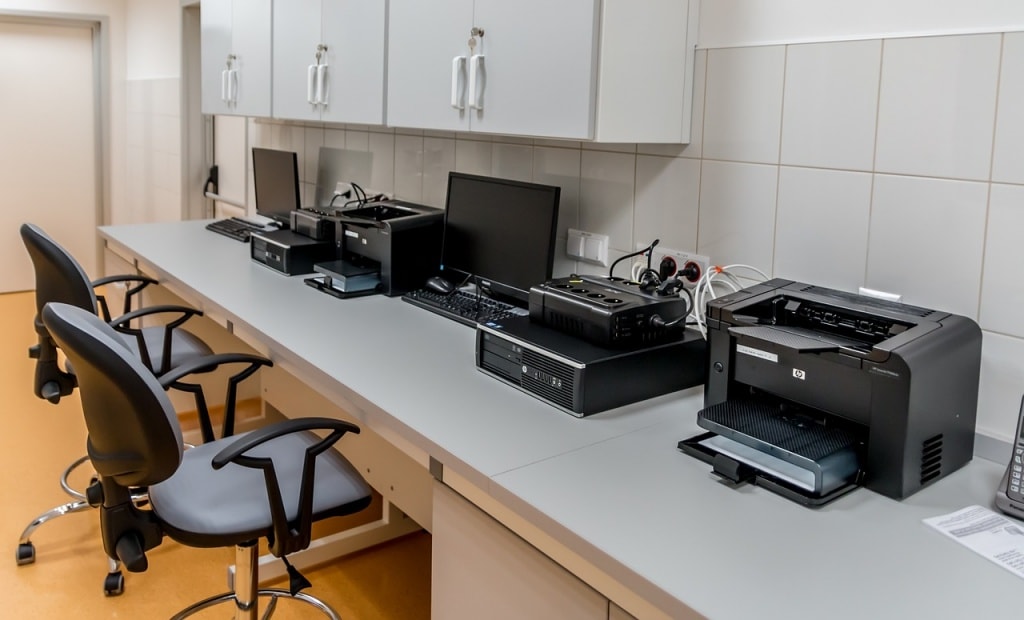
Converting a non-wireless printer into a wireless printer using an adapter is sometimes expensive. Many printer manufacturers sell a wireless adapter or module that can upgrade your current wired printer to one that can use Wi-Fi or Bluetooth.
First, check whether your printer has an official (or compatible third-party) wireless adapter. Then, verify that the adapter is compatible with your computer’s operating system version. You shouldn’t necessarily buy it immediately; read the product reviews while evaluating the other options.
Connect It to a Router via USB
Check the back of your internet router. Does it have a USB port? Many routers can now act as USB hosts. In most cases, that means you can connect an external USB drive, and the router will offer it as network-attached storage to devices on the network. Such routers can also work as wireless print servers.
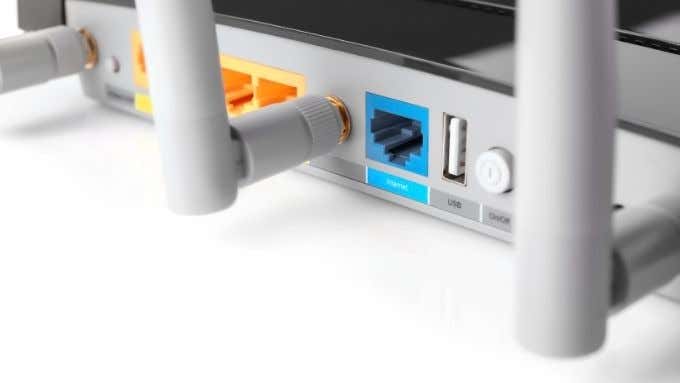
First, connect the wired printer to the router’s USB port using a USB-to-USB cable. Afterward, open the router’s settings and make the USB port function as a wireless print server. Refer to your router’s instruction manual for instructions on how to do this. If you want NAS mass storage functionality, one downside of this method could be that your router can’t do both simultaneously.
Connect It to a Router via Ethernet
Wired printers that don’t support Wi-Fi typically have an Ethernet port. If your wired printer has an Ethernet port, connect it to your router using an Ethernet cable. With a powerline Ethernet extender , you can connect the printer to your router from virtually anywhere in your home.
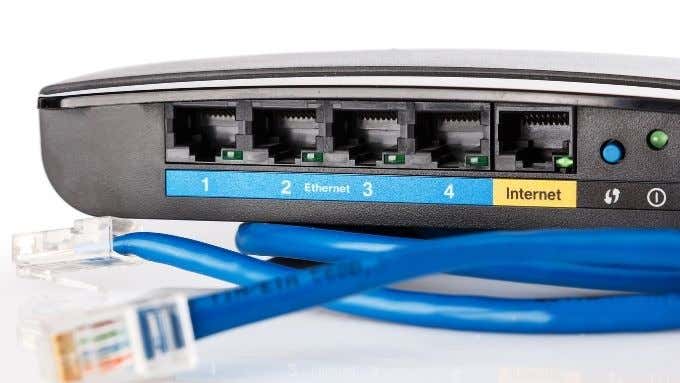
Remember that you’ll likely need to configure the printer to work correctly over Ethernet. You can do that on the printer itself using its screen and buttons. Alternatively, you may have to configure it using software on your PC and a USB cable or by logging into the printer over the network.
Share Your Printer Through a PC
Most operating systems, including Windows, let you share a printer connected to the computer with other devices on the network. In this situation, the PC connected to the printer acts as a print server.
Here’s how to share wired printers with other devices in Windows:
- Open the Control Panel and select Hardware and Sound .
<img loading=“lazy” src=“https://images.surferseo.art/30d9c608-cdb3-451f-93b7-59a8ad62a0cc.png" onerror=“this.onerror=null;this.src=‘https://blogger.googleusercontent.com/img/a/AVvXsEhe7F7TRXHtjiKvHb5vS7DmnxvpHiDyoYyYvm1nHB3Qp2_w3BnM6A2eq4v7FYxCC9bfZt3a9vIMtAYEKUiaDQbHMg-ViyGmRIj39MLp0bGFfgfYw1Dc9q_H-T0wiTm3l0Uq42dETrN9eC8aGJ9_IORZsxST1AcLR7np1koOfcc7tnHa4S8Mwz_xD9d0=s16000';" alt=““Hardware and Sound” highlighted in Control Panel - 5”>
- Next, select Advanced printer setup in the “Devices and Printers” section.

- Select the printer from the list of devices.

- Choose Printer properties on the next screen.

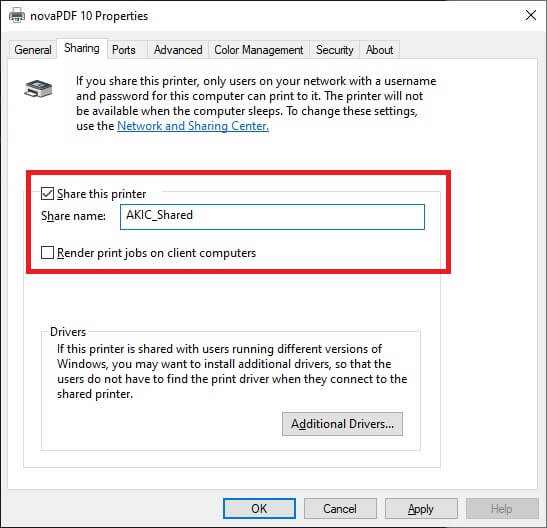
- Switch to the Sharing tab and select the Share this printer checkbox.
<img loading=“lazy” src=“https://www.online-tech-tips.com/wp-content/uploads/2021/04/9-Network-Share-5.jpg" onerror=“this.onerror=null;this.src=‘https://blogger.googleusercontent.com/img/a/AVvXsEhe7F7TRXHtjiKvHb5vS7DmnxvpHiDyoYyYvm1nHB3Qp2_w3BnM6A2eq4v7FYxCC9bfZt3a9vIMtAYEKUiaDQbHMg-ViyGmRIj39MLp0bGFfgfYw1Dc9q_H-T0wiTm3l0Uq42dETrN9eC8aGJ9_IORZsxST1AcLR7np1koOfcc7tnHa4S8Mwz_xD9d0=s16000';" alt=““Share this printer” highlighted in a printer properties window - 9”>
You can also change the printer’s share name at this point. This is the name that everyone else sees when looking for a network printer to use.
This is probably the fastest and cheapest method to make your wired printer a wireless one, but it has significant drawbacks. First, your computer has to stay on all the time; otherwise, the printer won’t be available . That isn’t the most energy-efficient or best solution if you’re energy-conscious.
With lower-end computers, handling print requests can also affect the performance of that computer, which might not be what you want to happen in the middle of something else.
Use an Ethernet to Wi-Fi Adapter
If you have a printer with an Ethernet port and don’t want to use the powerline adapter method, you can use an Ethernet to Wi-Fi adapter. The only catch is that you will have to connect the printer to a PC first to ensure that all the network settings are correct before using the Wi-Fi adapter.
Use a Dedicated Print Server Device
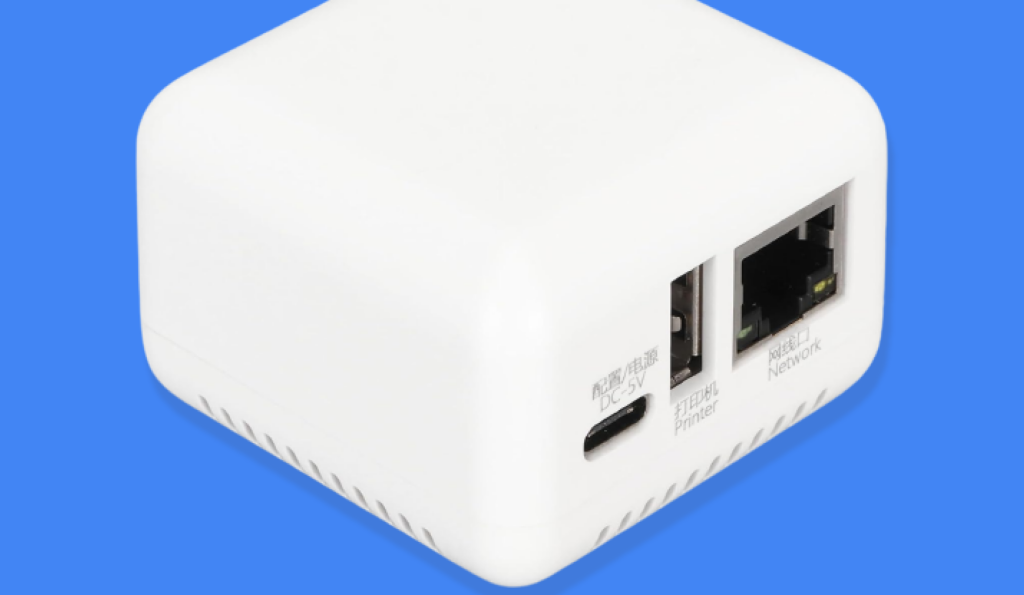
If none of the solutions above work or just don’t suit you, there’s a relatively affordable and reliable solution. You can buy/use a dedicated wireless print server box. This is a little box with a USB connection on one side and an Ethernet port on the other. Inside is a small dedicated computer that accepts network print jobs and then passes them to the printer.
While this does mean your printer has to be connected to the router via Ethernet, it instantly allows all network devices to share that printer. The dedicated print server uses very little electricity and is always available.
There are also wireless dedicated print server devices, which cost slightly more than the Ethernet-only variety. So you’ll have to decide if the extra few dollars are worth it.
Get Inked!
- How to Fix Slow Wi-Fi on Your Smartphone
- 7 Best Machine Translation Software (or AI) to Try in 2025
- What Does the Green Dot Mean on Facebook?
- How to Turn off Hardware Acceleration in Chrome
- How to Check VRAM in Windows 10, 11, and macOS?
The paperless office has yet to happen, so printers are still very much with us. Hewlett-Packard (HP) is one of the best-known printer makers in the world, and their HP DeskJet and the OfficeJet series form their main lines.
The HP DeskJet and OfficeJet printers both belong to the inkjet printer family. However, while the former is geared toward home use, the latter is designed to cater to the demands of a small business or home office. This difference in their intended audience significantly influences their feature sets and which line of printers is right for you.
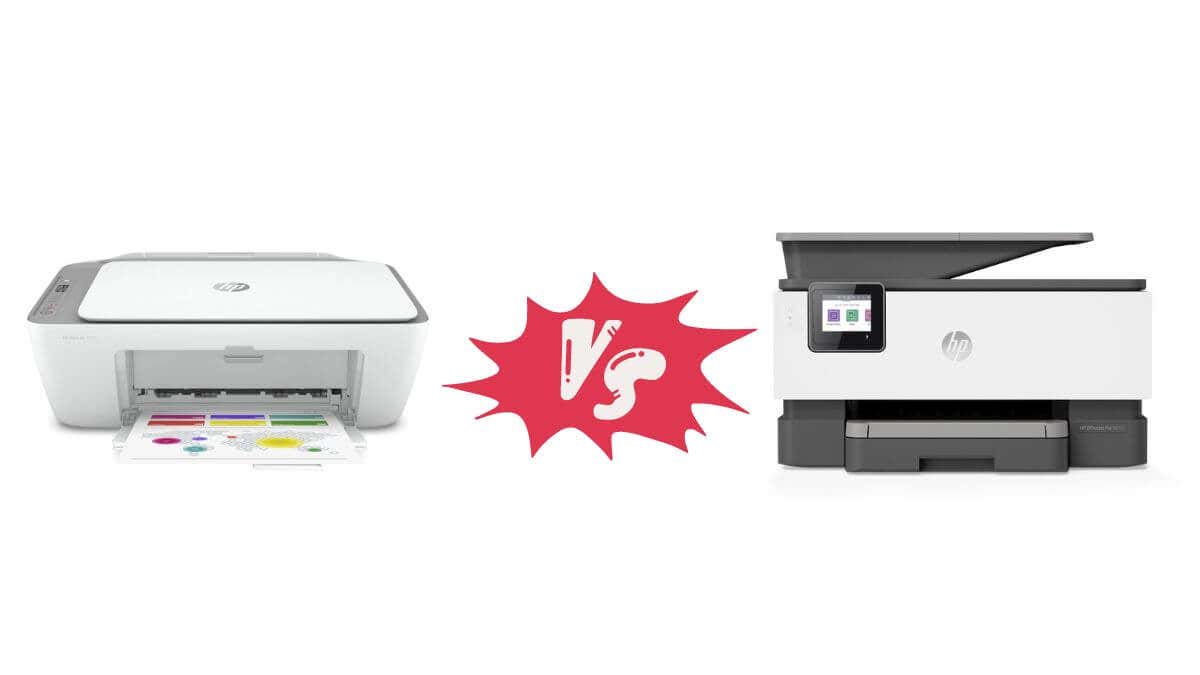
In this article, we’ll review what makes each type of HP printer unique and whether you should invest in a home-grade printer or one designed for business needs.
HP DeskJet
HP DeskJets are all-in-one inkjet printers built with home users in mind. They are compact, affordable, and simple to use. They are perfect for occasional printing tasks, including text documents, homework assignments, and photo printing.
DeskJet printers use two ink cartridges, one for black ink and the other for color. They deliver decent print quality with a resolution of up to 4800 x 1200 dpi, depending on the model.
Note: There are some exceptions to the two-cartridge setup most DeskJets use. For example, the DeskJet 3520 used a four-cartridge system, so be sure to confirm the system your specific DeskJet uses before buying,
The print speed is relatively slow, with most models producing about ten pages per minute (ppm) in black-and-white and seven ppm in color. Home users generally are fine with this print speed, and if you need large amounts of black-and-white printing at home at reasonable speeds, you’re better off going for a laser printer instead.
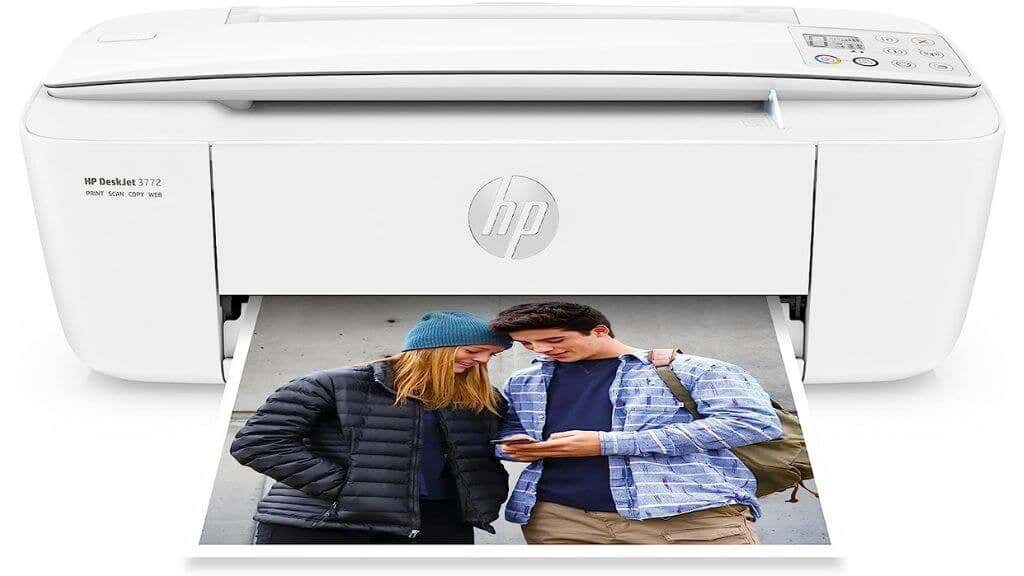
HP DeskJet 3772 All in One Color Inkjet Printer
The DeskJet series is known for its various connectivity options, including Wi-Fi, Bluetooth, and Wi-Fi Direct. The HP Smart app allows for easy mobile printing from smartphones or tablets. Some models even offer borderless photo printing, an excellent feature for photo enthusiasts. We spend so much time taking awesome photos with modern smartphone cameras that it makes sense to show some off as physical prints!
Tip: If you’re specifically looking for a photo printing solution for smartphone photos, consider something like the HP Sprocket , which turns your smartphone into the equivalent of a Polaroid camera.
While most HP DeskJets might not come with a touchscreen, the included software and the intuitive button layout make their operation straightforward. These printers typically don’t have an automatic document feeder or double-sided printing, features more common in office-oriented models.
HP OfficeJet Pro
OfficeJet Pro printers are more robust and feature-packed compared to their DeskJet counterparts. In some models, these all-in-one printers are multifunction printers capable of copying, scanning, and even faxing (remember that?). The HP OfficeJet Pro series is particularly popular among small businesses.
One of the distinguishing features of the OfficeJet printer series is its print speed. Some models can reach speeds of up to 20 ppm for black-and-white documents and 11 ppm for color documents. They also typically offer higher print quality with a resolution of up to 4800 x 2400 dpi.
OfficeJets use separate ink cartridges for each color, which can save cost as you only need to replace the color that has run out.
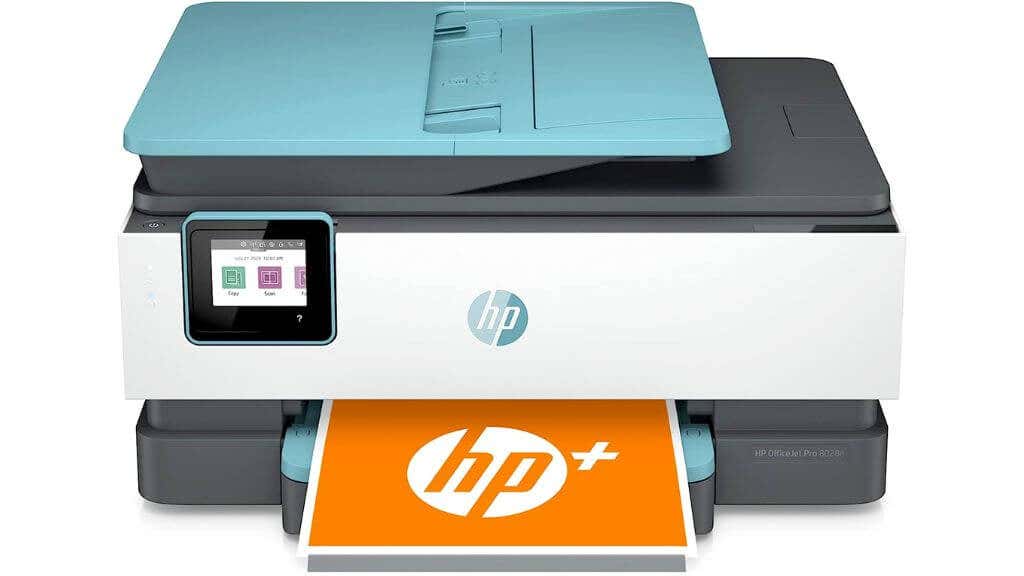
HP OfficeJet Pro 8028e All in One Wireless Color Inkjet Printer
Note: As with DeskJet printers, there are exceptions regarding the ink cartridge setup. While OfficeJet printers tend to use separate ink cartridges, there are models, such as the OfficeJet 3830 , which use a tricolor tank and a black ink tank.
Another cost-saving feature is the HP Instant Ink service , which automatically delivers ink cartridges when your printer is low on ink.
OfficeJets also boast (generally) superior connectivity options, including Wi-Fi, Ethernet, and even NFC in some models. Like the DeskJet series, they support mobile printing through the HP Smart app and have Wi-Fi Direct capabilities.
Other professional features in OfficeJet include an automatic document feeder for multi-page scanning or copying, duplex printing, and a larger paper tray capacity. Higher-end models come with a touchscreen for more straightforward navigation. They also offer more robust warranty options to match their business-oriented use.
HP Enterprise – Big Business!
The HP OfficeJet Enterprise series targeted larger businesses with higher printing volumes. These printers were designed to meet the demands of a busy office environment, offering faster print speeds, larger paper tray capacities, and more robust construction than typical home models.
While the OfficeJet Enterprise printer line seems to be discontinued as of this writing, you can still buy them refurbished or as new, in cases where new stock is still available.
A notable feature of the OfficeJet Enterprise series is its exceptionally high print speed, with some models reaching up to 75 pages per minute.
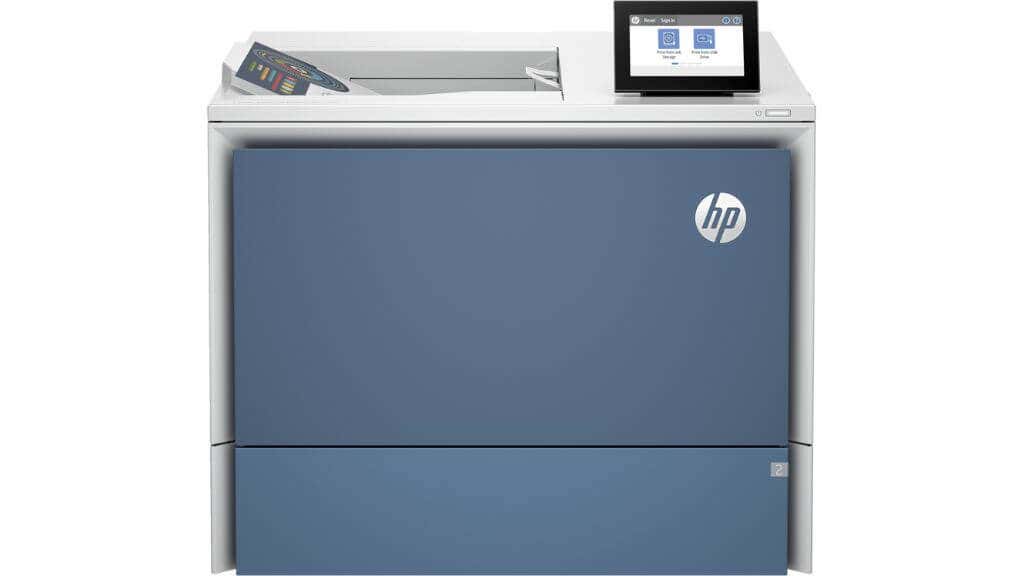
TheHP Color LaserJet Enterprise 6701dn Printeris $2000+ of hot laser death for print jobs
They also offer high-resolution printing at up to 2400 x 1200 dpi for color prints, ensuring crisp and vibrant outputs. Additionally, these printers support high-capacity ink cartridges, helping businesses manage their printing costs more effectively.
Designed for large-scale, multifunction use, these printers also support advanced features like automatic duplex printing and scanning, touchscreen controls, and network connectivity options. Thus, the OfficeJet Enterprise series provides a reliable, high-performance printing solution for businesses with demanding printing needs.
The OfficeJet Enterprise printers were replaced by the HP PageWide Enterprise inkjet printers, but these have also been discontinued.It seems that HP’s Enterprise line is now almost entirely focused on color and mono laser printers, in the form of LaserJet Enterprise products.
Don’t Forget About OfficeJet Mobile
The OfficeJet Mobile series from HP caters specifically to those needing printing solutions on the go. These printers, designed with mobility in mind, are compact and lightweight. Despite their diminutive stature, they maintain many essential OfficeJet series features, including versatile connectivity and reliable print quality.
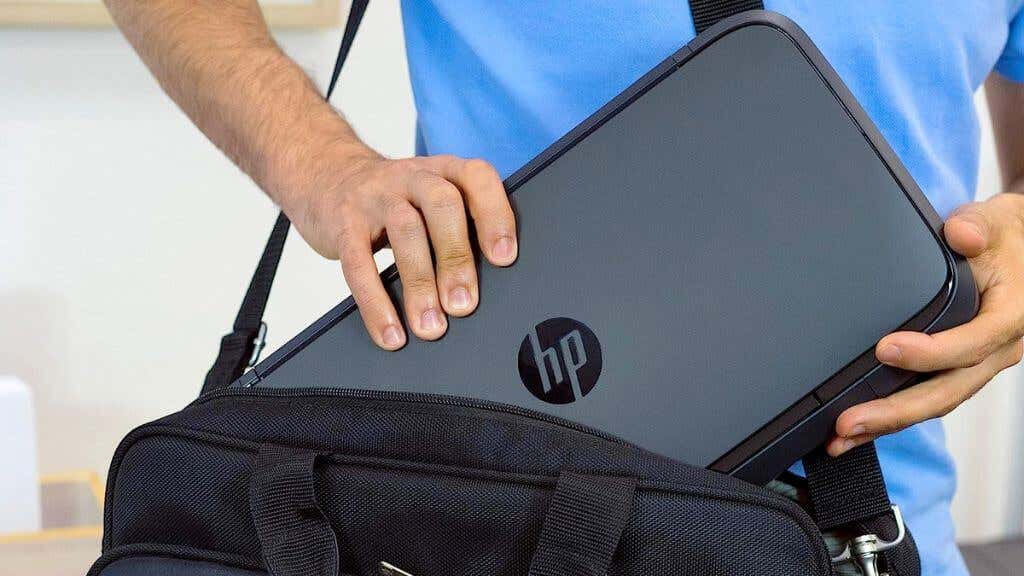
TheHP OfficeJet 200 Portable Printerisnt exactly pocket size but it is mobile and battery powered
Much like their full-sized counterparts, the mobile variants provide up to 4800 x 1200 dpi resolution for color prints. Their print speed is competitive, with up to 10 ppm for monochrome prints and seven ppm for color. They employ two cartridges, one black, and one tri-color. Users can also enrol in HP’s Instant Ink service for convenient cartridge replacement. However, these printers have a smaller paper tray capacity and usually lack the automatic duplex printing feature due to size constraints.
The OfficeJet Mobile series is an interesting adaptation of the traditional OfficeJet line, focusing on portability. In some ways, OfficeJet mobile printers are like portable DeskJet printers when you compare their specs and features.
What About the HP Envy Range?
The HP Envy printer range offers a unique aesthetic design and functionality blend. These all-in-one color inkjet printers deliver high-quality prints, scans, and copies, ideal for various tasks at home. The Envy printers yield crisp, vibrant results with print resolutions similar to the DeskJet and OfficeJet series at 4800 x 1200 dpi for color prints. However, their print speed is typically slower, with around ten ppm for black and seven ppm for color prints.
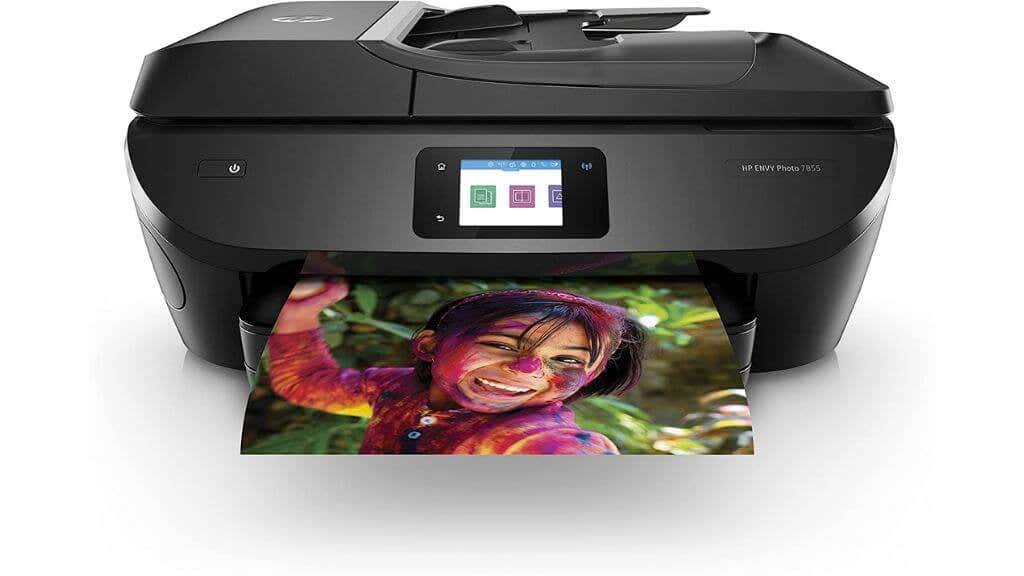
TheHP ENVY Photo 7855 All in One color Photo Printer
The Envy series also has integration with the HP Smart app. This lets users control their printer directly from their smartphone, offering mobile printing capabilities and convenient printer management. Envy printers also provide robust networking, including Wi-Fi connectivity, Bluetooth, and Wi-Fi Direct. Some also support HP Instant Ink service for convenient ink management.
Despite their functionality, Envy printers are not designed for high-volume printing. They are more suited for moderate home use, as their paper tray capacity and durability may not withstand heavy-duty printing tasks. If you were considering one of the HP DeskJet models, you should also include the Envy range since there is considerable overlap in their intended audiences.
DeskJet vs. OfficeJet: Which Is Right for You?
The choice between a DeskJet and an OfficeJet printer largely depends on your printing volume and the types of documents you need to print.
If you need a printer for occasional use at home, the DeskJet series offers a good blend of affordability and functionality. It handles everyday printing tasks effectively while maintaining a compact footprint. Its competitors in the home use category include printers such as Canon Pixma and Epson. If a DeskJet sounds right for you, make sure to also look at the Envy range.
On the other hand, if you have a home office or run a small business, the OfficeJet series could be a more appropriate choice. It’s designed for higher volume printing and includes more advanced features, such as duplex printing, faster print speeds, and robust connectivity options. Its main competitors in this category include the HP Laserjet series, which are monochrome and color laser printers, and other brands like Canon and Epson.
Laser printing, especially in color, has come a long way in the last few years, and for any business we’d recommend looking at these printers first, unless you absolutely need a high-volume photo printer as well.
Laser printers use toner cartridges instead of ink, offering faster print speeds and better text quality. However, they can be more expensive initially and are usually bulkier than their inkjet counterparts. In terms of per-page printing cost, however, laserjet printers quickly pay for themselves.
- Tribit StormBox 2: The Under $70 Portable Speaker that Stands Out
- ENGWE L20 2.0 Review: The Best Budget-Friendly Foldable E-Bike?
- TopDon TC004 – a Thermal Imaging Camera That Will Give You Predator Vision
- Newyes Portable Wireless Thermal A4 Printer Review
- Eskute Star Folding Fat Tire Electric Bike Review
Printing when you’re on the road is never a simple matter. Where you choose to print depends on when you need your printed document.
If you only need to pick up your printout when you get home, printing over the Internet to your home computer is the way to go. This is possible from either your laptop or your cellphone.
However, if you need a printout immediately, there are lots of kiosks and printing centers around the country where you can send your printout and pick it up immediately.
In this article, you’ll learn about all the options available to print documents whenever you’re out of the house.
1. Using Google Cloud Print
One of the best services ever offered by Google is Google Cloud Print . This service lets you safely and securely connect your wireless printer to the Internet. Once connected to the Google Cloud Print service, you can use your Google account to print anything from your laptop or your smartphone.
Setting up this service is very easy if you have a printer supported by the service. Just visit the Google Cloud Print page to get started. You’ll need to log into your Google account if you haven’t already.
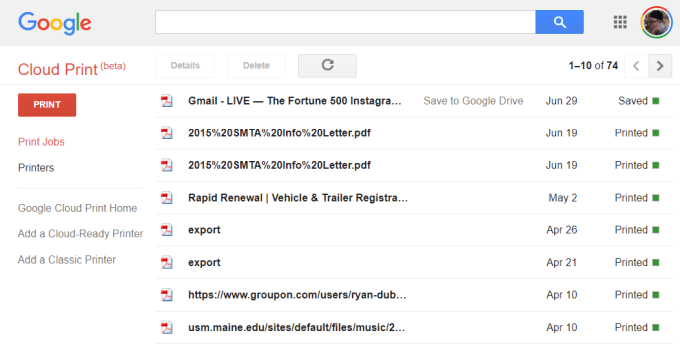
If this is your first time setting up one of your printers with Cloud Print, click Add a Cloud-Ready Printer to see if your model of printer is compatible.
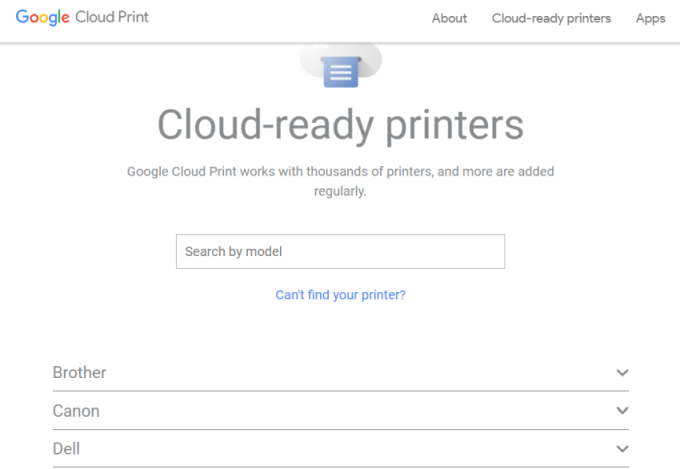
If your printer isn’t a Cloud-Ready model, then click Add a Classic Printer to see the setup instructions for adding a regular printer to Google Cloud Print (see simple instructions below).
Connecting Your Computer to Google Cloud Print
To set up your Google Cloud ready printer:
- Make sure your computer is turned on
- Open your Chrome browser, click the three dots in the upper-right, and select Settings .
- Scroll down and select Advanced .
- Scroll down further to Printing and expand Google Cloud Print .
- Select Manage Cloud Print Devices .
You may be prompted to sign into your Google account. If you see the cloud-ready printer that your computer is already connected to, click the Register button. Otherwise, under the Classic Printers section, click the Add printers button.
If you register a cloud-ready printer, you’ll need to confirm the registration on the printer itself. Adding a classic printer will detect printers connected to your computer and walk you through a wizard to add them to Google Cloud Print.
Printing to Google Cloud Print
Once you’ve set up your printers on Google Cloud Print, using the service is very easy.
In the Google Chrome browser, you can print as you normally do by clicking the three dots in the upper right and selecting Print .
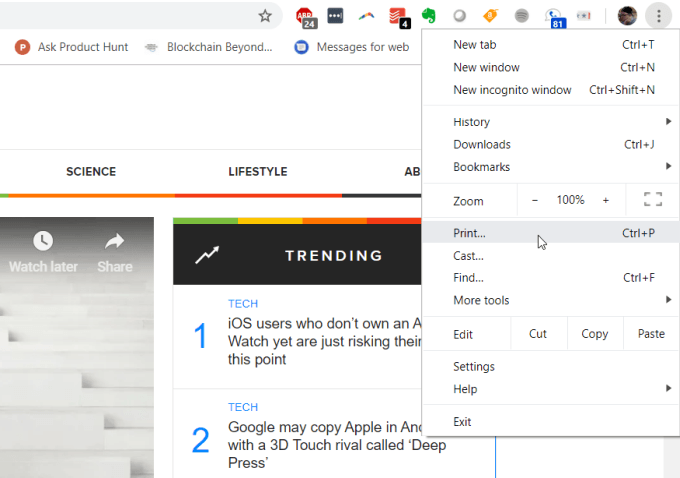
You’ll see the Google Cloud printer available to print to along with its internet address.
Select this printer and click the Print button to print.
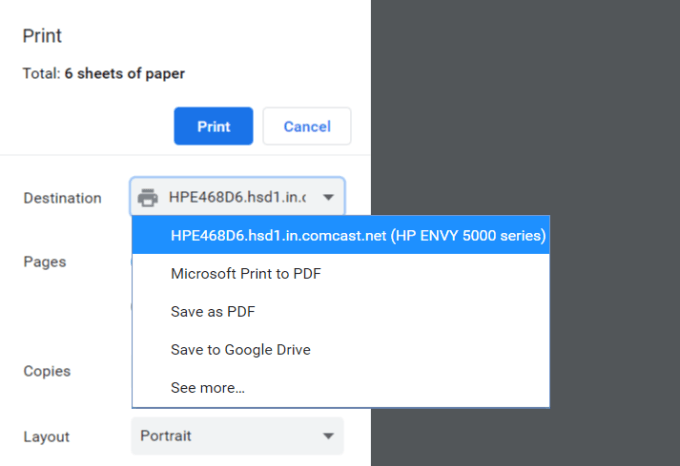
Having a Google Cloud Print connected computer, you’ll see the same printer available on different Google services like Google Docs, Google Sheets, and Gmail. It’ll also let you print from your Chromebook if you own one.
On your mobile phone, printing is typically available under the Share feature in different apps.
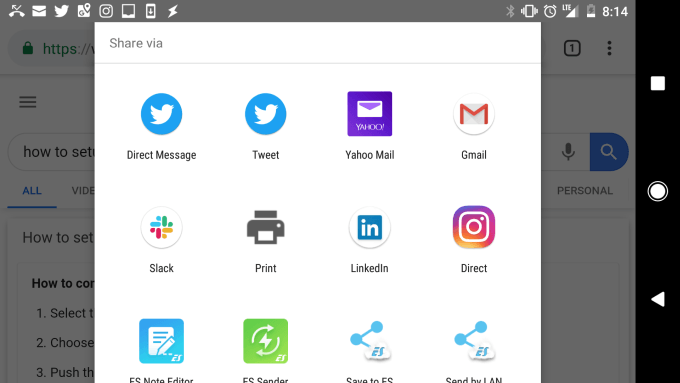
When you choose the Print option, you’ll see your new cloud printer available.
Send your printout to that printer, and it’ll show up on your home printer, no matter where in the world you are.
2. Set Up a Home VPN
Another, slightly more complicated solution to print to your home printer from anywhere is setting up a VPN network you can connect to from the internet.
You can do this using a hidden VPN service included with your Windows 10 computer. You’ll need to follow this procedure from your computer that has access to print to your home printer.
First, you’ll need to allow users to connect to your computer through the internet.
Open the Control Panel and select Network and Sharing Center . Select Change Adapter Settings and press Alt-F on the keyboard. Select New Incoming Connections .
Enable the user accounts you want to give access to, or create a new ID and Password you want to use to allow incoming connections.
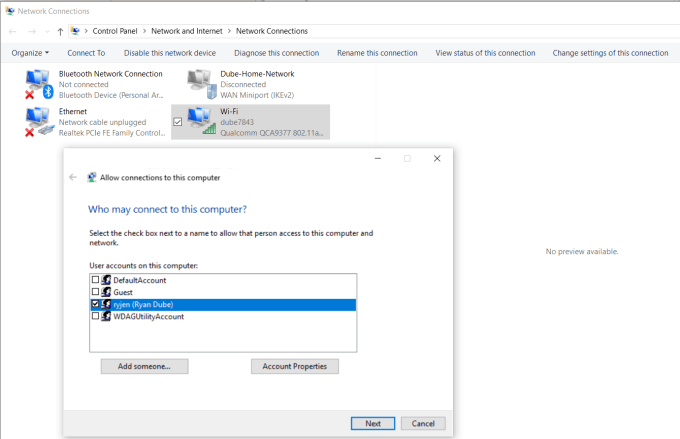
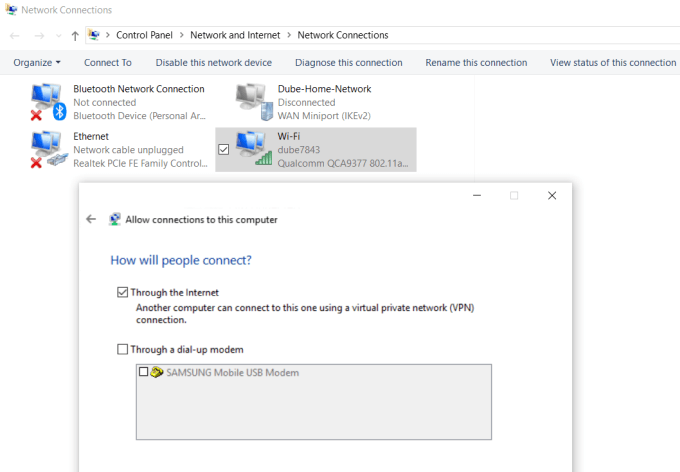
Click Next and enable Through the internet .
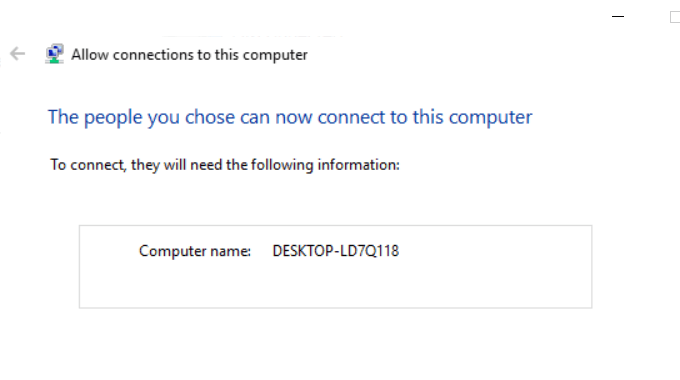
Click Next to finish off the Wizard. You’ve now provided access to your computer through the network via VPN.
Next, you’ll need to log into your home network router and add port forwarding for VPN connections. If this sounds hard, read our post on understanding what port forwarding is and how to setup port forwarding. Make sure to use port 1723 if using PPTP. LT2P uses port 1701.
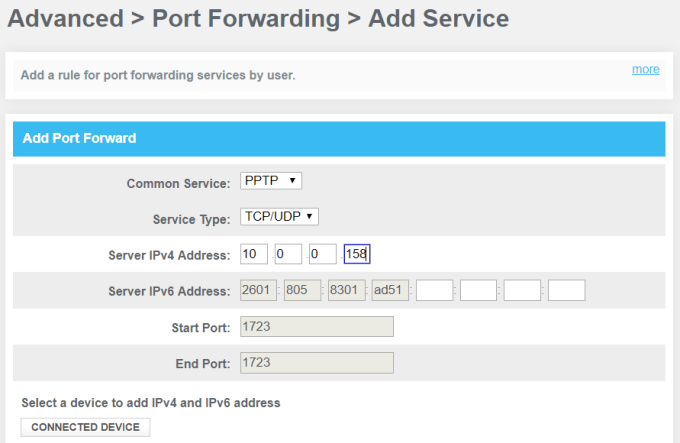
The Windows VPN uses PPTP so select that as the service. Type the internal IP of your computer that’s connected to the printer for the Server IPv4 Address, and leave all other fields as is.
Now, when you want to connect to your computer for printing, you can connect to it via VPN. First, click the Start menu and type VPN . Click on VPN Settings .
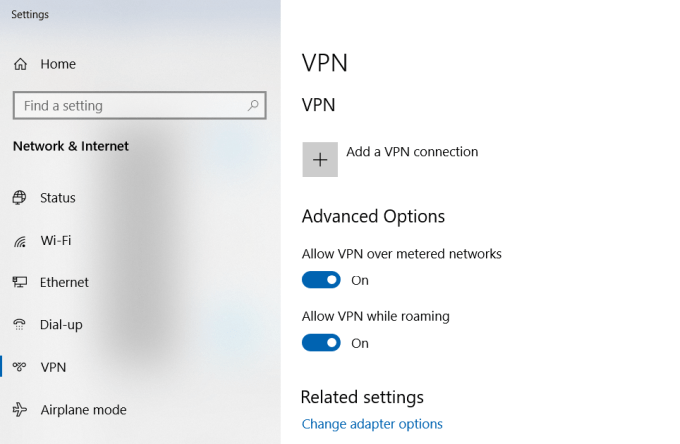
Click on the plus icon to add a new VPN connection.
Before you can fill out the fields, you’ll need your computer’s public IP address . You can see this by visiting a site like WhatIsMyIP.com .
Fill out the VPN form as follows:
- Provider : Windows (built-in)
- Connection Name : Name the connection anything you like
- Server name or address : Give this your computer’s public IP address.
- User name and password : Provide the ID and Password you created when you enabled Internet access to your computer.
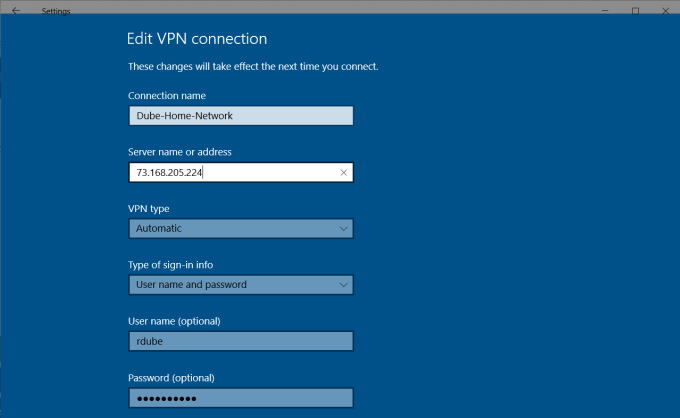
Once you’re done setting this up, you’ll see the VPN connection listed in the VPN settings window. Just click connect while you’re connected to the internet away from home to connect to your home computer. Once connected, you’ll have access to all the network devices, like your home printer.
There are several issues that may cause a VPN setup like this to not work. Your virus software, firewall settings, or other computer security settings could block the connection.
3. User Free PrinterShare Software
Another solution that’s a whole lot simpler than trying to figure out what security settings is blocking your VPN connection is just installing free software that will share out your connected printer to the Internet.
Install the PrinterShare software on a computer on your home network. To use the web printing option, you’ll need to create a free PrinterShare account and password.
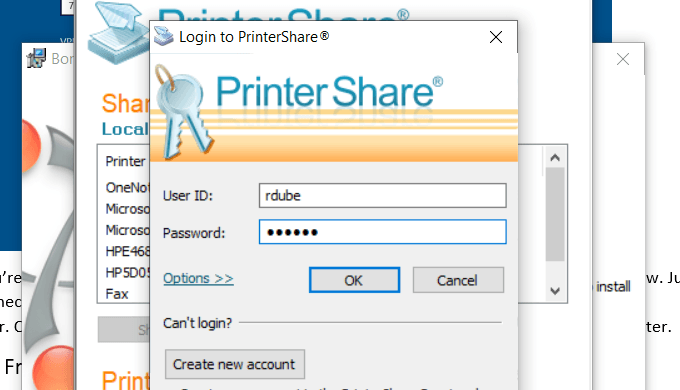
The software will randomly generate a user account number that will display in the software. Remember this ID, and the password you configured for it.
Launch the software on the computer and share the printer that you want to allow internet printing to.
Install the PrinterShare application on the second computer that you’re using outside of your home. Next time you run the software while you’re sitting in an internet café somewhere, you’ll see the printer you shared under the Remote Printers list.
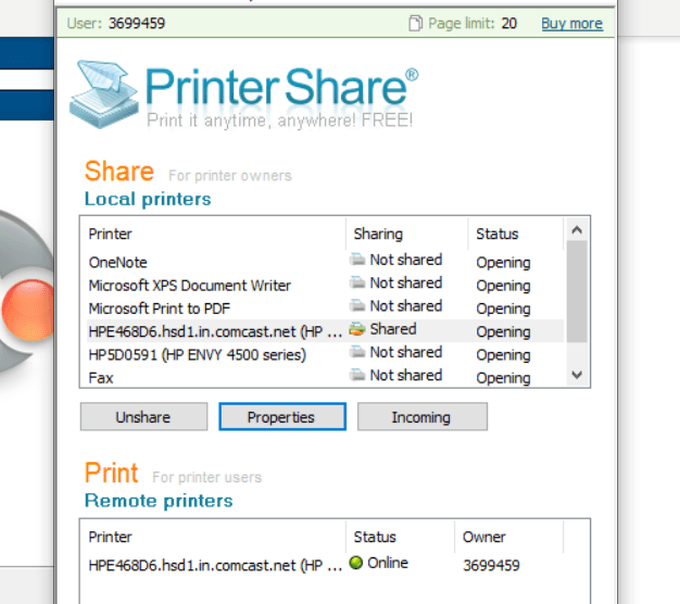
Now, when you try to print a document or anything else on your computer, you’ll see the PrinterShare printer available under your list of printers.
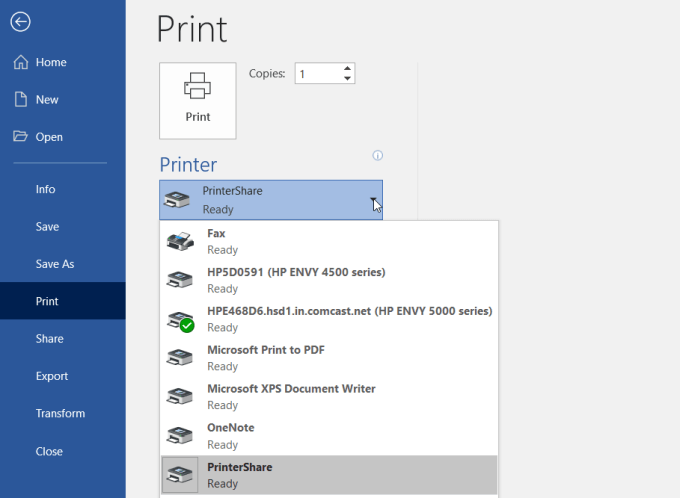
Printing to this printer will send the print over the internet to the printer connected to your other computer on your home network.
As you can see, you don’t have to configure the router or change any security settings. The print is transmitted directly over the internet via the internet connection on your home computer.
4. Online Printing Services
If you don’t mind spending some money and you won’t need the printout for a few days, you can order printouts online.
There are several services where you can upload documents and have the service print them and mail them to you.
A few of these services include:
- PrintDog : Order anything from brochures and greeting cards to posters or color and black and white document copies. Prices are very reasonable at just a few cents per page for regular documents.
- UPrin t ing : You can use this service to print regular documents. But you can also order flyers, posters, brochures and more. You can even order a design printed on t-shirts or mugs.
- Best Value Copy : If you just want fast and cheap copies, this is probably the best service for it. Prices are just a few cents a page at a flat rate. There’s also no minimum order, so if you want to just print a few pages, you can.
5. Shipping Print Kiosks
If you want your document printouts immediately, using a local shipping service is the best option.
These companies offer either web-based file transfers, or you can transfer documents from your computer using a memory stick to a computer in the shop. There, you can use their printer to print out your document.
A few of the most popular print kiosks you’ll find all around the country (and in some cases the world) are the following:
- UPS : You either print online or at your local UPS shipping center.
- FedEx : Print using their website and pick it up at a local FedEx center.
6. Local Print Shops
Beside large shipping services, there are also lots of print shops around the world where you can bring in a memory stick with your documents on it and print those documents for very cheap per-page prices.
A few of these include:
- Staples : Use the website to find a Staples print center near you.
- Office Depot : Do in-store document printing quick and easy.
- CVS : Visit the CVS photo center where you can also print documents.
- Costco : If you have a Costco membership, visit a location for your document printing needs.
7. Your Local Library

One of the most overlooked resources is the local library. Almost every town in the country has a library. Even the smallest libraries offer printing services for their patrons.
Usually, you can buy a card that works on the printer and you load the card with a set amount of money that you can use to make copies. Modern printers at libraries have a memory card slot so you don’t even need a computer to print to the library printer. Or, you connect to the library network and print to the printer that way.
Usually, library printing services are dramatically discounted from the prices you’ll find at commercial printing centers.
- How to Fix Slow Wi-Fi on Your Smartphone
- 7 Best Machine Translation Software (or AI) to Try in 2025
- What Does the Green Dot Mean on Facebook?
- How to Turn off Hardware Acceleration in Chrome
- How to Check VRAM in Windows 10, 11, and macOS?
You’ve sent several files to your printer, but it doesn’t print any documents. You check the printer’s status in the Windows Settings menu to see if it reads “Offline.” What does this mean, and how do you get your printer online?
Why Is Your Printer Offline in Windows?
For the most part, a printer will get stuck “offline” if your computer cannot establish communication with the device. This could be due to loose cable connections, outdated printer drivers, problems with essential system services, etc.
How to Bring Your Printer Back Online
Start with the simple things: fasten the cable connection (for wired printers) and reboot your printer and computer. Reboot your router if the printer uses a wireless connection.
If your printer is still offline, update its firmware, reinstall the printer, or update your PC’s operating system. The Windows Printer troubleshooting tool can also diagnose and fix system glitches affecting your printer’s status. Follow the recommended fixes below to get your printer online.
Check the Printer’s Cable or Network Connection
Before tweaking your PC’s settings, ensure the printer is correctly plugged into the power outlet and powered on. For wireless printers, ensure your PC and printer are on the same network.
Some printers go into “Sleep mode” after minutes of inactivity. In Sleep mode, the printer will appear offline on your computer. Press the printer’s power button (or any button) to “wake” it up. Wait some seconds and check if that changes the printer status to “Online” on your computer.
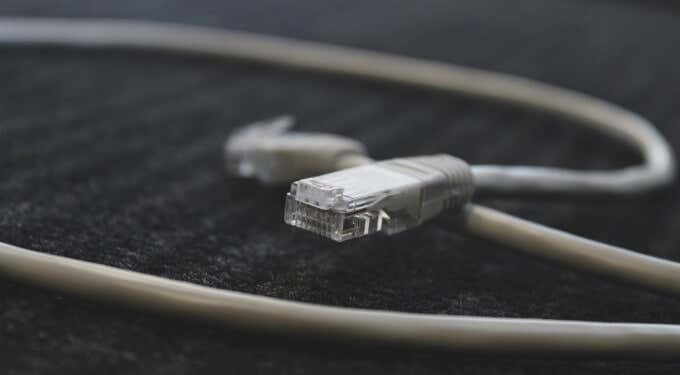
You also want to ensure that the cable connecting the printer to your computer or router fits correctly in the appropriate port. Likewise, connect the printer directly to your PC’s port, not through a USB hub. If the printer continues to appear offline, switch the printer to a different port on your computer or router.
For wireless printer connections, reboot the router and reconnect the printer to the network.
Get Hints from the Printer’s Status Light
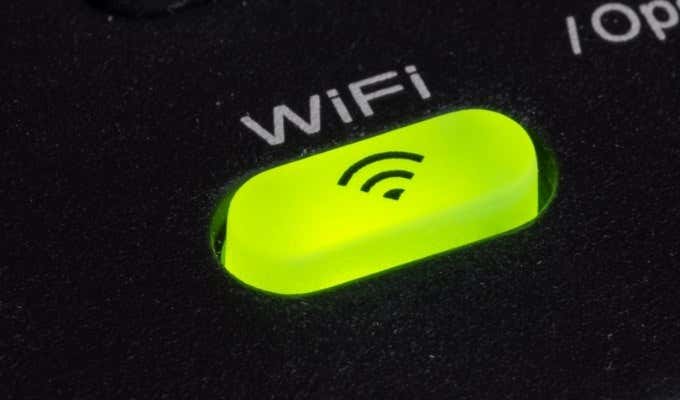
Windows will label your printer “Offline” if the device has a problem. One easy way to tell if your printer has an issue is to check its status lights. For instance, if the Wi-Fi light on a wireless printer flashes red, there’s most likely a problem with the Wi-Fi connection.
Disable Printer Offline Mode in Windows
Windows will hold print jobs in a queue if your printer is in “Use Printer Offline” mode. Follow the steps below to check that your printer isn’t in offline mode.
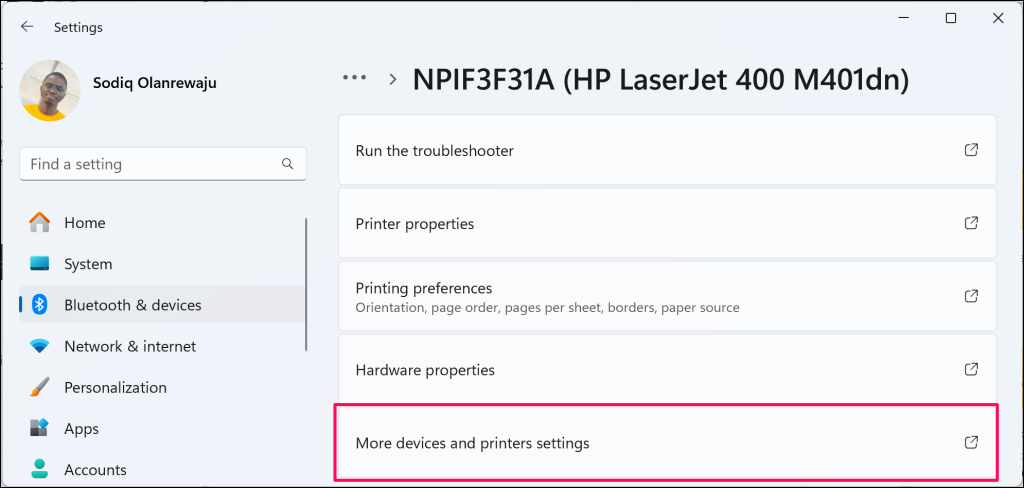
- Go to Settings > Bluetooth & devices and select the offline printer.
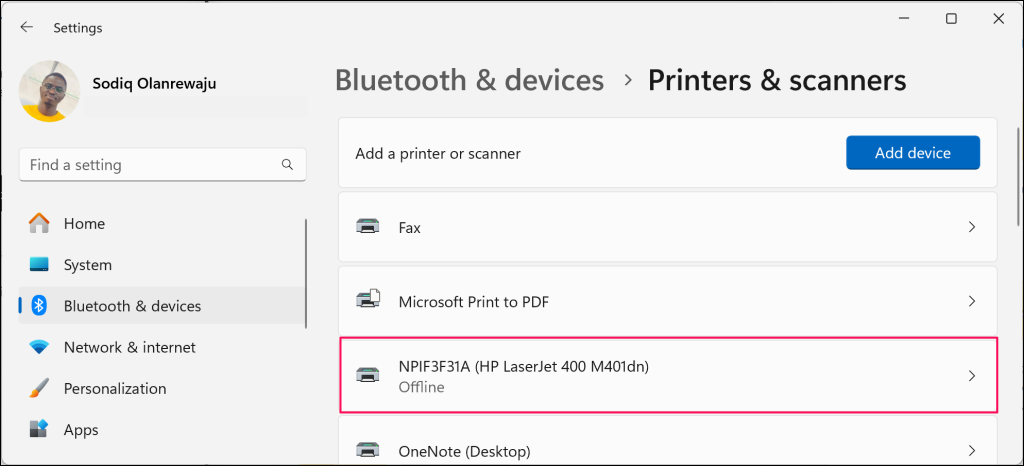
- Select More devices and printers settings .
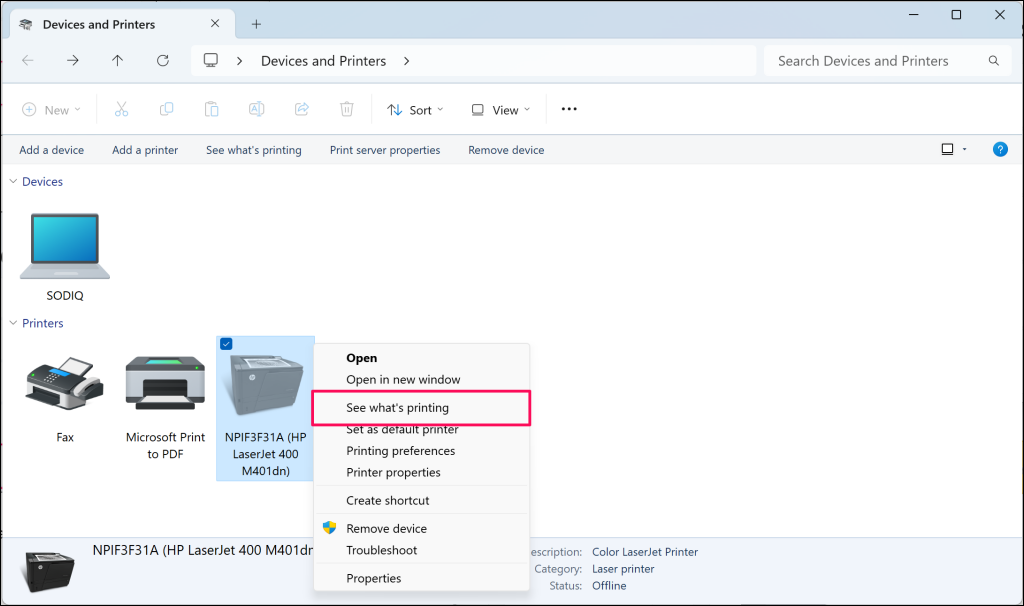
- Right-click the offline printer and select See what’s printing to open the printer’s queue.
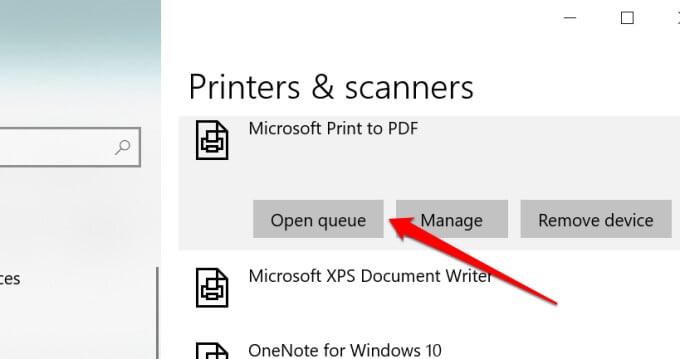
In Windows 10, head to Settings > Devices > Printers & scanners , choose the affected printer and select Open queue .
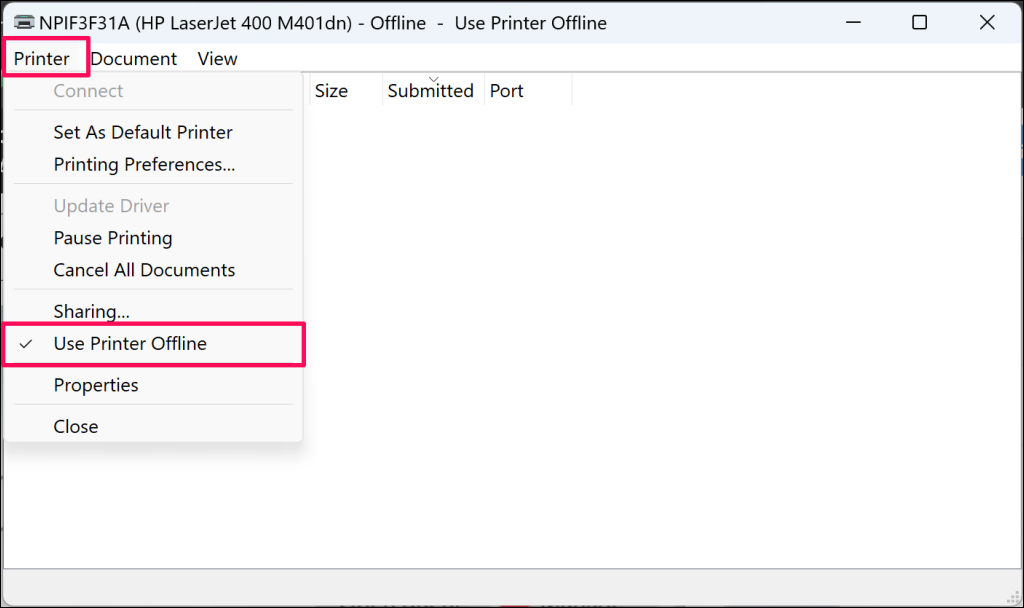
- Select Printer on the menu bar and ensure “Use Printer Offline” is unchecked. If there’s a checkmark next to the option, select Use Printer Offline to bring the printer back online.
<img loading=“lazy” src=“https://www.online-tech-tips.com/wp-content/uploads/2023/11/why-printer-is-saying-offline-windows-pc.png" onerror=“this.onerror=null;this.src=‘https://blogger.googleusercontent.com/img/a/AVvXsEhe7F7TRXHtjiKvHb5vS7DmnxvpHiDyoYyYvm1nHB3Qp2_w3BnM6A2eq4v7FYxCC9bfZt3a9vIMtAYEKUiaDQbHMg-ViyGmRIj39MLp0bGFfgfYw1Dc9q_H-T0wiTm3l0Uq42dETrN9eC8aGJ9_IORZsxST1AcLR7np1koOfcc7tnHa4S8Mwz_xD9d0=s16000';" alt=“The Advanced printer settings page in Windows 11 with the “Use Printer Offline” feature - 38”>
Restart the Printer
If nothing’s worked so far, shut down the printer, wait 30-60 seconds, and turn it back on. Alternatively, unplug the printer from the power source, wait 30 seconds, and plug it back in.
Reboot Your Computer
The problem could also be due to a temporary system glitch on your computer. Unplug or disconnect the printer, shut down your computer, turn it on again, and reconnect the printer.
Update Your Printer Firmware
Your printer can malfunction if there’s a problem with its firmware. If a firmware bug is the root cause of the problem, install the latest firmware version for the printer. You can download a firmware update directly from the printer, the manufacturer’s website, or via the printer software.
Run the Windows Printer Troubleshooter
If you still haven’t gotten your printer online, let the Windows Printer troubleshooter help. It’s a built-in tool that finds and fixes printing-related problems on Windows devices.
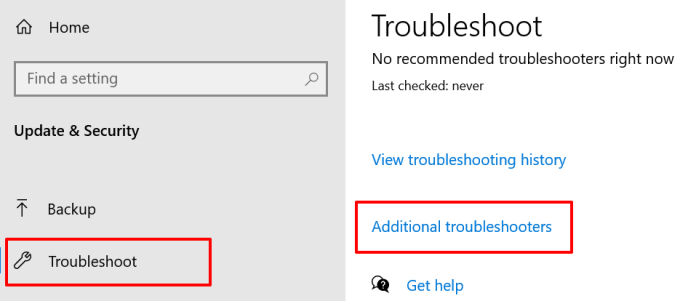
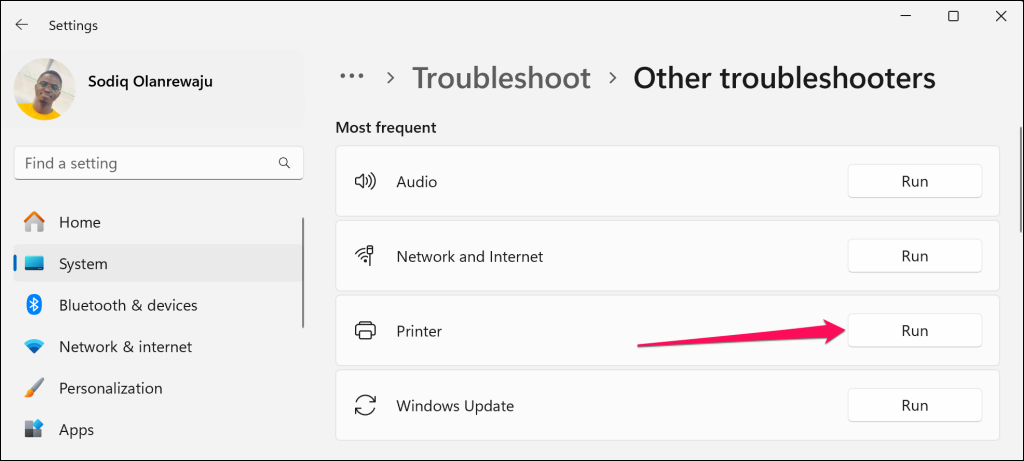
- In Windows 11, head to Settings > System > Troubleshoot and select Other troubleshooters .
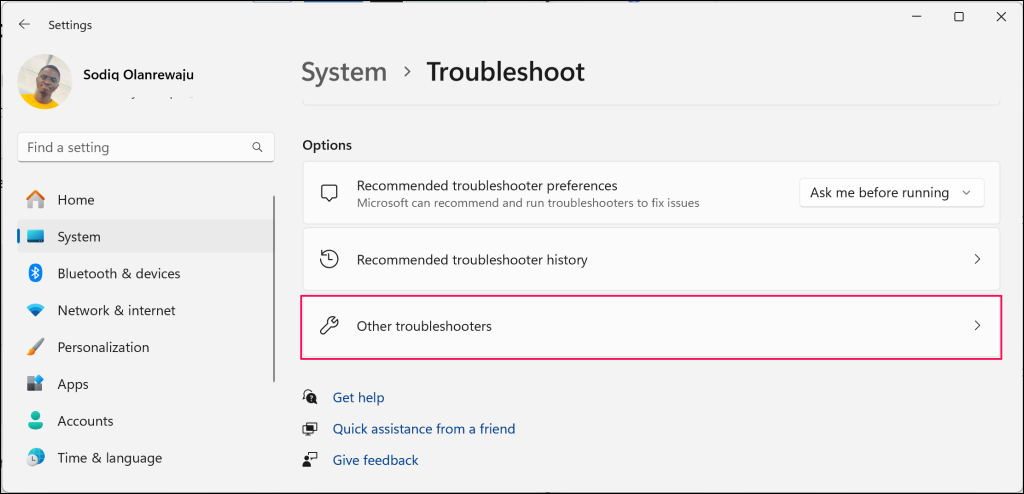
If your PC runs Windows 10, go to Settings > Update & Security > Troubleshoot and select Additional troubleshooters .
- Select the Run button next to “Printer.”
In Windows 10, select Printer > Run the troubleshooter .
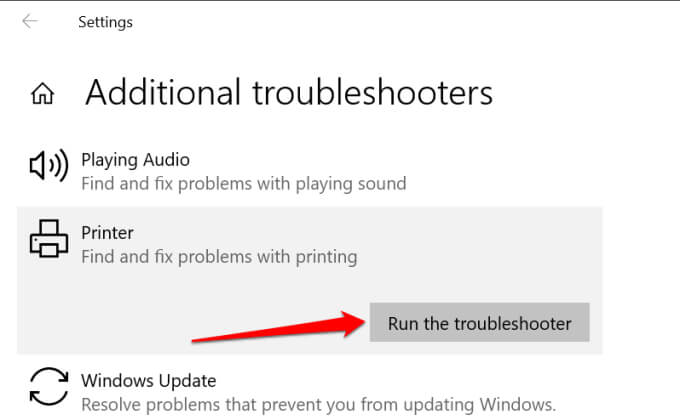
The tool will check the Spooler service and print queue for errors, examine your network printer’s configuration, and run other troubleshooting checks. It recommends the appropriate solutions if it diagnoses any problem with the affected printer.
Troubleshoot with the Printer’s Software
Many printer brands have dedicated software that fixes printing-related issues on a computer. HP, for example, has a “Print and Scan Doctor” tool that diagnoses issues with HP printers on Windows devices.
Contact your printer manufacturer to confirm if there’s an app for your printer model. Better yet, visit the “Support” or “Downloads” section of the manufacturer’s website to download the printer management app.
Restart the Windows Print Spooler
The Print Spooler is a critical system component that powers the execution of print jobs and the discovery of printers on Windows devices. Your printer may appear as “Offline” if the Print Spooler service isn’t running. Head to the Windows Services Manager and make sure everything’s in order.
- Right-click the Start menu icon and select Run .
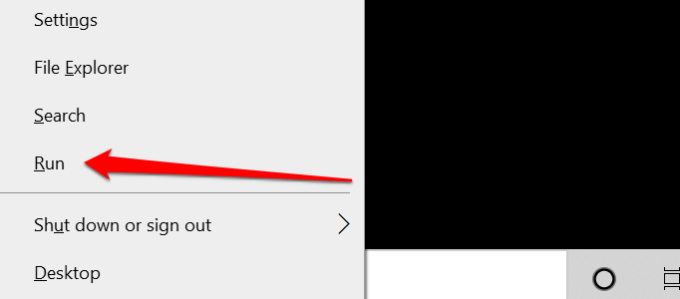
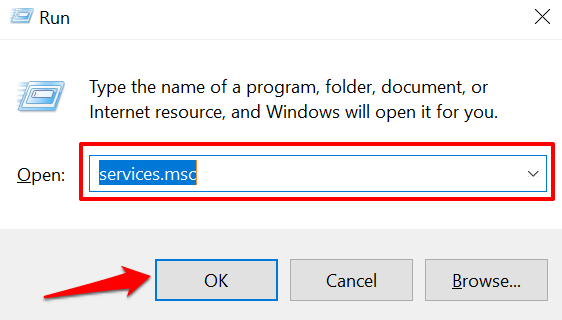
- Type or paste services.msc in the dialog box and click OK . That’ll launch the Windows Services Manager.
<img loading=“lazy” src=“https://www.online-tech-tips.com/wp-content/uploads/2021/07/07-launch-windows-service-manager.png" onerror=“this.onerror=null;this.src=‘https://blogger.googleusercontent.com/img/a/AVvXsEhe7F7TRXHtjiKvHb5vS7DmnxvpHiDyoYyYvm1nHB3Qp2_w3BnM6A2eq4v7FYxCC9bfZt3a9vIMtAYEKUiaDQbHMg-ViyGmRIj39MLp0bGFfgfYw1Dc9q_H-T0wiTm3l0Uq42dETrN9eC8aGJ9_IORZsxST1AcLR7np1koOfcc7tnHa4S8Mwz_xD9d0=s16000';" alt=“Windows Run box with “services,msc” typed in the dialog box - 44”>
- Scroll through the list of services, right-click Print Spooler , and select Restart .
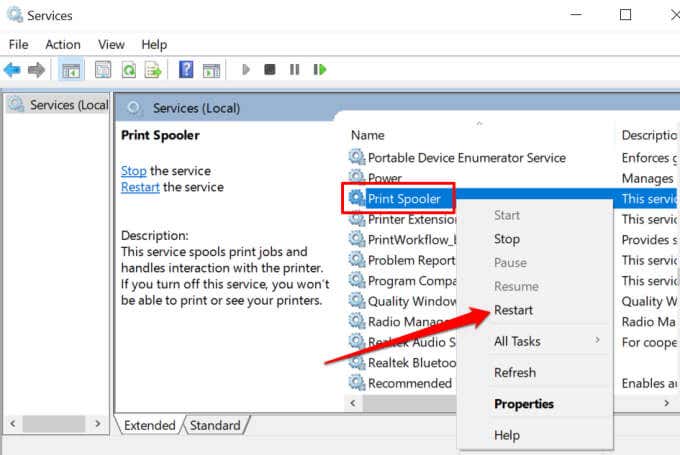
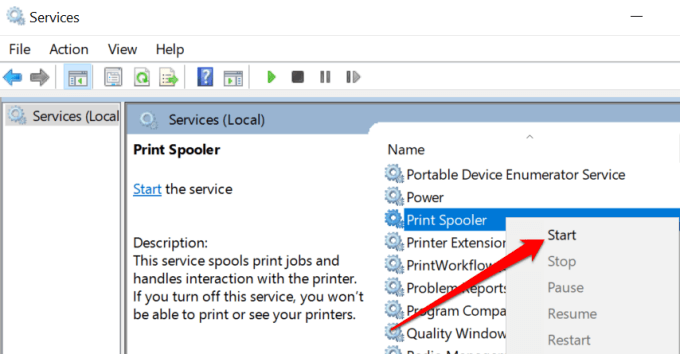
The Windows Services Manager will stop the process and restart it immediately. If the “Restart” is grayed out on the context menu, the Printer Spooler wasn’t running in the first place. Select Start to launch the service.
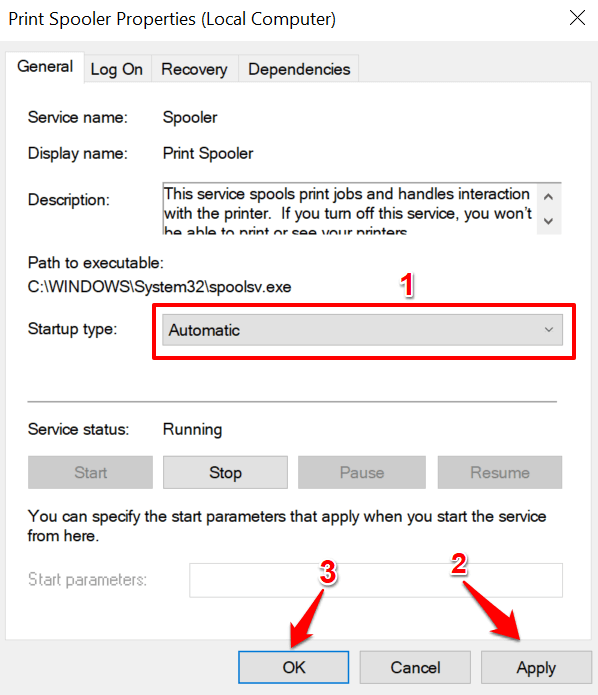
- One last thing: make sure the service starts automatically. Double-click the Print Spooler service, set the “Startup type” to Automatic , click Apply , and then select OK .
Head to the Windows Printer menu ( Settings > Devices > Printers & scanners ) and check if your printer is online.
Change the Windows Function Discovery Services
If your (network) printer uses the Web Services for Devices (WSD) technology , ensure the Windows Function Discovery services run correctly on your Windows computer. These services help your computer detect network devices.
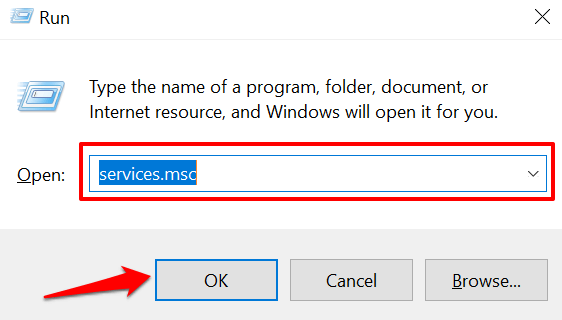
- Press the Windows key + R , type services.msc in the dialog box, and press OK .
<img loading=“lazy” src=“https://www.online-tech-tips.com/wp-content/uploads/2021/07/07-launch-windows-service-manager-1.png" onerror=“this.onerror=null;this.src=‘https://blogger.googleusercontent.com/img/a/AVvXsEhe7F7TRXHtjiKvHb5vS7DmnxvpHiDyoYyYvm1nHB3Qp2_w3BnM6A2eq4v7FYxCC9bfZt3a9vIMtAYEKUiaDQbHMg-ViyGmRIj39MLp0bGFfgfYw1Dc9q_H-T0wiTm3l0Uq42dETrN9eC8aGJ9_IORZsxST1AcLR7np1koOfcc7tnHa4S8Mwz_xD9d0=s16000';" alt=“Windows Run box with “services,msc” typed in the dialog box - 48”>
- Locate the Function Discovery Provider Host and Function Discovery Resource Publication .
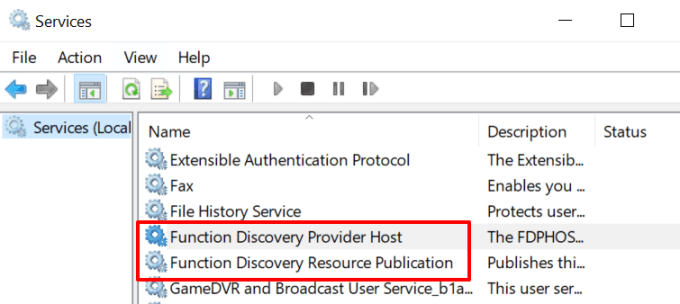
- Double-click Function Discovery Provider , Start the service, change its “Startup type” to Automatic , click Apply, and then select OK .
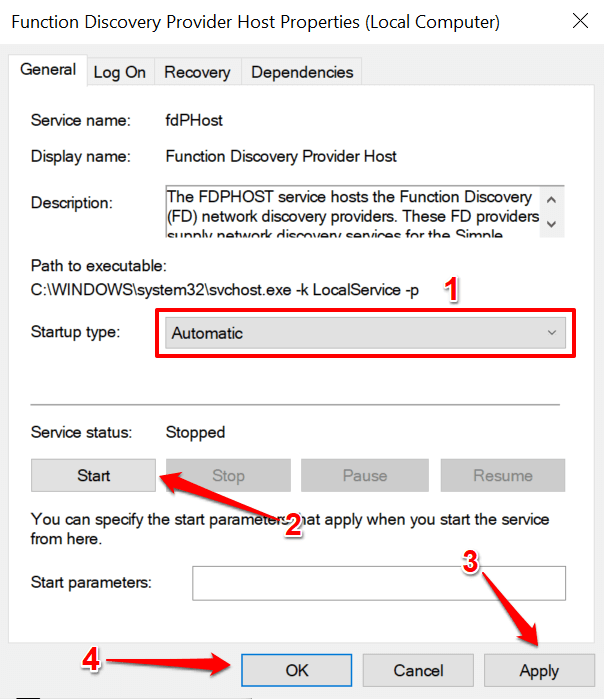
- Repeat the same steps for the Function Discovery Resource Publication .
If the printer stays offline, disconnect or unplug the printer, restart your PC, and check again.
Remove and Reinstall Printer from Scratch
Sometimes, removing and reinstalling the printer from scratch is the best option to get your printer back online. Unplug or disconnect the printer from your PC and follow the steps below.
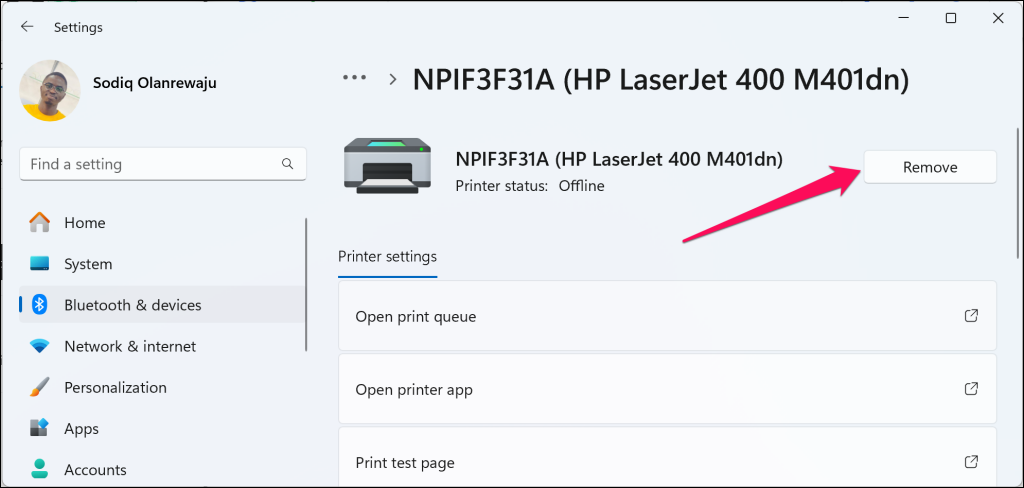
- Go to Settings > Bluetooth & devices > Printers & scanners , choose the offline printer and select Remove .
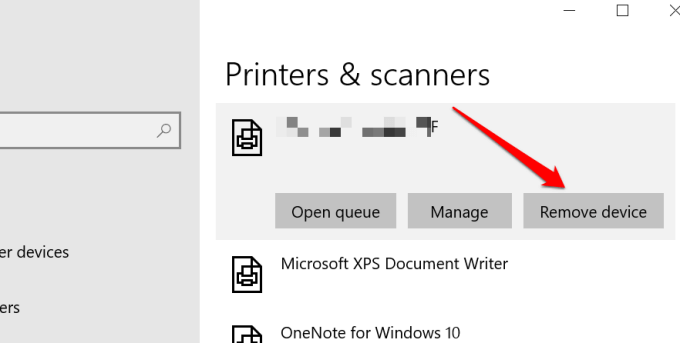
On Windows 10 devices, head to Settings > Devices > Printers & scanners , choose the printer, and select the Remove device button.
Restart your computer, plug in the printer cable, or connect it to your router/Wi-Fi network, and proceed to the next step.
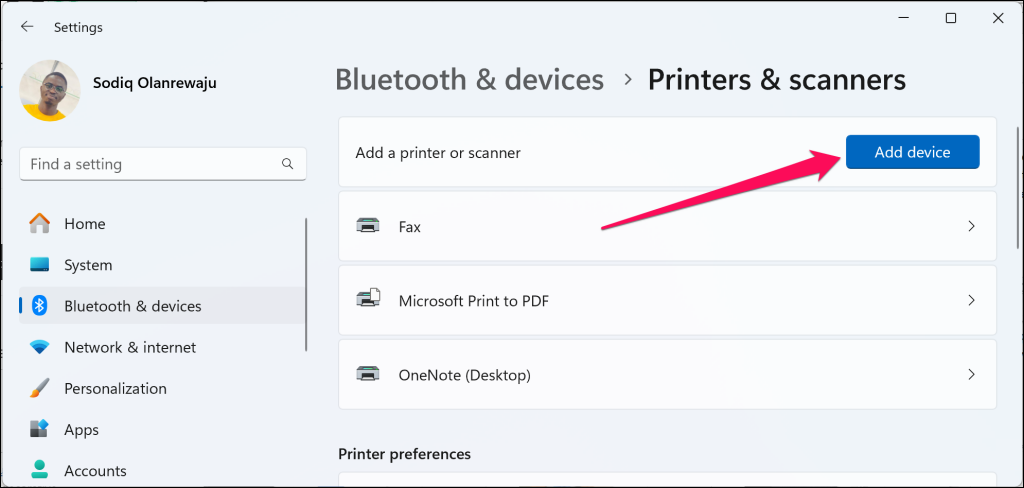
- Select Add a device (or Add a printer or scanner in Windows 10) and follow the instructions on the next page.
Install Windows Updates
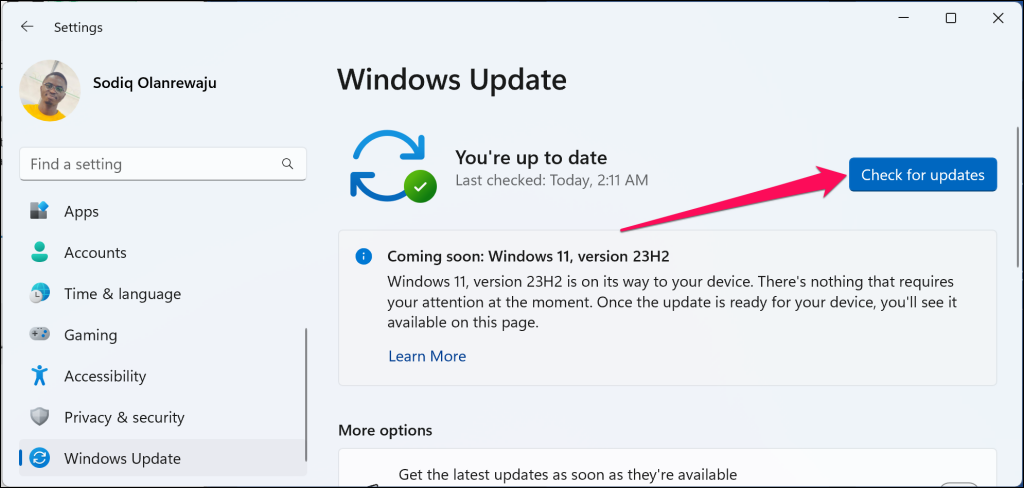
Windows automatically downloads and installs the latest drivers for your devices. If your printer is stuck in “Offline” status due to an outdated or buggy driver, installing the latest Windows Update could resolve the problem.
Open the Settings app, choose Windows Update on the sidebar, and select the Check for updates button.
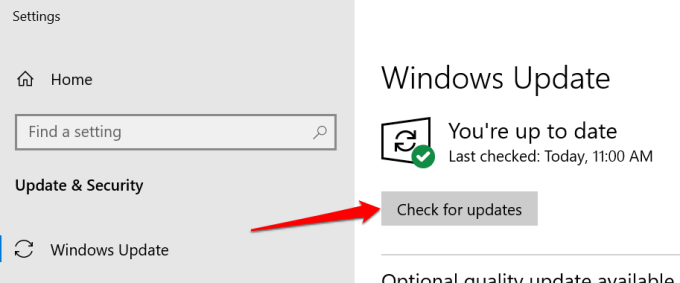
For Windows 10 PCs, go to Settings > Update & Security > Windows Update and select Check for Updates .
Get Your Printer Back Online
We’re confident that one of these steps will get your printer back online. Otherwise, refer to our guide on fixing common printer problems .
- How to Fix Slow Wi-Fi on Your Smartphone
- 7 Best Machine Translation Software (or AI) to Try in 2025
- What Does the Green Dot Mean on Facebook?
- How to Turn off Hardware Acceleration in Chrome
- How to Check VRAM in Windows 10, 11, and macOS?