Many people are aware of the basic functions that smart home hubs have to offer, but oftentimes their knowledge doesn’t extend far beyond simple commands.
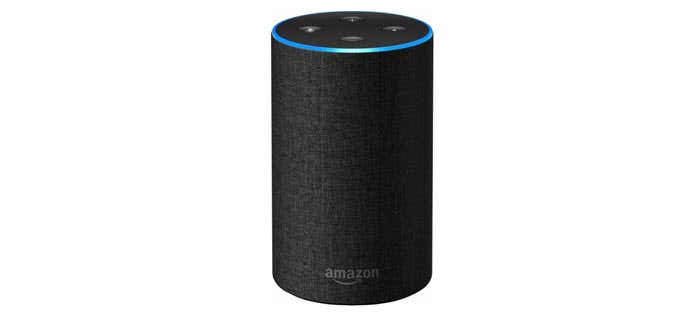
Smart devices are certainly useful on their own, but for a truly intelligent home, you really need the technology to work together.
Create a Routine in Alexa
There are a few steps to follow to get a Routine up and running, but it’s not as complicated as you’d think. We’ve outlined the steps below to help you get your smart tech up and running.
Step 1. If you haven’t yet, navigate to the App Store (iOS) or Play Store (Android). This guide will follow the steps on an iPhone, but the process should be the same on any Android device.
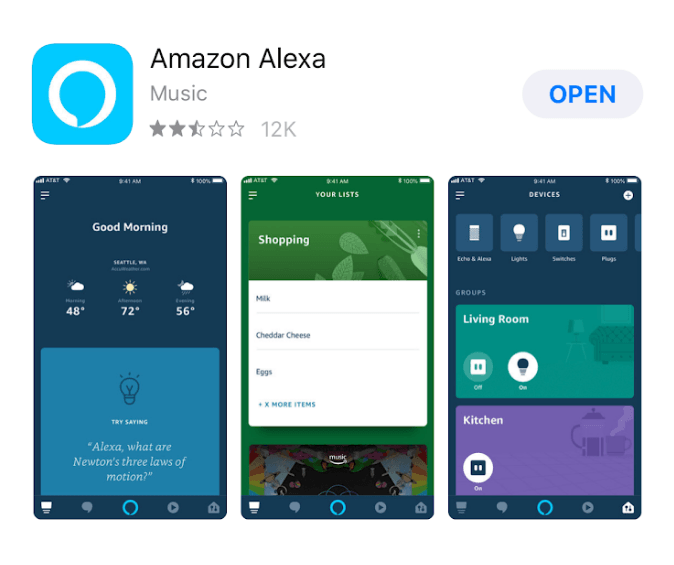
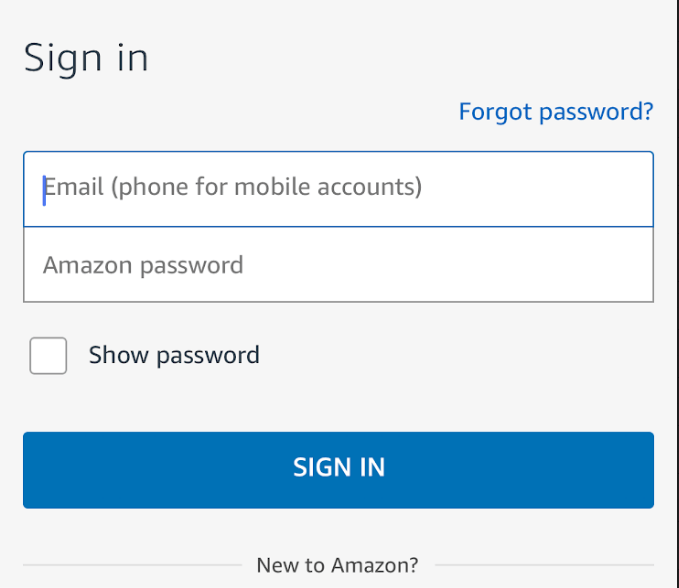
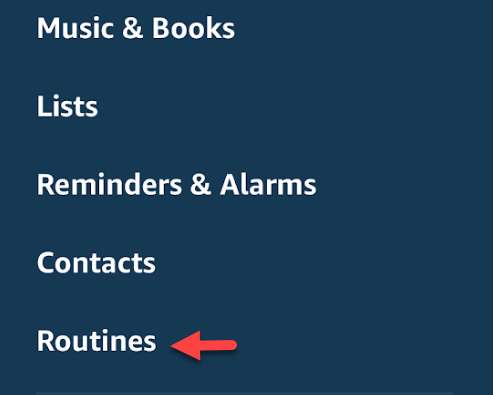
Step 3. In the Alexa app, tap the sidebar at the top left of the screen to expand the app options.
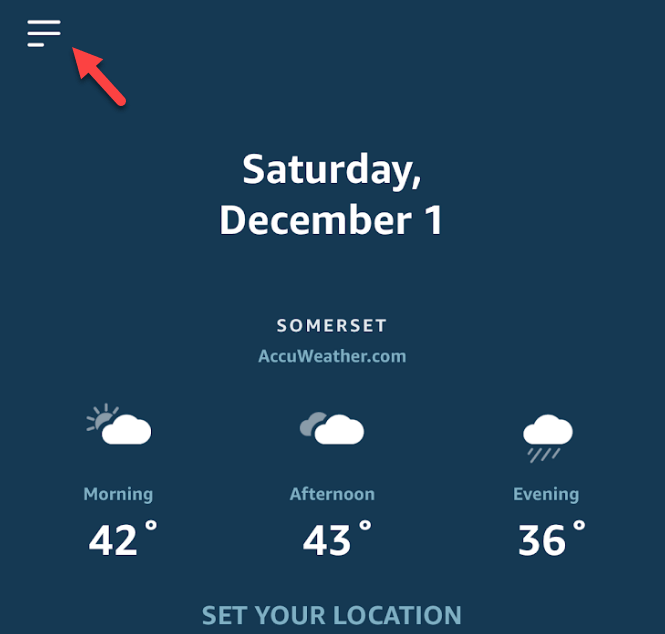
Step 4. Tap on Routines .
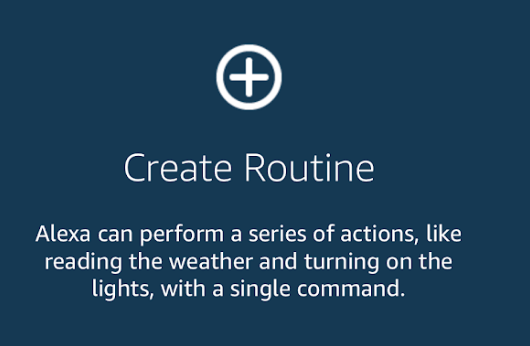
Step 5. Tap on Create Routine .
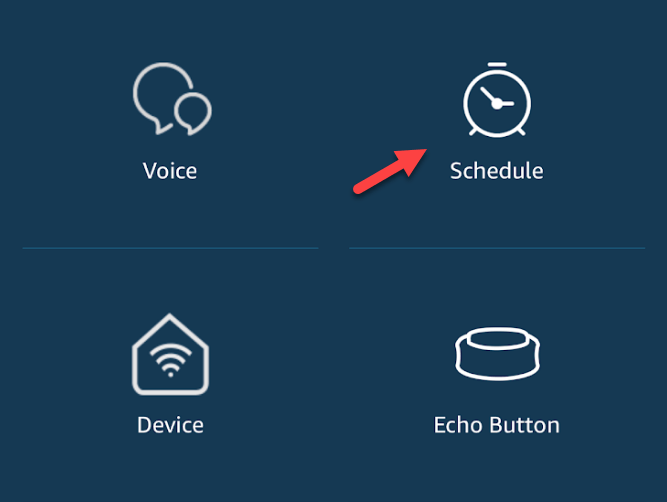
Step 6. Alexa routines are conditional triggers. This means that the system is broken down into two separate parts: The event that will start the routine, and Alexa’s response. Let’s start by clicking When This Happens . This is very similar to how IFTTT works, which I wrote about earlier.

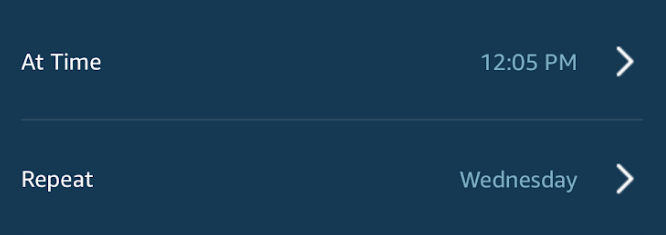
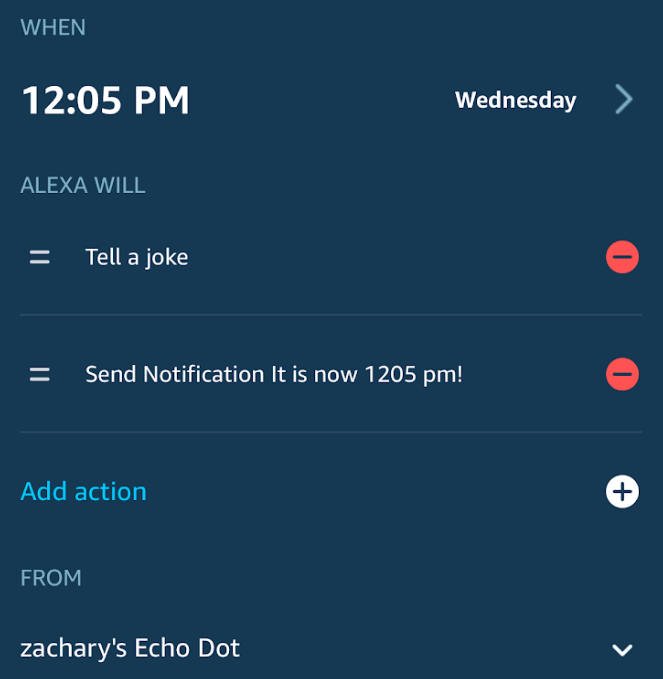
Step 8. There are two options on the next screen, Set Time and Repeat . Choose the time you’d like the trigger to fire, as well as the frequency that you’d like it to repeat. We’ll set ours up to repeat every Wednesday at 12:05 pm.
Step 9. Here’s where you’ll choose what happens. Tap on Add Action .
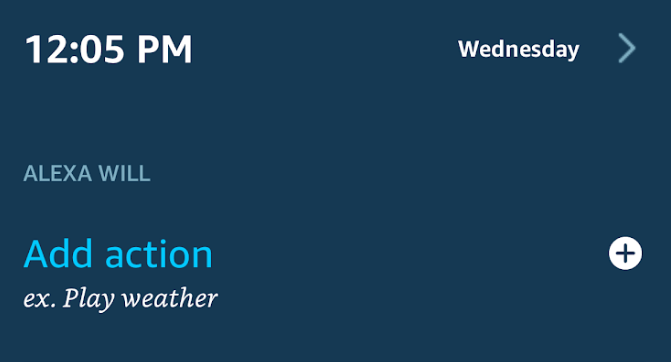
Step 10. The next screen gives you a bunch of options to choose from. Let’s have Alexa say something at the day and time that we’ve selected by tapping on Alexa says .
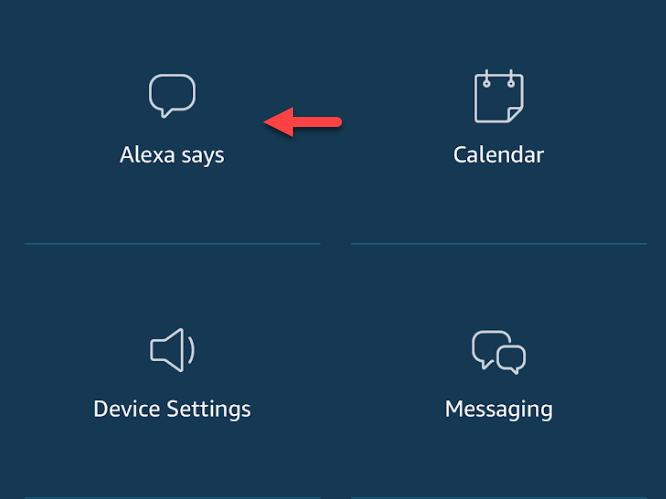
Step 11. Alexa isn’t exactly the most skilled comedian, but let’s have her tell us a joke anyway.

Step 12. Tap Add to create the first part of your Alexa Routine.

Step 13. The next screen will show you the options that you’ve selected. Part of the appeal of Alexa routines is their ability to combine more than one action. Let’s add another aspect to our routine by tapping Add Action .
At this point, you’ll also want to choose the device that you’d like the joke to play from, which is important to keep in mind if you have multiple Echo devices.
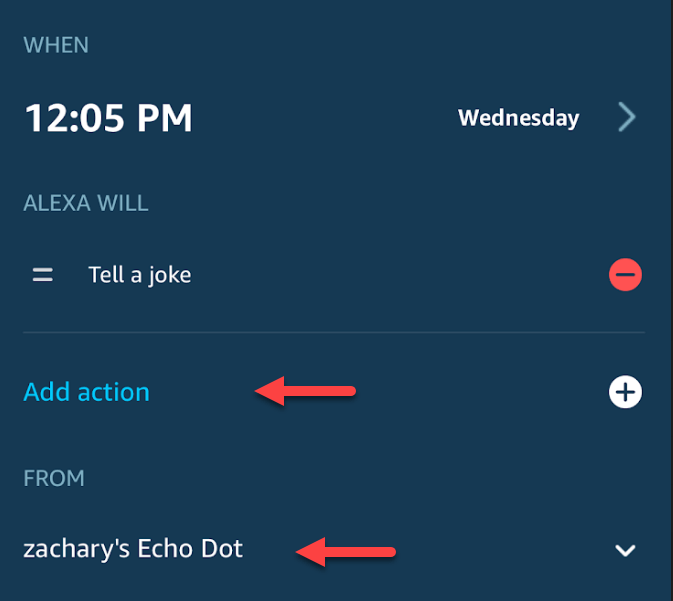
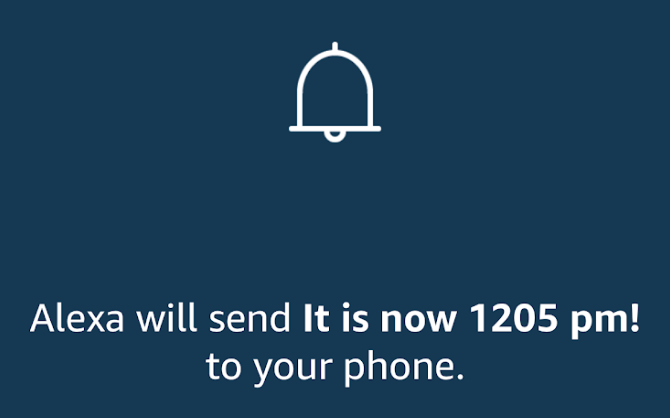
Step 14. Let’s select the Notification option so we can get a reminder on our phone as well.

Step 15. Choose the text you’d like in the notification, and tap Next .

Step 16. If the confirmation on the next screen looks correct, tap Add to wrap up the last part of your routine.
Step 17. This should bring you back to a screen that shows the summary of how you’ve structured your conditional triggers. If everything looks correct, tap Create to wrap up your first Routine!
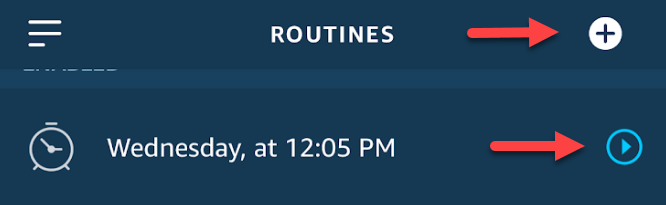
Step 18. On the main Alexa page, you should now see your Routine. The blue arrow to the right of your routine will allow you to edit your task, with options such as changing the frequency or even deleting it outright.
The button at the top right corner functions as a shortcut to start creating your next routine.
Feel free to experiment with the various options that Alexa Routines have to offer. The Routine that we created isn’t exactly super useful and is really just to give you a sense of how the creation process works. Where the Routine feature really shines is in its ability to connect your various devices.
There are other smart home automation services like IFTTT and Stringify that are a little more complex and offer a lot of utility for devices that don’t work with the Echo.
However, Alexa Routines are a great option for beginners to make their smart devices work together for a more convenient and intelligent home. Enjoy!
- How to Create Alexa Skills for Your Business or Employees
- How to Create Skills With Alexa Blueprints
- How to Shop With Alexa for All Your Shopping
- 10 Cool Alexa Tricks to Try With Your Amazon Echo
- How to Change Alexa Language to Spanish and Other Languages
However, you may be looking for something in particular. Maybe you want a trivia game about your family, a fairy tale where your child is the star character or a guide to your home and neighborhood for a houseguest.

Well, guess what? You can make your own skill using Alexa blueprints. Here’s how!
Browse Alexa Skill Blueprints
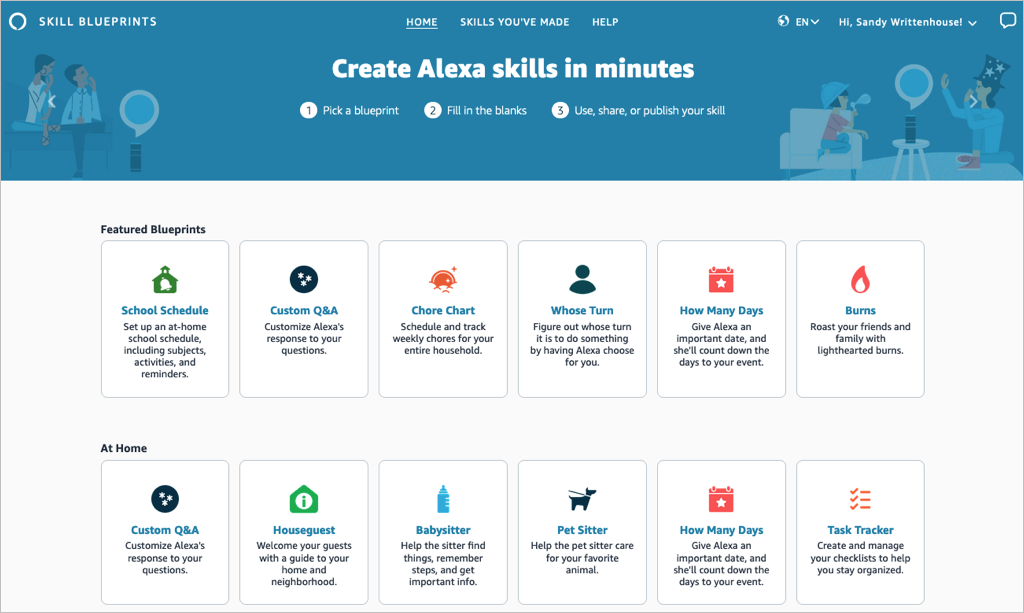
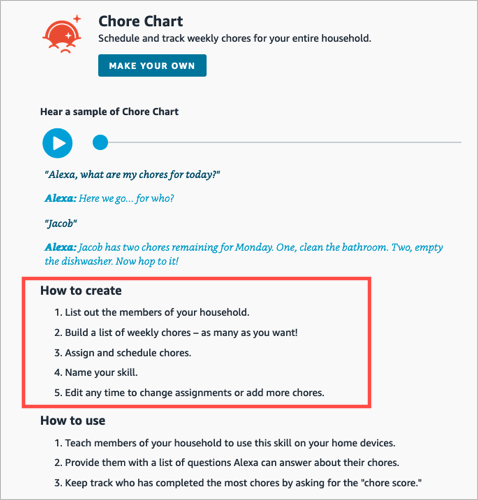
Select a blueprint to view more details and check out examples. This helps you see how the babysitter blueprint can help when you’re away, or the family jokes blueprint can liven up quality time.
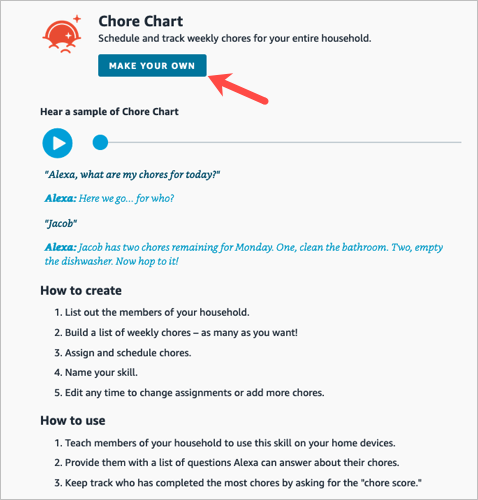
If you find one you want, pick Make Your Own on the skill information screen.
Create a Skill
The steps are the same whether you’re creating a skill with a blueprint on the web or on your mobile device. However, those steps may differ depending on the type of blueprint you select.
For instance, you’ll enter different information for a birthday trivia skill compared to one for flashcards, the pet sitter, or bedtime stories. You can see these steps when you select a blueprint to view its details.
To show you just how easy it is, we’ll create one on each device.
Make a Chore Chart Skill on the Web
For this first example, we’ll use the Chore Chart blueprint to create a skill on the website. This skill helps keep track of household chores and who is responsible for each one.
- Visit the Alexa Blueprints website, sign into your Amazon account, and choose a blueprint.
- As described above, select Make Your Own directly below the skill name. If you see a short tutorial for building the skill, choose Start Now when you get to the end.
- Next, you’ll be prompted to replace the details for the skill with your own. For the Chore Chart, we’ll fill in the names of our household members and chores.
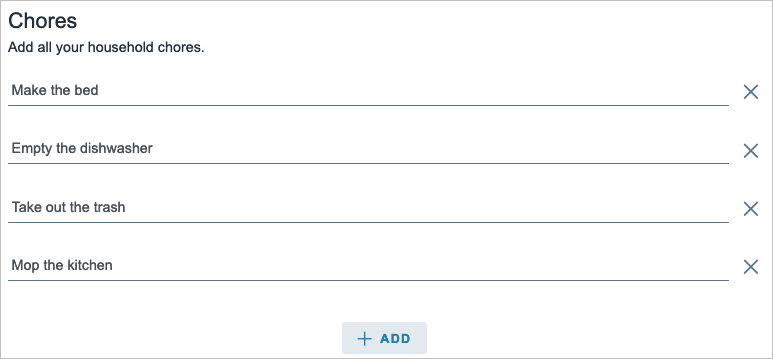
- Select Next on the top right to move to the next step.
- Here again, you may be asked to enter more details for the skill. For the Chore Chart blueprint, we assign the chores to the household members. Just keep in mind that the number of prompts and requested details depend on the exact skill and blueprint.
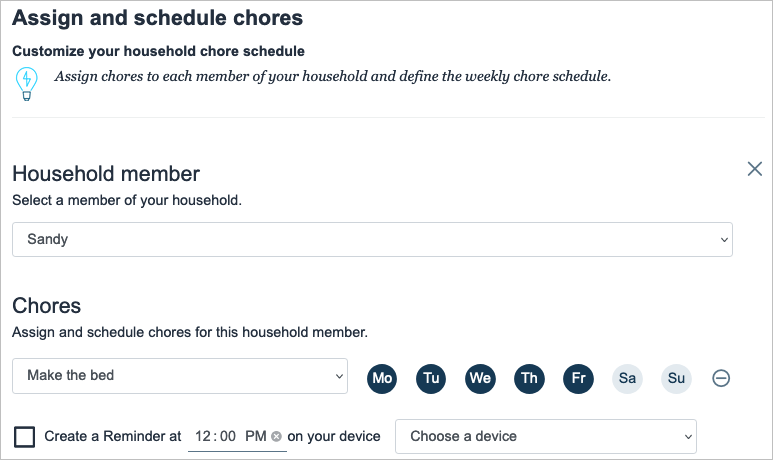
- Select Next to continue.
- One step that you’ll find in most blueprints is for customizing the experience. This refers to how you interact with Alexa for that particular skill. For instance, you can enter introduction phrases for when someone opens the skill and then other phrases for when someone completes a chore. These are the phrases Alexa uses for that specific skill.
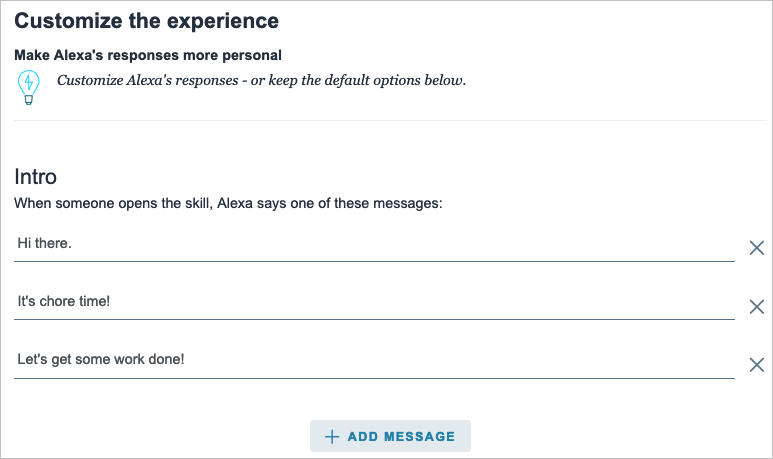
- Select Next to finish entering the details.
- The final step in creating a skill is to give it a name. Try to use something meaningful that you’ll remember but also something simple enough for Alexa to recognize.

- Select Next one last time to create the skill.
After a few moments to process all the information, your skill should be ready to use!

Make a Whose Turn Skill in the Mobile App
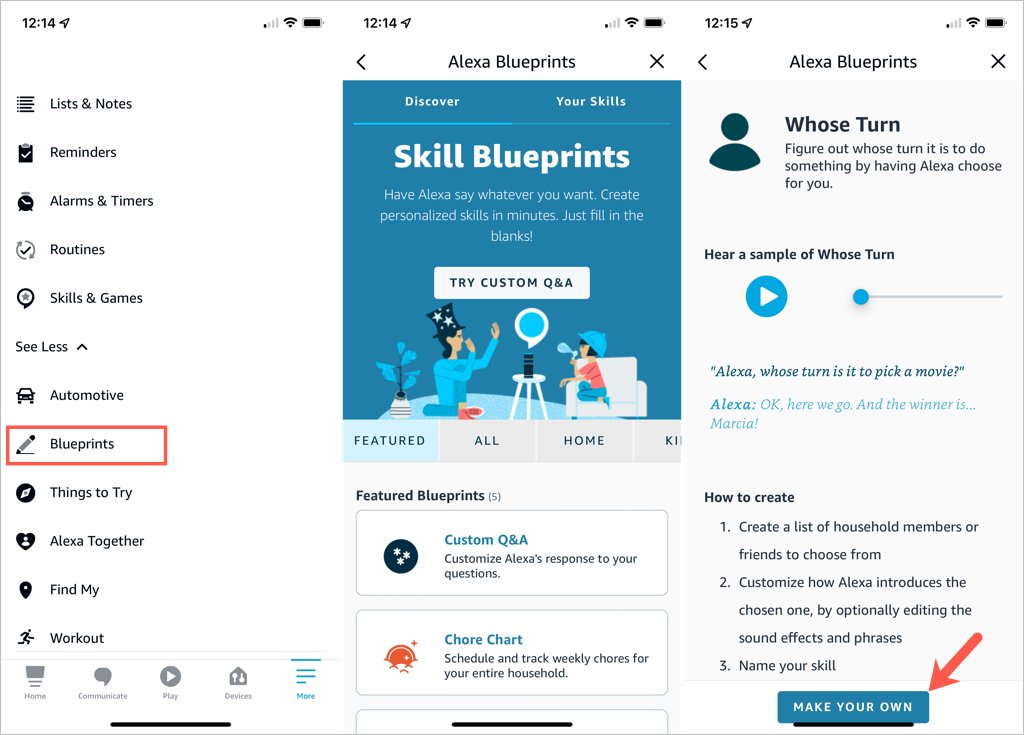
For this next example, we’ll use the Whose Turn blueprint to create a skill in the Alexa app. This skill prompts Alexa to choose whose turn it is to do something.
- Open the Alexa app on Android or iOS and select the More tab.
- Pick See More in the top section and choose Blueprints .
- Browse the options by category, just like on the website. Then, select the one you want to use and tap Make Your Own .
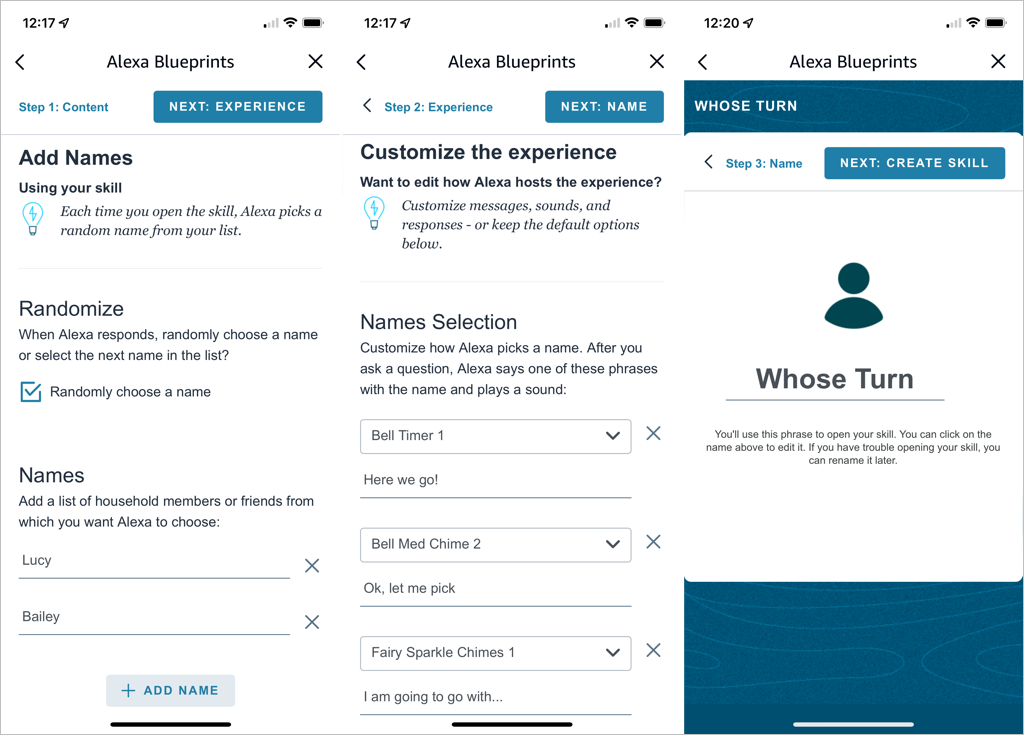
- Replace the details for the skill with your own. For the Whose Turn skill, we’ll add the names for Alexa’s choices.
- Tap Next on the top right to continue.
- The next step for the Whose Turn skill is to personalize the experience. This allows you to customize how Alexa picks a name. After you ask a question, Alexa uses the phrases and sound effects you select in this section. Optionally, you can scroll down for additional customization options.
- Tap Next to name your custom skill.
- Select the text on the name line to edit it or enter your own. Again, pick a meaningful name and one that’s easy for Alexa to recognize.
- Tap Next to create the skill.
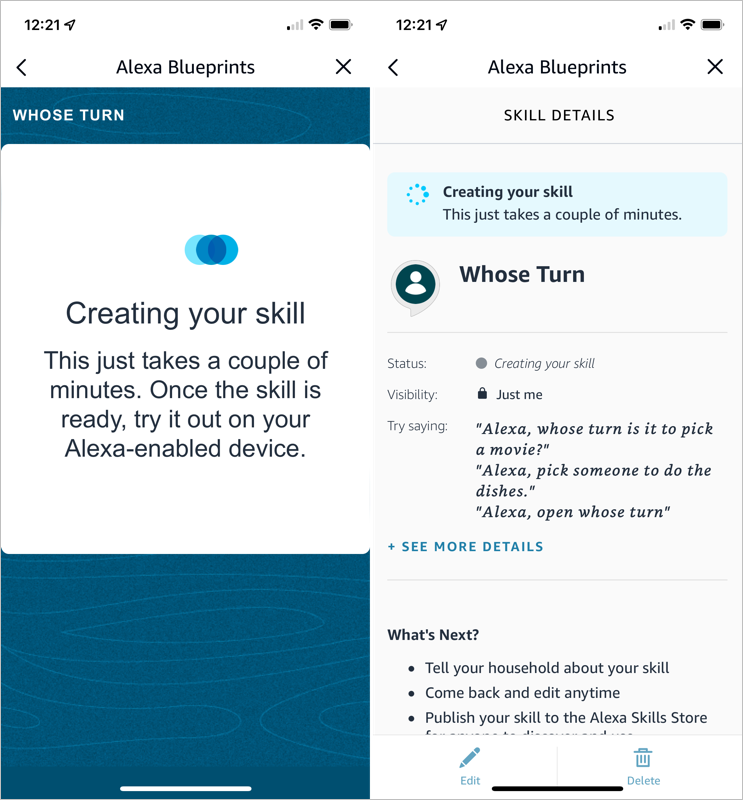
You’ll see the progress as your skill is created and a confirmation when the process completes. You can tap the X on the top right to exit when you finish reviewing your skill.
Edit Skills You Create
Once you create a skill using Alexa Blueprints, you may want to make adjustments to it. You can do this on the web and in the mobile app too.
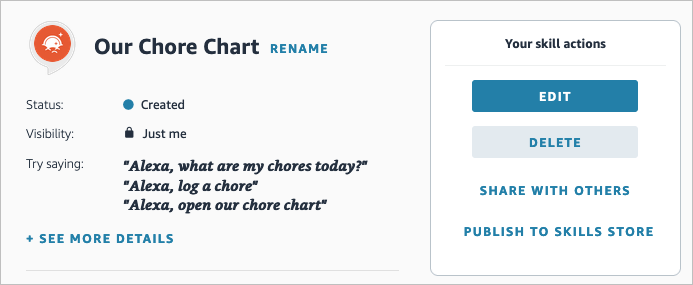
Your Skills on the Web
- Visit the Alexa Blueprints website and sign in. Select Skills You’ve Made at the top.
- You’ll see a list of your skills. Choose Details to the right to open the one you want to edit.
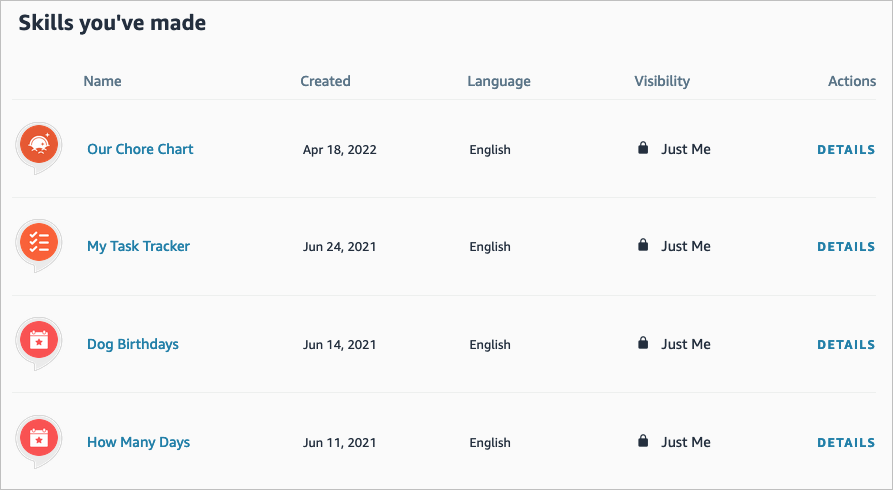
- On the right side, select Edit or Delete . You’ll notice you can also pick Share With Others to make it easy for your family or friends to access or Publish to Skills Store for other Alexa users.
Your Skills in the Mobile App
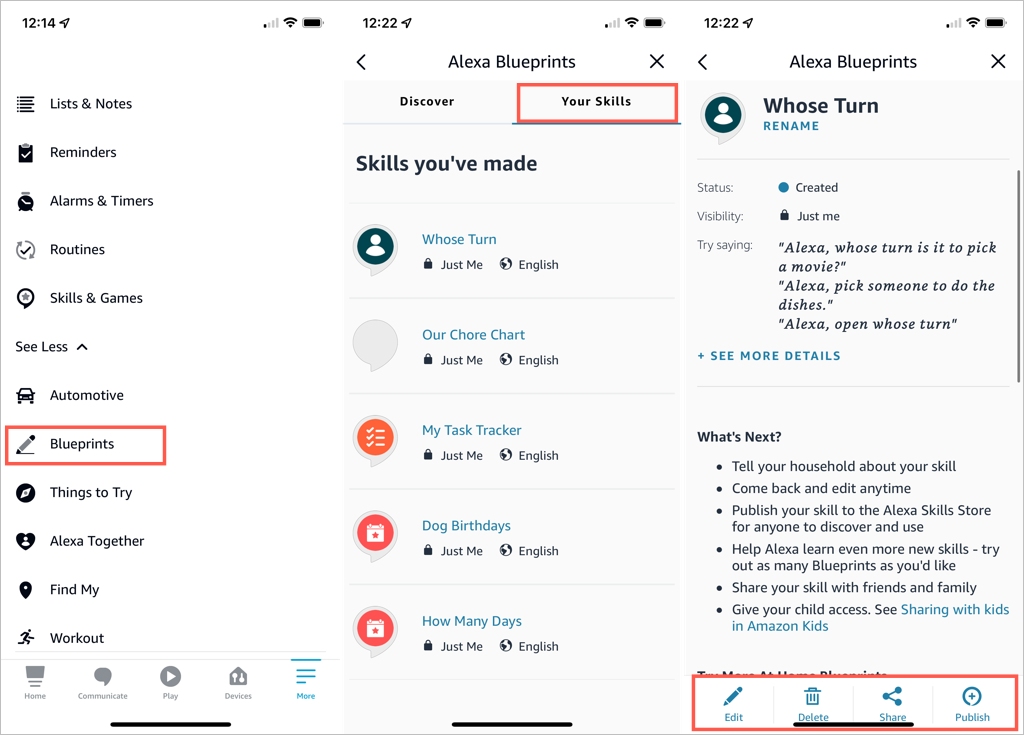
You can edit your custom skills easily in the Alexa mobile app as well.
- Go to the Menu tab.
- Select See More > Blueprints .
- On the Your Skills tab, select the blueprint you want to edit.
- Use the buttons at the bottom to make your changes.
Take Advantage of Alexa Blueprints
Even though there are many premade skills you can pick from, creating your own Alexa skills gives you great ways to personalize the experience on your Alexa devices, get tasks done, or have a little fun !
- How to Create Alexa Skills for Your Business or Employees
- How to Shop With Alexa for All Your Shopping
- 10 Cool Alexa Tricks to Try With Your Amazon Echo
- How to Change Alexa Language to Spanish and Other Languages
- Why Alexa Is Flashing Yellow, Green, and What Does it Mean?
