
Step 1. Create a New Slide and Copy Headings
- Open your PowerPoint presentation.
- Press the Home tab and select New Slide to create a table of contents slide.

- Select the View tab and choose Outline View .
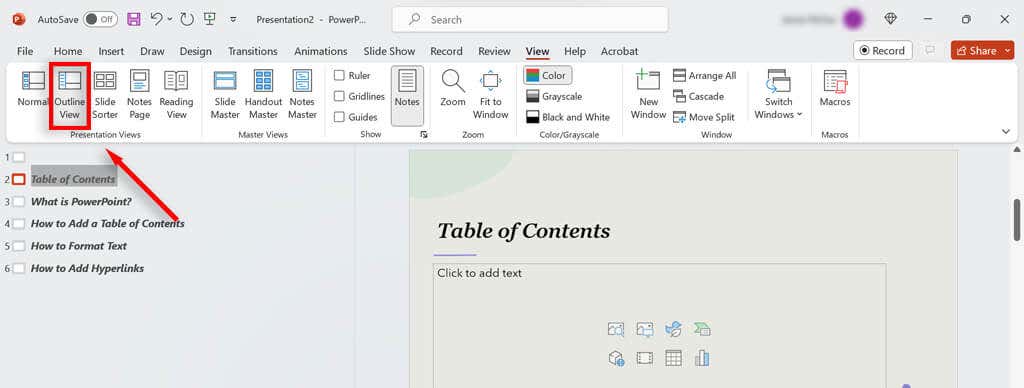
- Right-click somewhere in the thumbnails pane and press Collapse All .
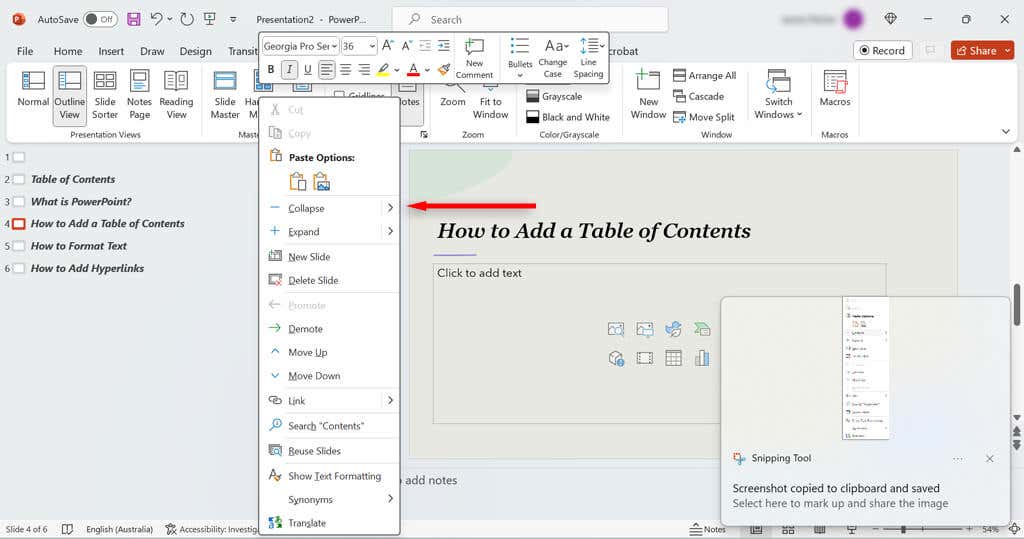
- Right-click again and select Copy from the drop-down menu. Alternatively, select all slides and press Ctrl + C .
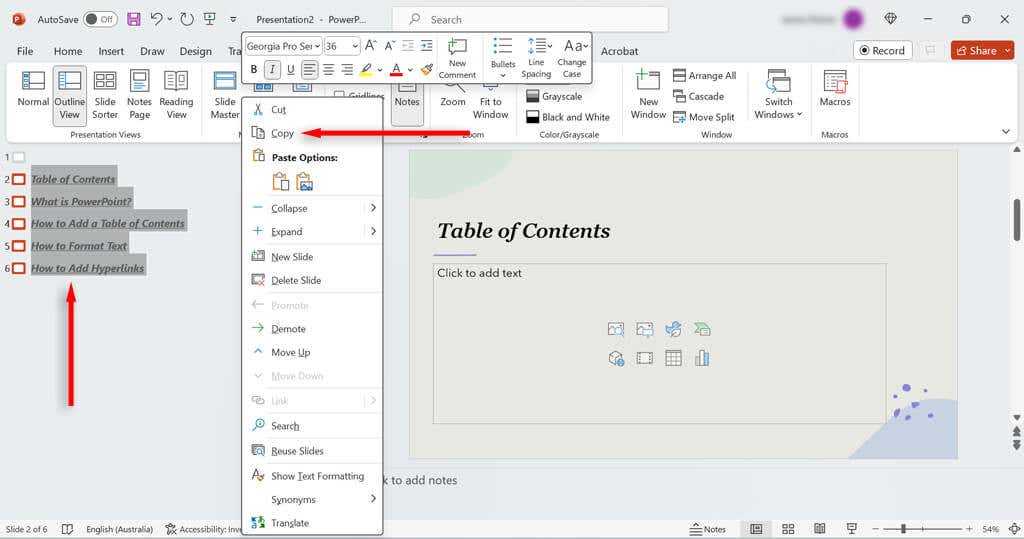
- Head back to the View tab and select Normal .
- Switch to your table of contents slide, right-click, and select Paste . You should now have a page full of slide titles in bullet points.
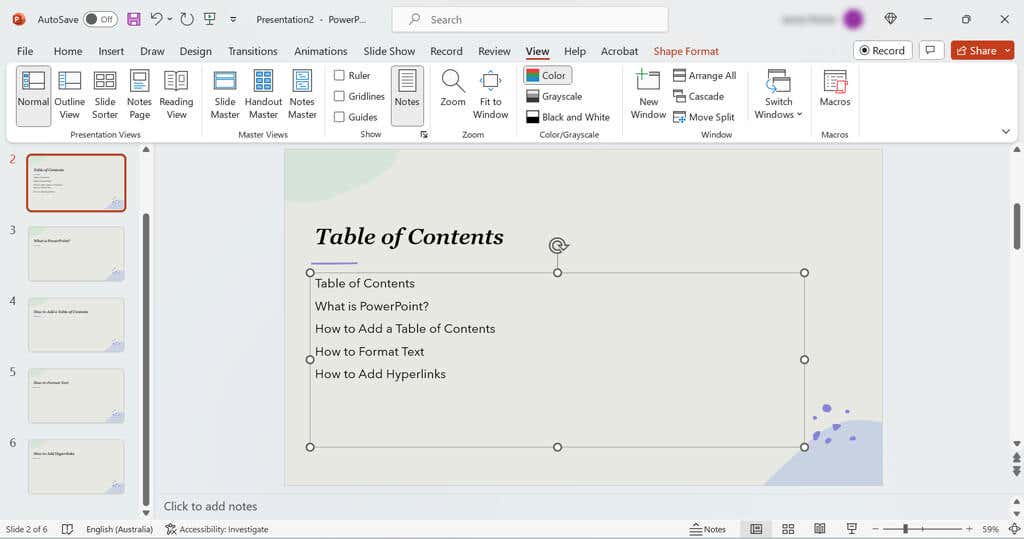
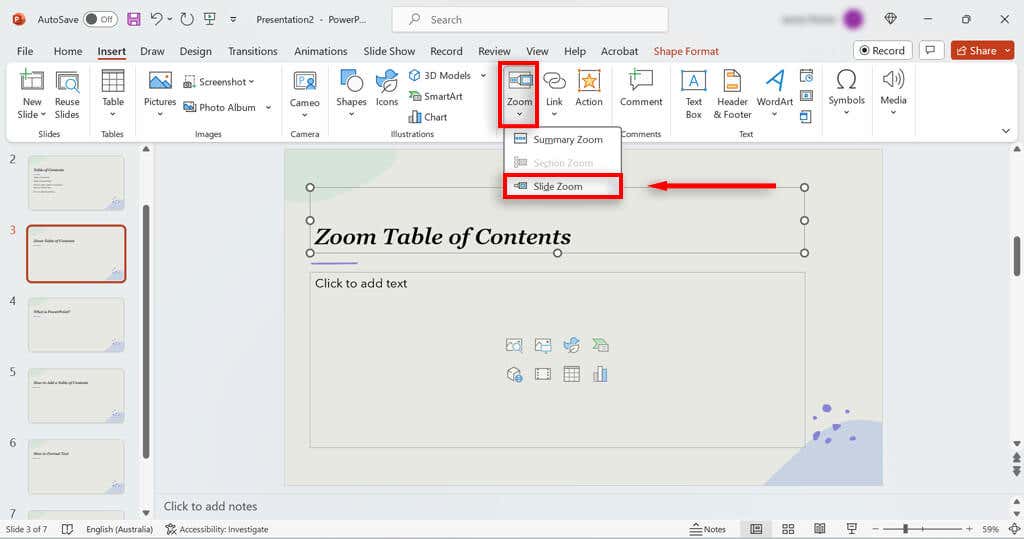
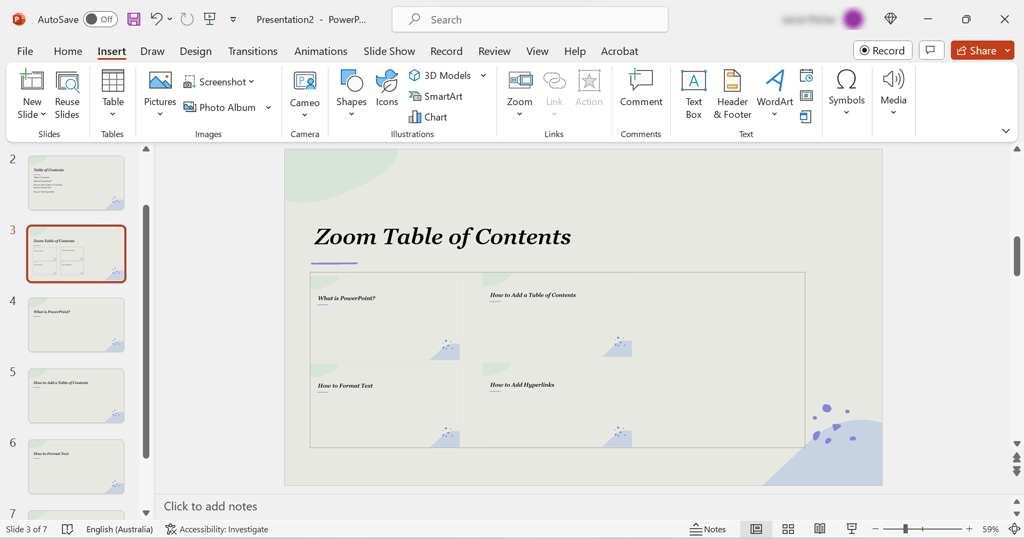
Step 2: Insert Links to Navigate your Slideshow
In this step, we’ll add links to your slide titles so that you can easily navigate your PowerPoint slideshow . Here’s what to do:
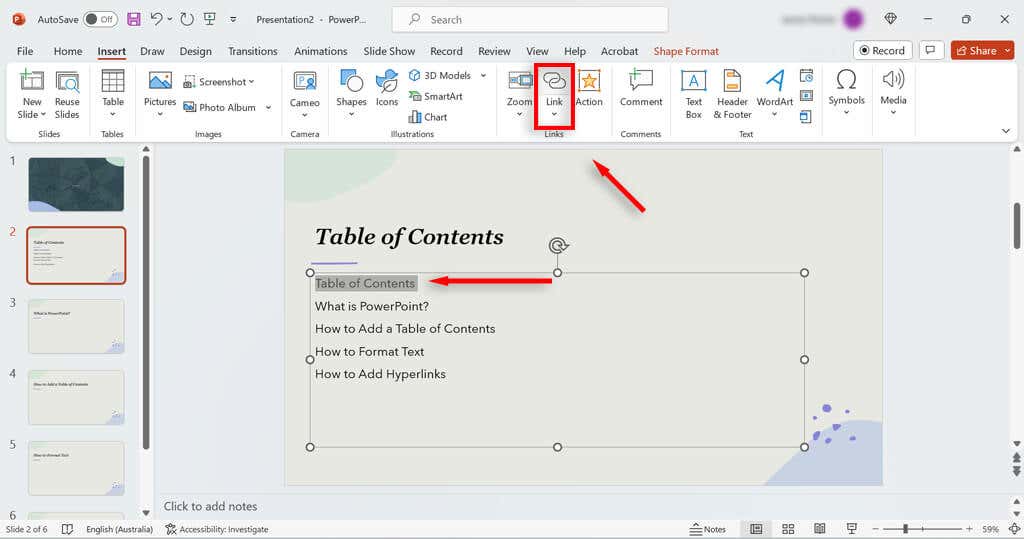
- Navigate to your table of contents slide, then select one of your slide titles.
- Press the Insert tab and select Link .
- Under the Insert Hyperlink dialog box, select Place in This Document .
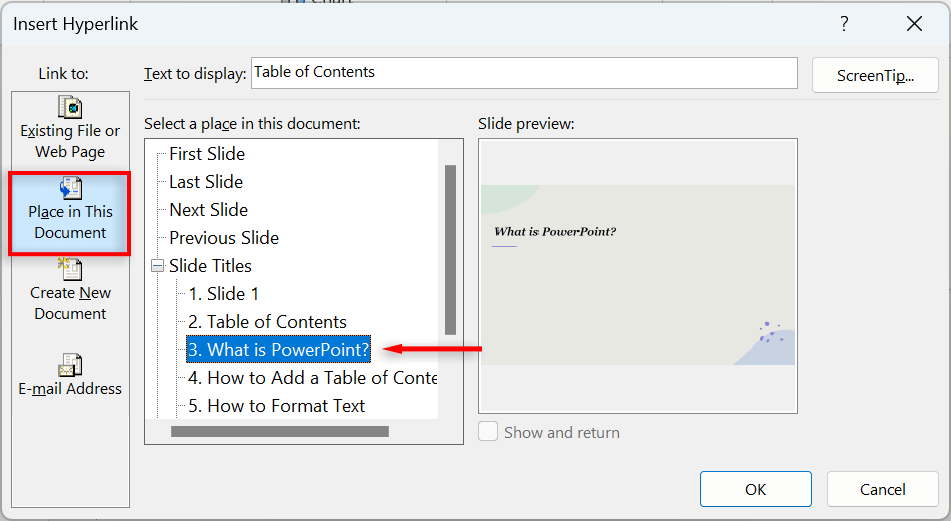
- Under Slide Titles , select the corresponding slide that you want to link to that title. Press OK .
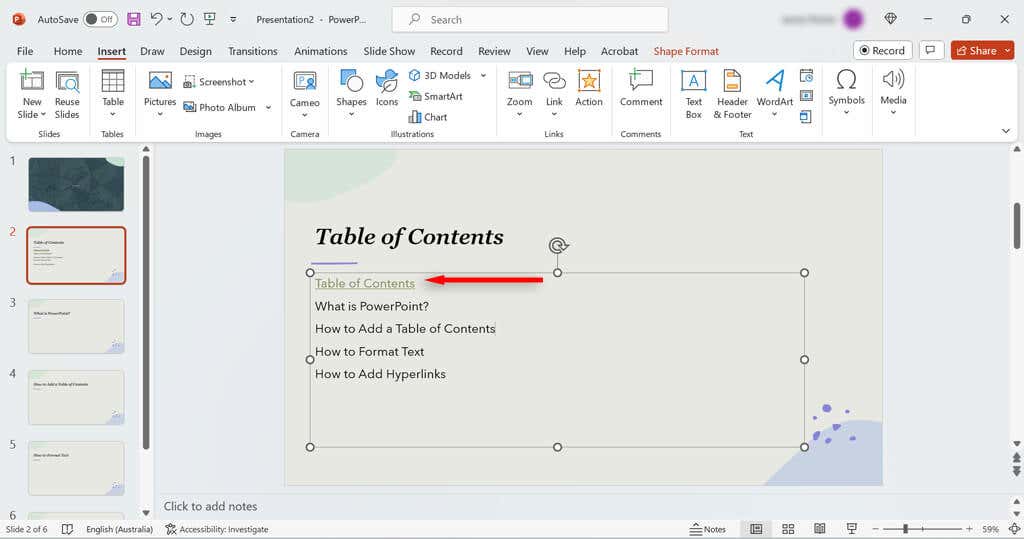
- Repeat these steps for each slide in your table of contents.
Navigate Your Slideshow With Ease
- How to Loop a PowerPoint Presentation
- How to Remove the Footer From PowerPoint Slides
- How to Curve Texts in Microsoft PowerPoint
- How to Change or Remove Animations From PowerPoint Slides
- How to Create Flowcharts in PowerPoint
Jake Harfield is an Australian freelance writer whose passion is finding out how different technologies work. He has written for several online publications, focusing on explaining what he has learned to help others with their tech problems. He’s an avid hiker and birder, and in his spare time you’ll find him in the Aussie bush listening to the birdsong. Read Jake’s Full Bio
