Not only can these skills help your employees and coworkers but they’ll also save you time from fielding all of the questions yourself.
The good news about creating a custom Alexa skill is that you don’t have to start from scratch. With Alexa Blueprints, you begin with a template. Then, just add the details for your own business or company.
Additionally, you can create a new Alexa skill on the web or in the mobile app. The Blueprints and steps are the same, so get ready to follow along on your computer or mobile device.
- On your computer, visit the Alexa Blueprints website and log in with your Amazon account.
- In the Amazon Alexa mobile app, open the More tab, tap See More , and select Blueprints .
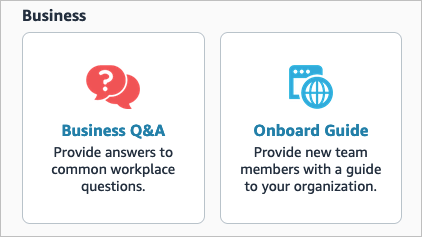
Head to the Business section in your browser or the mobile app, and you’ll see the two skills here.
Create an Onboard Guide for New Employees
By creating an onboard guide, new employees can find all the details they need in one handy spot. From how to connect remotely via VPN to where the office supplies are stored, include as much information as possible to help those newbies.
Select the Onboard Guide Blueprint to get started. You can listen to a sample, review the steps to create the skill, and see how to use it. If you’re ready to begin, select Make Your Own and follow along below.
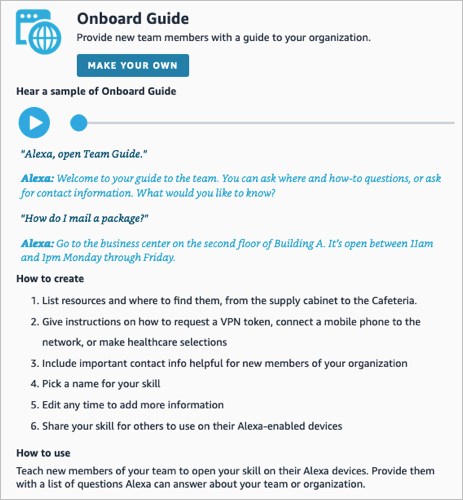
The Blueprint includes sections to help you add the details you need. These include where to find things, how to do things, and who to contact for what.
Where to Find Important Resources
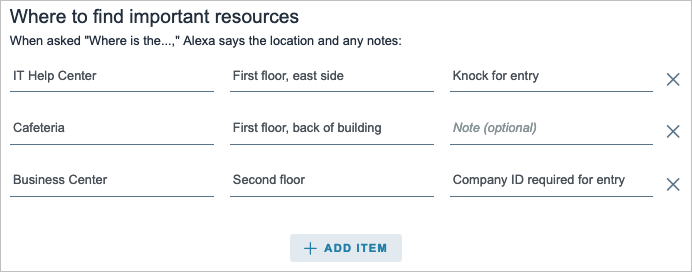
Beginning with the Where to find important resources section, these are things Alexa will respond with when you ask, “Alexa, where is…?”.
- You can keep the sample resources, replace them with your own, and include more with Add Item below the section.
- Enter the location for each item. This can be like, “First floor, back of building.”
- Optionally include a note. This should include anything they need to know about the location, such as “Company ID required for entry.”
How To Do Things
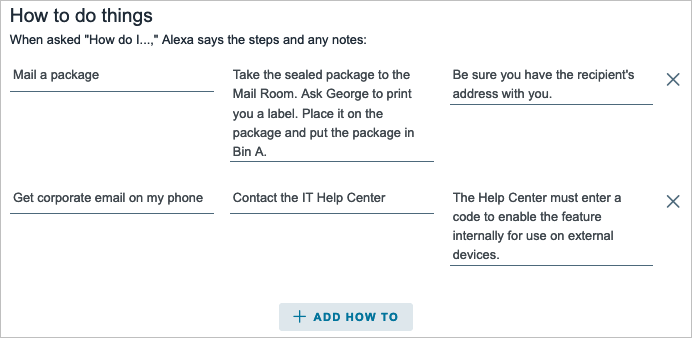
The next section is How to do things and includes responses from Alexa when you ask, “How do I…?”.
- Like the above section, you can use the samples, replace them with your own, and add more with Add How To at the bottom of the section.
- Enter the steps for each item.
- Optionally include a note.
Contact Info
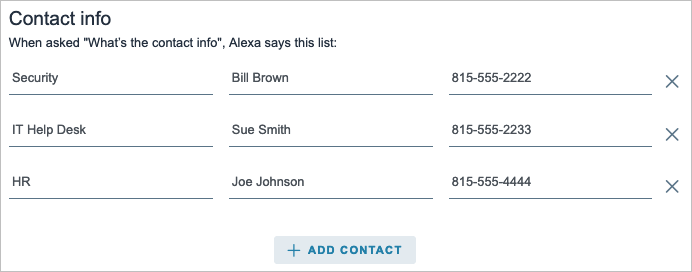
The final section is for Contact info . This section works differently in that Alexa responds with the list you set up with the voice command , “What’s the contact info?”.
- Use the samples or enter your own and include more by using Add Contact .
- Enter the name for each business area.
- Add the contacts’ phone numbers. Note: You must enter the area code and seven-digit phone number.
When you finish the sections, select Next: Experience at the top.
Customize the User Experience
You can make Alexa sound more personal by entering Intro and Exit messages.
Enter a welcome message for those using the skill for the first time. Then, include messages that Alexa uses randomly each time your employee opens the skill.
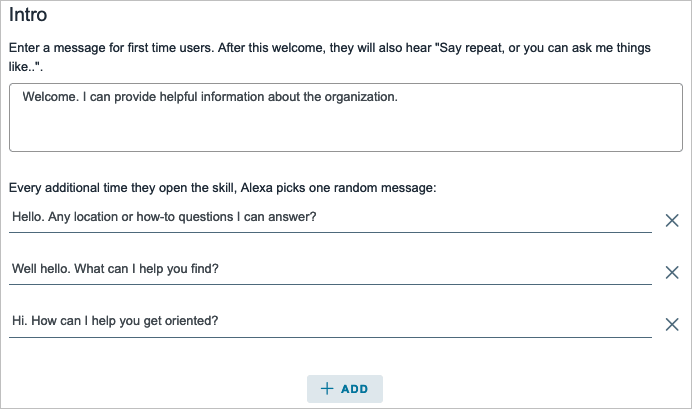
Enter an exit message for when your employee closes the skill.

When you finish, select Next: Name at the top.
Name the Skill
The final step is to give your onboard guide skill a name. Again, try to use simple words that Alexa recognizes.
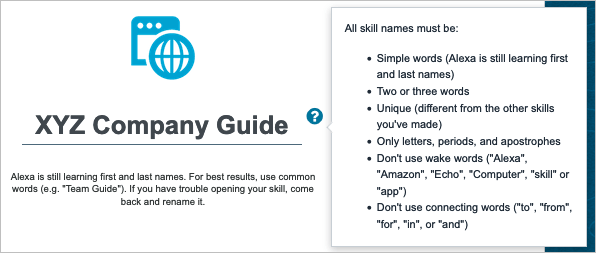
Select Next: Create Skill to complete the creation process. Be patient, the process may take a few moments. You’ll see a confirmation when complete.

Create a Business Q&A Skill to Answer Common Questions
Maybe a guide isn’t as effective as a simple Q&A skill. You might find people asking the same questions over and over. With this skill, you can enter those common questions with their answers.
Select the Business Q&A Blueprint to get started. Like the previous skill, you can hear a sample, review the steps, and see how to use it. Select Make Your Own when you’re ready to begin.

Because not everyone may word the question precisely the same, this Blueprint lets you add variations of questions. And like the previous Blueprint, you’ll see a couple of samples to help you.
Add the Questions and Answers
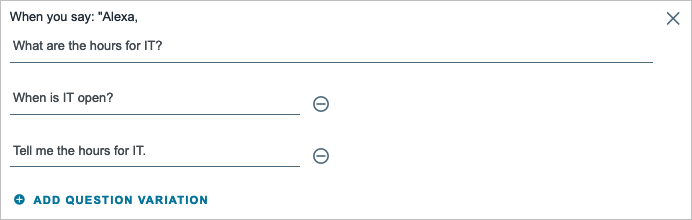
Begin with the first question by using the sample or replacing it with your own. Then, include a few variations of the question.
For instance, if someone asks Alexa, “What are the hours for IT,” “When is IT open,” or “Tell me the hours for IT,” they will each receive the same answer.
You can select Add Question Variation if you want to add more or the minus sign to the right of one to remove it.
Next, add the answer Alexa will respond with to the question and its variations.

After you enter a question, its variations, and the answer, select Add Q&A to set up the next question.
Continue the same process until you’ve entered all of the questions and answers you want. Then, select Next: Experience at the top.
Customize the User Experience
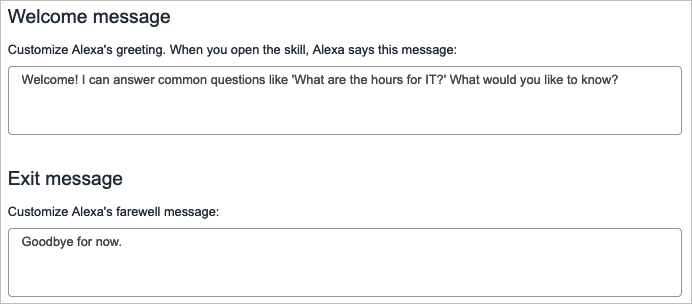
Like the Onboard Guide skill, you can personalize Alexa’s Intro and Exit messages for this skill too.
Enter a welcome message each time someone opens the skill and an exit message when someone closes it.
When you finish, select Next: Name at the top.
Name the Skill
Finally, give your Business Q&A skill a name. Remember to use simple words that Alexa will recognize easily.
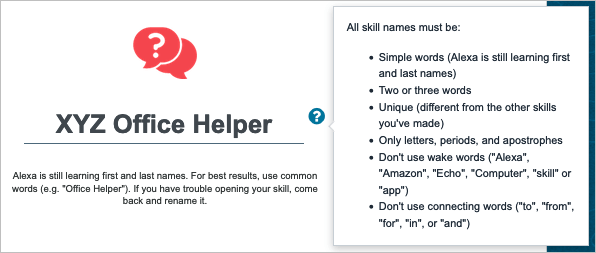
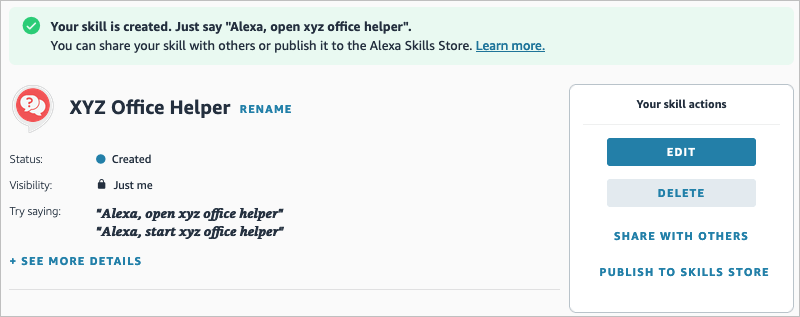
Select Next: Create Skill to complete the process and you’ll see a confirmation when the new skill is ready to use.
Edit the Alexa Skills
As we all know, things change. You may move to a different location, hire a new contact, or change the steps for a task. You can edit your custom skill anytime, both on the web and in the Alexa app.
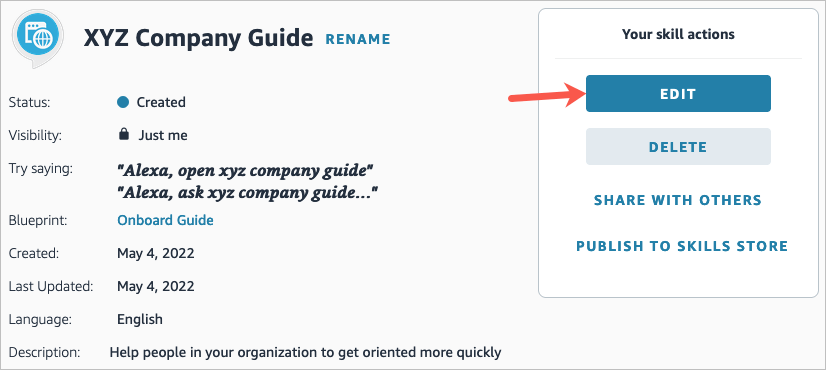
On your computer, return to the Alexa Blueprints website , log in, and choose Skills You’ve Made at the top. Pick the skill name and select Edit to make your changes.
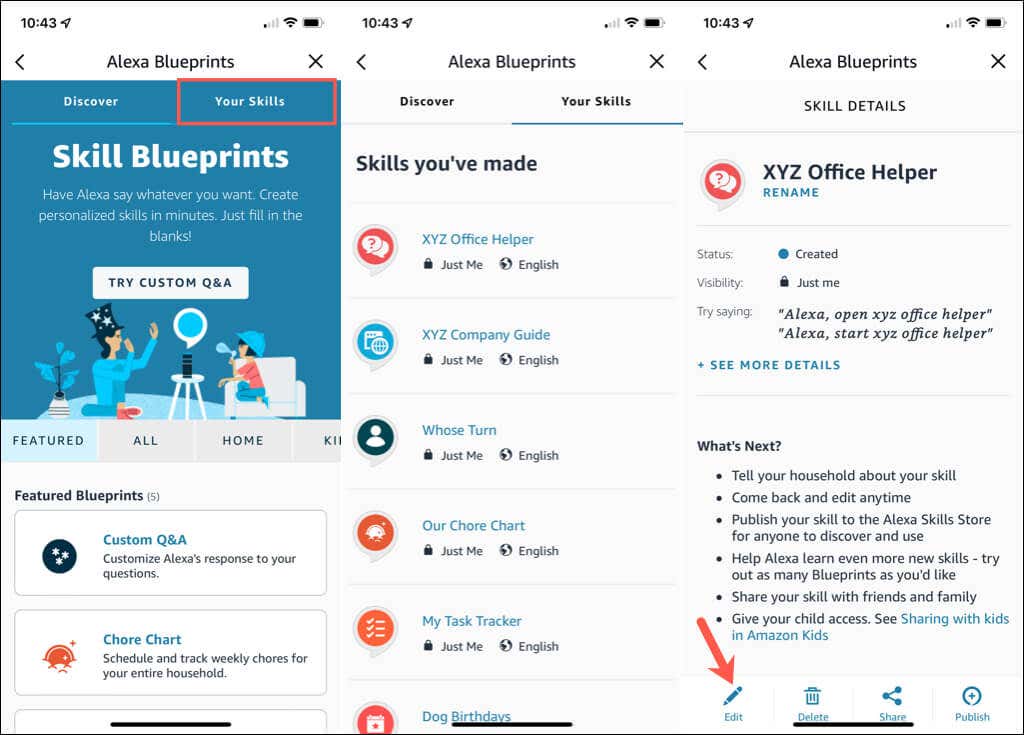
In the Alexa mobile app, return to the Blueprints section. Go to the Your Skills tab, select the skill name, and tap Edit to make your adjustments.
Create Your Own Alexa Skill
Now that you know how to create Alexa skills for your business, will you?
For more, look at cool tricks to try with Alexa , some fun skills for kids and teens , or visit our Smart Home section for related tutorials.
- How to Create Skills With Alexa Blueprints
- How to Shop With Alexa for All Your Shopping
- 10 Cool Alexa Tricks to Try With Your Amazon Echo
- How to Change Alexa Language to Spanish and Other Languages
- Why Alexa Is Flashing Yellow, Green, and What Does it Mean?
RIFFF WEBPVP8L: /¥;g)’$GR‰V»@Ž?ƒp@î©^ª3’Ä lÛ6 f:홽¡_ô %@Š$É‘”•5Âògt_ý=º+ƒ@“Ï<
However, you may be looking for something in particular. Maybe you want a trivia game about your family, a fairy tale where your child is the star character or a guide to your home and neighborhood for a houseguest.

Well, guess what? You can make your own skill using Alexa blueprints. Here’s how!
Browse Alexa Skill Blueprints
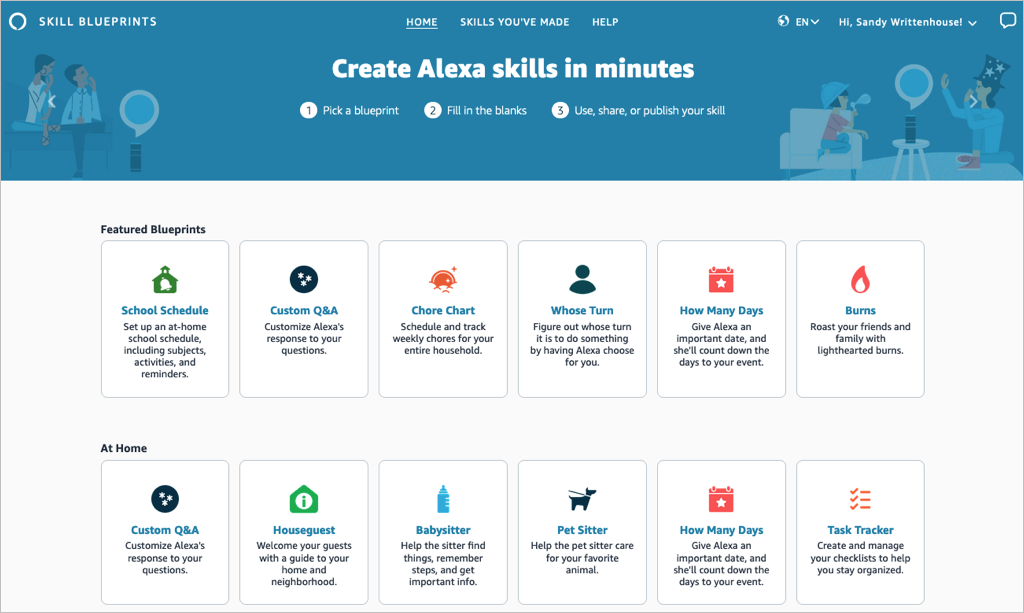
Select a blueprint to view more details and check out examples. This helps you see how the babysitter blueprint can help when you’re away, or the family jokes blueprint can liven up quality time.
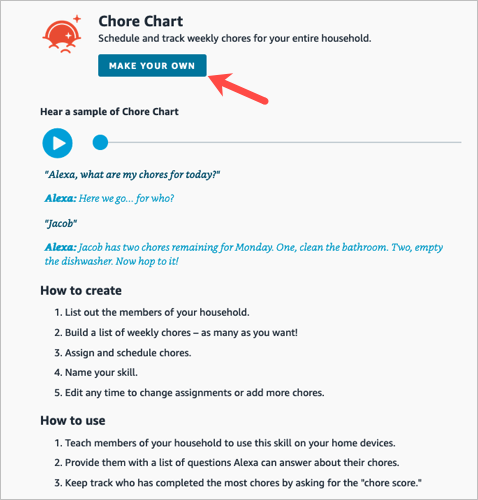
If you find one you want, pick Make Your Own on the skill information screen.
Create a Skill
The steps are the same whether you’re creating a skill with a blueprint on the web or on your mobile device. However, those steps may differ depending on the type of blueprint you select.
For instance, you’ll enter different information for a birthday trivia skill compared to one for flashcards, the pet sitter, or bedtime stories. You can see these steps when you select a blueprint to view its details.
To show you just how easy it is, we’ll create one on each device.
Make a Chore Chart Skill on the Web
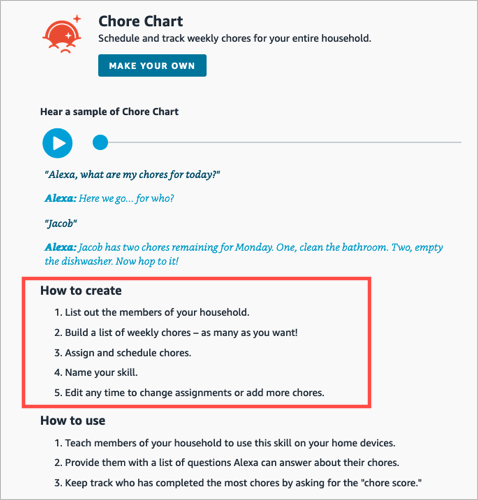
For this first example, we’ll use the Chore Chart blueprint to create a skill on the website. This skill helps keep track of household chores and who is responsible for each one.
- Visit the Alexa Blueprints website, sign into your Amazon account, and choose a blueprint.
- As described above, select Make Your Own directly below the skill name. If you see a short tutorial for building the skill, choose Start Now when you get to the end.
- Next, you’ll be prompted to replace the details for the skill with your own. For the Chore Chart, we’ll fill in the names of our household members and chores.
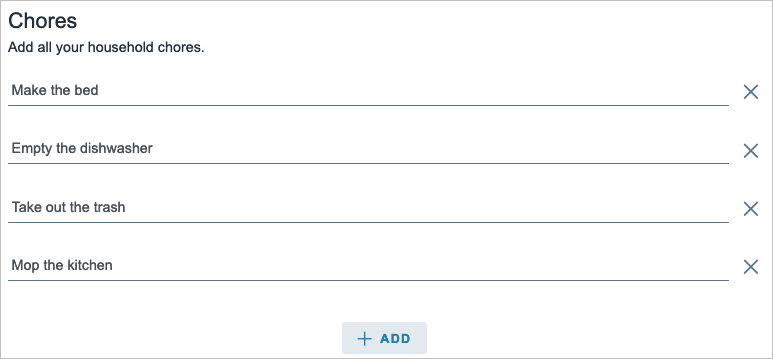
- Select Next on the top right to move to the next step.
- Here again, you may be asked to enter more details for the skill. For the Chore Chart blueprint, we assign the chores to the household members. Just keep in mind that the number of prompts and requested details depend on the exact skill and blueprint.
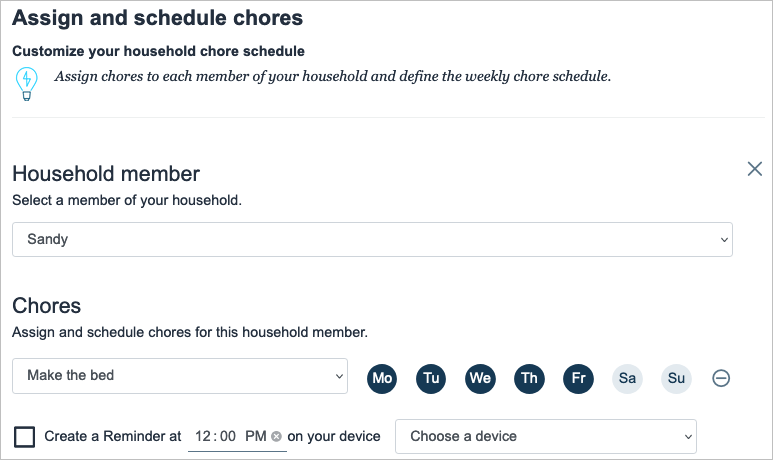
- Select Next to continue.
- One step that you’ll find in most blueprints is for customizing the experience. This refers to how you interact with Alexa for that particular skill. For instance, you can enter introduction phrases for when someone opens the skill and then other phrases for when someone completes a chore. These are the phrases Alexa uses for that specific skill.
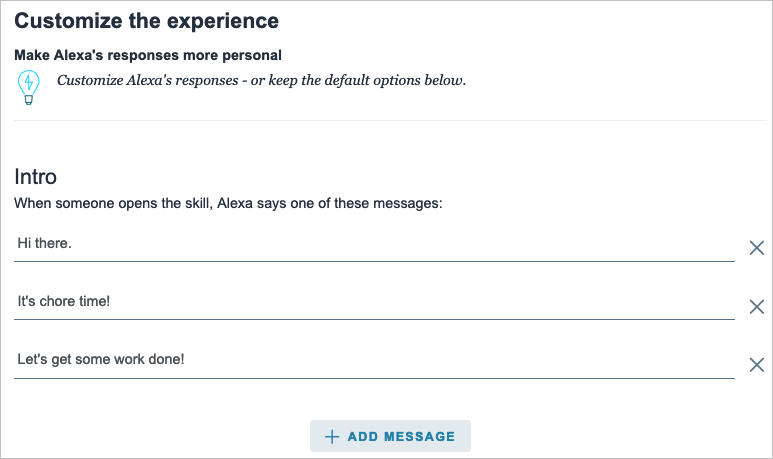
- Select Next to finish entering the details.
- The final step in creating a skill is to give it a name. Try to use something meaningful that you’ll remember but also something simple enough for Alexa to recognize.

- Select Next one last time to create the skill.
After a few moments to process all the information, your skill should be ready to use!

Make a Whose Turn Skill in the Mobile App
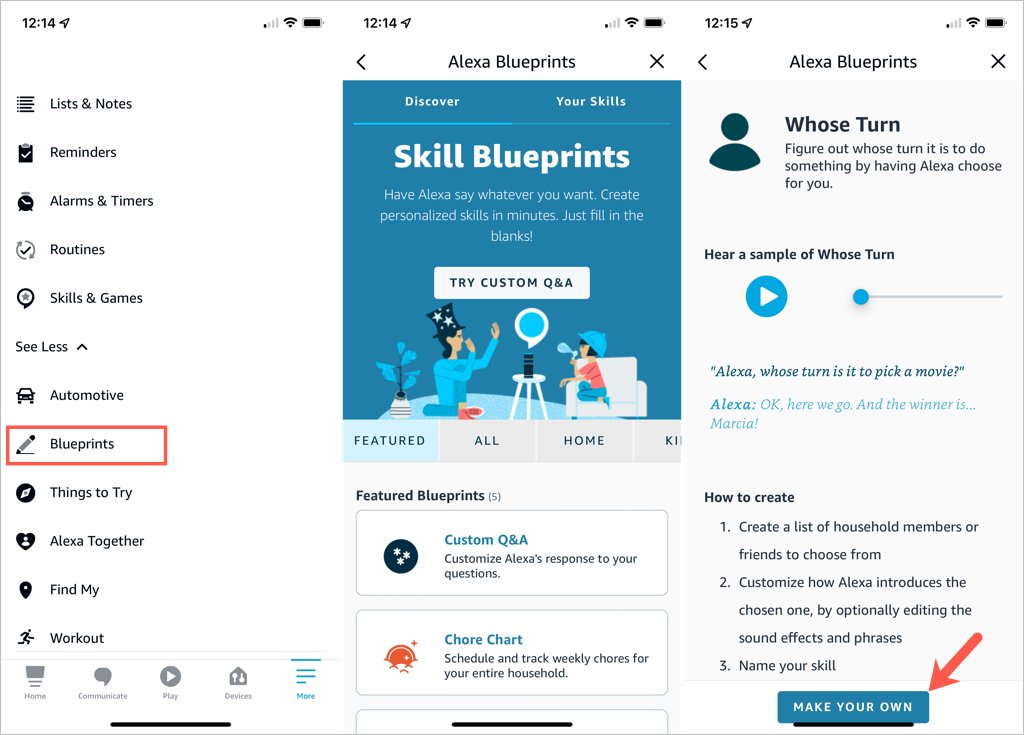
For this next example, we’ll use the Whose Turn blueprint to create a skill in the Alexa app. This skill prompts Alexa to choose whose turn it is to do something.
- Open the Alexa app on Android or iOS and select the More tab.
- Pick See More in the top section and choose Blueprints .
- Browse the options by category, just like on the website. Then, select the one you want to use and tap Make Your Own .
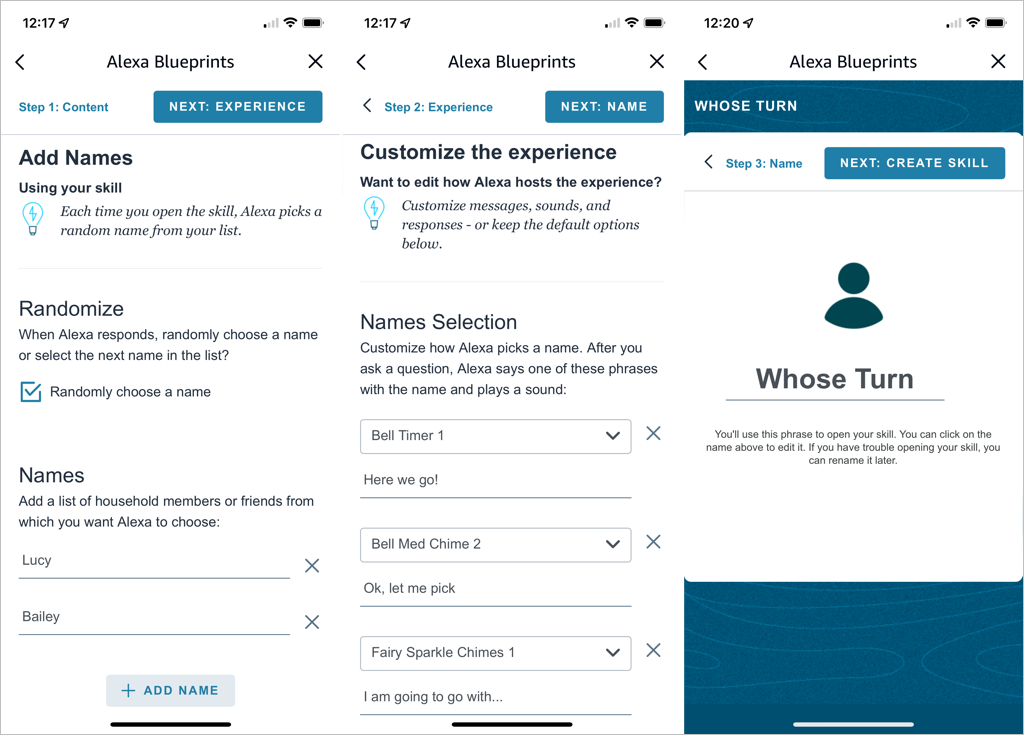
- Replace the details for the skill with your own. For the Whose Turn skill, we’ll add the names for Alexa’s choices.
- Tap Next on the top right to continue.
- The next step for the Whose Turn skill is to personalize the experience. This allows you to customize how Alexa picks a name. After you ask a question, Alexa uses the phrases and sound effects you select in this section. Optionally, you can scroll down for additional customization options.
- Tap Next to name your custom skill.
- Select the text on the name line to edit it or enter your own. Again, pick a meaningful name and one that’s easy for Alexa to recognize.
- Tap Next to create the skill.
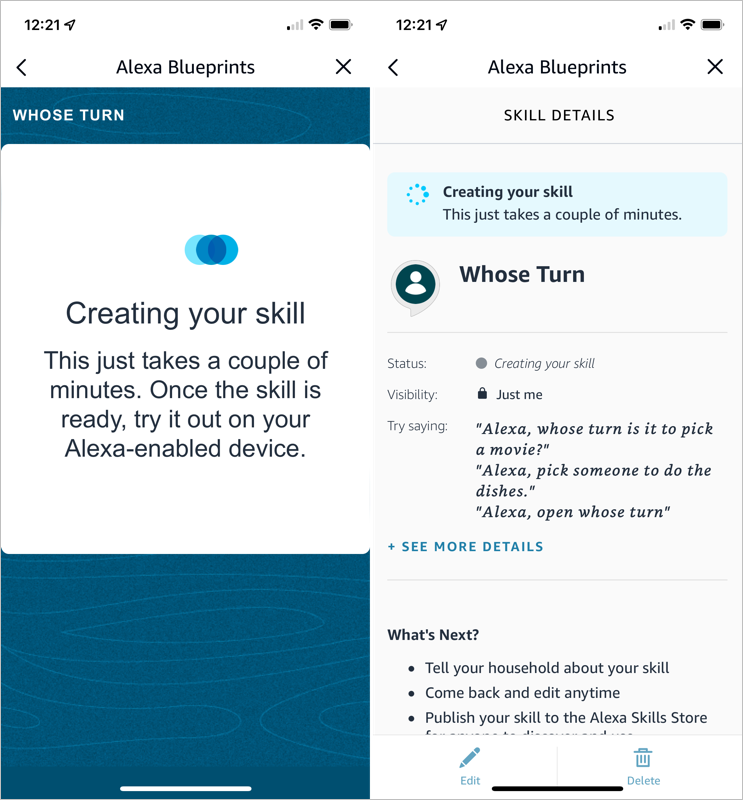
You’ll see the progress as your skill is created and a confirmation when the process completes. You can tap the X on the top right to exit when you finish reviewing your skill.
Edit Skills You Create
Once you create a skill using Alexa Blueprints, you may want to make adjustments to it. You can do this on the web and in the mobile app too.
Your Skills on the Web
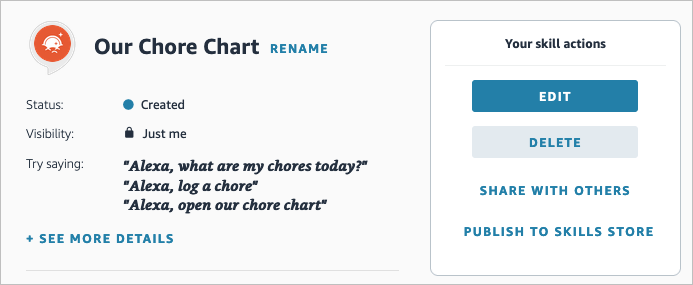
- Visit the Alexa Blueprints website and sign in. Select Skills You’ve Made at the top.
- You’ll see a list of your skills. Choose Details to the right to open the one you want to edit.
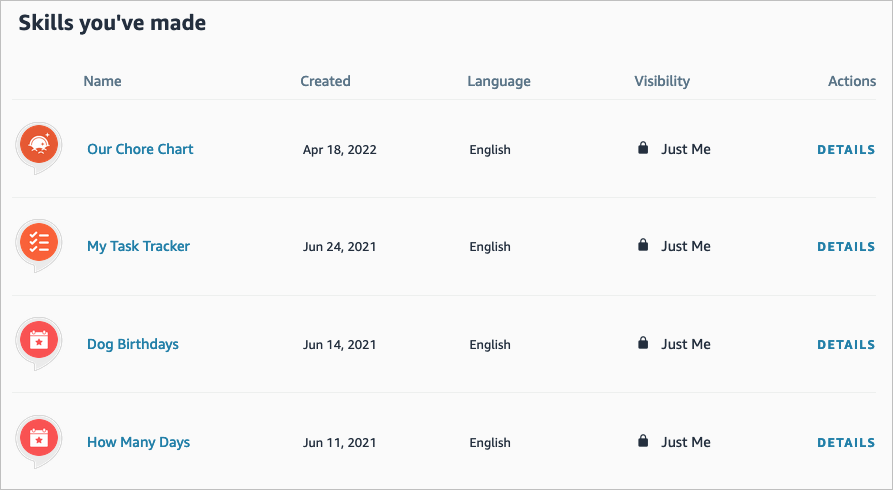
- On the right side, select Edit or Delete . You’ll notice you can also pick Share With Others to make it easy for your family or friends to access or Publish to Skills Store for other Alexa users.
Your Skills in the Mobile App
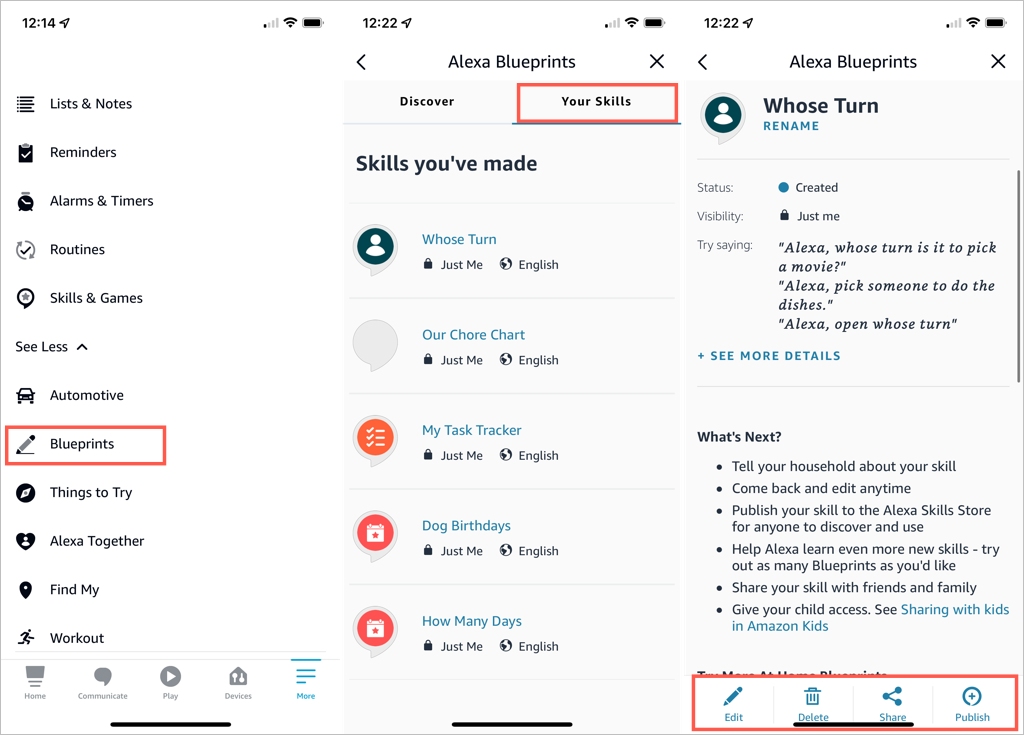
You can edit your custom skills easily in the Alexa mobile app as well.
- Go to the Menu tab.
- Select See More > Blueprints .
- On the Your Skills tab, select the blueprint you want to edit.
- Use the buttons at the bottom to make your changes.
Take Advantage of Alexa Blueprints
Even though there are many premade skills you can pick from, creating your own Alexa skills gives you great ways to personalize the experience on your Alexa devices, get tasks done, or have a little fun !
- How to Create Alexa Skills for Your Business or Employees
- How to Shop With Alexa for All Your Shopping
- 10 Cool Alexa Tricks to Try With Your Amazon Echo
- How to Change Alexa Language to Spanish and Other Languages
- Why Alexa Is Flashing Yellow, Green, and What Does it Mean?
