
Are you looking to create PDFs right from your iPhone? Whether you’re dealing with contracts or receipts or just want to save a webpage for later reading, the ability to produce PDFs directly on your phone can massively streamline your productivity. Fortunately, iOS offers built-in features that make this process a breeze. Let’s dive into the simple steps to transform any document into a PDF with just a few taps on your iPhone.
What’s PDF and Why Would You Need It
PDF is short for Portable Document Format. It’s a file format used by a wide population in professional, academic, or private spheres of life. PDF is a versatile file format that can easily be shared across platforms and apps. Every modern device has an app that’s capable of opening PDF files.
PDF files can contain text, images, and other interactive elements such as hyperlinks and buttons. They’re great for saving your work or school projects, especially if you need to share them but restrict other people from modifying them. Any file type can be converted to PDF. This is a great way to compress large files without losing the quality of their content. On top of that, PDFs have amazing security features, so you can rest assured your documents will be properly encrypted and even password-protected if you choose so.
So let’s see how you can easily create PDF files on your iPhone.
1. Use iPhone’s Share Option to Convert Any File into a PDF
Apple allows users to convert just about any file into a PDF through the iPhone’s Share feature. Since this is a built-in feature, you won’t have to download and install any third-party apps for file conversion.
The method to convert a PDF file with the share option will depend on the file type you’re dealing with. If it’s a text document, you’ll use the Files app , and if it’s an image, the best choice is to use the Print Menu. If you want to save a web page as a PDF, use the Markup option in the Share menu.
1. Convert Text Files via the Files App on iPhone
If you’re trying to convert a text document into a PDF file, follow these steps:
- Move your document to the Files app and open it.
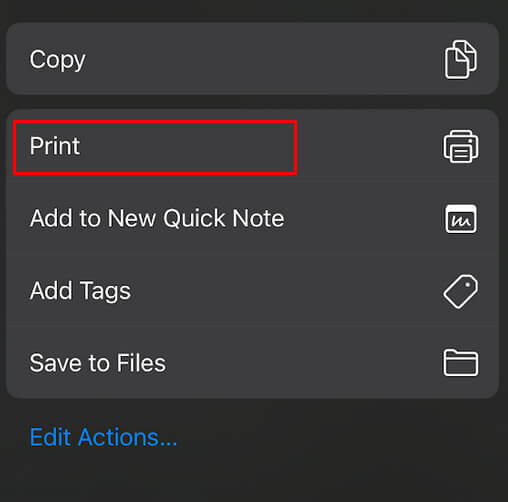
- Tap the share menu and select Print .
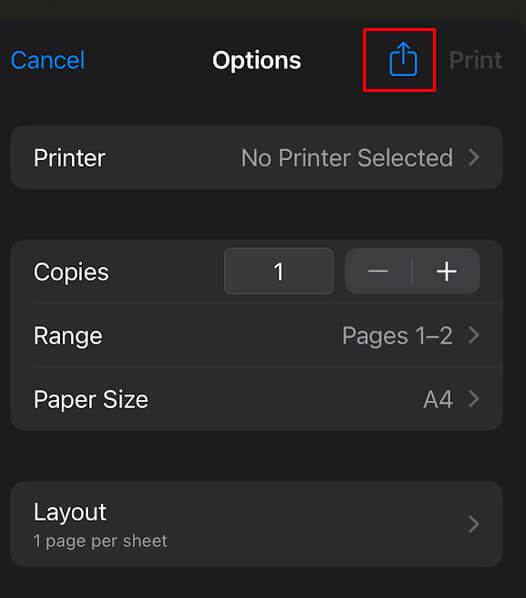
- At the top of the screen, you’ll find a second Share button, tap it.
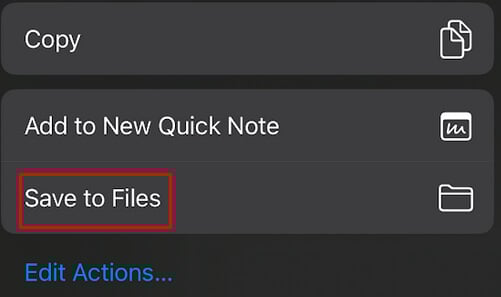
- This will convert your document into a PDF file. Select where you want to send it or save it. You can save it in the Files app, share it with others through different apps, or email it to someone.
2. Convert an Image into PDF on iPhone
Converting images to PDF is similar to converting text documents. But instead of using the Files app, you’ll do it directly from your Photo gallery. Here’s how:
- Open the photo you want to convert to PDF in the Photos app and tap the Share button.

- Select Print from the menu. You might need to access this menu by swiping up on your screen.
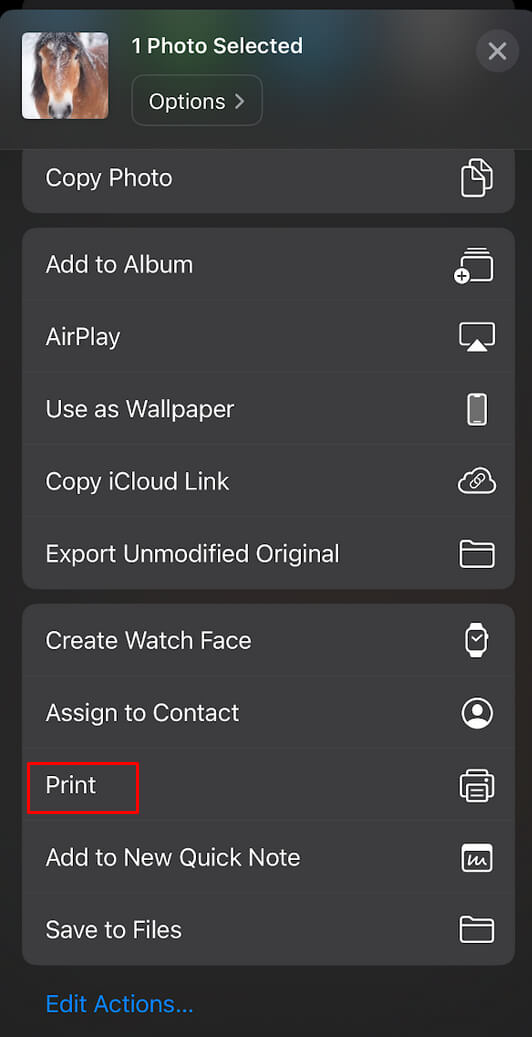
- Tap the Share button again, the one at the top-right corner of the screen, and select where to send your PDF. Just like with text documents, you can select to send it via email or different apps or to save it directly in the Files app or Dropbox.
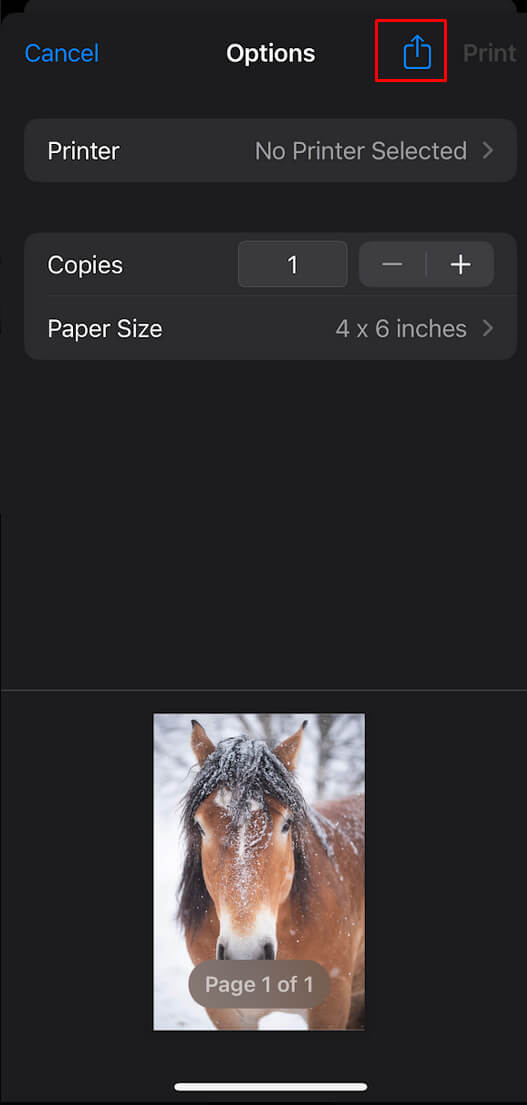
3. Convert Web Pages, Emails, or Other Online Content into PDF on iPhone
iPhone’s new functionality allows you to create PDFs from different online sources such as web pages or emails. Just follow these simple steps:
- Open the content you want to convert to PDF.
- Tap the Share button at the bottom of the screen. Typically it’s represented by a square with an upright arrow in it.

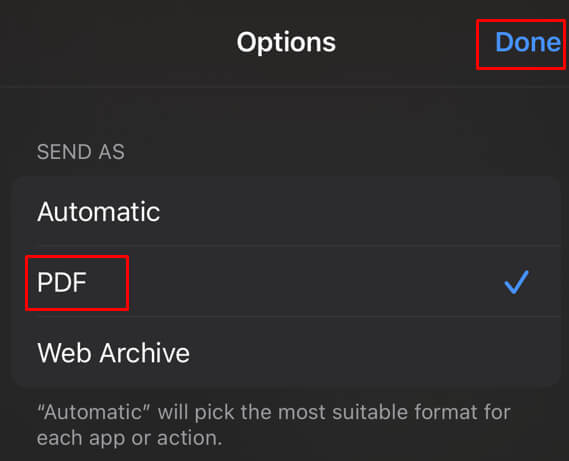
- Tap Options .

- Select the PDF option and tap Done in the top-right corner of the screen.
- Your content will be converted to PDF automatically. This is where you can use the markup tool to add annotations if you want to.
- To save the PDF file tap the Share button again and select if you want to save it in the Files app, or send it via email or other available apps.
2. Use Google Docs to Create PDFs on iPhone
Google Docs is the safest bet that you’ll successfully convert a file to PDF using your Apple device, be it iPhone or iPad. You can use a document that’s created via Google Docs, or import one of your files into the Google Doc app (or via a web page) to make a PDF out of it. Then just follow these steps:
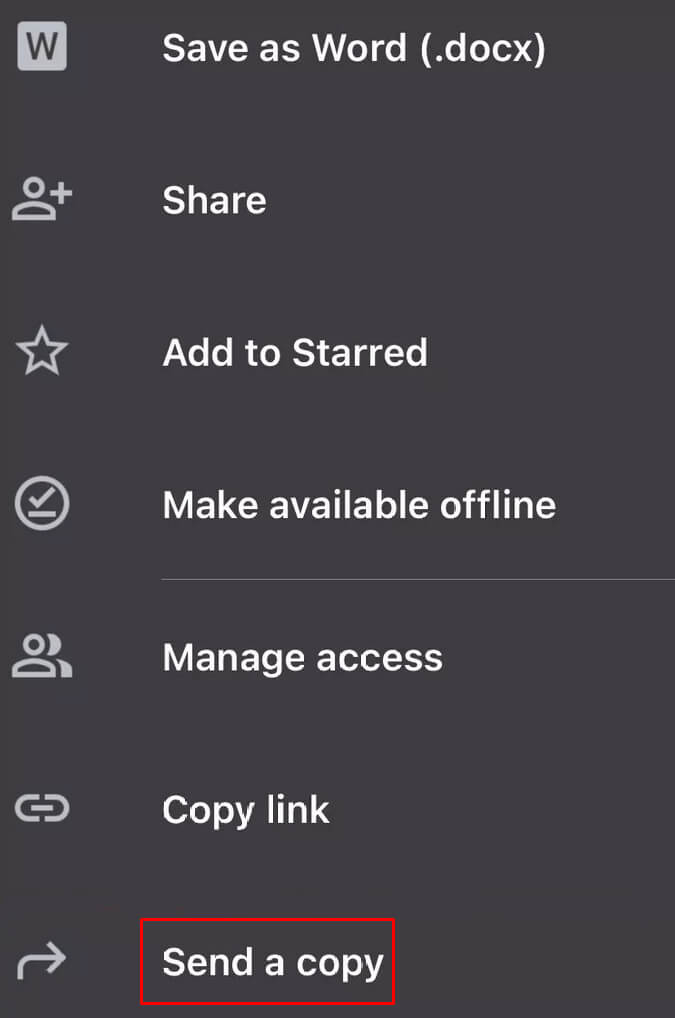
- Find your document in Google Docs and tap the three-dot menu under it.
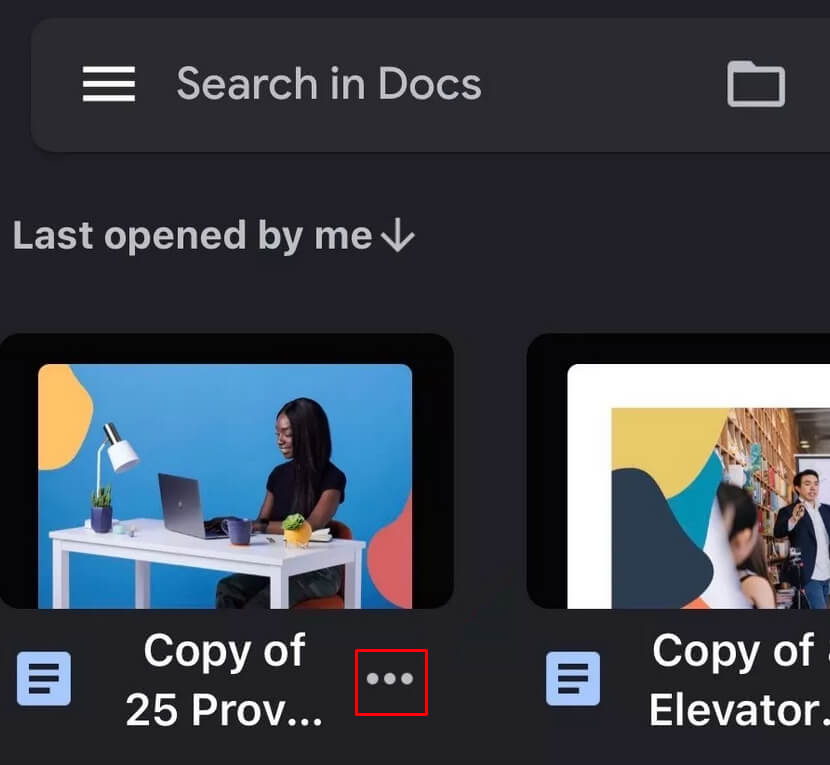
- Select Send a copy from the menu.
- From the next menu select PDF and tap OK .
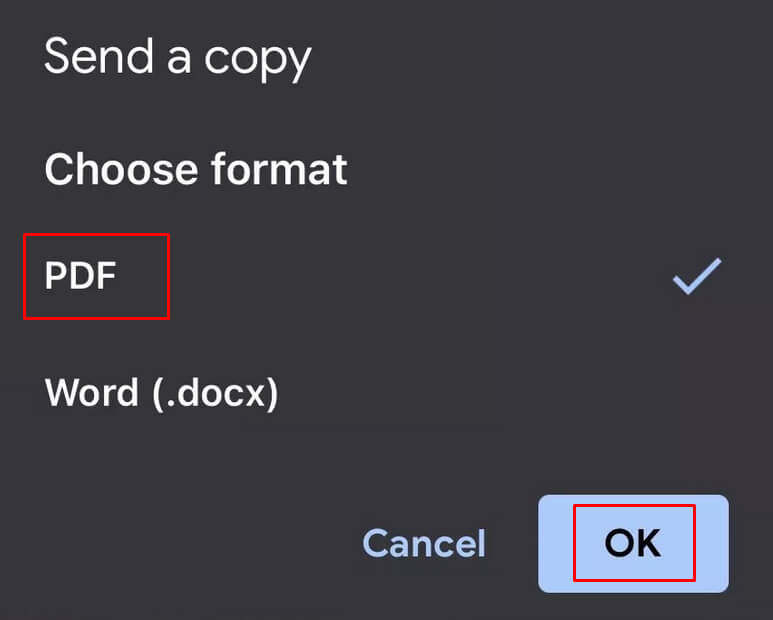
- This will generate the PDF file and you can select to send it or save it via the share menu.
3. Use Third-Party Apps to Convert Files to PDF on iPhone
There are different third-party apps that you can download and install on your iPhone and use to create PDF files. They’ll help you convert all kinds of file types to PDF, but they can also create blank PDF files. Some of these apps have enhanced PDF functionality such as Microsoft Office Suite (all Microsoft Office apps allow you to save files as PDFs) or Foxit PDF Editor. Both of the popular third-party apps are available via Apple Store and are easy to use.
And there you have it. With these tools at your fingertips, you can convert almost anything into a PDF, from important emails and detailed web pages to photos and documents. Whether preserving records, organizing documents, or sharing information, creating PDFs on your iPhone can enhance your productivity and ensure you always have your important files in a portable, secure format. So go ahead, give these methods a try, and see just how easy and efficient managing documents on your iPhone can be.
- How to Send Emails on iPhone
- How to Use Your iPhone as a USB Drive on Mac and PC
- How to Turn Off Password Suggestions on iPhone
- How to Accept Invite to Shared Album on iPhone
- iPhone Not Sending Emails? 10 Fixes to Try
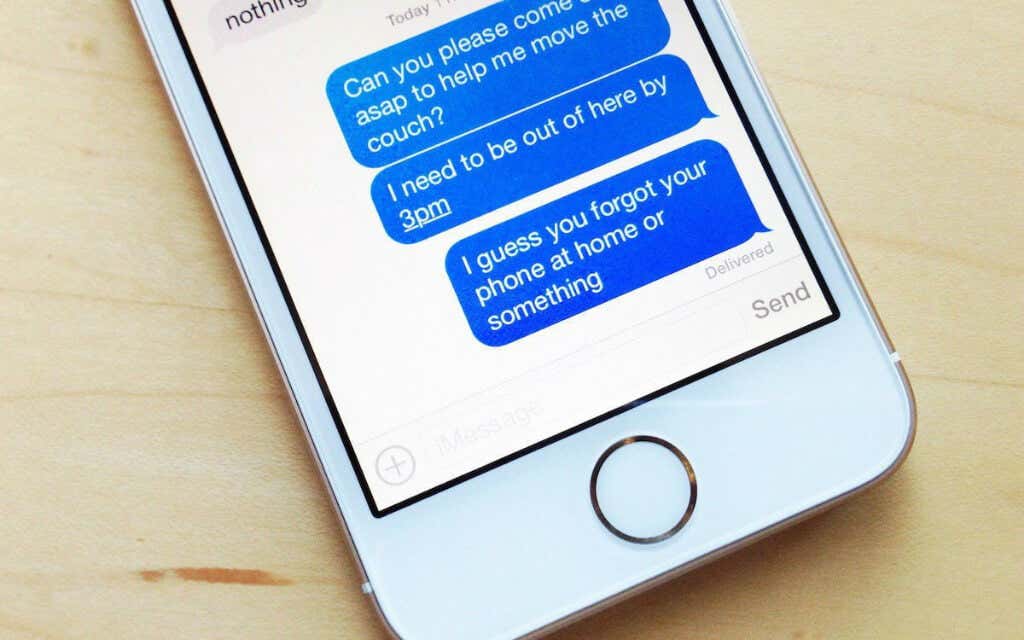
Do you want to create hard copies of SMS or iMessage texts on your iPhone? The Messages app for iOS doesn’t feature a built-in option to print individual texts or conversation threads, so you must rely on workarounds instead.
Read on to learn three ways to print iPhone text messages. They also apply to the iPod touch and the iPad version of Messages.
Take and Print Screenshots of Message Threads on iPhone
If you want to print your messages natively on an iPhone, the only way is to take screenshots and create printouts using an AirPrint-compatible printer . However, it is time-consuming and tedious, especially for lengthy conversations. Look into the other methods if that feels too much of a hassle.
Open the Messages app and open the iPhone SMS or iMessage text conversation you want to print.
Scroll to the top of the conversation thread. Repeatedly tap the top-most corners of the screen to scroll up faster.
Take a screenshot and save it to the Photos app. If you use an iPhone with Face ID, press the Volume Up button and the Side button together to take a screenshot. On devices with Touch ID, press the Home button and the Side button together instead.
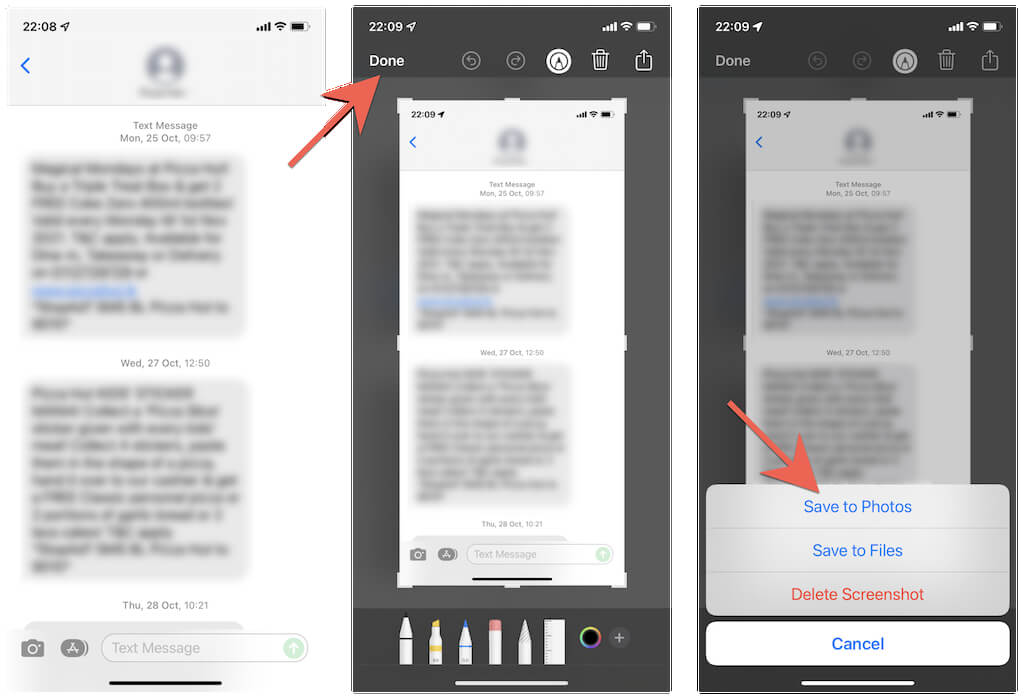
Scroll down the conversation thread and keep taking screenshots repeatedly.
Open the Photos app, switch to the Albums tab, and tap Screenshots .
Tap the Select button at the top-right of the screen and select the screenshots in the order you took them.
Tap the Share button at the bottom-left of the screen.
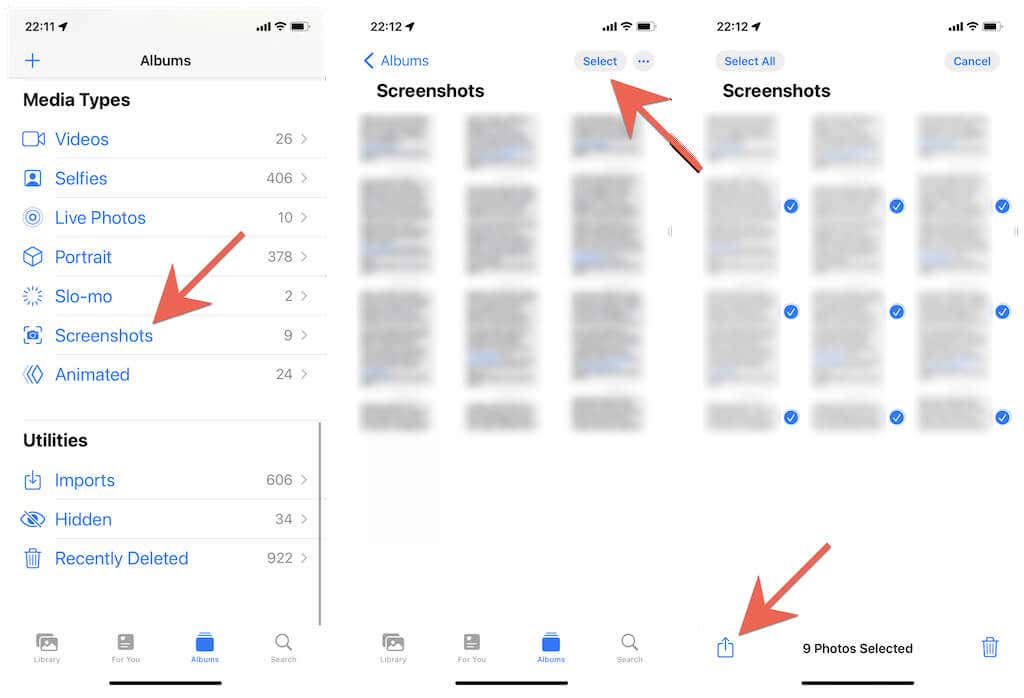
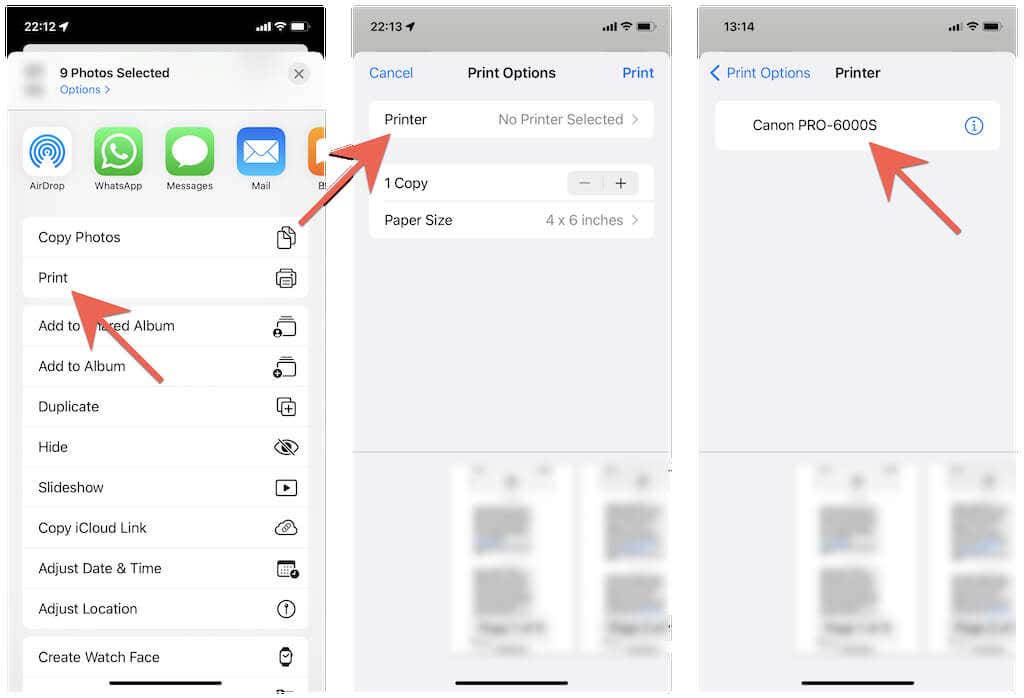
Tap the option labeled Print on the Share Sheet.
Tap Printer .
Select your AirPrint printer.
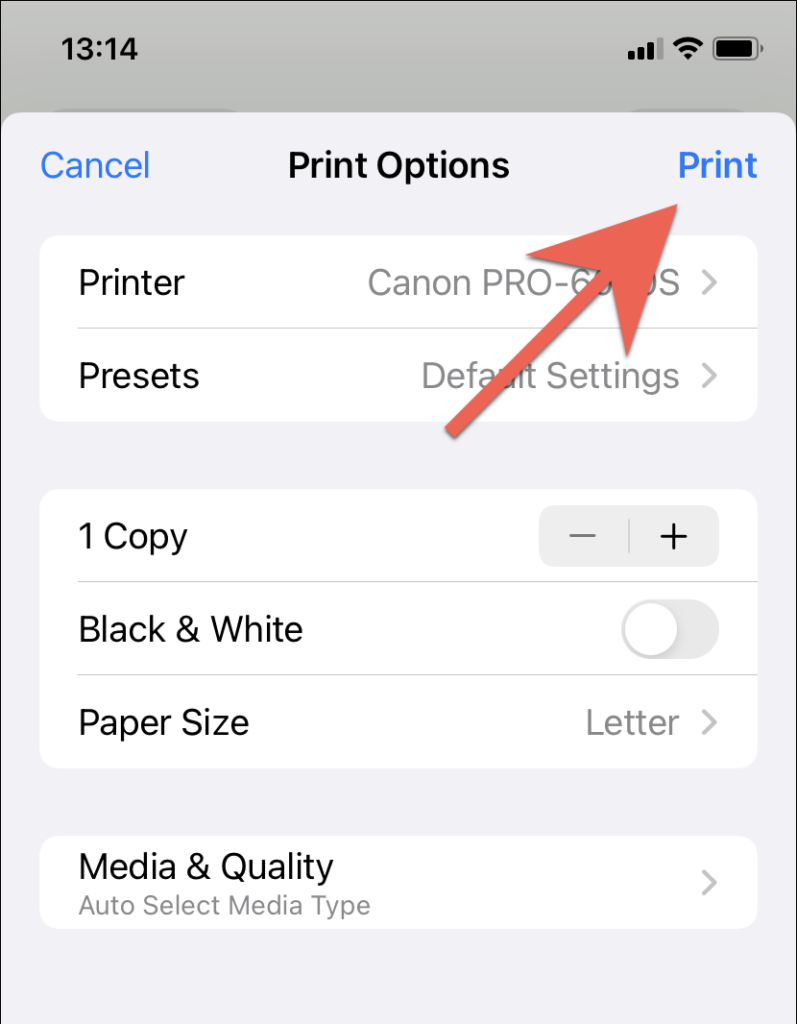
Set up the print job by specifying the number of copies, color, media quality, etc.
Tap Print .
Wait for the AirPrint printer to finish printing.
You can manage the print job by accessing the Print Center app via the App Switcher (swipe up from the bottom of the screen or double-click the Home button twice).
Alternatively, you can choose to save the screenshots as a PDF. Assuming that you use an iPhone with iOS 15 or later, simply tap the Print option in step 9 (without selecting a physical print), and you should be able to save it to the Files app. Or, share the images to a Windows PC or Mac (via Airdrop or the Mail app) and print them out.
Sync Text Messages via iCloud and Print Them on Mac
Unlike on iPhone, the macOS version of Messages is fully capable of printing both regular text and iMessage conversations. If you own a Mac, you just need to sign into the Messages app with the same Apple ID as your iPhone (if you aren’t already) and have Messages in iCloud active.
However, the printout will not display the contact’s name at the top of the pages. Check out the following method if that is a problem.
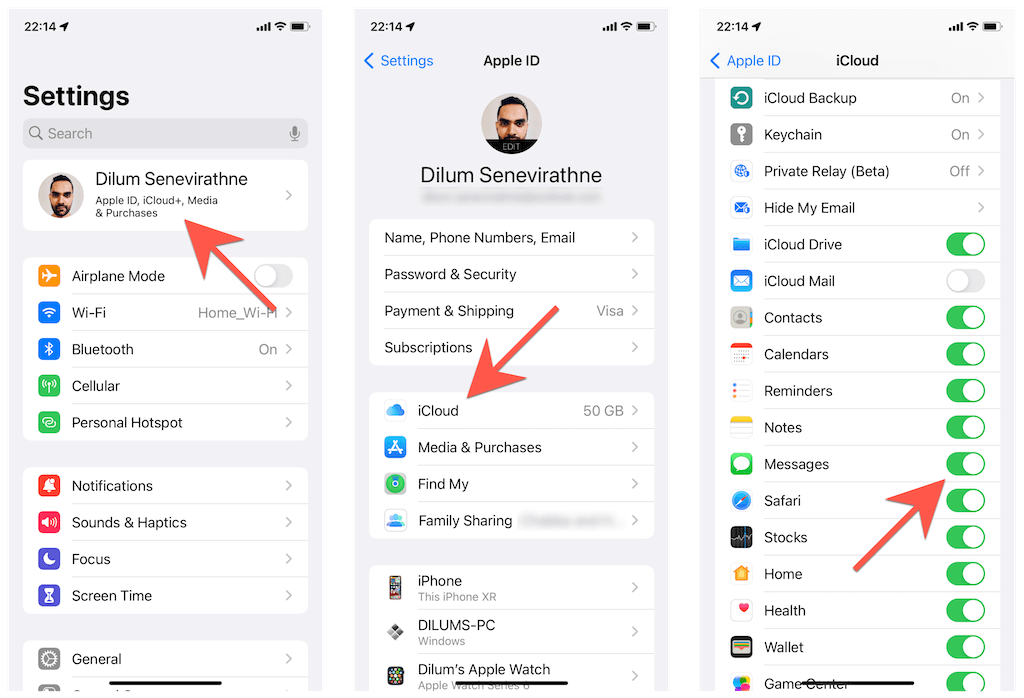
- Open the Settings app on your iPhone and tap Apple ID > iCloud . Then, make sure that the switch next to Messages is active.
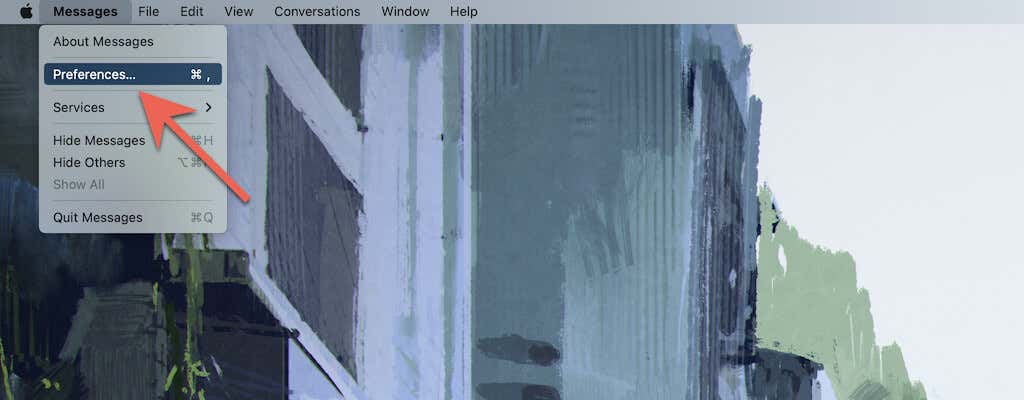
- Open the Messages app on your Mac and select Messages > Preferences on the menu bar.
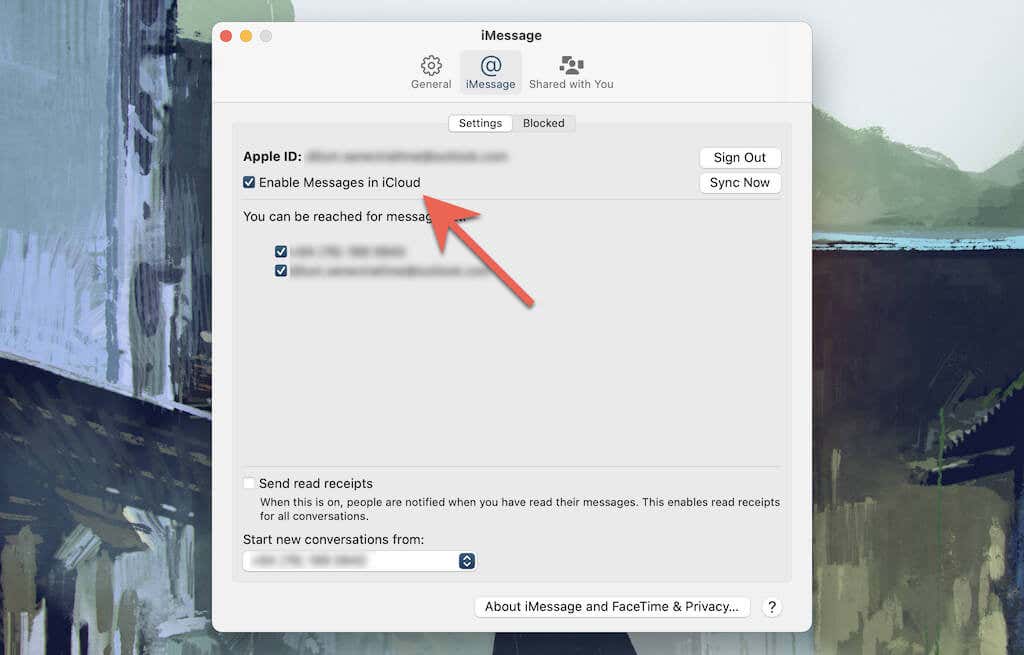
Switch to the iMessage tab.
Sign in to the Mac with the same Apple ID as your iPhone and activate the box next to Enable Messages in iCloud .
Wait until your messages sync from your iPhone to your Mac.
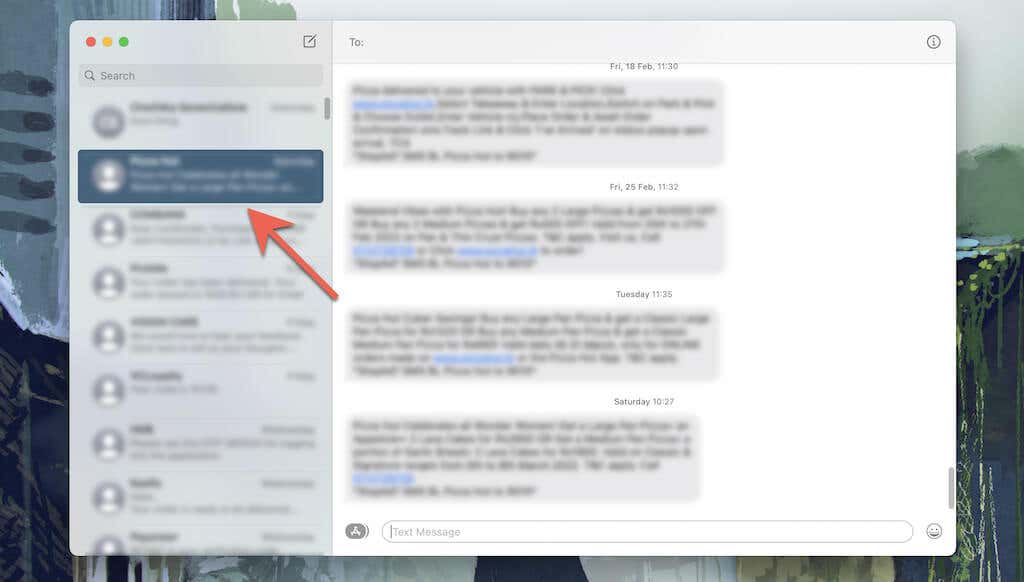
Select the conversation thread you want to print.
Scroll to the top to load the entire thread.
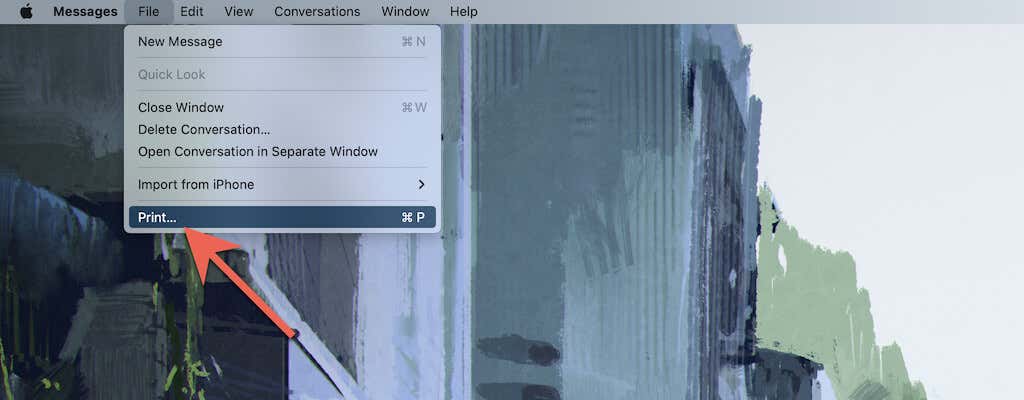
- Select File > Print on the menu bar.
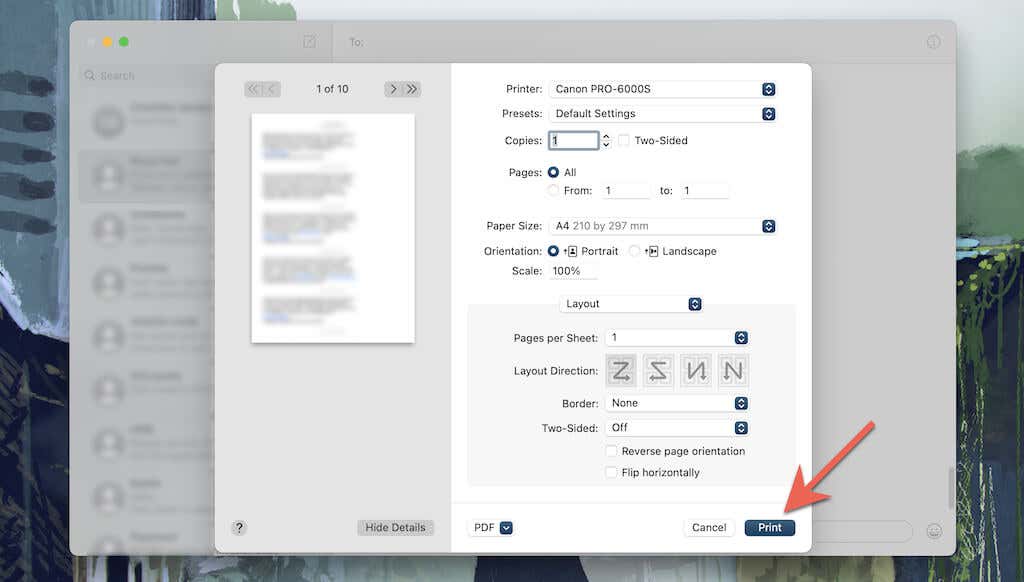
- Select your printer, specify your print preferences (number of copies, paper size, orientation, etc.), and select the Print button. Or, choose PDF on the bottom pull-down menu to save the conversation as a PDF.
Print Out Message Conversations on iPhone Using iMazing
If you plan on printing lots of conversations or want to prepare hard copies for legal proceedings in court cases, you can use an iTunes alternative called iMazing to help you out. However, it isn’t free and costs $34.99 per license.
iMazing is mainly known for its iPhone management and data recovery tools but also lets you take printouts of text messages and attachments quickly. You can print individual texts, messages between specific dates, and multiple conversations simultaneously. You get the option of adding contact details and time stamps for each message. iMazing also allows you to print WhatsApp chats.
Download and install iMazing on your PC or Mac.
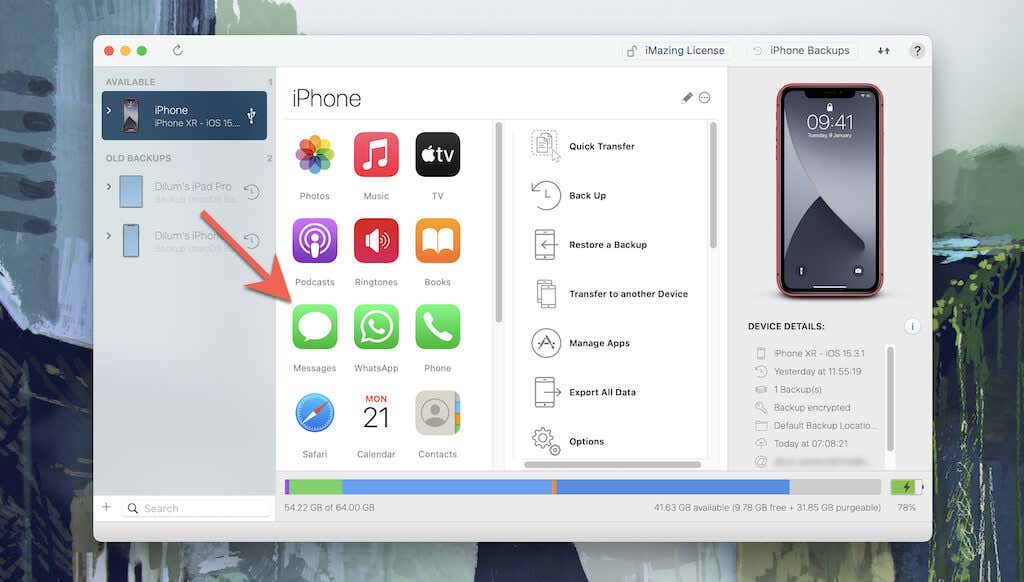
Open iMazing and connect your iPhone via a USB cable. Then, unlock the iOS device and tap Allow or Trust .
Select your iPhone on the sidebar and choose Messages . If you want to print WhatsApp messages, select WhatsApp instead. iMazing will begin creating a backup of the iPhone’s data to local storage. Wait until it completes before you proceed.
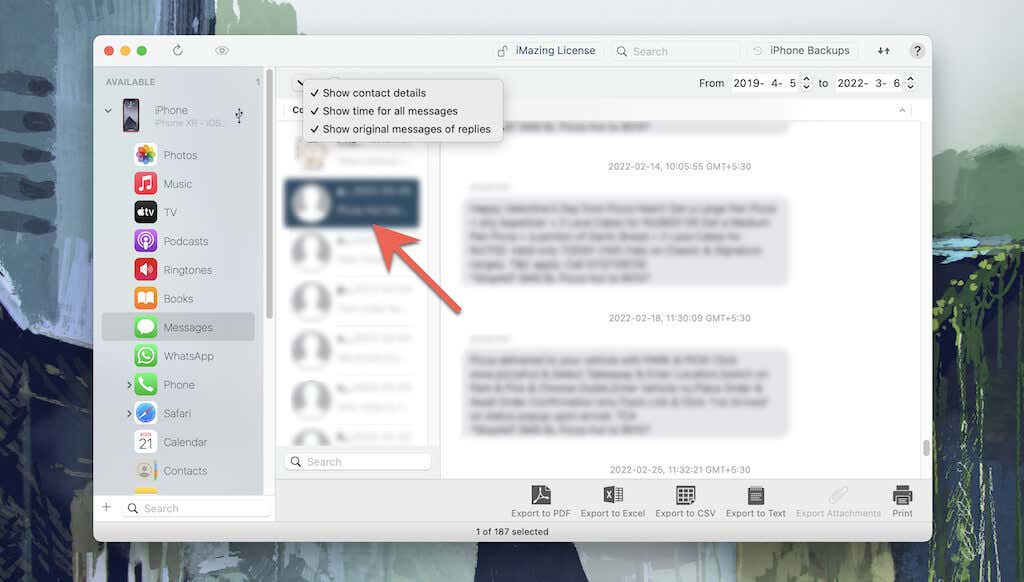
Select the conversation you want to print . You can also select multiple conversations while holding down the Control or the Command key. If you’re going to print specific iMessage or SMS messages only, hold down Control / Command and highlight them. Or, use the filters at the right corner of the screen to set a date range.
Select the Down arrow at the top of the sidebar and select Show contact details and Show time for all messages to show the contact details and time stamps for all messages within the conversation. You can also select Show original messages of replies to display the original messages to replies in the printouts.
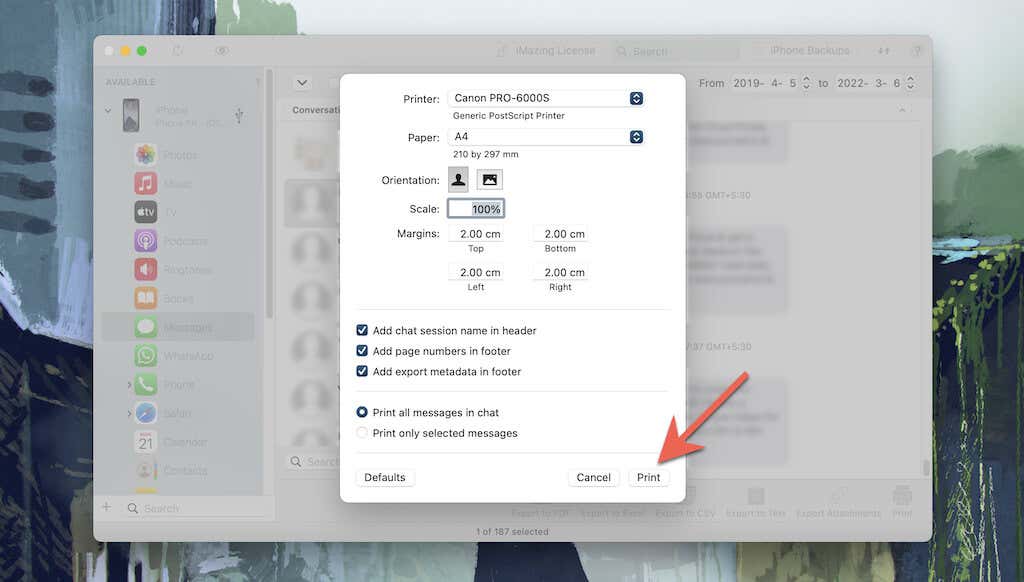
- Specify your print preferences (number of copies, paper size, orientation, etc.) and select Print .
Other third-party iPhone data management tools such as CopyTrans , iMobie , and Decipher Tools also provide the ability to print iPhone text messages. Feel free to try them out.
Pick Your Method and Start Printing
Hopefully, the methods in this tutorial helped you print text messages on your iPhone. Admittedly, they aren’t the most convenient. But until Apple includes a dedicated Print function in the Messages app for iPhone, you’ve got no option but to get your copies the hard way (no pun intended).
- How to Use Your iPhone as a USB Drive on Mac and PC
- How to Turn Off Password Suggestions on iPhone
- How to Accept Invite to Shared Album on iPhone
- How to Send Emails on iPhone
- iPhone Not Sending Emails? 10 Fixes to Try
