If you take advantage of the Frequently Visited Sites section on Safari’s Start page, you may have websites there that you don’t necessarily want to revisit. On the other hand, maybe you’d prefer not to use that section at all.
We’ll show you how to delete one of your frequently visited websites as well as remove the Frequently Visited section altogether in the Safari browser on your iPhone, iPad, and Mac.

Delete a Frequently Visited Site in Safari
You can remove one or more websites from the Frequently Visited Sites section in Safari in just a couple of taps or clicks on your Apple device.
Delete a Site in Safari on iPhone and iPad
Open the Safari app and access your Start page. You can do this using the Tabs icon and then the plus sign . To see all sites in the area, select Show All .
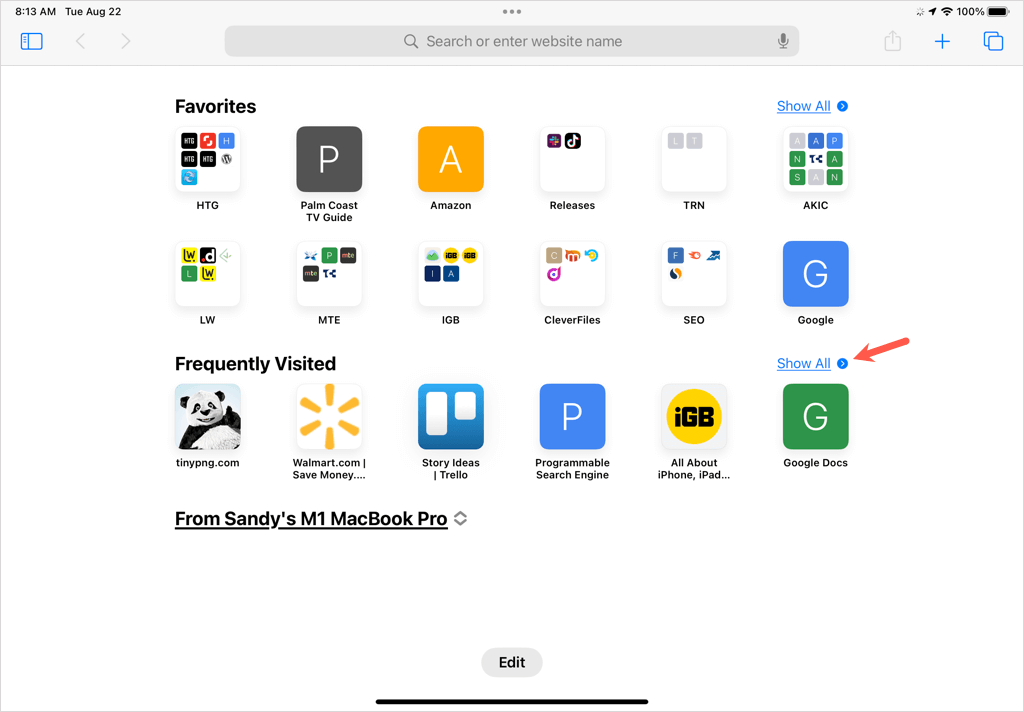
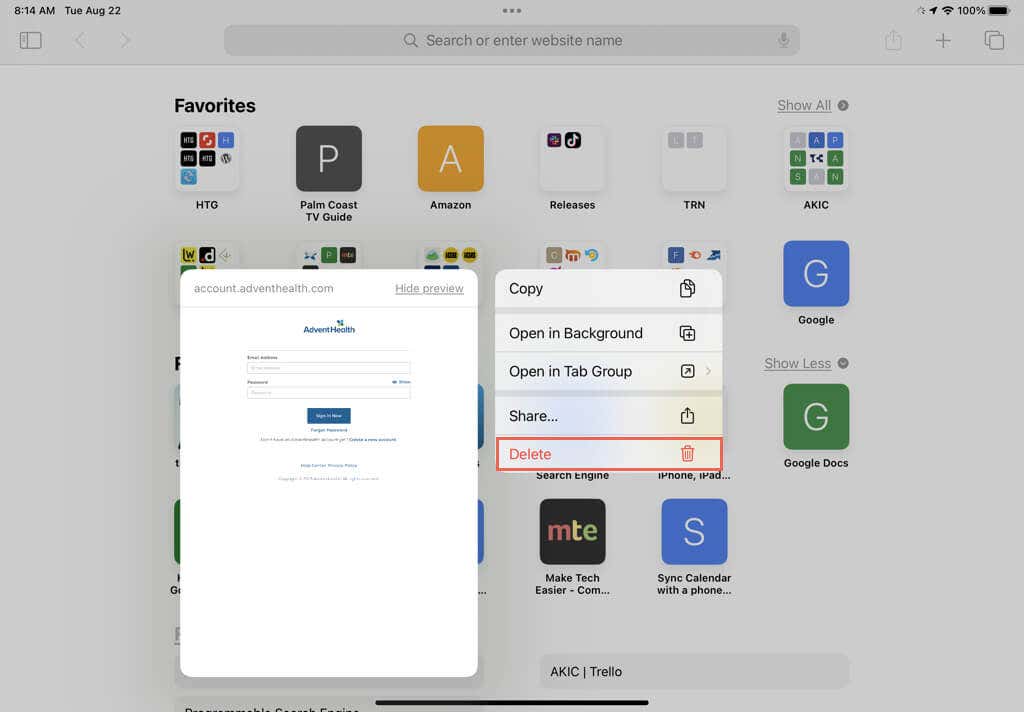
Long-press (tap and hold) the icon for the site you want to remove and choose Delete in the pop-up menu and you’re done.
Delete a Site in Safari on Mac
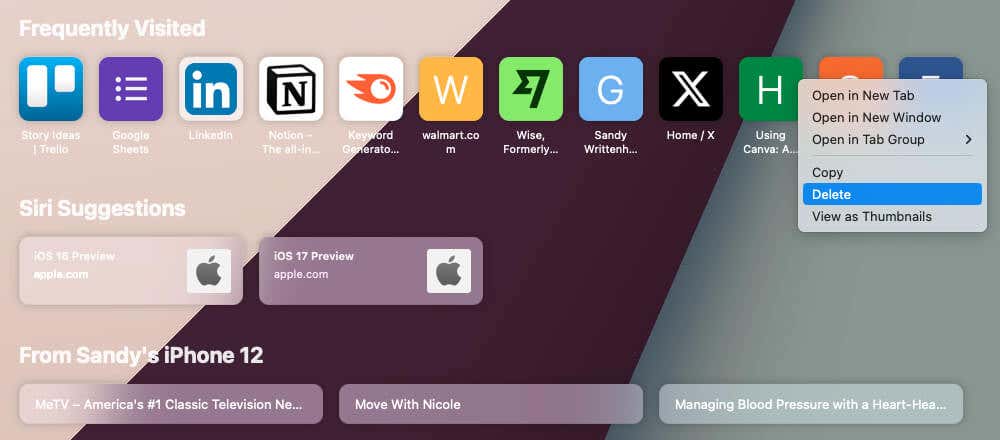
To remove a site on Mac, open Safari and access the Start page. Depending on your settings, you can open a new tab or new window.
Right-click or hold Control and choose the website icon. Pick the Delete option in the pop-up menu.
Disable the Frequently Visited Section in Safari
If you prefer to disable the entire Frequently Visited Sites section in Safari, this is simple to do. Plus, you can enable it again later just as easily if you change your mind.
Disable the Section in Safari on iPhone and iPad
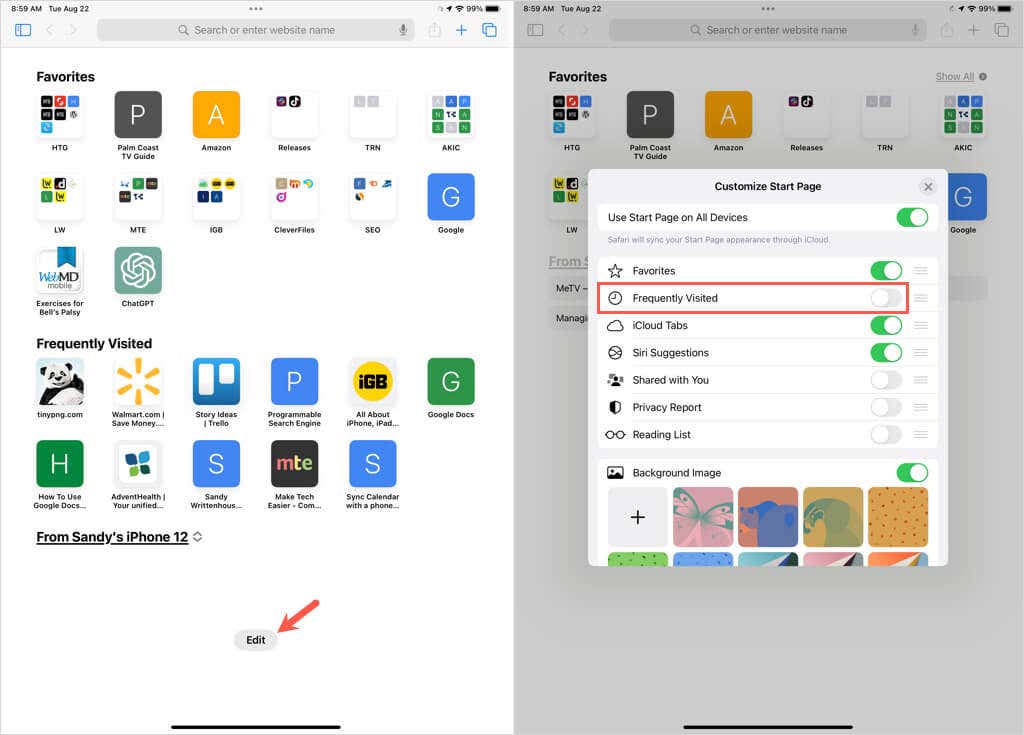
Open Safari , access the Start page, and select the Edit button at the bottom. Turn off the toggle for Frequently Visited .
Use the X to close the pop-up window and you’ll no longer see the section on your Safari Start page.
Disable the Section in Safari on Mac
If it’s Safari on macOS that you want to remove the section from, you have two quick ways to do so.
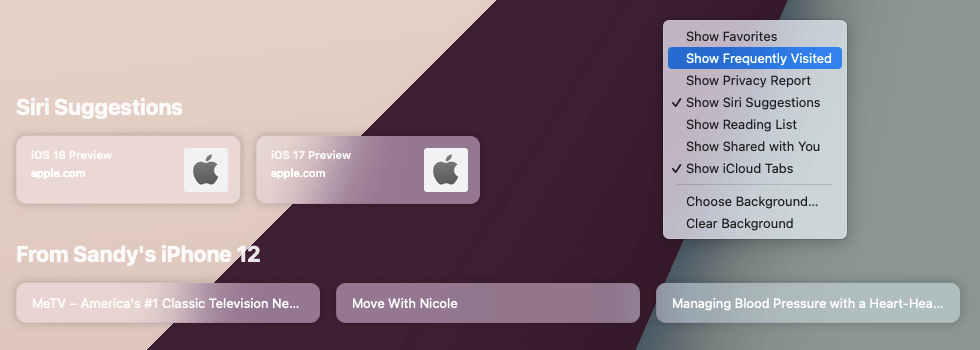
- Right-click or Control-click a blank spot on the Start page. Then, deselect Show Frequently Visited to remove the checkmark from it.
- Open the menu using the icon in the bottom right corner of the Start page. Then, uncheck the box for Frequently Visited .
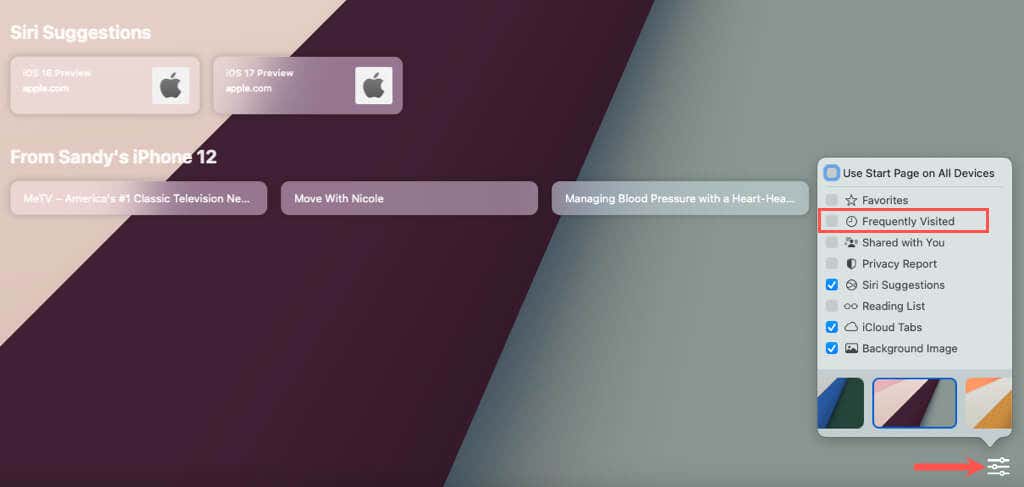
Using either method above, you’ll immediately see the Frequently Visited Sites section vanish from your Safari Start page .
How Often Do You Use the Frequently Visited Section?
While bookmarks and favorites in Safari are ideal for saving specific sites you visit often, Apple gives you a Frequently Visited Sites section for convenience. But just because the section is available doesn’t mean you have to use it.
If it’s just taking up space, you can easily control the Frequently Visited Sites section in the Safari web browser on all your devices.
For related tutorials, look at how to clear cache, history, and cookies in Safari on your Mac.
- Top 10 Safari Experimental Features to Use on Your iPhone or Mac
- How to Delete Safari Bookmarks on Your Mac
- How to Pin and Unpin Safari Tabs on Your iPhone
- What Does “Website Tinting” Mean in Safari?
- How to Add Websites to Your Favorites in Safari (iPhone and Mac)
