Google’s trending searches can be distracting. This tutorial will show you how to delete trending searches in both Google Search and the Google App on desktop and mobile devices.
When you fire up Google Search on your browser or open the Google App, you’ll immediately see the most popular searches and search suggestions for your region underneath the Search box. They can be about anything—celebrity gossip, sports, politics, you name it. Google calls them “trending searches.”
Can You Disable Trending Searches on Google?
It goes without saying, but Google’s trending searches can easily cause you to lose your concentration. If you find yourself sidetracked by them whenever you use Google Search or the Google App , you can drastically improve your focus by turning them off.
Luckily, all you need to do is specify you don’t want to see trending searches in your Google preferences. If you use a Google Account, your changes will sync across devices. If not, you must repeat the process on every device you own.
Turn Off Google Trending Searches in Google Search
If you use Google Search in Google Chrome or any other web browser on a desktop or mobile device, you can disable trending searches via Google’s Search Settings screen. The process differs slightly between desktop and mobile browsers.
Delete Trending Searches in Google on Desktop Browsers
- Visit Google.com on your PC, Mac, or Chromebook.
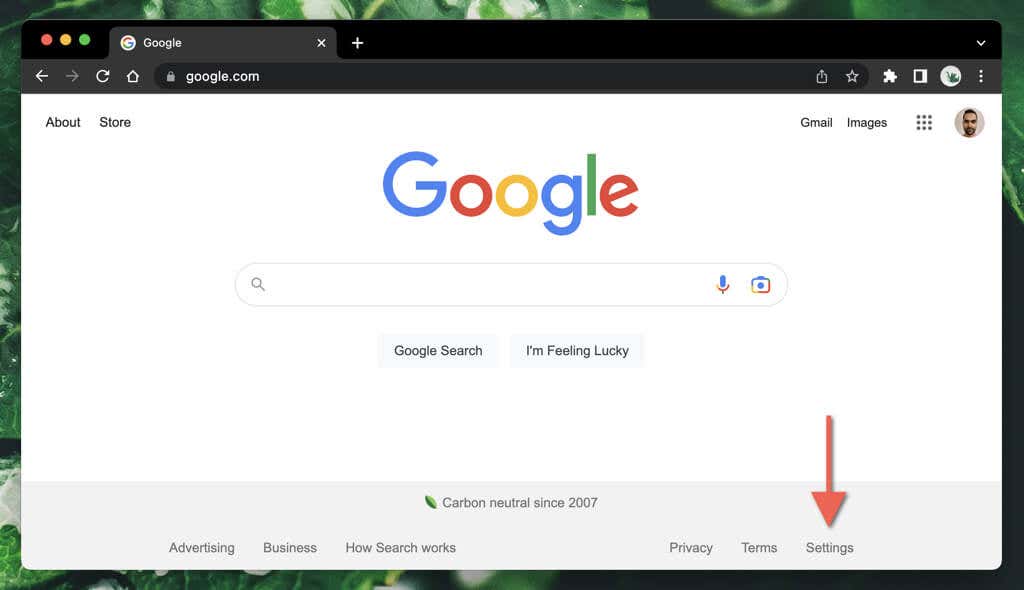
- Select Settings on the lower-right corner of the web page.
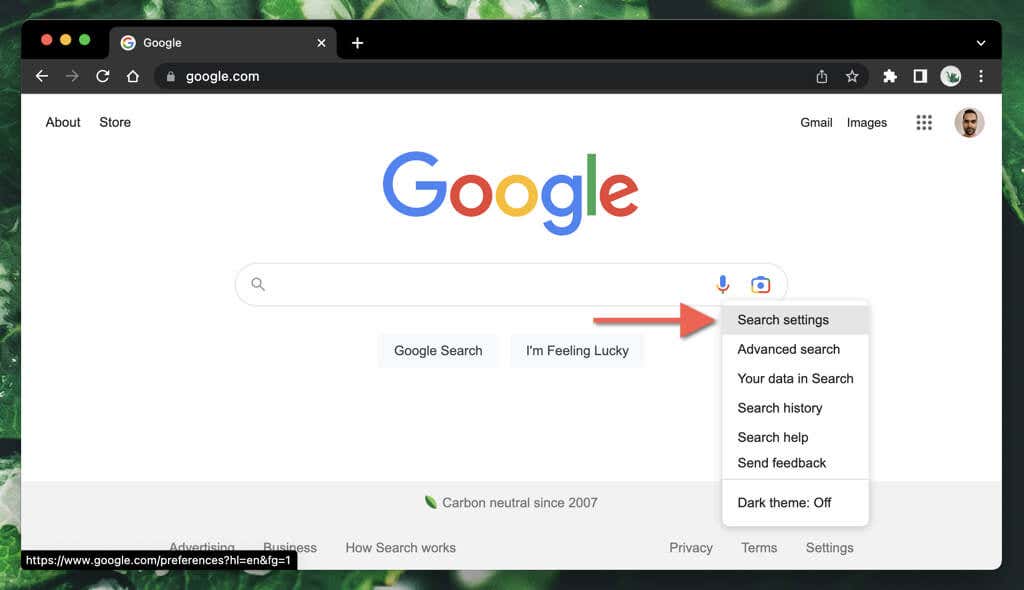
- Select Search settings on the pop-up menu.
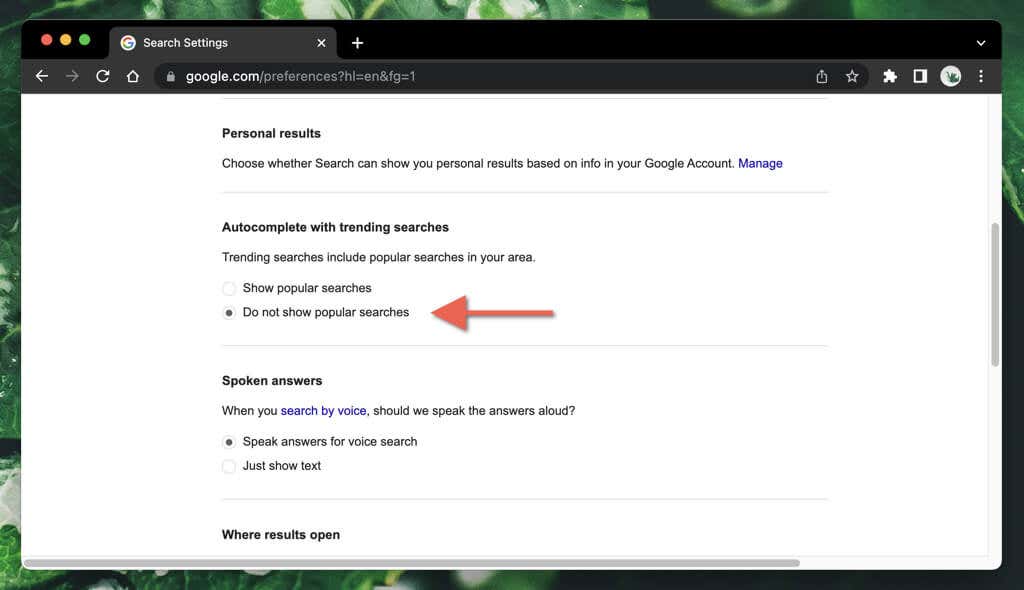
- Scroll down to the Auto-complete with trending searches section.
- Select the radio button next to Do not show popular searches .
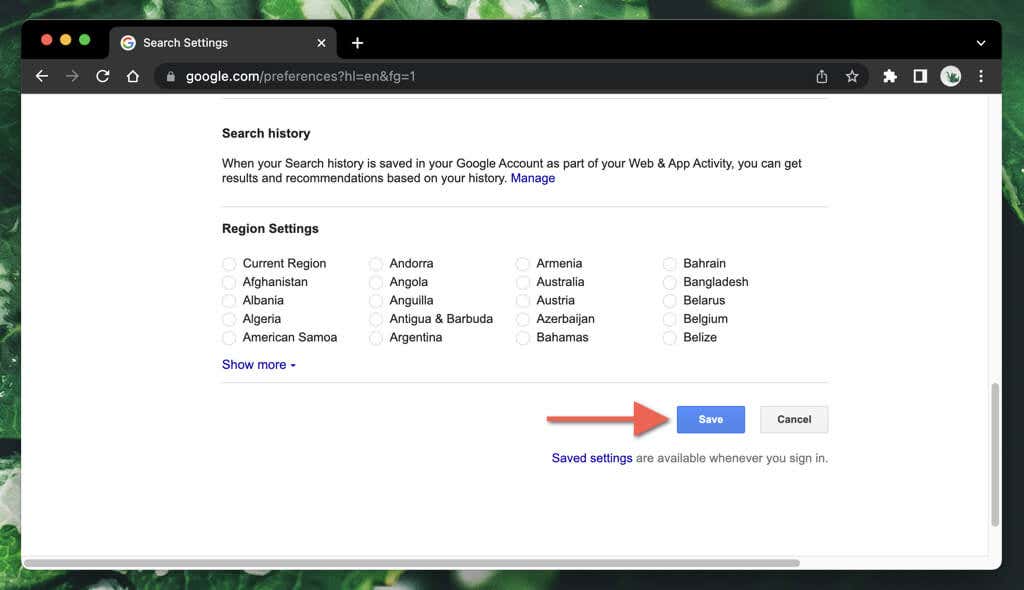
- Select Save .
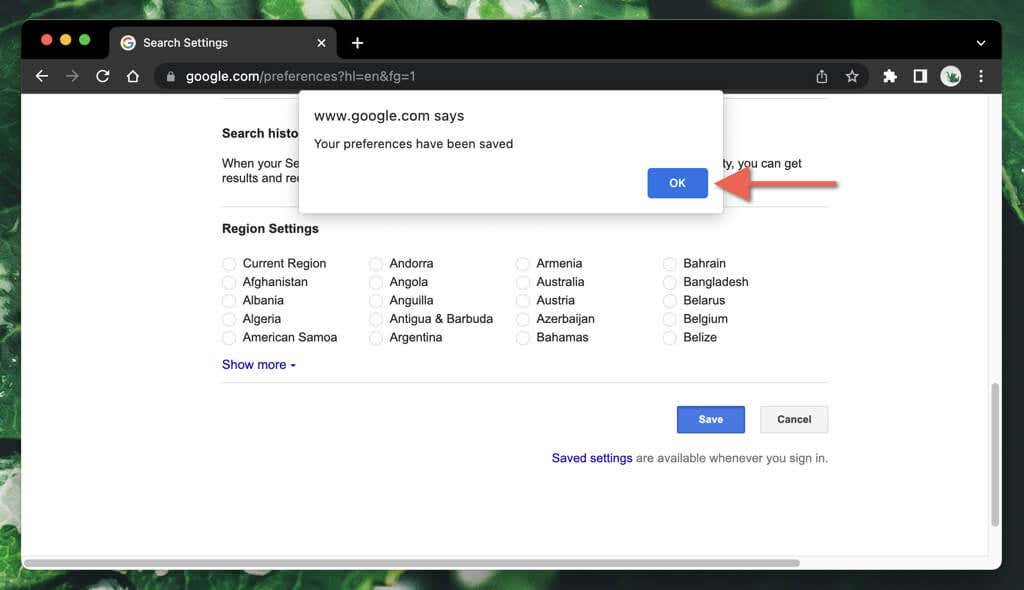
- Select OK on the “Your preferences have been saved” pop-up. You’ll be automatically redirected to the Google Search home page.
Note : If you perform the above steps in a private browser window (e.g., Incognito mode in the Google Chrome browser ), your changes will not save when you end your browsing session.
Turn Off Trending Searches in Google on Mobile Browsers
- Load the Google Search engine homepage.
- Select the More (three stacked lines) icon on the top left corner of the screen and tap Settings .
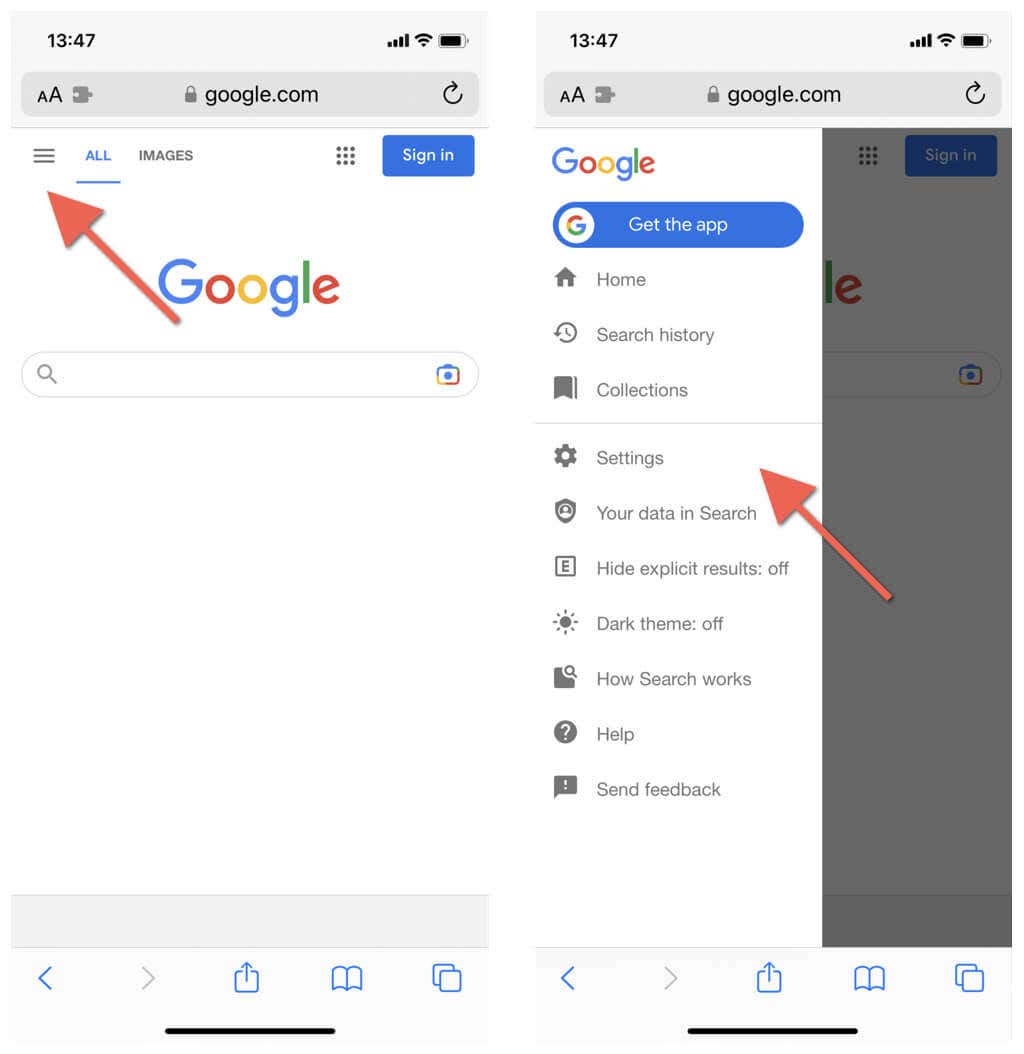
Note : In the Samsung Internet Browser and Firefox for Android, tap the Settings option at the bottom of the screen.
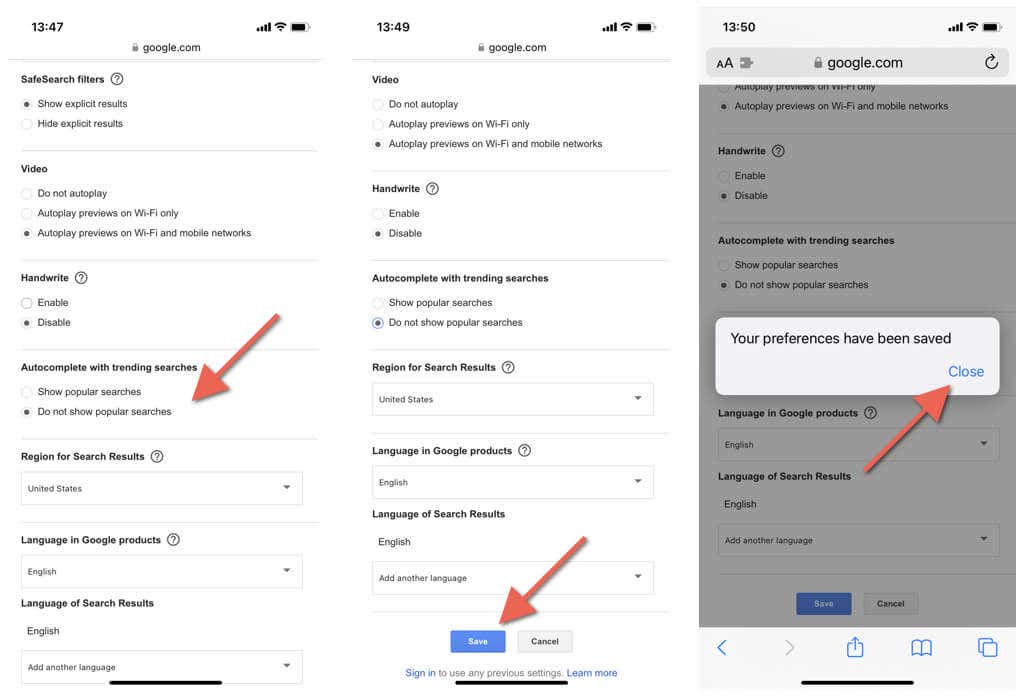
- Scroll down the screen to the Auto-complete with trending searches section.
- Tap the radio button next to Do not show popular searches .
- Select Save and tap Close on the “Your preferences have been saved” pop-up.
Remove Trending Searches in the Google App for Android
If you use the Google App on an Android, iPhone, or iPad, you can disable Google trending searches by diving into its Settings screen. The procedure varies among the platforms.
Disable Trending Searches in Google Search App for Android Phones
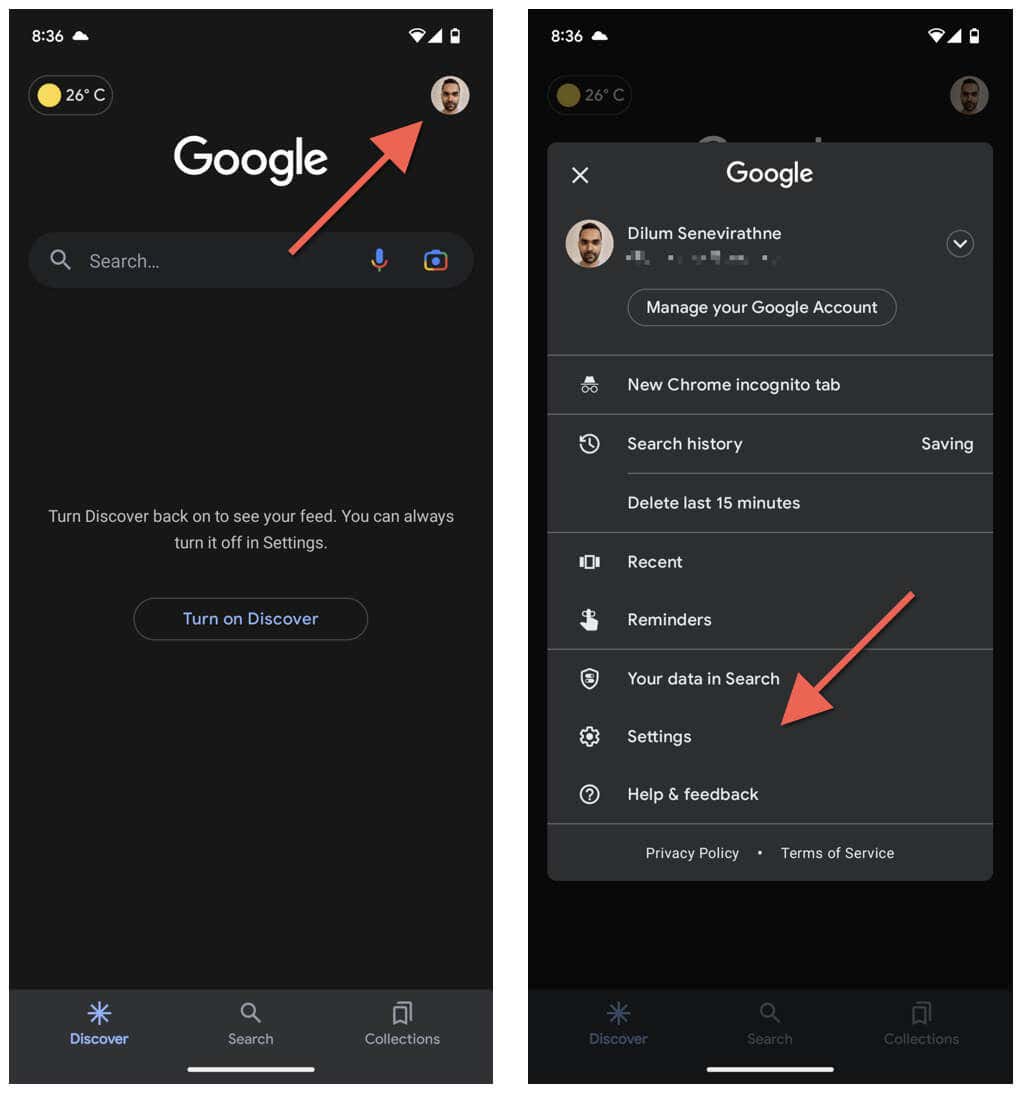
- Open the Google App.
- Tap your profile picture or initials to the top right of the Search bar.
- Tap Settings .
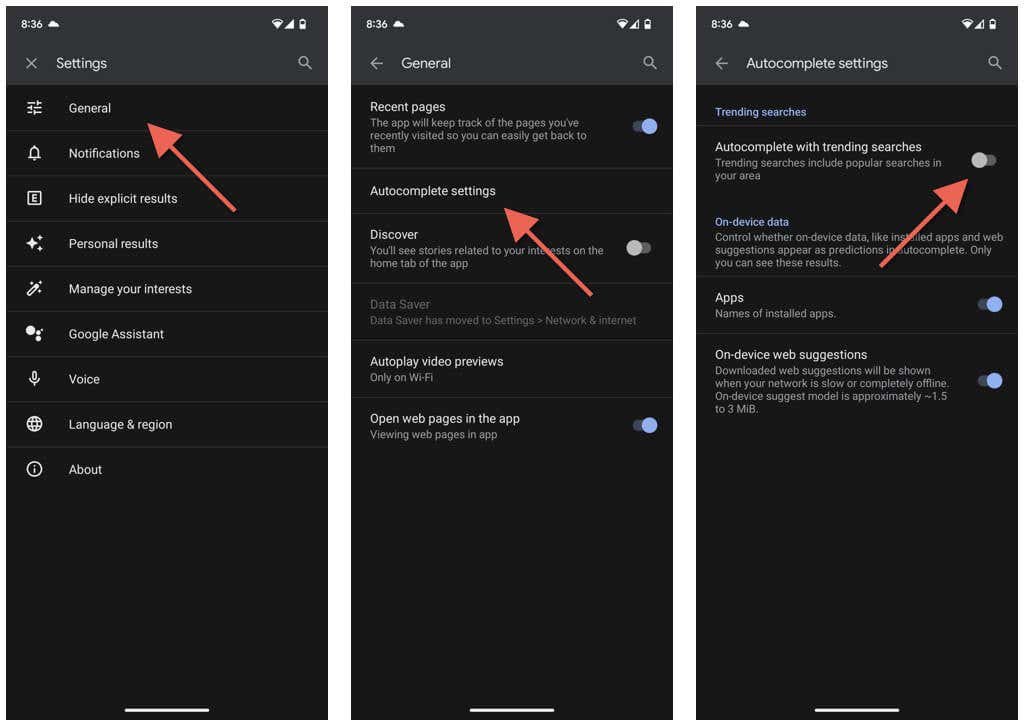
- Tap the General category.
- Select Autocomplete settings .
- Disable the switch next to Autocomplete with trending searches .
- Exit the Google App’s Settings screen.
Disable Trending Searches in Google App for Apple iOS and iPad
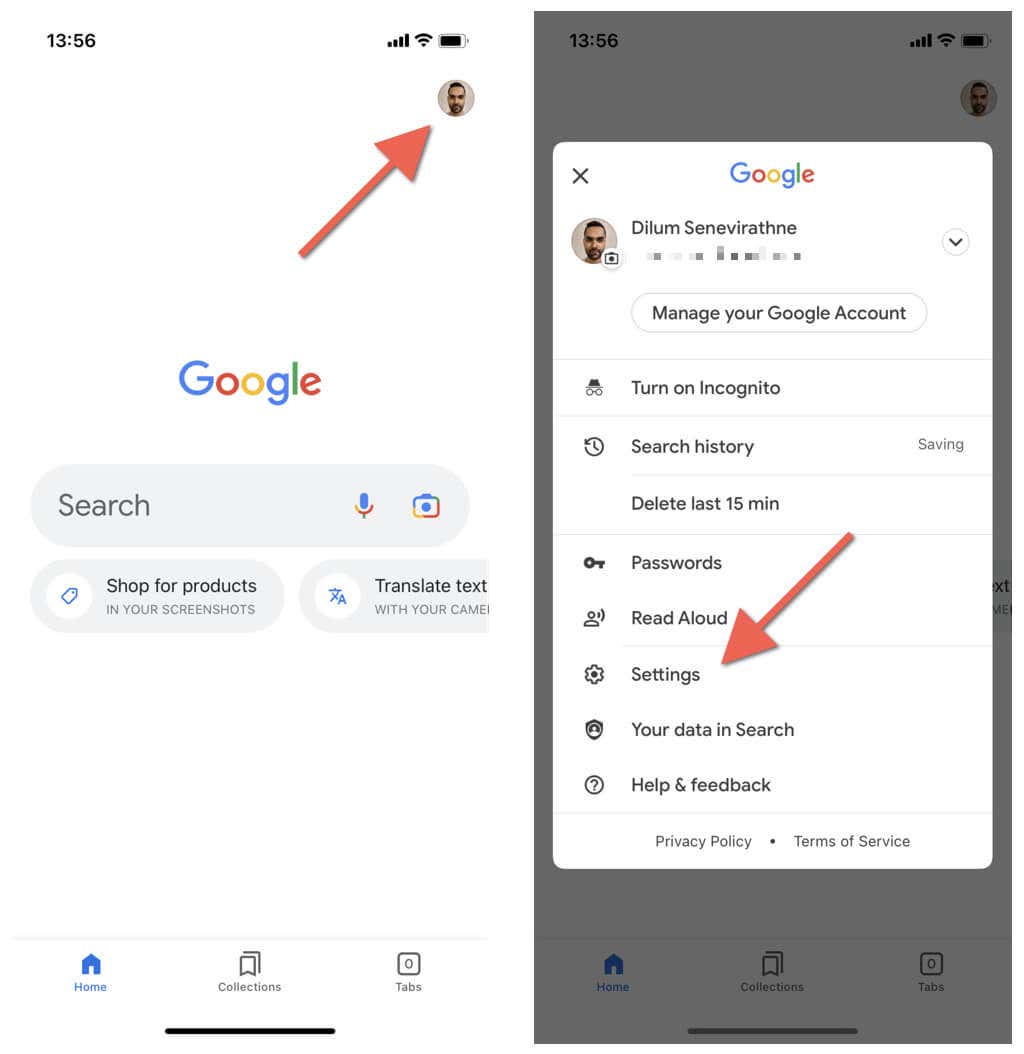
- Open the Google App.
- Tap your profile portrait or initials on the top right corner of the screen.
- Tap Settings .
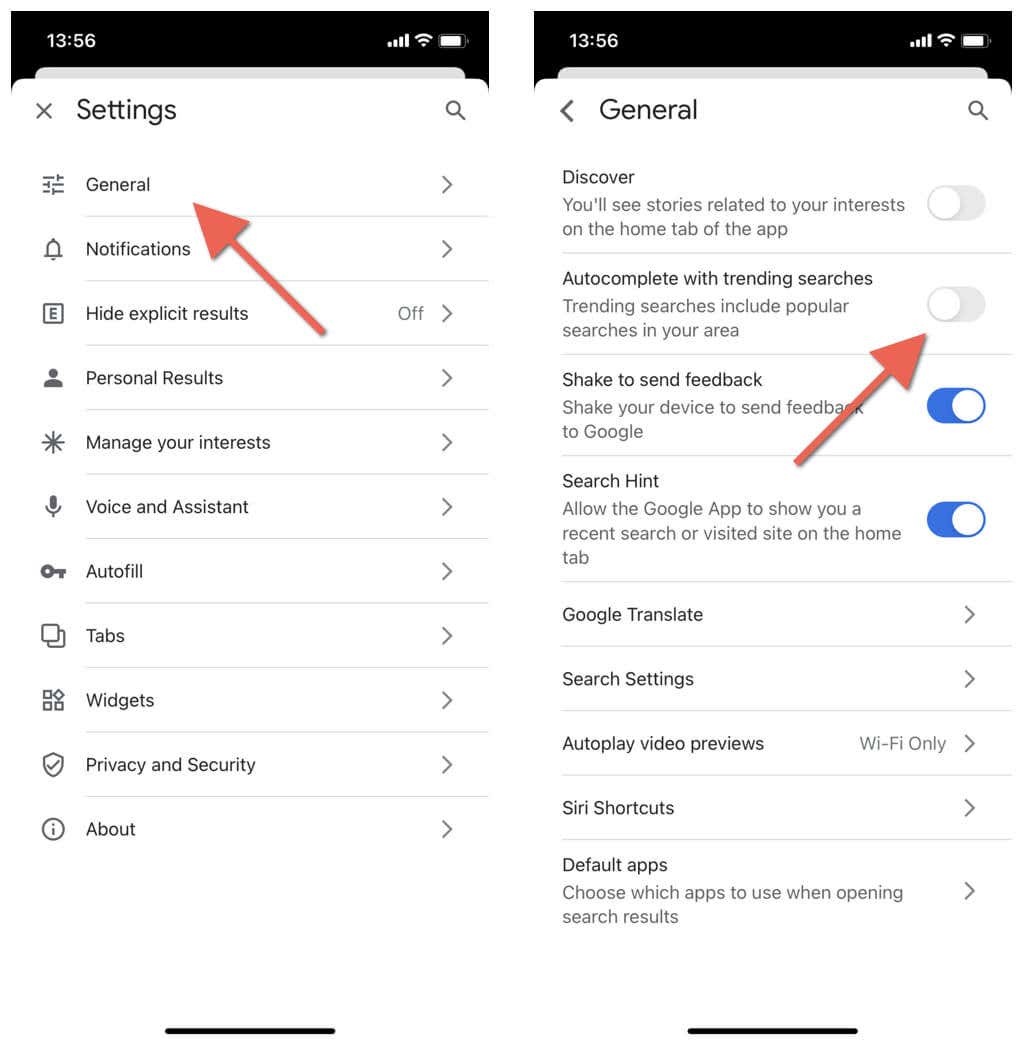
- Tap General .
- Disable the Autocomplete with trending searches option.
- Exit the Google App’s Settings panel.
Cut Down on Unnecessary Distractions
Unless it’s crucial to know what’s happening around your region (for example, if you live in an area with severe weather or an unstable political climate), it’s best to turn them off on your desktop or mobile device. You might also want to learn how to clear your search history of any trending searches you’ve visited next.
- How to Fix “Could Not Communicate With Your Chromecast” Error
- How to Fix “Unable to connect to chat” on Google Chat
- Google Chromecast Remote Not Working? 7 Fixes to Try
- How to Pause or Cancel Google Play Subscriptions
- How to Use the Google TV Remote App on iPhone and Android Devices
