Snapchat introduced Bitmoji avatars in 2016, and they have gained popularity on the platform. These avatars allow you to present a virtual version of yourself to your Snapchat friends. However, you may be confused if you want to remove your Bitmoji from your Snapchat account entirely.
Unlinking your Snapchat Bitmoji avatar from your Snapchat profile is possible. But do remember that if you created your Bitmoji on Snapchat instead of the Bitmoji app, your avatar will be permanently deleted. So, if you want a Bitmoji again, you’ll have to create it from scratch. This article will guide you through the entire process.

How to Delete Your Snapchat Bitmoji
You can remove your Bitmoji from Snapchat right from the Snapchat app. Follow these steps to delete your Snapchat Bitmoji quickly:
Open the Snapchat app.
Tap on your profile picture in the top left.
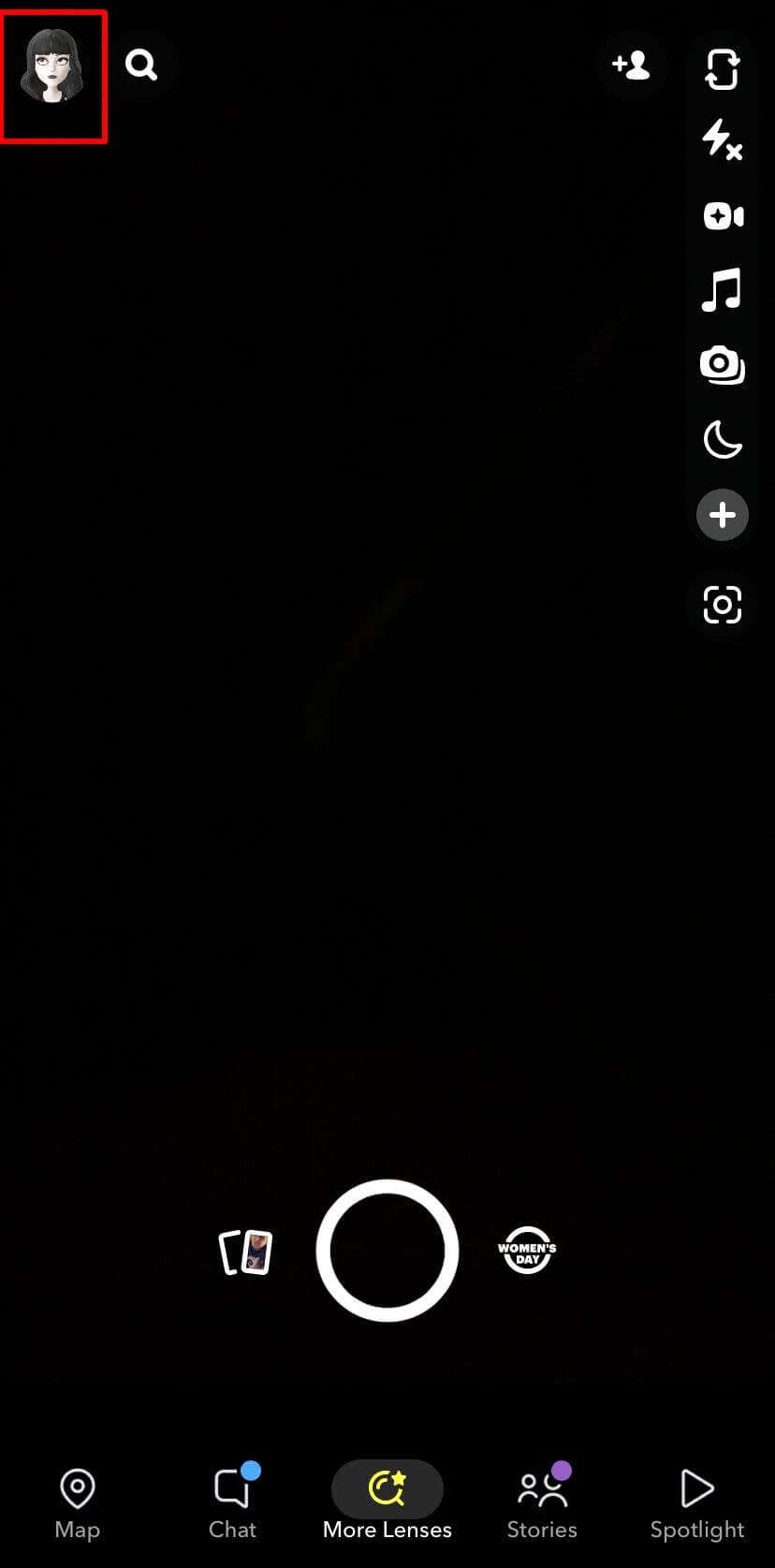
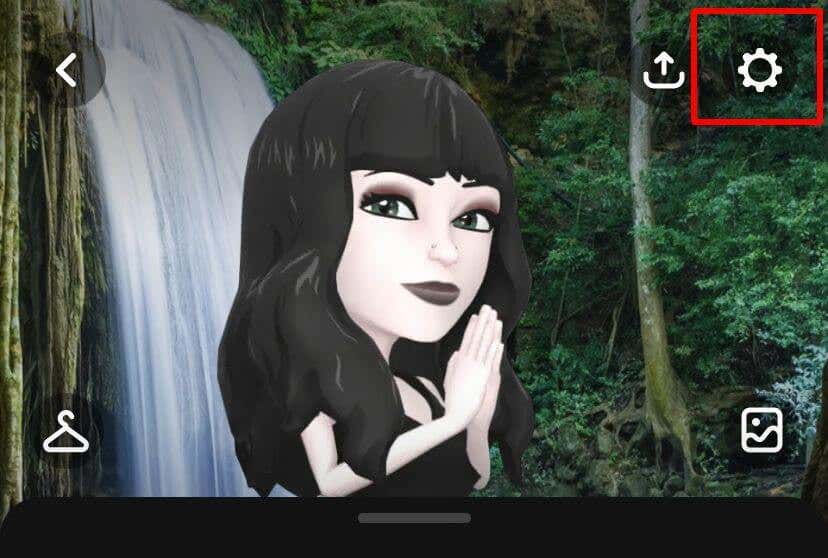
- Tap on the Settings icon in the top right corner.
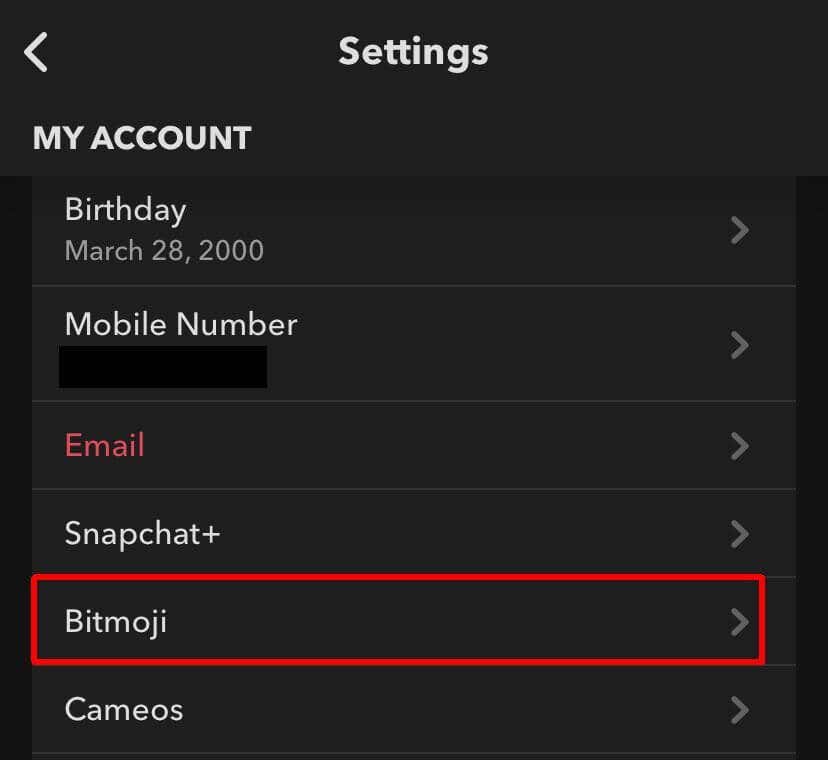
- Under My Account , tap on Bitmoji .
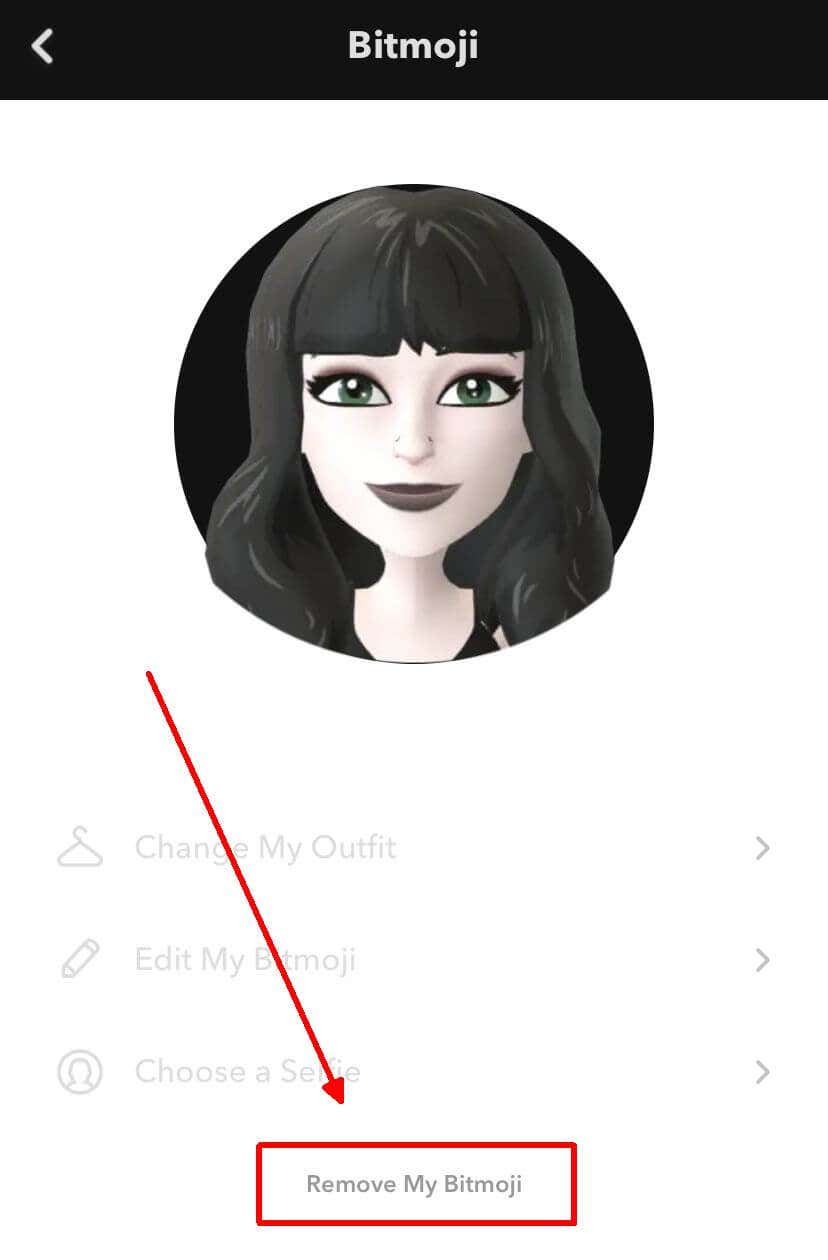
- At the very bottom, tap on Remove My Bitmoji .
- Confirm the deletion by tapping Remove .
You will now have a blank Snapchat avatar unless you create a new Bitmoji. You can do this by returning to your profile screen and selecting Create My Avatar . Note that if you don’t have a Bitmoji, you won’t be able to use features such as Bitmoji stickers or the Bitmoji keyboard.
How to Link a New Bitmoji From the App
Deleting your original Bitmoji to link a brand new one from the Bitmoji app is also easy. The steps below outline how to create a new Bitmoji using the Bitmoji app and how to link it to Snapchat.
Open the Bitmoji app.
Select Continue with Snapchat.
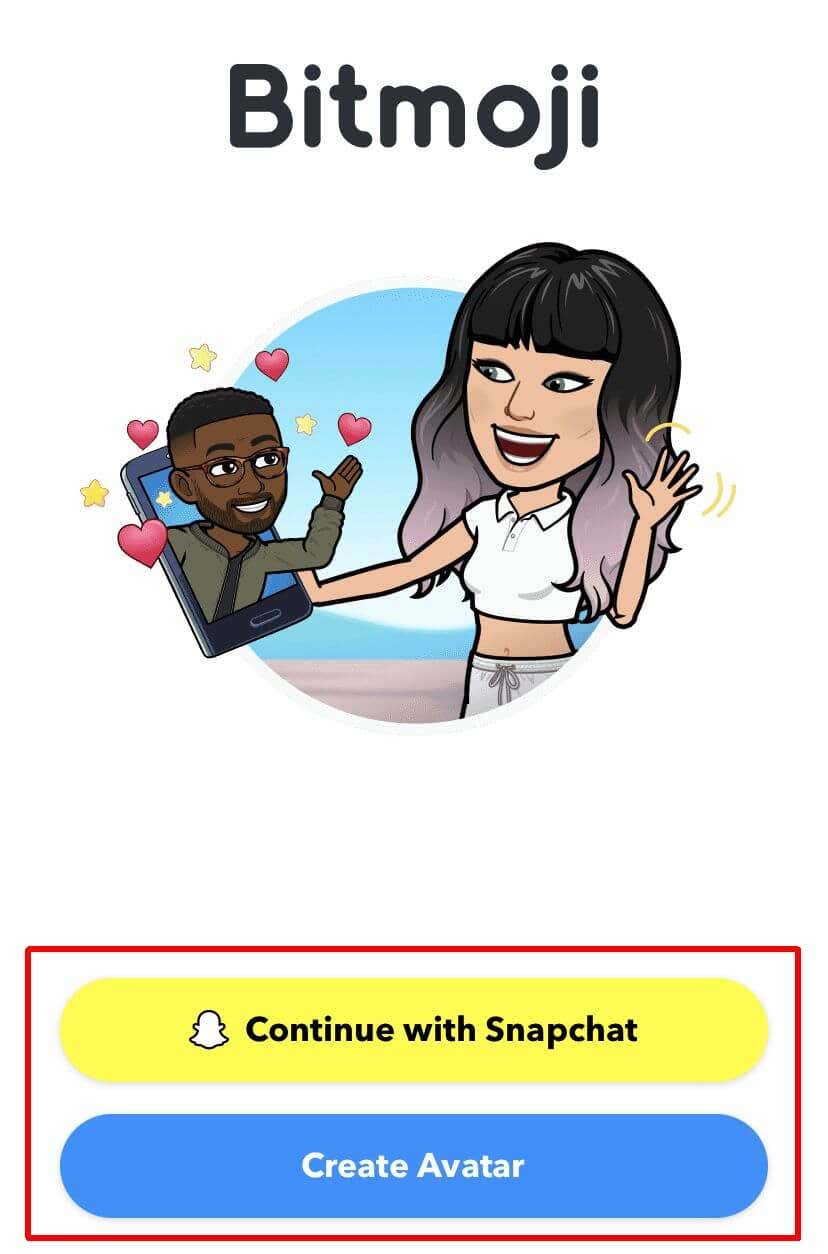
- Tap on Create Bitmoji .
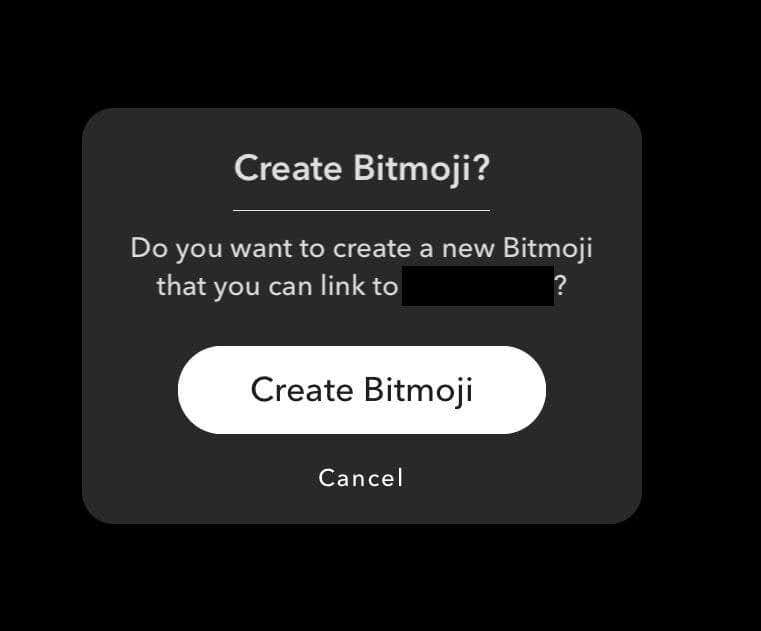
Make and edit your Bitmoji within the app. Tap Save when you’re finished.
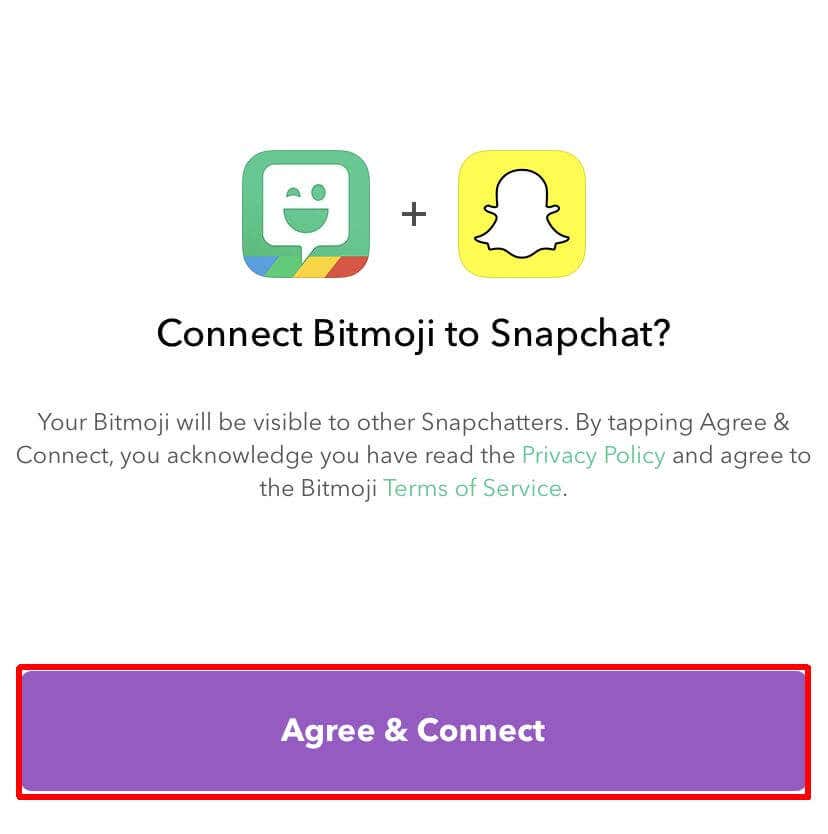
Tap on Agree & Connect to link your new Bitmoji to Snapchat.
If you had a background and pose set up with your previous Bitmoji icon, you’ll need to go in and change these as well. You can do this from your Snapchat profile page in the app by tapping on the picture icon near the upper right side.
If you want to create a Bitmoji character without creating it through Snapchat, you can select Create Avatar instead of Create with Snapchat . From there, you can still link the Bitmoji to Snapchat through the Bitmoji app, but if you remove that Bitmoji from Snapchat it will not be deleted entirely. So this is a good reason to create your Bitmoji through the app instead.
Remove Your Bitmoji From Snapchat Easily
No matter your reasons for deleting your Bitmoji from Snapchat, it’s easy to do right from the app. With just a few taps, you can delete your avatar right away. It’s also not too hard to create a new Bitmoji if you feel like you want one again, whether through Snapchat or the Bitmoji app itself.
- How to See Mutual Friends On Snapchat
- How to Access and Use My AI in Snapchat
- How to Delete a Story on Snapchat
- How to See People’s Birthdays on Snapchat
- How to Turn Off Snapchat Notifications (Or Back On)
