There are several ways to connect devices in the Apple ecosystem, particularly iPhones and Macs . Apple lets you unlink specific apps, functionalities, or services shared on your iPhone and Mac. You can also disconnect both devices entirely.
This tutorial covers different ways to disconnect your iPhone from a MacBook computer—and vice versa.
Disconnect iPhone in Finder
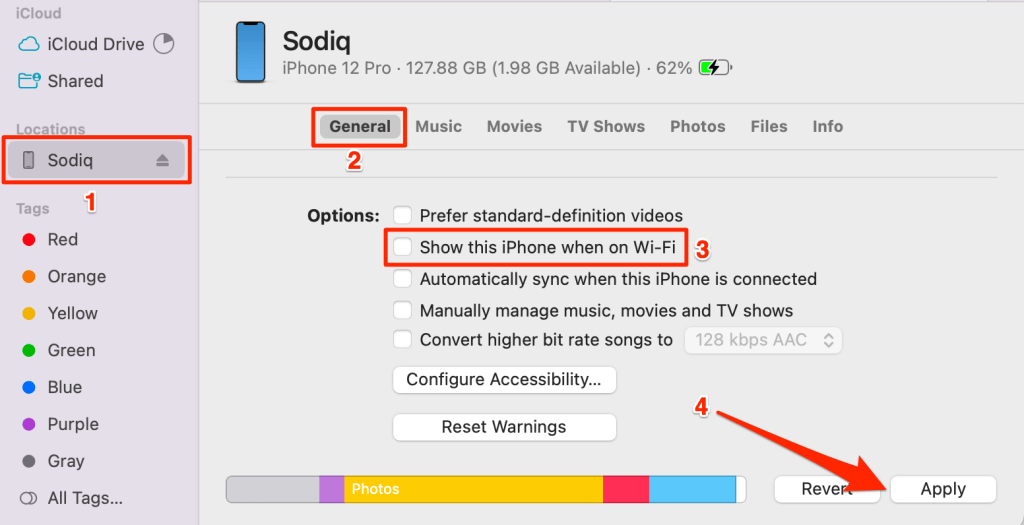
If your iPhone and Mac are connected via USB cable, unplugging the cable from either device will disconnect both devices. If your iPhone remains visible in your Mac’s Finder after disconnecting USB, your devices are likely sharing content over Wi-Fi.
Connect your iPhone to your Mac using a USB or USB-C cable and disable Wi-Fi syncing again.
Select your iPhone in the Finder sidebar and open the General tab. Scroll to the “Options” section, uncheck Show this iPhone when on Wi-Fi , and select Apply .
Sign Out of Apple ID
Removing your Apple ID account on one Apple device disconnects it from your other Apple devices. Sign out your Apple ID on your iPhone to disconnect it from your Mac. Conversely, sign out of Apple ID on your Mac to disconnect it from your iPhone.
Note: Signing out of Apple ID removes your device from Find My. Also, you’ll no longer have access to Apple apps, subscriptions, and services like Apple Music, FaceTime, iCloud, Apple Pay, etc.
Sign Out of Apple ID on Mac
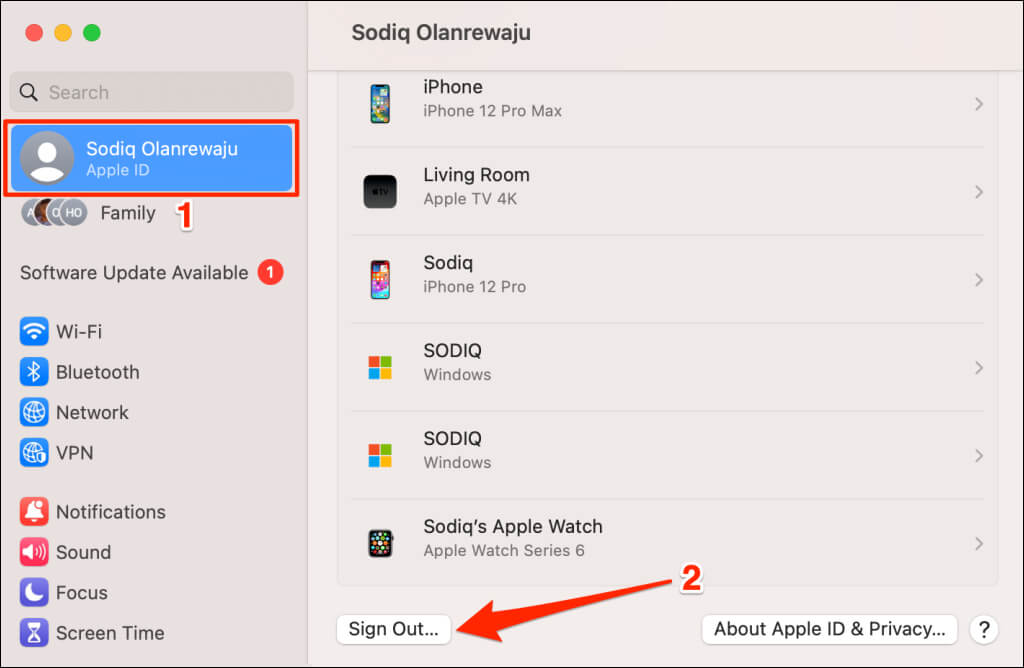
- Open System Settings and select your Apple ID name in the sidebar.
- Select Sign Out in the bottom-left corner of the Apple ID page.
Sign Out iPhone from Apple ID
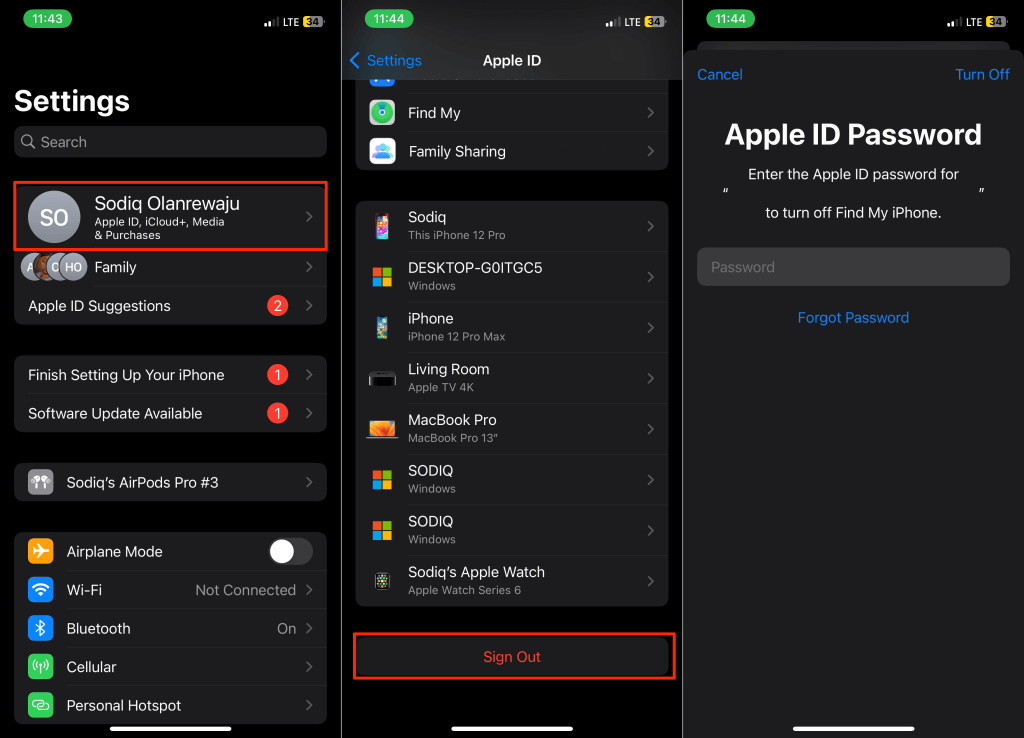
- Open your iPhone Settings app and tap your Apple ID name .
- Select Sign Out at the bottom of the Apple ID page and enter your Apple ID password to proceed.
Remove iPhone or Mac from Apple ID Account
Removing an iPhone from your Apple ID disconnects it from your other Apple devices. If your iPhone gets lost or stolen, you can remotely remove it from your Apple ID account through your Mac. Likewise, you can remotely disconnect your Mac from your Apple ID through your iPhone.
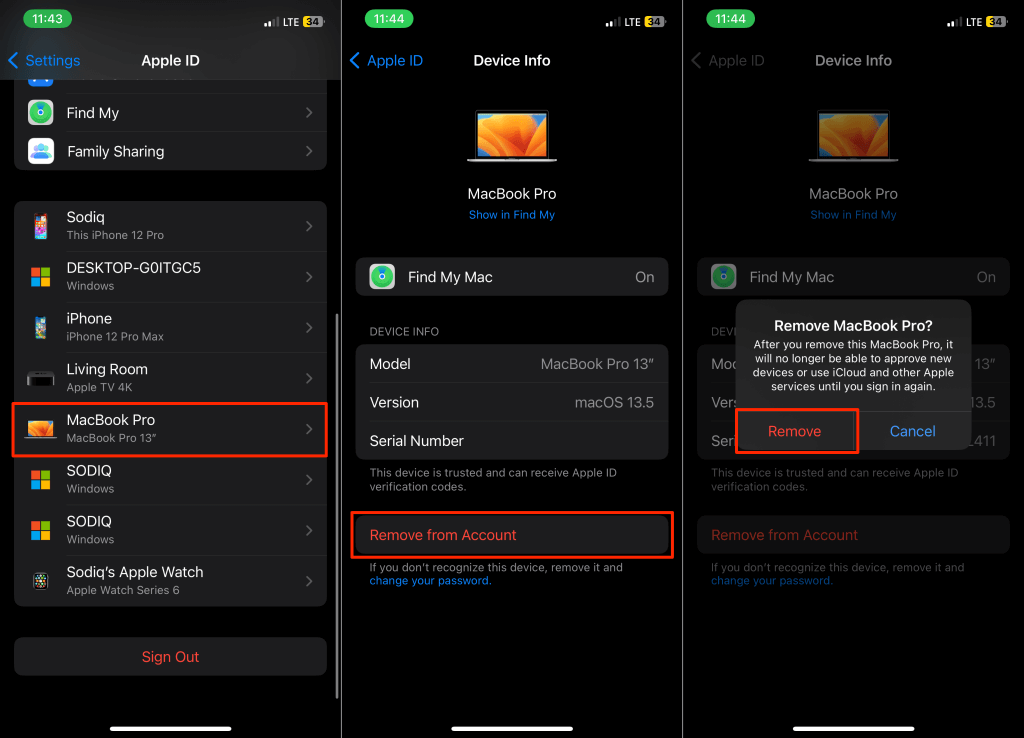
Remove Mac from Apple ID (on iPhone)
- Open Settings , tap your Apple ID name , and select your Mac on the list of devices.
- Tap Remove from Account and select Remove on the confirmation pop-up.
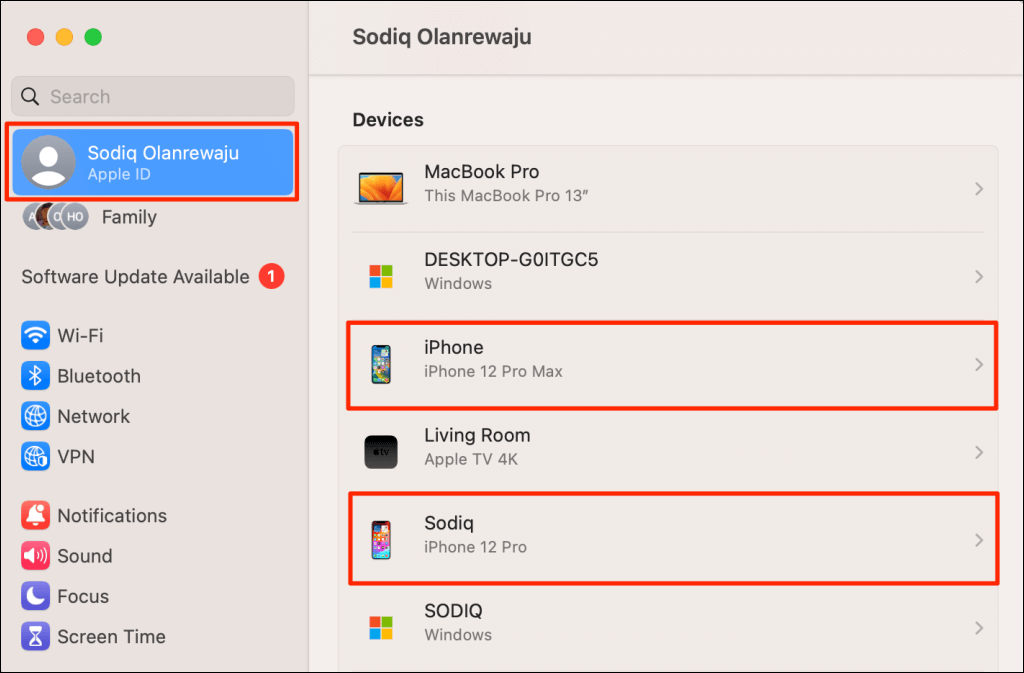
Remove iPhone from Apple ID (on Mac)
- Open System Settings and select your Apple ID name in the sidebar.
- Select your iPhone in the “Devices” section.
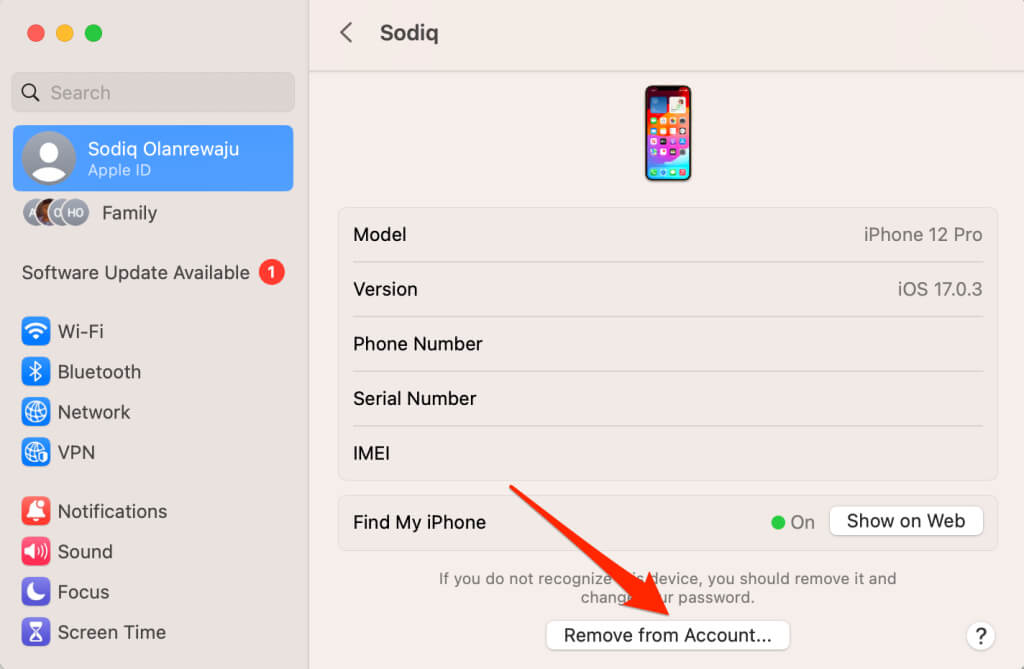
- Select the Remove from Account button.
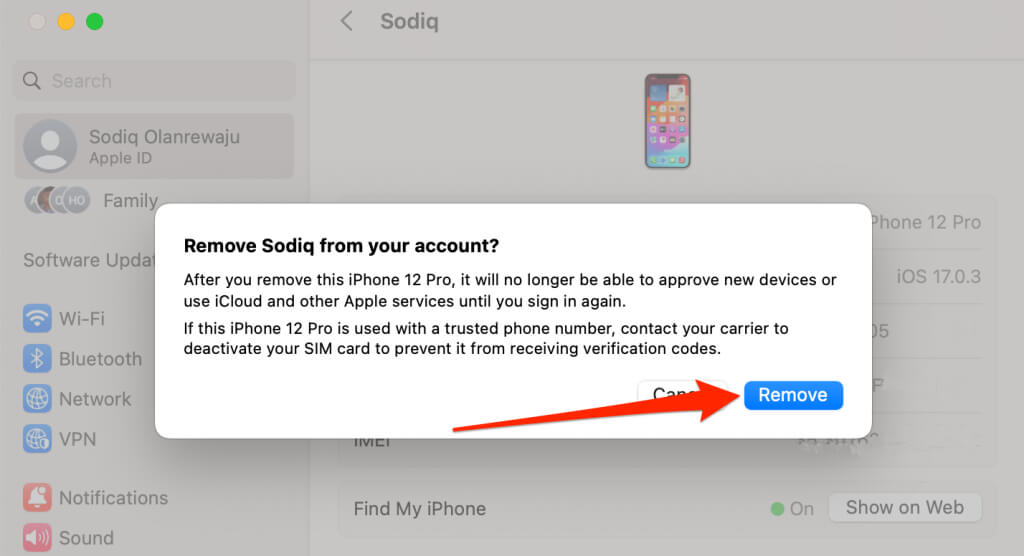
- Select Remove on the pop-up to proceed.
Disable Text Message Forwarding
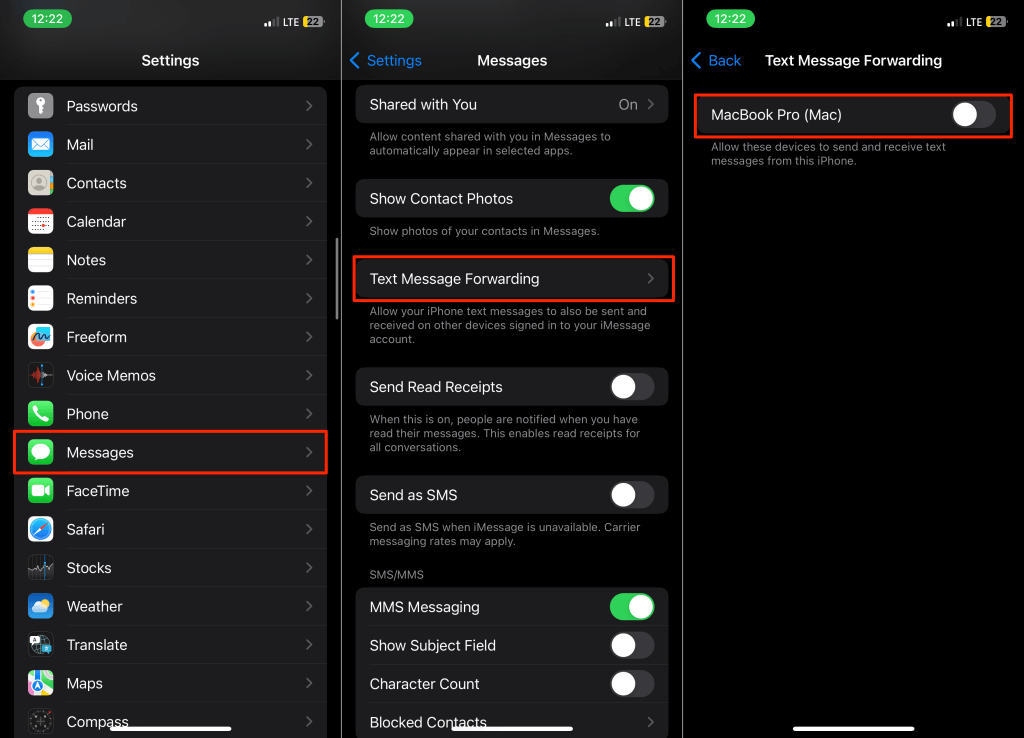
The iOS “Text Message Forwarding” feature relays SMS/MMS text messages received or sent on your iPhone to your Mac. Turn off the feature if you don’t want your iPhone forwarding texts to your MacBook or computer.
Go to Settings > Messages > Text Message Forwarding and toggle off message forwarding to your Mac.
Turn Off iCloud Sync for iMessage
Disabling iCloud for Messages stops Apple from synchronizing iMessage between your iPhone and Mac.
Turn Off iCloud for iMessage on Mac
Disable iMessage synchronization in iCloud to stop Apple from sharing messages from your iPhone to Mac.
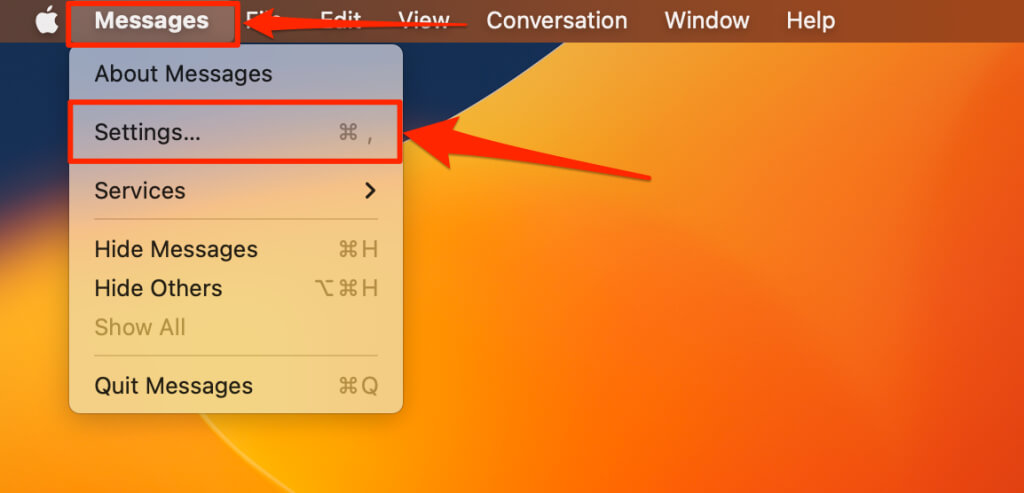
- Open the Messages app and press Command + Comma (,) to open the app settings. Alternatively, open Messages , select Messages on the menu bar, and choose Settings .
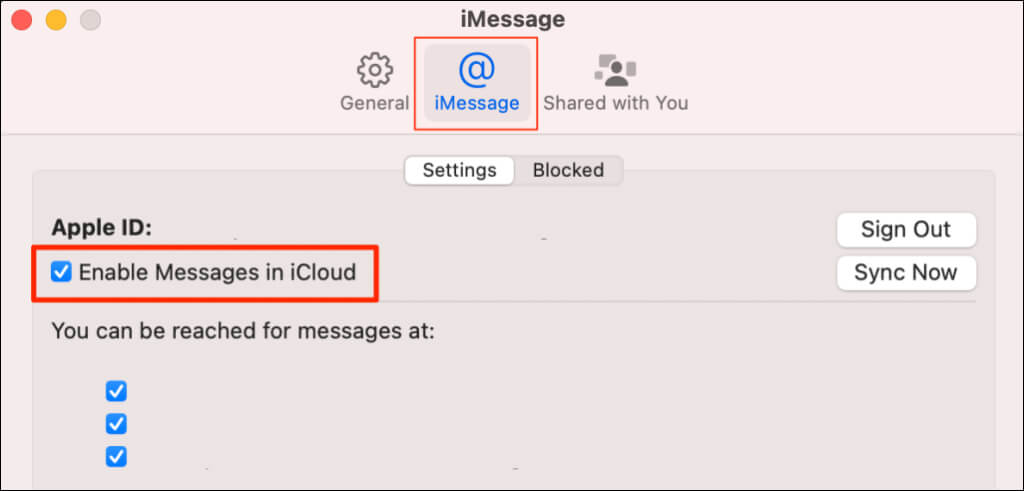
- Open the iMessage tab and deselect the Enable Messages in iCloud tickbox.
Turn Off iCloud for iMessage on Mac
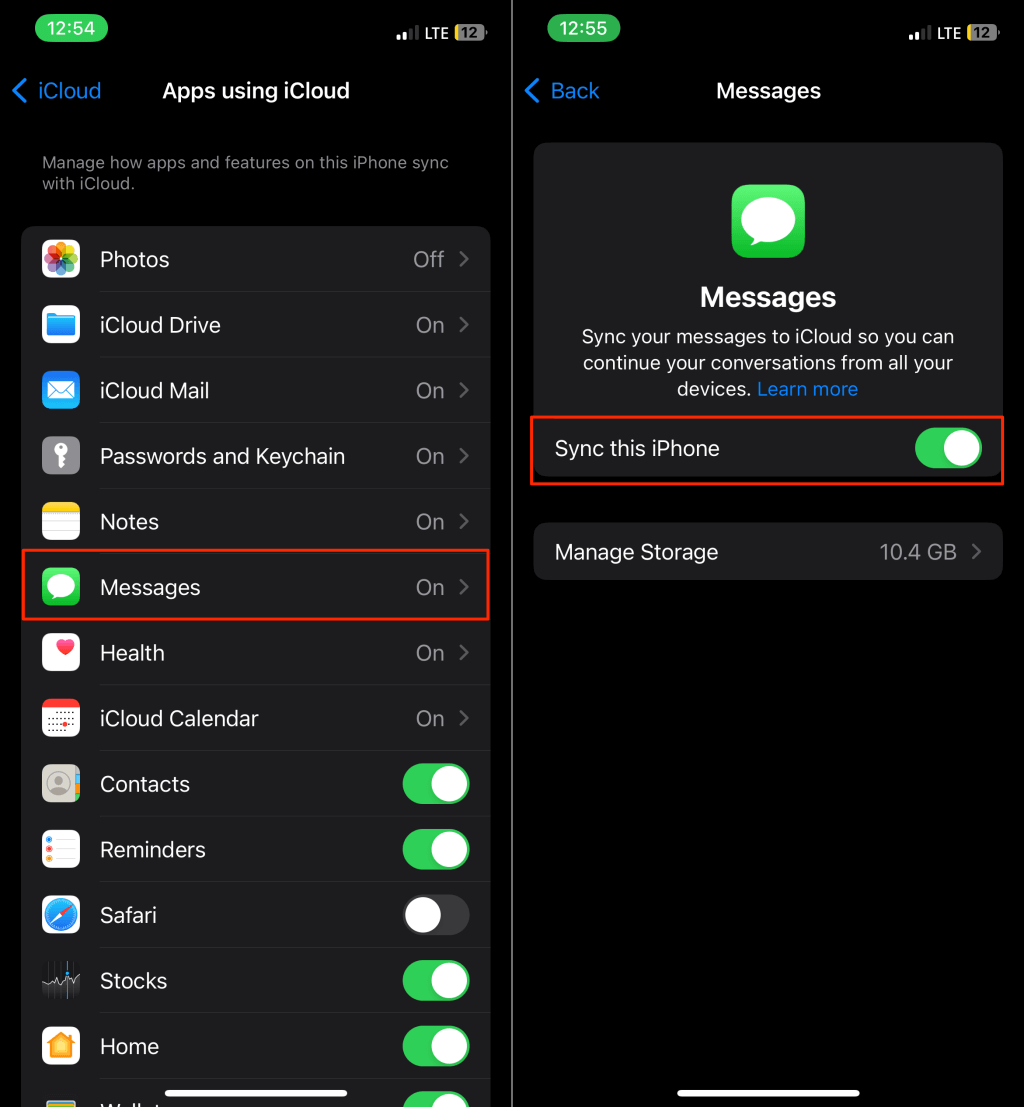
- Open Settings and tap your Apple ID name .
- Select iCloud and tap Show All in the “Apps Using iCloud” section.
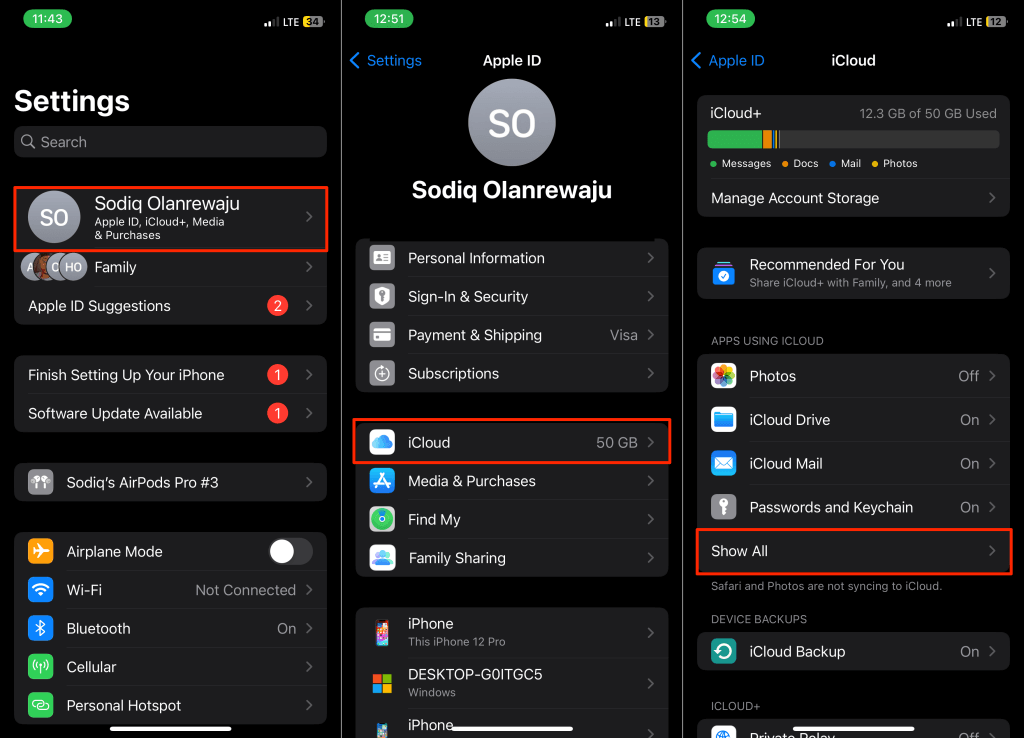
- Select Messages and toggle off Sync this iPhone .
Turn Off iCloud Sync for FaceTime
Apple syncs FaceTime calls between your iPhone and Mac if both devices use the same Apple ID. Disable iCloud for FaceTime on your iPhone or turn off FaceTime on your Mac to unlink both devices.
Turn Off iCloud for FaceTime
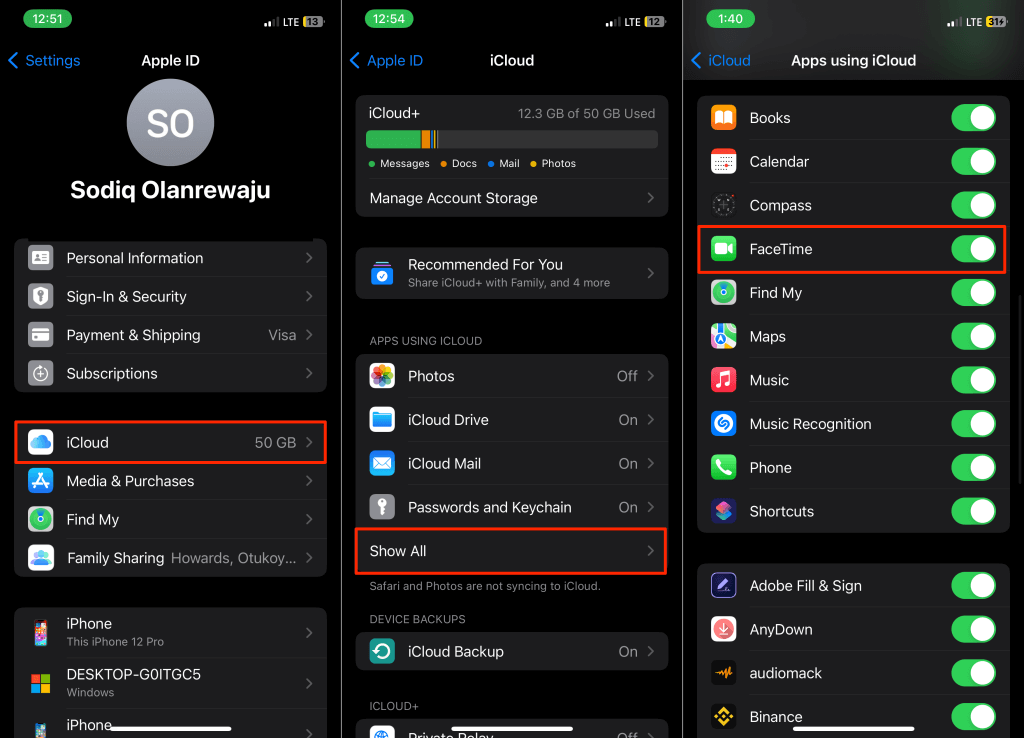
- Open Settings and select your Apple ID name .
- Select iCloud , tap Show All in the “Apps Using iCloud” section, and toggle off FaceTime .
Turn Off FaceTime on Mac
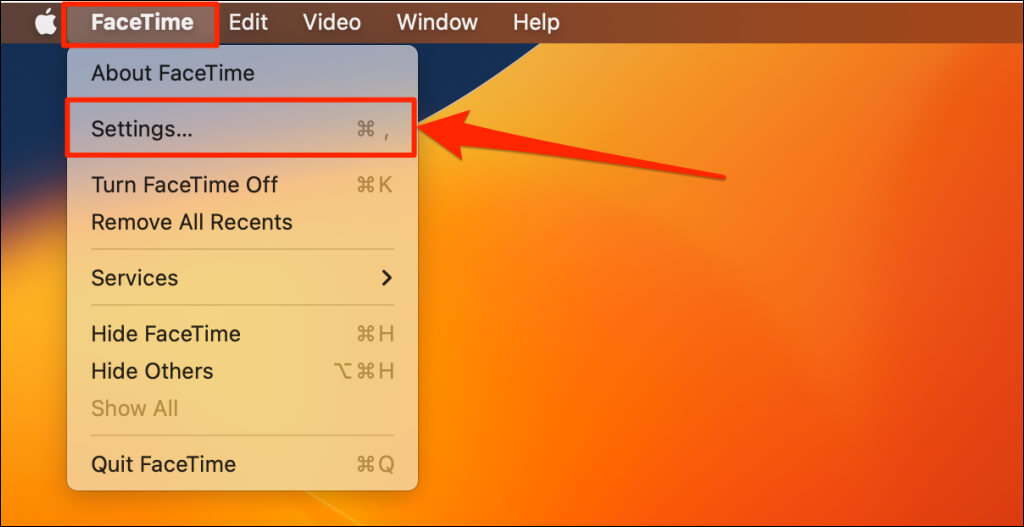
Turn off FaceTime on your Mac if you only want to receive calls on your iPhone.
- Open the FaceTime app , select FaceTime on the menu bar, and select Settings .
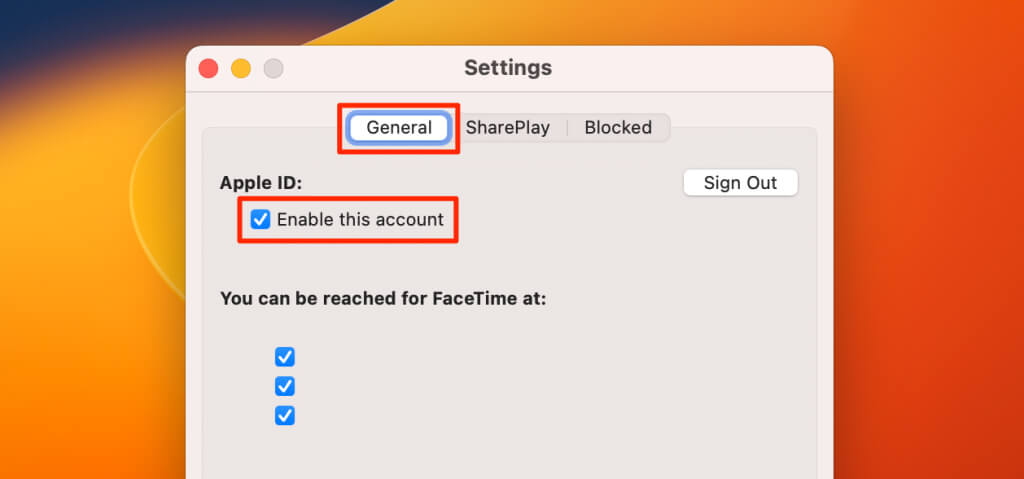
- Open the General tab and deselect Enable this account .
Disallow Phone Calls on Mac
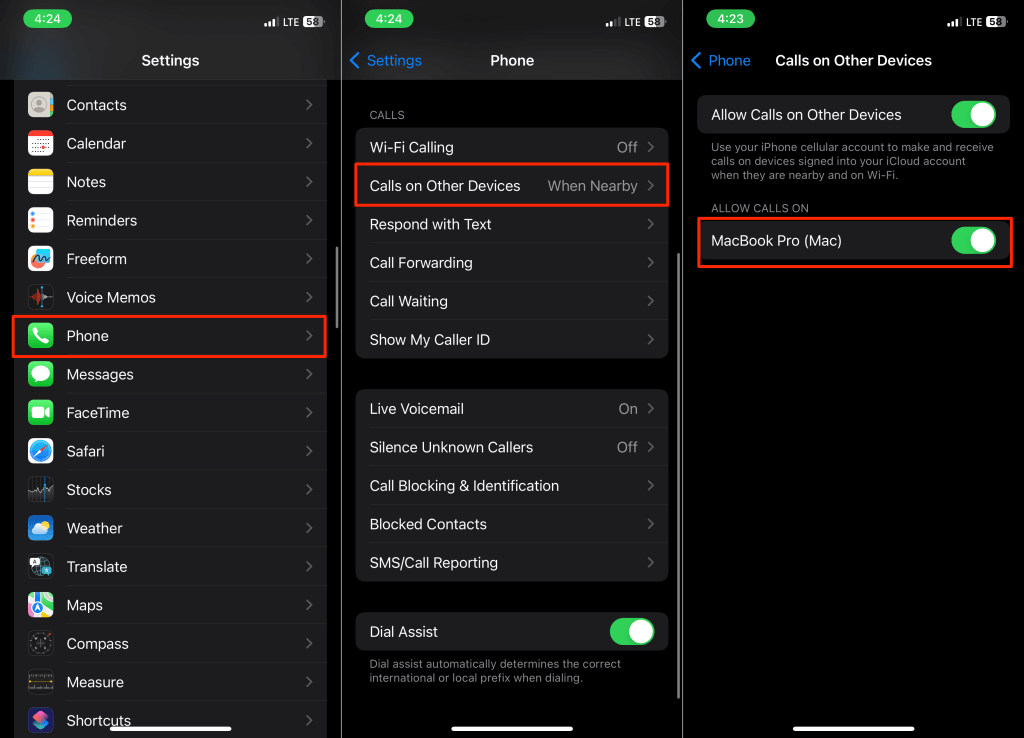
Apple lets you make and receive cellular calls on your Mac using your iPhone’s mobile network. If you don’t like this feature, configure your iPhone to disallow calls on your Mac.
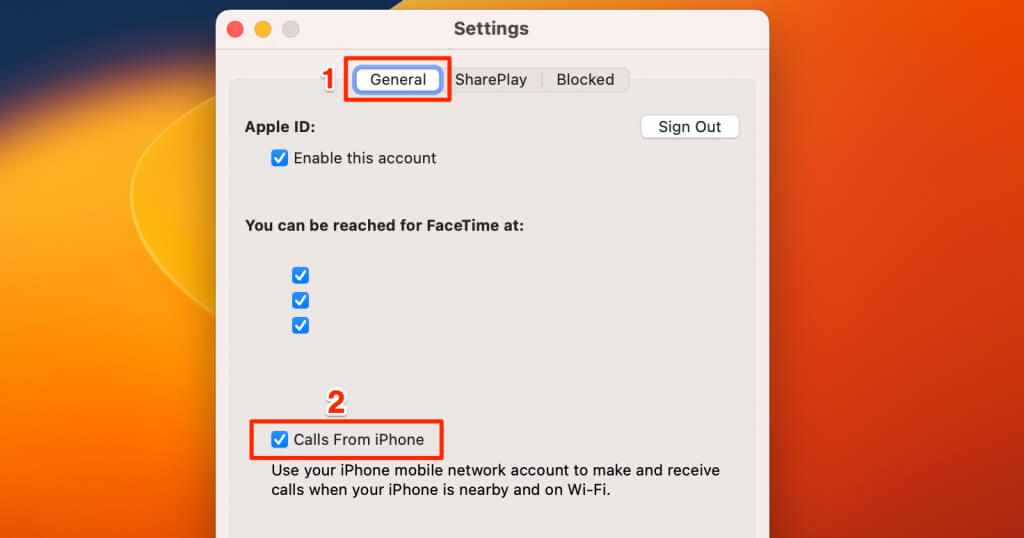
Likewise, you can configure your Mac to stop mirroring notifications for incoming calls from your iPhone.
Disallow Phone Calls on Mac (via iPhone)
Go to Settings > Phone > Calls on Other Devices and toggle off your Mac in the “Allow Calls On” section.
Disallow Phone Calls on Mac (via Mac)
- Open the FaceTime app and press Command + Comma ( , ).
- Open the General tab and deselect Calls from iPhone .
Turn Off Continuity Features
Continuity features like Handoff , Universal Clipboard , Continuity Camera , and Instant Hotspot work on Apple devices using the same Apple ID.
Disabling Handoff and AirDrop on your iPhone or Mac will turn off Continuity features.
Disable AirDrop on Mac
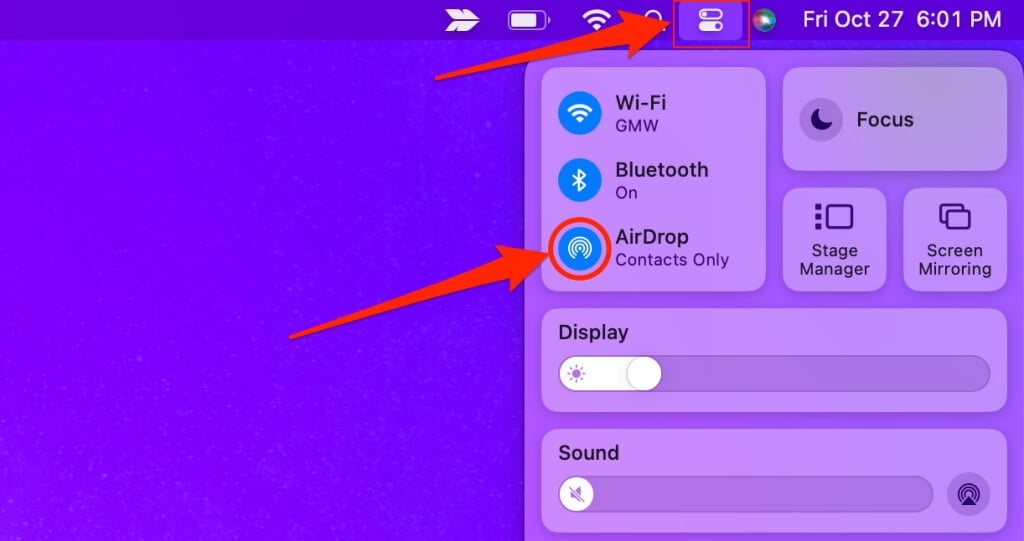
Select the Control Center icon on the menu bar and select the blue AirDrop icon to turn off AirDrop.
Disable AirDrop on iPhone
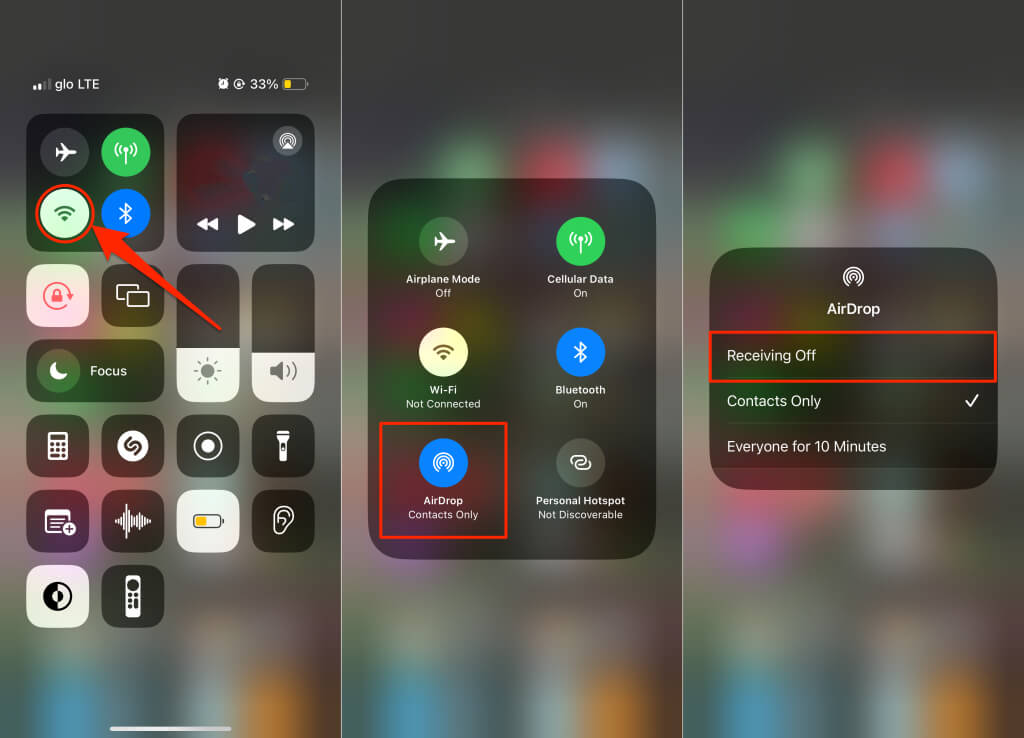
Head to Settings > General > AirDrop and choose Receiving Off .
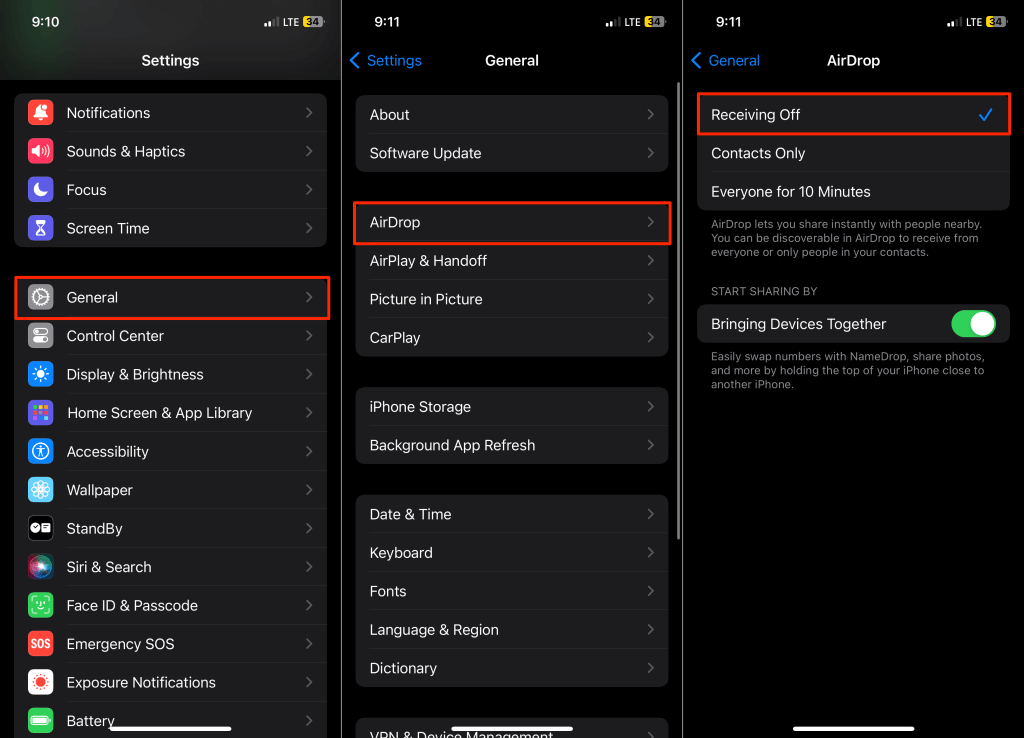
Alternatively, open the Control Center , tap and hold the Wi-Fi icon, tap AirDrop , and select Receiving Off .
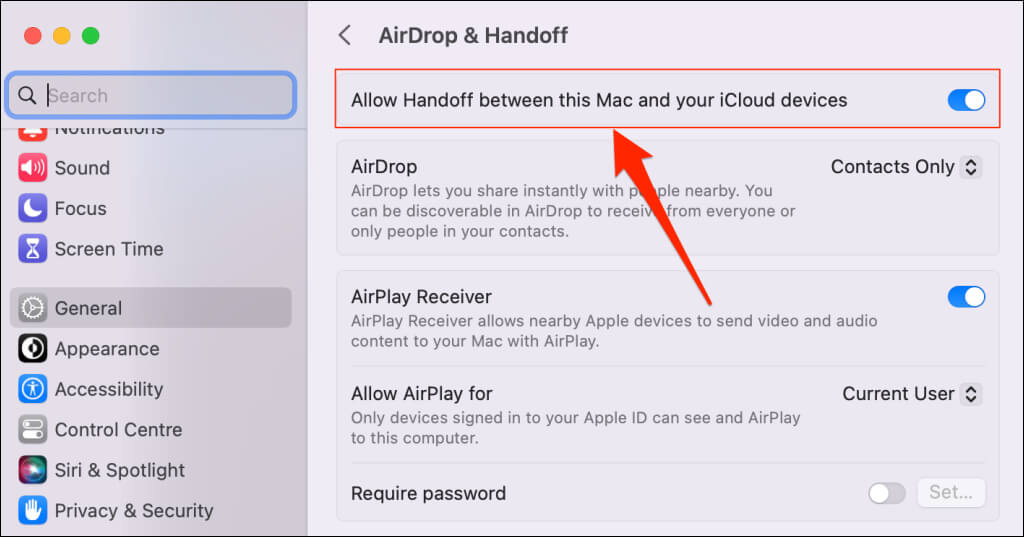
Disable Handoff on Mac
Head to System Settings > General > AirDrop & Handoff and toggle off Allow Handoff between this Mac and your iCloud devices .
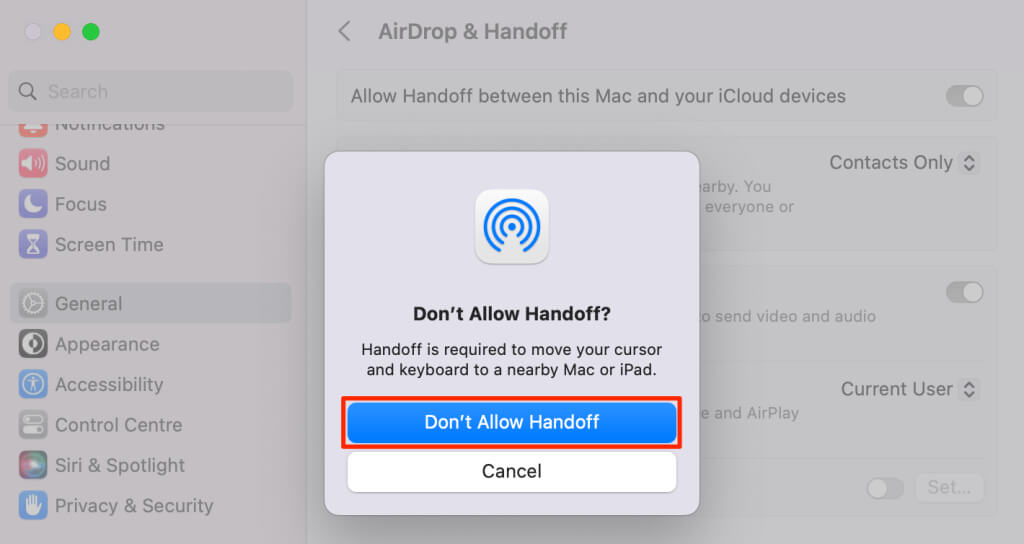
Select Don’t Allow Handoff to turn off Handoff on your Mac.
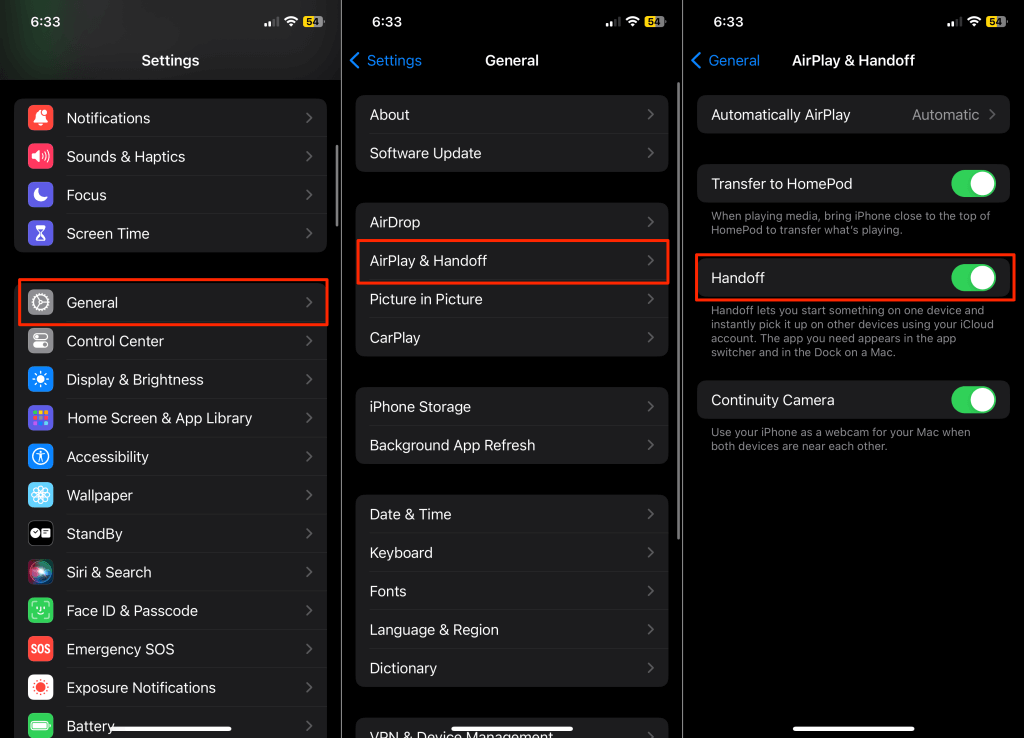
Disable Handoff on iPhone
Go to Settings > General > AirPlay & Handoff and turn off Handoff .
Turn Off iCloud Synchronization
iCloud synchronization allows you to share and access content between your Apple devices. If your iPhone and Mac use the same Apple ID, Apple syncs photos, notes, contacts, and app data across both devices.
You can disconnect your iPhone and Mac by turning off iCloud sync on either device or for specific applications.
Turn Off iCloud Drive on Mac
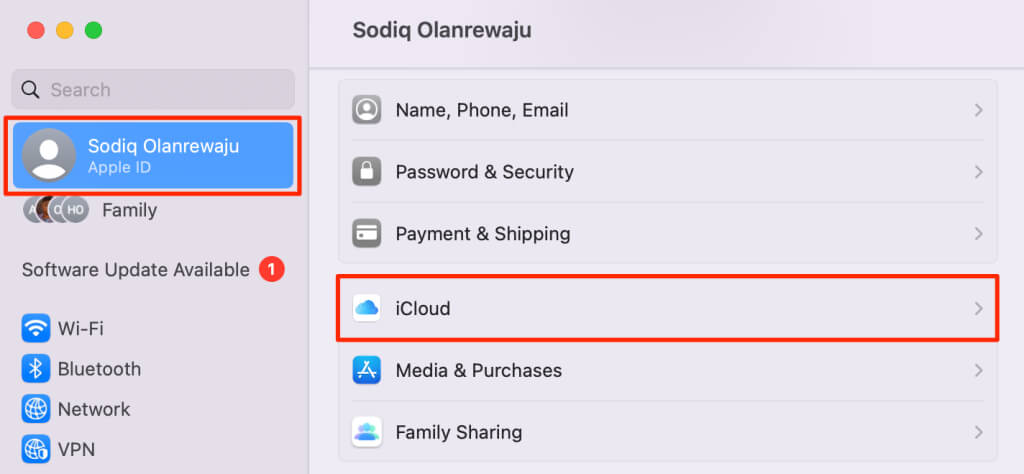
- Open System Settings , select your Apple ID name in the sidebar, and select iCloud .
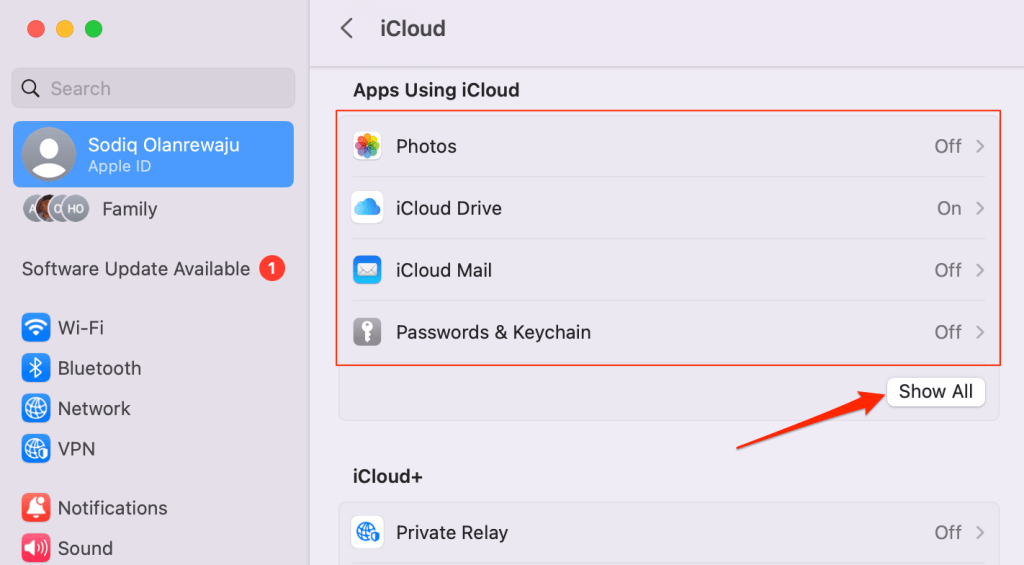
- If you want to disable iCloud sync for a specific app, select the app in the “Apps Using iCloud” section. Select the Show All button in the bottom-right corner to see all iCloud-compatible apps on your Mac.
Jump to step #7 to disable iCloud synchronization for Messages, Mail, Maps, Shortcuts, and other macOS apps.
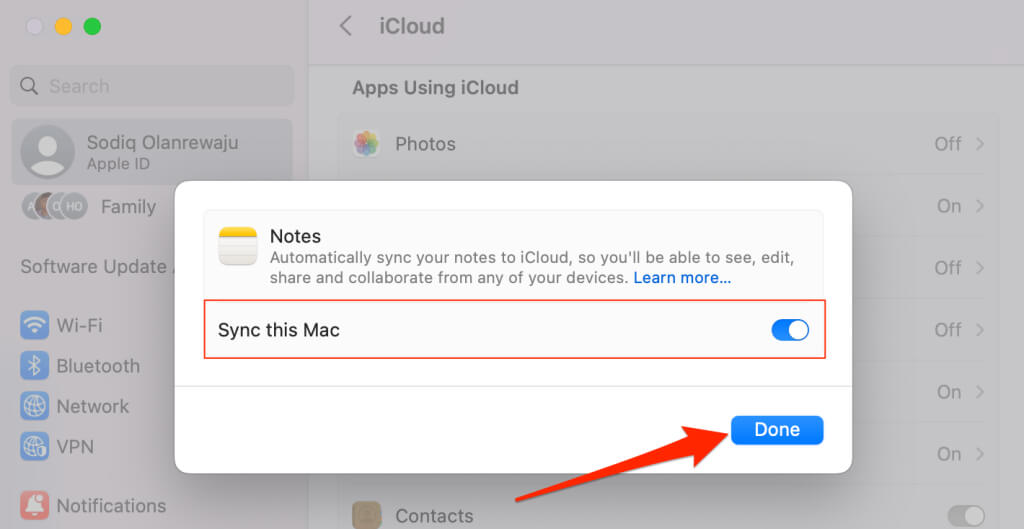
- Toggle off Sync this Mac and select Done to disable iCloud synchronization for the application.
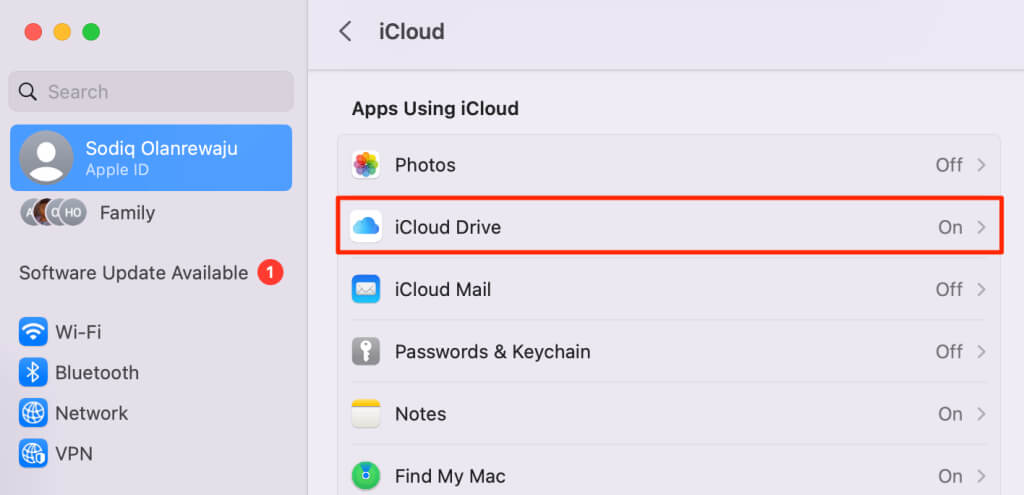
- You can also stop iCloud from syncing your Mac’s documents and folders to your iPhone. Return to the “Apps Using iCloud” section and select iCloud Drive .
- Toggle off Desktop & Documents Folders .
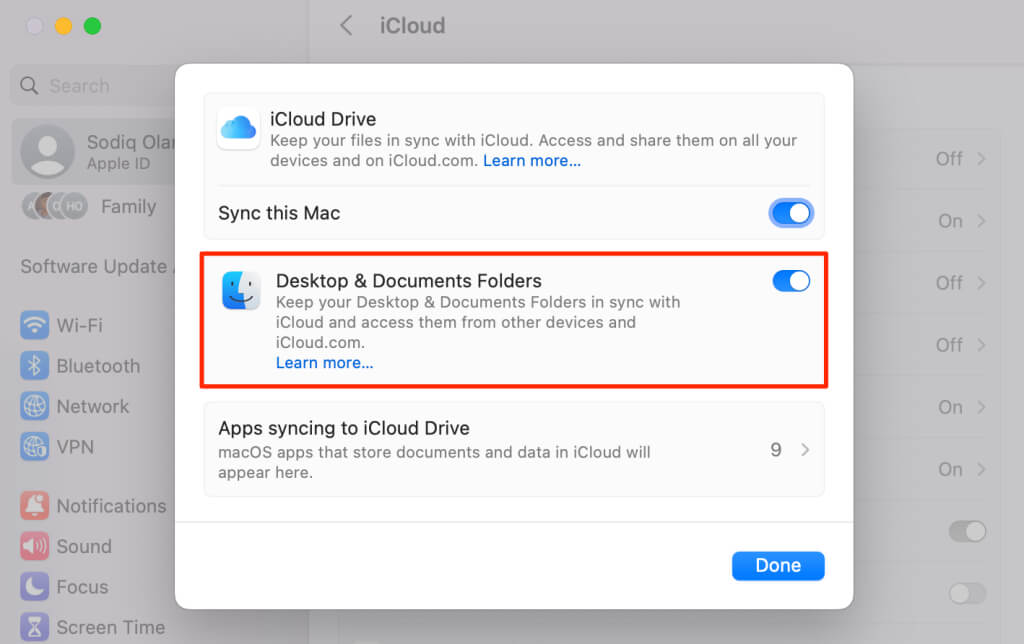
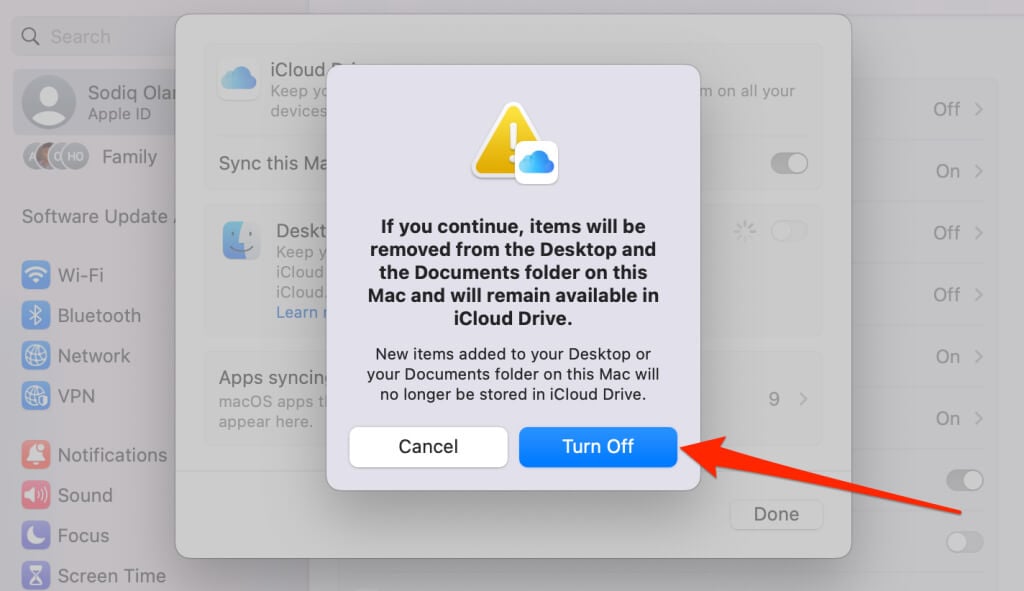
- Select Turn Off to continue.
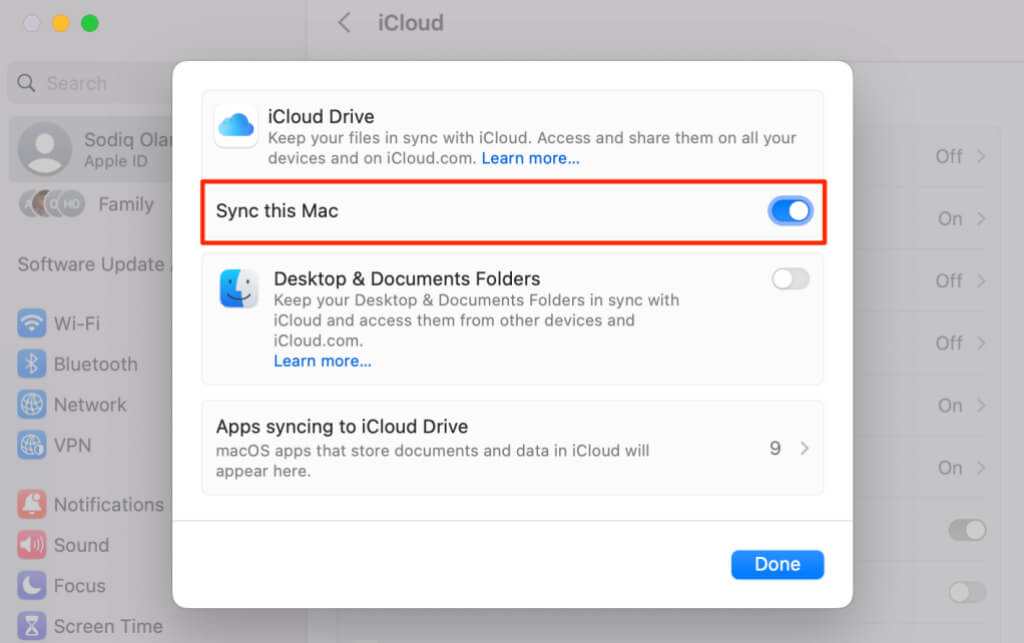
- Toggle off Sync this Mac to stop Apple from syncing macOS apps/files to your iPhone and other devices.
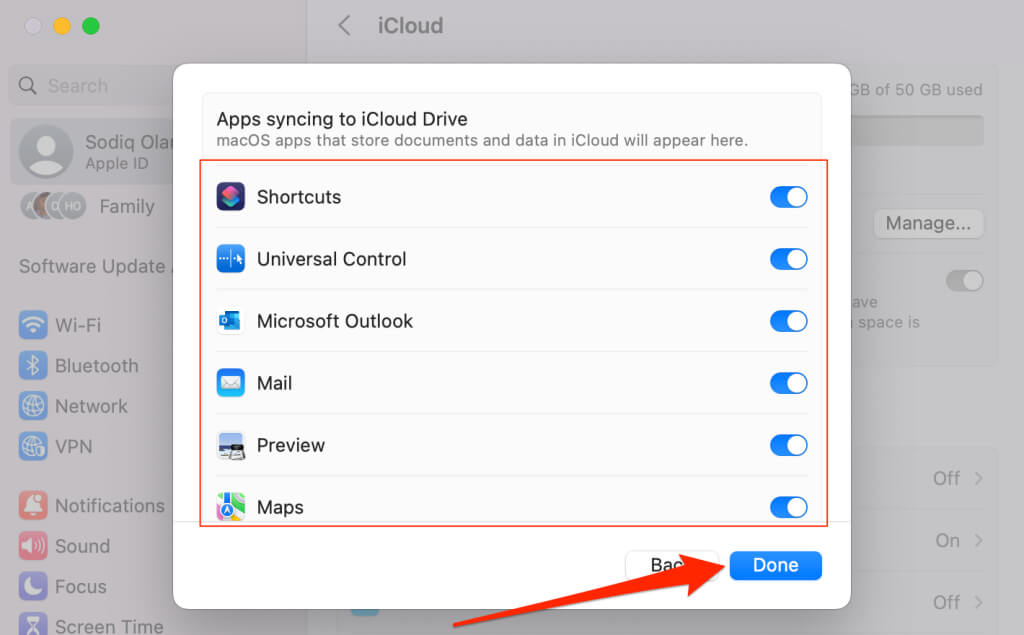
- Select Apps syncing to iCloud Drive to stop specific applications from syncing to iCloud.
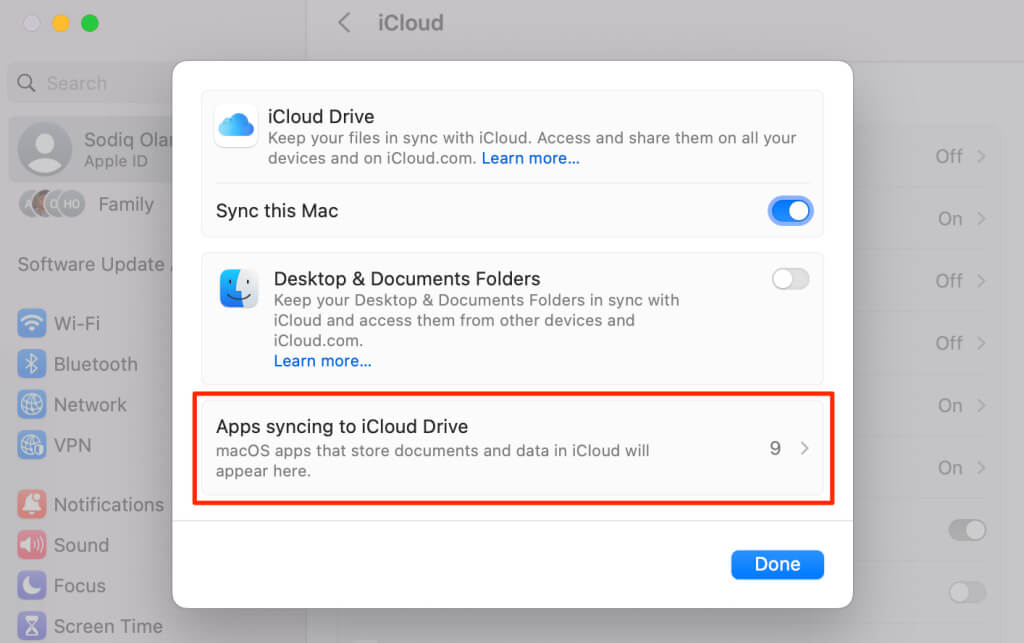
- Turn off the apps you don’t want syncing to your iPhone via iCloud and select Done .
Stop Mac from Joining iPhone Personal Hotspot
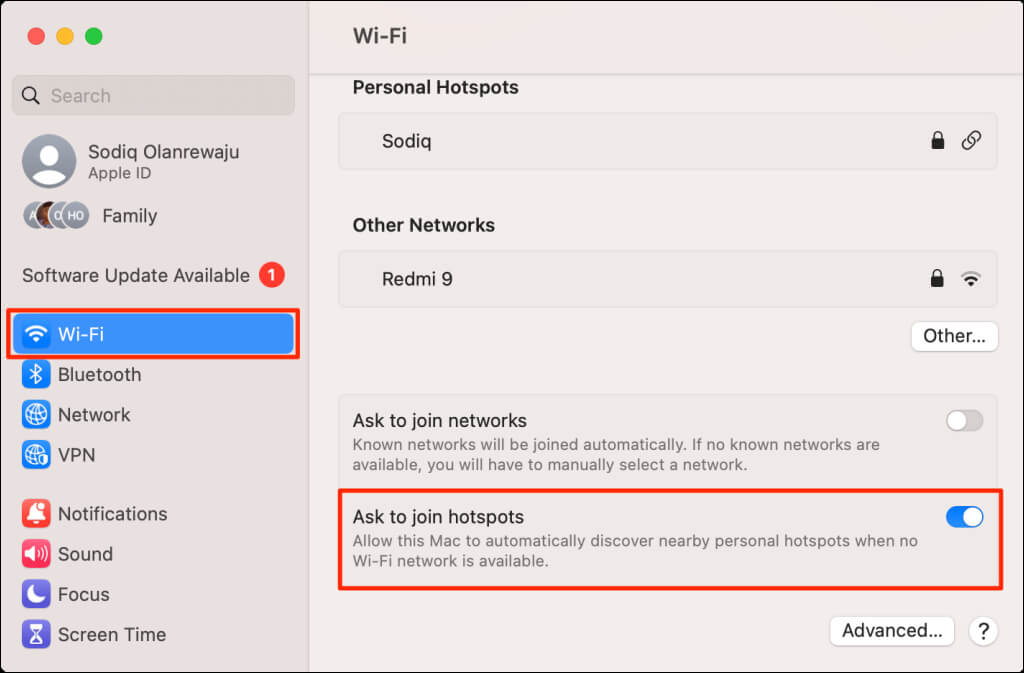
Apple’s Instant Hotspot technology lets your Mac automatically detect and join your iPhone’s hotspot when no Wi-Fi networks are available. Modify your Mac’s Wi-Fi settings to stop macOS from joining your iPhone’s hotspot.
Open System Setting s, select Wi-Fi in the sidebar, and toggle off Ask to join hotspots .
Unlinked and Disconnected
Removing your iPhone or Mac from your Apple ID account is the best way to unlink both devices. Connect a different Apple ID to the unlinked device to access and use Apple apps, services, and subscriptions.
If you want your Mac and iPhone on the same Apple ID, unlink specific apps/services from your preferred device.
- How to Delete Multiple Apps (At Once) On Your iPhone/iPad
- How to Restore the Missing Phone Icon on iPhone/iPad
- How to Dismiss the “Update Apple ID Settings” Notification on iPhone and Mac
- How to Change Your Game Center Nickname (iPhone, iPad, and Mac)
- Guided Access Not Working on iPhone/iPad? Try These 9 Fixes Now
