If you’re in an industry where you receive countless emails every day, you likely get many emails with multiple attachments. Using a manual method to extract attachments can be time-consuming if there are many to download. Luckily, it’s easy to save multiple email attachments at once using Microsoft Outlook.
In this tutorial, we’ll show you how to download all attachments from Outlook.
How to Download All Microsoft Outlook Email Attachments at Once on Windows
To download all attachments at once using the Windows Microsoft Outlook app, do the following:
- Open Outlook and sign in to your Outlook profile.
- Select the email with your desired Outlook attachments.
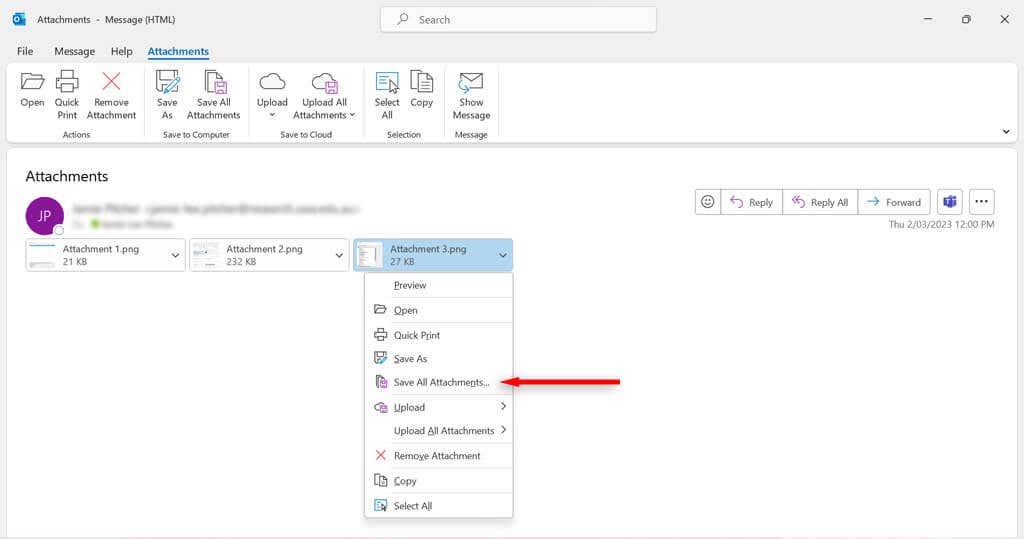
- Right-click any of the attachment files and select Save all attachments in the drop-down menu. If you only want to save one file, select Save As .
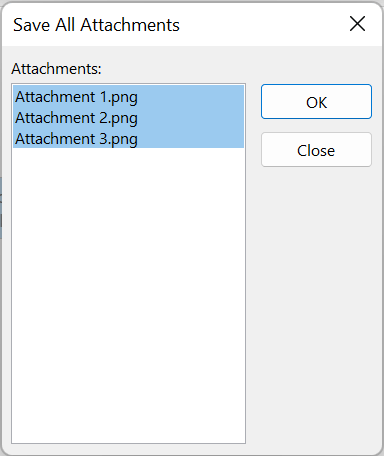
- In the new dialog box, hold down the CTRL key on your keyboard and select all of the attachments you want to download. Click OK .
- Select the location that you would like to save the files to and press the OK button.
How to Download All Microsoft Outlook Email Attachments at Once on Mac
Here’s how to download all attachments using Outlook for Mac:
- Open the MS Outlook application.
- Select the Email message that contains your attachments.
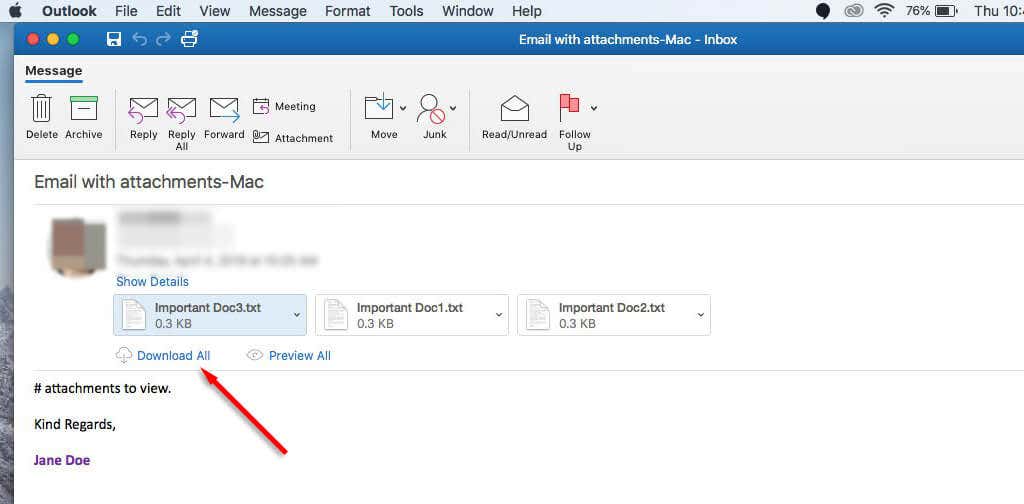
- Click on Attachments and select Download All .
- Select the location that you would like to save your attachments and select Choose .
How to Download Multiple Outlook Attachments From Multiple Emails
It’s also possible to download multiple attachments from many emails at once. To do so:
UseVBACode
If you are using Outlook 2019, 2016, 2013, 2010, 2007, or 2003, you can use the VBA editor to download multiple attachments from multiple emails.
- Open your Documents folder and create a new folder named “Attachments.” This is where your attachments will download to.
- Open Microsoft Outlook .
- Press the Alt and F11 keys on the keyboard to open the VBA editor.
- Right-click Microsoft Outlook Object > Insert > Insert Module .
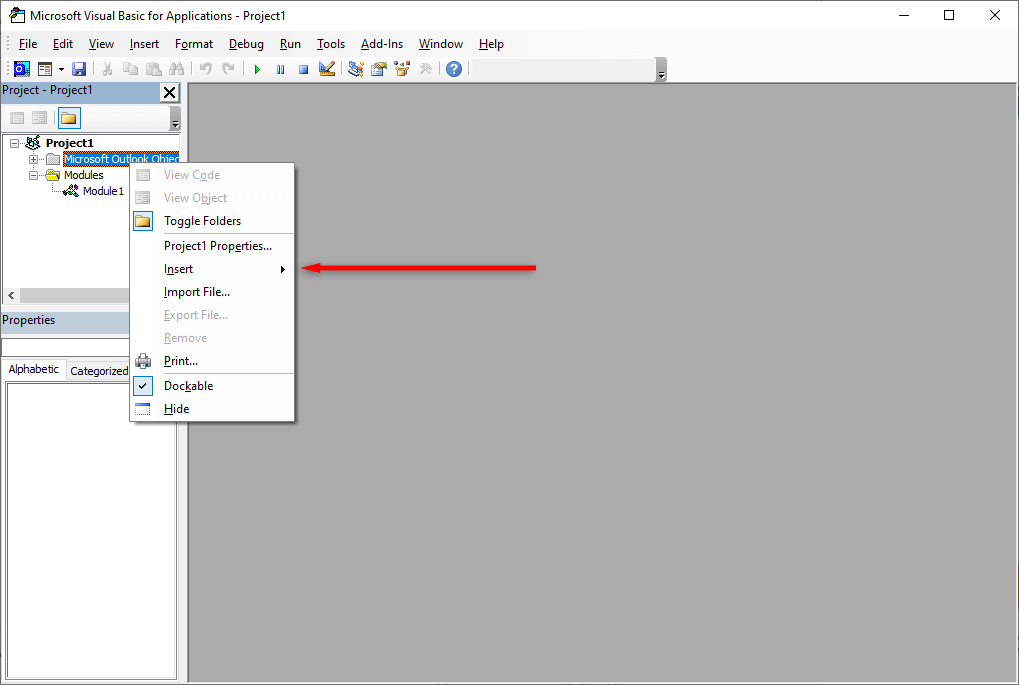
- Copy the following code into the editor and press Enter :
Dim GCount As Integer
Dim GFilepath As String
Public Sub SaveAttachments()
‘Update 20200821
Dim xMailItem As Outlook.MailItem
Dim xAttachments As Outlook.Attachments
Dim xSelection As Outlook.Selection
Dim i As Long
Dim xAttCount As Long
Dim xFilePath As String, xFolderPath As String, xSaveFiles As String
On Error Resume Next
xFolderPath = CreateObject(“WScript.Shell”).SpecialFolders(16)
Set xSelection = Outlook.Application.ActiveExplorer.Selection
xFolderPath = xFolderPath & “\Attachments\”
If VBA.Dir(xFolderPath, vbDirectory) = vbNullString Then
VBA.MkDir xFolderPath
End If
GFilepath = “”
For Each xMailItem In xSelection
Set xAttachments = xMailItem.Attachments
xAttCount = xAttachments.Count
xSaveFiles = “”
If xAttCount > 0 Then
For i = xAttCount To 1 Step -1
GCount = 0
xFilePath = xFolderPath & xAttachments.Item(i).FileName
GFilepath = xFilePath
xFilePath = FileRename(xFilePath)
If IsEmbeddedAttachment(xAttachments.Item(i)) = False Then
xAttachments.Item(i).SaveAsFile xFilePath
If xMailItem.BodyFormat <> olFormatHTML Then
xSaveFiles = xSaveFiles & vbCrLf & “<Error! Hyperlink reference not valid.>”
Else
xSaveFiles = xSaveFiles & “
” & “<a href=’file://” & xFilePath & “‘>” & xFilePath & “”
End If
End If
Next i
End If
Next
Set xAttachments = Nothing
Set xMailItem = Nothing
Set xSelection = Nothing
End Sub
Function FileRename(FilePath As String) As String
Dim xPath As String
Dim xFso As FileSystemObject
On Error Resume Next
Set xFso = CreateObject(“Scripting.FileSystemObject”)
xPath = FilePath
FileRename = xPath
If xFso.FileExists(xPath) Then
GCount = GCount + 1
xPath = xFso.GetParentFolderName(GFilepath) & “\” & xFso.GetBaseName(GFilepath) & ” ” & GCount & “.” + xFso.GetExtensionName(GFilepath)
FileRename = FileRename(xPath)
End If
xFso = Nothing
End Function
Function IsEmbeddedAttachment(Attach As Attachment)
Dim xItem As MailItem
Dim xCid As String
Dim xID As String
Dim xHtml As String
On Error Resume Next
IsEmbeddedAttachment = False
Set xItem = Attach.Parent
If xItem.BodyFormat <> olFormatHTML Then Exit Function
xCid = “”
xCid = Attach.PropertyAccessor.GetProperty(“http://schemas.microsoft.com/mapi/proptag/0x3712001F”)
If xCid <> “” Then
xHtml = xItem.HTMLBody
xID = “cid:” & xCid
If InStr(xHtml, xID) > 0 Then
IsEmbeddedAttachment = True
End If
End If
End Function
Note : You can copy the original code above from Extend Office and paste it into the editor.
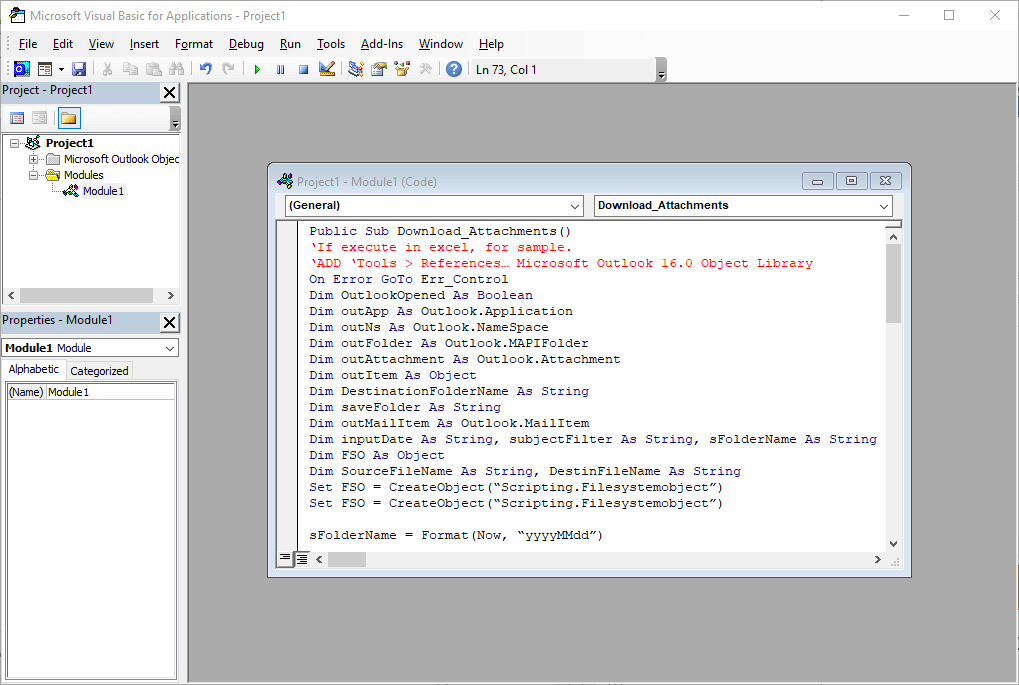
- Press F5 to run the script. You may get a pop-up window prompting you to allow the action.
Using an External Tool
If you’re using another version of Outlook, want to download a file type other than PST , or find the VBA method cumbersome, you can download a tool that can help you download multiple Outlook attachments at once.
Apps such as Outlook Attachment Extractor have the functionality to save attachments not only from PST files, but from other file formats such as OST, BAK, MSG, OLK, and OLM files, too. You can also configure the app to filter attachments by file size, date, or sender.
How to Download All Attachments From a Corrupted File
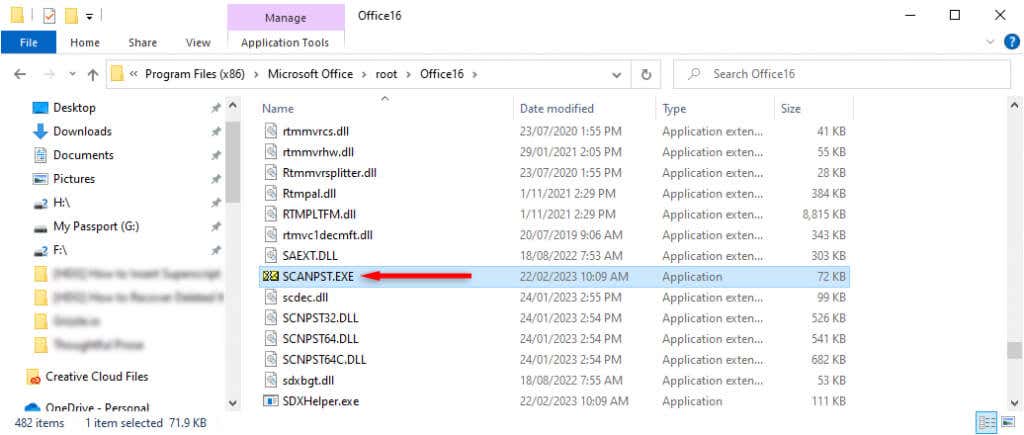
If you cannot open, view, or save file attachments in Outlook, the Microsoft Outlook PST file may be corrupted or damaged. You can repair the PST file to retrieve the attachment using tools such as the SCANPST.exe application.
To use this tool, close Outlook and navigate to one of the following locations, depending on your version of Outlook:
- Outlook 2019: C:\Program Files (x86)\Microsoft Office\root\Office16
- Outlook 2016: C:\Program Files (x86)\Microsoft Office\root\Office16
- Outlook 2013: C:\Program Files (x86)\Microsoft Office\Office15
- Outlook 2010: C:\Program Files (x86)\Microsoft Office\Office14
- Outlook 2007: C:\Program Files (x86)\Microsoft Office\Office12
Then, double-click SCANPST.EXE .
Select Browse , locate the Outlook data file you want to scan and press Start .
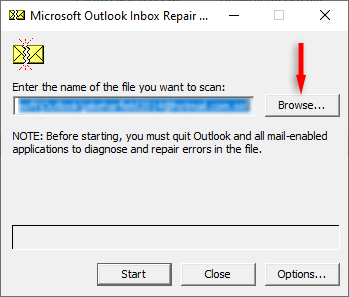
If the tool finds errors, select Repair to attempt to fix them. Once complete, restart Outlook and check whether it now works.
Streamline Your Email Activities
Downloading multiple files from Outlook is easy and you can even download multiple files from multiple emails all at once. If you find the built-in methods in Outlook too difficult, you can download tools such as Outlook Attachment Extractor to help you out.
- How to Report Phishing Emails in Outlook
- Top 6 Ways to Fix Outlook Error 0x8004010f
- How to Make an Email Group in Outlook
- How to Change the Default Browser in Outlook
- How to Pin Emails in Outlook
Jake Harfield is an Australian freelance writer whose passion is finding out how different technologies work. He has written for several online publications, focusing on explaining what he has learned to help others with their tech problems. He’s an avid hiker and birder, and in his spare time you’ll find him in the Aussie bush listening to the birdsong. Read Jake’s Full Bio
