You may find yourself in a situation where you need to configure your HP printer, without becoming ensnared in a web of complex technical issues .
HP has a user-centric process for downloading and installing printer drivers , helping you set up and customize it to your workflow.
Download and Install Drivers Using Windows Update
You can quickly download and install HP printer drivers in Windows 11 with its Windows Update feature.
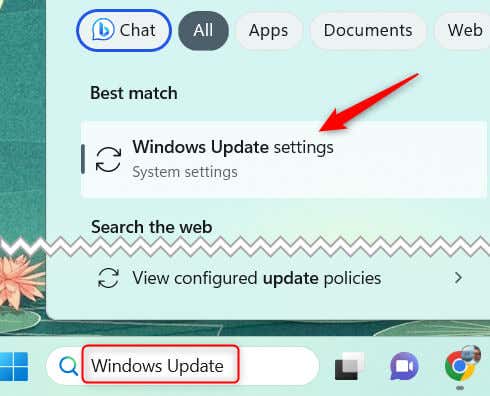
- In the Windows Search bar, type Windows Update and then select Windows Update settings from the search results.
- At the top of this page, click Check for updates . By default, Windows automatically checks for updates on a regular basis. In that case, the Check for updates option won’t appear, so you can skip this step.
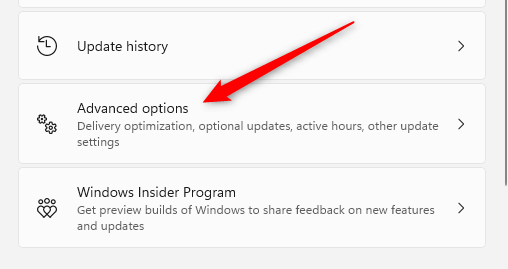
- After Windows finishes checking for updates, scroll down and select Advanced options .
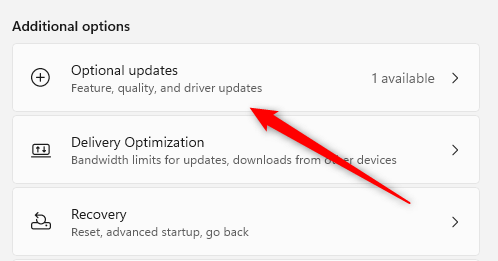
- Scroll down to the Additional options section and select the Optional updates option.
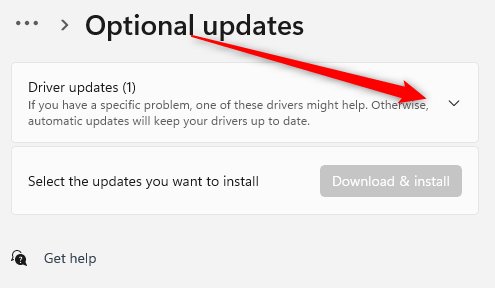
- If there are any drivers available for download, you’ll see a Driver updates option. Click it to expand it.
- Check the box next to the relevant printer driver if one is available, and then click Download & install .
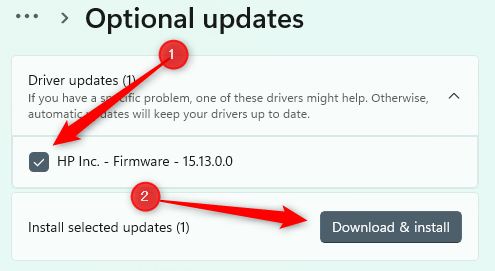
Once the download is complete, the installation will begin automatically. You can follow the on-screen instructions to finalize the process. Make sure your HP printer is connected to your computer during this process, either through a USB cable or your local network
Download and Install Drivers From the Manufacturer’s Website
If you’re not seeing the appropriate driver for your HP printer from Windows Update, the next source you’ll want to check is the HP Customer Support website.
- Access the Software and Driver Download page from the official HP customer support website.
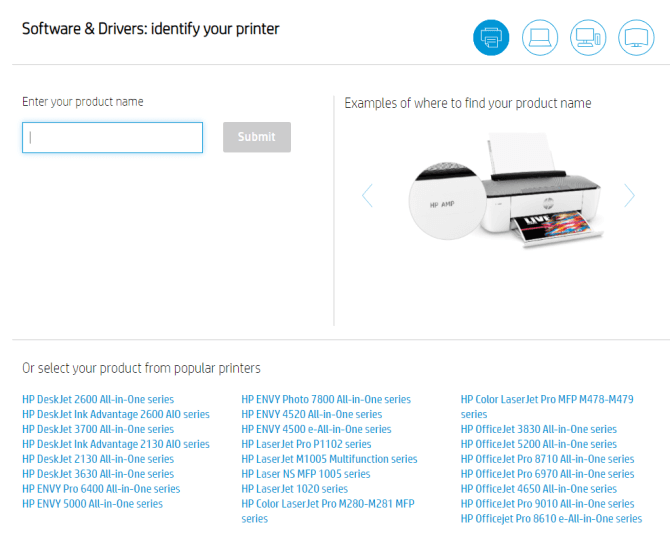
- Next, search for your product name in the search box to locate your printer. To the right of the search box, HP provides some examples of where you can find the product name on your printer. Or, you can select your printer name from the list of printers.
- After finding your printer, find the driver you’d like to install and click Download .
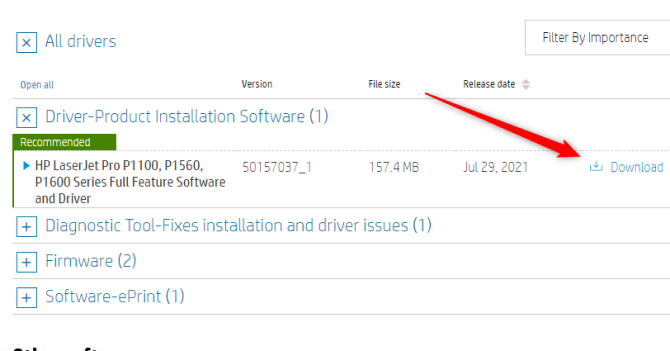
Once the driver is downloaded, you’ll need to install it. Click the file to open it, and the wizard will lead you through the process. The installation process may take a few minutes depending on your system and the size of the file. Don’t close the installation window during the process.
Reinstall the Printer
In most modern devices, printer drivers are downloaded and installed automatically. If you’re having trouble with your current drivers and aren’t sure what to do, a fresh start may be the best bet to make sure you have the most up-to-date drivers available.
To do this, go to Printers & Scanners and select Remove next to the printer. From there, select Add device and go through the setup process again. The drivers will then reinstall.
Simplifying HP Printer Driver Installation on Windows 11
Downloading and installing HP printer drivers on a Windows 11 computer is a straightforward process, provided you follow the right steps. Whether you use Windows Update to automatically fetch and install the drivers or download them manually from the HP Customer Support website, both methods are efficient and user-friendly. Remember, using up-to-date drivers is essential for maintaining the optimal performance and functionality of your HP printer.
Occasionally, you may also face issues that necessitate reinstalling the printer entirely. Always ensure your printer is correctly installed and configured for your specific needs. If you encounter any complications, don’t hesitate to seek assistance from HP Customer Support . After all, the goal is to have a smoothly functioning printer that facilitates your productivity, not hinders it.
- Sluggish Windows 11 PC? Try These 5 Windows 11 Tricks to Free up Virtual Memory
- How To Turn Off Notifications On Windows 11?
- How to Fix Windows 11 Boot Loops After Jan 2026 Update
- How to Remove Copilot AI in Window 11? New Update Available in Beta
- January 2026 Patch Tuesday: 7 Things Windows Users Should Do Before and After Updating
Marshall is a technical writer based in Tokyo, Japan. His bylines are found on VGKAMI, How-To Geek, PCWorld, Zapier, and many other online magazines. Read Marshall’s Full Bio
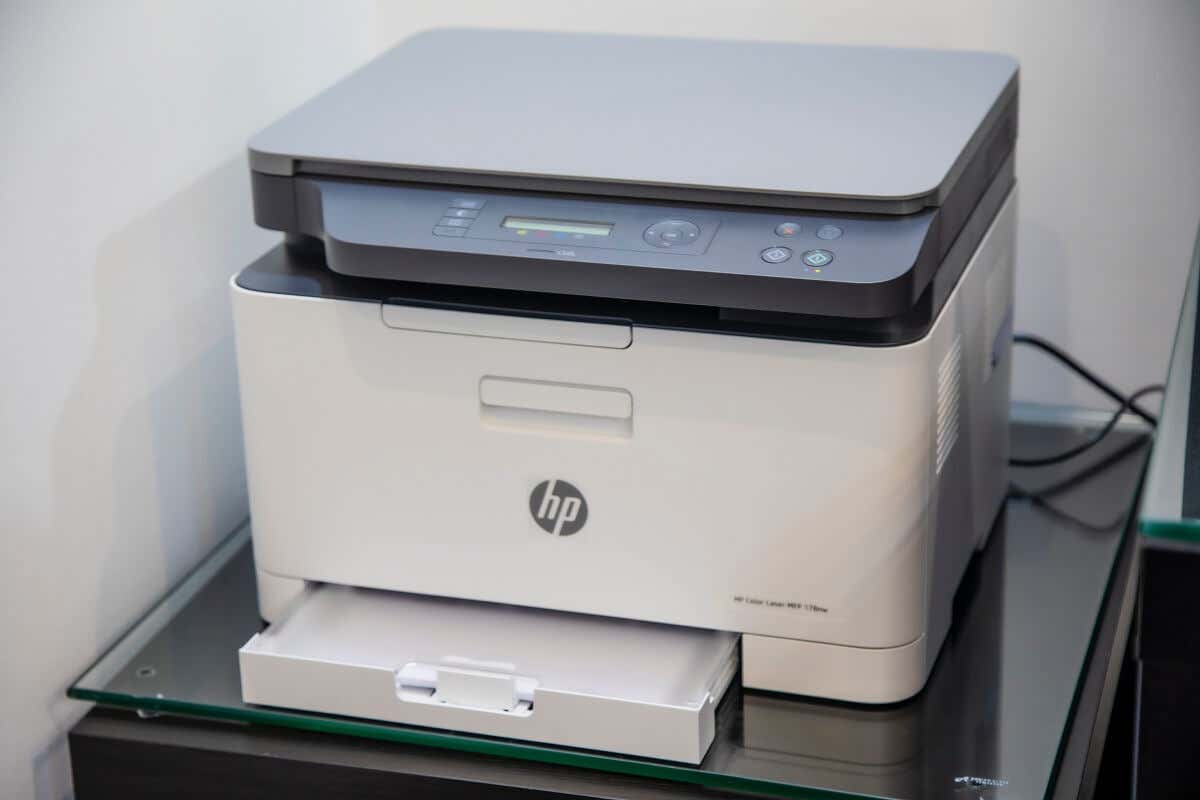
One of the most common printing issues that HP printer users report is that their printer will not print black ink. There are a few reasons this might occur, including incorrect printhead alignment, faulty or empty black color printer cartridges, and more.
In this article, we’ll cover ten common printer errors that can cause your HP Printer to stop printing black and explain how to fix them. These methods might also help with color ink or color cartridge issues.
10 Ways to Fix Your HP Printer When It’s Not Printing Black
Below, we cover 10 different methods to troubleshoot your HP color printer. We begin with the easiest and most probable fixes, so start at the top and work your way down.
Note: Your printer problems might be associated with a specific error message. If so, check out our troubleshooting guides for “ Printer Status Unknown ” and “ Driver Is Unavailable .”
1. Make Sure You Have Ink or Toner
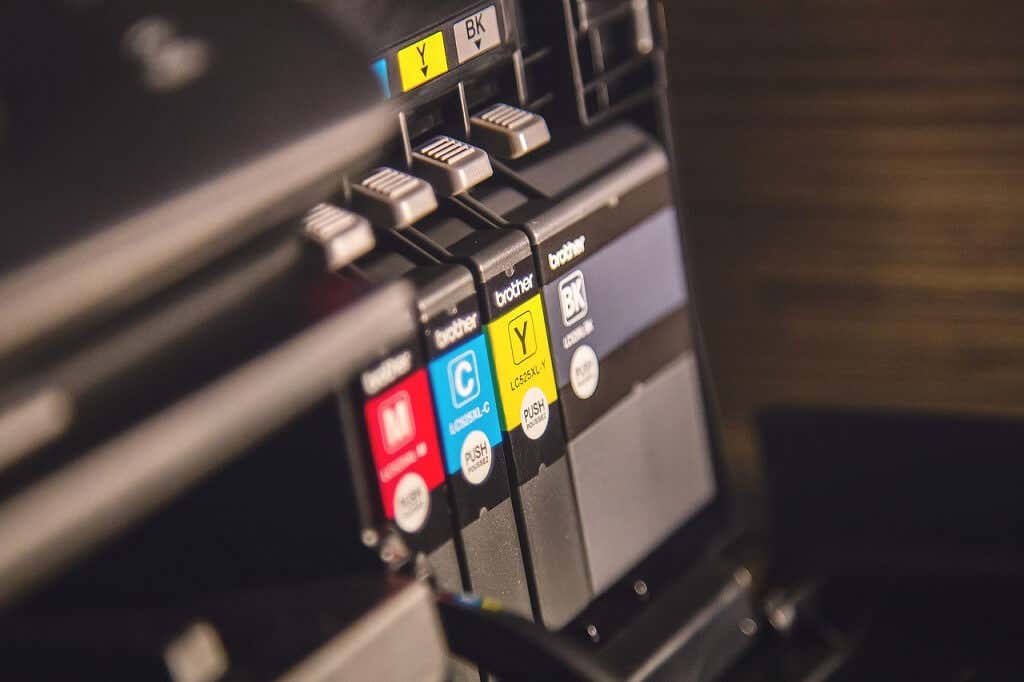
This may seem obvious, but if your HP Printer won’t print black, it might be low on ink or toner. Whether your printer requires ink or toner will depend on the model. HP DeskJet, HP Envy and HP Officejet, and HP InkJet Printers all use ink. HP LaserJet printers use toner.
The first thing to do is check your ink levels. Your printer cartridge doesn’t need to be completely out of ink to stop printing in that color—just very low. If there’s an exclamation mark beside the ink level indicator for black, you need to insert a new cartridge.
Keep in mind that if your printer sensors are faulty, they may show that you have ink even when you don’t. So, even if your printer says it has ink, insert a new printer cartridge to test whether it’s an empty cartridge at fault.
2. Clean the Printhead
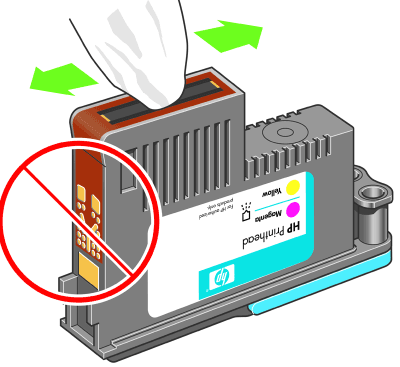
A clogged printhead nozzle can prevent your printer from printing black ink. Fortunately, this is an easy fix. Printhead cleaning is available in the Printer Maintenance menu or HP printer’s control panel under Deep Cleaning or Clean Printhead .
Select the appropriate option on your printer and allow the cleaning process to take place. This may take a while. The printer will then usually print a test page to see if the issue has been resolved. You may need to do this a few times to restore print quality fully.
To prevent clogging in the future, avoid going for long periods of not using your printer, and do not use third-party black ink cartridges.
Note: Another common error HP users get is that they have “Missing or Failed Printheads.” See how to fix this error if it occurs .
3. Clean the Cartridges
If you have cleaned the printhead a few times and are having no luck, it may be worth cleaning the cartridges themselves. Printer cartridges can become clogged or dry out, causing that color to fail.
The easiest way to clean cartridges is to wipe the nozzle plate (where the ink comes out) with some isopropyl alcohol. If this doesn’t work, your cartridge may be dry. Pour some boiling water into a container and submerge about a quarter of the cartridge face down. Leave until the water cools. Dry the cartridge and reinsert it into the printer as normal.
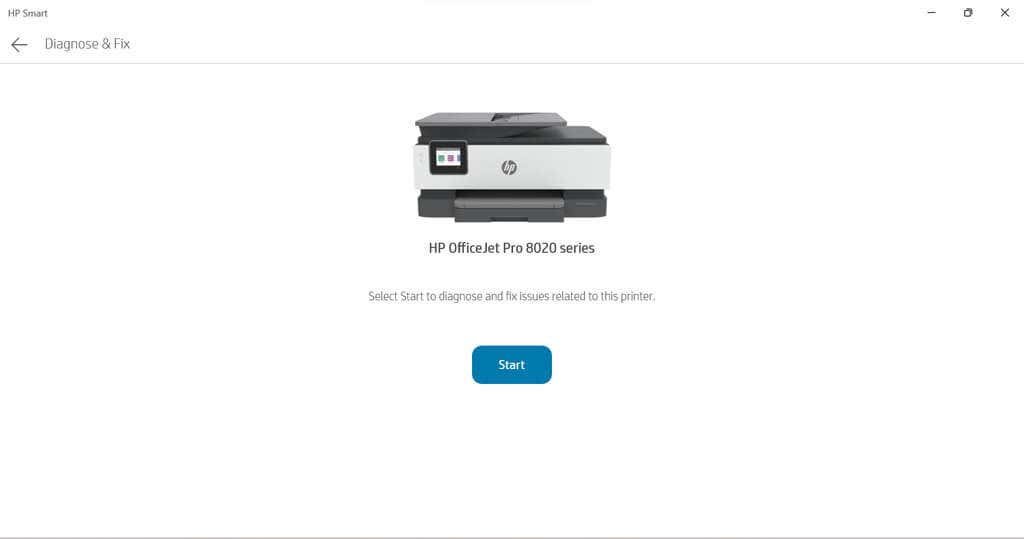
4. Use the HP Smart App
The HP Smart App is available for some HP users and can be used to troubleshoot various printing issues. Most Wi-Fi-enabled HP printers manufactured after 2010 are compatible with this app.
- Open the HP Smart app on your device.
- Select the three bars on the left-hand side to open the home menu.
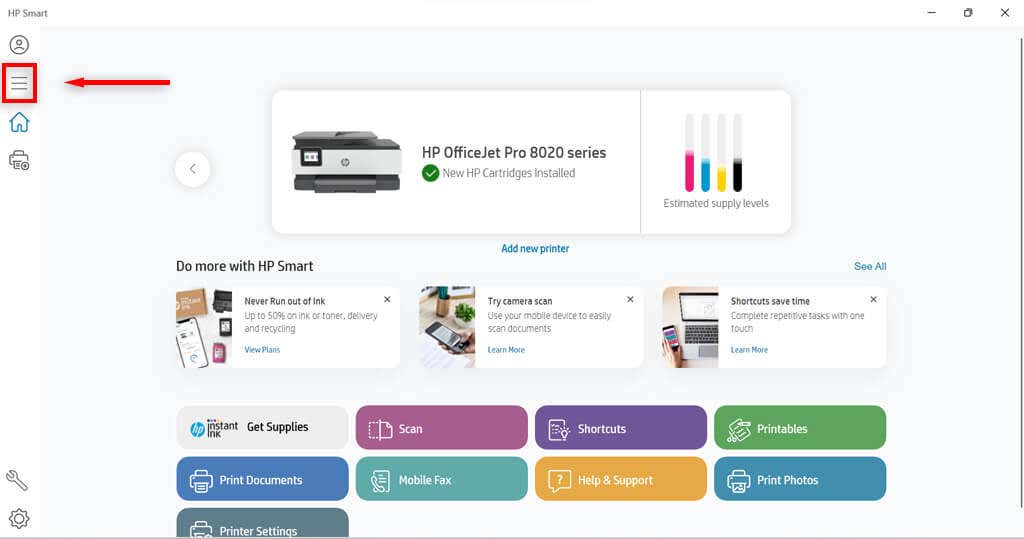
- Select Diagnose and Fix.

- Select Start . Follow the instructions from the troubleshooter.
5. Use the Windows Printer Troubleshooter
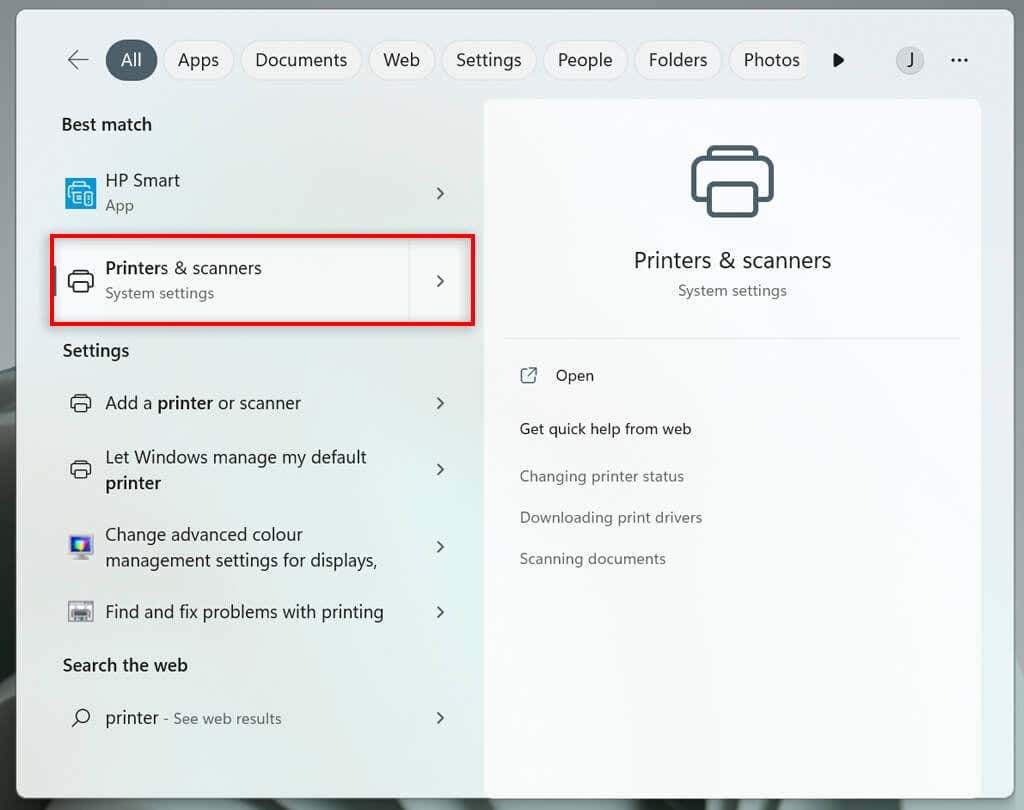
Windows users can also use the Printer Troubleshooter to see what may be causing the issues.
- Type Printers and scanners into the taskbar and select Printers & scanners .
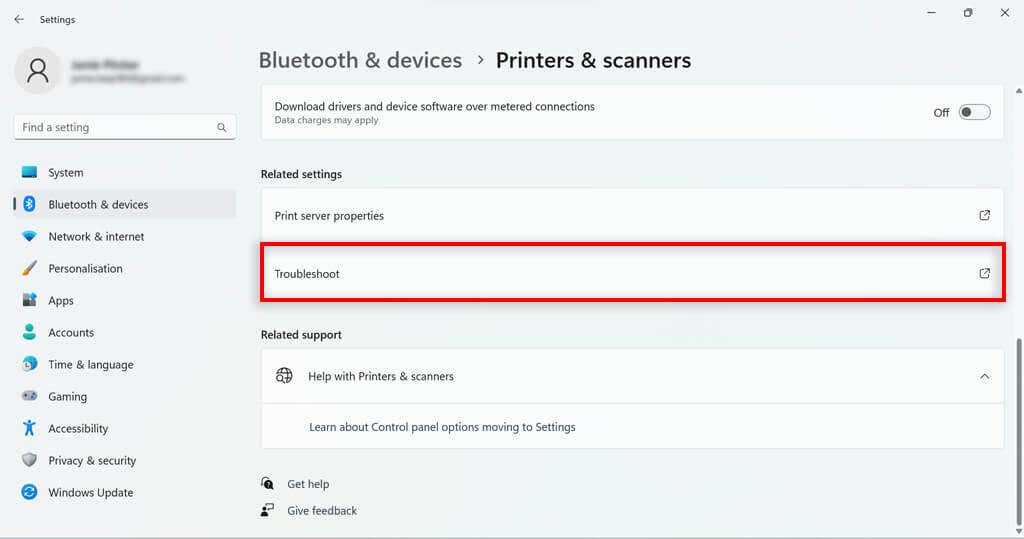
- Under related settings, select Troubleshoot .
- Choose your HP printer model . This should be listed in the troubleshooter’s window.
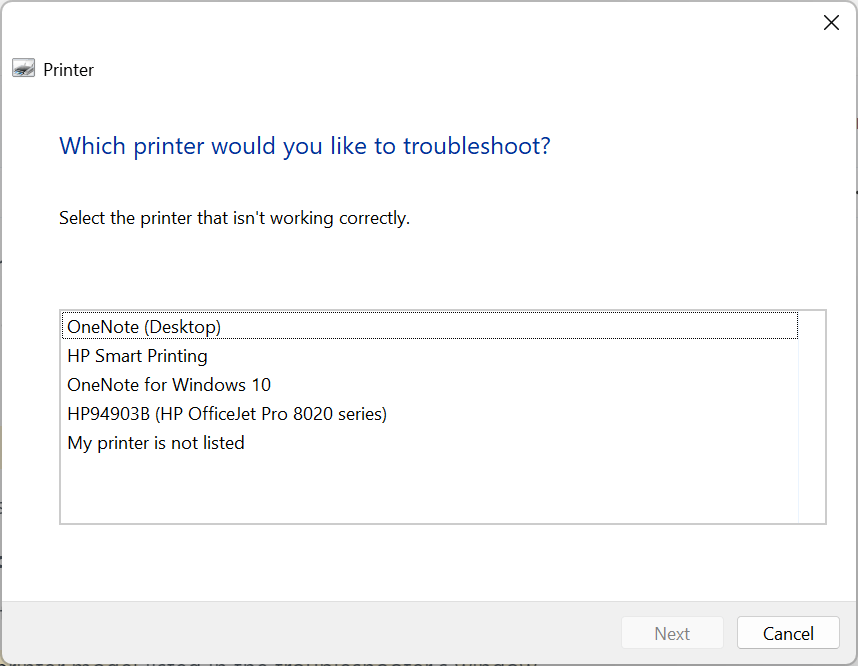
- Select Next .
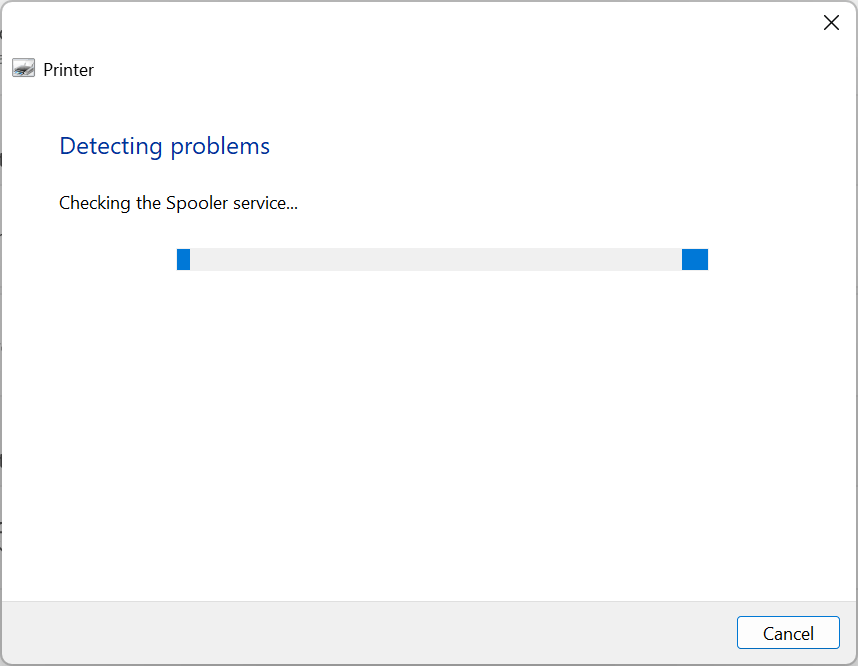
- Follow any instructions in the diagnostic report.
If Windows identifies any problems with the software or printer driver, it will fix them or recommend actions for you to take.
6. Use the HP Print and Scan Doctor
For those with models that aren’t compatible with HP Smart, there is another piece of software that may be helpful. If you don’t have it already, you can download the HP Print and Scan Doctor software here .
- Open the HP Print and Scan Doctor software.
- Select Start to choose your HP printer, and then select Next .
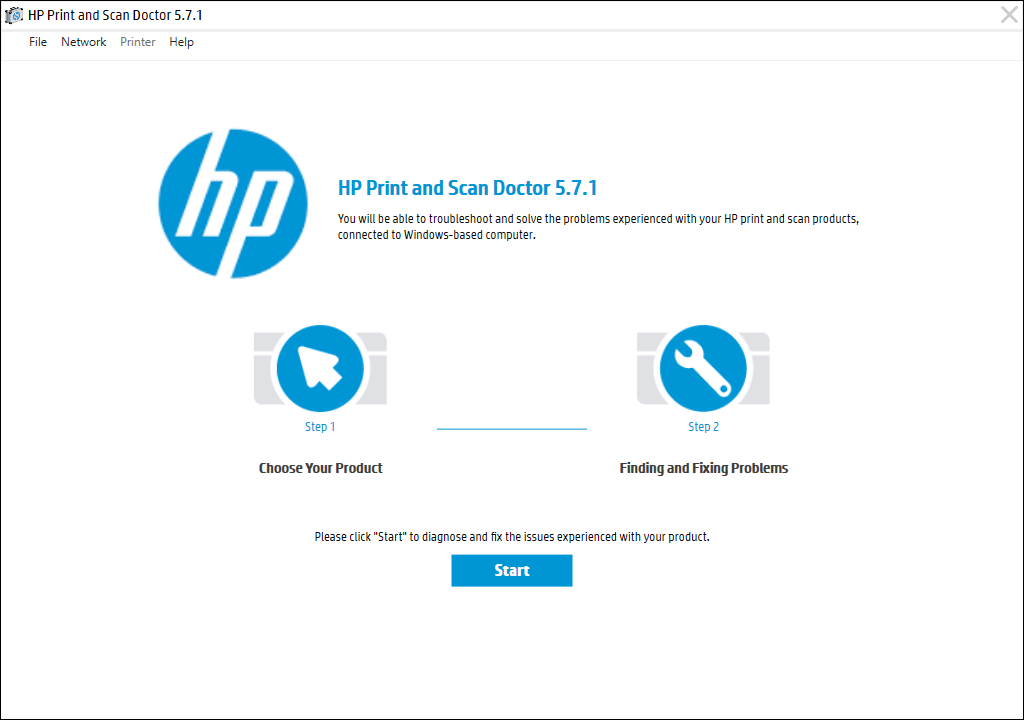
- Select the Fix Printing option.
- Follow the troubleshooting instructions.
7. Use Genuine Hewlett-Packard Cartridges
Third-party ink cartridges, while usually cheaper, don’t always work so well on HP printers. Sometimes the cartridge is faulty, other times it is not compatible with the HP software.
If you’re using a third-party ink cartridge, and having printing problems, try replacing it with an official HP ink cartridge.
8. Align the Printhead
A printer might not print black ink if it has not been calibrated properly. Calibrating your HP Printer by aligning its printhead may fix these issues.
HP printers have an Align Printhead option in their Printer Maintenance menu or within the Control Panel menu that can be used to calibrate the printer.
When you select the Align Printhead option, the printer will print an alignment page and prompt you to make changes based on the outcome of the alignment printout. The actual process will depend on your model. Refer to your HP printer manual for specific printhead alignment guidelines.
9. Check the Paper Type

If you’re printing in black and white and getting blank pages (or it won’t print at all ), the issue may not be the ink but the paper. Try inserting plain paper rather than any specialty paper and see whether the issue is resolved.
If the printer prints fine on normal paper, you might need to adjust your paper settings. Make sure that the paper selected in your printer settings for the print job matches the paper type you’re trying to print on.
10. Contact HP Support
If all else fails, it’s time to contact customer service. You can access HP Support here . Select Contact Us to get in contact with an HP staff member that can hopefully talk you through your printer problems.
Print it Black
Hopefully, the above solutions have helped you fix your HP printer so that it prints in black once again. If they don’t help and HP support is unable to identify the problem, the printer itself might need repairing.
Users can return HP printers within their warranty periods to the manufacturer for repairs. So check the warranty period of your printer to see if you can return it.
- How to Fix the “Error – Printing” Status Error in Windows
- How to Fix Missing or Failed Printhead Error on HP Printers
- How to Add a Printer to Your Chromebook
- How to Fix the Printer Error “0x0000011b” on Windows
- How to Fix HP “Printer Status Unknown” Error
Jake Harfield is an Australian freelance writer whose passion is finding out how different technologies work. He has written for several online publications, focusing on explaining what he has learned to help others with their tech problems. He’s an avid hiker and birder, and in his spare time you’ll find him in the Aussie bush listening to the birdsong. Read Jake’s Full Bio
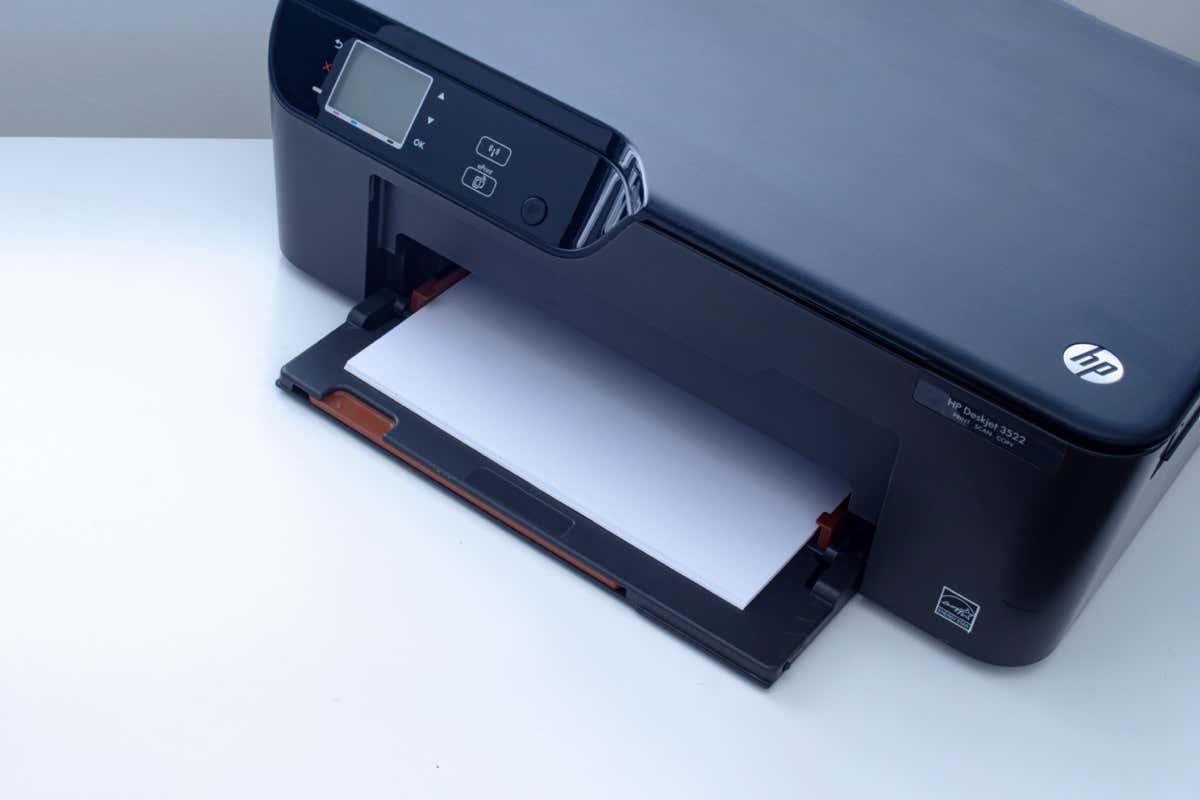
Do you see a “Driver is unavailable” error for your HP printer in the Windows Settings app or Control Panel? This occurs when Windows encounters a corrupt or incompatible HP printer driver. We’ll show you how to fix that.
When Does the “Driver Is Unavailable” Error Happen?
The “Driver is unavailable” error shows up for an HP printer in instances where Windows has trouble loading the relevant printer driver. Various reasons—such as outdated driver software or an incomplete printer setup—often cause that. Work through the fixes below to resolve the HP printer issue in Windows 10 and 11.
1. Run the Printer Troubleshooter
Windows has a built-in Printer troubleshooter that can fix most printer driver issues and other common printer problems . Run it before moving on to the rest of the fixes.
- Press Windows Key + S , type Troubleshoot Settings , and press Enter . On the Settings window that shows up, select Other / Additional troubleshooters .
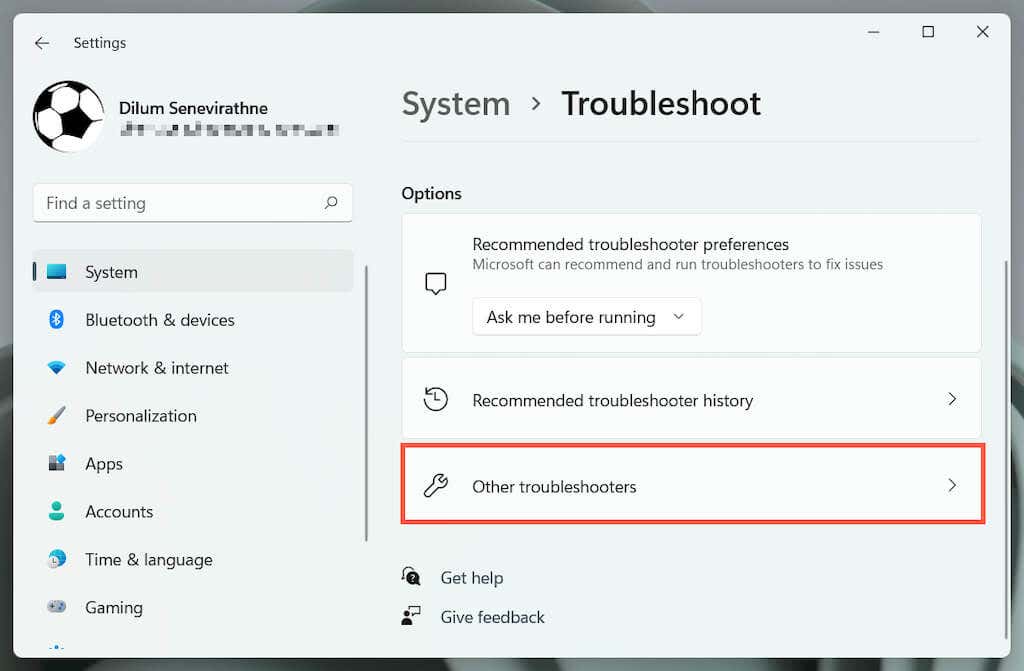
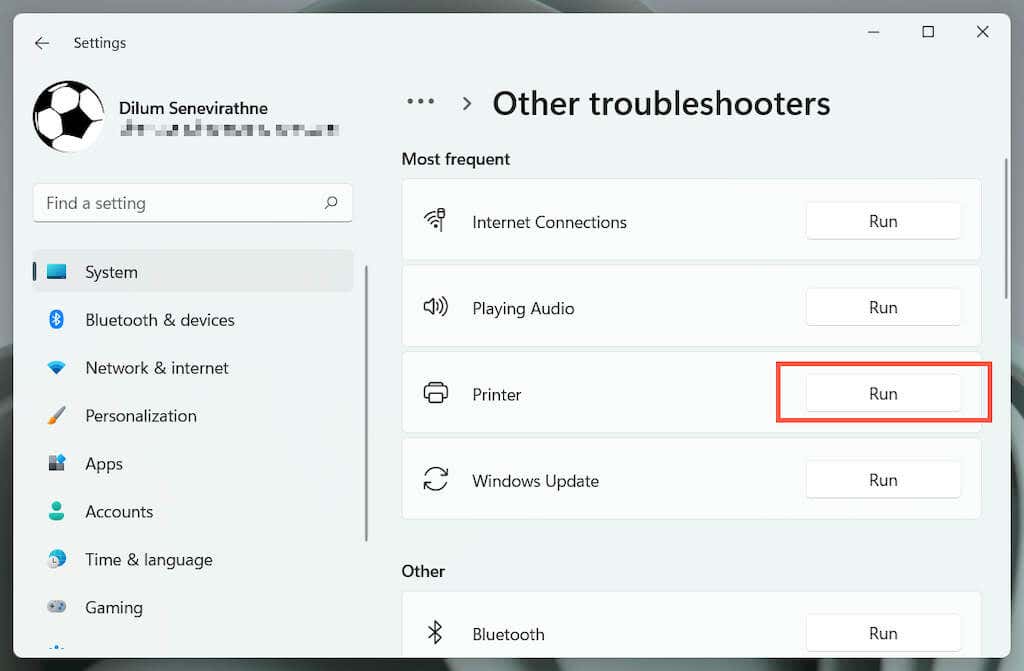
- Locate the Printer troubleshooter and select Run / Run the troubleshooter .
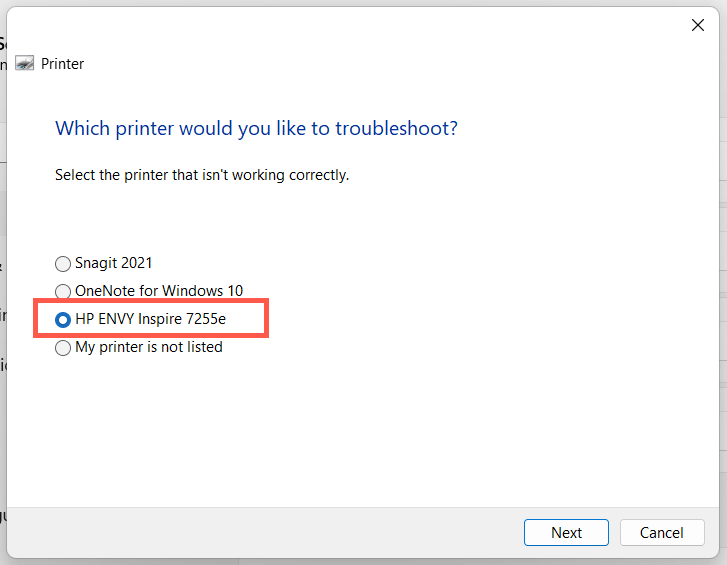
- Select your HP printer and follow the on-screen instructions to fix issues the Printer troubleshooter detects.
2. Run the HP Print and Scan Doctor App
Next, run the HP Print and Scan Doctor app on your PC. It’s a dedicated troubleshooter by HP that can diagnose and fix issues specific to HP printers. You can download the HP Print and Scan Doctor from the HP website.
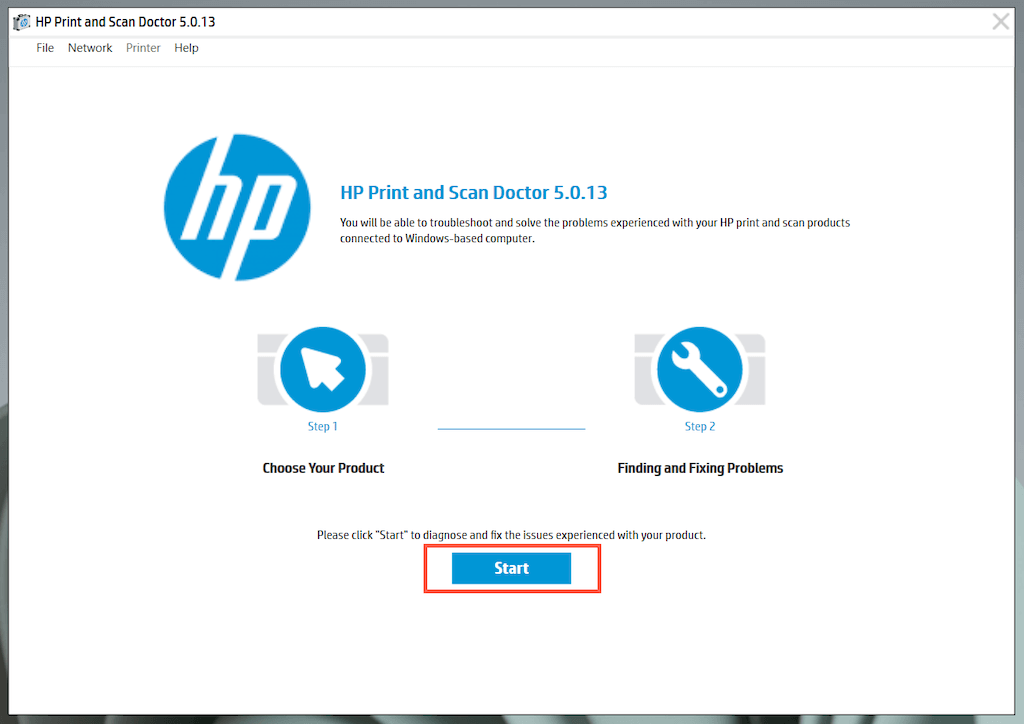
If the HP Print and Scan Doctor detects issues with your HP printer, let the tool automatically fix them for you or follow any suggestions to do that yourself.
3. Update Your HP Printer
Visit HP’s Software and Driver Downloads portal and search for your HP printer model. Then, download and install any recommended support software (e.g., HP Smart or HP Easy Start) that you don’t already have on your computer. Also, install any firmware or device driver updates.
If you have trouble installing device drivers via HP’s driver updater tool, try using the Device Manager in Windows instead. To do that:
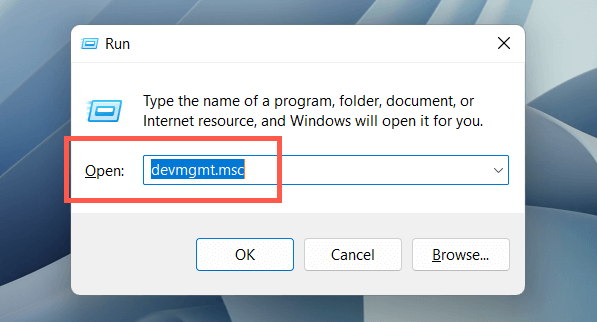
- Press Windows + R to open a Run box. Then, type devmgmt.msc and select OK to open the Device Manager.
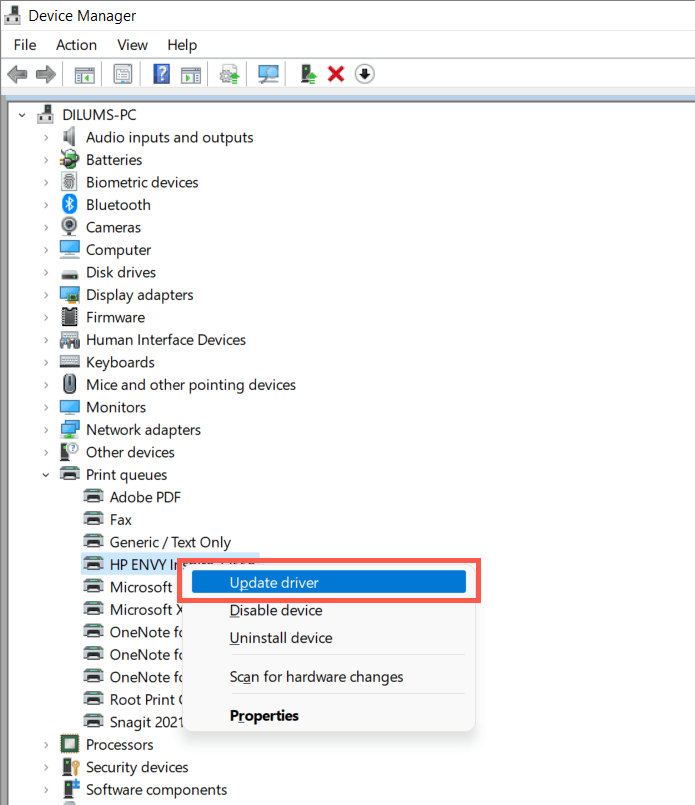
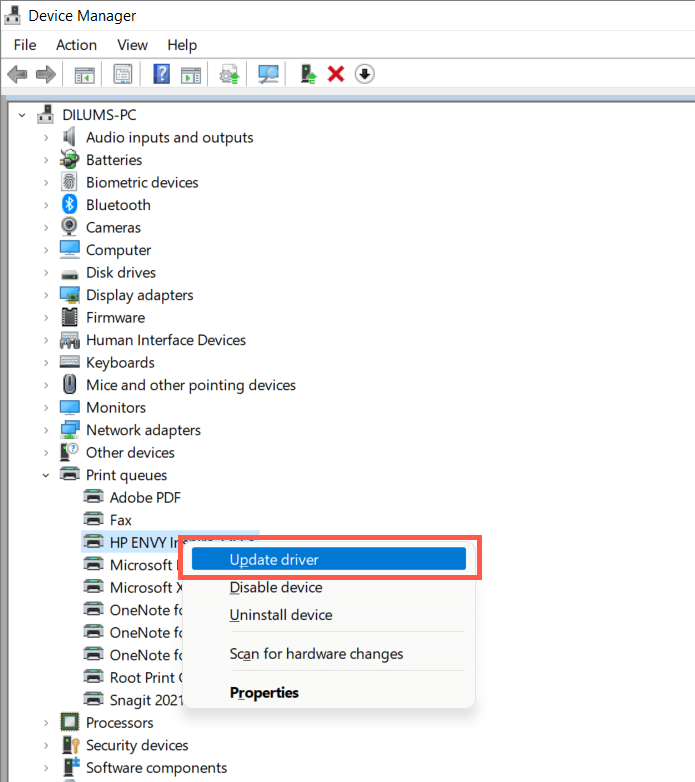
- Expand Print queues , right-click your printer hardware (e.g., HP ENVY ), and select Update driver .
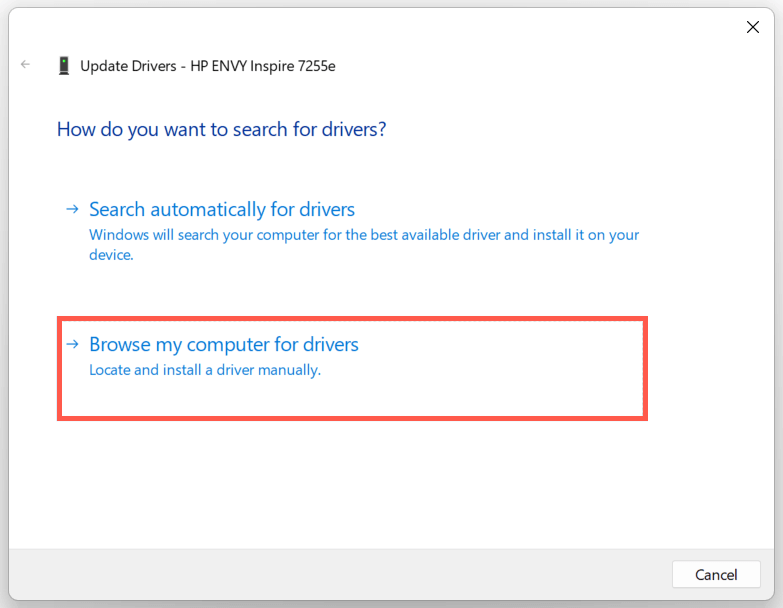
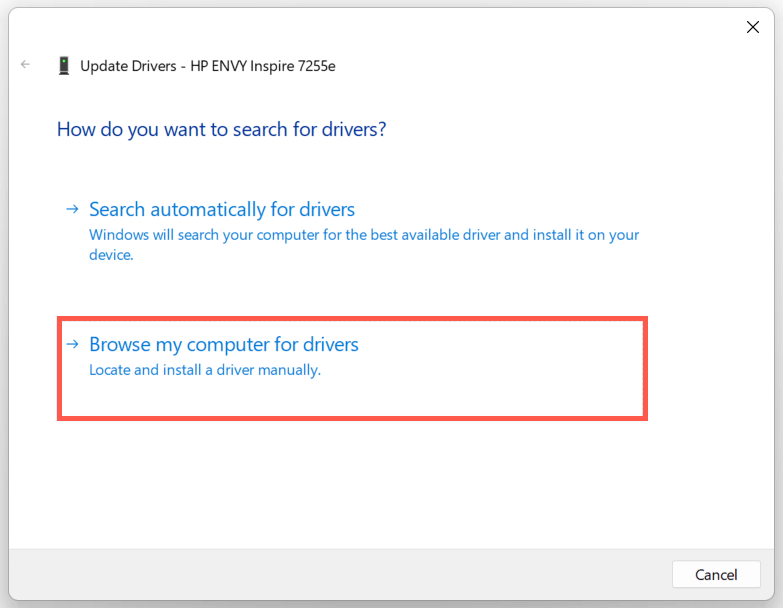
- Select Browse my computer for drivers on the Update Drivers dialog.
- Check the box next to Include subfolders . Then, select Browse and pick the downloaded driver file or folder.
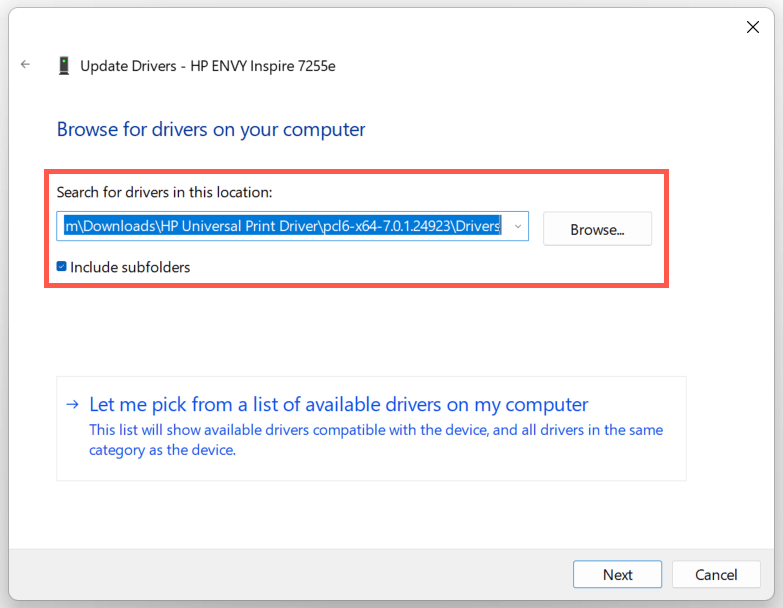
Note : If the driver file is in the ZIP format, Windows may not detect it unless you extract it first.
- Select Next to update the HP printer driver. Once that’s done, select Close to exit the Update Drivers window.
4. Install New Windows Updates
If your PC runs on an early build of Windows 10 or 11, your HP printer driver or support software may encounter compatibility issues unless you update the operating system .
To do that, open the Start menu and select Settings . Then, select Windows Update > Check for updates > Download and install to install available Windows updates.
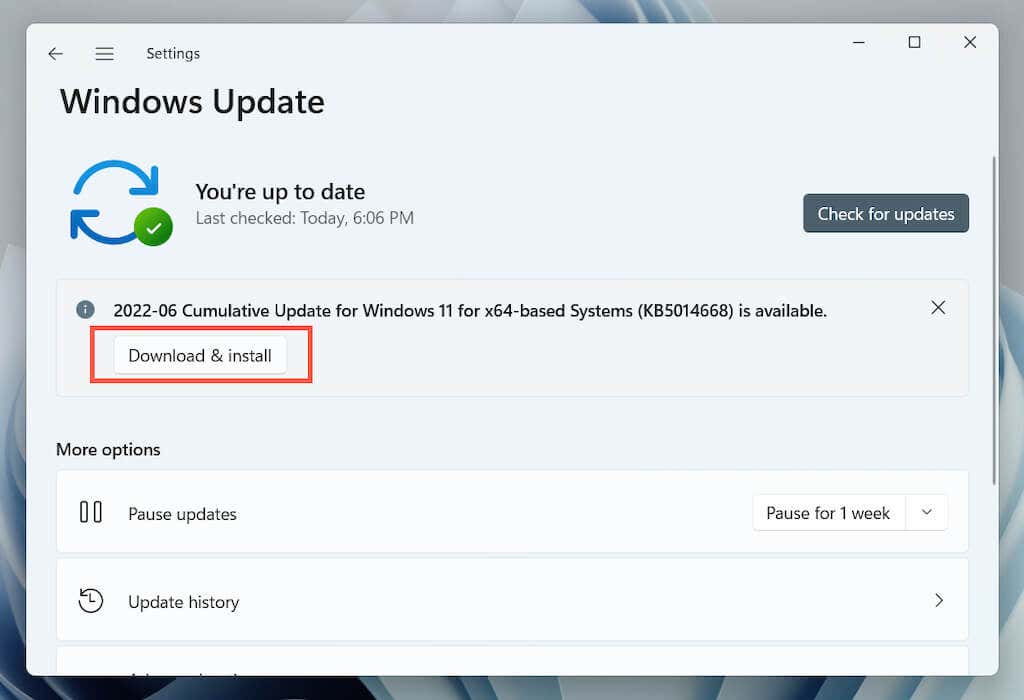
Also, select Advanced options > Optional updates or View optional updates within the Windows Update pane and install any Microsoft-verified printer updates if available.
5. Remove and Re-install Drivers for HP Printer
If the “Driver is unavailable” error persists, try removing and re-adding the printer to your computer. That also involves deleting and reinstalling the relevant HP drivers and support software.
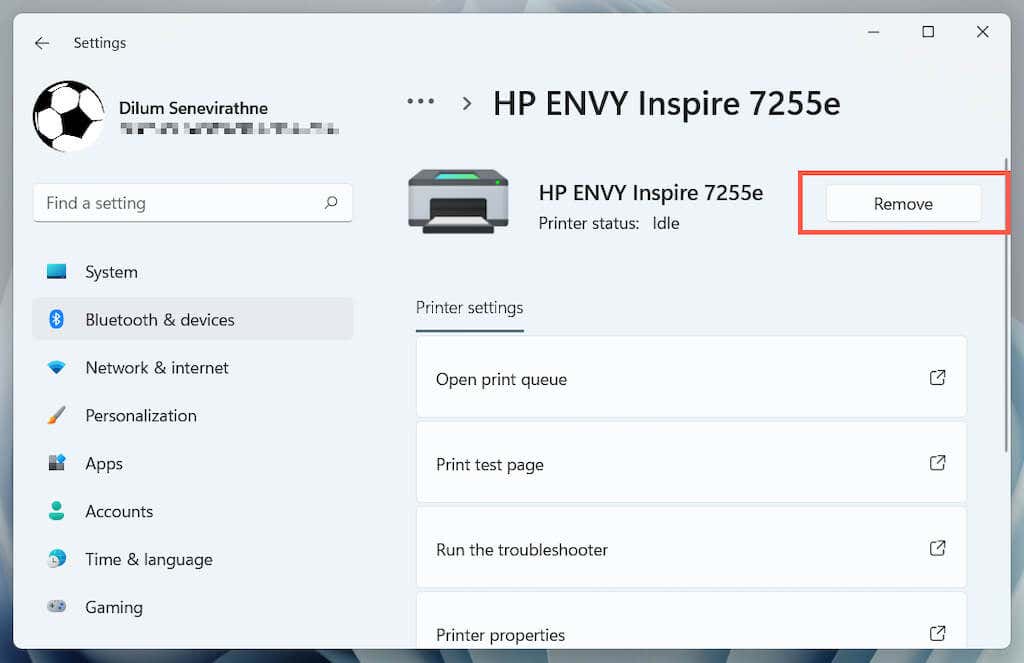
Open the Settings app and go to Bluetooth & devices > Printers & scanners .
Choose your HP printer and select the Remove button to confirm. Then, select Remove device on the pop-up to confirm.
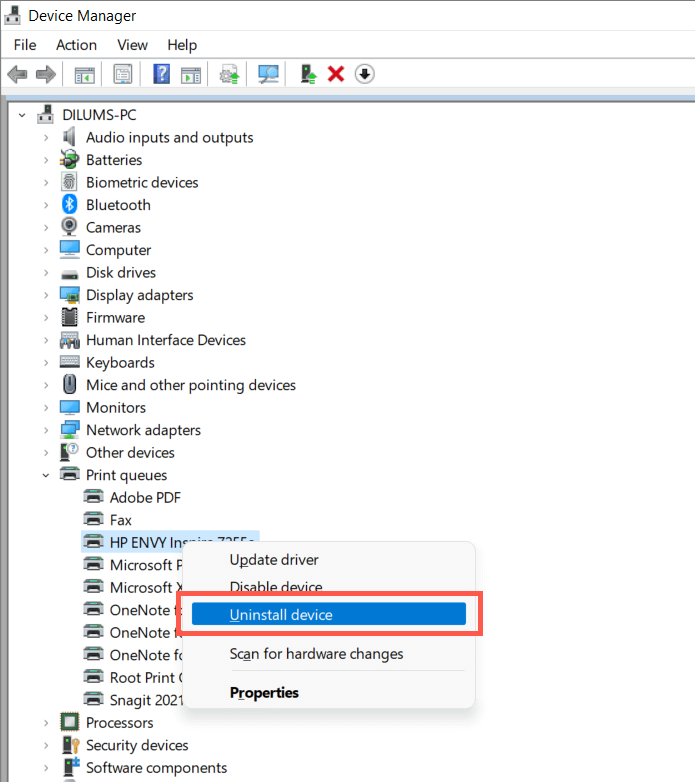
Open the Device Manager.
Expand Printer queues , right-click your HP printer, and select Uninstall device .
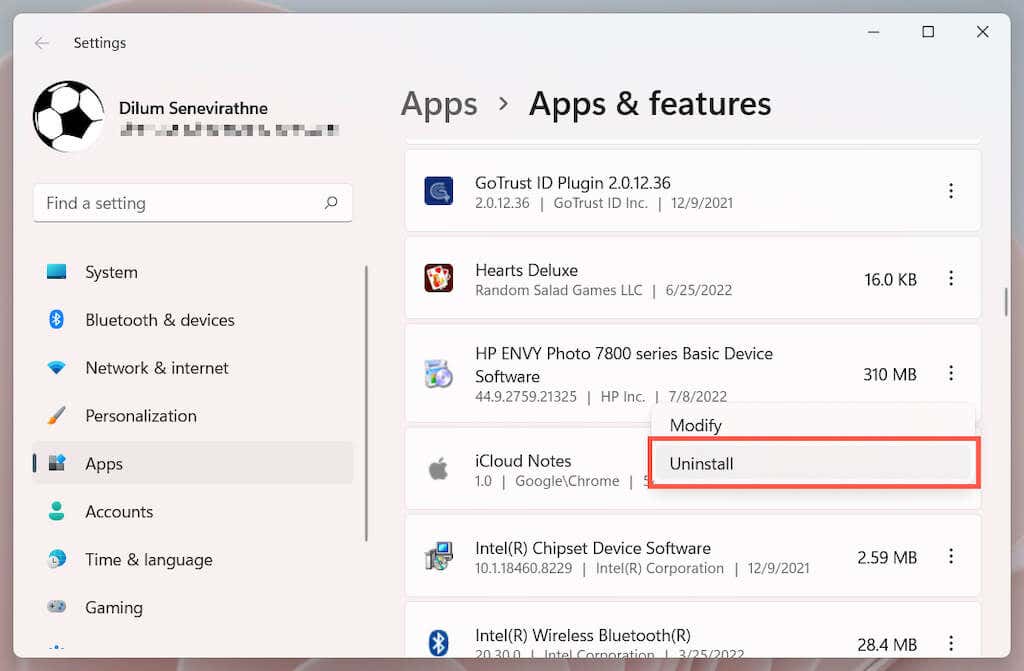
Right-click the Start button and select Apps and Features .
Locate and uninstall any HP drivers or support software.
Restart your computer.
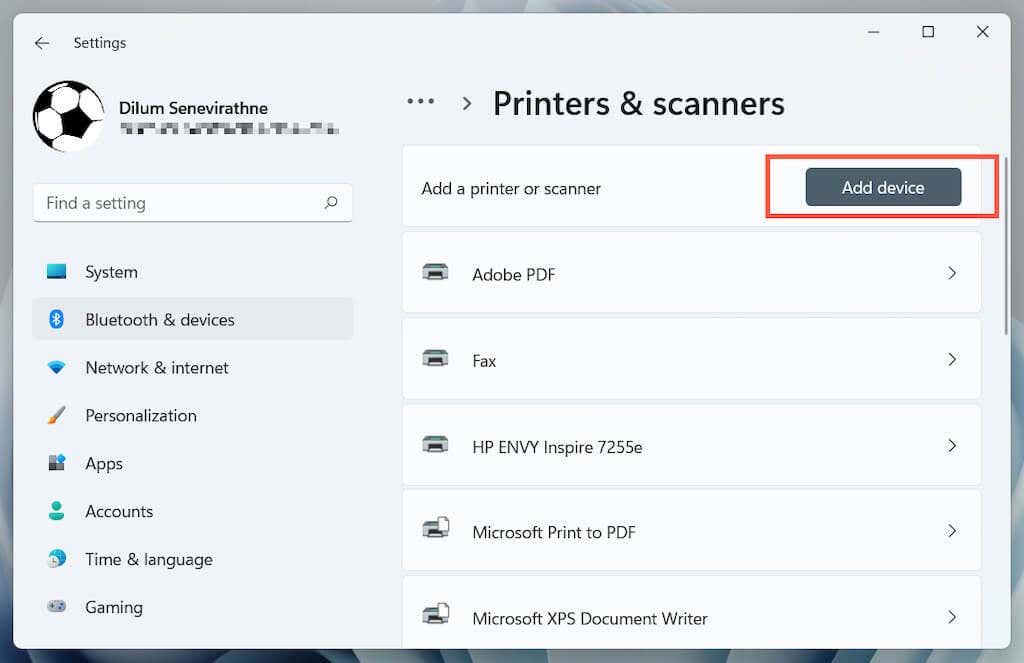
Re-open the Settings app and go to Bluetooth & devices > Printers & scanners .
Select Add device and set up the HP printer from scratch.
- Reinstall the latest drivers and support software for the device. Again, search for the printer model on HP’s Software and Driver Downloads portal to ensure you install everything.
6. Switch to the Generic Printer Driver
Switch to the generic printer driver in Windows. That will likely resolve the “Drive is unavailable” error but at the expense of losing various features specific to your HP printer. Regardless, it’s a good idea to try that if the issue persists.
- Open the Device Manager and select the problematic HP printer under Printer queues . Then, right-click and choose Update driver .
- Select Browse my computer for drivers.
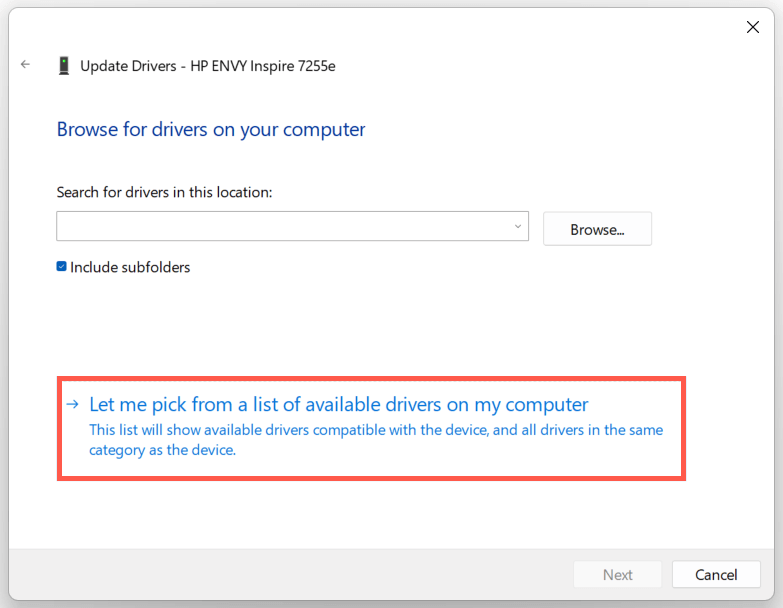
- Select Let me pick from the list of available drivers .
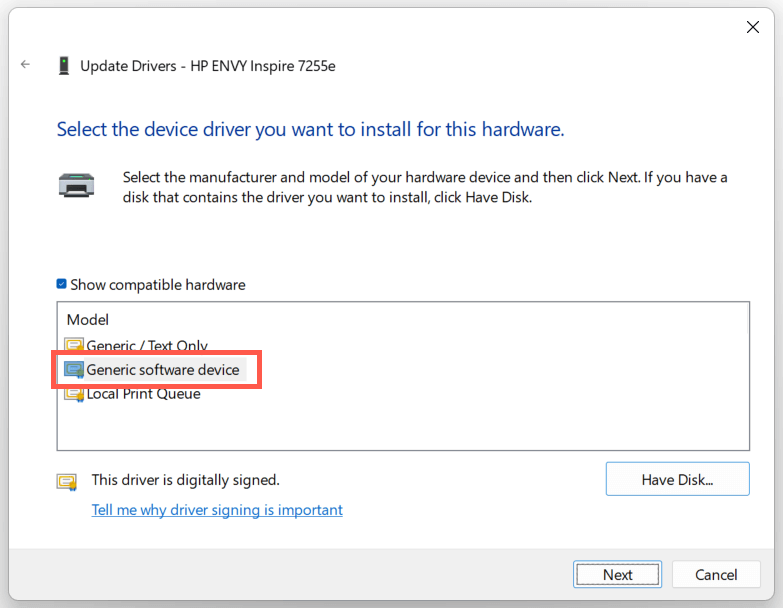
- Check the box next to Show compatible hardware . Then, select Generic software device > Next.
- Select Finish to install the generic printer driver for your PC.
7. Perform an SFC and DISM Scan
System file corruption can be another reason for your HP printer’s “Driver is unavailable” error. Running the SFC and DISM command-line tools usually helps fix that.
To initiate an SFC (or System File Checker) scan, right-click the Start button and select Windows PowerShell / Terminal (Admin) . Then, type sfc /scannow and press Enter .
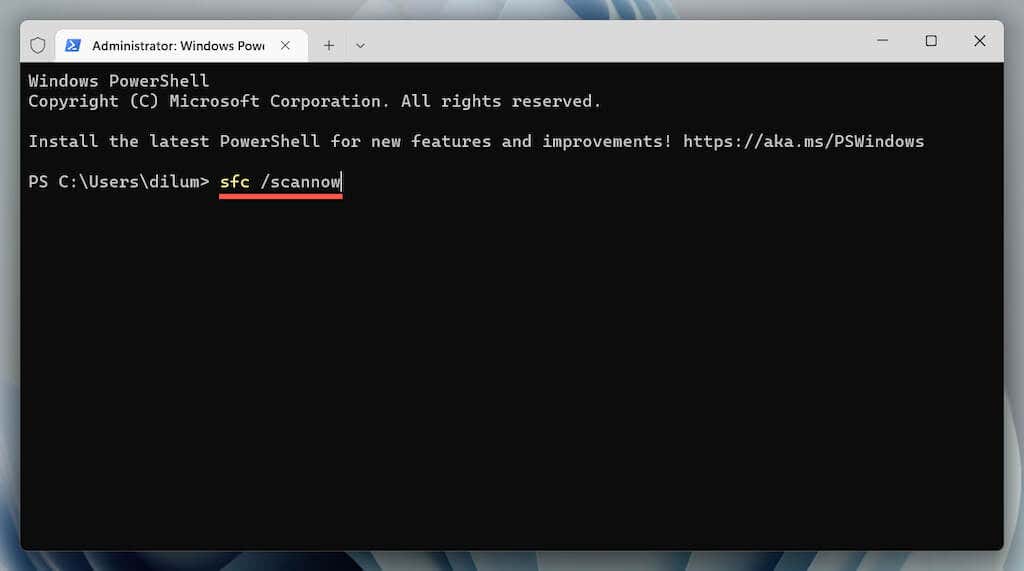
Once the System File Checker finishes scanning your computer, launch the DISM (Deployment Image Servicing and Management) tool with the following command:
DISM.exe /Online /Cleanup-Image /Restorehealth
The DISM tool takes a long time to complete and may appear to get stuck. However, keep the Windows PowerShell window open, and it should end eventually.
HP Printer Driver Unavailable Error Fixed
Did you manage to fix your HP printer’s “Driver is unavailable” error on your computer? If you did, try keeping the printer drivers and the operating system up-to-date to minimize the chances of running into the same problem going forward. If not, contact HP Support for model-specific fixes that could help resolve the driver issue.
- How to Fix the “Error – Printing” Status Error in Windows
- How to Fix Your Printer’s “Driver is unavailable” Error on Windows
- 7 Ways to Fix ”Windows Cannot Connect to the Printer”
- Print Job Won’t Delete in Windows? 8+ Ways to Fix
- Preparing for Windows 10 End of Support: Upgrading to Windows 11
Dilum Senevirathne is a freelance tech writer and blogger with three years of experience writing for online technology publications. He specializes in topics related to iOS, iPadOS, macOS, and Google web apps. When he isn’t hammering away at his Magic Keyboard, you can catch him binge-watching productivity hacks on YouTube. Read Dilum’s Full Bio
Times change and so does Windows. If you’ve recently moved from a Windows Server 2012 and Windows 7 or 8 environments into Windows Server 2019 and Windows 10 , things are a little different.
The old ways to connect to a network printer are still there. They may look a little different, too. So we’ll show you how to connect to a network printer in Windows 10 or Server 2019. Our favorite way is the last method.
Use Add Printers & Scanners
The new Windows Settings world works the same as in the Control Panel , but it looks different enough to cause confusion for some. Note that if this is at work and you’re not an administrator, the printer must be on the network and the driver already installed. If it’s not installed, you’ll get a prompt to enter the administrator account name and password.
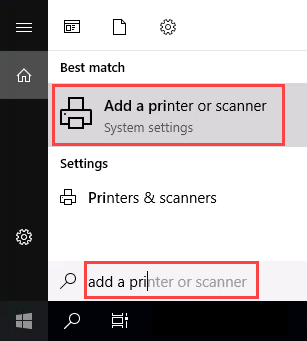
- In the Start menu, type add printers . When the result Add a printer or scanner shows, select it.
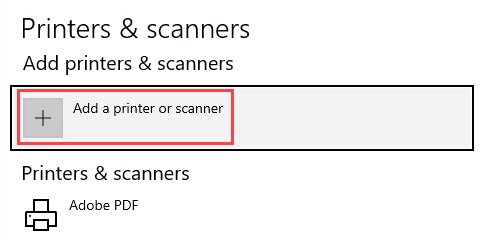
- When the Printers & scanners window opens, select Add a printer or scanner . It will start searching for available printers.
- It may look like it’s still searching, even though all the printers available are showing. Find the printer needed, select it, and then the Add device button will show. Select it.
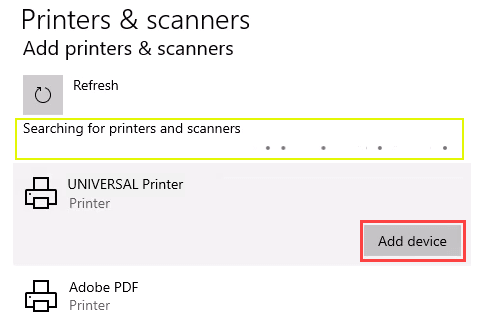
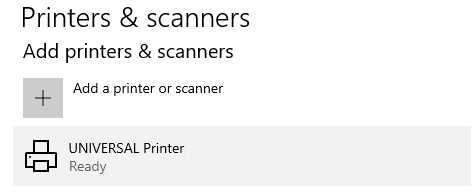
- The printer will install. There’ll be a progress bar and when it’s done, it’ll say Ready .
Connect to a Network Printer Through a Network Share
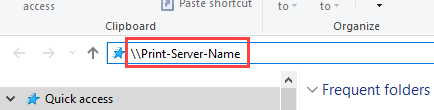
Here’s a way to install a printer that’s different from what you may be used to. It requires that the printer is shared and on the network. Unless you’re the administrator, the driver needs to be installed on your local machine or server. You need to know the path to the share as well. It will look something like Print-Server-Name , where Print-Server-name is the name of the server.
- Open File Explorer . In the location bar, enter the printer share path and then press the enter key. File Explorer will find the share.
All the shared printers will show.
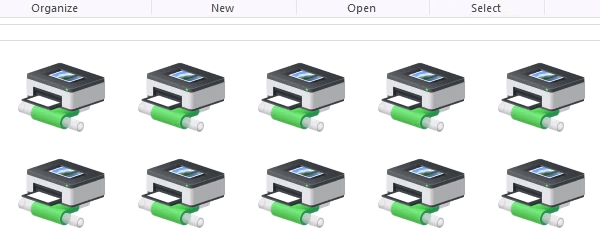
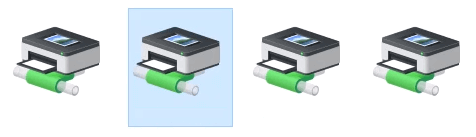
- There are two options: Install a single printer Install several printers at one time
To install a single printer, double-click on it.
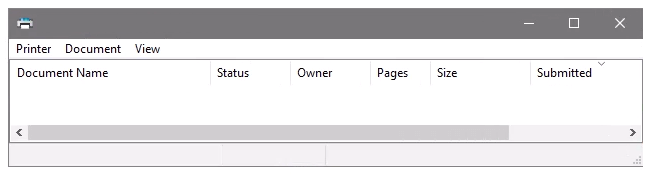
When the installation finishes, you’ll see the newly installed printer’s print queue window.
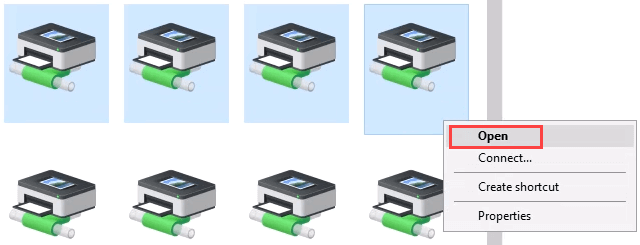
- To install several printers at once, select printers by clicking and dragging a rectangle around them, or hold down the Ctrl key while selecting printers individually. Either right-click and select Open or simply press the Enter key.
Connect to Network Printer via Control Panel
The good old control panel is still there. If you’ve used it before, you know what to do. If not, it’s almost the same as adding a printer through Settings.
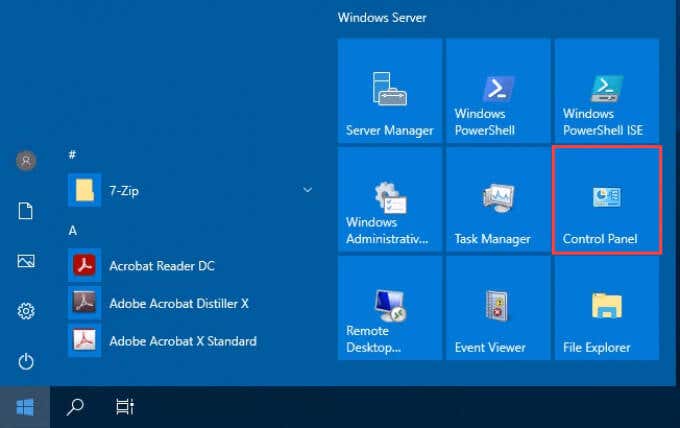
- Open the Start menu and select Control Panel . If it’s not there, start typing control and it will show.
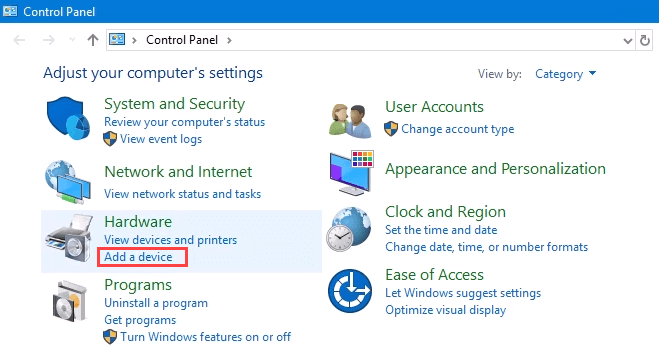
- Select Add a device in the Hardware category.
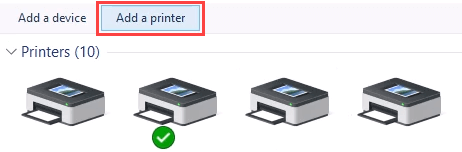
- Select Add a printer .
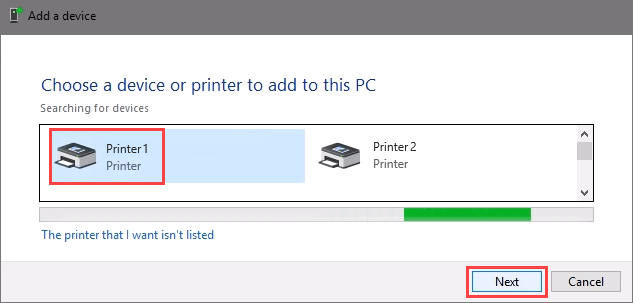
- It will show a selection of printers. Select the one needed and then select Next .
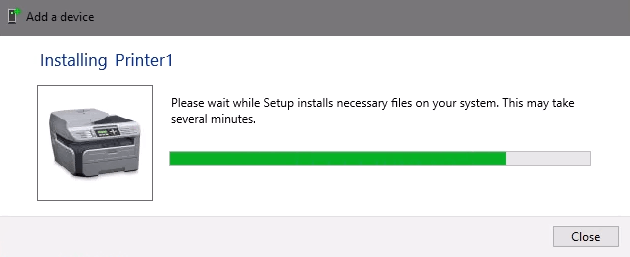
The printer will start installing. It may take a few seconds or minutes.
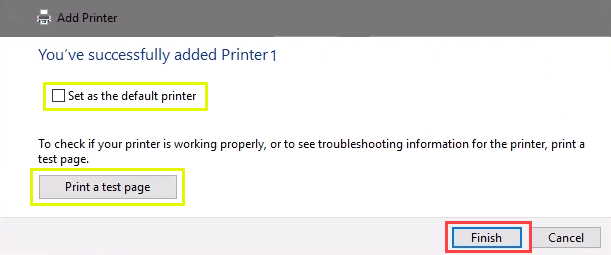
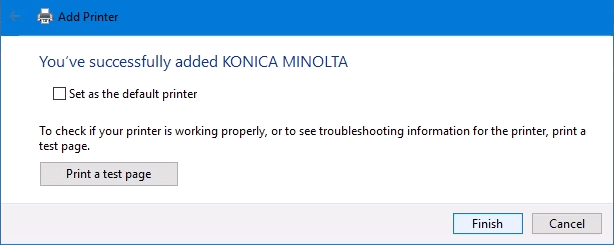
- Once the success window opens, there are options to Set as the default printer and Print a test page . Set the printer as default if needed. It’s always a good idea to print a test page. To exit, select Finish .
Connect to Network Printer via IP Address
The printer you want to install might not be easily visible, but if you have the IP address for it you can use that to connect with the printer. Administrator rights may be required. The first part is the same as adding a printer through the Control Panel until you get to the step to choose the printer. Let’s pick it up from there.
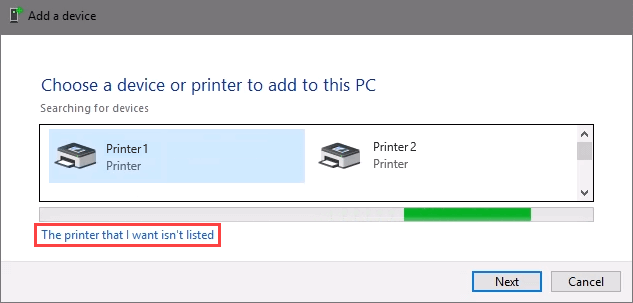
- At the Add a device window, select The printer that I want isn’t listed .
- If administrator rights are required, select Add a local or network printer as an administrator .
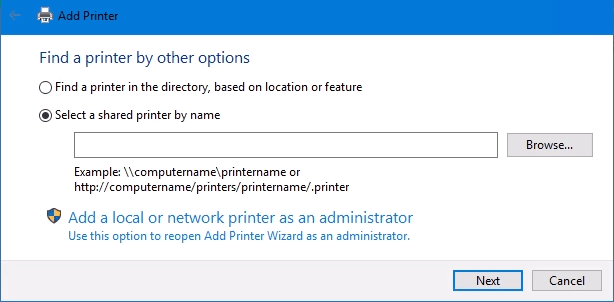
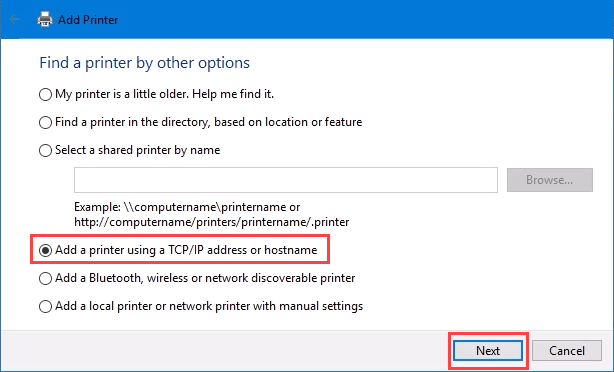
Otherwise, the window below will show. Select Add a printer using TCP/IP address or hostname then select Next .
- For Device type: there are several choices. Web Services Device and Web Services Secure Print Device are used for special cases. If you don’t know what those mean, you probably don’t need them. Autodetect may make the wrong choice as well. Select TCP/IP Device .
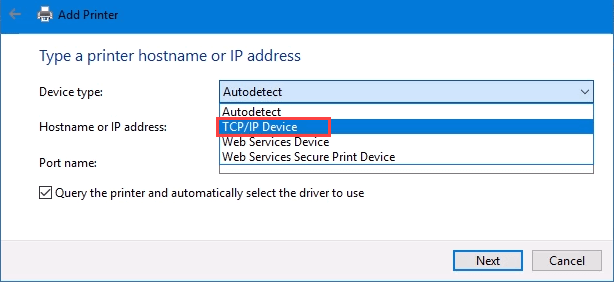
Enter the IP address in the Hostname or IP address: field. Notice how the Port name: field auto-populates with whatever is entered. The port name can be left as is or changed. In most cases, Query the printer and automatically select the driver to use remains checked.
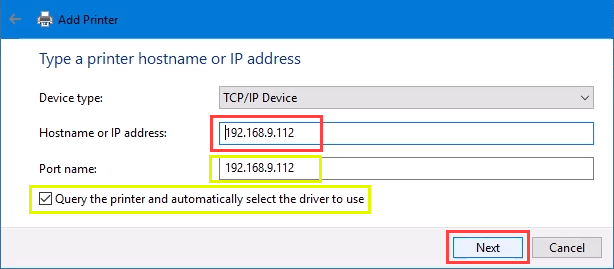
Sometimes an organization will use a universal printer driver to keep things simpler and use less storage. It also keeps the registry small and login times faster. The HP Universal Print Driver works well for HP and many other printers. Select Next .
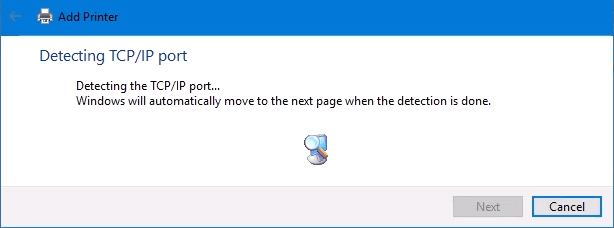
It detects the TCP/IP port to see if it exists.
Then it detects the driver model needed.
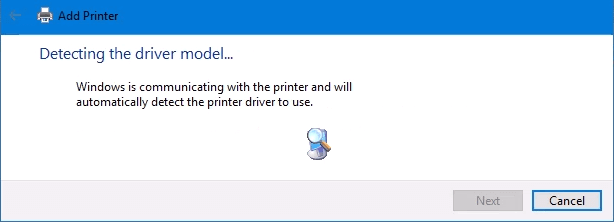
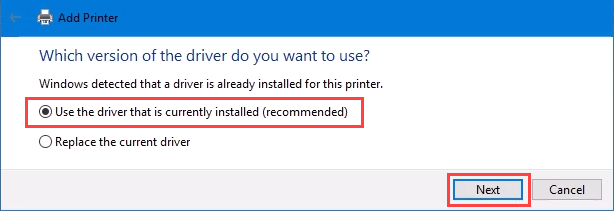
- Normally, Windows will find a driver already installed, offer the option to replace the driver, or ask to install a driver. If it’s on the network already, it probably installed the driver already. Select Use the driver that is currently installed and select Next .
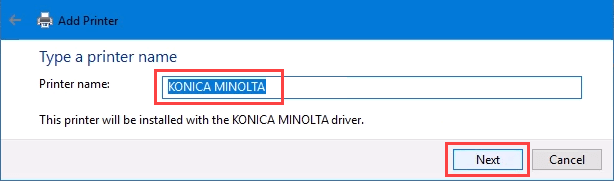
- It will auto-select a name for the printer. That can change as needed. Select Next .
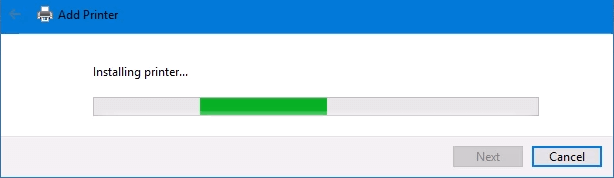
The real installation begins.
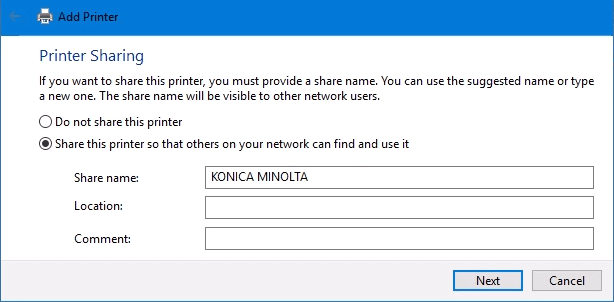
- If sharing the printer, add a location so others can see where the printer is located.
It successfully installed the printer. Set it as the default or not as needed. As always, it’s a good idea to Print a test page . Select Finish closes out the window.
Connect to a Network Printer via PowerShell
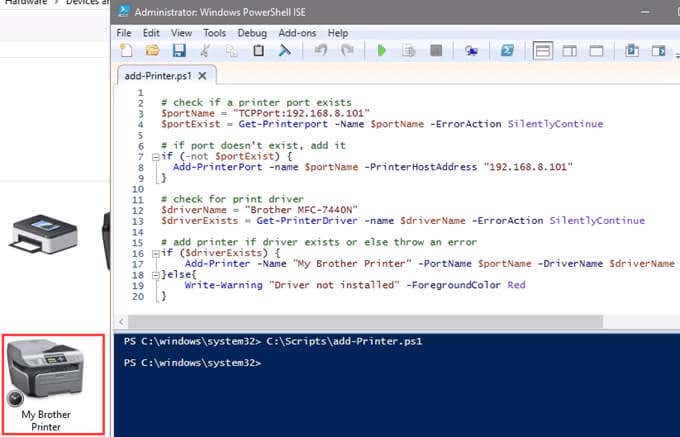
Finally, the last, and possibly best, way to connect network printers is with PowerShell . Why is this best? If you’re a System Administrator and have dozens of printers to connect, or if you need to make sure the printer is connected every time the server starts or someone logs in, a PowerShell script is best. It’s fast, done once, and easy to call many times.
You will need to know:
- Printer IP address
- Printer driver name
- What to name the printer
Following is a sample script. Make it into a looping script to install several printers at a time, or make it a function to call from other processes.
check if a printer port exists
$portName = “TCPPort:192.168.8.101”
$portExist = Get-Printerport -Name $portName -ErrorAction SilentlyContinue
if port doesn’t exist, add it
if (-not $portExists) { Add-PrinterPort -name $portName -PrinterHostAddress “192.168.8.101” }
check for print driver
$driverName = “Brother MFC-7440N”
$driverExists = Get-PrinterDriver -name $driverName -ErrorAction SilentlyContinue
add printer if driver exists or else throw an error
if ($driverExists) { Add-Printer -Name “My Brother Printer” -PortName $portName -DriverName $driverName } else { Write-Warning “Driver not installed” -ForegroundColor Red }
When the script is run, it takes maybe 3 seconds. Then you’ll see the printer installed.
Any Other Ways to Connect to a Network Printer?
We’ve given you several ways to connect to a network printer or several printers. One of them will be the best way for you. There is at least one other way, and that’s by the Command Prompt.
- Preparing for Windows 10 End of Support: Upgrading to Windows 11
- How to Fix a “This file does not have an app associated with it” Error on Windows
- How to Fix an Update Error 0x800705b4 on Windows
- How to Resolve “A JavaScript error occured in the main process” Error on Windows
- How to Fix the Network Discovery Is Turned Off Error on Windows
Guy has been published online and in print newspapers, nominated for writing awards, and cited in scholarly papers due to his ability to speak tech to anyone, but still prefers analog watches. Read Guy’s Full Bio
