Unlike other TV streaming services , Peacock TV offers a free plan that lets users stream up to 7500 hours of selected movies, TV series, sports shows, and documentaries without paying a dime. It’s a good app to have on your streaming device if you need a break from paying Netflix subscription fees.
Peacock TV’s subscription plans ($4.99 per month) are also considerably cheaper than the top streaming services out there. In this tutorial, we’ll show you how to download Peacock on your Fire TV Stick

How To Install Peacock on Firestick
There are two ways to install Peacock TV on your Fire TV device. The installation method to follow will depend on the availability of the streaming service in your region. Peacock is currently available in the United States and other U.S. territories (e.g., American Samoa, Guam, Northern Mariana Islands, Puerto Rico, and the U.S. Virgin Islands).
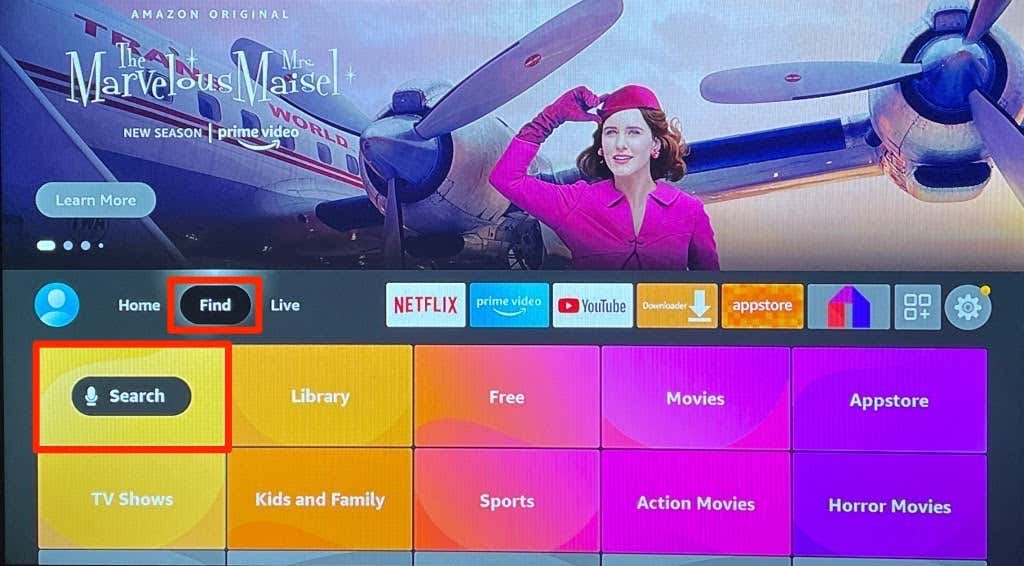
- On the Fire TV home screen, navigate to the Find tab and select Search .
- Enter peacock in the search field and select Peacock TV or Peacock App in the search suggestions.
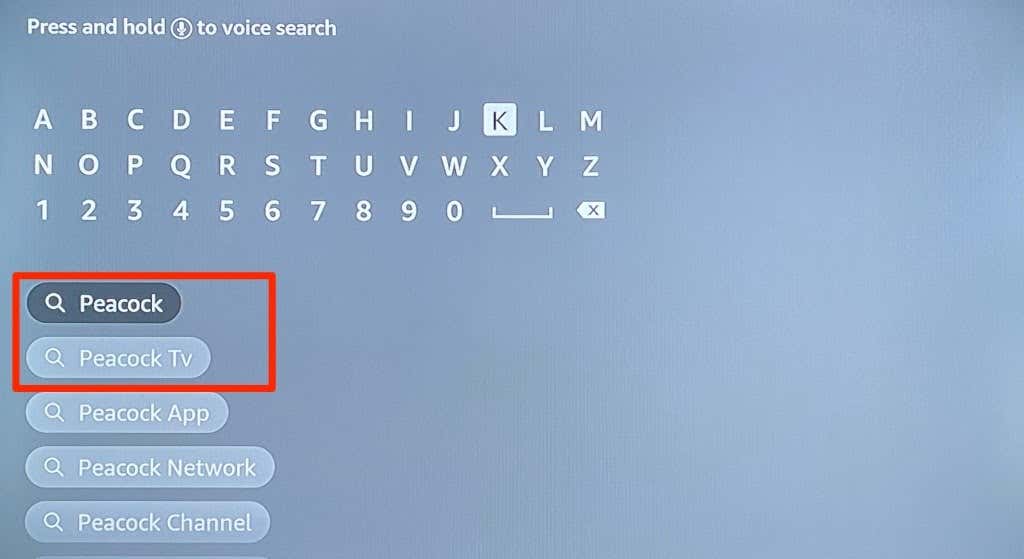
Alternatively, press and hold the microphone/Alexa button on your Fire TV remote and say peacock .
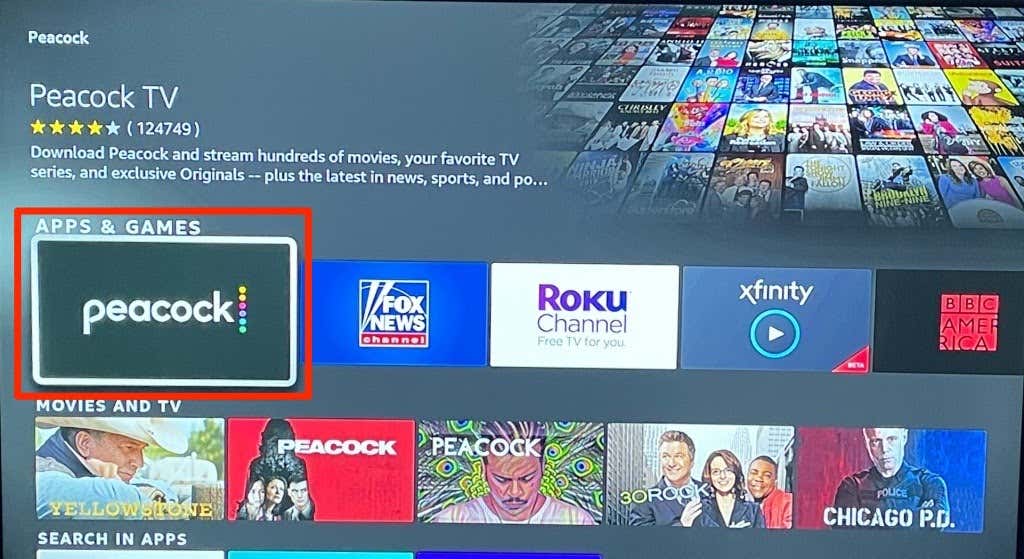
- Select the Peacock app icon in the “Apps & Games” section.
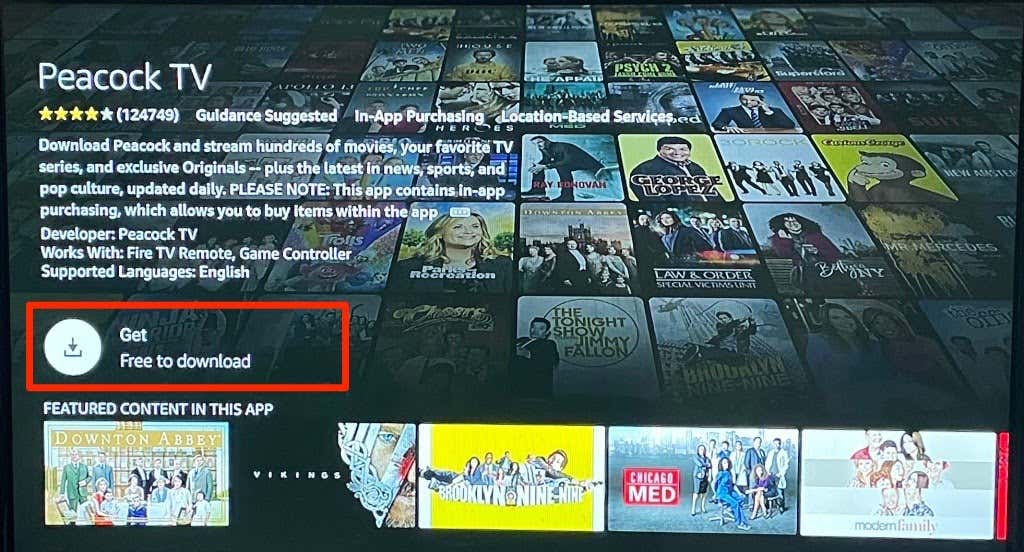
- Afterward, select Get (or Download ) to install the app on your Fire TV Stick.
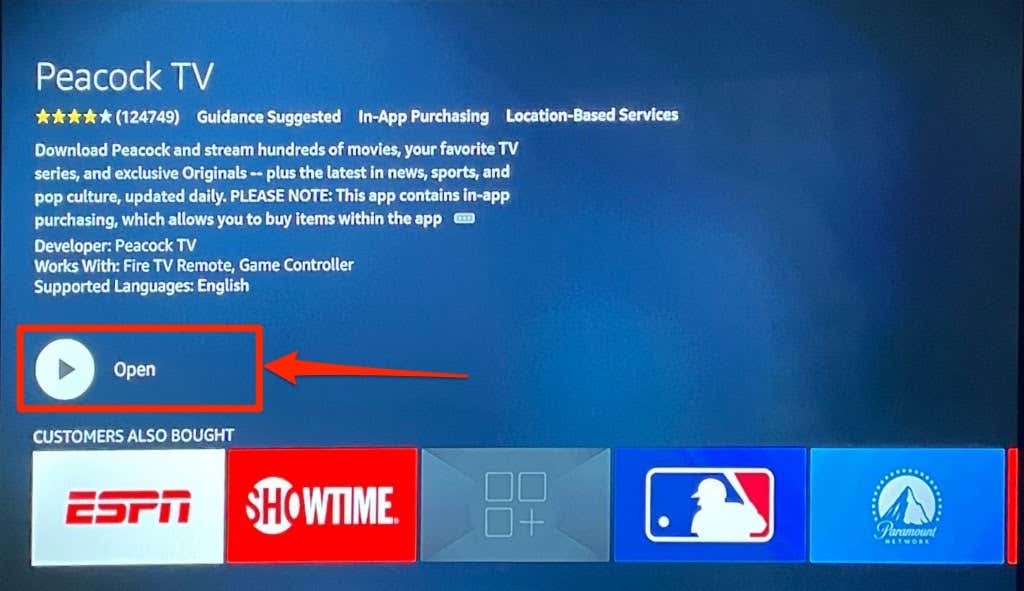
- Select Open to launch the app and sign in with your account information or create a new account on the streaming platform.

- Open your computer or mobile browser and sign in to your Amazon account.
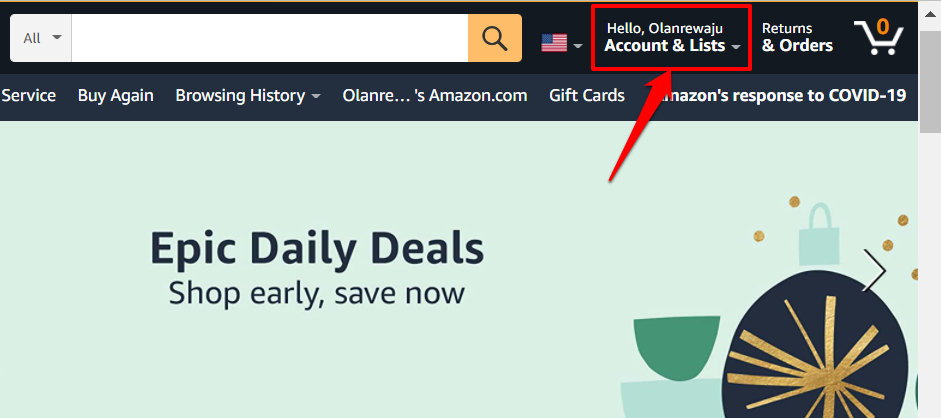
- Select your profile name or Accounts & Lists next to the search bar.
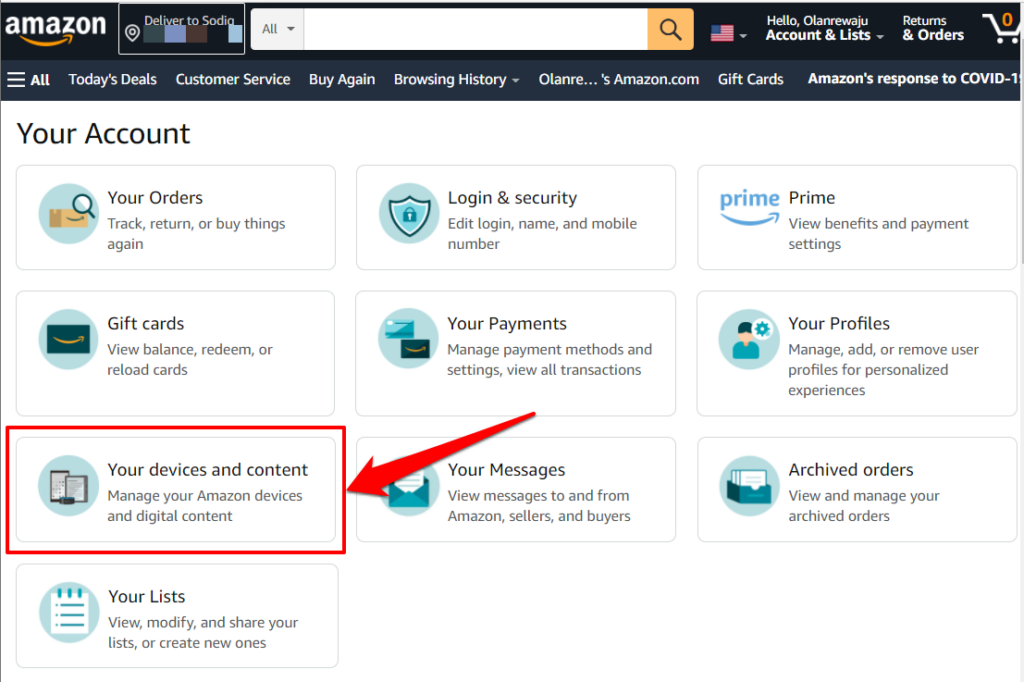
- Next, select Your devices and content .
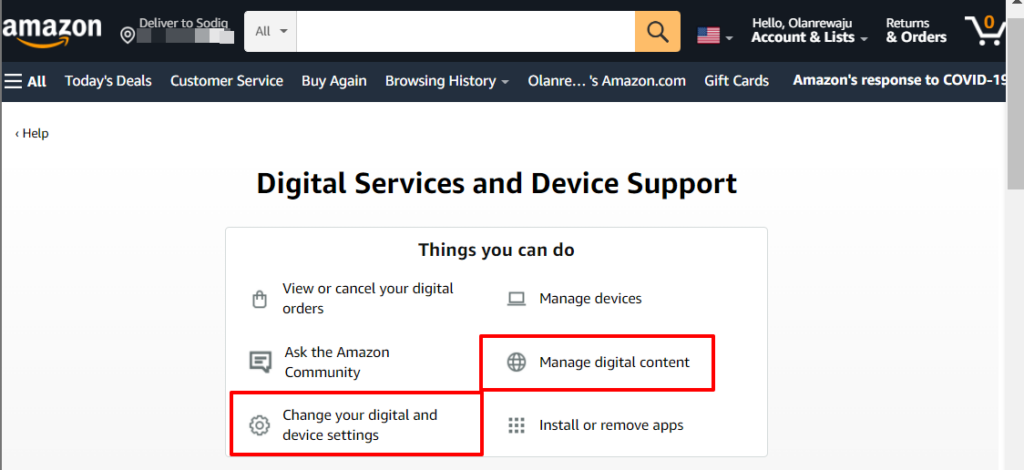
- Select Manage digital content or Change your digital and device settings .
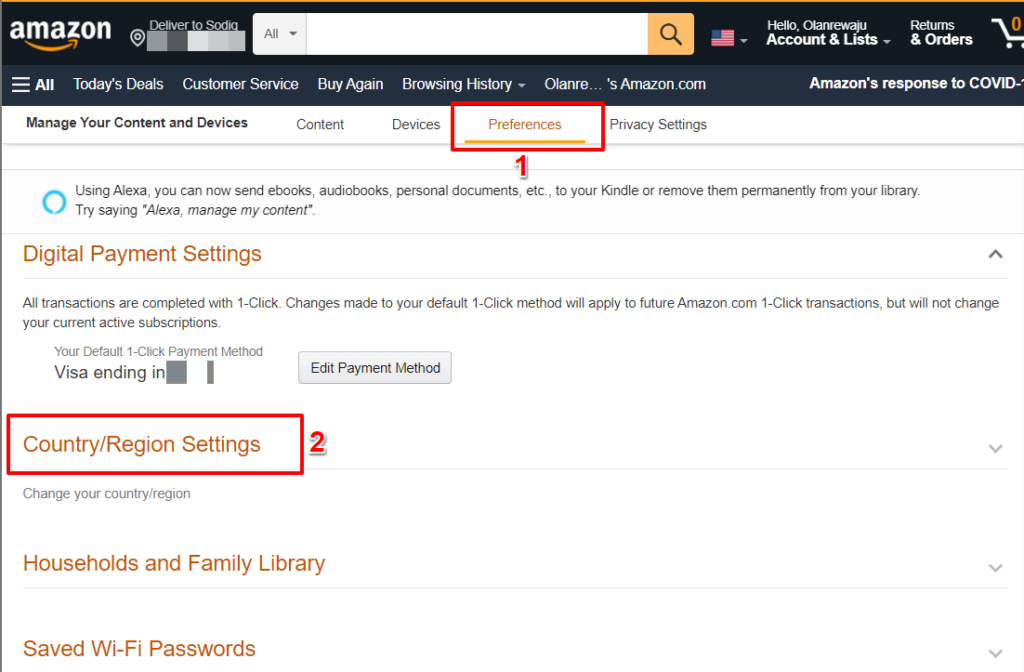
- Head to the Preferences tab and select Country/Region Settings .
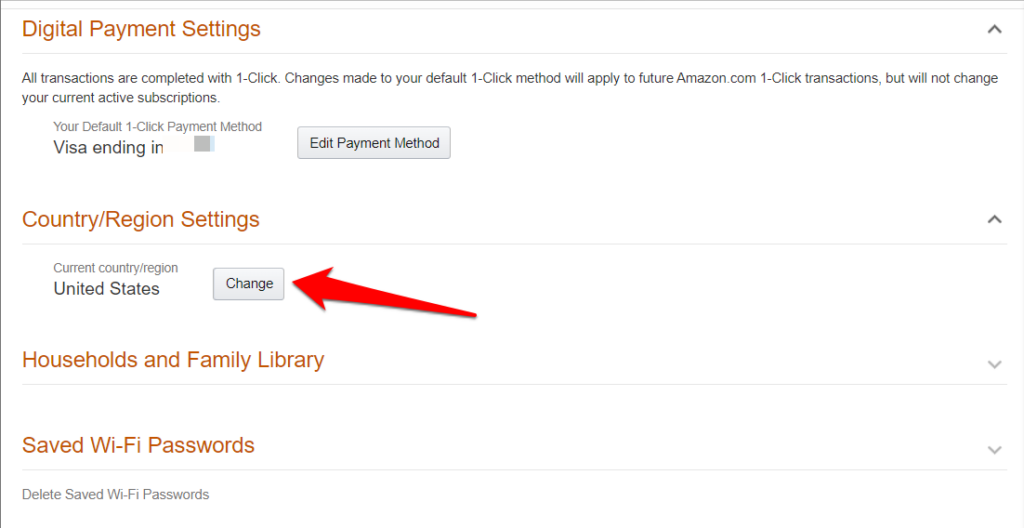
- Select the Change button if the “Current country/region” isn’t the United States.
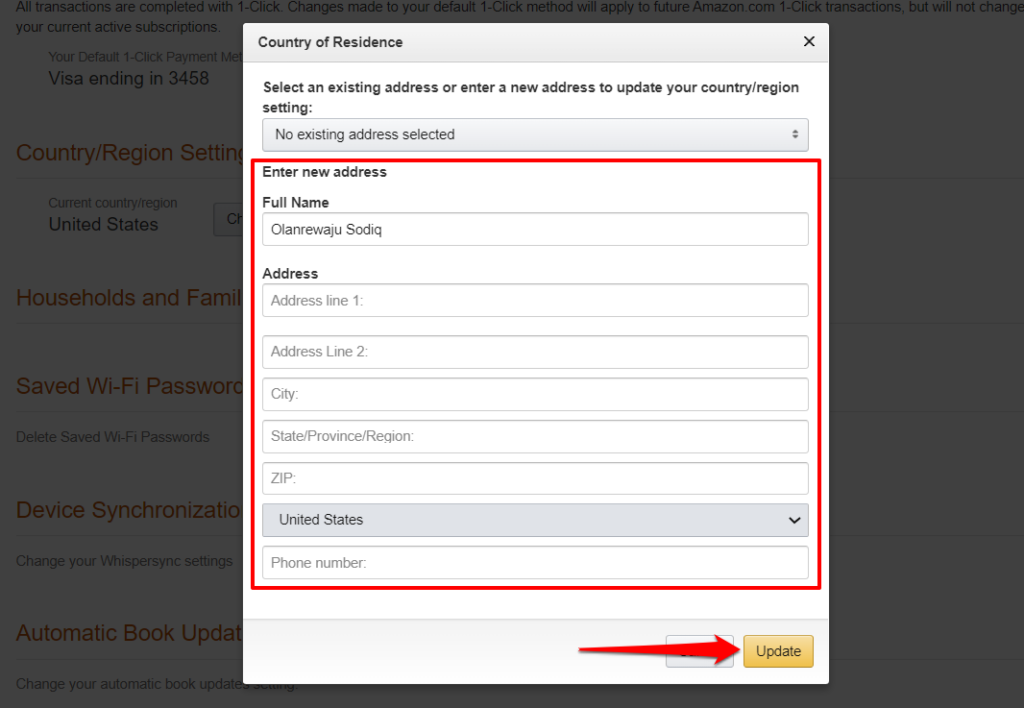
- Provide your address and contact information in the dialog boxes and select Update to change your account’s country.
The Peacock TV app should now appear in your Fire TV Stick’s Appstore. Restart the streaming device and check again if you still can’t find the app.
As mentioned earlier, you’ll need a VPN to stream content on Peacock TV if you’re in an unsupported region. Although reliable VPN apps may set you back by a few dollars in subscription fees, free VPN services will get the job done.
Sideload Peacock on Fire TV Stick
You’ll need the help of a third-party application (called Downloader ) to download the Peacock TV setup file. Downloader is one of the best apps to have on your Fire TV Stick . The app lets you download and install Fire TV and Android TV apps outside the Appstore.
- Head to the Find tab and select Search .
- Enter downloader using the on-screen keyboard and select Downloader or Downloader App in the suggestions.
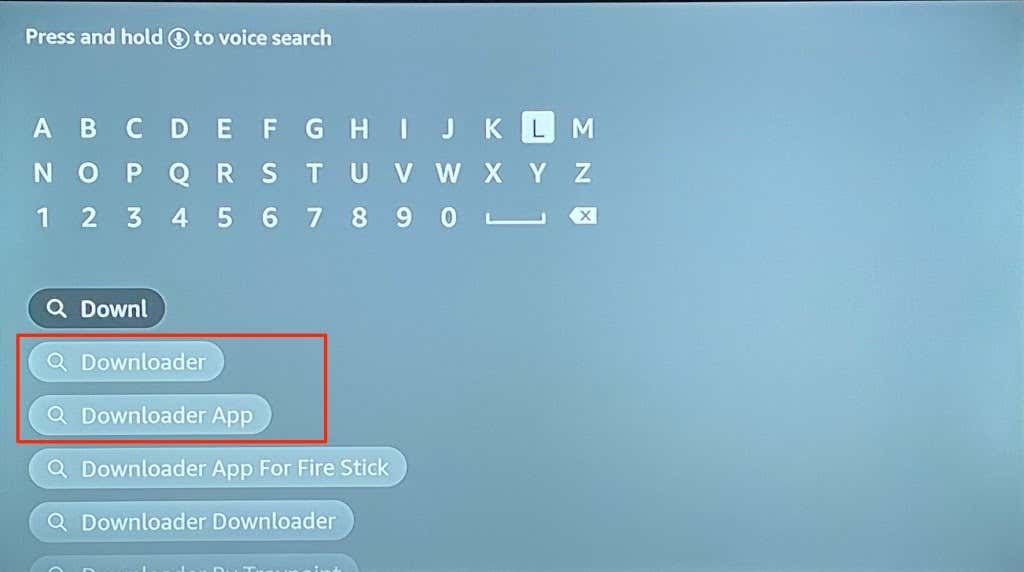
- Select the Downloader app icon in the “Apps & Games” section.
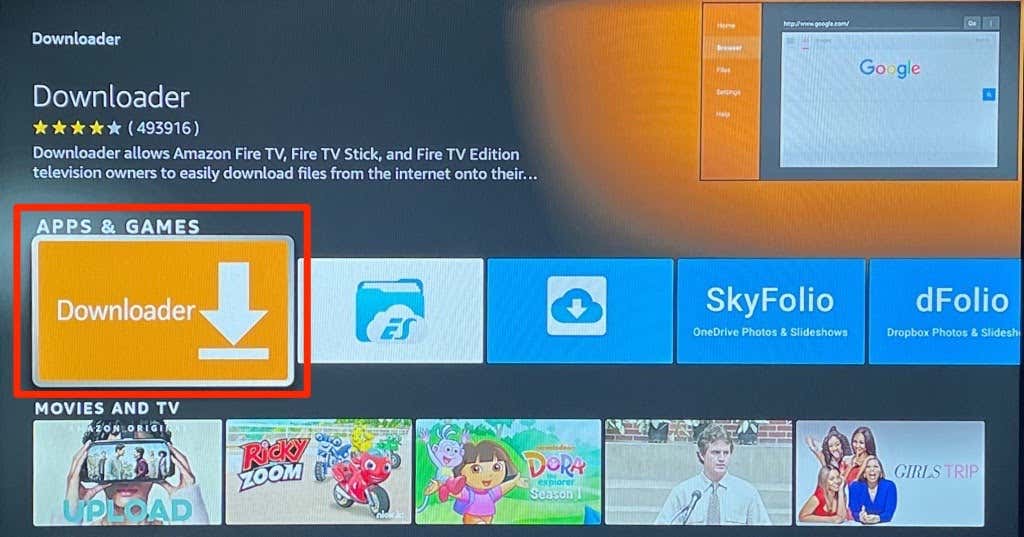
- Select Get or Download to install the app on your device.
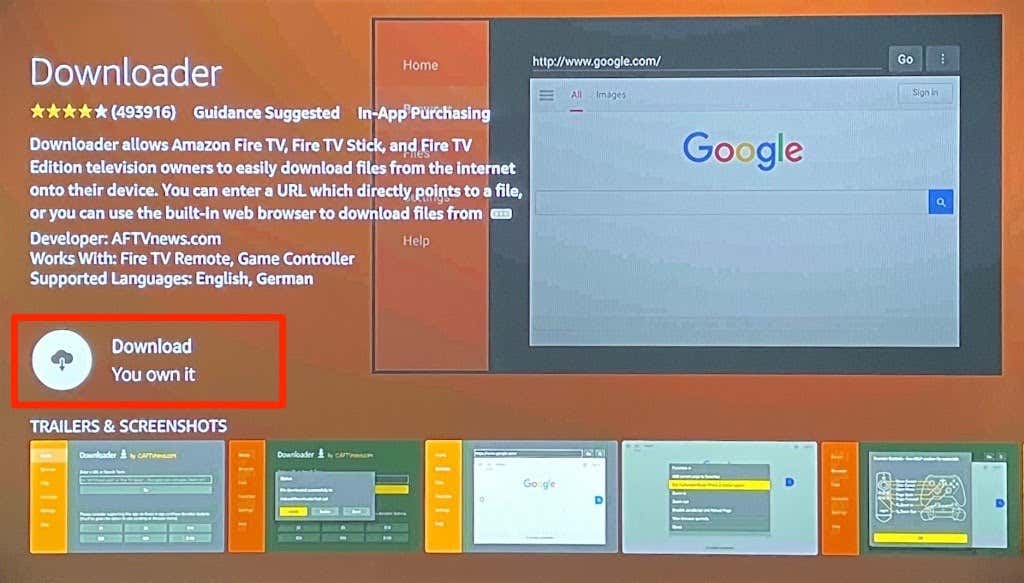
Before using the Downloader app, configure your Fire TV Stick to install apps that aren’t from the Appstore.
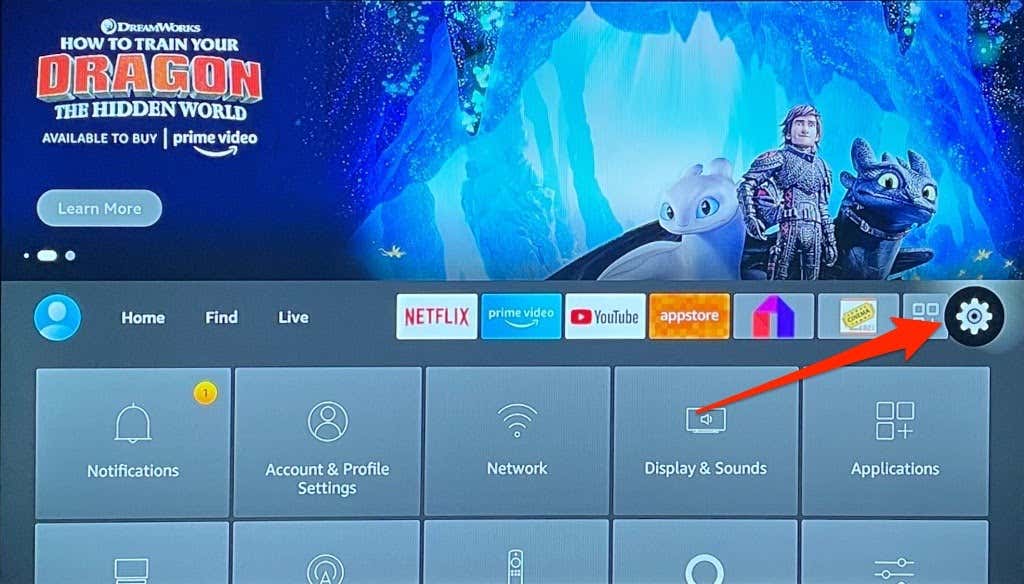
- Press the Home button on your Fire TV remote and navigate to the gear icon to open the settings menu.
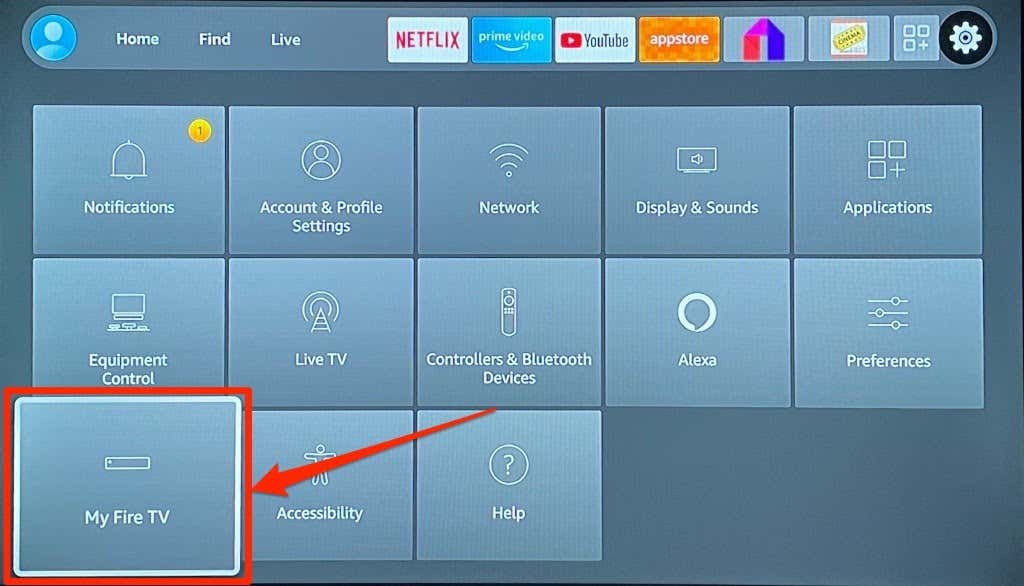
- Select My Fire TV .
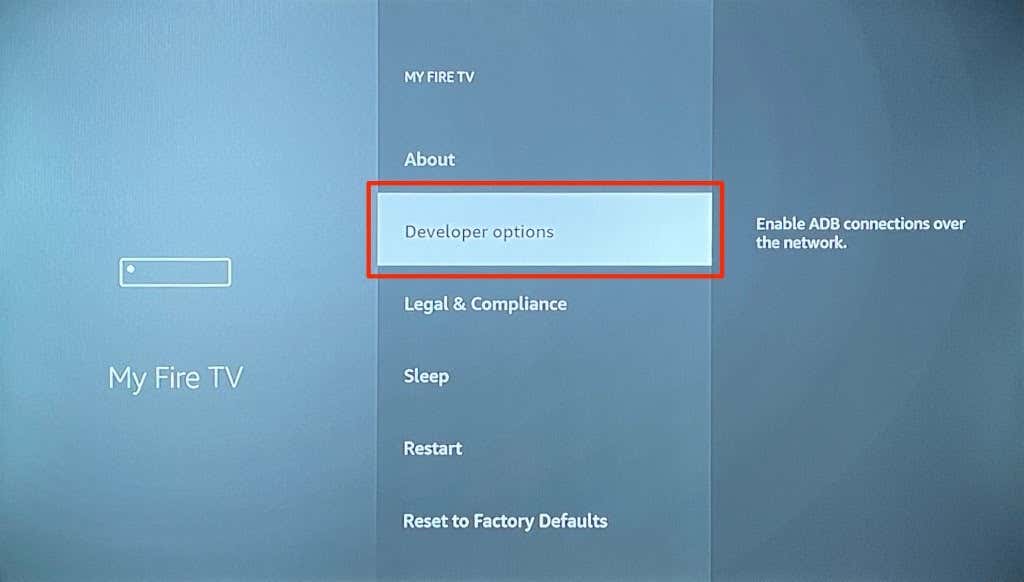
- Select Developer options .
- Select Apps from Unknown Sources or Install Unknown apps —depending on the Fire TV Stick generation you have.
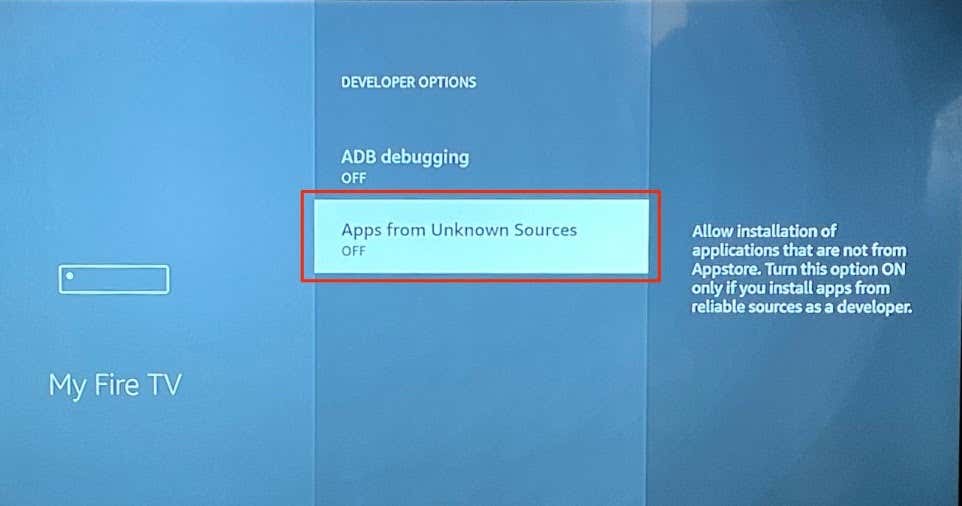
- You’ll see a pop-up message notifying you of the risks of installing apps from unknown sources. Select Turn On to proceed.

- Return to the home screen and launch the Downloader app.
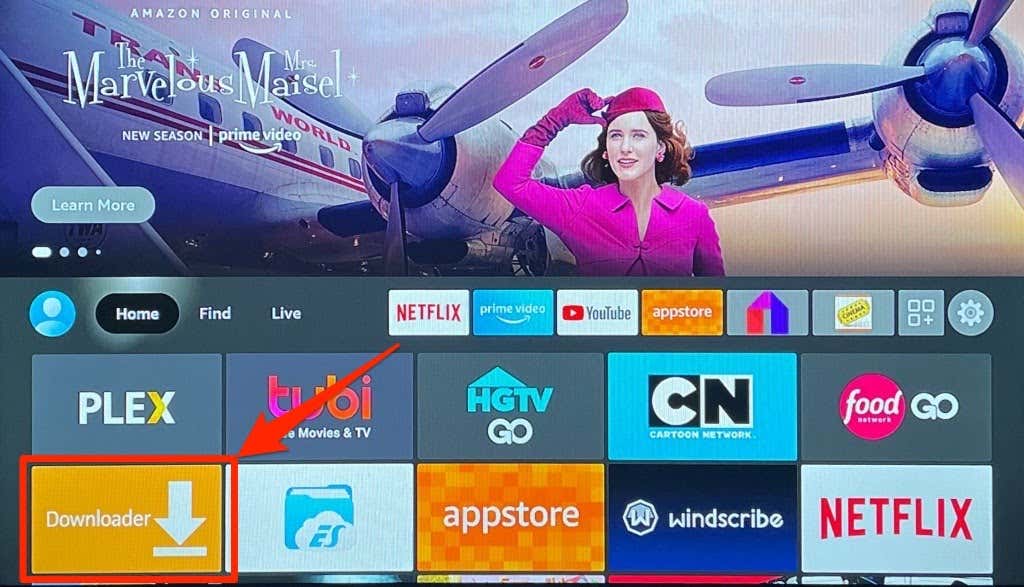
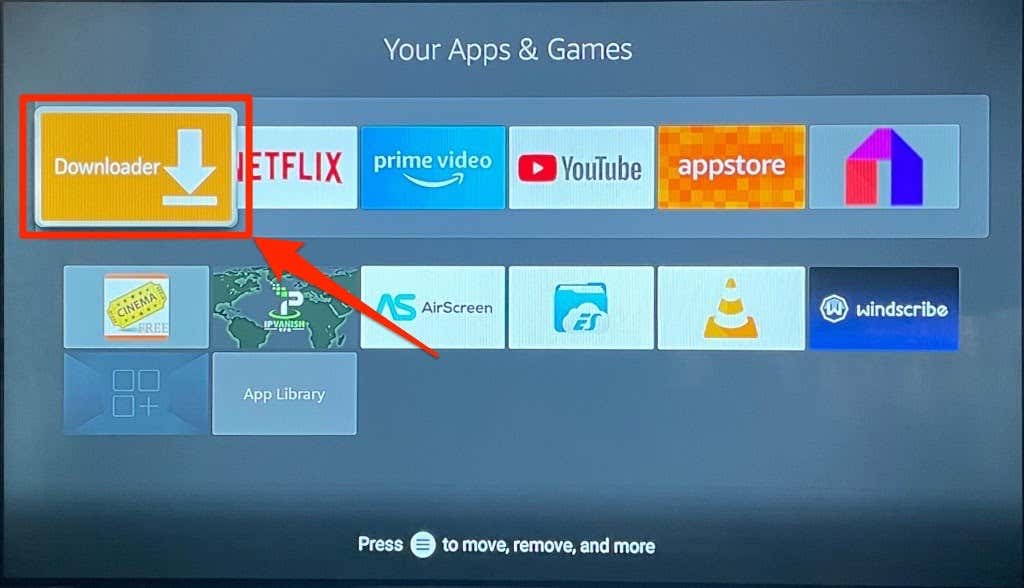
If Downloader isn’t on the home screen, press and hold the Home button on the Fire TV Remote. Then, select Apps , and choose Downloader from the list of apps.
- Enter 77354 in the search bar and select Go .
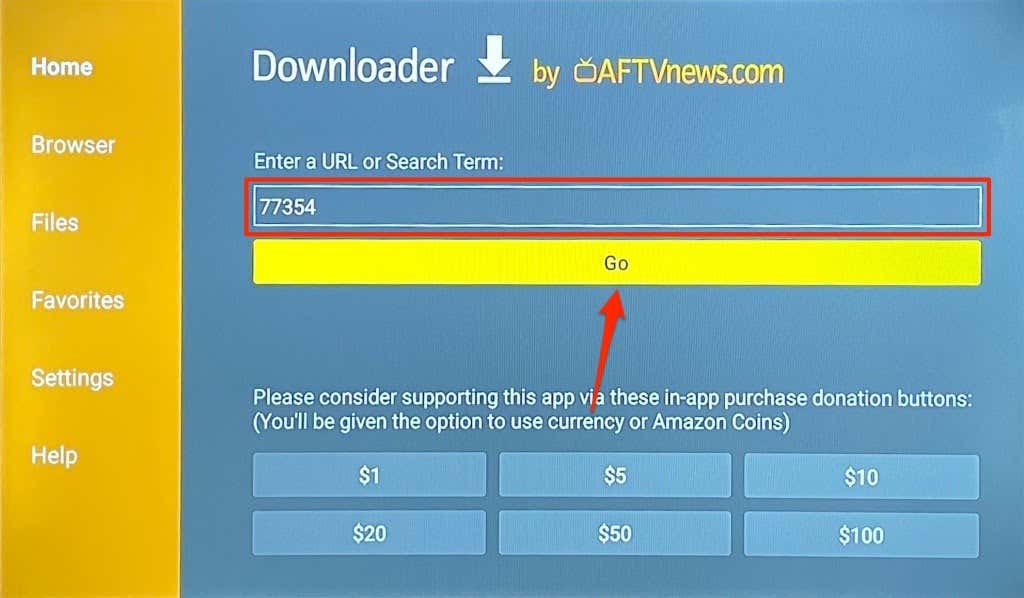
The shortcode will redirect you to the Peacock TV download page on APKMirror—one of the best sites to download Android (TV) apps.
- Scroll to the “All versions” section and select the download icon next to the latest version of the Peacock TV app.

- Select the Download APK button to download the Peacock setup file to your Fire TV Stick.

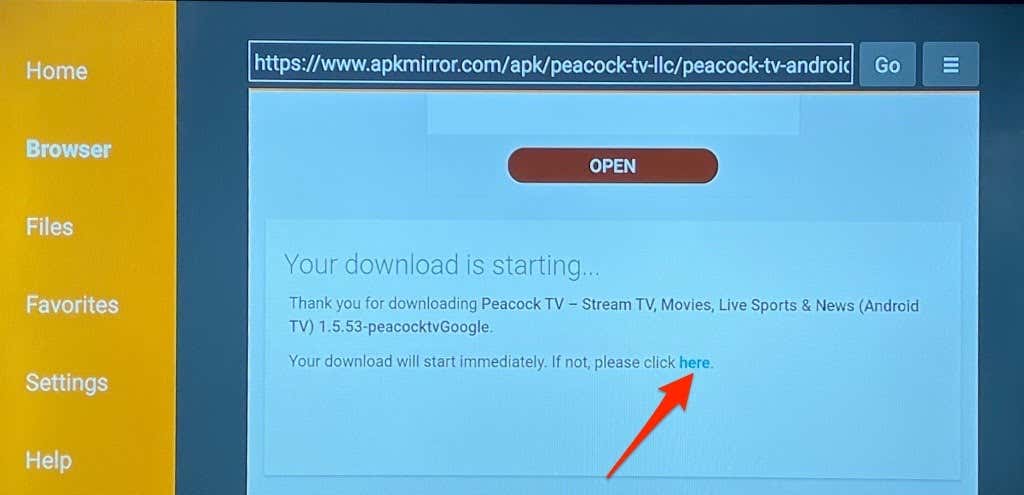
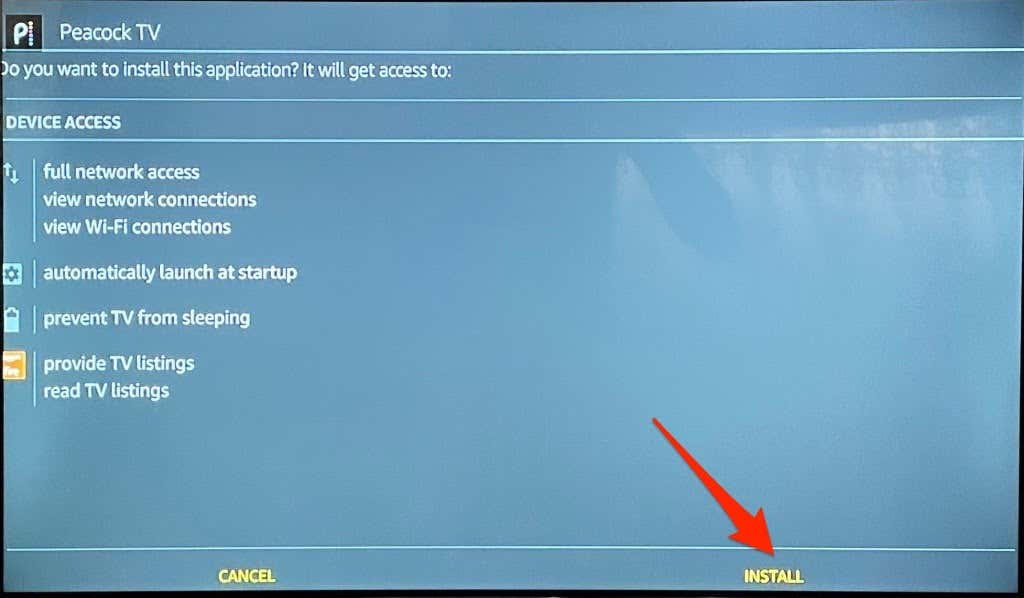
- Downloader will initiate the installation of the APK file when the download is complete. Select Install to proceed.
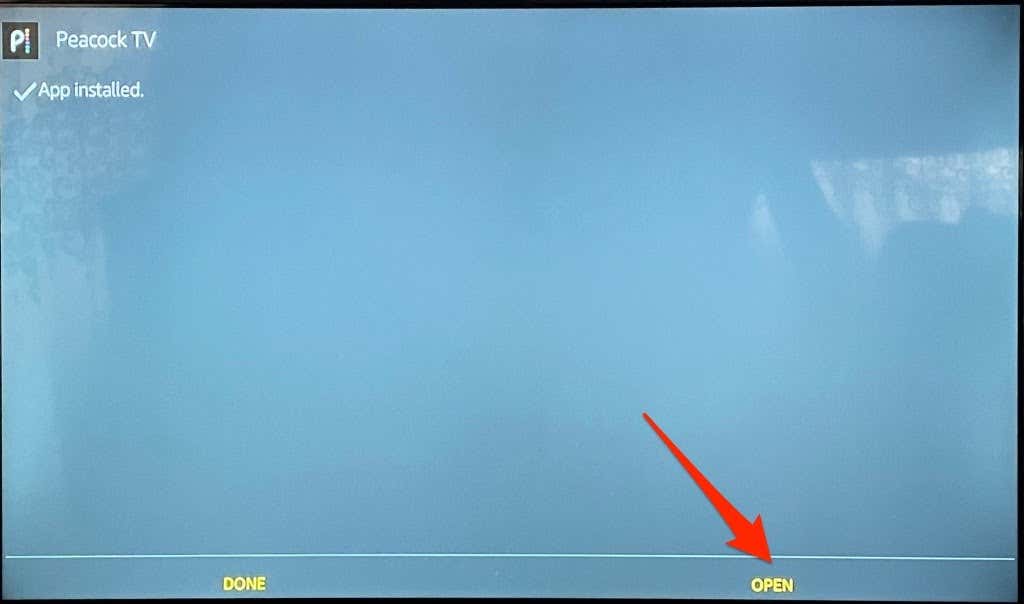
- Select Open to launch the Peacock TV app.
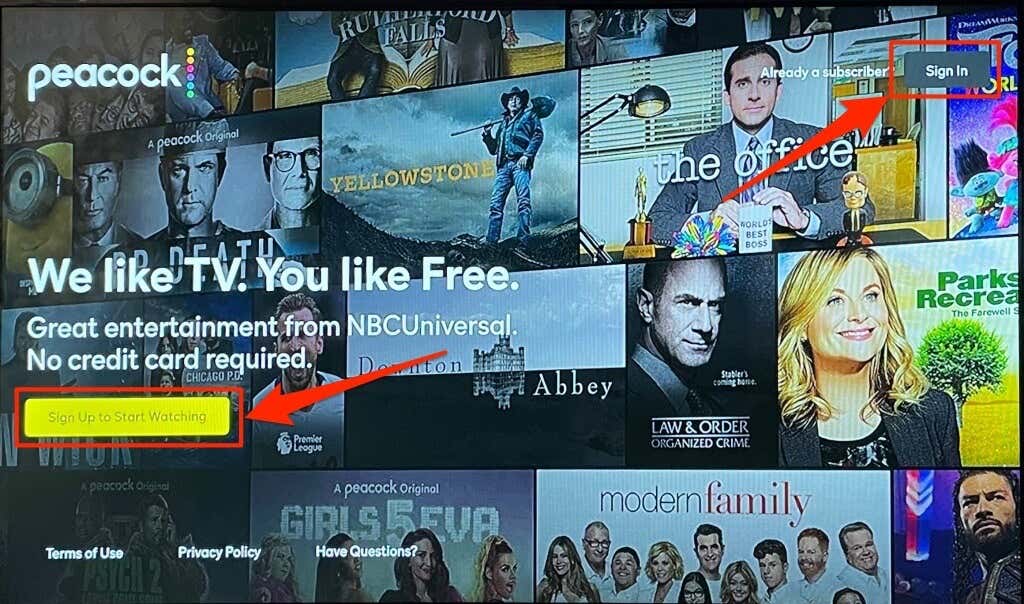
- Select Sign Up to Start Watching if you don’t have a Peacock TV account or select Sign In and enter your account credentials to start enjoying your favorite TV shows.
Free and Affordable Entertainment with Peacock
- How to Watch Tour de France Online without Cable in 2025
- Roku Remote App Not Connecting to TV? 9 Fixes to Try
- Spotify DJ Not Showing Up? 7 Fixes to Try
- How to Fix Disney Plus Error Code 41
- How to Stop Your Roku Overheating
