Google Docs is a very flexible word processor in many ways, but what many people don’t realize is that you can embed HTML into a Google doc.
There are several ways to do this. One is to actually copy an HTML document straight from a browser and paste it into a Google Doc. The other is a trick using the importHTML function in Google Sheets to customize HTML formatting that you can then embed into a Google document.

Embed HTML Page Into a Google Doc
If you’re writing a document that requires information from the web, the last thing you want to have to do is paste that information as text.
This is because most information online contains information like charts, graphs, images and more. For example, taking notes for researching an essay paper would be much easier if you could embed HTML into a Google doc from a web page.
Thankfully, doing this in Google Docs is very easy. It’s made simple by the fact that Google Docs will automatically insert pasted web pages to include the original formatting, as much as possible.
- Highlight the section of the web page that you want to embed into your document. Press Ctrl-C on the keyboard to copy that section.
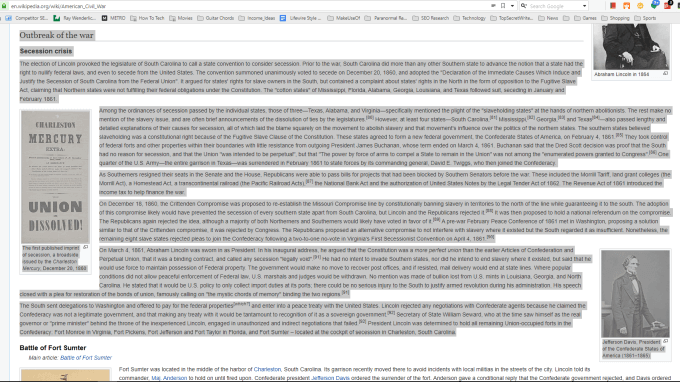
The example above shows the process of copying and pasting a section of a page from Wikipedia.
- Next, open the Google doc where you want to embed that HTML page, right-click, and select Paste . Make sure to select Paste and not Paste without formatting .
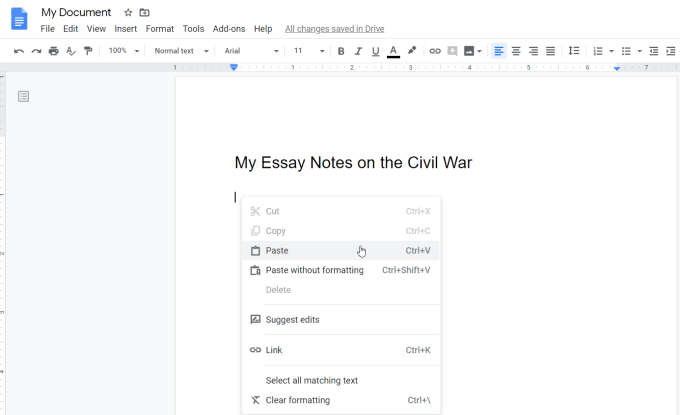
- When you select Paste, Google Docs will automatically import the page section you copied as much as possible in the format it appears on the original page. This includes images, URL links, and headers.
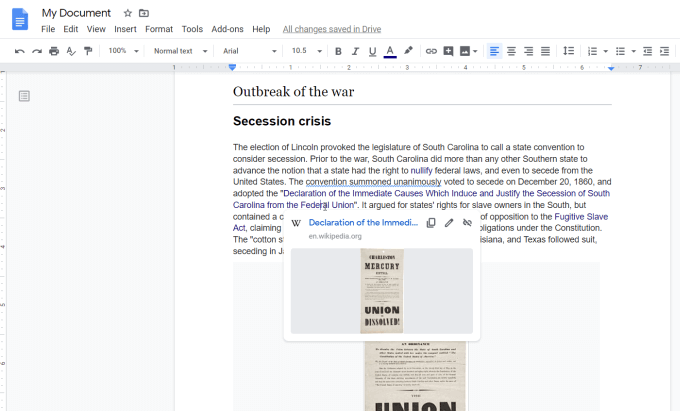
You can see that the links are live by hovering over one. In Google Docs you’ll see the external link appear.
You may find that in some cases the image formatting (such as alignment on the page) doesn’t match perfectly with the original page you copied from.
You can fix this by selecting the image, selecting the left align text icon in the ribbon, and the wrap text icon under the image.
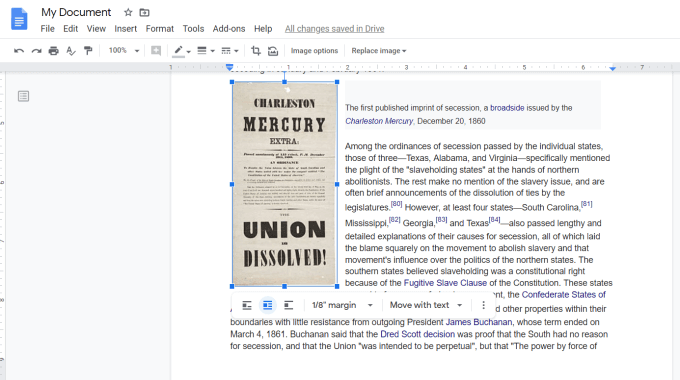
This should appear more like the original web page formatting. If the image had a caption, you may need to move it down under the image, or wherever else you feel is appropriate.
As you can see, embedding HTML into a Google Doc using copy and paste from the web isn’t perfect. But it’s the fastest way to transfer information while retaining as much of the original web page HTML formatting as possible.
Embed HTML Into Google Doc With importHtml
Another method to embed HTML into your Google document is by embedding the HTML into Google Sheets using the importHtml function. Then you can insert that into Google Docs.
Keep in mind that instead of embedding a section of the page, this function will insert the entire page. However, there’s a way around that by using an index number in the function syntax to import only a table or list from the page.
For example, say you want to embed the fourth table from the Wikipedia web page about United States demographics. First, open a new Google Sheets spreadsheet. In the first cell of the spreadsheet, type the function:
=ImportHTML("https://en.wikipedia.org/wiki/Demographics_of_the_United_States", "table", 4)
When you press Enter, this will import the fourth table from the web page and insert it into the table where your cursor is.
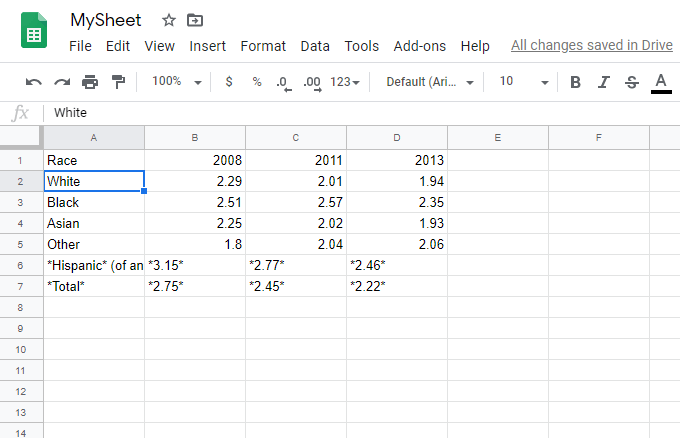
Now you have the imported HTML data you can use to embed inside Google Docs. Format this table however you’d like it to look inside Google Docs.
- To do this, highlight the table in Google Sheets and press Ctrl-C to copy the table.
- Place the cursor in your Google Docs document where you want to place the table, right-click, and select Paste .
- You’ll see a window pop-up with a couple of options. Select Link to spreadsheet and select the Paste button.
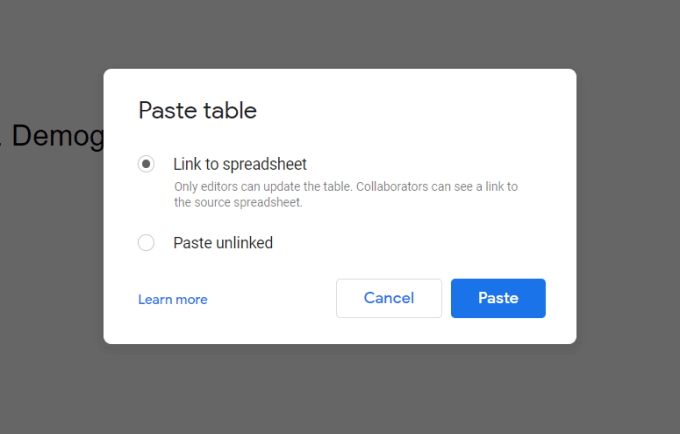
This inserts the table from Google Sheets into Google Docs exactly the way it’s originally formatted.
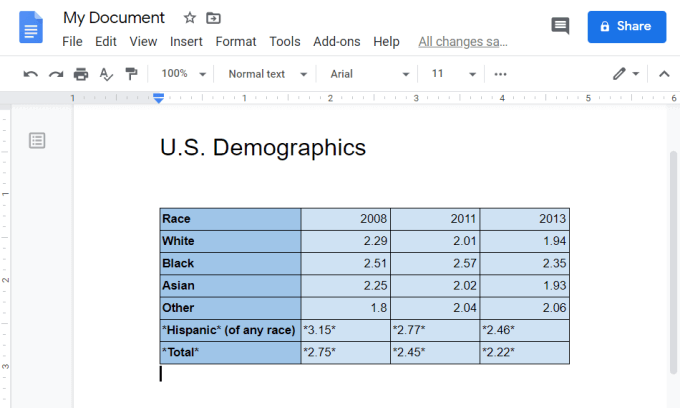
By linking the table, you could always update the table in Google Sheets and it’ll automatically update the table in Google Docs.
Embed HTML in Google Docs Using Word
If you have your simple HTML code saved into a .html or .htm file, you can open it in Microsoft Word first. Word always attempts to render an HTML file. Then you can import this document into Google Docs and copy the entire page or section of the page into the document you’re editing.
- To do this, open Microsoft Word, and open your HTML file. You should see the file rendered the way it would look inside a browser.
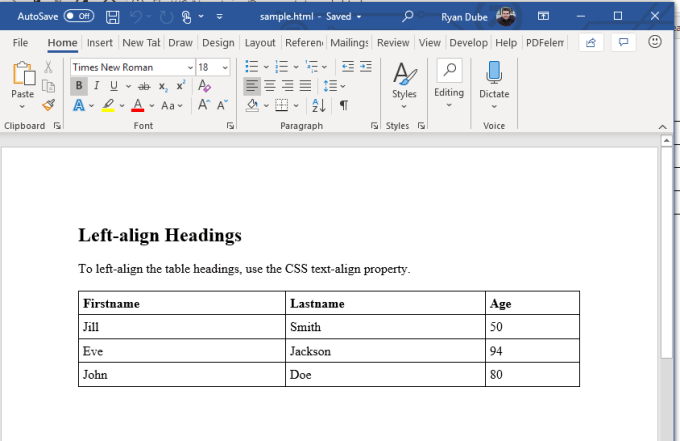
- Save this document in Word format.
- Then, return to Google Drive and upload the file to your Google Drive account.
- Once it’s uploaded, right click on it and select Open with , and select Google Docs .
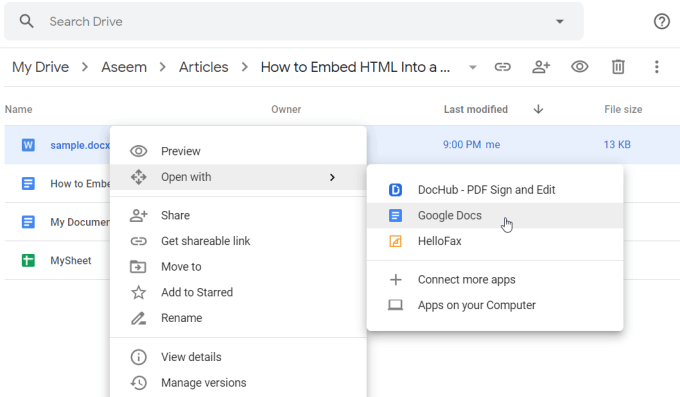
This will open the document in Google Docs format, formatted as close to the HTML rendering as possible.
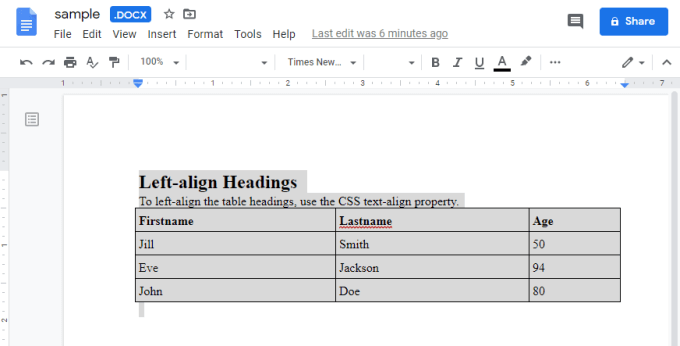
Now you can copy either the entire HTML file, or just the section you want. Then paste it into the Google Docs document that you’re editing.
These are three ways you can embed HTML into a Google doc. The option you choose depends what tools you have available. It also depends whether you want the entire page, or just a section and how closely you need the original HTML rendered formatting to match.
- How to Print a Google Doc With Comments
- How to Check for Plagiarism in Google Docs
- How to Fix Speech Services by Google Waiting for Network Connection Error
- Google Docs Voice Typing Not Working? 6 Fixes to Try
- How to Turn Off Google Assistant on Various Platforms
Ryan has been writing how-to and other technology-based articles online since 2007. He has a BSc degree in Electrical Engineering and he’s worked 13 years in automation engineering, 5 years in IT, and now is an Apps Engineer. Read Ryan’s Full Bio
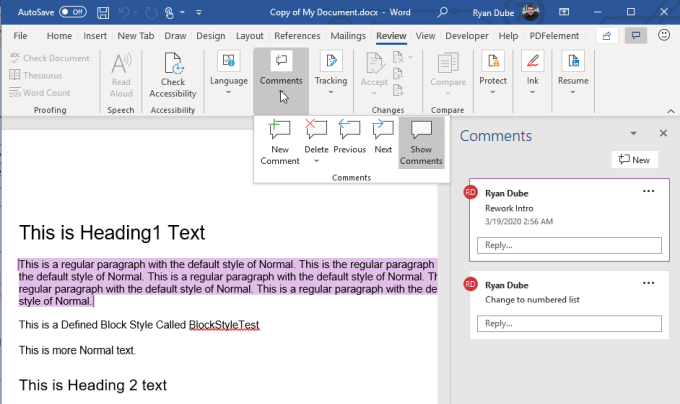
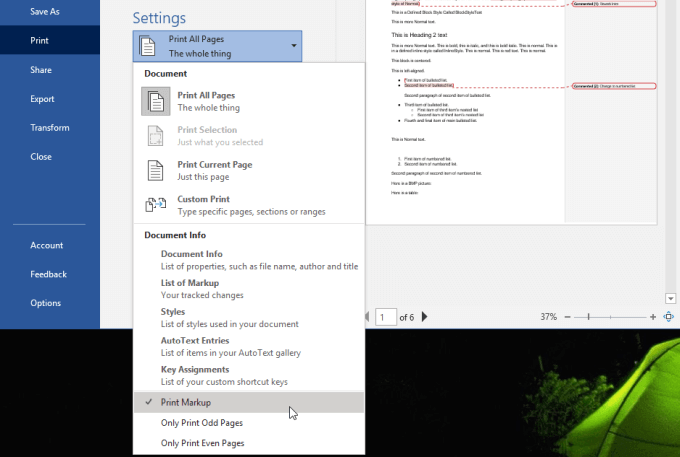
Export The Google Document To Microsoft Word
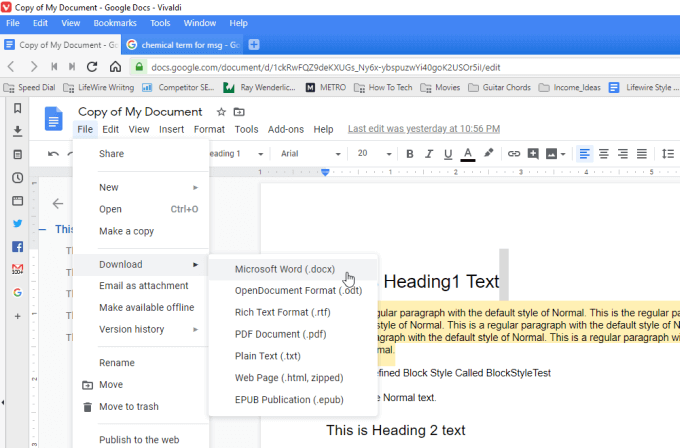
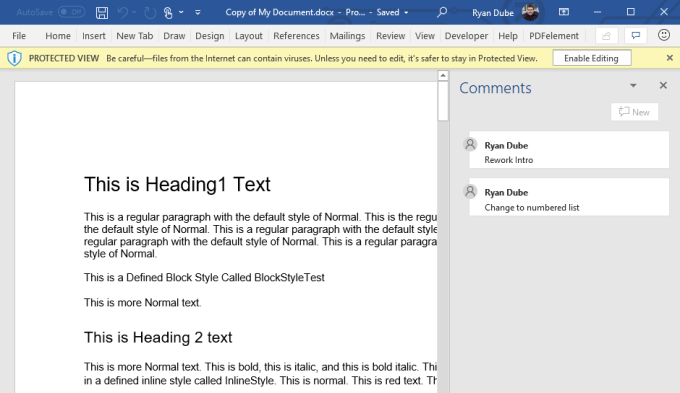
To do this, with your Google Docs document open, select File from the menu, select Download , and then select Microsoft Word (.docx) .
Export The Google Document To OpenOffice
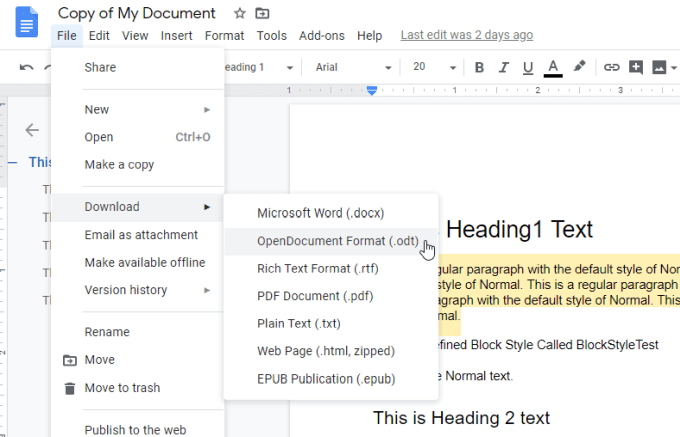
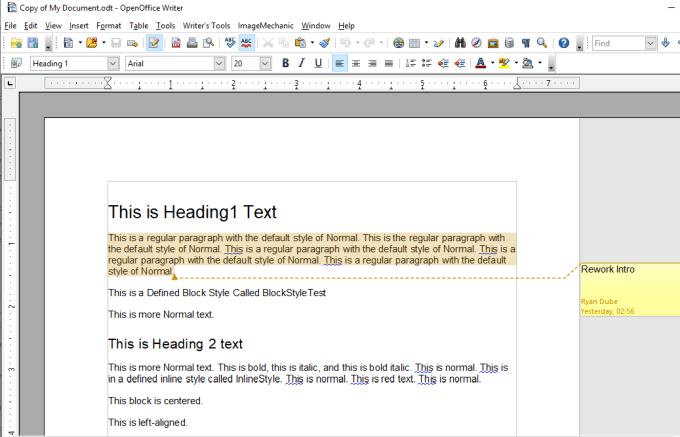
If you don’t have a licensed copy of Microsoft Word, another option is to export the document as an OpenDocument (.odt) file. You can open this file with a number of OpenDocument compatible programs like Apache OpenOffice, LibreOffice, and more.
To do this, inside of Google Docs you can export to ODT by selecting File from the menu, select Download , and select OpenDocument Format (.odt) .
Save the ODT file to your computer.
Download The Google Document As a Web Page
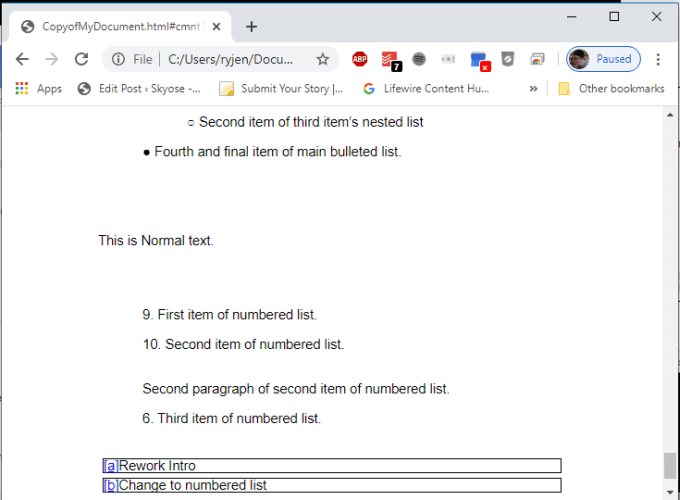
To do this, select File from the menu, select Download , and select Web Page (.html, zipped) .
This will save a zipped file onto your computer. Unzip the file and then open the HTML file with Chrome.
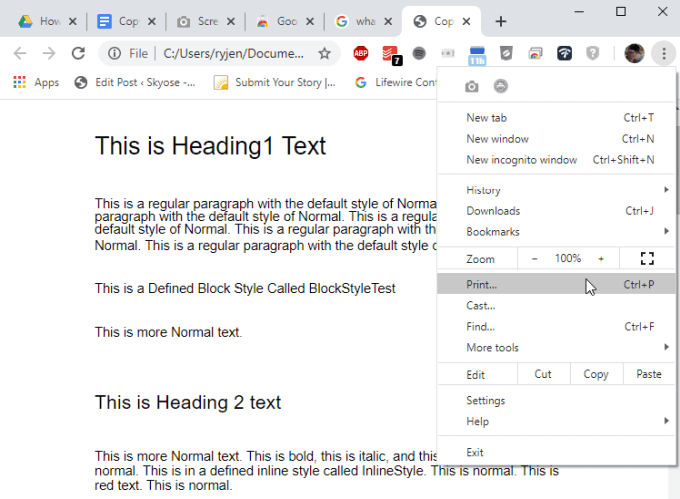
To print the document, just press the three dot menu icon at the upper right corner of the Chrome window, and select Print .
Use The Full Page Screen Capture Chrome Extension
If you prefer using your Chrome browser but don’t like the formatting of the export to HTML feature, you can instead install the Full Page Screen Capture Chrome extension .
This feature inserts a small camera icon at the top of your Chrome browser that you can click to capture a screenshot of your entire Google Docs document.
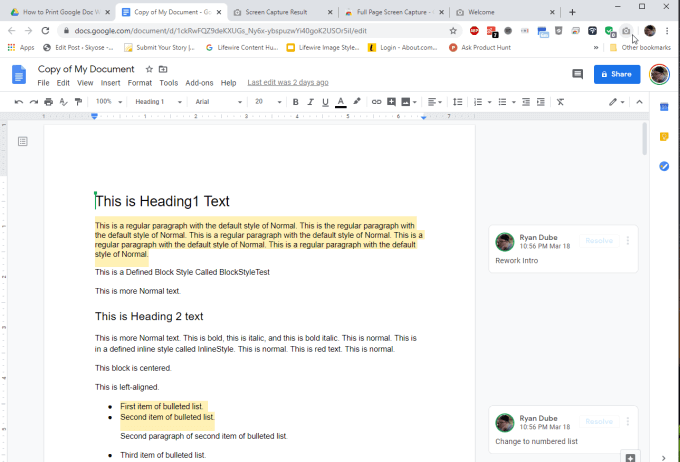
When you’ve installed the extension and you’re ready to capture your document, press the camera icon.
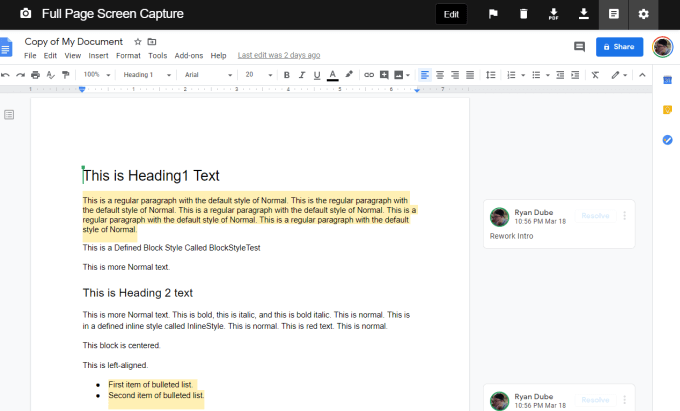
To print it, just select the PDF icon at the top to download the document in PDF format and print it from your computer.
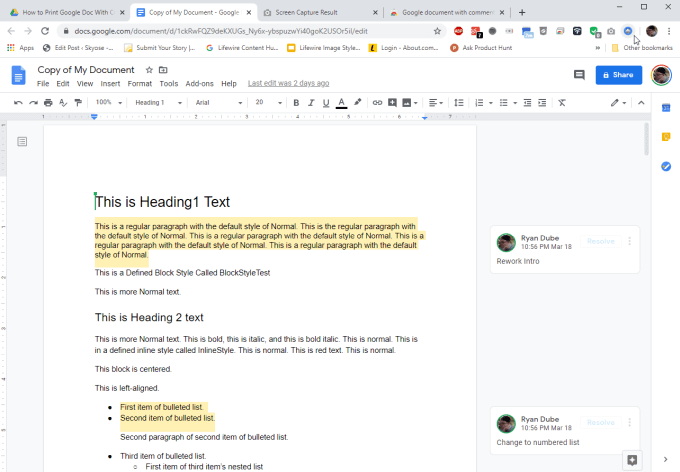
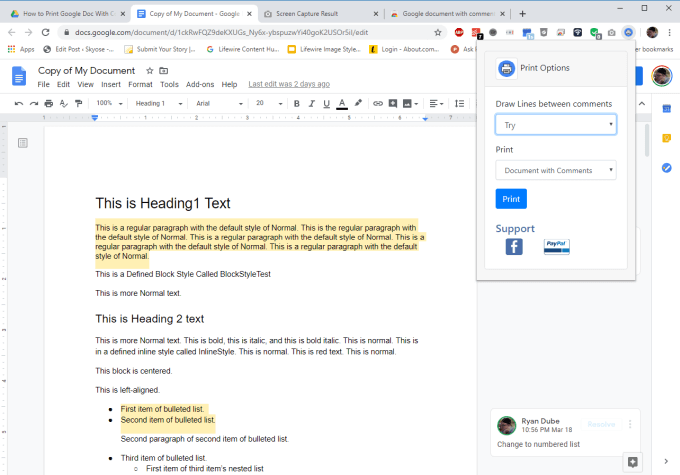
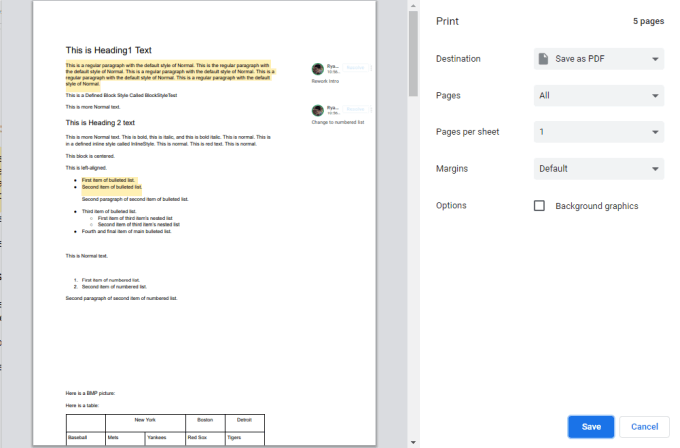
Whether you choose an outside application like Microsoft Word, an HTML printout, or one of the Chrome extensions, really comes down to personal preference. Each option is just as simple and easy as the next.
- How To Embed HTML Into a Google Doc
- How to Check for Plagiarism in Google Docs
- How to Fix Speech Services by Google Waiting for Network Connection Error
- Google Docs Voice Typing Not Working? 6 Fixes to Try
- How to Turn Off Google Assistant on Various Platforms
Ryan has been writing how-to and other technology-based articles online since 2007. He has a BSc degree in Electrical Engineering and he’s worked 13 years in automation engineering, 5 years in IT, and now is an Apps Engineer. Read Ryan’s Full Bio
