
Dark mode lets you change your color scheme to light text on a dark background. This has been available on devices like iPhone and Android for years, and Microsoft finally added Dark mode in Windows 11.
How to Enable Windows 11 Dark Mode
Windows 11 gives users substantial control over their dark theme color schemes. To enable dark mode:
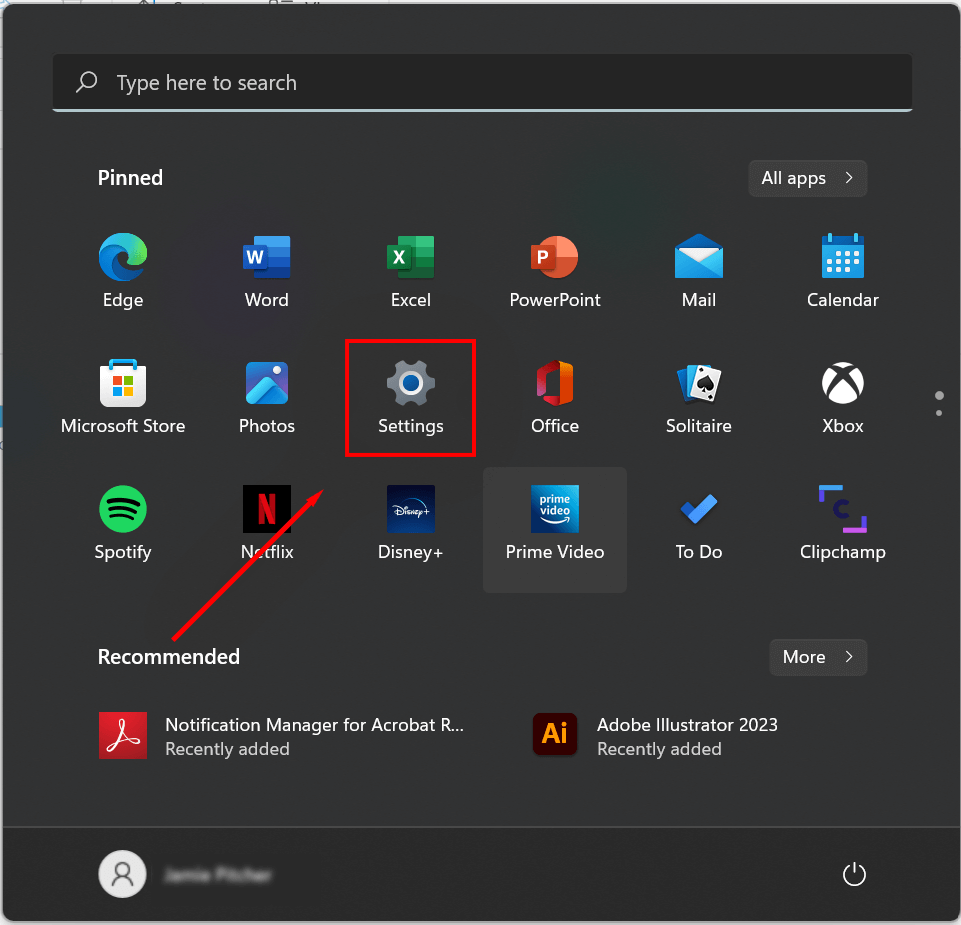
- Right-click the Start menu and open Settings .
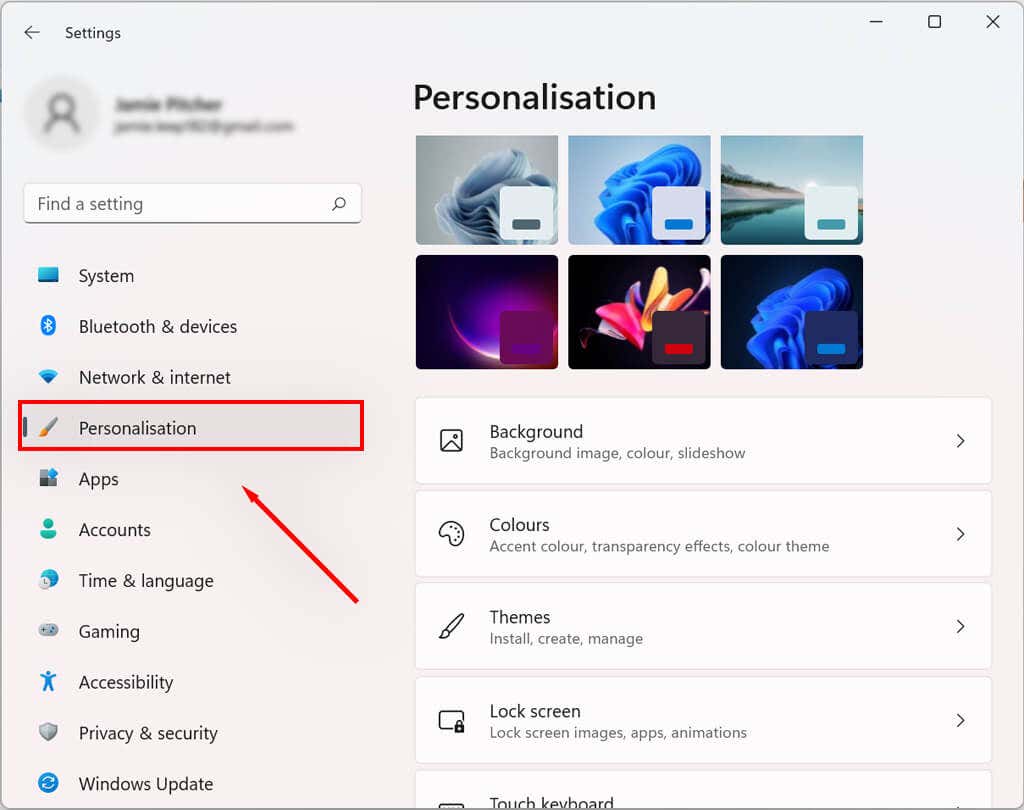
- Select Personalization in the left-hand pane.
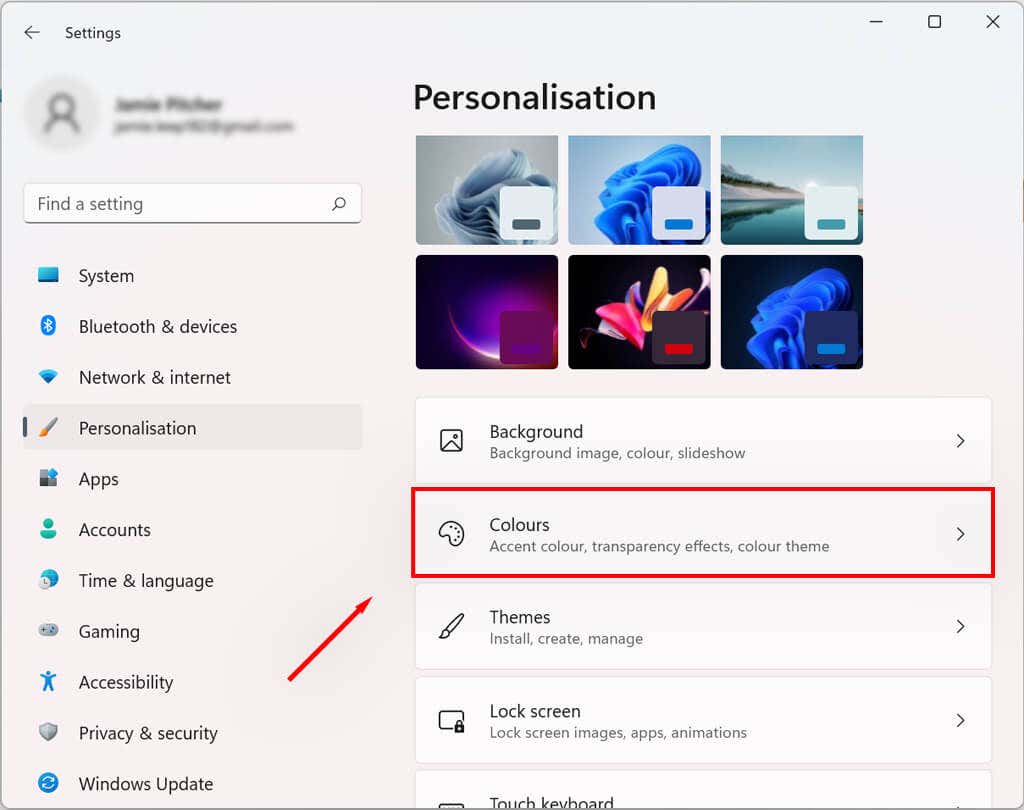
- In the personalization menu, click the Colors setting.
- Select the Choose your mode option and choose Dark .
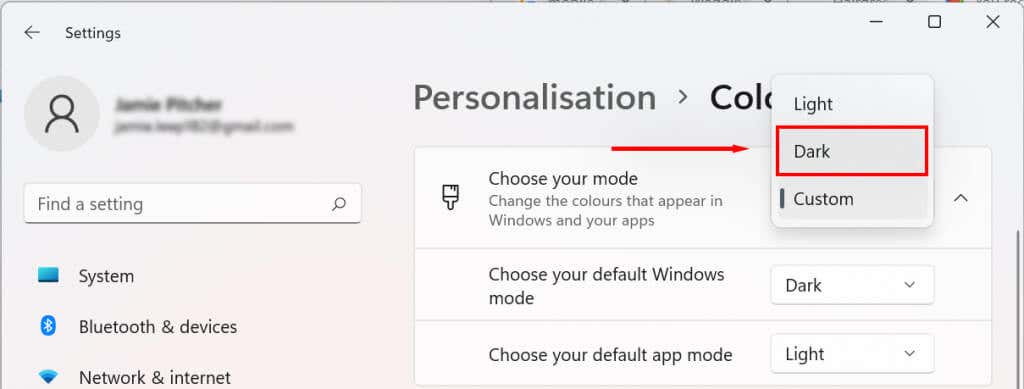
You can also use the Custom mode to choose dark mode for certain apps (like Google Chrome or Powerpoint ) but keep light mode on the Windows elements (like the Taskbar). To do so:
- Under Choose your mode , select Custom .
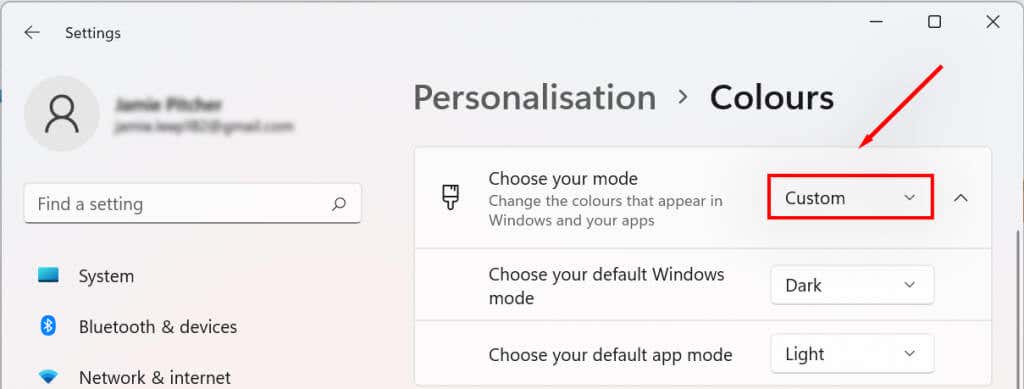
- Select the drop-down menu next to “Choose your default Windows mode” and choose Light or Dark .
- Select the drop-down menu next to “Choose your default app mode” and select Light or Dark .
Related: Learn how to Use Contrast Themes in Windows for Low Vision or Light Sensitivity .
How to Enable Contrast Themes on Windows 11
In addition to dark mode, Windows 11 provides contrast themes for users with vision impairments (like light sensitivity). To activate this:
- Press the Windows key + I to open the Settings menu.
- Click Accessibility .
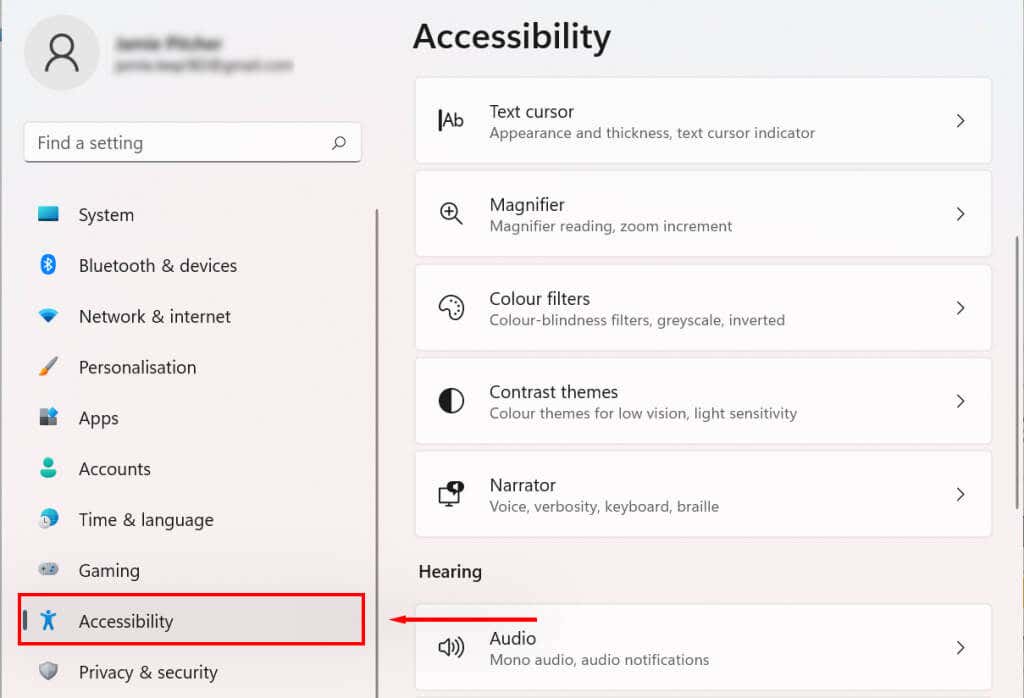
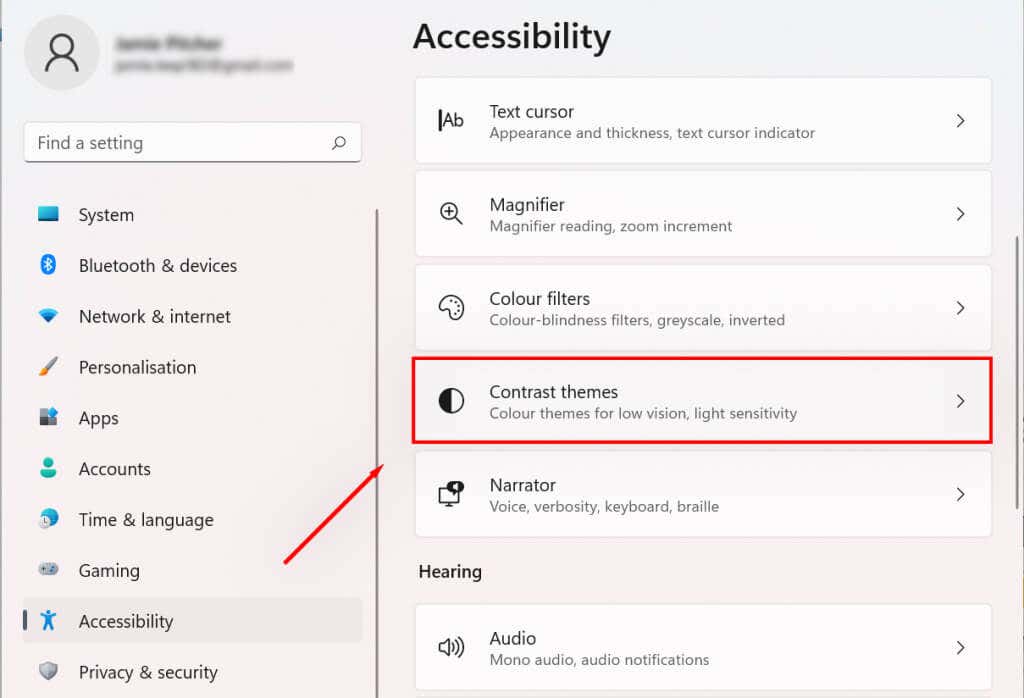
- Click the Contrast themes drop-down menu.
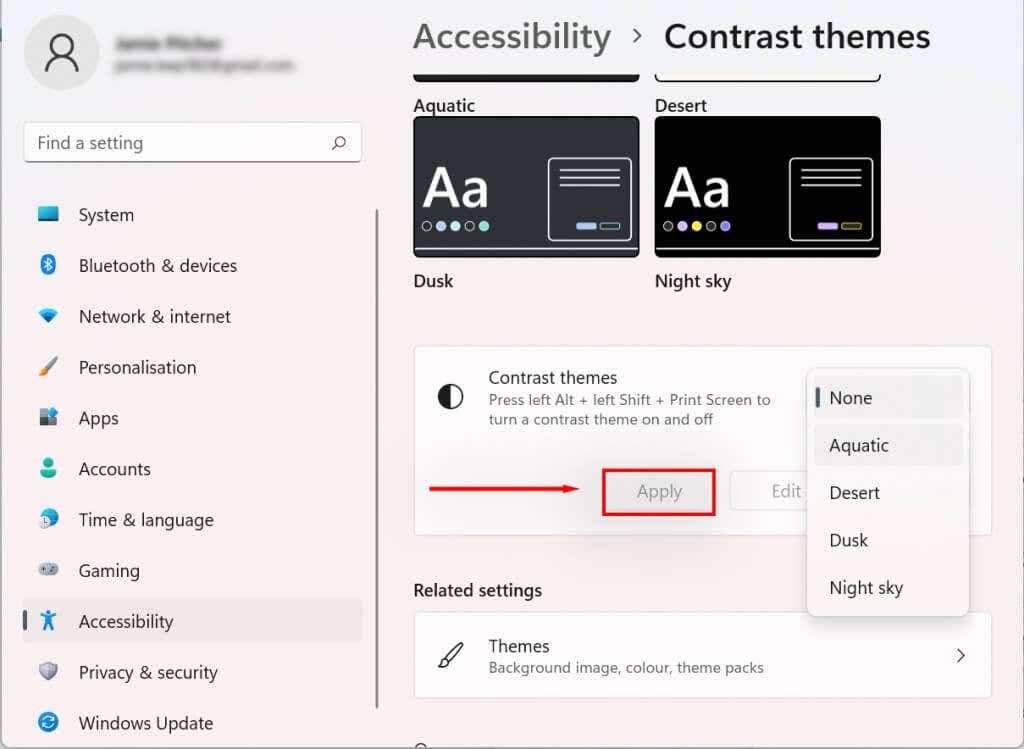
- Choose a dark theme.
- Press Apply .
Keep Your Eyes Healthy
Dark text on a white background is famously bad for eye strain — especially after a long day on the computer. Dark mode can alleviate this strain and help you spend those extra hours on your PC.
- Sluggish Windows 11 PC? Try These 5 Windows 11 Tricks to Free up Virtual Memory
- How To Turn Off Notifications On Windows 11?
- How to Fix Windows 11 Boot Loops After Jan 2026 Update
- How to Remove Copilot AI in Window 11? New Update Available in Beta
- January 2026 Patch Tuesday: 7 Things Windows Users Should Do Before and After Updating
Jake Harfield is an Australian freelance writer whose passion is finding out how different technologies work. He has written for several online publications, focusing on explaining what he has learned to help others with their tech problems. He’s an avid hiker and birder, and in his spare time you’ll find him in the Aussie bush listening to the birdsong. Read Jake’s Full Bio
