Using applications in dark mode can reduce eye strain and extend your device’s battery life. Microsoft Outlook’s dark mode inverts the default white background to black. This tutorial shows you how to use Outlook in dark mode on supported devices.

How to Enable Dark Mode in Outlook for Windows
Open the Outlook app on your computer and follow the steps below.
Note: Enabling dark mode in Outlook also turns on dark mode in other Microsoft Office apps on your PC—Excel, Powerpoint, etc.
- Select File on the toolbar.

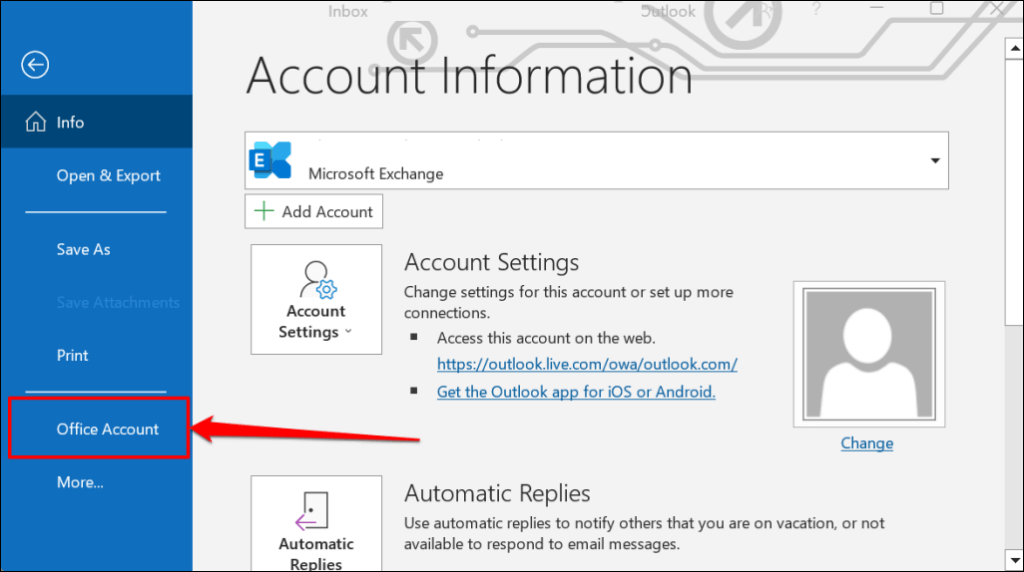
- Select Office Account on the sidebar.
- Expand the “Office Theme” drop-down menu and select Black or Dark Gray or Use system setting .
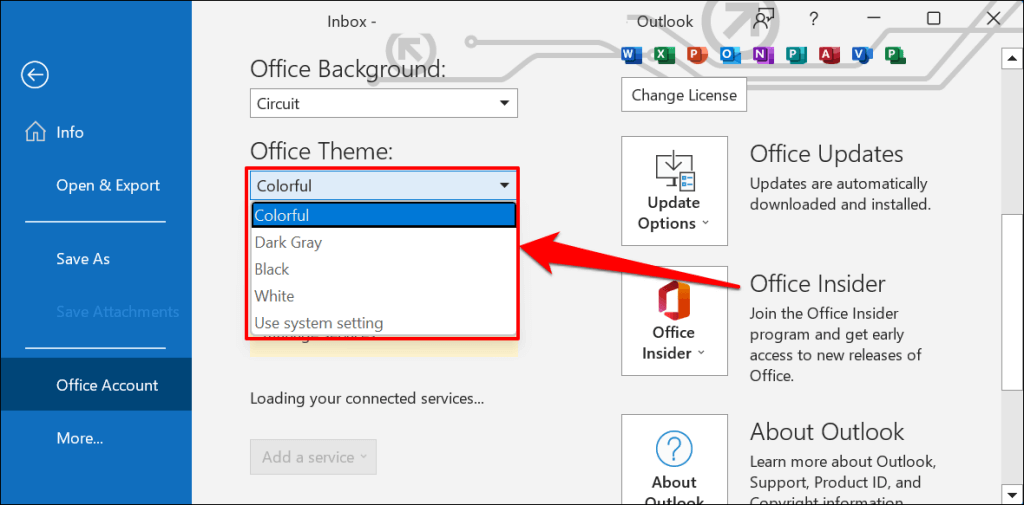
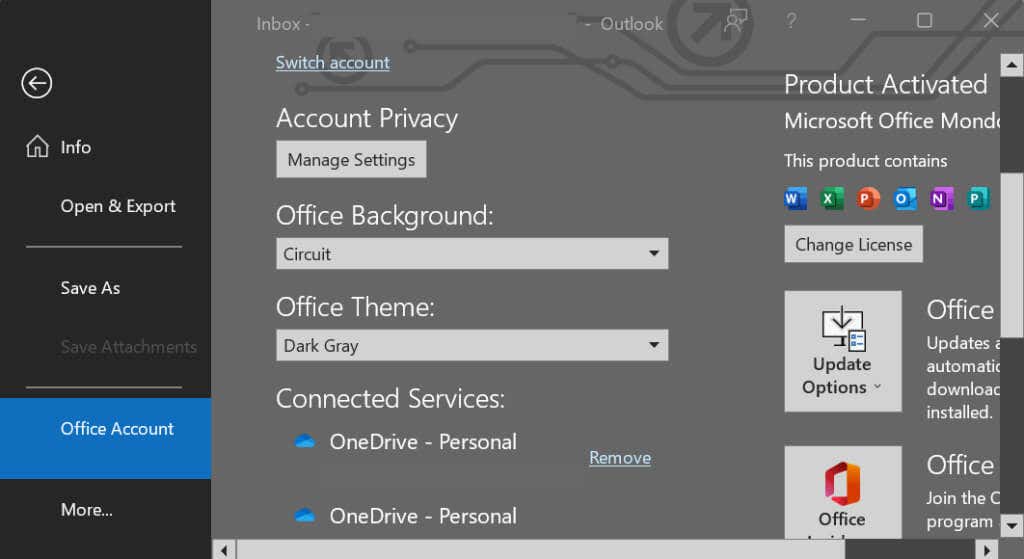
“Dark Gray” is a watered-down, less-intense variant of the Black theme.
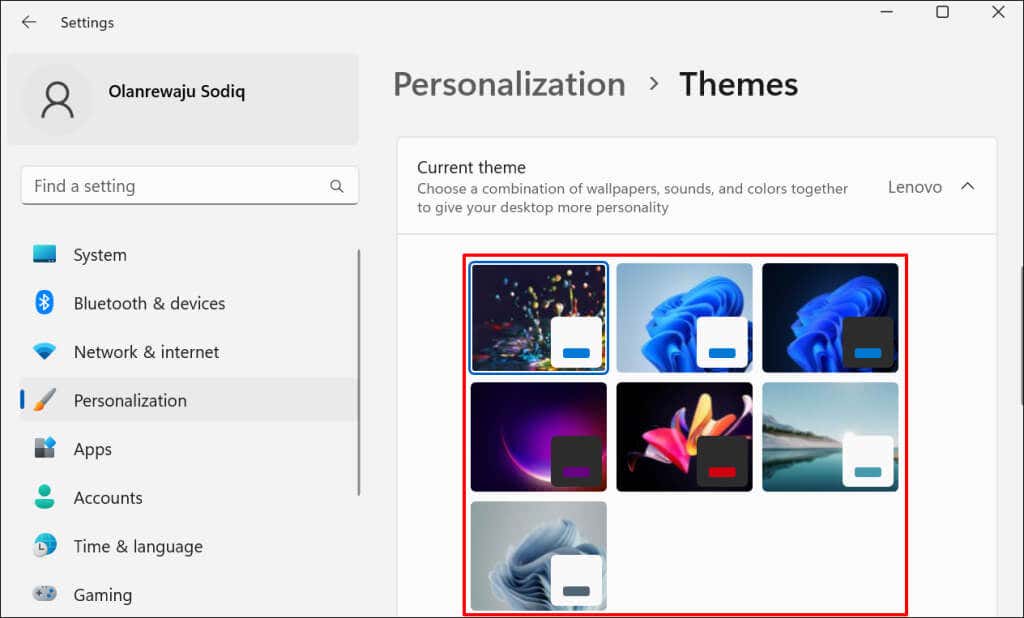
If you choose “Use system settings,” Outlook will mirror your PC’s system theme. Choose a dark theme in the Windows settings menu to put Outlook in dark mode.
Open the Settings app in Windows 10 or 11, go to Personalization > Themes > Current theme , and select a dark theme.
Customize Outlook’s Message Background in Dark Mode
Do you prefer to read and write emails in black text over a white background? Set Outlook’s message window to stay white when using dark mode.
- Open Outlook, select File on the toolbar and choose Options .
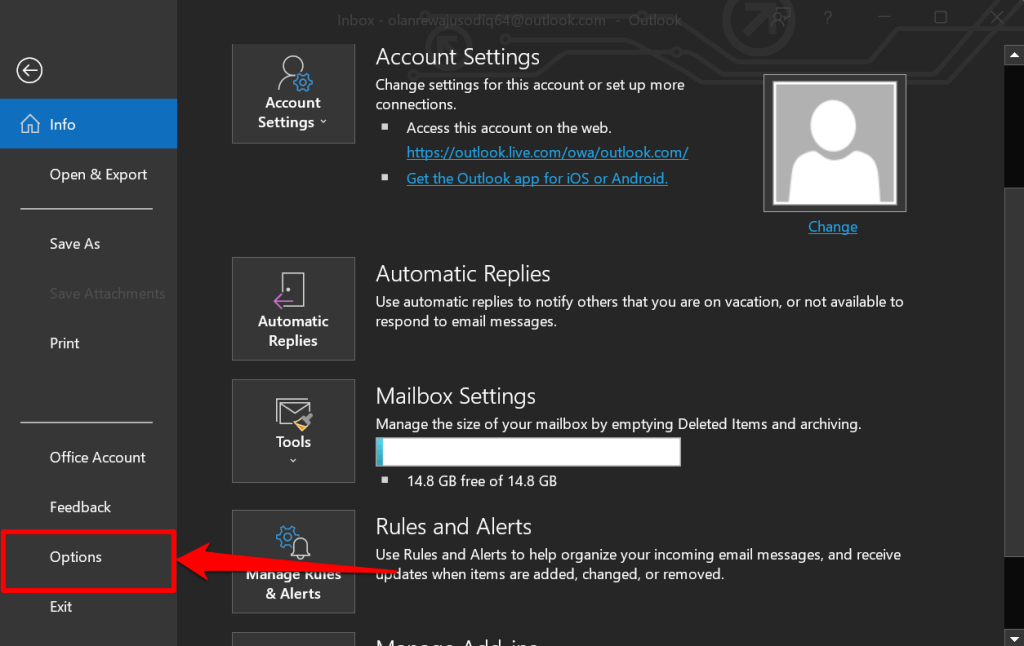
- Select General on the sidebar and scroll down to “Personalize your copy of Microsoft Office.” Set the “Office Theme” to Black and select the Never change the message background color checkbox.
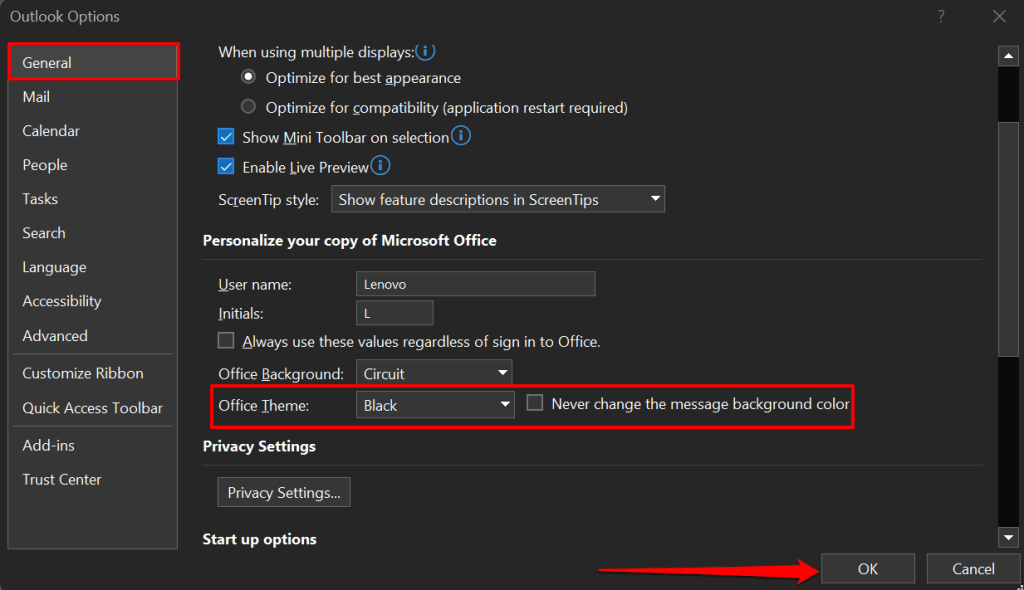
- Select OK to save the change. Outlook will now display emails in black text on a white background without disabling dark mode.

How to Enable Outlook Dark Mode on Mac
The macOS Outlook app matches your Mac’s theme by default. Outlook switches to a black background against white text when your Mac’s in dark mode.
Go to System Preferences > General and select Dark in the “Appearance” row.

Follow the steps below to use Outlook in dark mode when your Mac’s in light mode.
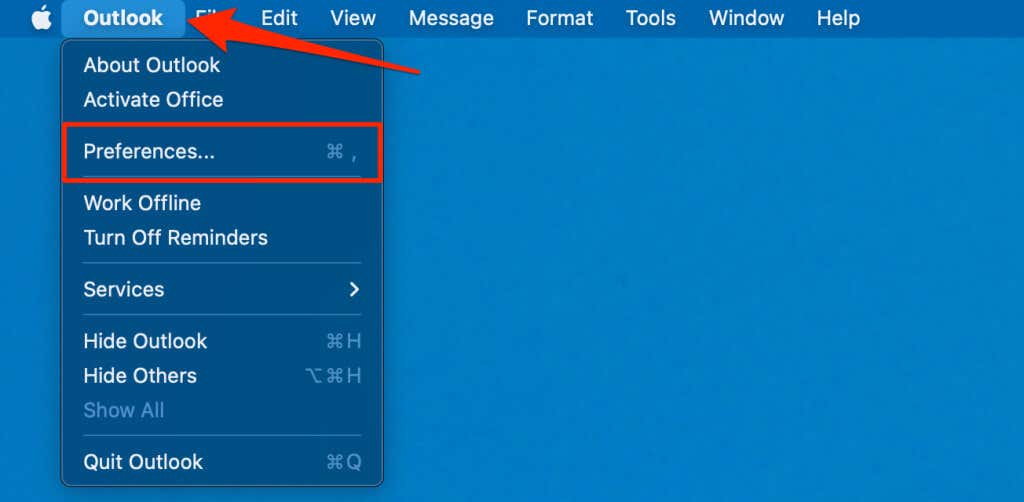
- Open the Outlook app, select Outlook on the menu bar, and choose Preferences .
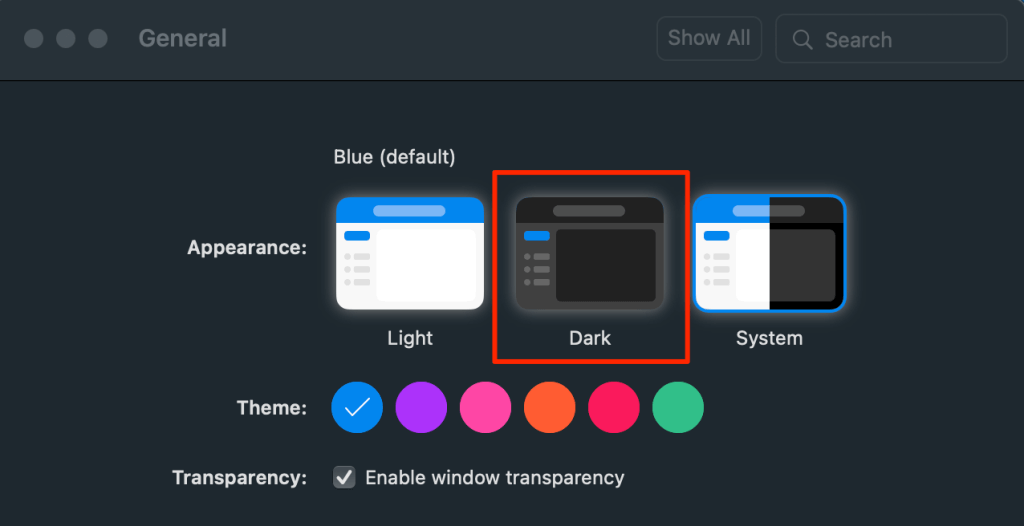
- Select General .

- Select the Dark appearance.
How to Enable Outlook Dark Mode on Android
The Outlook Android app automatically switches to dark mode when you:
- Enable dark theme in the Android settings menu. Go to Settings > Display and turn on Dark theme .

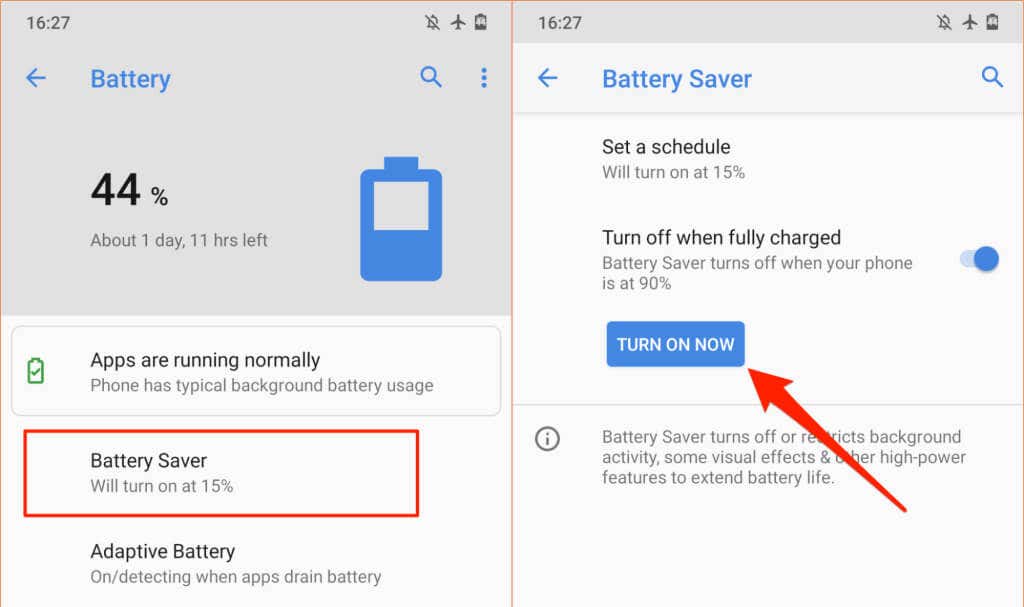
- Turn on the Android battery saver. Head to Settings > Battery > Battery Saver and tap Turn On Now .
You can also set Outlook to stay in dark mode permanently.
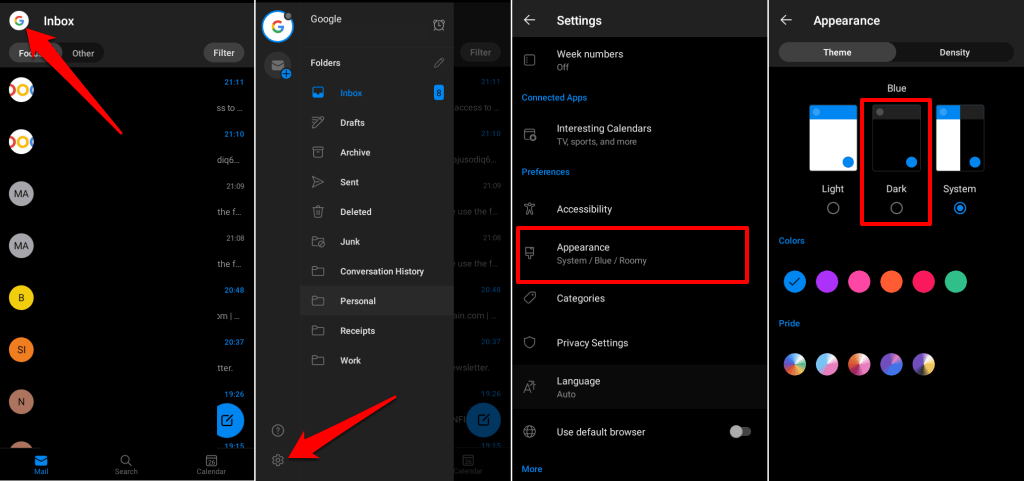
- Open Outlook and tap your profile icon or picture in the top-left corner.
- Tap the gear icon in the bottom-left corner to open Outlook’s settings menu.
- Scroll to the “Preferences” section and tap Appearance .
- Head to the “Theme” tab and select Dark .
How to Enable Outlook Dark Mode on iOS
Microsoft Outlook also matches your iPhone or iPad’s theme. To invert Outlook’s white background, put your device in dark mode or enable dark mode in Outlook’s settings menu.
Open the Control Center and tap the Dark Mode icon. Alternatively, go to Settings > Display & Brightness and select Dark in the “Appearance” section.

Follow the steps below to use Outlook in dark mode when your device uses a light theme.
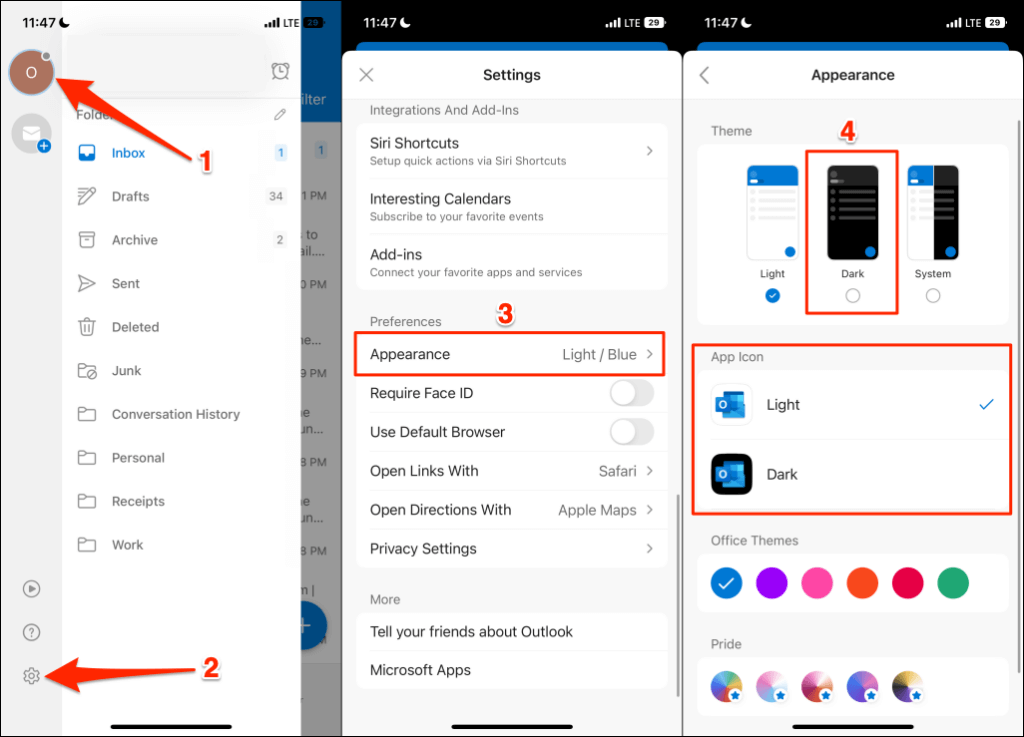
- Open the Outlook app, tap your profile icon/picture , and tap the gear icon .
- Find and tap Appearance in the “Preferences” section.
- Select the Dark theme. You can also give the Outlook app icon a dark theme.
How to Turn On Dark Mode in Outlook Web
The Outlook web app also has a dark mode option. If you access Outlook through a web browser, here’s how to view your emails in dark mode.
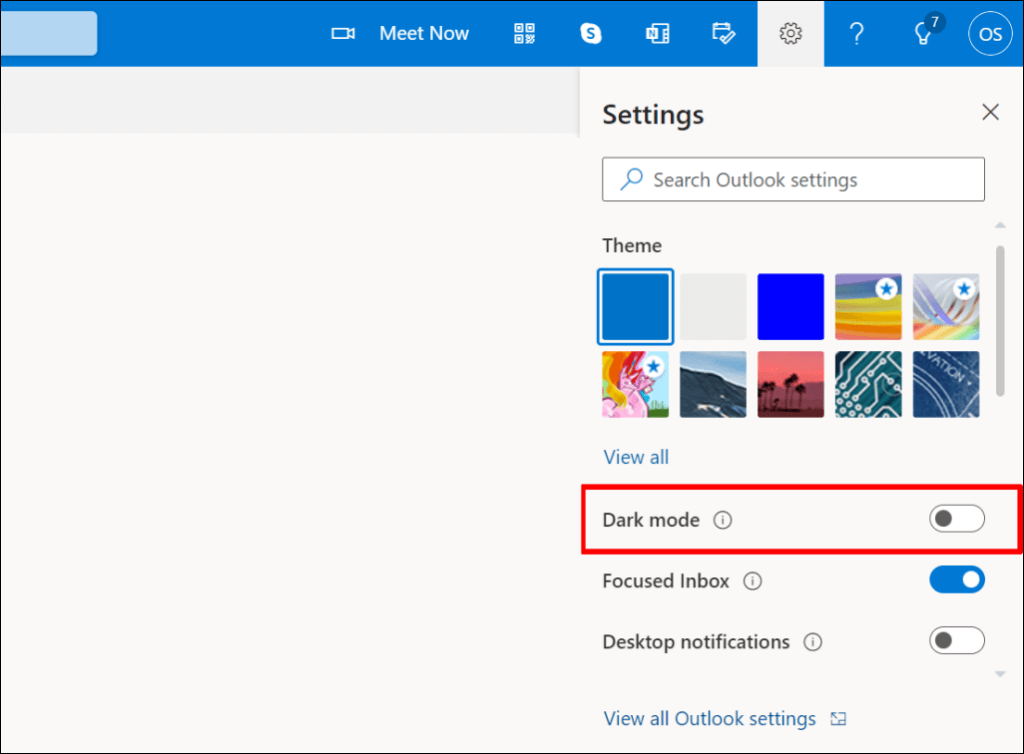
- Open Outlook (www.outlook.com) in your web browser and sign in to your email account.
- Select the gear icon in the top-right corner.
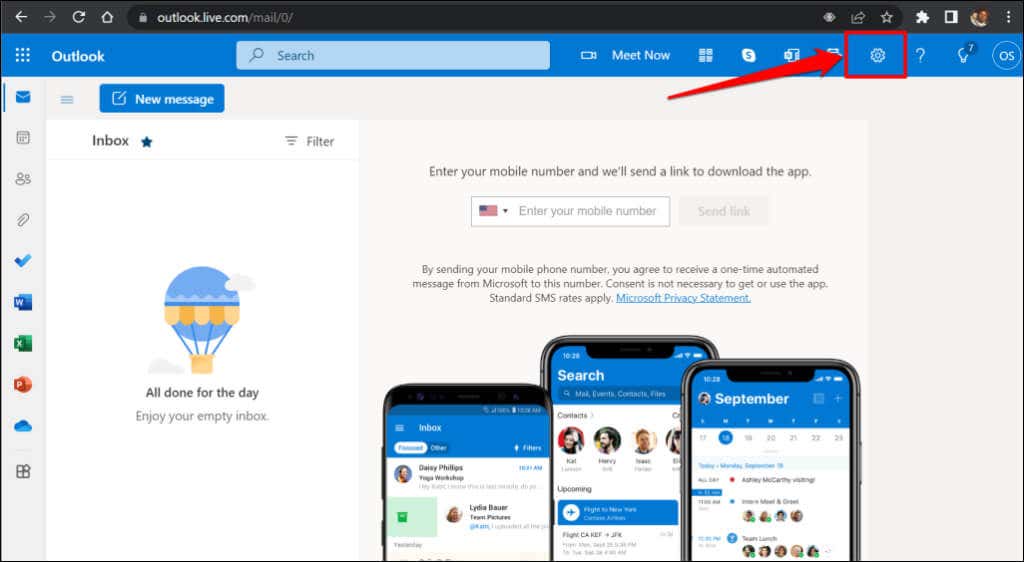
- Toggle on Dark mode .
A Dark Outlook
Can’t find the option to enable dark mode in Outlook? Update your device’s operating system and ensure you’re using the latest version of Outlook.
- How to Report Phishing Emails in Outlook
- Top 6 Ways to Fix Outlook Error 0x8004010f
- How to Make an Email Group in Outlook
- How to Change the Default Browser in Outlook
- How to Pin Emails in Outlook
Sodiq has written thousands of tutorials, guides, and explainers over the past 4 years to help people solve problems with Android, iOS, Mac, and Windows devices. He also enjoys reviewing consumer tech products (smartphones, smart home devices, accessories, etc.) and binge-watching comedy series in his spare time. Read Sodiq’s Full Bio
