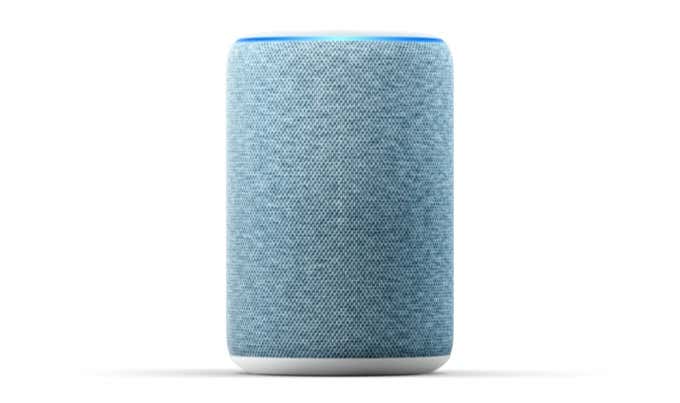
Even if you don’t intend to sell the device, there are times when your Echo might stop working or freeze. A factory reset will resolve most issues. The thing to remember is that different devices require different methods to perform a hard reset, but it isn’t difficult to pull off.
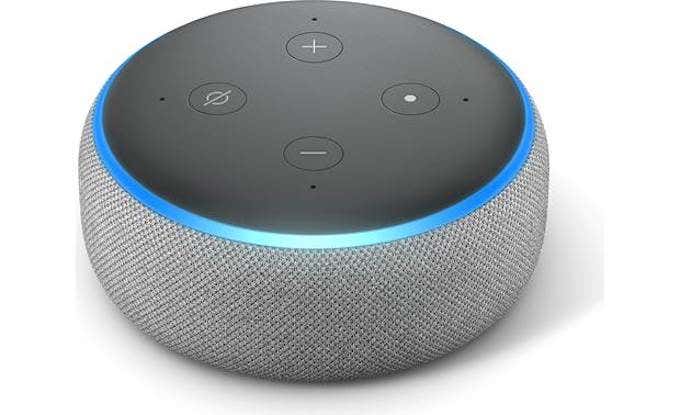
- Find the action button (the button down and right from the Volume Up with the single dot in the middle.) Press and hold it down for 25 seconds until the light ring flashes orange. After another moment, the light will turn blue.
- When the light turns off and back on and then turns orange, it will be in setup mode.
- Once in setup mode, you can open the app on your phone or tablet and perform the setup process like it’s a brand-new device.

- There are two ways to start a factory reset on the Echo Show 5. The first is to swipe down from the top of the screen to display the Control Panel, then scroll down and select Settings. The second option is to say, Alexa, open Settings .
- From the Settings menu, scroll down until you see Device Options.
- Scroll down and tap Reset to Factory Defaults .
- Another screen will appear warning you that you cannot undo the process. Click Reset . This process can take up to five minutes to complete, but once it does your Amazon Echo Show 5 will be like-new again.
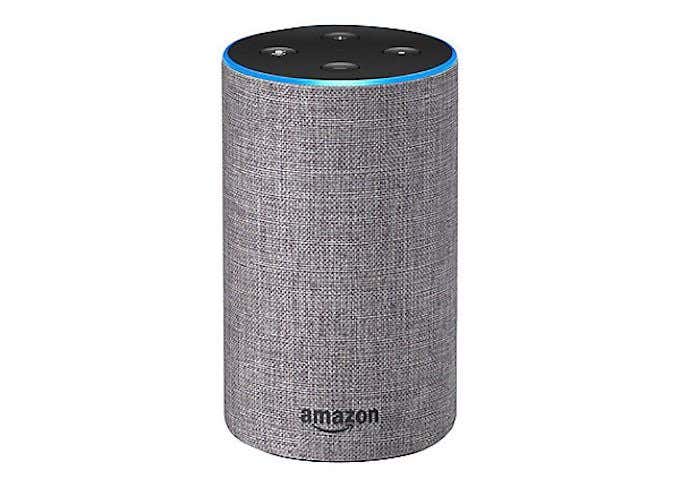
- Press and hold the Microphone Off and Volume Down button at the same time for around twenty seconds. The light will turn orange.
- Once the color has changed, the Echo will be fully reset to its original settings.
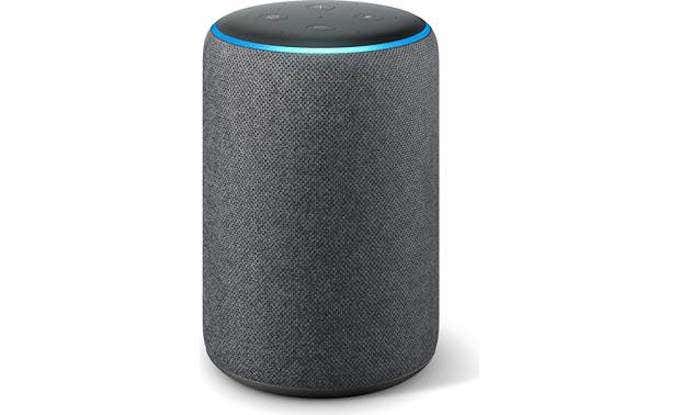
- Find the Action button and press it down for 20 seconds.
- Wait for the light to turn off and back on again. Once it does, the device will be reset.
A Note On Resetting First-Get Devices
Every device on this list has been second-generation and later because those are the devices most commonly in use. It wasn’t until the second generations of each device that smart assistants began to catch on. Later generations have more features and therefore more appeal to customers.
The first generations of the Echo Dot, the Echo, and the Echo Plus all have reset buttons that require a paper clip to press. Find this button, usually in a small hole near the base or on the bottom of the device, and press it quickly. Once you do, wait for the light to turn off and back on again. When it does, the device will have been reset.
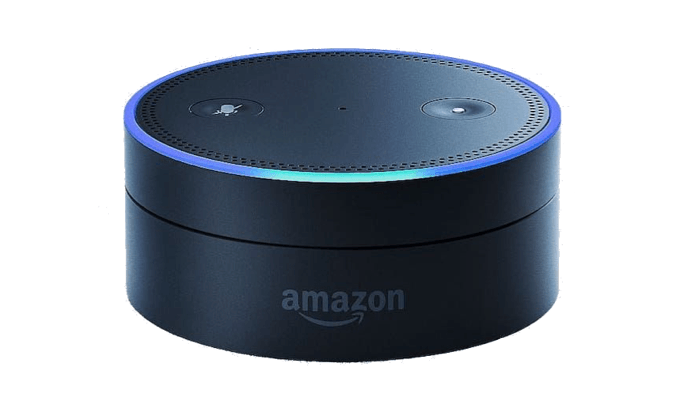
If your devices begin to freeze or just don’t work properly, do a hard reset. It can straighten out any problems before Alexa goes HAL-9000 on you. Make sure you also perform a reset before you sell a discard an old device. In the modern age of cybersecurity, you can’t be too safe.
- How To Set Up Amazon Alexa
- How to Set Up an Amazon Echo Dot
- How to Install the Amazon Appstore in Windows 11
- How to Fix Amazon CS11 Error Code in Android and iOS
- How to Cancel Amazon Music
Patrick is an Atlanta-based technology writer with a background in programming and smart home technology. When he isn’t writing, nose to the grindstone, he can be found keeping up with the latest developments in the tech world and upping his coffee game. Read Patrick’s Full Bio
