
- To get reimbursed by your employer. If you buy something for work, you might have to submit a reimbursement request and produce the receipt for expenses.
- You’re tracking your expenses. Apps like YNAB, Mint , and Personal Capital can import payment data. But if you want to split your payments so you can track what you’re spending your money on, you’ll need to find your Amazon receipts.
- You’re passing the expense onto your client. If you’ve purchased something on Amazon on behalf of a client, you’ll need to show proof of that purchase if you want your client to pay you back.
- Warranty or replacement claims. If you signed up for a warranty on your product or need the manufacturer to replace it, you’ll have to send in a copy of the invoice as proof of purchase.
- Print an Amazon gift receipt. If you had a gift shipped to you and not directly to the recipient, you might need to find and print a new gift receipt if one wasn’t in the shipment (or you lost it).
- You want to confirm the payment method. The invoice will show the last four digits of the credit or debit card (or another payment method) used to make the purchase.
- Calculating estimated sales tax. If you itemize deductions on your federal tax return in the United States, you may qualify for a credit based on how much sales tax you’ve paid in that tax year.
Don’t You Already Have a Copy of the Invoice or Receipt?
- Log into Amazon.
- Select Returns & Orders .

- Find the order that includes the product you want to find the receipt for.
- Select View Invoice under the order number for that purchase.
- Select the Print this page for your records link. The print dialog box will appear where you can choose which printer to print to (or print to PDF).

- Alternatively, select File > Print (or CTRL + p ) to launch the print dialog box.
- Select the Print button, and go pick up your Amazon receipt from your printer.
Repeat the steps above to find and print multiple receipts/invoices.
- Log into the Amazon.com website.
- Select the Account & Lists button.

- Select Your Payments .
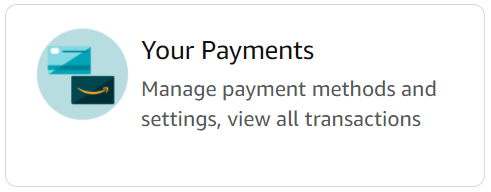
- Select the Transactions tab.
- Select the order number you’re interested in.
- Select View or Print Invoice .
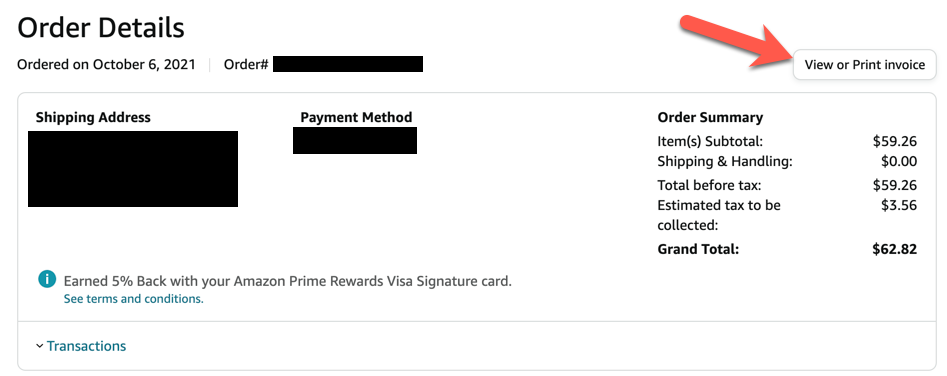
From there, you can print the invoice as you normally would.
- Log into your email account.
- Search for the shipping confirmation email from Amazon. Those emails usually contain the word “shipped,” so that’s a good term to search for.
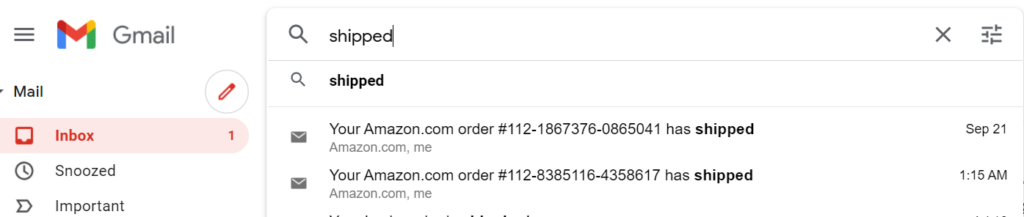
- To access the link to the invoice, open the shipping confirmation email for the order.
- Scroll to the bottom of the email and select the Your invoice can be accessed here link.
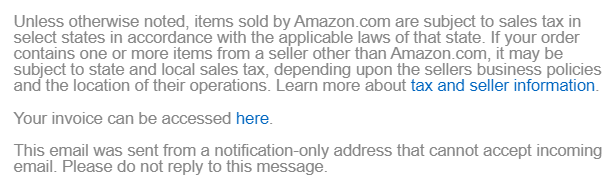
- A new browser page will open, displaying the invoice. Select the link to print the page or go to File > Print to launch the print dialog box.
- Select the Print button.
How to Find and Print a Gift Receipt After Purchase
Gift receipts are different from regular receipts or invoices. You can choose to send a gift receipt during checkout by selecting the This order contains a gift checkbox. You can also find and print a gift receipt after you’ve made the purchase.
- Go to Your Orders .
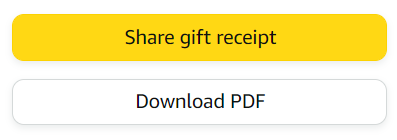
- Locate the item in the list and select the Share gift receipt button.
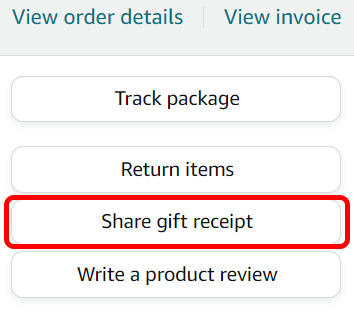
- Next, select either the Share gift receipt button to access a link to the gift receipt that you can share, or select the Download PDF button to download a PDF of the gift receipt.
Note: You can’t create a gift receipt outside of the return window for the product. If you don’t see an option to share a gift receipt, then neither you nor the gift recipient can return the item.
- Amazon Fire Stick Home Screen Not Loading? 9 Ways to Fix
- How to Share Your Amazon Cart
- How to Delete a Delivery Address From Amazon
- Deleting Order History from Amazon: All You Need to Know
- How to Cancel Amazon Gift Card Order (and Get a Refund)
