DirectX is a technology that uses a combination of APIs like DirectDraw, DirectMusic, Direct3D, etc. It improves your multimedia and gaming experience, but many games may even identify DirectX as a prerequisite.
You can find out what version of DirectX you have installed from the DirectX Diagnostic Tool. This article will walk you through how you can find and use this tool. If you have an older version of DirectX installed on your system, you may want to update it.

If you’re curious about DirectX and what it does, we have an in-depth guide on what DirectX is and why it’s important .
Check Your DirectX Version in Windows
Running the DirectX Diagnostic Tool gives you all the information about DirectX components and drivers installed on your PC.
It’s a simple, two-step process:
- Press Win + R , type dxdiag , and press Enter .
- You’ll see the tool launch. You’ll find the DirectX Version mentioned under System Information .
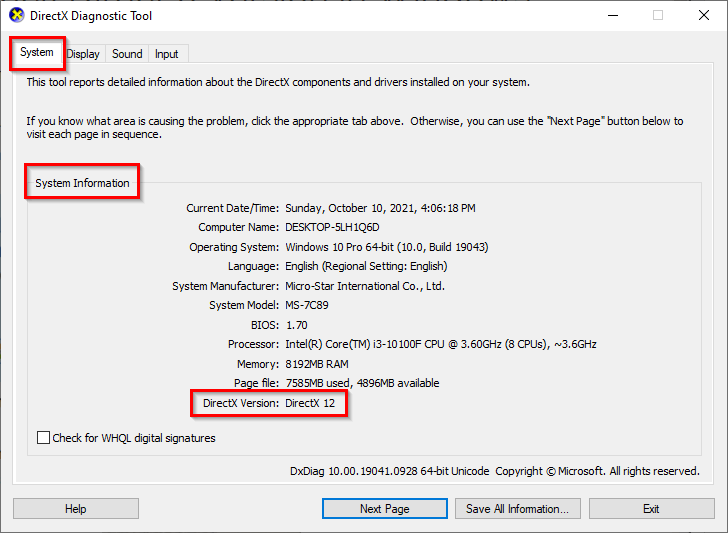
If you’re using Windows 10 and above, your system most likely has DirectX 12. Installing the OS automatically installs all DirectX 12 APIs. However, if your system has an older version of DirectX, it’s fairly simple to update it using Windows Updates.
Update DirectX on Windows
Microsoft doesn’t offer a stand-alone package for the latest DirectX versions, which means you’ll need to use the Windows Updates to update your DirectX to the latest version.
- Press Win + I to launch Settings.
- Select Updates & Security > Check for Updates .
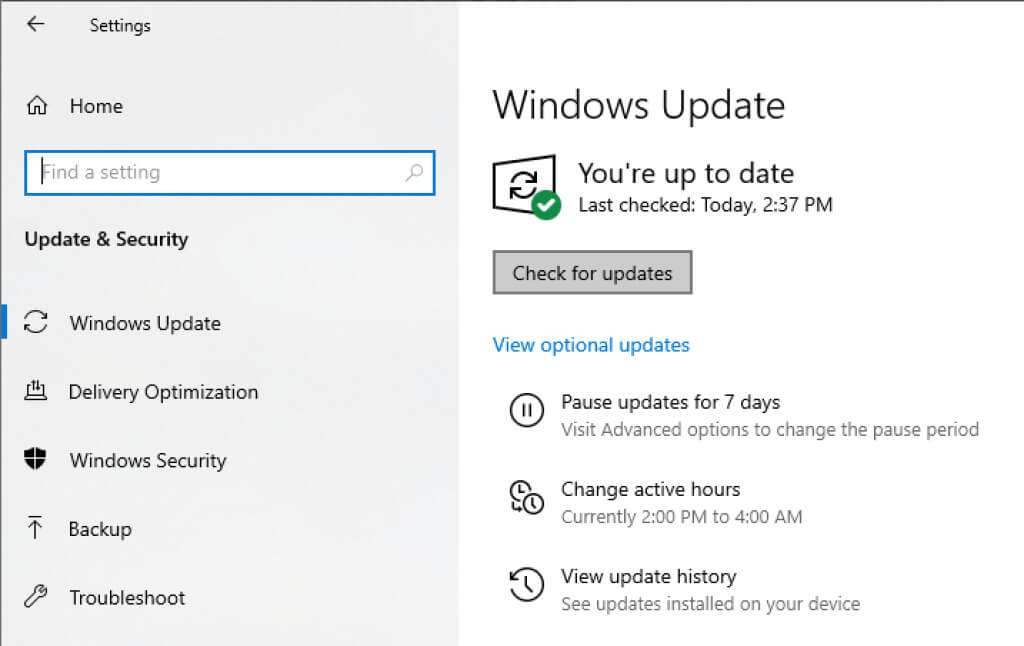
- Let Windows check for updates. If there’s a newer DirectX version available for your system, it will automatically download and install along with other updates on your system.
- Once installed, reboot your PC and rerun the DirectX Diagnostic Tool to check your DirectX version.
If you’re facing problems with Windows Updates , you’ll need to fix that first, or you could just move forward with the updates without using Microsoft Update .
Install DirectX Runtime Libraries for Legacy DirectX SDK
If you’re unable to run some older games on your PC despite having the latest DirectX version, it could be because a few runtime libraries from the legacy DirectX SDK are missing from your system.
Microsoft has a tool that installs D3DX9, D3DX10, XAudio 2.7, XInput 1.3, XACT, and Managed DirectX 1.1 on your system. Note that the tool doesn’t upgrade your DirectX version; it just adds a few runtime libraries from the legacy DirectX SDK.
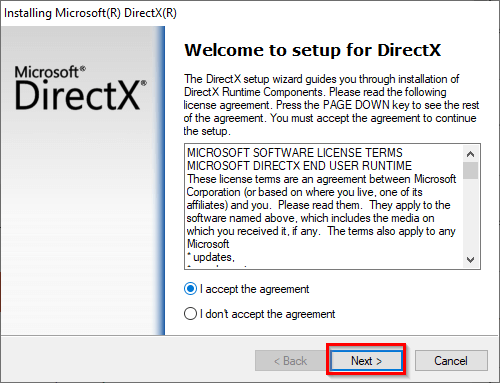
- Download the DirectX End-User Runtime Web Installer .
- Press Next and follow the steps in the wizard.
- Select Finish to exit the wizard once the installation completes.
You should now be able to run your older games.
If you’re on Windows, DirectX isn’t the only API. You can also use VulkanRT .
- How to Backup an iPhone Without iCloud?
- Sluggish Windows 11 PC? Try These 5 Windows 11 Tricks to Free up Virtual Memory
- macOS Tahoe Privacy Settings You Need to Secure Your Mac
- How To Turn Off Notifications On Windows 11?
- How to Recover Lost Files After Windows Update?
Arjun is a freelance writer based in India. After working as an equity research analyst, Arjun decided to do something that he has been passionate about – tech. He gets excited talking about and explaining how to solve everyday tech problems. His area of expertise is Windows and is a go-to for all things Excel. Read Arjun’s Full Bio
