Your computer’s model name or number provides information about its software and hardware configurations. Knowing your PC model information makes it easy to find compatible software (e.g., drivers) and accessories (e.g., chargers).
You may also need to provide your computer model number when seeking technical support or troubleshooting issues. We’ll show you how to find your computer model in Windows and using third-party tools.
From the Settings Menu
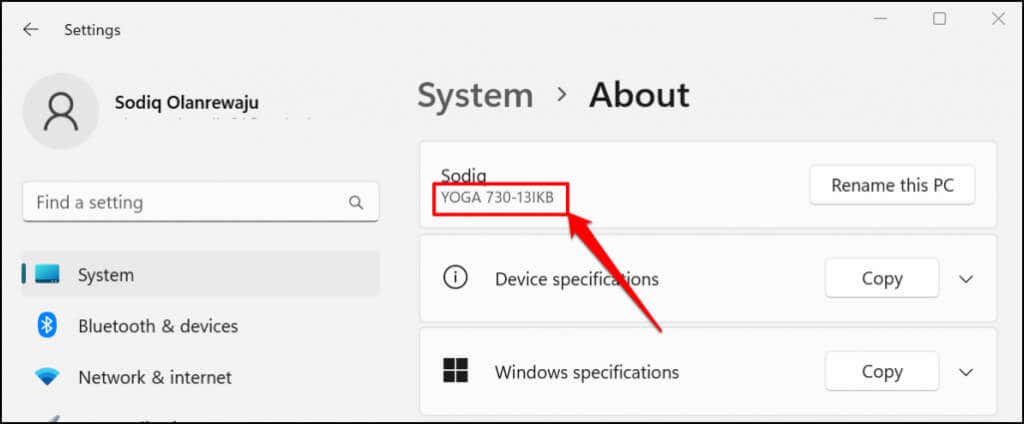
This is perhaps the easiest way to check the model of a Windows computer. In Windows 10 and 11, go to Settings > System > About and check your PC’s name for its model information.
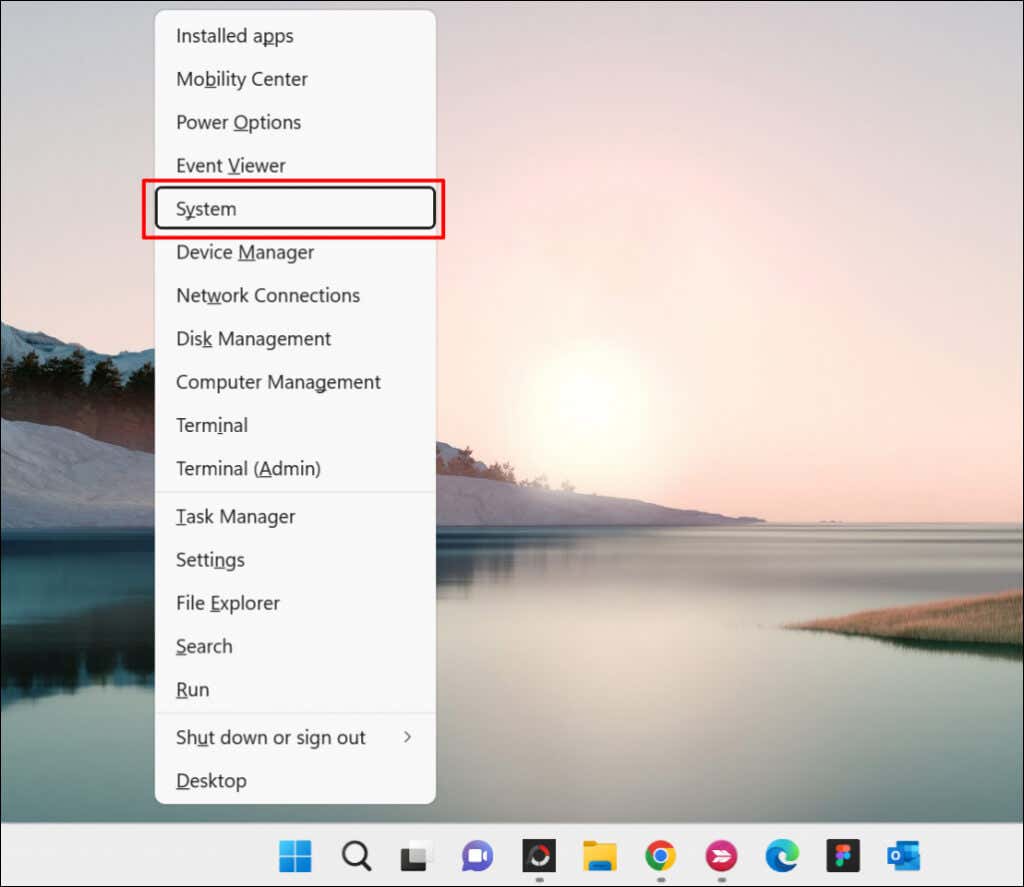
A faster way to access the system information page is to right-click the Start button and select System .
Check the Product Label or Packaging
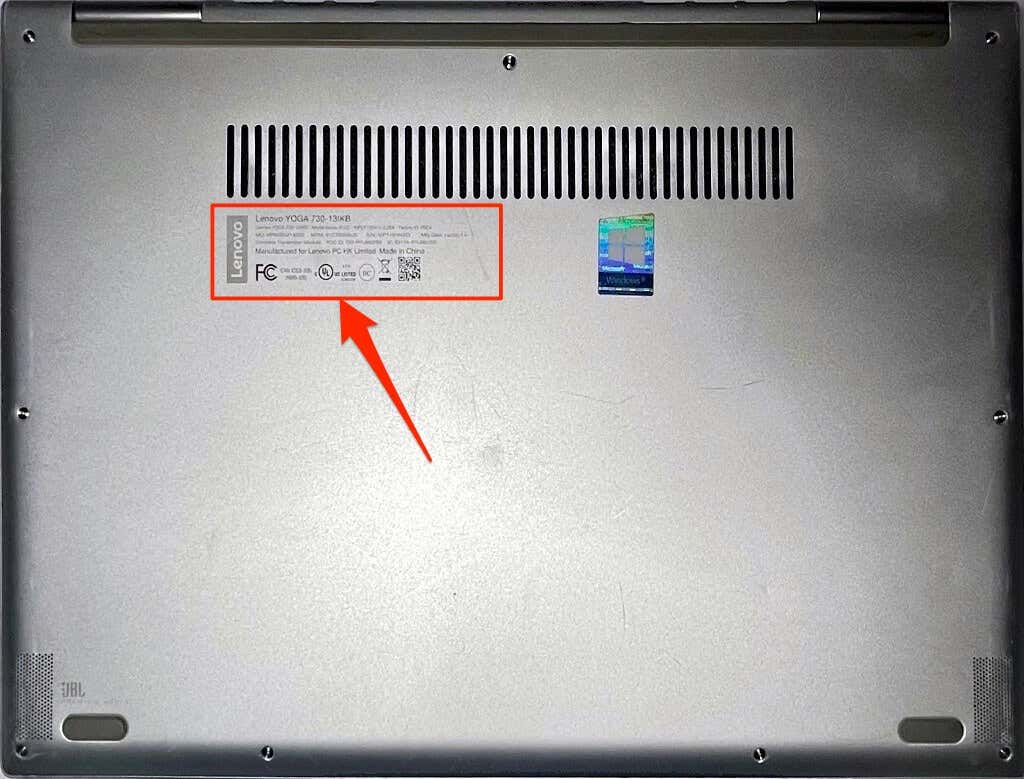
You’ll find your computer’s model on its packaging. For laptops, lookout for a product label on the base or bottom cover of the device. Close the lid, turn your laptop upside down, and check if you find a label.
Laptops with removable batteries sometimes have their product label in the battery compartment. Product labels are sometimes glued on laptops’ palm rest (right below the keyboard) or screen bezels.
Check the side, back, or top of the tower case on desktops and all-in-one computers for product labels.
Can’t find your PC’s packaging or product label? Check the user manual instead. Some computer retailers print product information on the bill of sale documents or receipt. So, make sure you check that, too.
Visit the Manufacturer’s Website
Many PC manufacturers have online tools that automatically detect your computer’s model, serial number, and other information. All you need is an internet connection and a web browser.
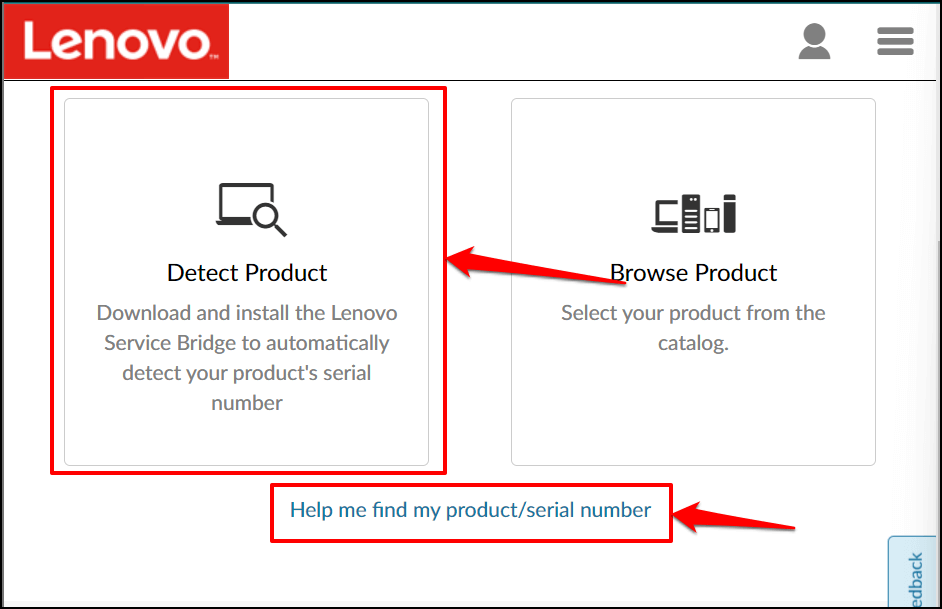
Lenovo has a web-based tool that scans laptops and desktops to find their name and serial number. The tool works perfectly on computers running Windows 7, 8, 10, and 11. Visit Lenovo’s Support website and select Detect Product or Help me find my product/serial number .
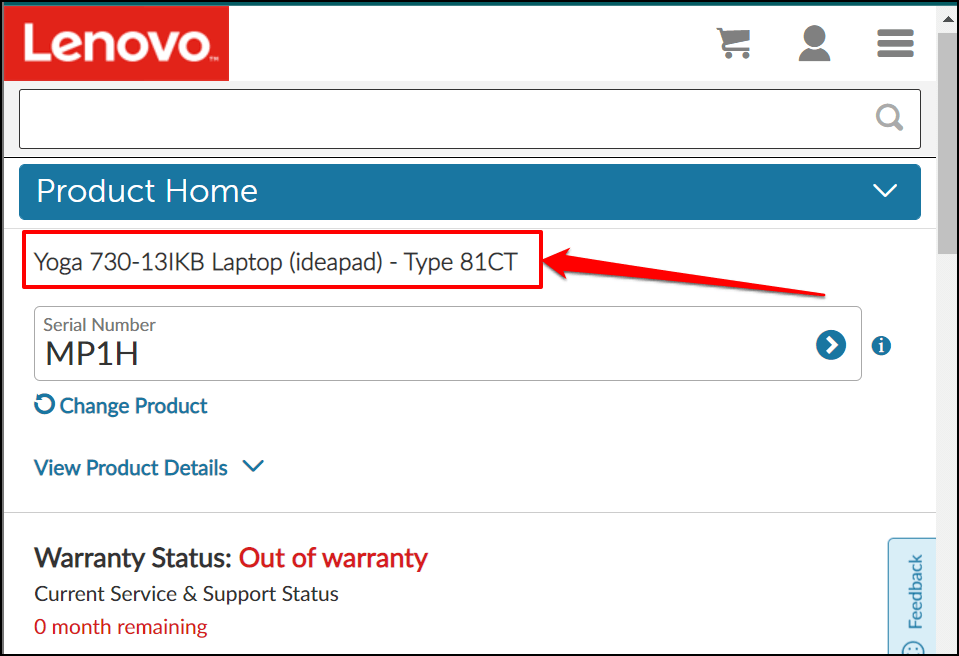
Wait for a few seconds, and you should see your PC’s model name, serial number, warranty status, etc.
HP has a similar Web Product Detection tool that identifies your computer’s model via a web browser.
Use the System Information Tool
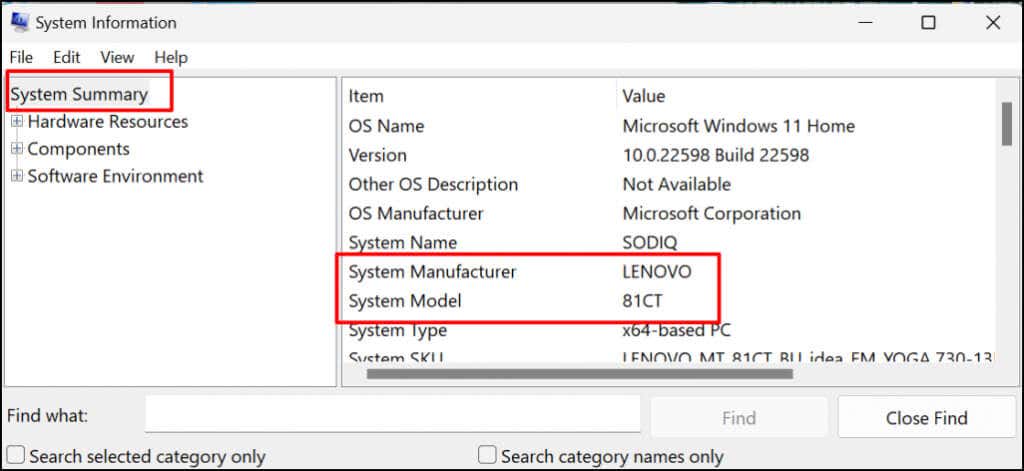
The Microsoft System Information is a system tool that displays a comprehensive report of your computer’s hardware and software specs. Follow the steps below to check your desktop or laptop model using System Information.
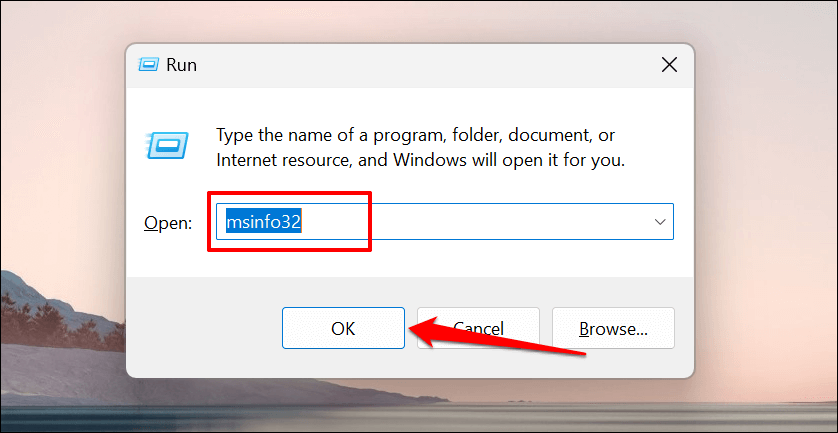
- Press the Windows key + R , type or paste msinfo32 in the Run box, and press OK .
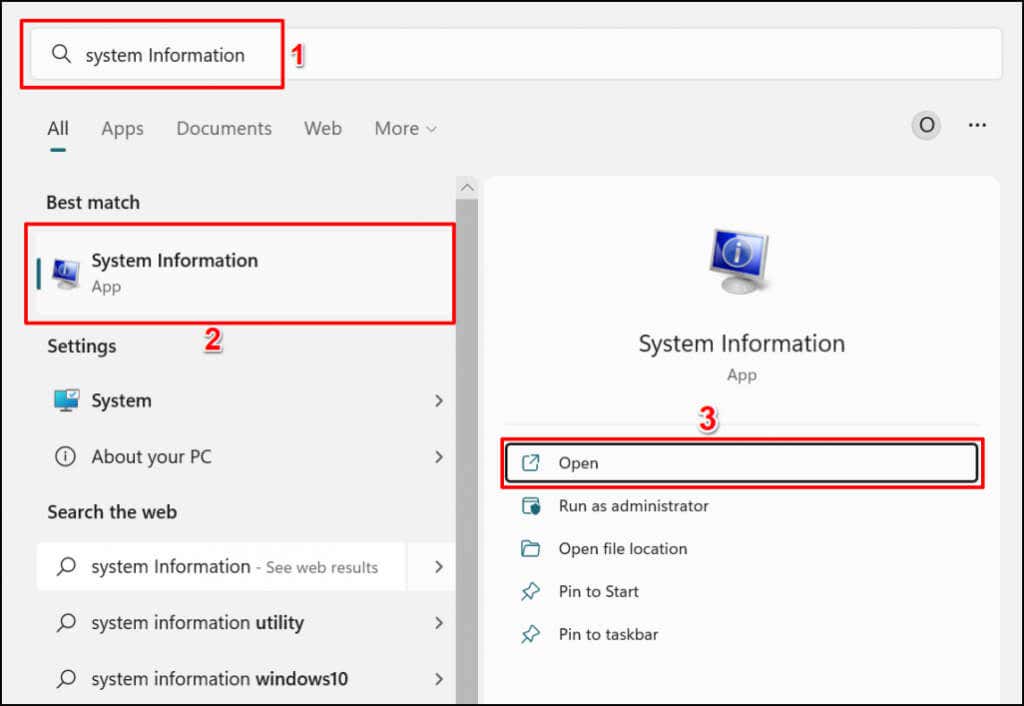
Alternatively, type system information in Windows Search and select Open to launch the tool.
- Select System Summary on the sidebar and check the “System Manufacturer” and “System Model” rows for your PC’s model information.
Use the DirectX Diagnostic Tool
The DirectX Diagnostic Tool displays information about your PC’s graphics card and other hardware components. Here’s how to use the tool to check your computer’s model in Windows:
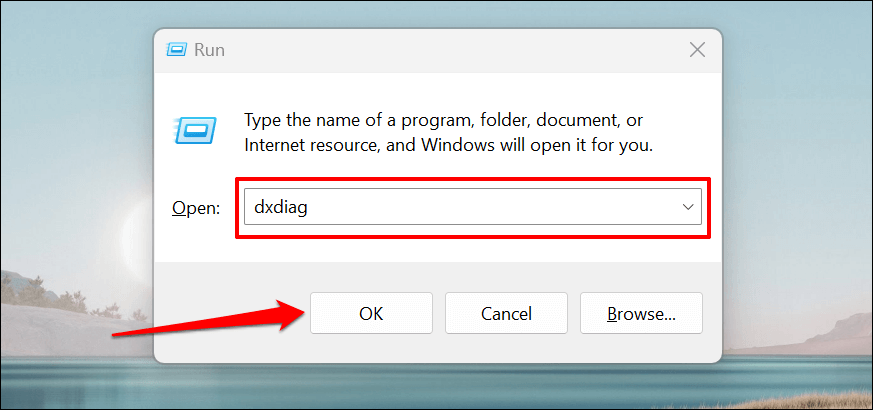
- Press Windows key + R , type dxdiag in the Run box, and select OK .
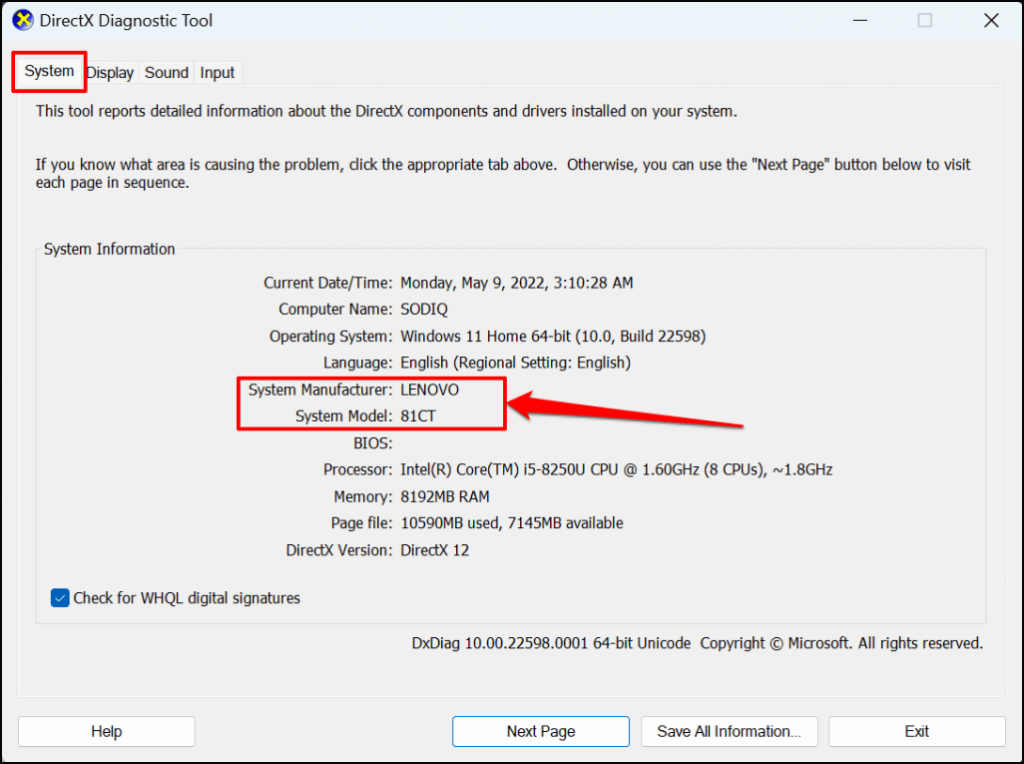
- Head to the “System” tab and check the System Manufacturer and System Model for your computer’s model information.
- Select Exit to close the DirectX Diagnostic Tool.
Find Computer Model Using Command Prompt
There are about four different commands you can run in the Command Prompt to check the model of your computer. Open the Windows Command Prompt and run the command in the sections below.
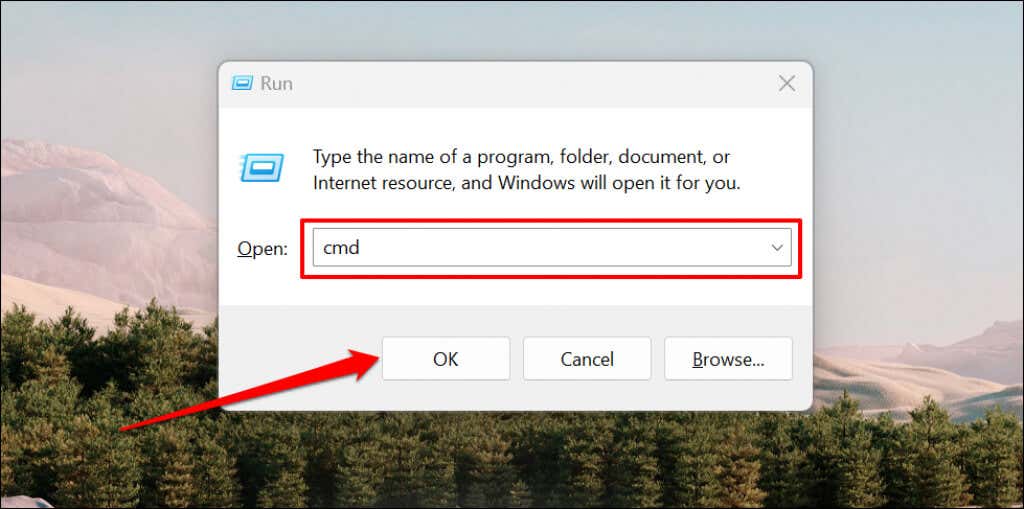
Press Windows key + R , type cmd in the Windows Run box, and press Enter . That will launch the Command Prompt with administrative privileges.
Method 1
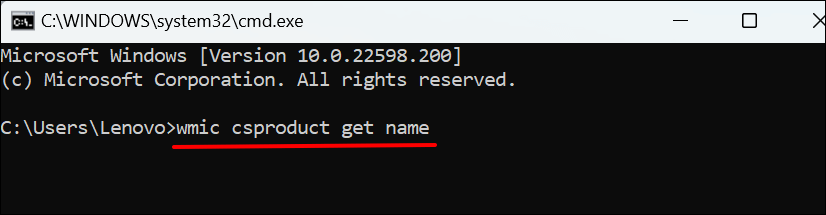
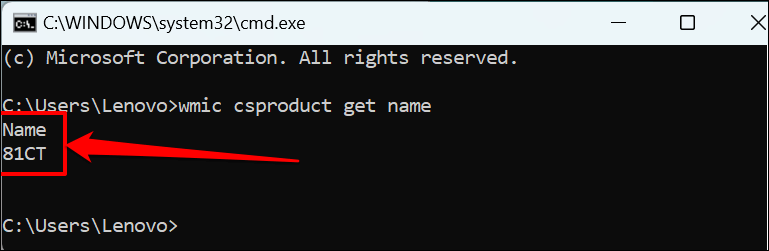
Type or paste wmic csproduct get name in the Command Prompt terminal and press Enter .
Command Prompt should display your PC’s model number in the following line.
Method 2
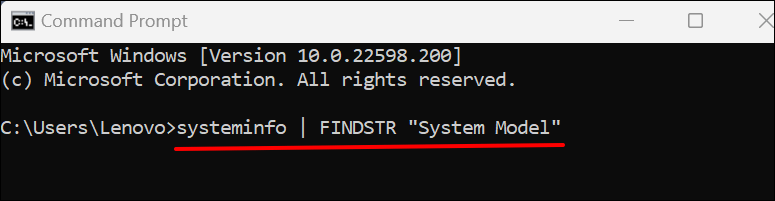
Type or paste systeminfo | FINDSTR “System Model” in the terminal and press Enter .
Wait for Command Prompt to load your computer’s information and check the “System Manufacturer” and “System Model” rows for your PC’s model name or number.
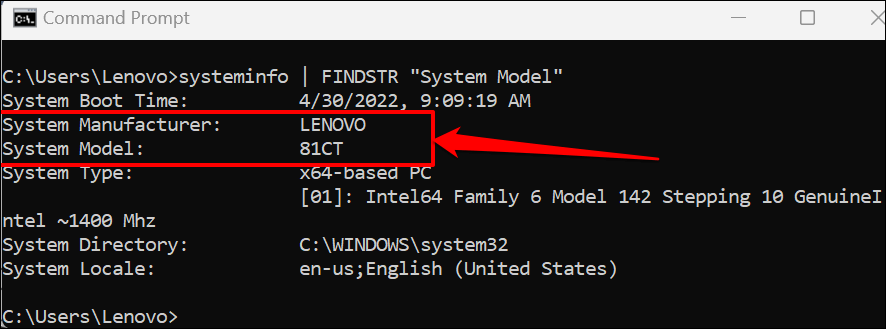
The “System Type” row tells if you’re using a 32-Bit or 64-Bit computer
Find Computer Model Using Powershell
Powershell is another built-in Windows tool you can use to find the model of your computer.
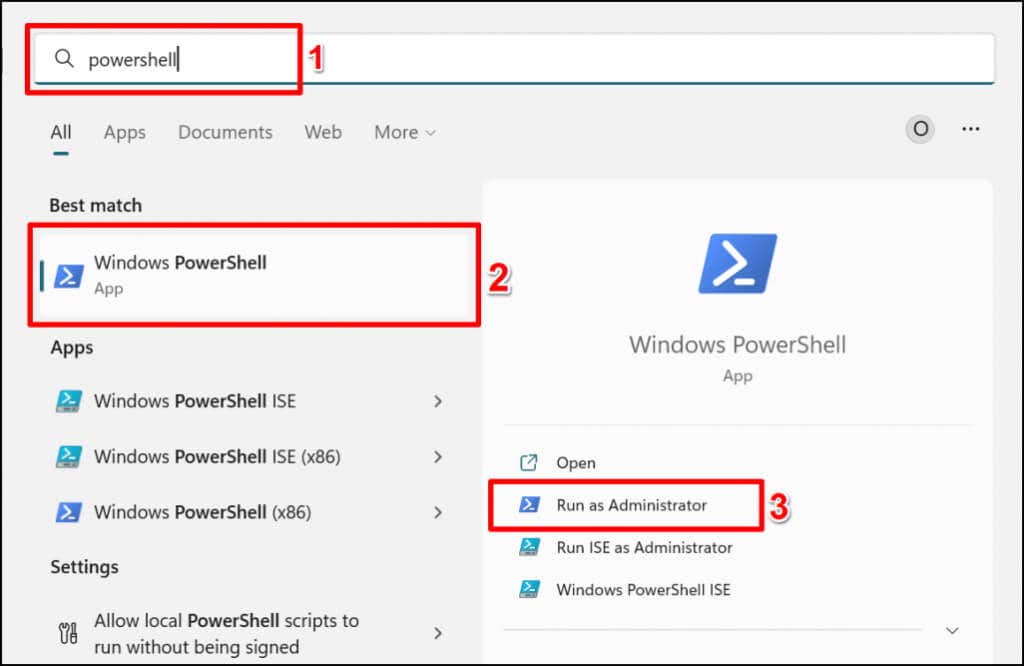
Open the Windows Start Menu, type powershell in the search bar, and select Run as administrator .
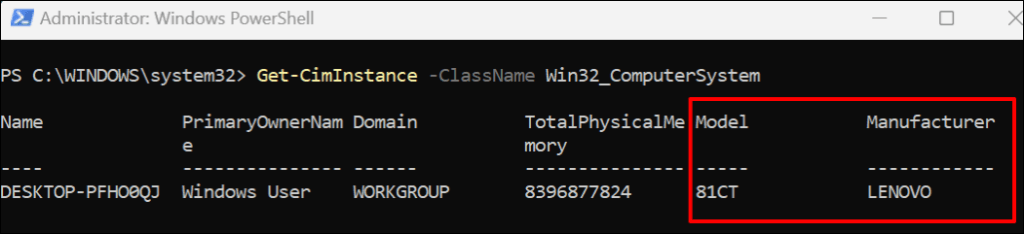
Type or paste Get-CimInstance -ClassName Win32_ComputerSystem in the Powershell console and press Enter .

Check the “Manufacturer” and “Model” columns for your PC’s manufacturer name and model number.
Find Computer Model in BIOS Settings
The Basic Input/Output System (BIOS) menu has everything you need to know about your Windows computer.
If your PC runs Windows 10, refer to our tutorial on entering BIOS in Windows 10 and older versions . After booting into BIOS, check the “Information” or “System Information” tab for your computer’s model.
For devices running Windows 11, here’s how to find your computer’s model in the BIOS menu:
- Go to Settings > Windows Update > Advanced options > Recovery and select the Restart now button in the “Advanced startup” row.
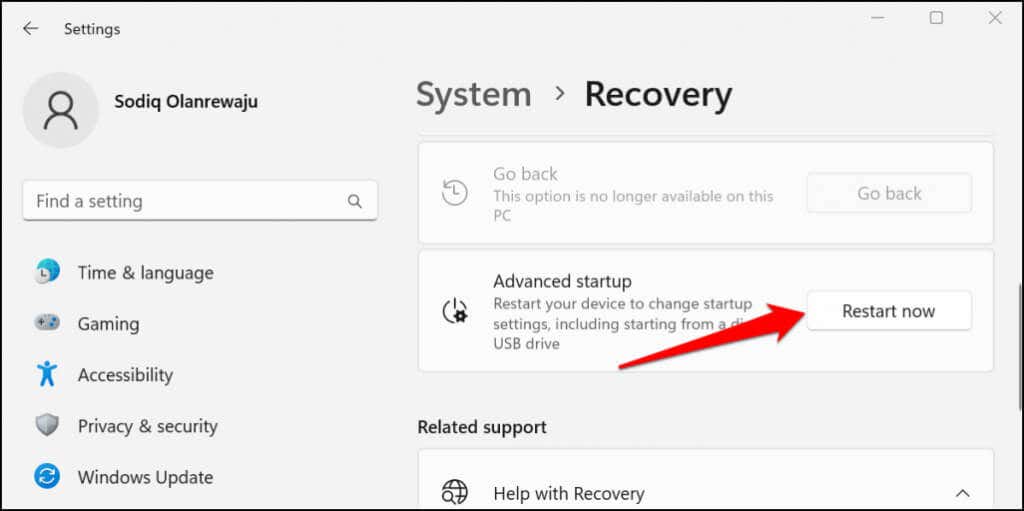
Wait for your device to boot into recovery and proceed to the next step.
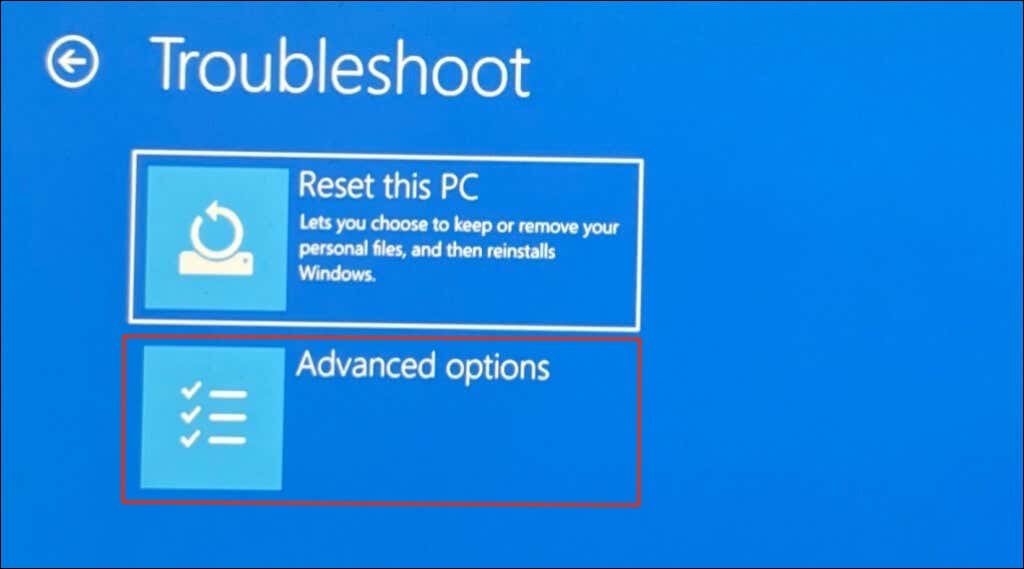
- Select Troubleshoot .
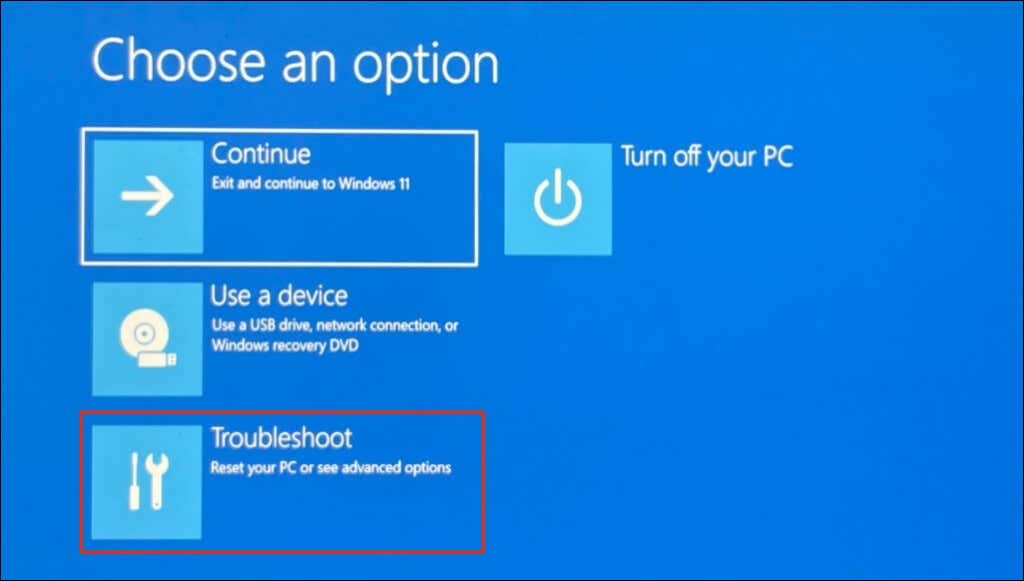
- Select Advanced options .
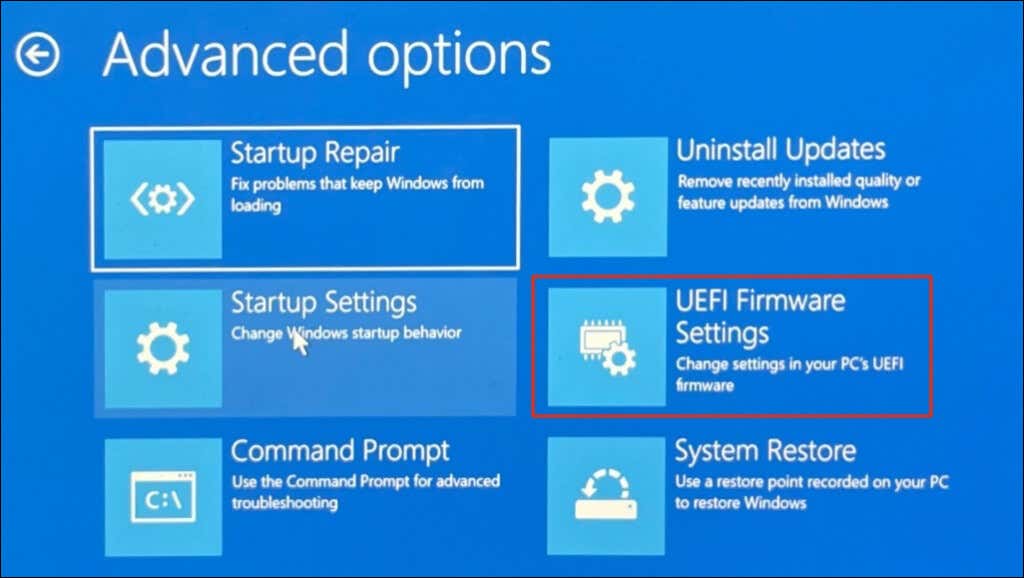
- Select UEFI Firmware Settings .
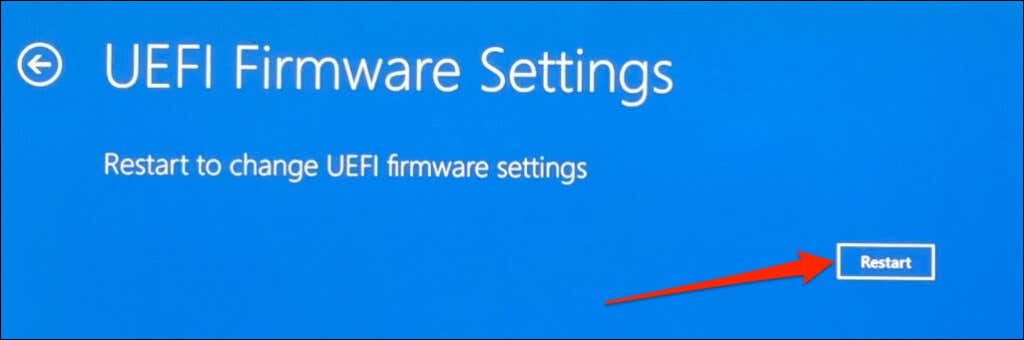
- Select the Restart button to boot into the BIOS settings.
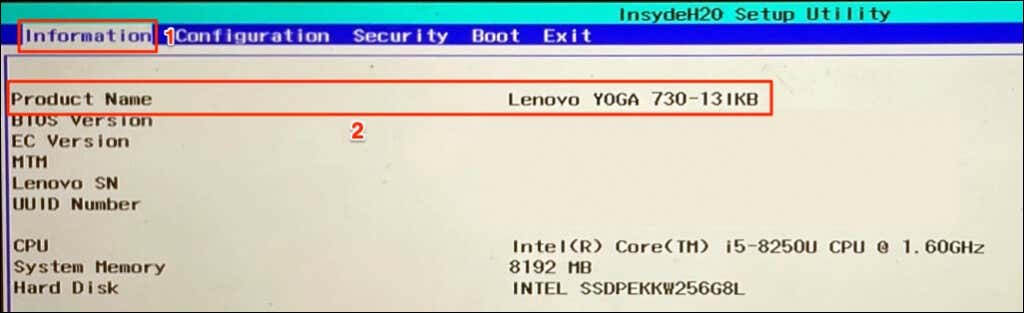
- Head to the “Information” tab and check the Product Name row for your computer’s model name or number.
Use Your Computer’s Device Management App
PC manufacturers like Lenovo and Dell pre-install device management software on desktop and laptop computers. These tools can help you manage your device settings, fix performance issues, update drivers, etc. Additionally, they tell you everything you need to know about your computer.
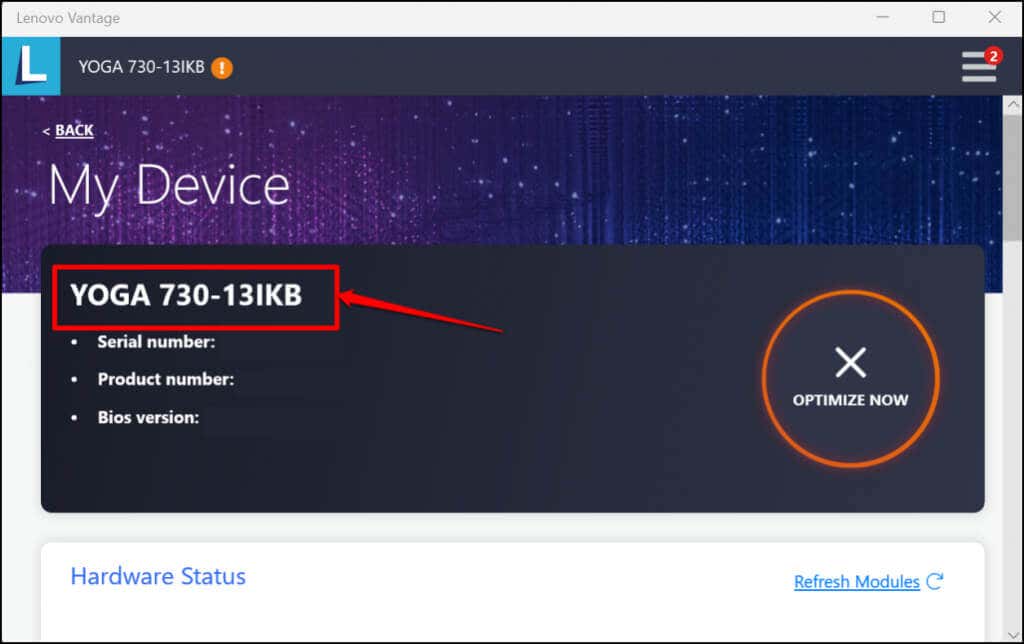
Lenovo Vantage , Dell SupportAssist , and HP Support Assistant are device management apps for Lenovo, Dell, and HP computers. You’ll find your computer’s model on these applications’ main screen or homepage. Otherwise, check the “Settings” menu, “Device details” page, or “Device information” section. Contact your device manufacturer if you can’t check your computer’s model information.
- Preparing for Windows 10 End of Support: Upgrading to Windows 11
- How to Fix a “This file does not have an app associated with it” Error on Windows
- How to Fix an Update Error 0x800705b4 on Windows
- How to Resolve “A JavaScript error occured in the main process” Error on Windows
- How to Fix the Network Discovery Is Turned Off Error on Windows
Sodiq has written thousands of tutorials, guides, and explainers over the past 4 years to help people solve problems with Android, iOS, Mac, and Windows devices. He also enjoys reviewing consumer tech products (smartphones, smart home devices, accessories, etc.) and binge-watching comedy series in his spare time. Read Sodiq’s Full Bio
