The Windows operating system stores the passwords for every Wi-Fi network it connects to. This makes it easy to retrieve any network passwords that you forget — as long as your computer is still connected to the internet.
In this tutorial, we’ll explain how to find your Wi-Fi password on Windows 11.
Note: If you’ve lost your Wi-Fi password and use an Apple or Android device (like an iPad, iPhone, or Samsung phone), don’t worry. Check out the following guides to see how you can find your password on Android , Mac OS, iOS, and Windows 10 .
Check (and Change) Your Router’s Default Password
If you haven’t ever changed your Wi-Fi password, it’ll likely be the default password that comes with your Wi-Fi router. Luckily, finding your router’s password is straightforward since it’s on the bottom of the router itself.
Simply pick up your router and look at the sticker on the back — the label will show the Wi-Fi passphrase next to a heading like “Network Security Key” or “Network Key.” You’ll also see the SSID (or Service Set Identifier), which is the default wireless network name.
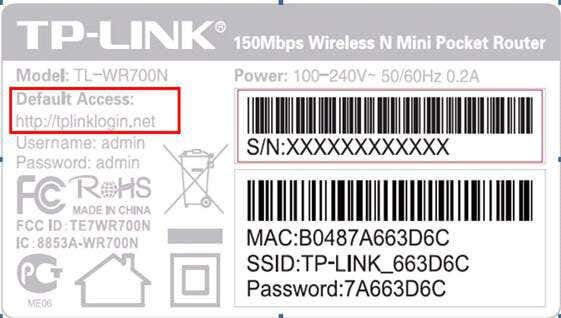
If you try this password and it doesn’t work, you (or someone else) may have changed it at some point. To find it, you’ll have to get a little more technical.
Note: If you haven’t changed your router’s default password, we highly recommend that you do. A default password is a massive security vulnerability as these are easily discovered. To change it, you must sign in to your router’s administration software.
Type the router’s IP address into your web browser’s search bar and sign in using the default username and password. Then, find the setting where you can change the password and create something unique and hard to guess.
How to Find My Wi-Fi Password in Windows 11
In Windows 11, Wi-Fi network passwords are stored in the Wireless Network Properties panel. These Wi-Fi settings can be accessed via the Control Panel, from the Settings app, or from the Run Command box.
Find Your Wi-Fi Password Using the Control Panel
Here’s how to find your Wi-Fi adapter settings from the Control Panel:
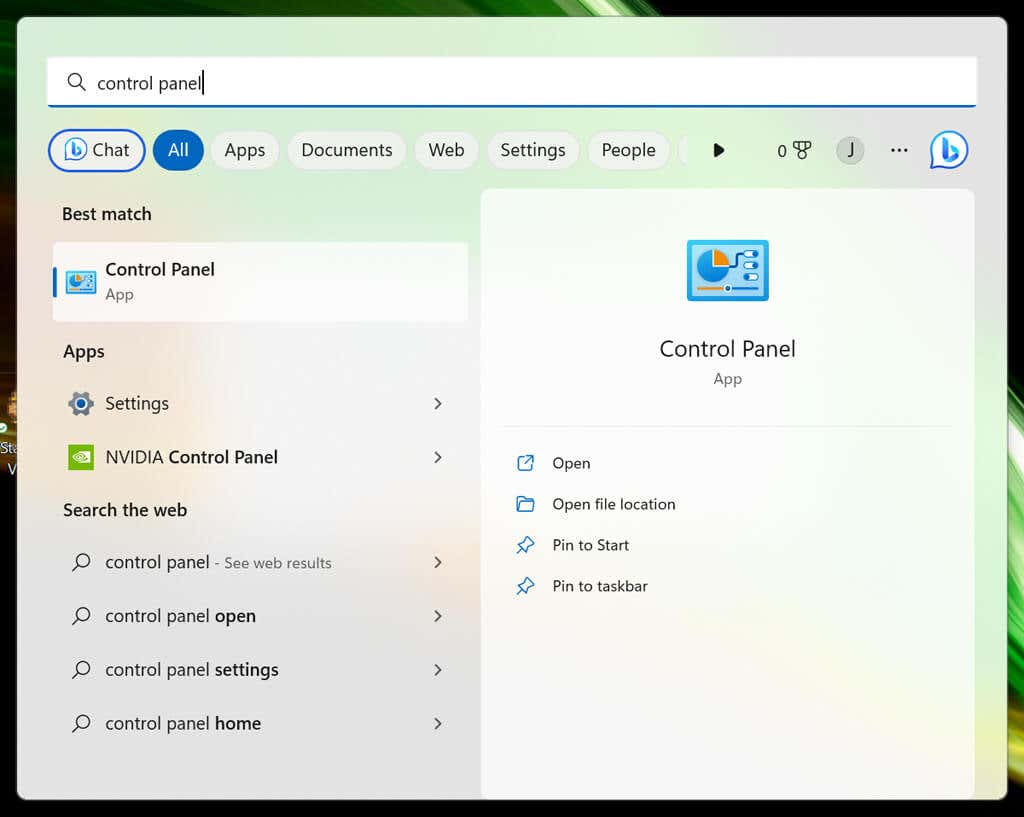
- Press the Windows key to open the Start menu .
- Type Control Panel and select the top result.
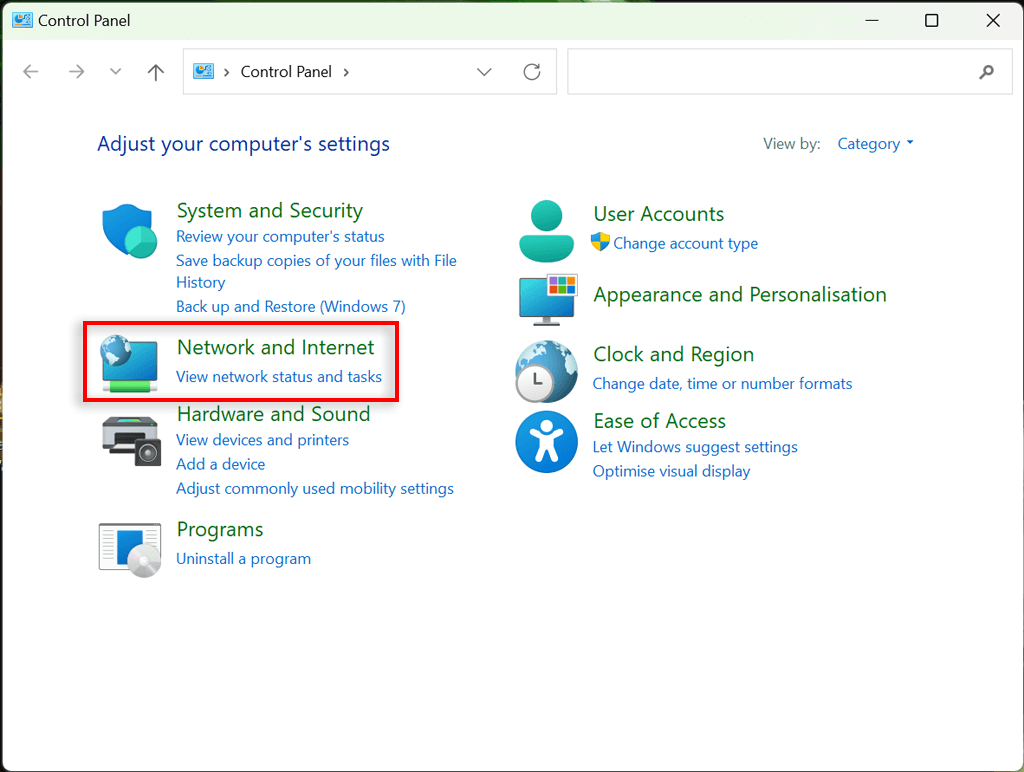
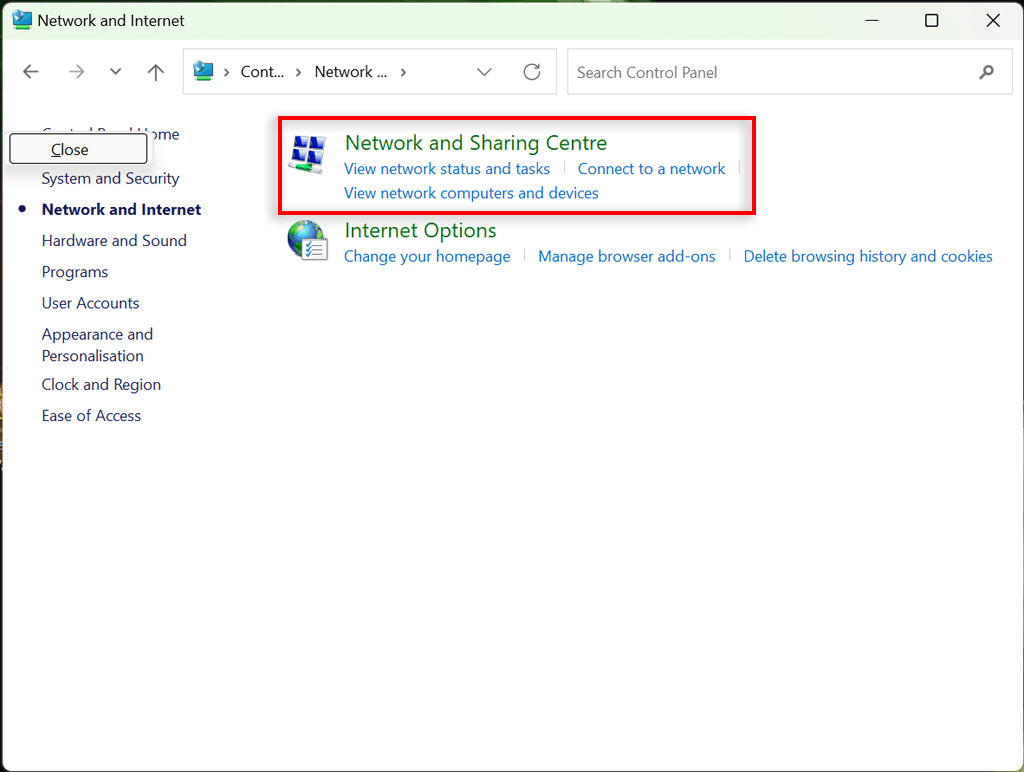
- Select Network and Internet .
- Select Network and Sharing Center .
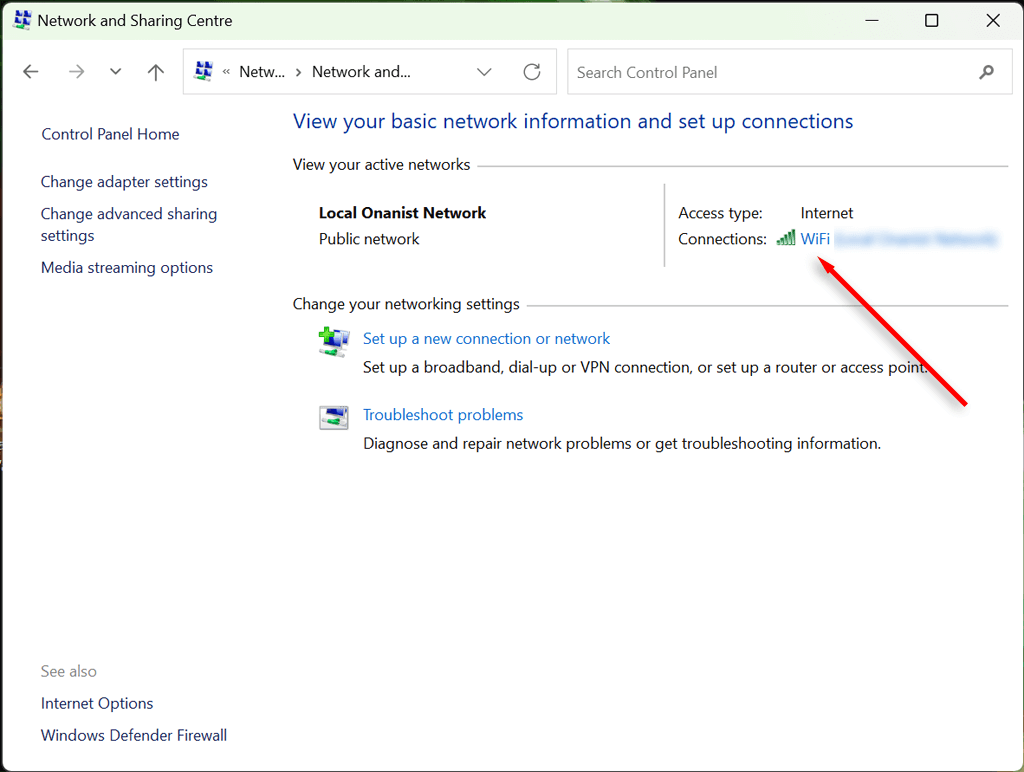
- Here, select your Wi-Fi network name . This should appear next to “Connections.”
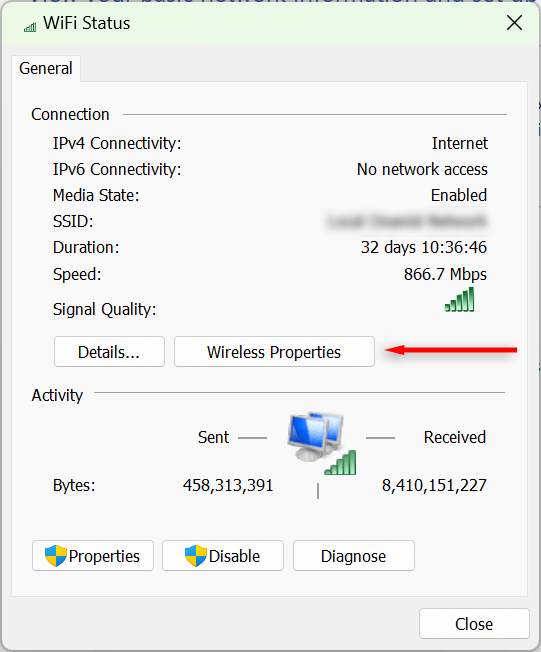
- Select Wireless Properties .
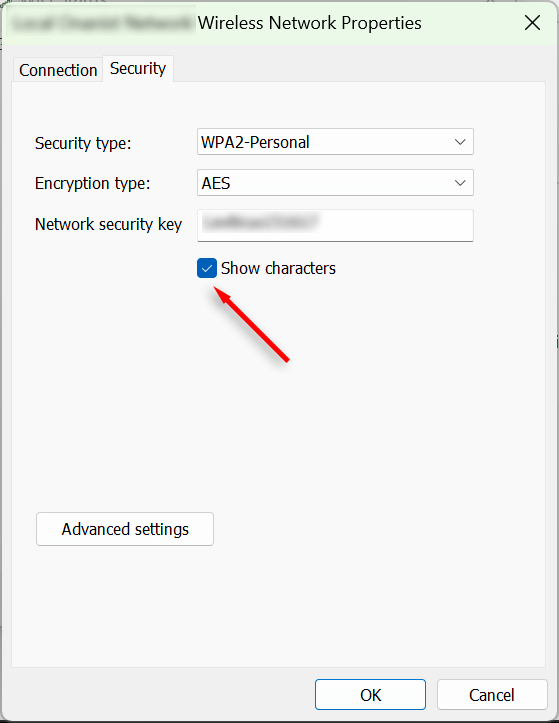
- Choose the Security tab , then tick the Show characters checkbox. Your Wi-Fi password should now be visible.
Find Your Wi-Fi Password Using the Settings App
You can also access your Wi-Fi password via the Windows Settings app. Here’s how:
- Right-click the Start Menu and select Settings .
- Select Network & internet from the left-hand sidebar. Scroll down and select Advanced network settings .
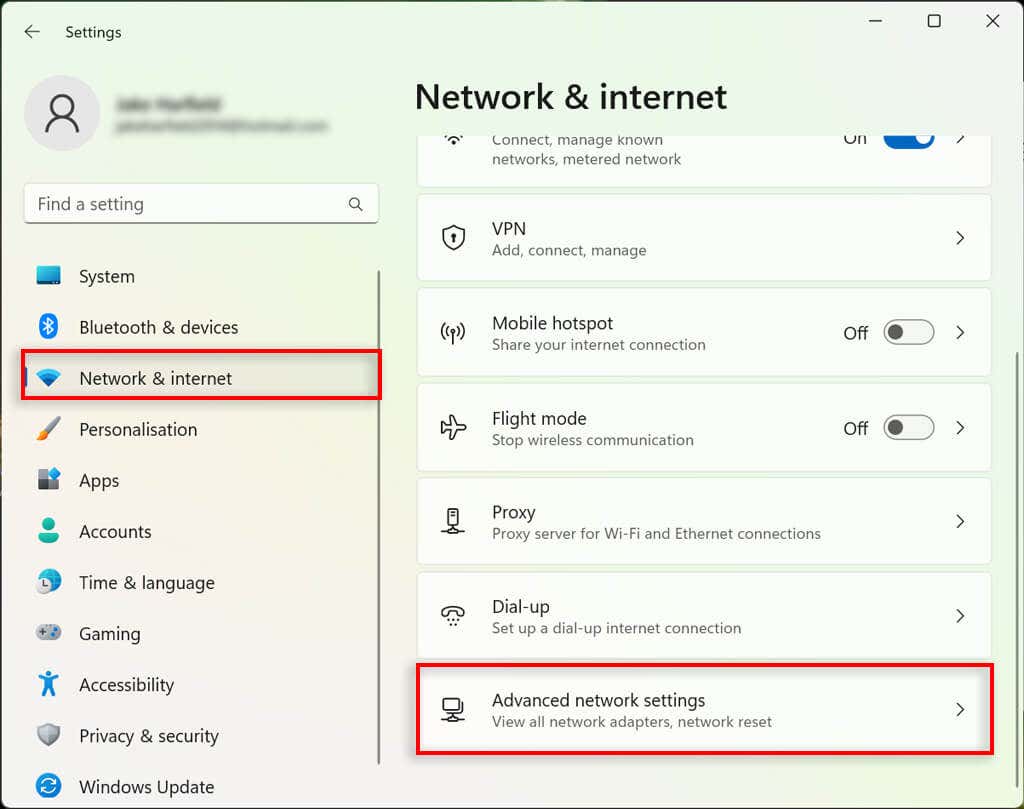
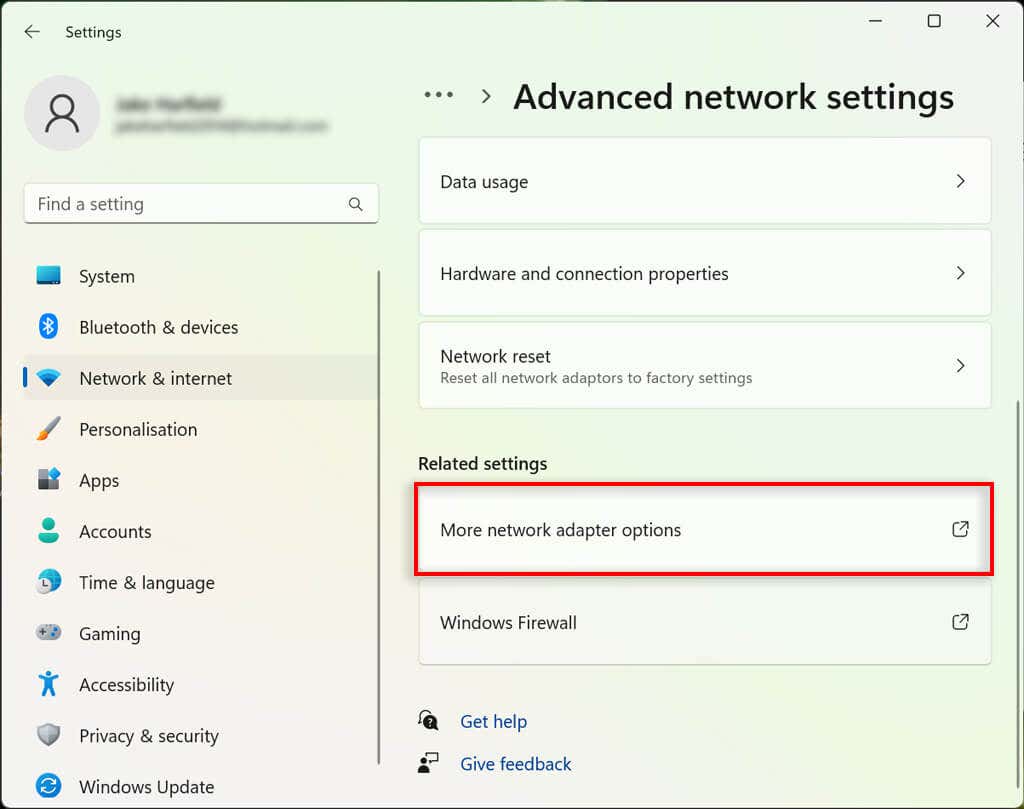
- Beneath Related settings , select More network adapter options . This will cause the Network Connections window to pop up.
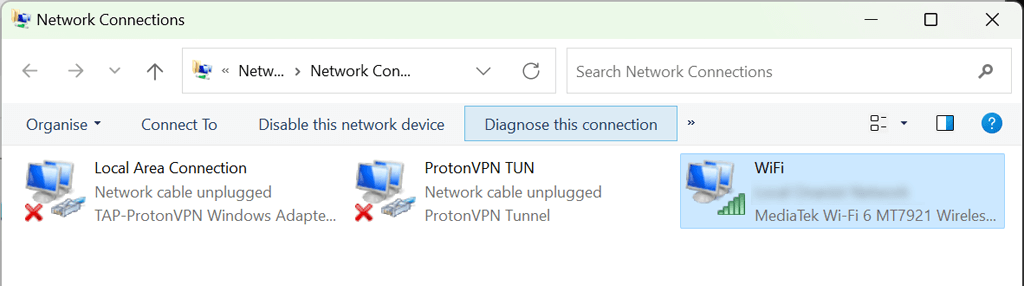
- Double-click your Wi-Fi network .
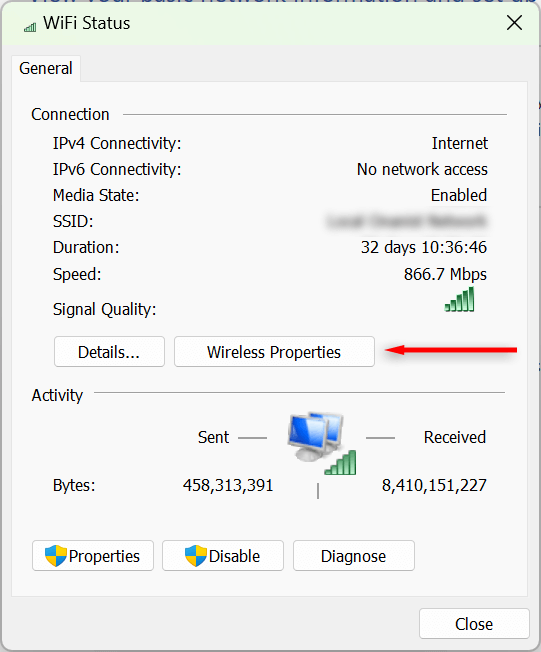
- Select Wireless Properties .
- Select the Security tab and tick the Show characters checkbox. Your Wi-Fi connection password should now be visible.
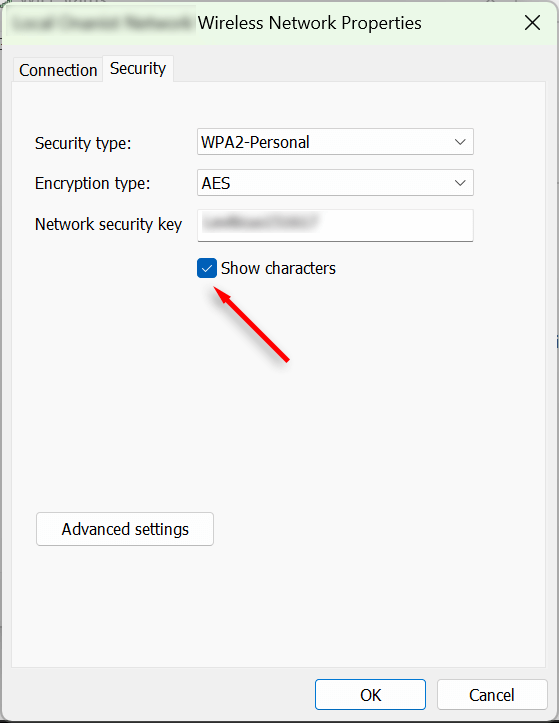
How to See All Wi-Fi Passwords Saved On My PC?
You can use the Command Prompt tool to show passwords for all of the current and previous Wi-Fi networks used on your Windows 11 PC.
- Open the Start Menu and type “Command Prompt.” Right-click the top result and select Run as administrator .
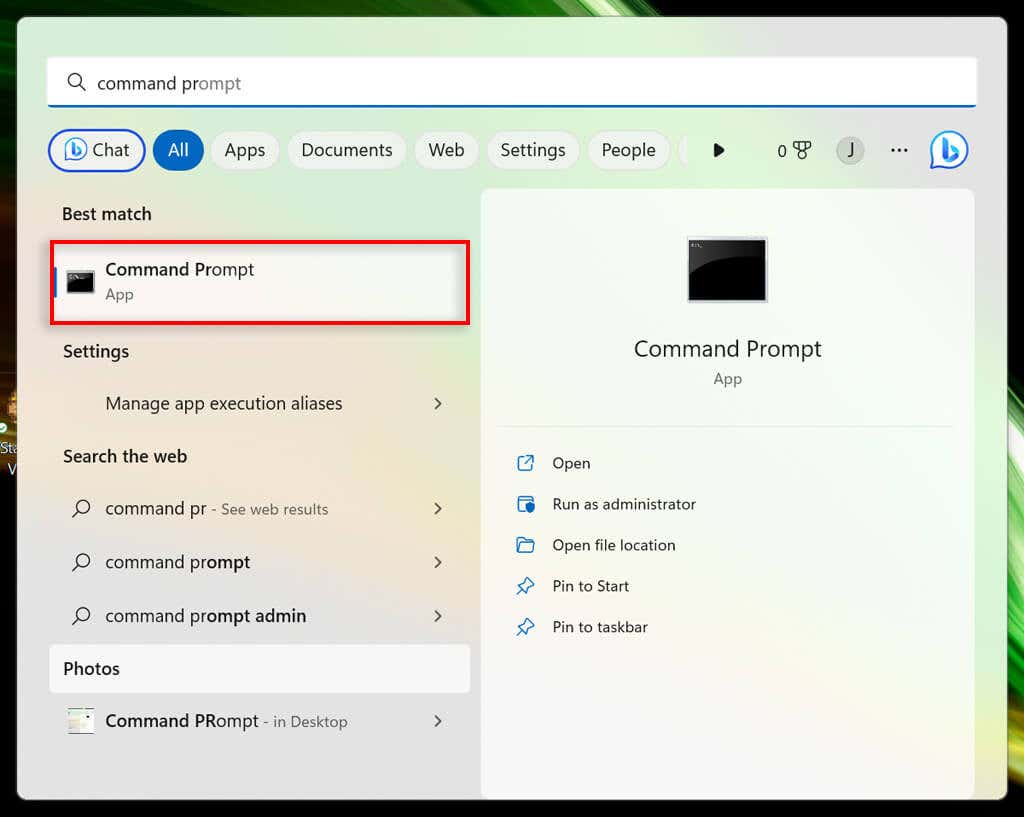
- In the Command Prompt window, type the following command and press Enter :
netsh wlan show profiles
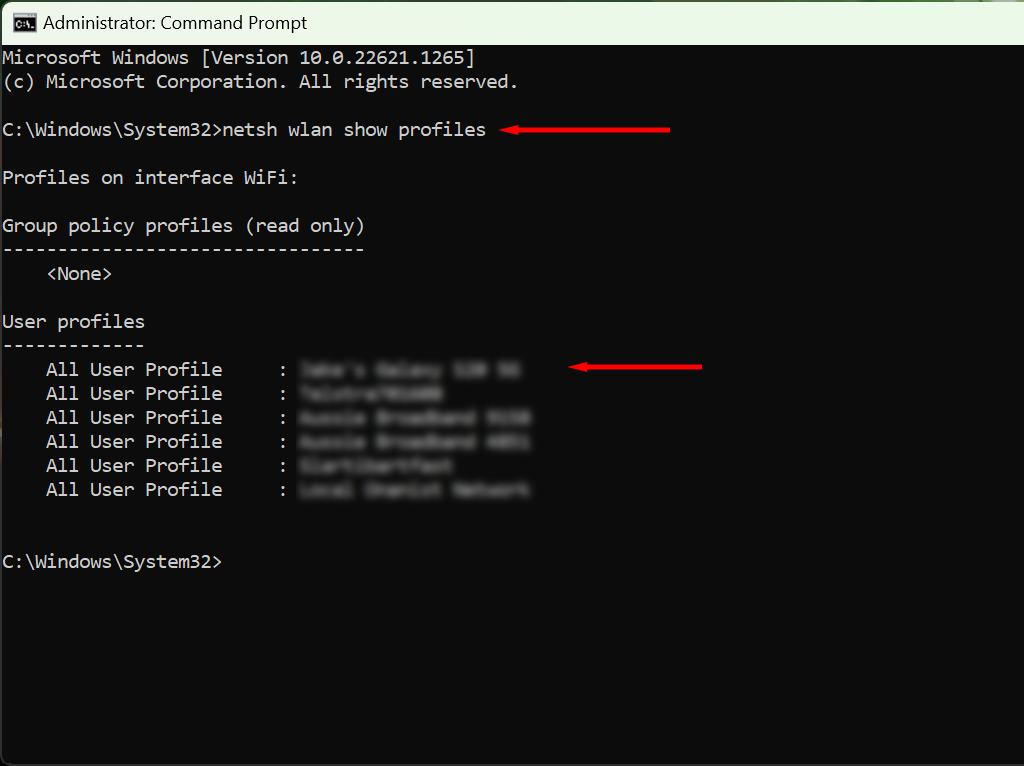
- This will show you all the saved network names on your PC. To see all saved Wi-Fi passwords, type the following and press Enter , replacing “WifiConnectionName” with the network name you want to find the password for (keeping the quotation marks).
netsh wlan show profile name=”WifiConnectionName” key=clear
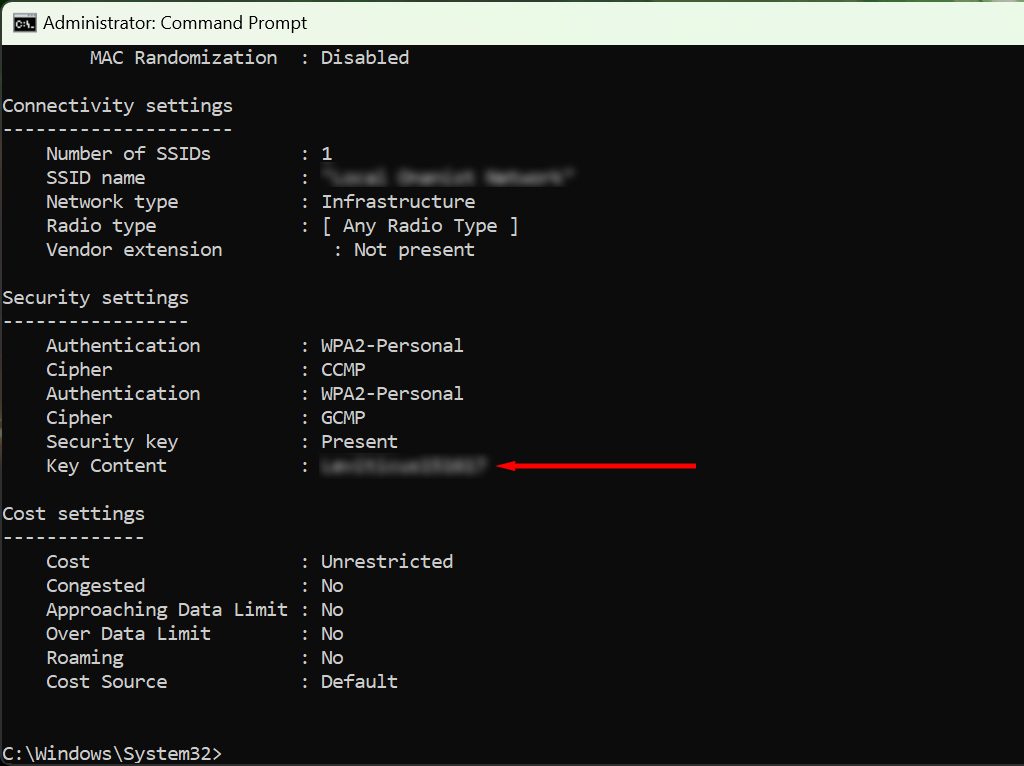
- Look for where it says “Key Content” — the value here is your Wi-Fi password.
Stop Forgetting Your Passwords
You should invest in a password manager if you frequently forget your passwords. These secure programs help you save all your passwords for quick, easy access. This way, when connecting a new device to your Wi-Fi hotspot, you won’t have to dive back into your security settings to find it.
- How to Fix When No Wi-Fi Networks Found on Windows 11 and 10
- Wi-Fi Option Not Showing Up in Windows 11? 11 Fixes To Try
- 13 Ways to Fix Windows 11 Not Connecting to Wi-Fi
- How to Share Wi-Fi Network Connections in Windows 11
- 13 Fixes When Windows 11 Wi-Fi Not Showing Up
Jake Harfield is an Australian freelance writer whose passion is finding out how different technologies work. He has written for several online publications, focusing on explaining what he has learned to help others with their tech problems. He’s an avid hiker and birder, and in his spare time you’ll find him in the Aussie bush listening to the birdsong. Read Jake’s Full Bio
Every WiFi printer will have an IP address assigned to it that will allow the printer to connect to your home or office network successfully. If you’re having issues printing to your WiFi printer, knowing the IP address can be helpful when you start troubleshooting . It’s also useful to know the IP address if you need to install the printer on a different computer.
There are a few ways you can go about finding the IP address of your WiFi printer on your computer. If the printer has a display, you can usually get the IP address by printing a configuration page via the printer’s control panel.
If your printer doesn’t have a display, you’ll need to connect it to your Windows PC or Mac to find the IP address. Below are the steps you’ll need to take to find your printer’s IP address on Windows and macOS.
How to Find a Printer IP Address on a Windows PC
On a Windows PC, you can find your IP address via the Windows Control Panel, Command Prompt or via Windows Settings.
Find a Printer IP Address on Windows Using the Control Panel
The Control Panel is a collection of tiny programs or applets that allow you to view and configure various Windows system settings. You can use the Control Panel to find your printer’s IP address in a few quick steps.
- Open Control Panel .

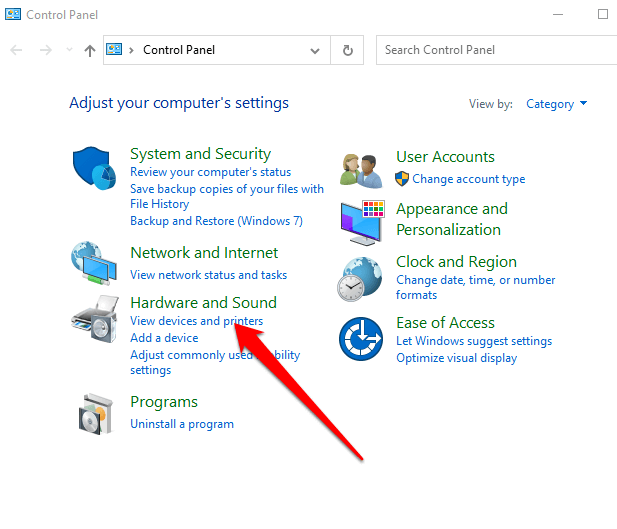
- Next, select Hardware and Sound > View Devices and Printers .
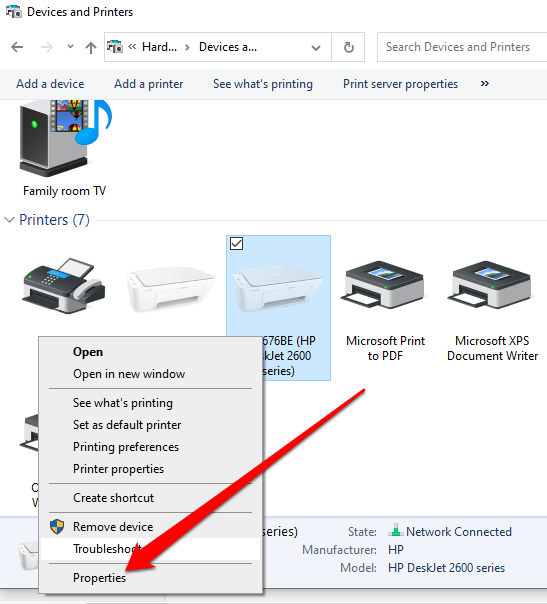
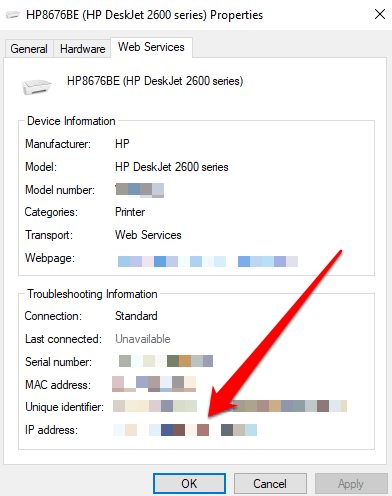
- Right-click your printer and select Properties .
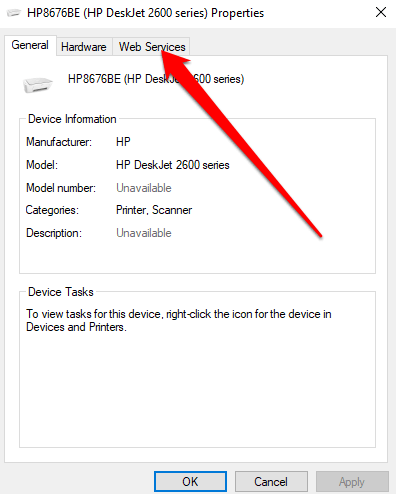
- Select Web Services .
- Check for your printer’s IP address below the Troubleshooting Information panel.
Find a Printer IP Address Using Command Prompt
The Command Prompt in Windows is used to execute commands that automate tasks via scripts and batch files. The command-line interpreter app can also be used to troubleshoot or solve certain issues in Windows or perform advanced administrative functions.
If you can’t find your printer’s IP address via the Control Panel, you can use the Command Prompt instead.
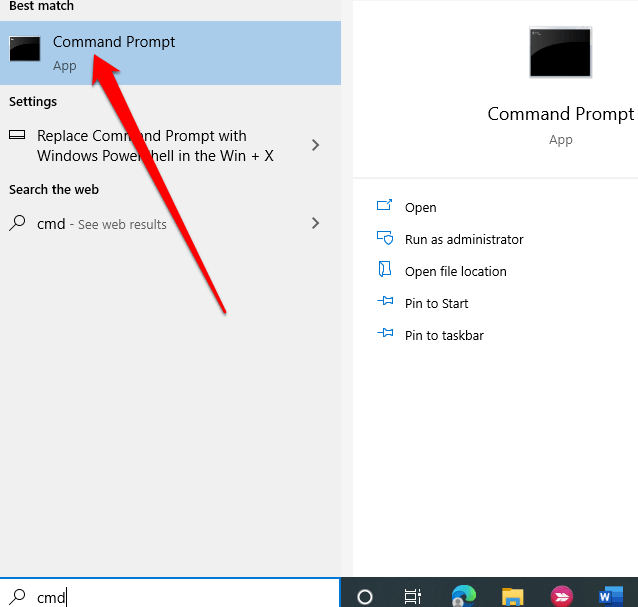
- Type CMD in the search box, press Enter and select the Command Prompt option from the search results.
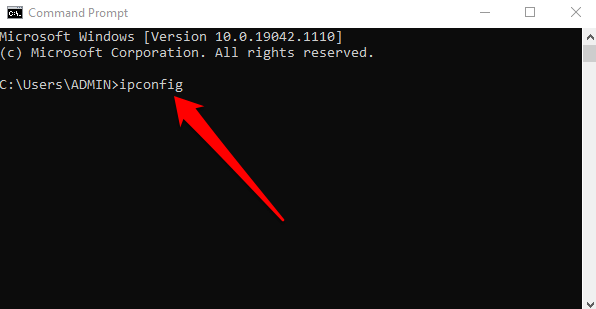
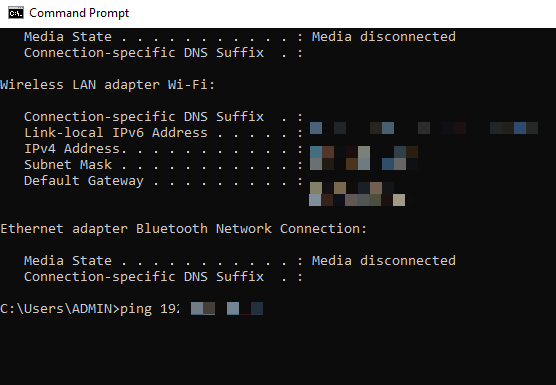
- Type ipconfig and press Enter .
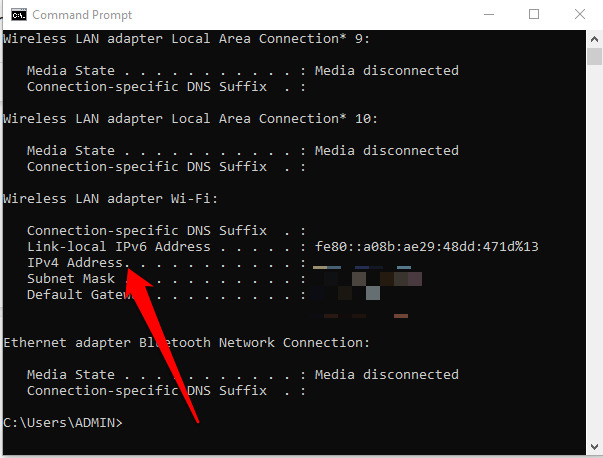
- Find the IPv4 address .
- Type ping followed by a space and the IPv4 address and press Enter .
- Next, type arp -a and press Enter . This will load the dynamic and static connections that use the IPv4 address.
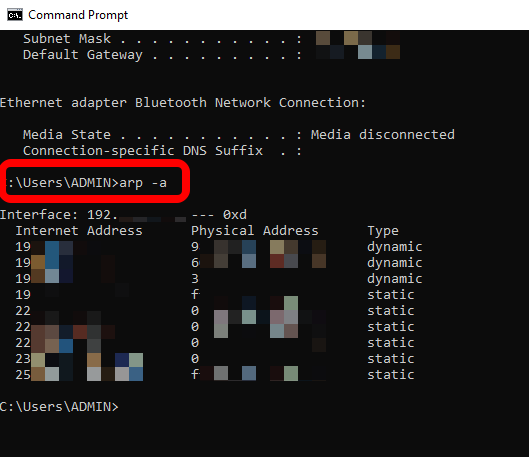
Copy the dynamic IP address you got from the arp command. Open your web browser, paste the IP address and press Enter . If you see a printer setup page with the manufacturer’s logo and other printer information like ink levels or printer status, it means the address you pasted is your printer’s IP address.
Alternatively, you can enter netstat -r in the command line and press Enter .
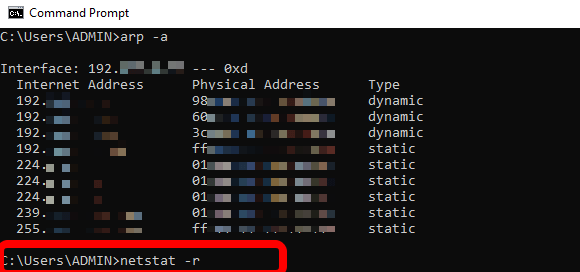
- You’ll see all the network devices connected to your PC and your printer’s IP address.
Note : You can also find your printer’s IP address by checking for the 12-digit number that appears next to the printer’s physical or MAC address.
Find a Printer IP Address Via Windows Settings
You can also find your printer’s IP address via the Windows Settings app.
- Select Start > Settings .
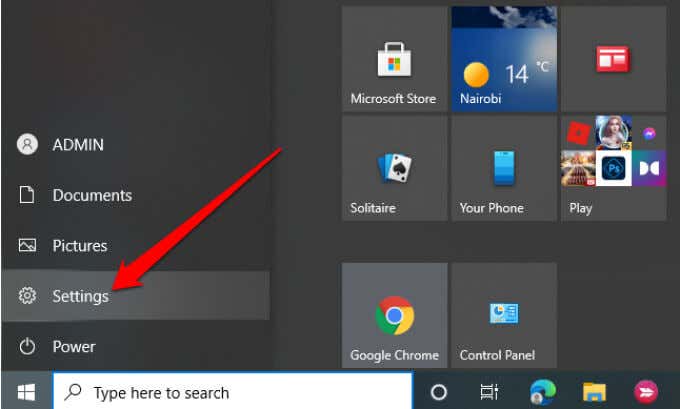
- Next, select Devices .
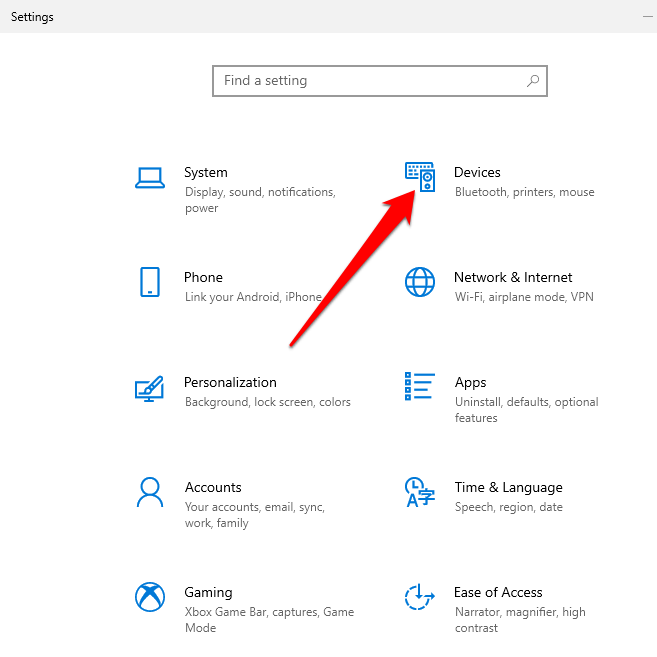
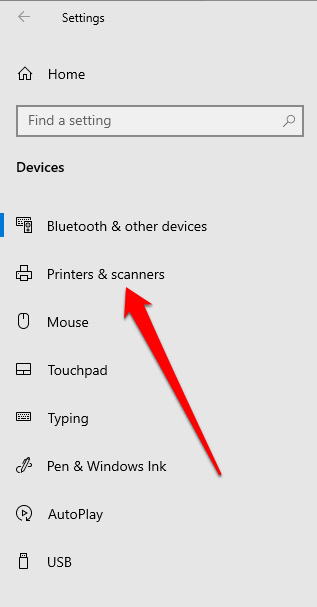
- Select Printers and Scanners on the left pane.
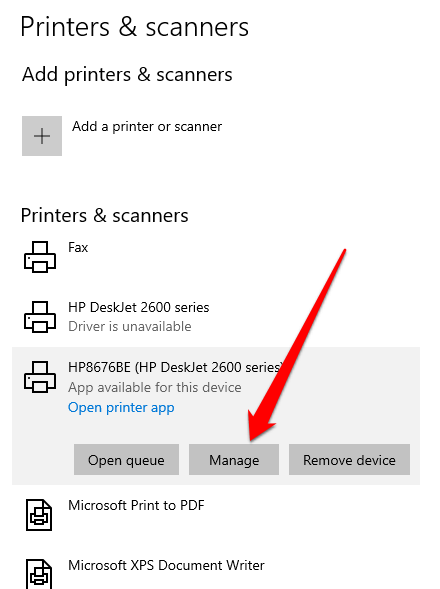
- Click on your printer and then select Manage .
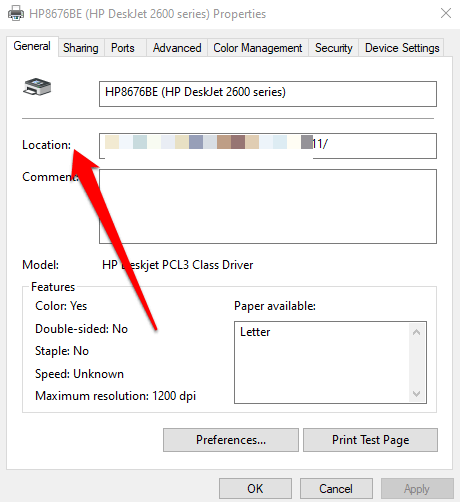
- Select Printer Properties .
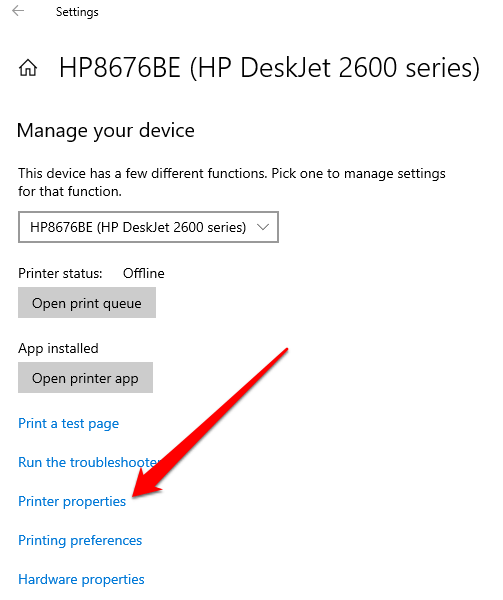
- Check for your printer’s IP address next to the Location field.
How to Find a Printer IP Address on a Mac
You can find your printer’s IP address on a Mac via System Preferences, via connected devices on your router or online using the Common Unix Printing System (CUPS).
Find a Printer IP Address on Mac Via System Preferences
System Preferences on a Mac is where you personalize your Mac’s settings. You can use it to find your printer’s IP address using the steps below.
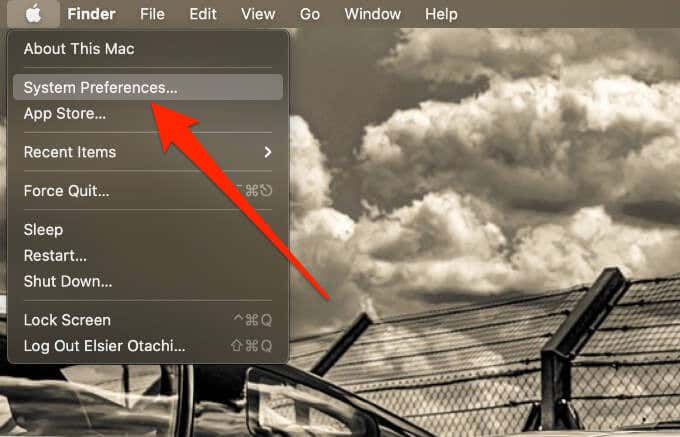
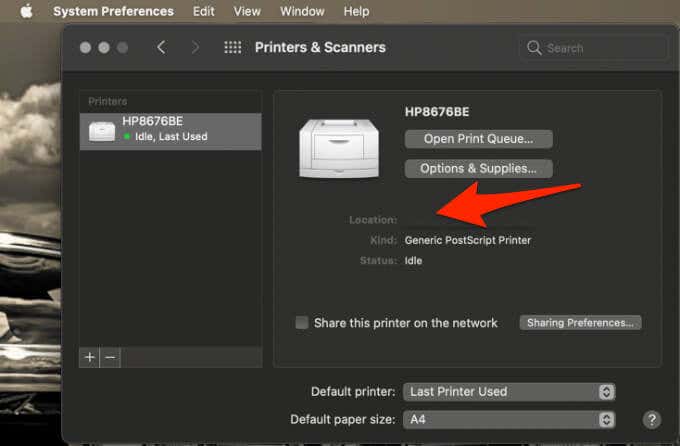
- Select Apple menu > System Preferences .
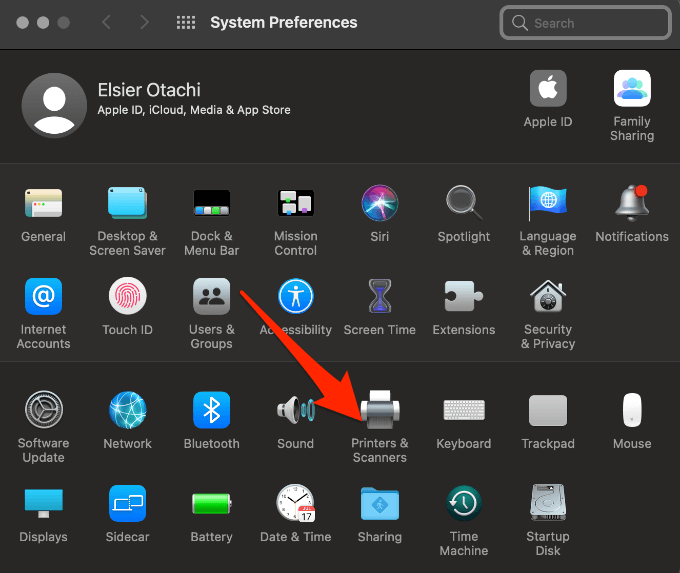
- Next, select Printers and Scanners .
- Select your printer from the left pane.
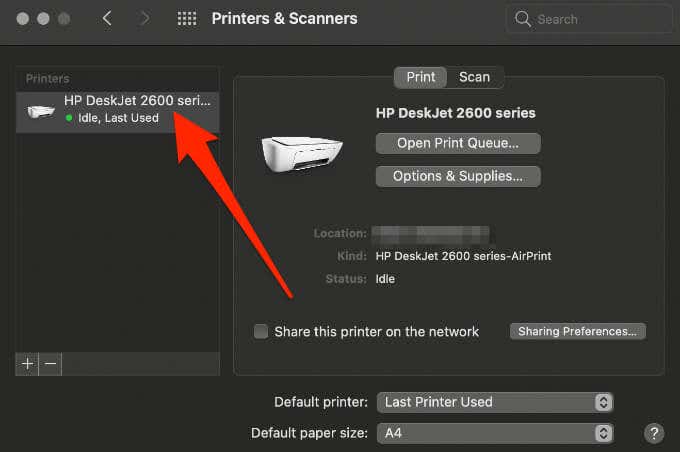
- Check for the printer’s IP address next to Location .
Find a Printer IP Address on Mac Via Connected Devices on Your Router
You can also find your printer’s IP address on a Mac via TCP/IP settings in the System Preferences menu.
- Select Apple menu > System Preferences > Network .
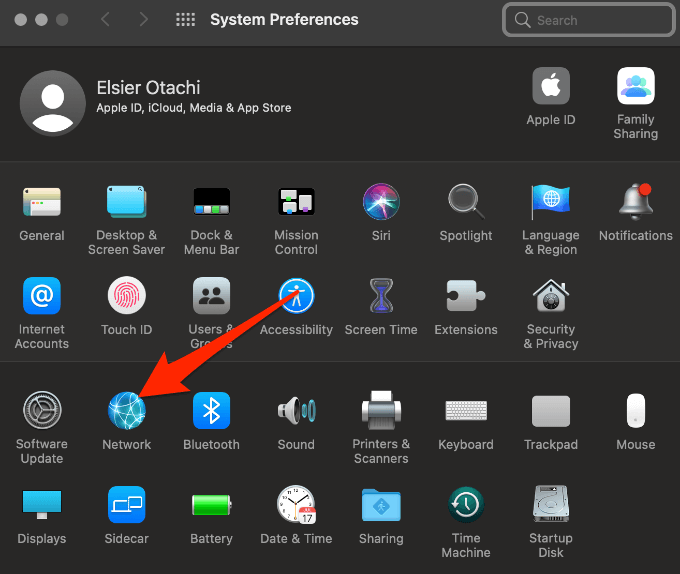
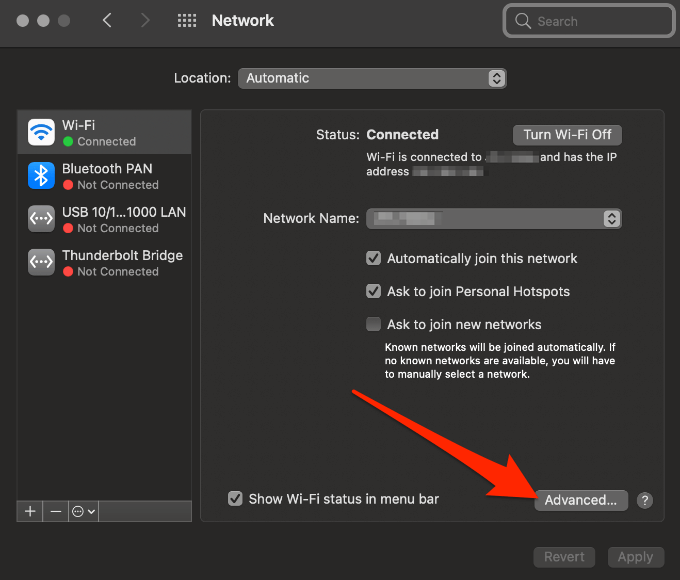
- Next, select Advanced .
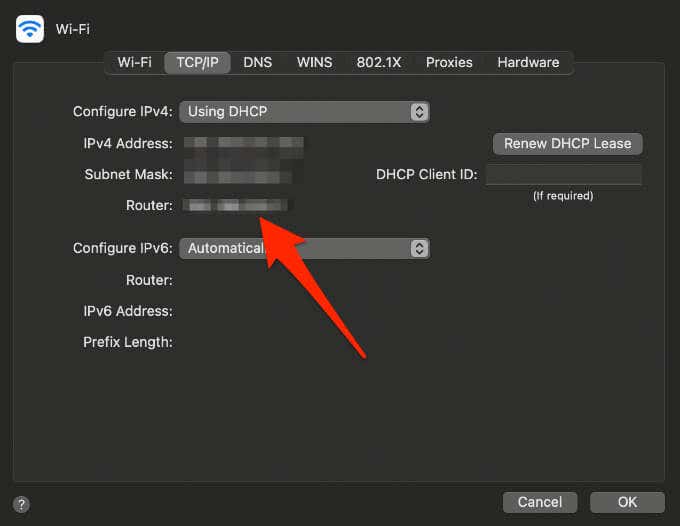
- Select the TCP/IP tab.
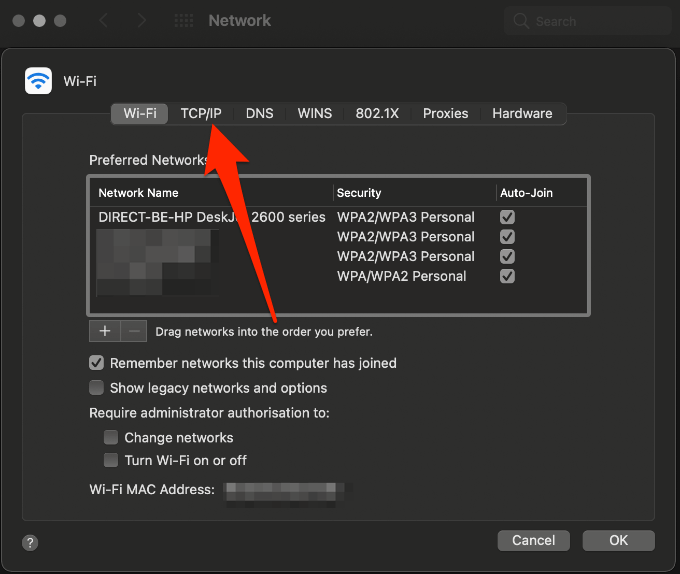
- Copy the default gateway next to Router , open your web browser and paste it into the address bar.
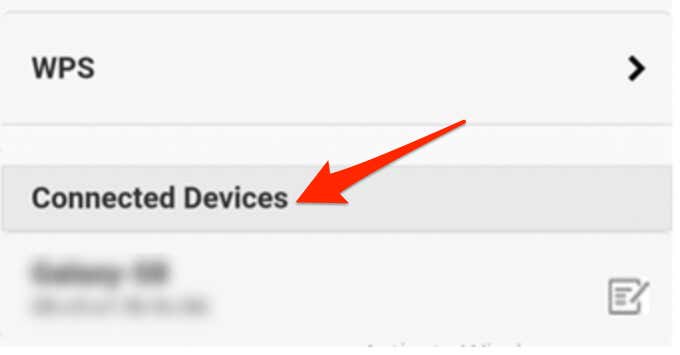
- Log in to the router with your admin ID and password, and then select Connected Devices .
Note : The information listed will be different depending on the router you’re using. However, you can check for words like connected device list, network map, network topology or similar terms.
- Select your printer in the host name field and then check for your printer’s IP address in the IPv4 address section.
Find a Printer IP Address on Mac Using CUPS
CUPS is an open-source, modular printing system for UNIX-like operating systems that allow your computer to act like a print server. You can use CUPS to find your Mac’s IP address as follows.
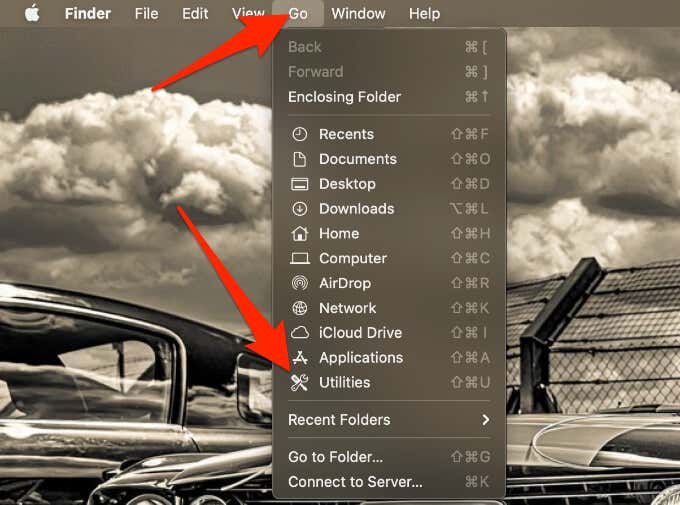
- Select Go > Utilities .
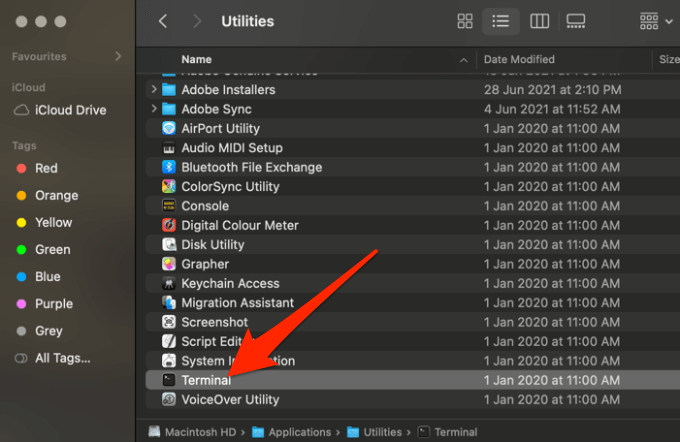
- Next, select Terminal .
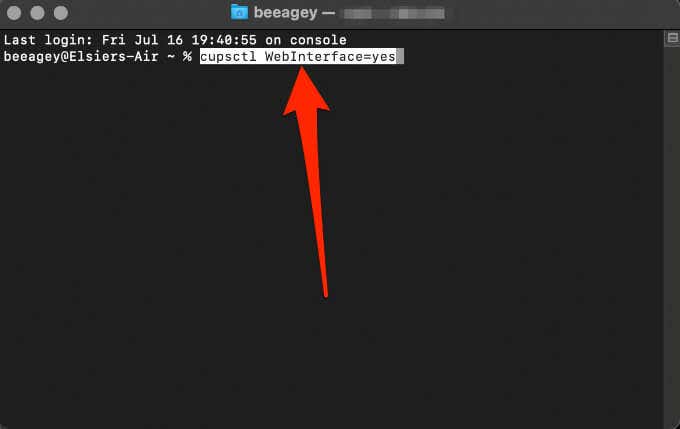
- Enter this command in Terminal: cupsctl WebInterface=yes and press Enter . This will enable the CUPS web interface.
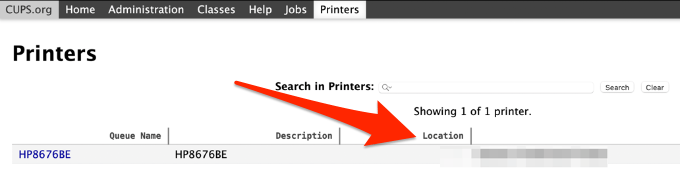
- Next, open your web browser, type localhost:631/printers in the address bar and press Enter .

- Look for your printer’s IP address in the Location column.
Find a Printer’s IP Address Using Your Printer’s Built-in Menu
Your printer’s built-in menu is another method you can use to quickly find your printer’s IP address.
Note : For most printers, the steps below should help you find the IP address, but you can refer to your printer’s manual for exact instructions.
- Press the printer’s Home button to display the printer menu.
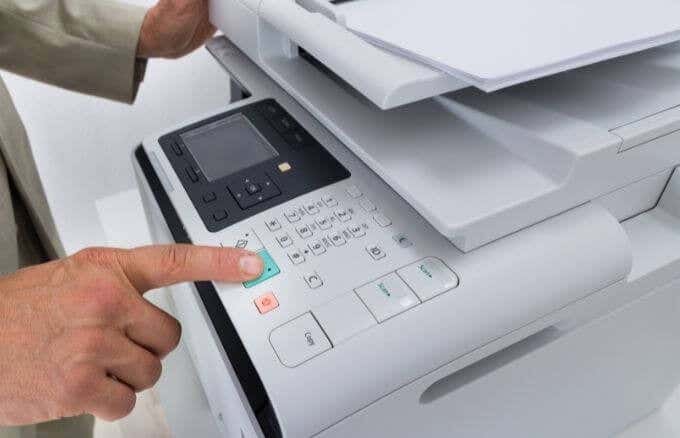
- Select either Wireless Settings , Preferences or Options and then check for your printer’s IP address at the top of the box that appears.
Note: If you don’t see the IP address, select View wireless details and check for the IP address there. Some printers may use headings like WiFi Status, Network Status or TCP/IP.
How to Find a Printer’s IP Address Via the Network Configuration Page
If you’ve tried the above steps and still can’t find your printer’s IP address, you can go to the printer’s Settings or Setup page and print it from the network configuration page.
Note : The steps will vary depending on the make and model of your printer. For this guide, we used an HP Deskjet 2600 series printer.
- Press the Wireless and Information buttons simultaneously.
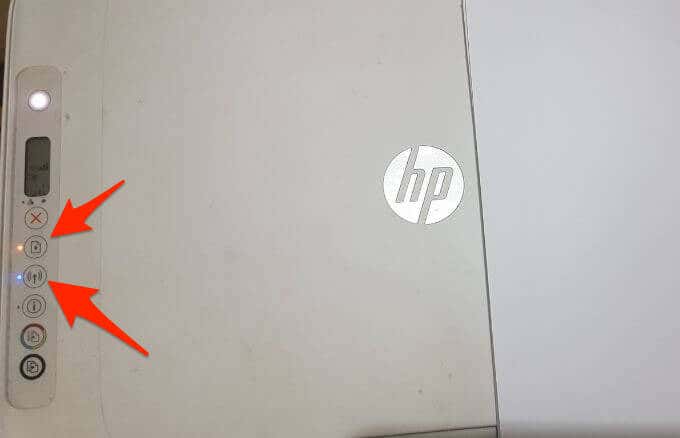
- The wireless network test report and network configuration page will be printed out. You can check for your printer’s IP address from the network configuration page.
Find Your Printer’s IP Address Easily
Now that you know how to find your printer’s IP address, you can set up your printer to your network or fix any connection issues you may be experiencing.
- How to Fix When No Wi-Fi Networks Found on Windows 11 and 10
- How to Fix the “Error – Printing” Status Error in Windows
- 7 Ways to Fix HP Printers ”Driver Is Unavailable” Error on Windows PC
- How to Fix Your Printer’s “Driver is unavailable” Error on Windows
- 7 Ways to Fix ”Windows Cannot Connect to the Printer”
Elsie is a technology writer and editor with a special focus on Windows, Android and iOS. She writes about software, electronics and other tech subjects, her ultimate goal being to help people out with useful solutions to their daily tech issues in a simple, straightforward and unbiased style. She has a BCom degree in Marketing and currently pursuing her Masters in Communications and New Media. Read Elsie’s Full Bio
