Do you see a blank “Save As” screen in Adobe Acrobat Reader DC or Pro DC? We’ll explain why that happens and how you can fix the problem on both the PC and Mac.
A blank “Save As” screen in Adobe Acrobat Reader shows up when the application has trouble connecting to Adobe’s cloud storage service—a.k.a. the Adobe Document Cloud. The same issue can occur in Adobe Acrobat Pro.
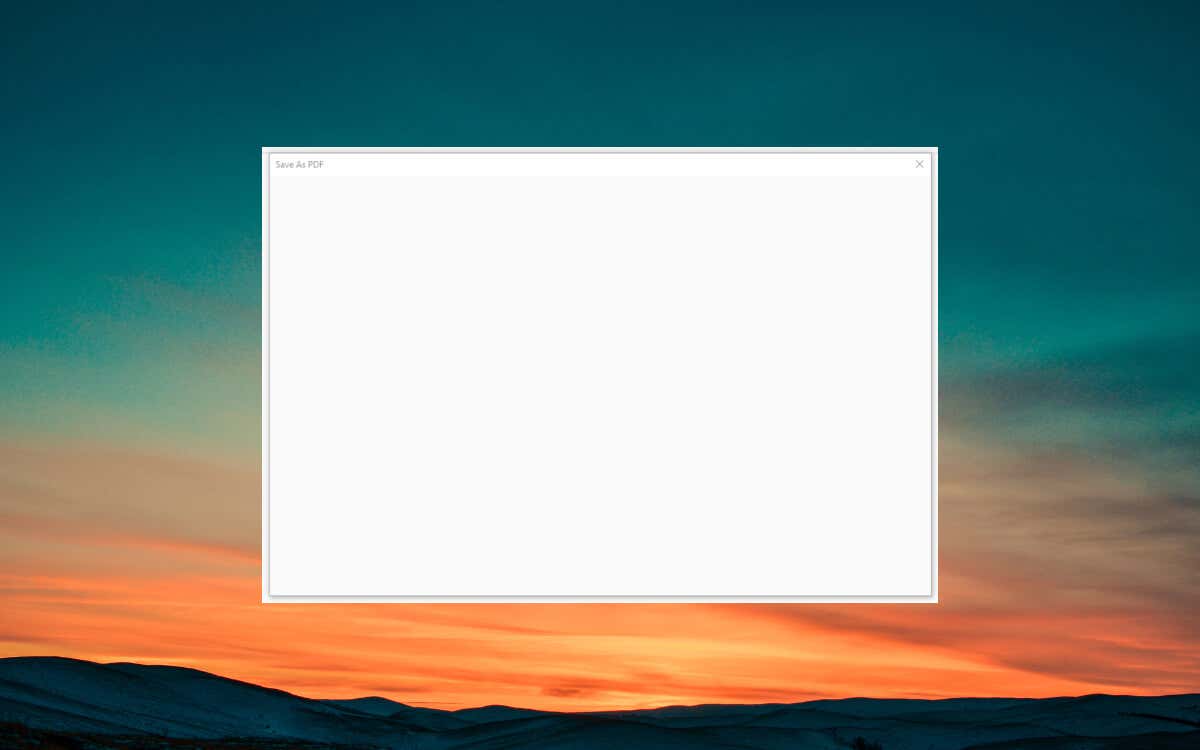
Work through the solutions below, and you should be able to fix the blank “Save As” screen in Adobe Acrobat on your PC or Mac.
Disable Adobe Acrobat’s Online Storage Options
The easiest way to fix the blank “Save As” screen in Adobe Acrobat involves configuring the application to stop loading Adobe cloud services. To do that:
- Open Adobe Acrobat and select Edit > Preferences (Windows) or Adobe Acrobat > Preferences (Mac) on the menu bar.
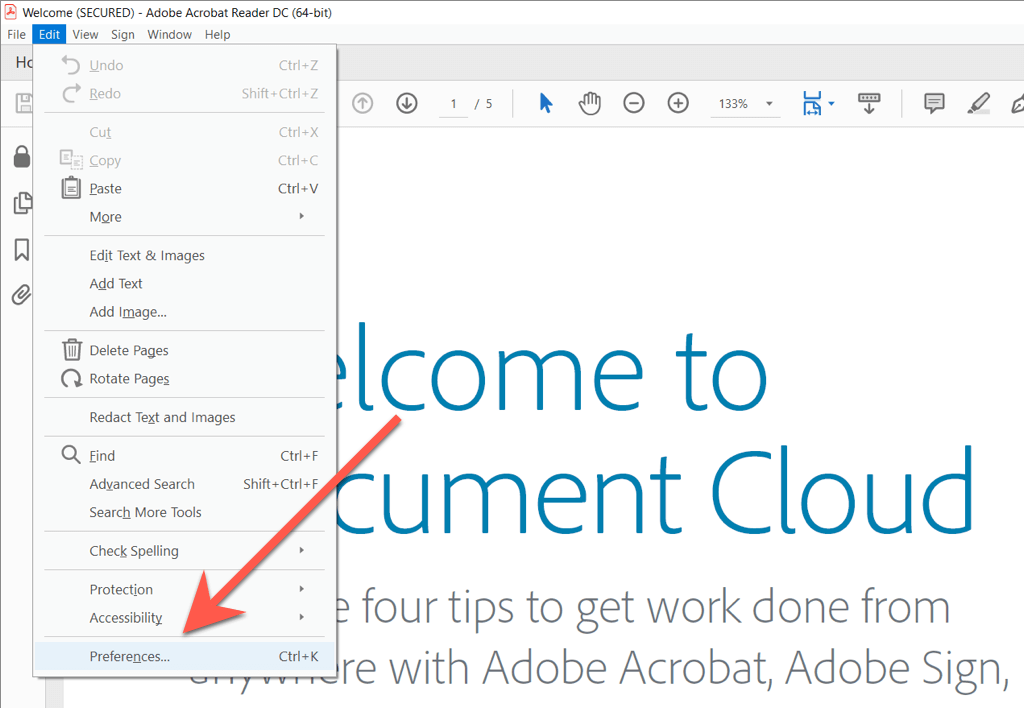
- Select General on the left pane of the Preferences dialog box.
- Uncheck the box next to Show online storage when saving files . Also, disable the Show online storage when saving files checkbox if you run into the problem while opening files.
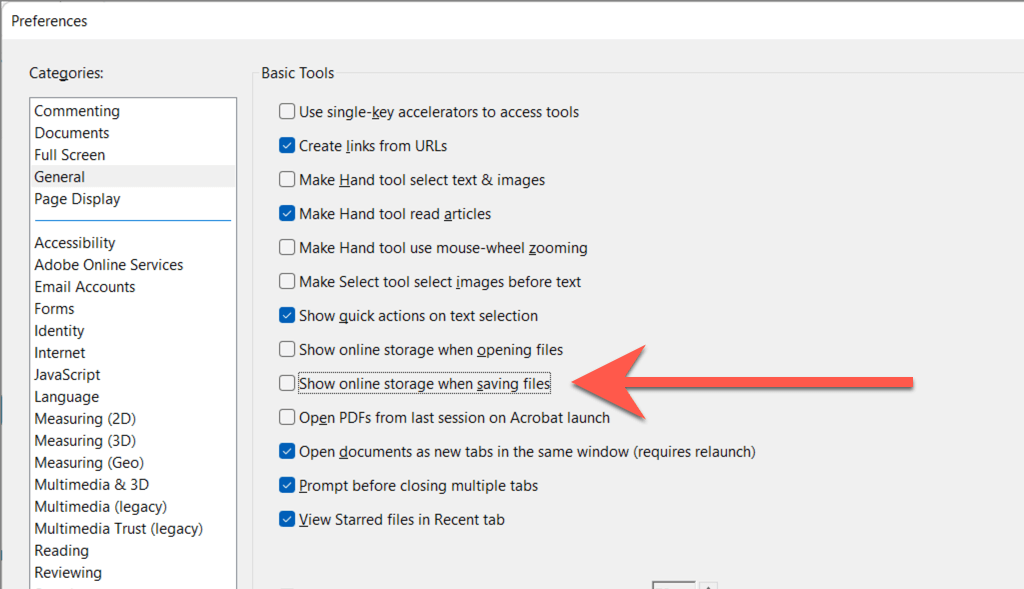
- Select OK to save your changes.
- Select File > Save As . If the blank screen issue with the “Save As” window appears again, quit and relaunch Adobe Acrobat. If you have any unsaved edits, select File > Save to save them to the original PDF document before you do that.
If you don’t use Adobe’s cloud storage service, stopping it from loading should not interfere with your workflow. However, if you do, try re-enabling the Show online storage when saving files option after a few minutes. Move on with the rest of the fixes if you run into the problem again.
Force-Quit and Relaunch Adobe Acrobat
In most cases, force-quitting and relaunching Adobe Acrobat fixes unexpected problems that crop up in the application. You can do that using the Windows Task Manager or the macOS Activity Monitor.
Windows
- Right-click the Start button and select Task Manager .
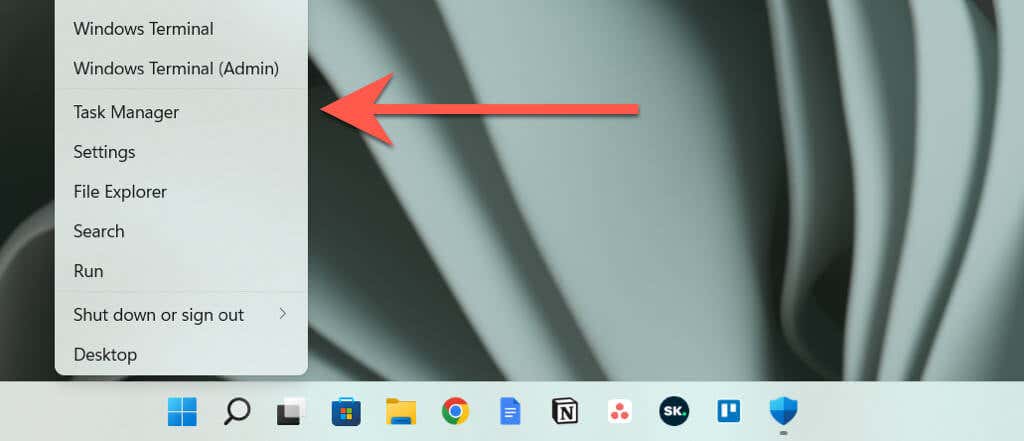
- Select More details to expand the default Task Manager view.
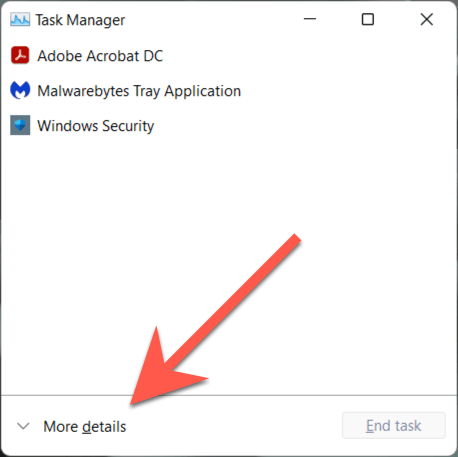
- Locate Adobe Acrobat DC under the Processes tab.
- Select End Task .
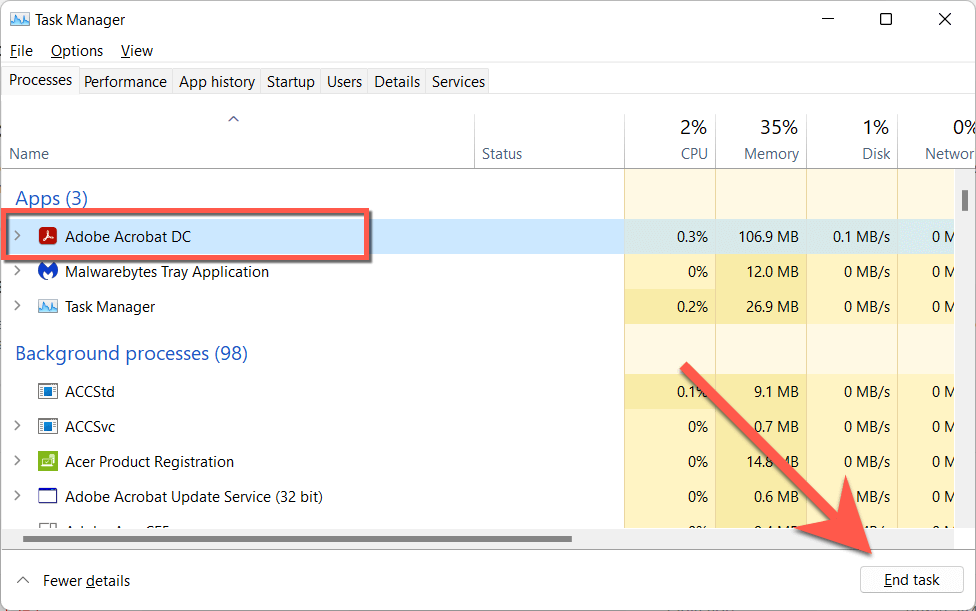
- Repeat for other Adobe-related background processes—e.g., Adobe Acrobat Update Service , Adobe AcroCEF , Adobe Collaboration Synchronizer , etc.
- Exit the Task Manager.
Mac
- Open Launchpad and select Other > Activity Monitor .
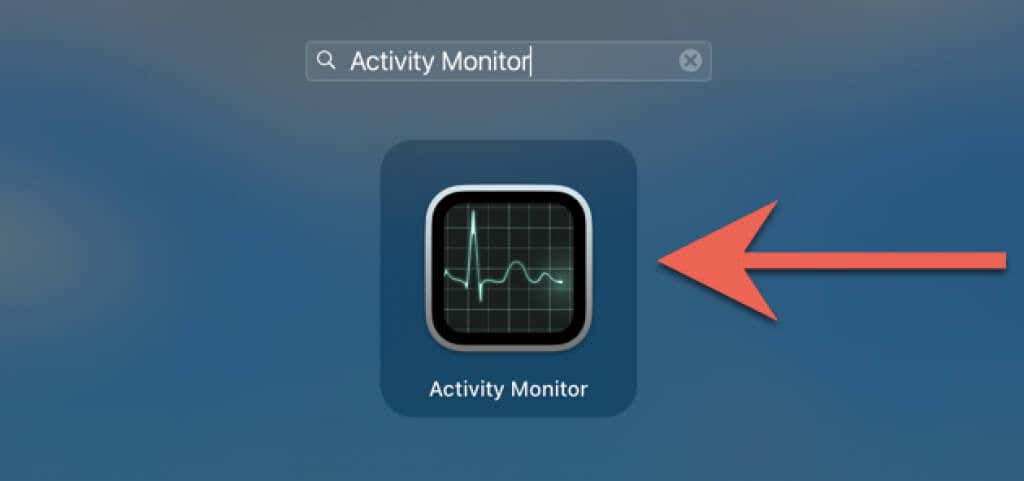
- Select Acrobat Reader / Pro under the CPU tab.
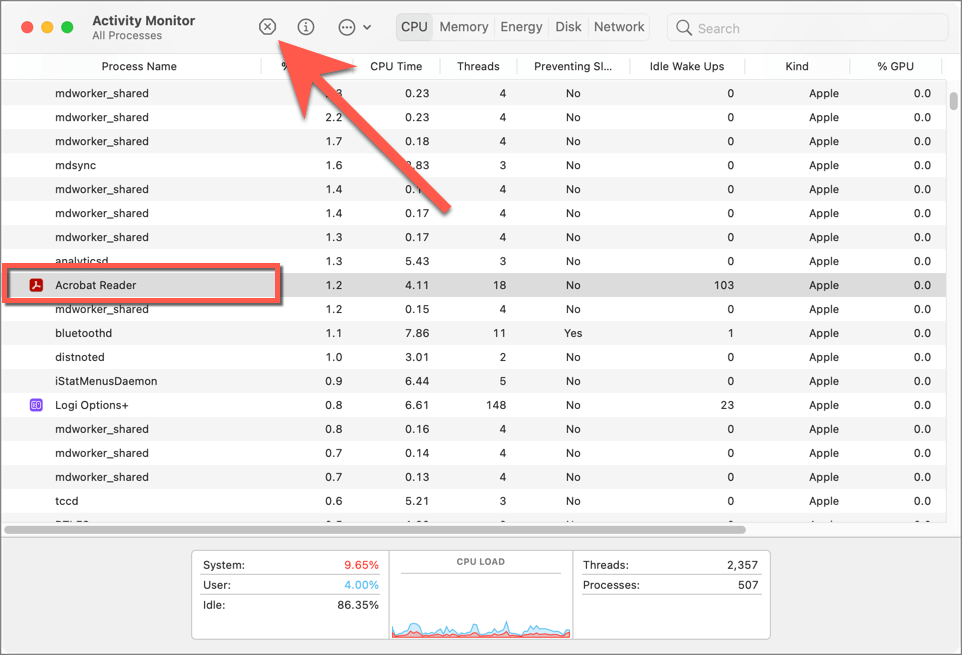
- Select Stop > Force Quit .
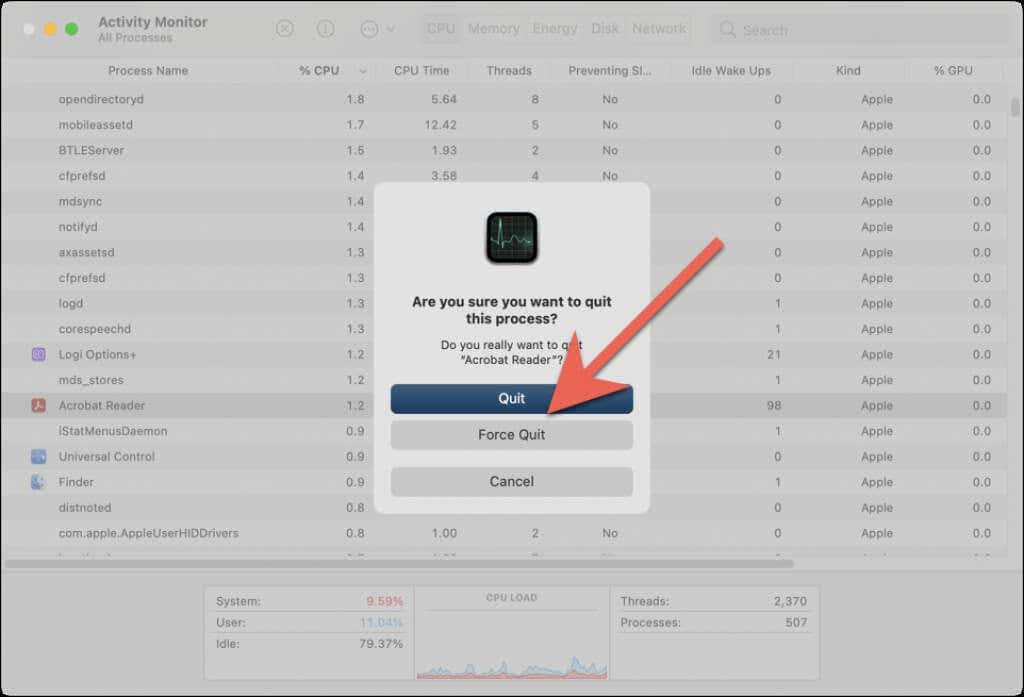
- Repeat for any other Adobe-related processes—e.g., AdobeCRDaemon .
- Exit the Activity Monitor.
After force-quitting Adobe Acrobat, relaunch the program, open a PDF file, and test if the blank save pop-up issue is gone.
Check the Adobe System Status
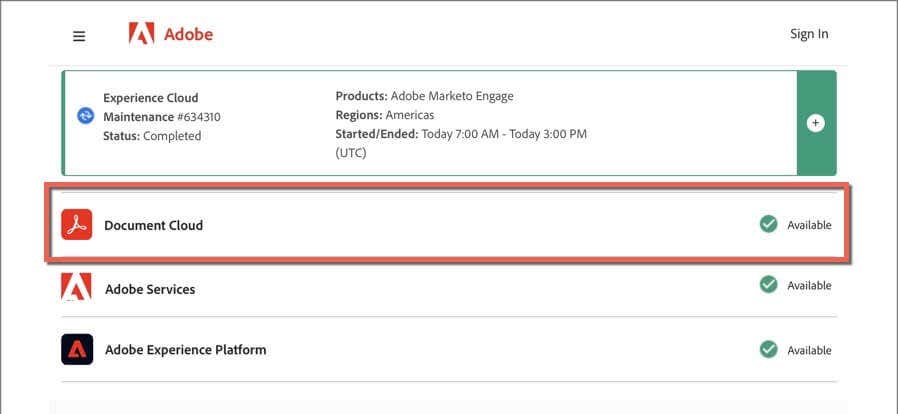
If the blank “Save As” screen issue in Adobe Reader DC or Pro DC persists, it’s a good idea to confirm that there’s nothing wrong with the Adobe servers.
Head to Adobe.com’s System Status page using Microsoft Edge, Google Chrome, or another web browser on your PC or Mac. If Document Cloud or the other server categories appear down, wait until Adobe resolves the issue.
Sign Out & Back Into Adobe Acrobat
The following fix involves signing out and back into Adobe Acrobat. That could help the application re-establish a proper connection to Adobe’s cloud storage services.
- Open Adobe Acrobat on your PC or Mac.
- Select your profile portrait on the top-right of the window.
- Select Sign out .
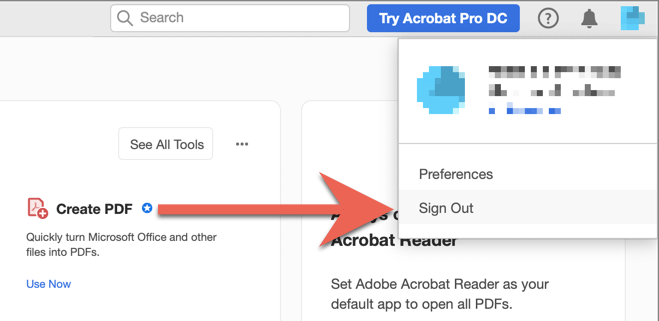
- Quit and re-open Adobe Acrobat.
- Sign back in with your Adobe account credentials.
Restart Your PC or Mac
Restarting your PC or Mac is another solution to persistent cloud storage issues with Adobe Acrobat. Do that if you haven’t already and check if the problem recurs.
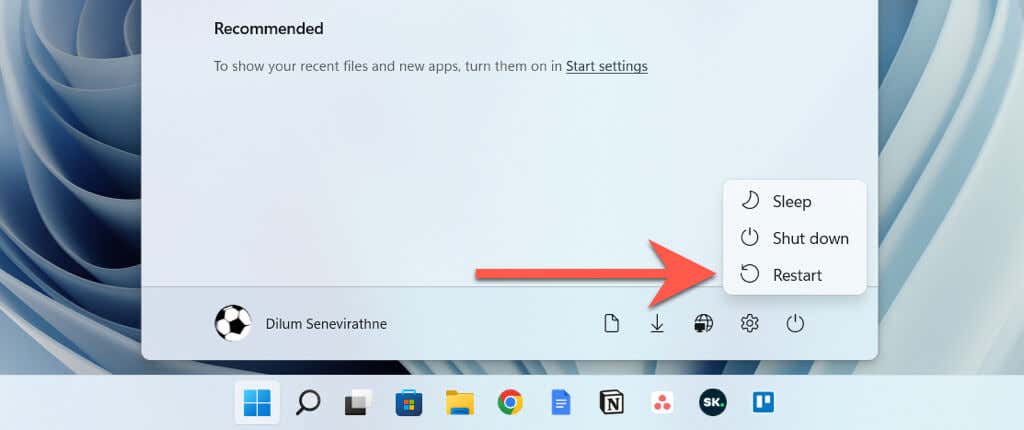
Note : While restarting a Mac, deselect the Reopen windows when logging back in option to stop macOS from saving and relaunching a malfunctioning Adobe Acrobat application state.
Update Adobe Acrobat to Its Latest Version
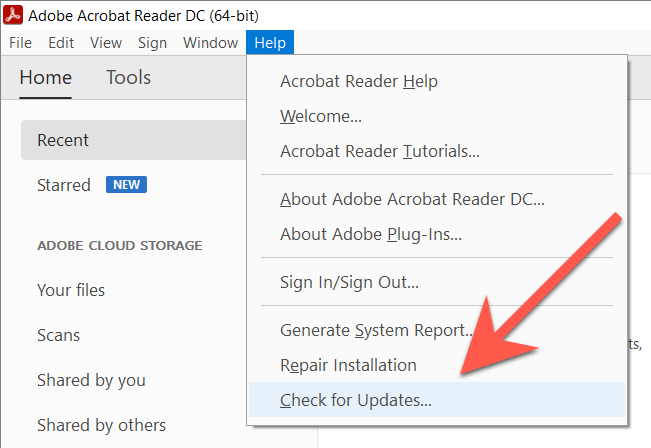
Adobe frequently releases updates that resolve persistent issues in Adobe Acrobat Reader and Pro DC. To check for and install pending updates, open the Help menu and select Check for updates . If there’s a pending update, select Yes to install it.
Add Adobe Acrobat As Firewall Exception
Next, ensure that Adobe Acrobat is not barred from connecting online. Here’s what you must do to allow the application unrestricted internet access with the built-in firewalls on Windows and macOS .
Windows
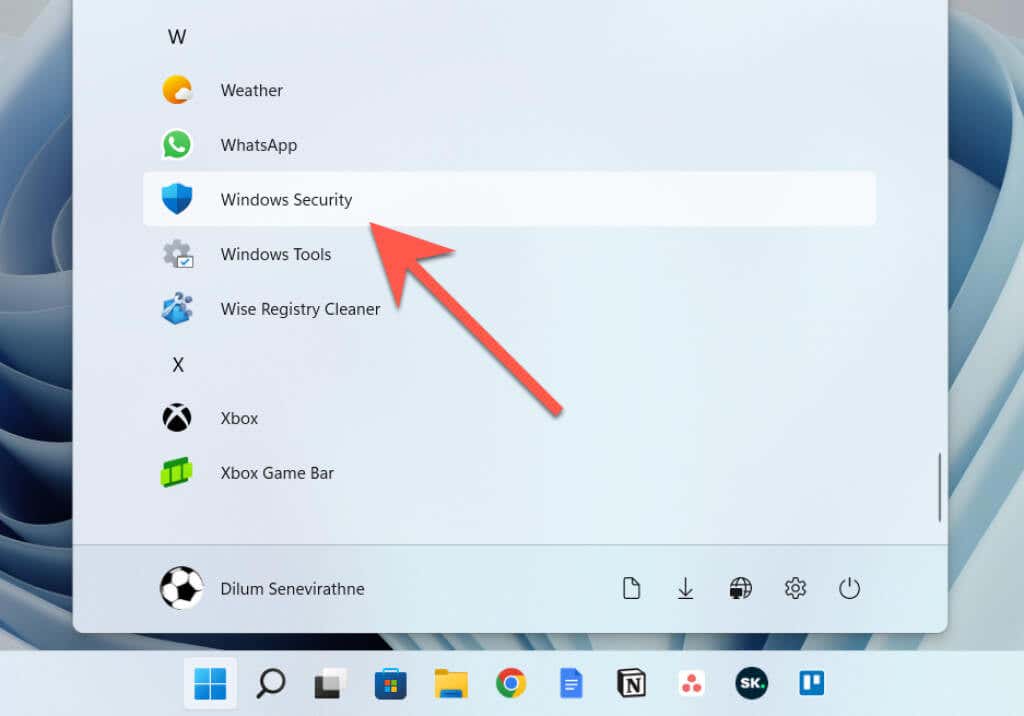
- Open the Start menu and select Windows Security on your programs list.
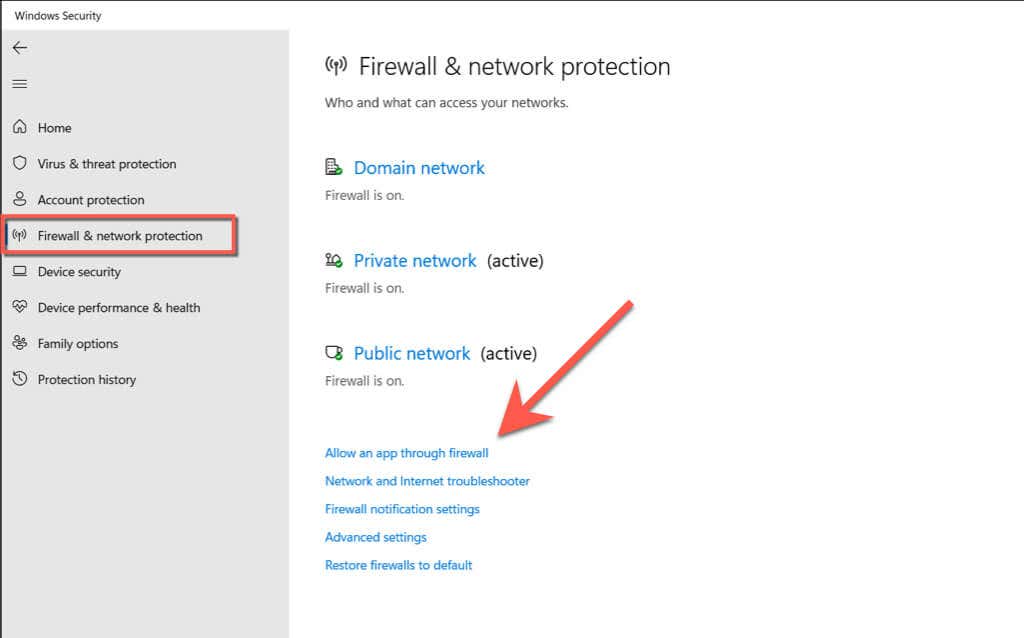
- Select Firewall & network protection > Allow an app through firewall .
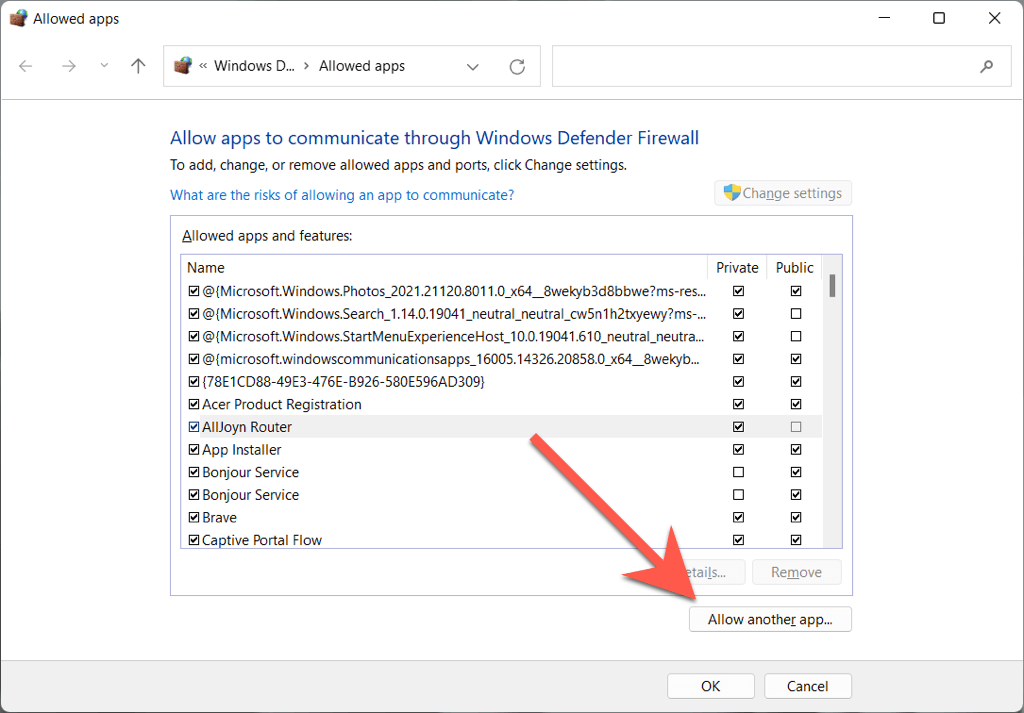
- Select Change settings > Allow another app .
- Select Browse .
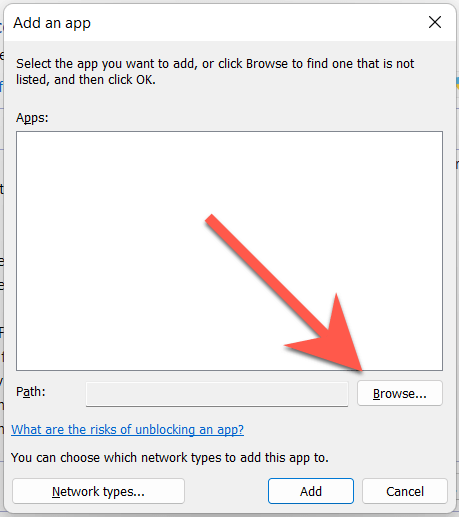
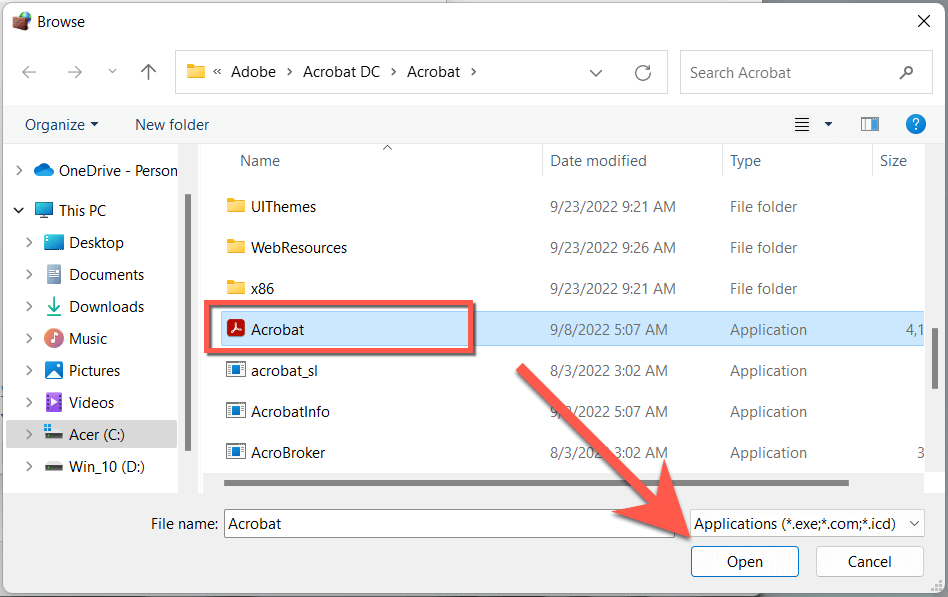
- Visit the following directory and select Acrobat.exe :
C > Program Files > Adobe > Acrobat DC > Acrobat
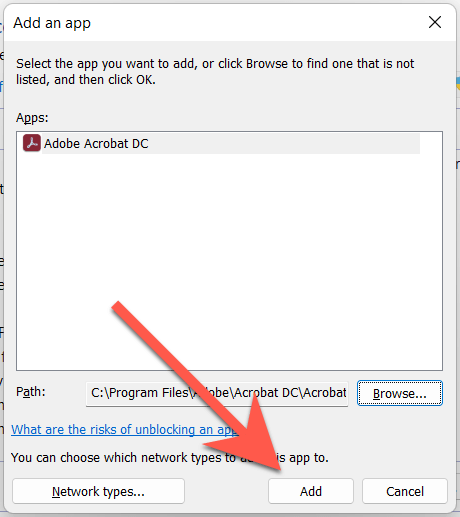
- Select Add .
- Locate Adobe Check DC among the programs list and check the boxes next to Private and Public .
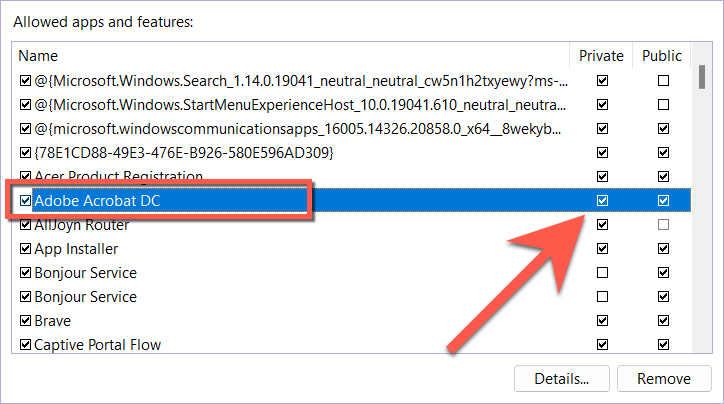
- Select OK .
Mac
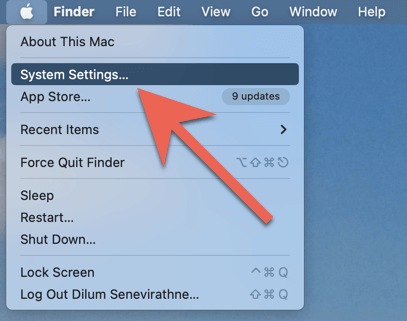
- Open the Apple menu and select System Settings .
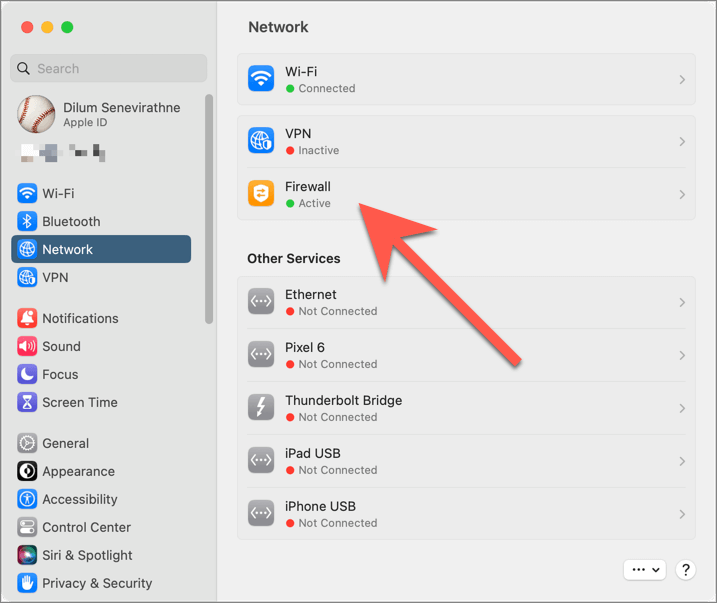
- Select Network > Firewall .
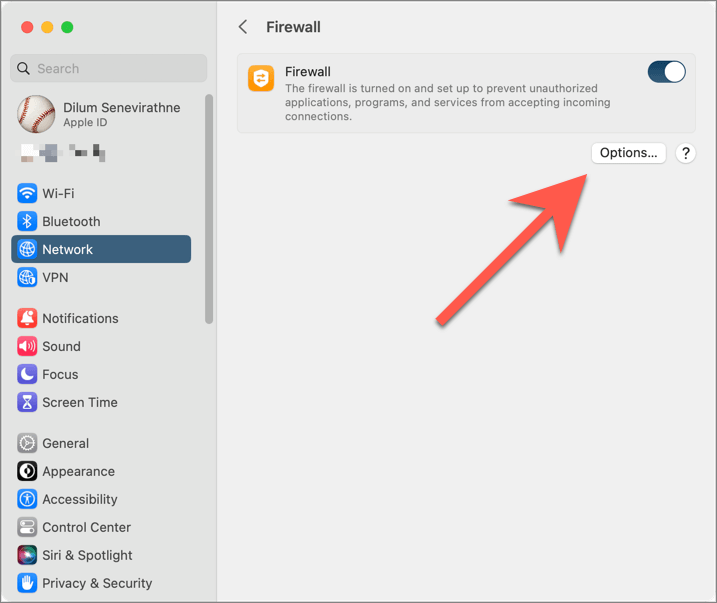
- Select Options .
- Select the Add icon.
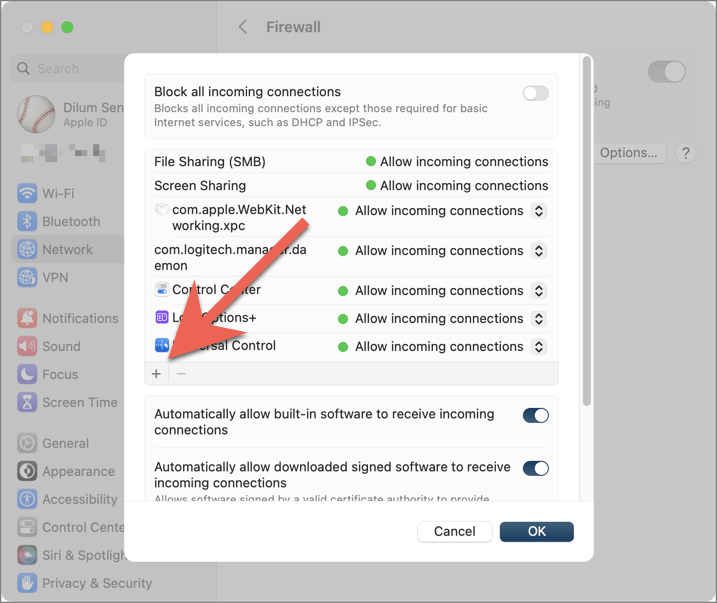
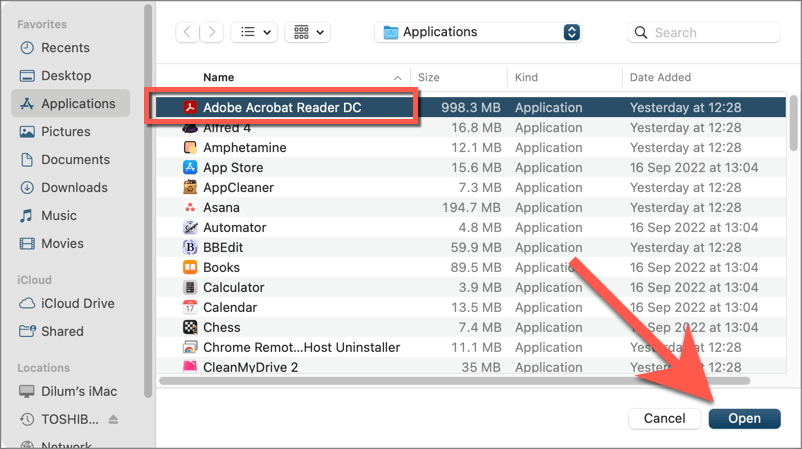
- Pick Adobe Acrobat Reader / Pro DC from the Applications folder and select Open .
- Open the pull-down menu next to Adobe Acrobat Reader / Pro DC and select Allow incoming connections .
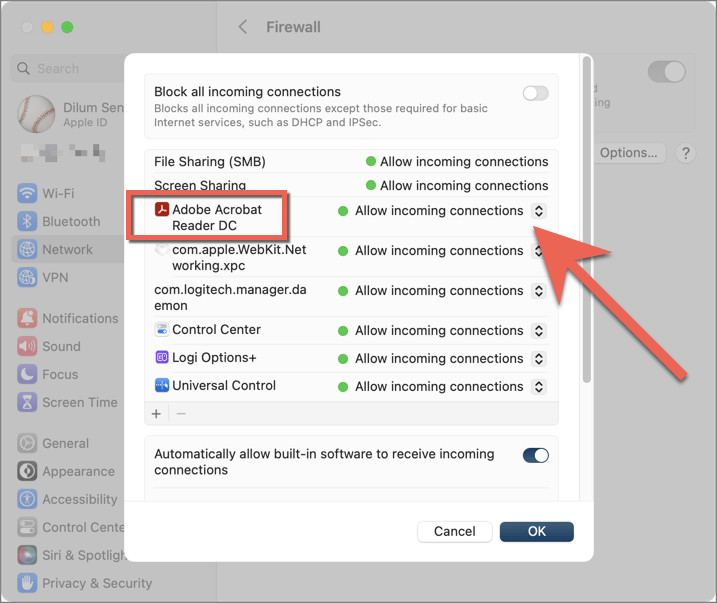
- Select OK .
Uninstall and Reinstall Adobe Acrobat
The following fix involves uninstalling and reinstalling Adobe Acrobat on your Mac. That should eliminate connectivity issues with Adobe Document Cloud that stem from a corrupt program installation.
Windows
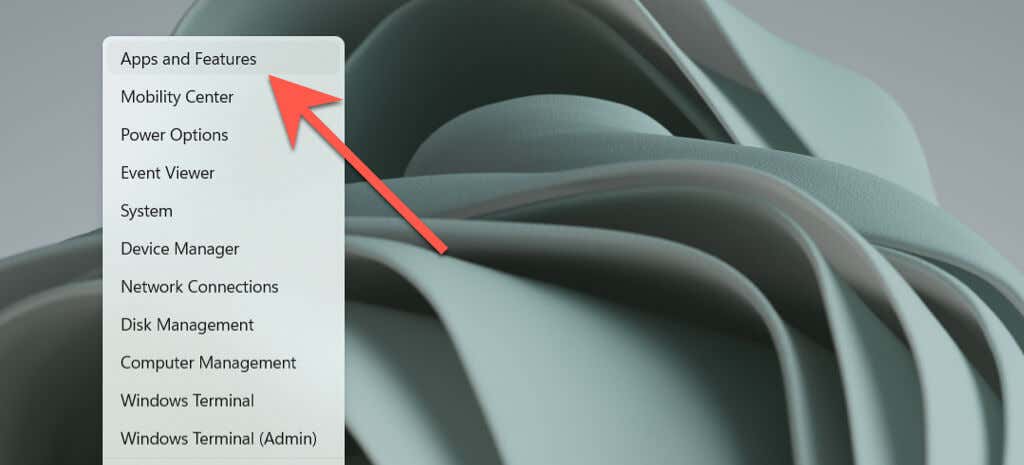
- Right-click the Start button and select Apps and Features .
- Select Adobe Acrobat and choose Uninstall .
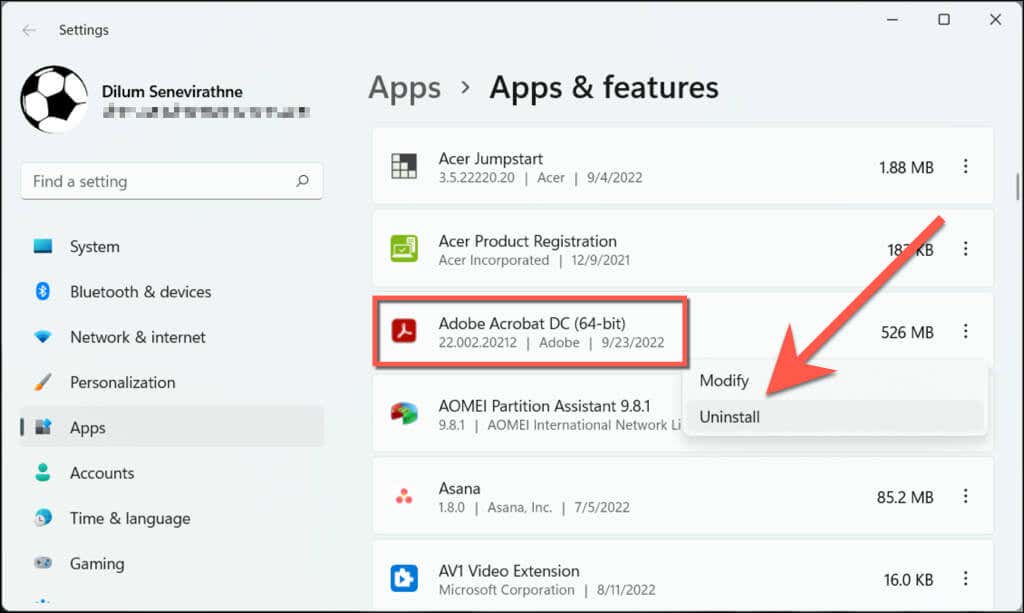
- Select Uninstall to confirm.
Mac
- Open a Finder window and select Applications on the sidebar.
- Control -click or right-click Adobe Acrobat Reader / Pro DC and select Move to Trash .
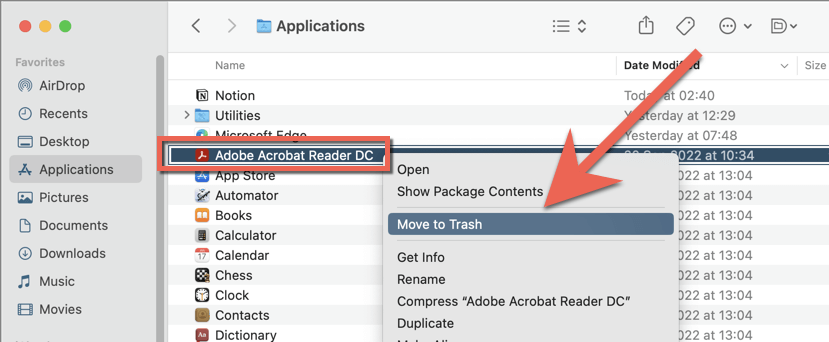
- Enter your Mac’s user account password to authenticate the action.
If the error persists, use an app removal tool like Revo Uninstaller (Windows) or AppCleaner (Mac) to delete Adobe Acrobat before reinstalling it.
Contact Adobe Support
Stopping Adobe Acrobat Reader or Pro from loading Adobe cloud services usually fixes the “Save As” blank window issue. However, if that’s not an ideal solution and none of the fixes above help, it’s time to contact Adobe Support . They should be able to provide additional troubleshooting suggestions based on your PC or Mac setup. Try out an alternative PDF reader and editor like Foxit in the meantime.
- How To Install and Use Adobe Photoshop on Linux
- What Is Adobe CEF Helper (And How to Reduce Its High CPU Usage)?
- Adobe Photoshop Not Opening? 7 Ways to Fix
- How to Create Title Graphics in Adobe Premiere Pro
- How to Link Text Boxes in Adobe InDesign
Dilum Senevirathne is a freelance tech writer and blogger with three years of experience writing for online technology publications. He specializes in topics related to iOS, iPadOS, macOS, and Google web apps. When he isn’t hammering away at his Magic Keyboard, you can catch him binge-watching productivity hacks on YouTube. Read Dilum’s Full Bio
