
Correct Your Phone’s Date and Time
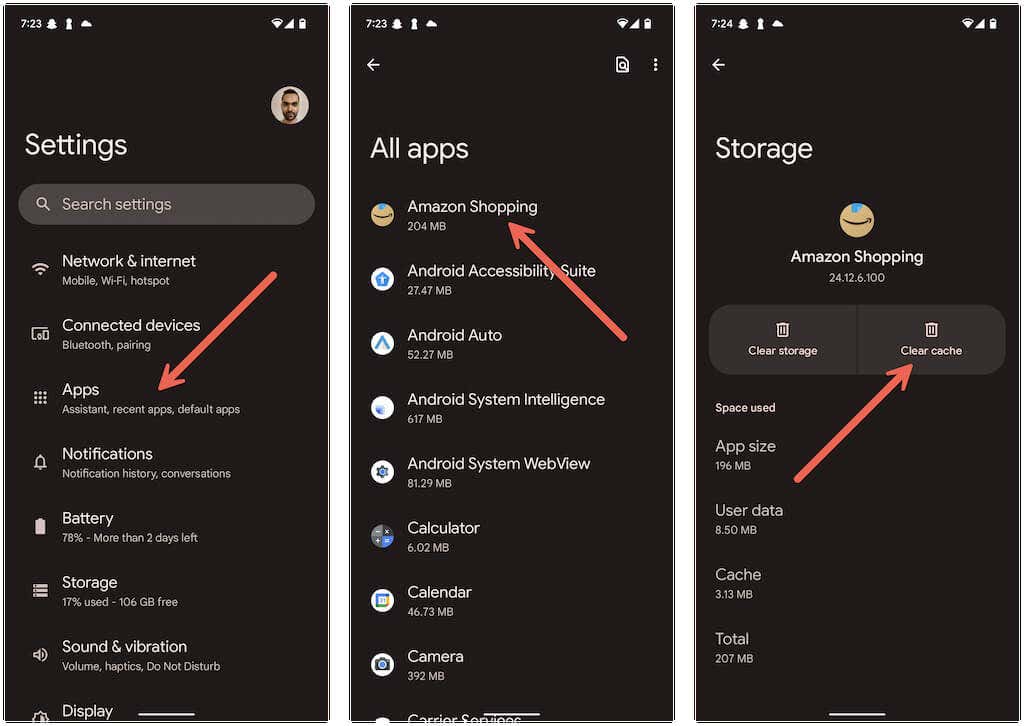
Having a clock that’s not in sync with the time for your region often leads to connectivity issues with most mobile apps. So, review your phone’s date and time settings and make adjustments if needed. To get to them, open the Settings app and tap General > Date & Time (iOS) or System > Date & Time (Android).
Letting your phone set the correct time by syncing it with an internet time server is always the best approach. However, if that fails to work, disable the Set automatically switch and set the time manually.
Restart Your iPhone or Android
Next, try restarting your iPhone or Android. That refreshes the system software and eliminates unexpected issues preventing apps from working correctly.
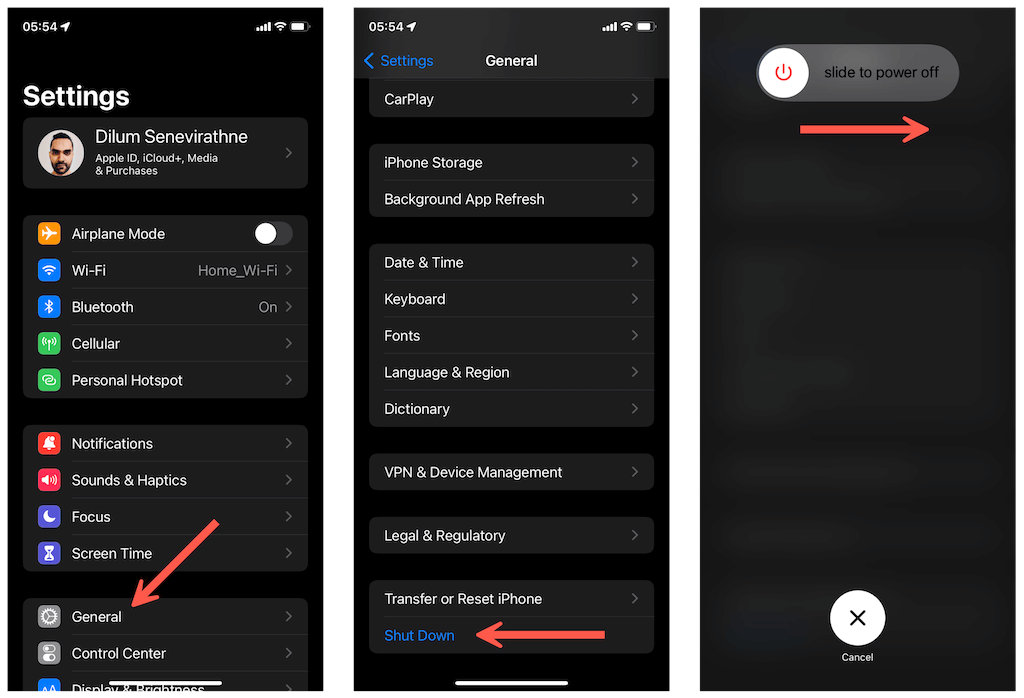
On iOS, open the Settings app and tap General > Shutdown . Then, drag the Power icon to the right to turn off the device. After the screen darkens, hold down the Power button to reboot it.
On Android, hold down the Power button (and also the Volume Up button on some devices) and tap Restart .
Update Your Phone’s System Software
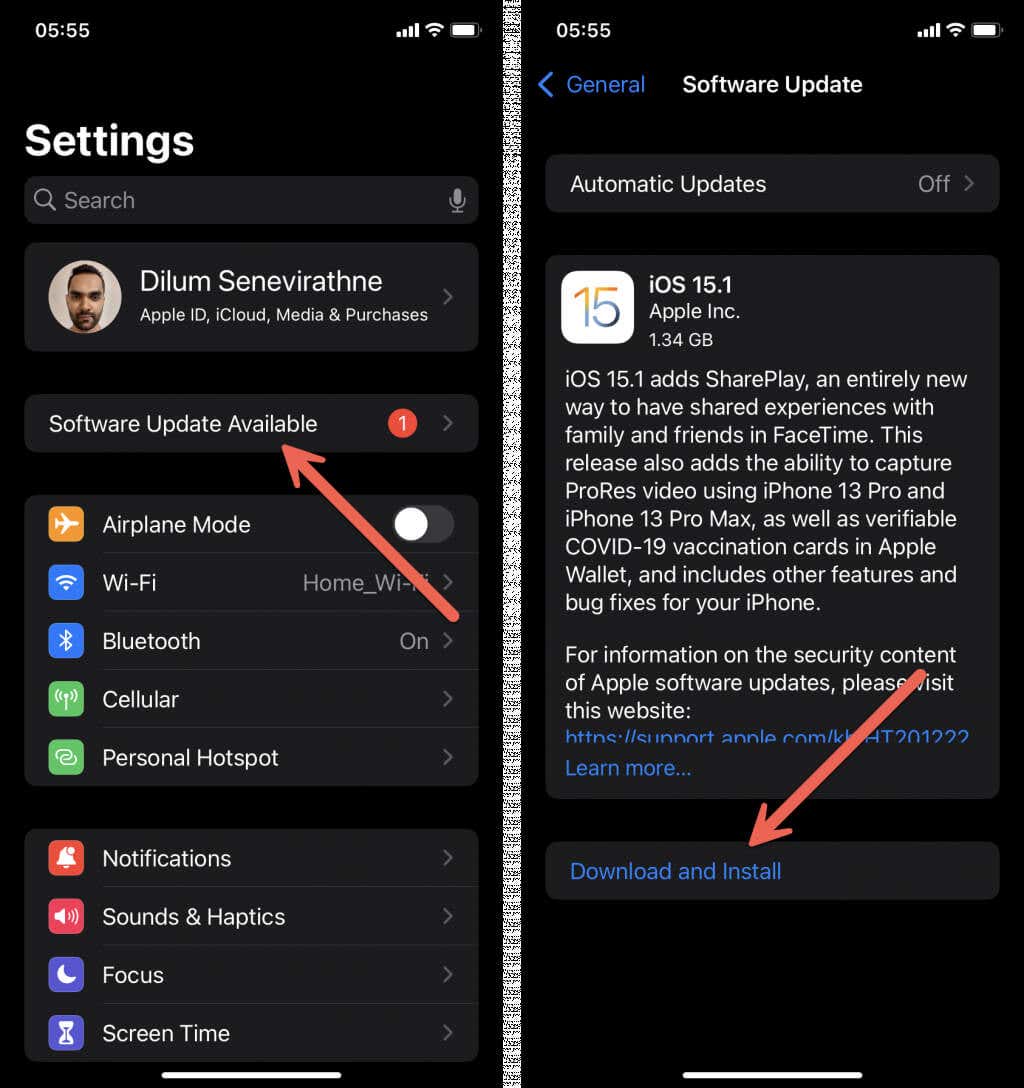
On the iPhone, open the Settings app and tap General > Software Update . If you use an Android device, open the Settings app and tap System > Software Update instead.
Reset Your Phone’s Network Settings
To do that, open the Settings app on your iPhone and tap General > Transfer or Reset iPhone > Reset > Reset Network Settings . On Android, open the Settings app and tap System > Reset > Reset Network Settings .
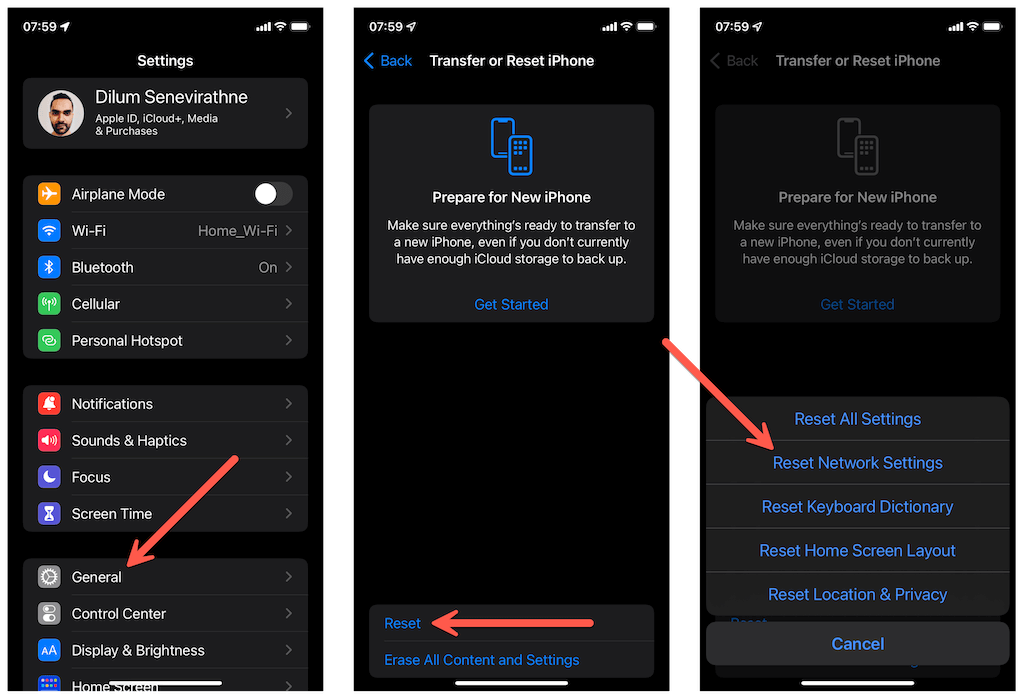
After performing a network reset, you must manually connect to any Wi-Fi networks from scratch. Your cellular settings will update automatically. Contact your carrier if they don’t.
- How to Rename Bluetooth Devices in Windows, Android, iOS, and Mac
- 5G Not Showing Up on Android or iPhone? 12 Fixes to Try
- How to Fix YouTube App Not Working (Android & iOS)
- Do Calls Go Straight to Voicemail on Your Phone? Try These 11 Fixes
- What Happens to Texts When Do Not Disturb Is On
Dilum Senevirathne is a freelance tech writer and blogger with three years of experience writing for online technology publications. He specializes in topics related to iOS, iPadOS, macOS, and Google web apps. When he isn’t hammering away at his Magic Keyboard, you can catch him binge-watching productivity hacks on YouTube. Read Dilum’s Full Bio
