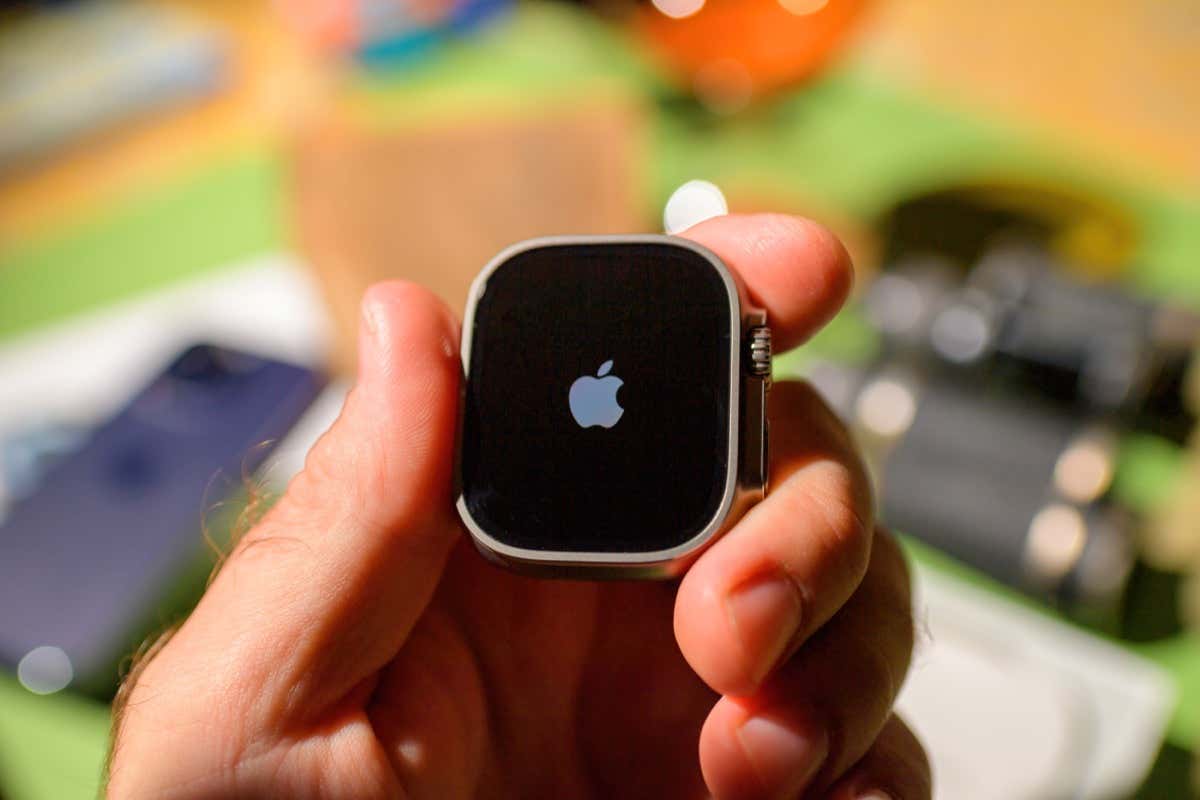
Is your Apple Watch continuously stuck at the Apple logo? Software-related reasons—such as bugs, glitches, and corrupt system settings—can cause that. But don’t freak out. In most cases, that’s an issue you can fix quickly.
Force-Restart Apple Watch
Force-restarting (or hard resetting) your Apple Watch can help resolve minor technical problems preventing the device from working.
To perform a force-restart, press and hold the Apple Watch’s Digital Crown and Side button at the same time for up to 10 seconds.
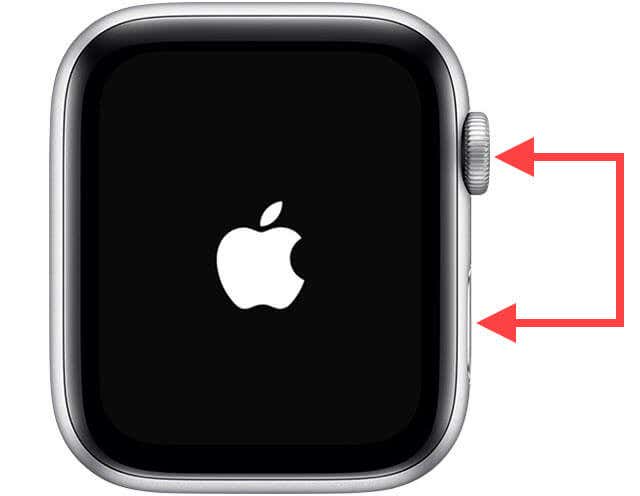
The Apple logo should disappear and reappear in the meantime. Hopefully, you’ll see the watch face soon after.
Recharge and Force-Restart
If force-restarting resulted in the Apple Watch getting stuck at the Apple logo again, try recharging the device for 5-10 minutes. Then, perform another force-restart without disconnecting it from its charger.
Did that work? If not, move on with the rest of the fixes.
Play Sound Using Find My
An odd fix that can sort out the Apple Watch’s stuck Apple logo issue involves using the iPhone’s Find My app to “locate” the device.
Start by loading the Find My app on your iPhone. Then, switch to the Devices tab, pick your Apple Watch, and tap Play Sound .
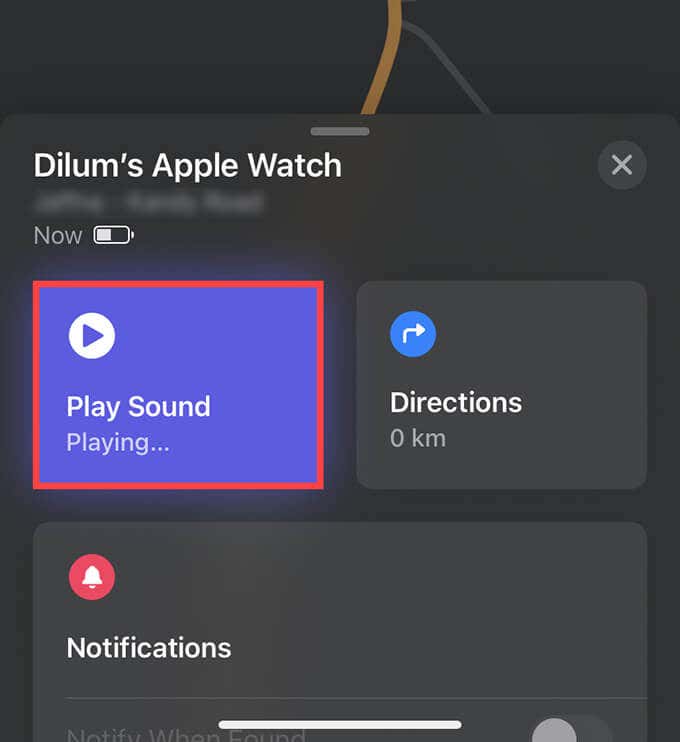
If the Apple logo continues to display on the screen of your Apple Watch, force-restart the device and tap Play Sound on the Find My app once more.
Unpair Apple Watch From iPhone
Unpairing a stuck Apple Watch from your iPhone is another fix that can help. But, the procedure reverts the watchOS device to factory settings and erases all personal data.
The unpairing process does create a backup of the Apple Watch to your iPhone. But since the watchOS device is stuck, that may or may not happen. In case you already don’t have a previous backup at hand, you risk losing your data permanently.
Should you want to go ahead, start by opening the iPhone’s Watch app. Then, select All Watches , tap the Info icon next to the Apple Watch, and select Unpair Apple Watch .
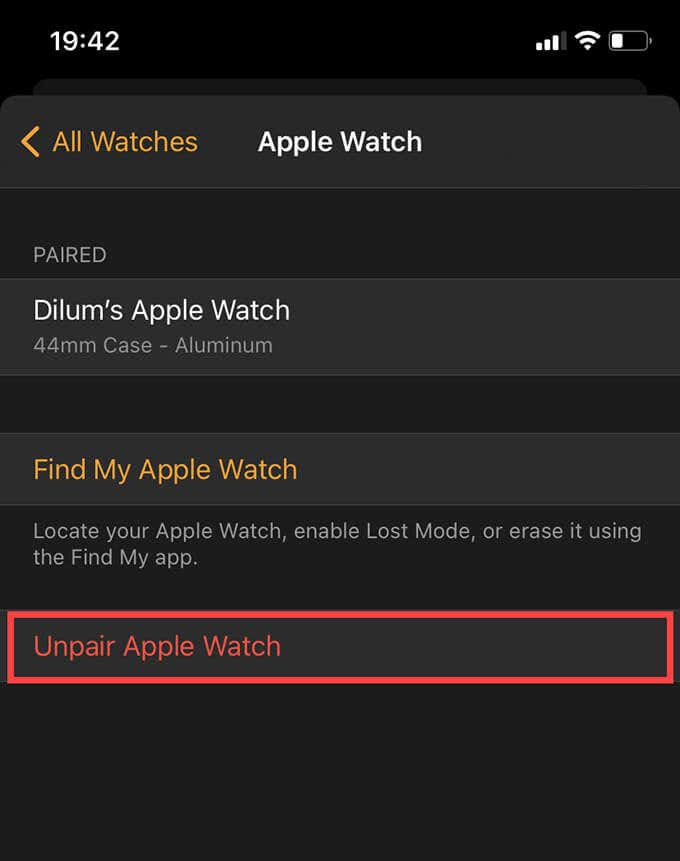
If that allowed the Apple Watch to boot into watchOS, go through the pairing process again to connect it to your iPhone.
In case you run into issues unpairing your Apple Watch, try erasing all content and settings on the device instead. Scroll down to the final troubleshooting sections for the instructions.
Drain Battery & Restart
If your Apple Watch continues to get stuck at the Apple logo, try draining out the battery. But that could take up to 10 hours or more depending on the charge remaining.
Once the battery discharges (as in, you don’t see the Apple logo anymore), confirm by pressing and holding the Side button. If nothing shows up on the screen, connect the Apple Watch to its charger. It should start automatically once it has recharged sufficiently.
Update Apple Watch
If the fixes above helped, you must consider updating your Apple Watch immediately. That should eliminate known bugs and minimize the chances of the problem recurring in the future. Before you go ahead, connect the watchOS device to its charger.
Update Apple Watch Using iPhone
Bring up the Watch app on your iPhone. Then, go to General > Software Update . If you see an update listed, tap Download and Install .
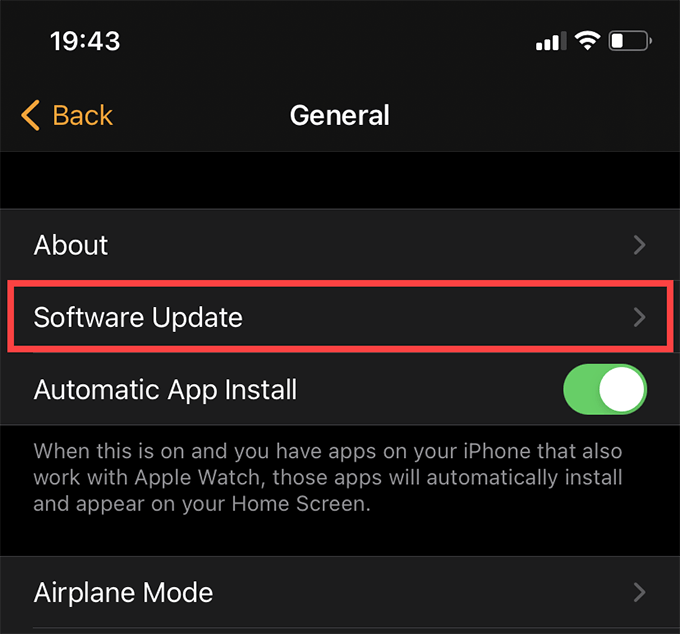
Update Directly Using Apple Watch
Press your Apple Watch’s Digital Crown . Then, tap Settings and go to General > Software Update .
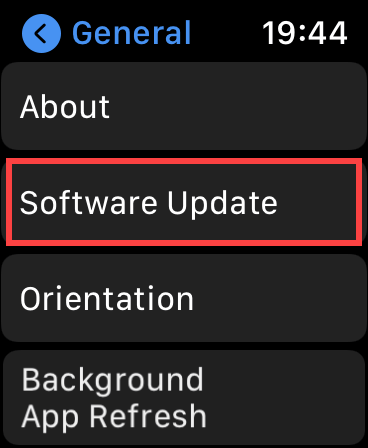
If you see an update listed, tap Download and Install .
Fall Back to Stable Channel
Have you enrolled your Apple Watch in the Apple Beta Software Program ? watchOS betas are generally unstable and introduce many issues. If the device continues to get stuck at the Apple logo, it’s a good idea to fall back to the stable channel.
Remove Beta Profile Using iPhone
Open the Watch app on your iPhone. Then, go to General > Profiles > watchOS Beta Software Profile . Tap Remove Profile .
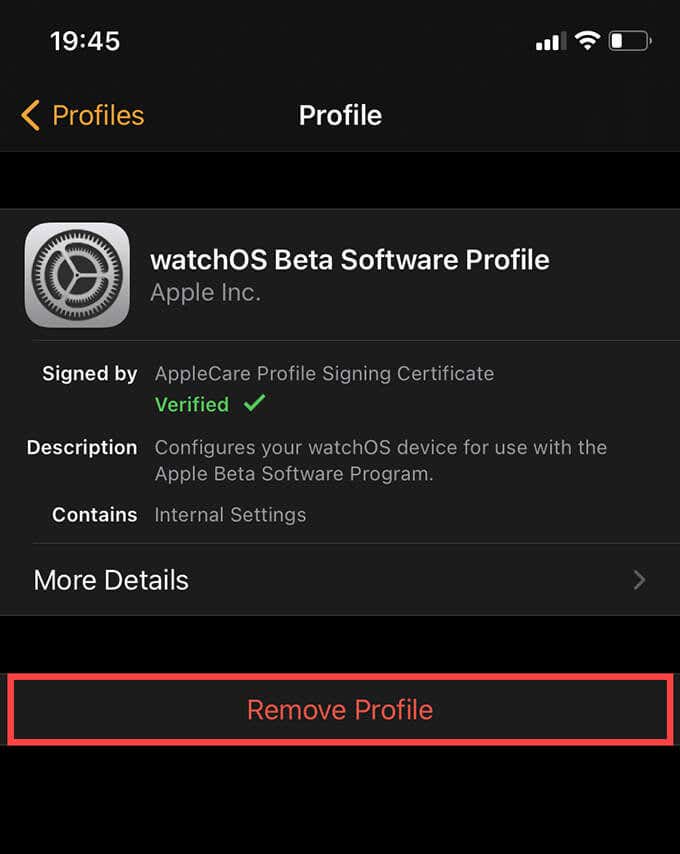
Remove Beta Profile Using Apple Watch
Press the Digital Crown on your Apple Watch and go to Settings > General > Profiles > watchOS Beta Software Profile .
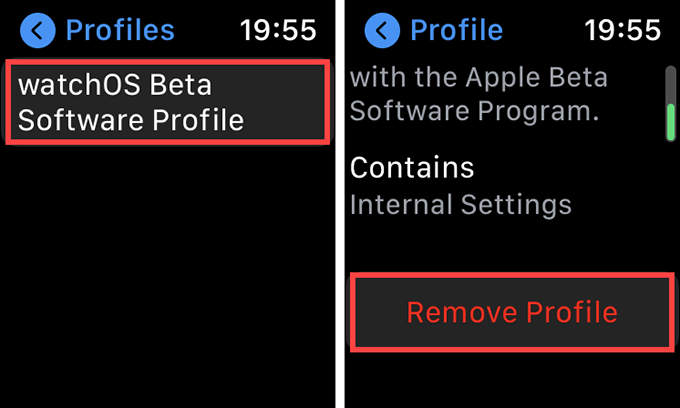
Scroll down and tap Remove Profile .
Erase Apple Watch
Should you encounter any of the scenarios below, you must erase the content and settings on your Apple Watch and set it up from scratch:
- You can’t unpair your Apple Watch using your iPhone.
- None of the fixes above fixed the stuck Apple logo issue.
- The fixes above helped, but the problem keeps recurring.
You can use your iPhone’s Watch app or the Reset settings in watchOS (if you can manage to boot into it even briefly) to erase an Apple Watch. If both options fail, you can force-restart and restore the device to factory defaults.
Note: If you don’t have a backup of your Apple Watch, you’ll lose your data. Back up your data by unpairing your Apple Watch first (if you haven’t tried that already).
Erase Apple Watch Using iPhone
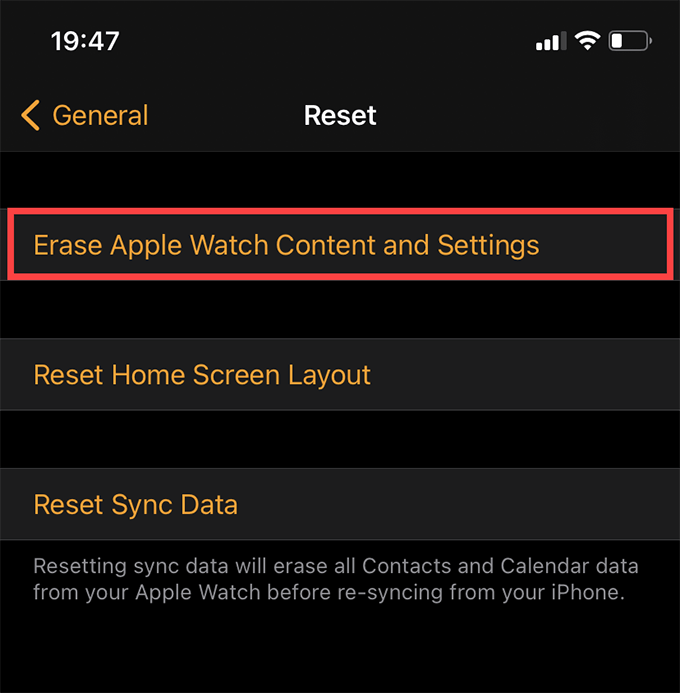
Open the Watch app on your iPhone. Then, tap General > Reset and tap Erase Apple Watch Content and Settings .
Erase Directly Using Apple Watch
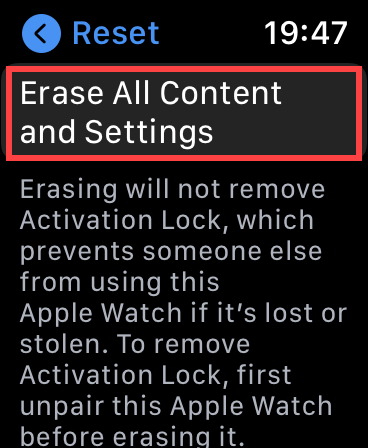
Press your Apple Watch’s Digital Crown and go to Settings > General > Reset . Then, tap Erase All Content and Settings .
Force-Restart and Erase Apple Watch
Hold down both the Apple Watch’s Digital Crown and Side button simultaneously for up to 10 seconds. Then, immediately press and hold the Side button only for 20 seconds.
Apple Watch: Beyond the Apple Logo
Performing a force-restart of your Apple Watch probably helped resolve the stuck Apple logo issue straightway. If not, the rest of the suggestions should’ve fixed or prevented the problem from repeating.
But, if nothing worked, you could be dealing with a defect at the hardware level. Contact Apple for repairs or a replacement.
- Fix Apple Watch Charging Problems (All Models)
- How to Set Your Apple Watch to Vibrate Only
- How to Delete a Workout on Apple Watch
- How to Delete Messages on Apple Watch
- Why Your Apple Watch Keeps Locking When on Wrist (And How to Fix It)
