Bookmarks are used to hyperlink or reference specific locations or sections that you want to use later.
While they’re useful, bookmarks can often cause issues such as the “Error! bookmark not defined” issue, which many Microsoft Office users have encountered.
The error means that the bookmark referenced is no longer valid, and is usually triggered when:
- Word uses a hidden, automated bookmarking system to link the topics of your table of contents to their respective page numbers .
- The table of contents has missing, outdated, broken or corrupted bookmarks.
- You’re converting a Doc file to PDF .
Fortunately, you can get around the error by ensuring that the bookmark exists or deleting the cross-reference field altogether.
This guide lists some possible solutions to help you resolve the bookmark not defined error in Word.
What to Do When You Get “Error! Bookmark Not Defined” in Word
Before you can fix the bookmark not defined error, check whether you can view the bookmarks because the default Word settings don’t display bookmarks.
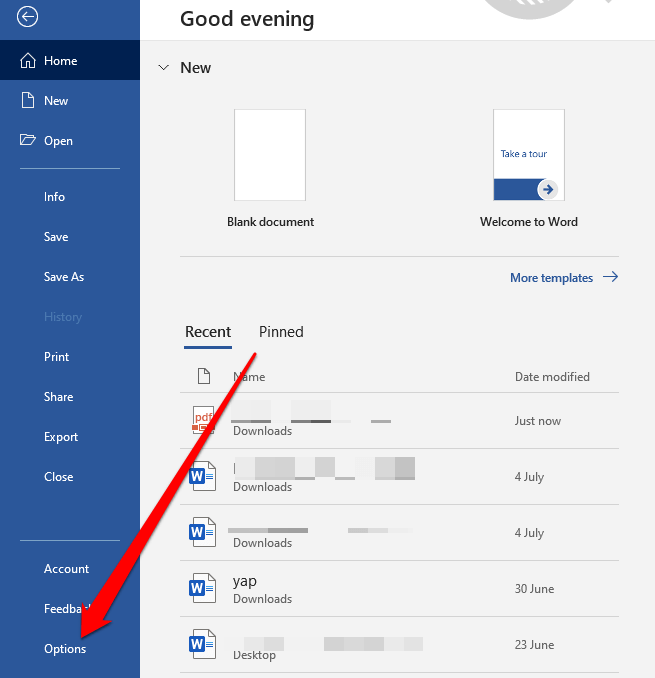
- Open Word, select File > Options .
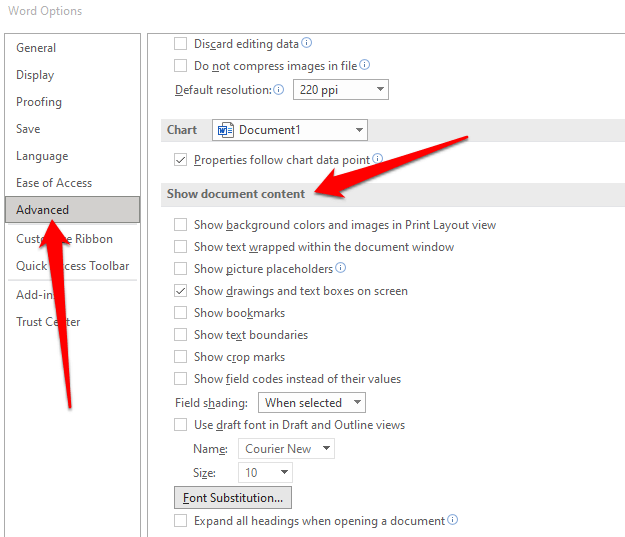
- Select the Advanced tab and scroll down to Show document content .
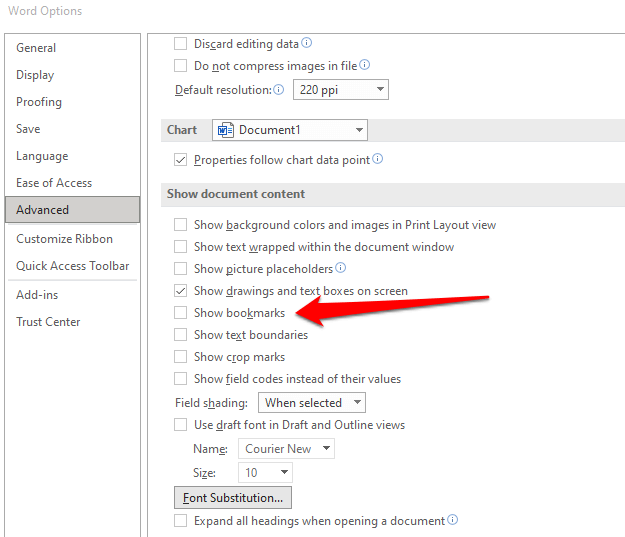
- Check the Show bookmarks box and select OK so that you can view the bookmarks in Word.
With that out of the way, try the solutions below to fix the error in Word.
- With the Show Bookmarks setting enabled in Word Options, highlight the table of contents.
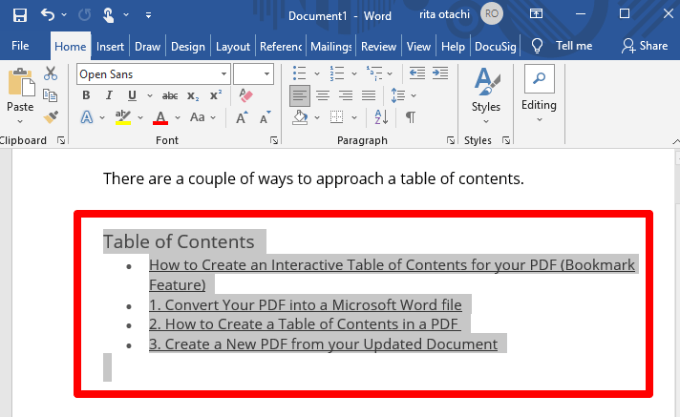
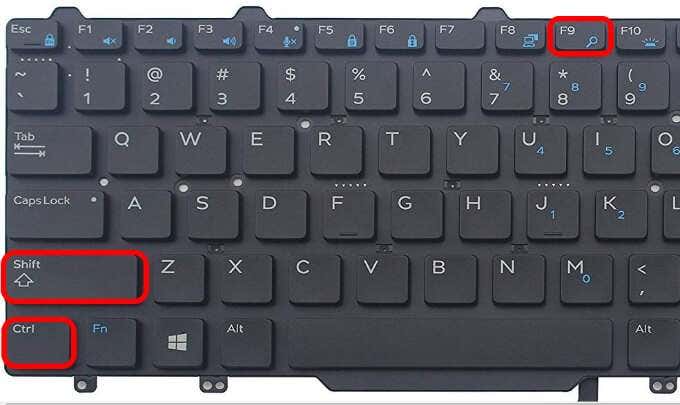
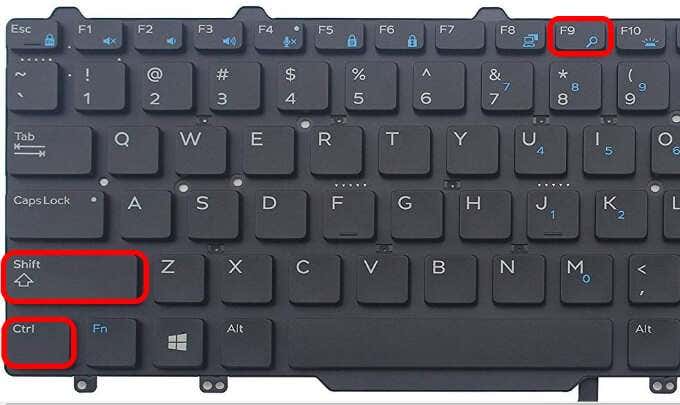
- Press Ctrl + Shift + F9 keys on your keyboard to unlink the fields and check whether the error is still there or not.
Use the Undo Command
The Undo command in Windows helps you reverse an earlier action you may have performed on your Word document.
You may also see the error immediately after generating the table before you can save your document. In this case, you can use the Undo command to restore the original text immediately.
- Press Ctrl + Z on your keyboard.
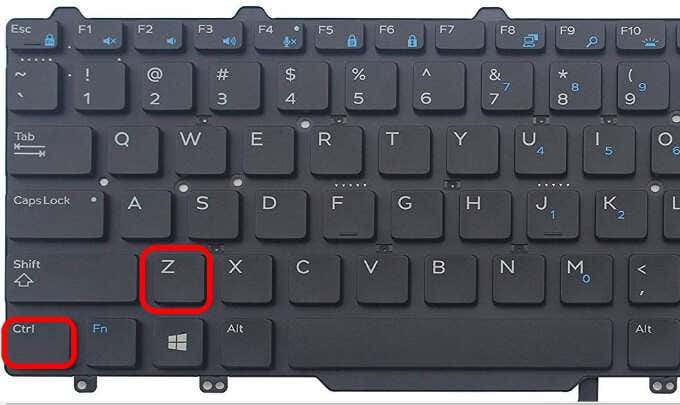
- Alternatively, select the Undo icon from the Ribbon menu in Word at the top of the screen.

- Once the action is reversed, fix the broken bookmark links and then save your document.
Replace Missing Bookmarks
If you’ve made some new changes on your document or it doesn’t use the built-in heading styles in Word, you may end up with the Error! bookmark not defined problem.
- Go to the table of contents section, right-click the entry that contains the error and select Toggle Field Codes .
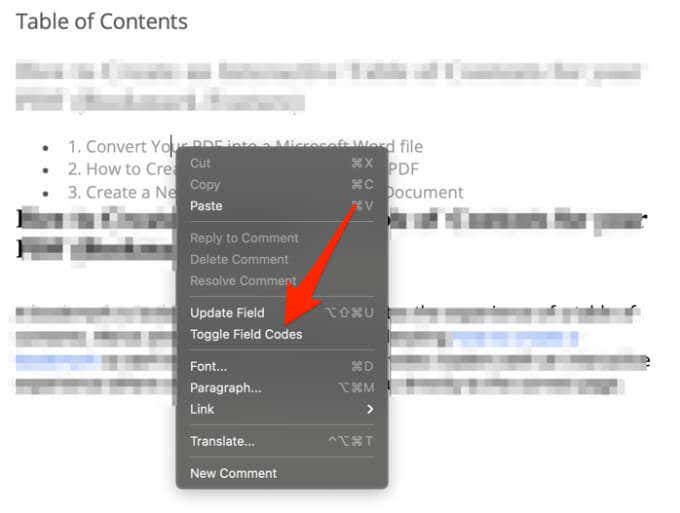
- The Field Codes will appear behind the bookmark, but the bookmark no longer exists in the document, which is why you’re getting the error. You’ll notice that the field currently points to PAGEREF/HYPERLINK, the name of the bookmark (PAGEREF is the name of the bookmark that the field originally pointed to).
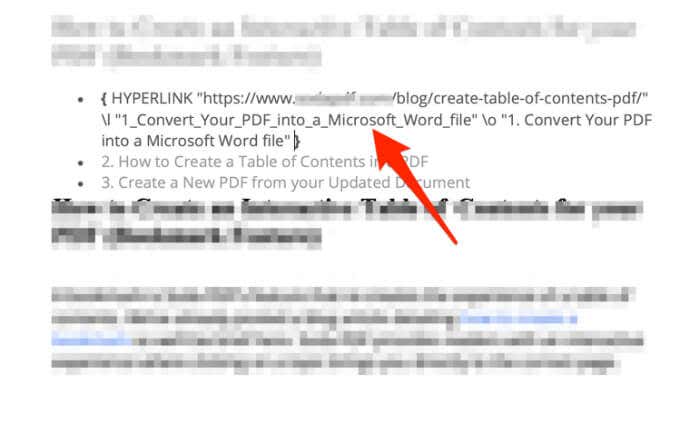
- Select Insert > Links > Bookmark and create a new bookmark with the old name. Alternatively, you can delete the field altogether and make a new reference to a new section .

- Once you repair every missing or corrupt bookmark, check whether the error still appears when you’re trying to use the document or convert it to PDF format.
Note : If you see a PAGEREF/HYPERLINK “Bookmark Name” entry, it means the bookmark was inserted manually. If you get an error, for example PAGEREF/HYPERLINK Ref364868613, it points to a hidden bookmark created by a cross-reference dialog.
The F9 key is used to update a field in Word. It works the same way as right-clicking a field and selecting the Update Field option.
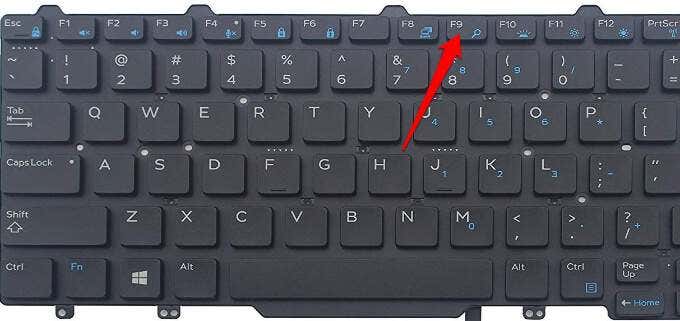
- Highlight the table of contents.
- Press Ctrl + Shift + F9 to update the fields, transform the entries into regular text and then edit them as you wish.
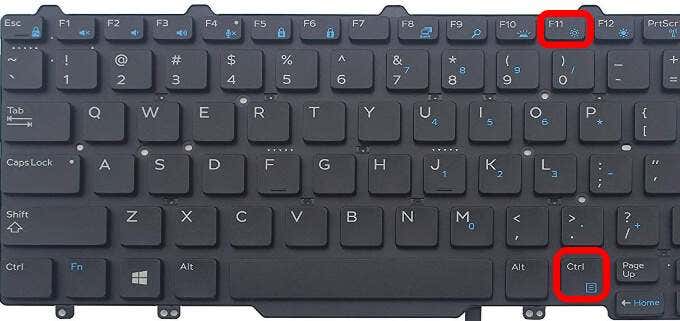
- Alternatively, press Ctrl + F11 to lock the table of contents field so that it can’t be edited or updated. Before doing this, compare the table of contents with the pages it references just to be sure that everything is correct.
Get Rid of the Error! Bookmark Not Defined in Word
We hope the solutions in this guide helped you resolve the “Error! bookmark not defined” issue in Word.
- How to Remove Headers and Footers in Word Documents
- How to Clear Formatting in Word
- How to Remove Unwanted Lines in Word Documents
- How to Select All Text in Word Documents
- How to Insert Arrows in Microsoft Word Documents
Elsie is a technology writer and editor with a special focus on Windows, Android and iOS. She writes about software, electronics and other tech subjects, her ultimate goal being to help people out with useful solutions to their daily tech issues in a simple, straightforward and unbiased style. She has a BCom degree in Marketing and currently pursuing her Masters in Communications and New Media. Read Elsie’s Full Bio
