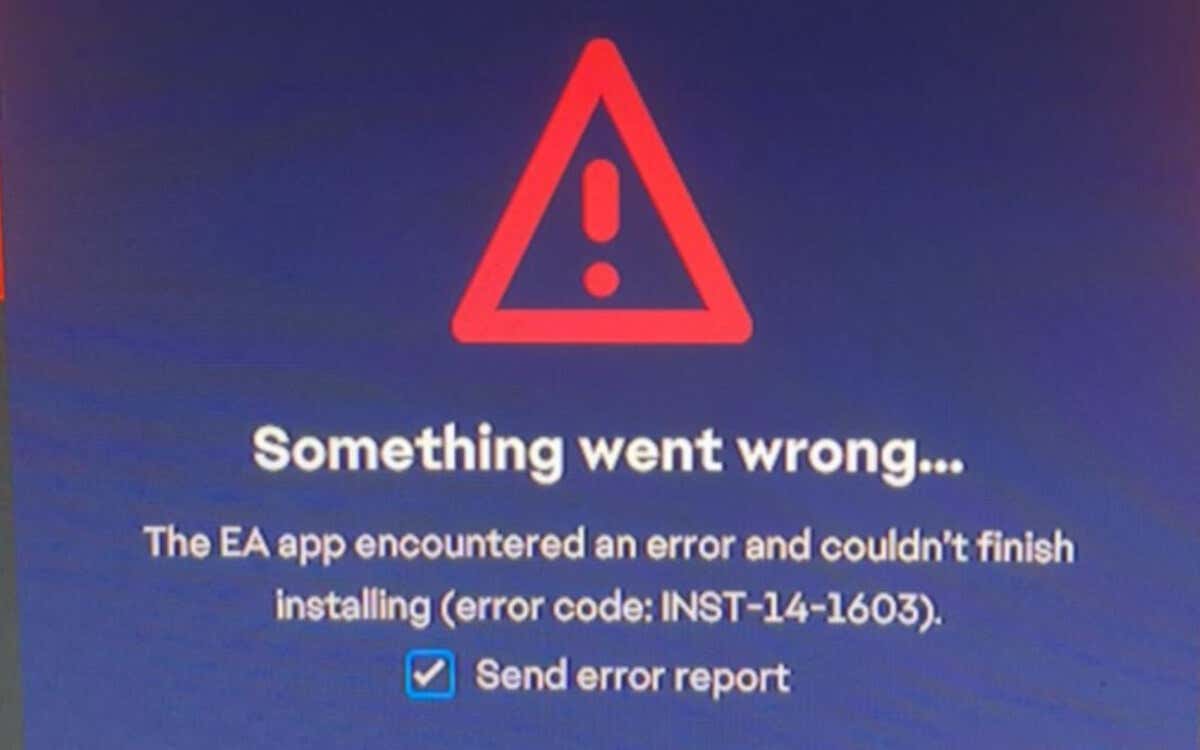
INST-14-1603 is a fatal error code that appears during the final stages of installing the EA App on Windows 10 and 11. Several factors, such as technical glitches, insufficient permissions, and corrupted system files, can trigger it.
Given how crucial the EA App is when it comes to launching, updating, and organizing your EA video game library, it’s essential that you resolve error INST-14-1603 and get the application up and running as soon as possible.
Run the EA App Installer as an Administrator
A quick method to fix the INST-14-1603 error in the EA App is to reattempt the installation process as an administrator since the higher privileges eliminate permission-related issues associated with file creation and rollback. To do that:
- Visit your PC’s Downloads folder.
- Right-click EAappInstaller. exe and select the Run as administrator contextual menu option.

- Select Yes on the UAC (User Account Control) pop-up and follow all on-screen instructions to reinstall the EA App.
Delete the Windows Temp Folders
Partially downloaded or corrupt installation data could be the problem if the EA installer fails even with administrative rights. Clear the folder where Windows keeps temporary files for your user account to rule that out. Just:
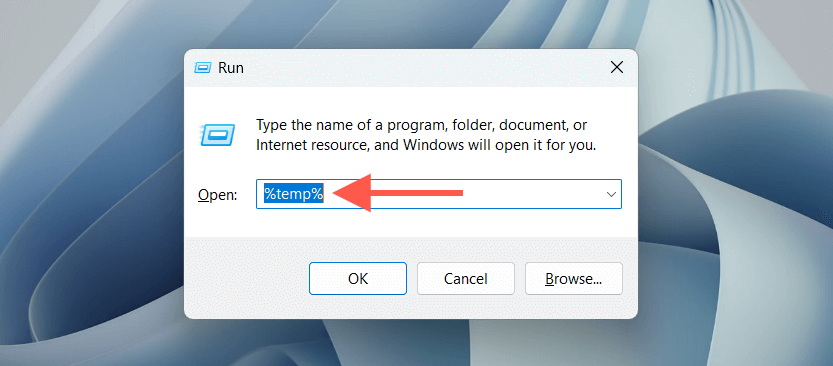
- Press Windows Key + R to open a Run box.
- Type %temp% and select OK .
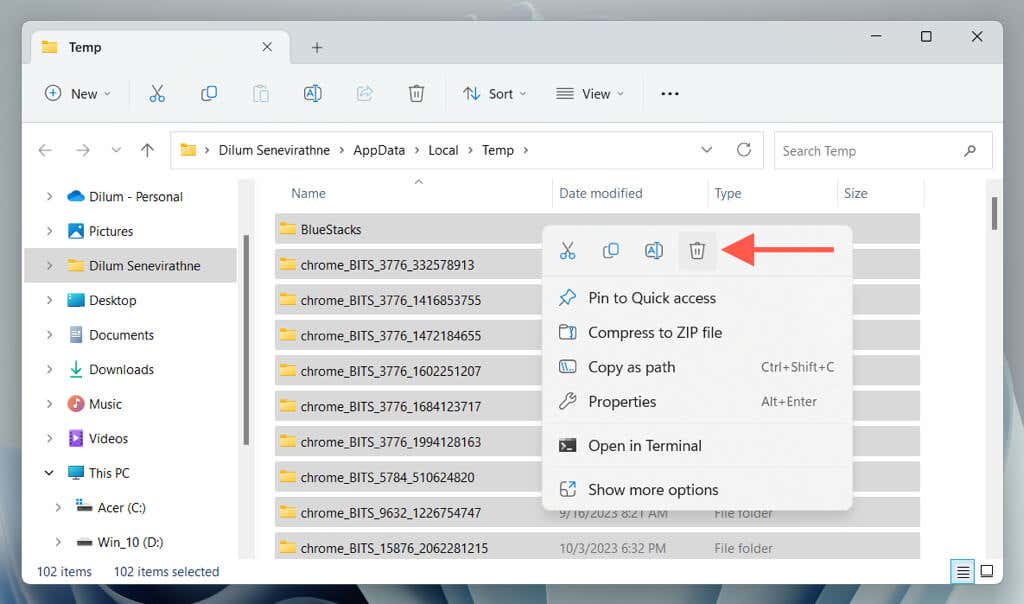
- On the File Explorer window, highlight all files and folders—press Control + A —and select Delete . Choose Skip if Windows notifies you of any items it can’t remove.
Restart Your Computer
Still no luck? It’s a good idea to reboot Windows before moving on with the rest of the instructions. Just open the Start menu and select Power > Restart . If you see an Update and restart option, choose that instead.
Run the Program Install and Uninstall Troubleshooter
Microsoft’s Program Install and Uninstall troubleshooter rectifies program installation errors caused by broken registry entries. To run it:
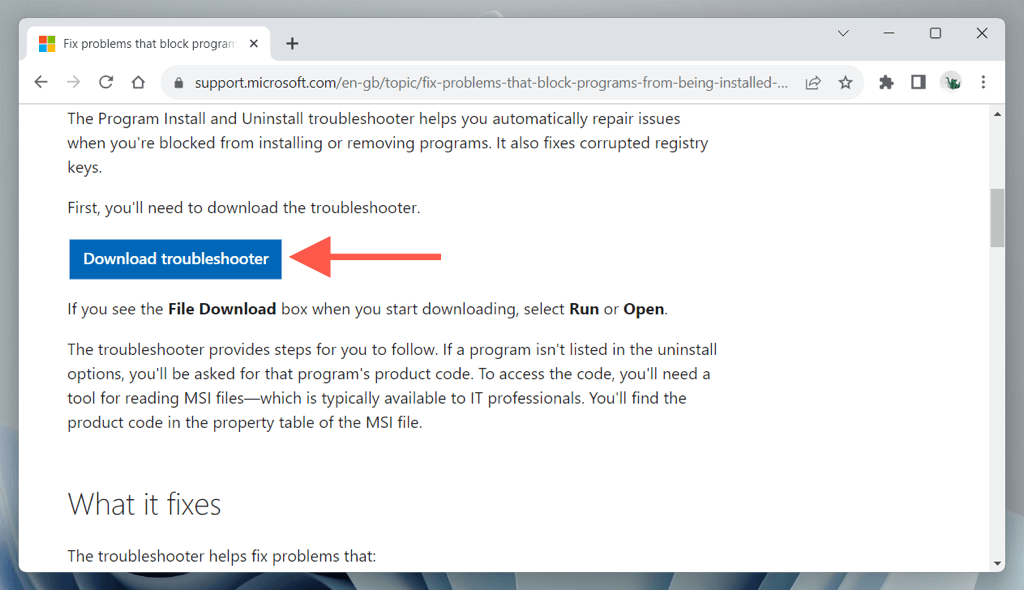
- Visit the Program Install and Uninstall troubleshooter page on Microsoft.com and select Download troubleshooter .
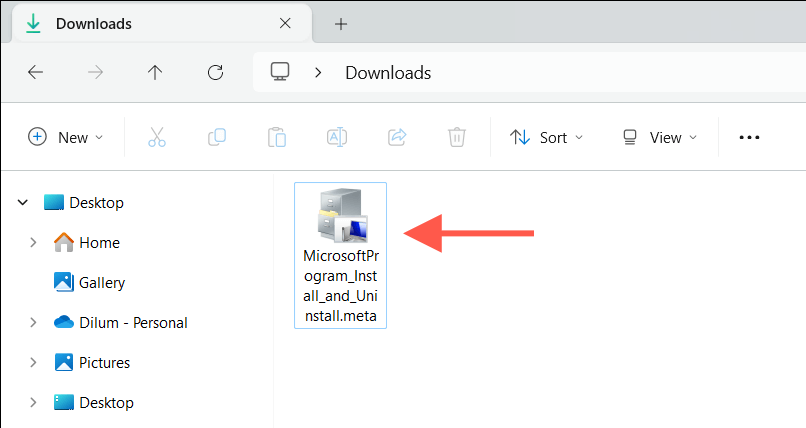
- Go to your computer’s Downloads folder and double-click the MicrosoftProgram_Install_and_ Uninstall .meta.diagcab file.
- Select Advanced and check the box next to Apply repairs automatically . Then, choose Next .

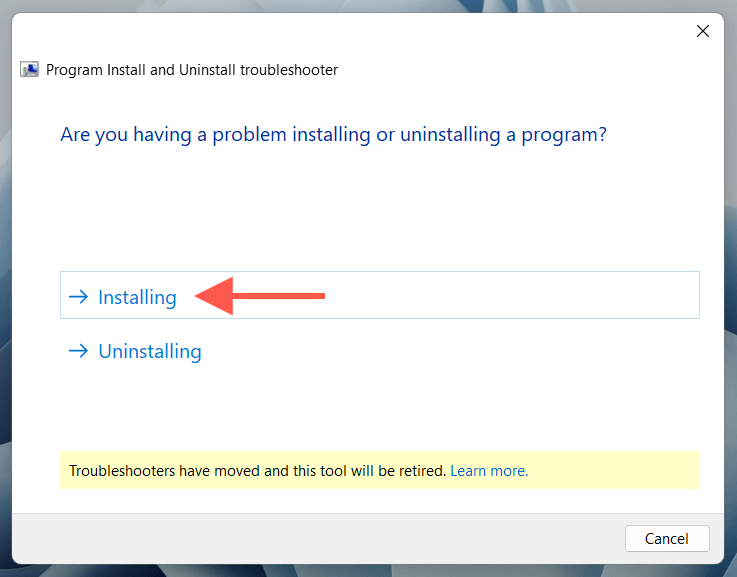
- Select the option labeled Installing .
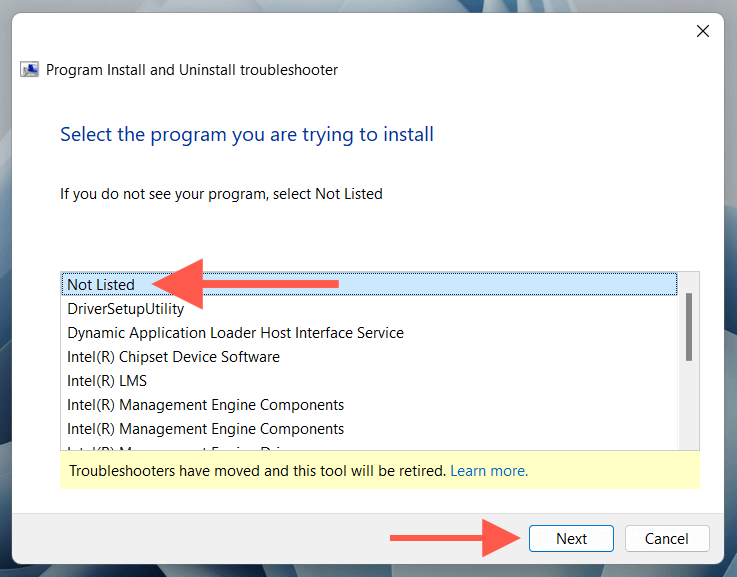
- Highlight the Not Listed option and select Next .
- Wait until the troubleshooter scans for and fixes any issues preventing you from installing applications on your PC.
Repair the Microsoft Visual C++ Redistributables
The EA App relies on multiple Microsoft Visual C++ software libraries to function. Hence, another way to resolve the INST-14-1603 error is to check for and resolve corruption issues with all redistributable installations in Windows. To do that:
- Right-click the Start button and select Apps & Features (Windows 10) or Installed apps (Windows 11).

- Highlight an instance of Microsoft Visual C ++ Redistributable and choose Modify .

- On the Modify Setup dialog box that appears, select Repair .

- Repeat for all other instances of Microsoft Visual C ++ Redistributable .
Alternatively, you can repair the Visual C++ redistributables using the Windows Control Panel . Type Control Panel into the Start menu, select Open , and choose Programs and Features . Then, select each instance of Microsoft Visual C ++ Redistributable and choose Change > Repair .
Remove and Reinstall the Microsoft Visual C++ Redistributables
If the EA App’s INST-14-1603 error persists, you must remove and reinstall the Microsoft Visual C++ redistributables on your computer. Here’s how:
Revisit the Apps and Features , Installed app , or Programs and Features console.
Note down the C++ redistributable versions on your computer. Then, select each instance and choose Uninstall .
Visit the Microsoft Visual C++ Redistributable Downloads page and download and reinstall the Visual C++ redistributables you removed from the previous step.
Repair the Microsoft .NET Framework
A corrupt Microsoft .NET Framework is another reason for the EA App’s INST-14-1603 error. Download and run the .NET Framework Repair Tool to rule that out. Just:
- Visit the .NET Framework Repair Tool’s Download page and select Download .

- Run the downloaded NetFxRepairTool. exe file.

- Check the box next to I have read and accept the license terms and select Next .

- Select Next on the Recommend changes screen.

- Wait until the Microsoft .NET Framework Repair Tool applies the recommended fixes and select Finish .
Update Windows to Its Latest Version
Running an outdated version of Windows 10 or 11 can result in compatibility issues, preventing you from installing applications. If it’s been a while since you last updated the operating system:
- Open the Windows Settings app.

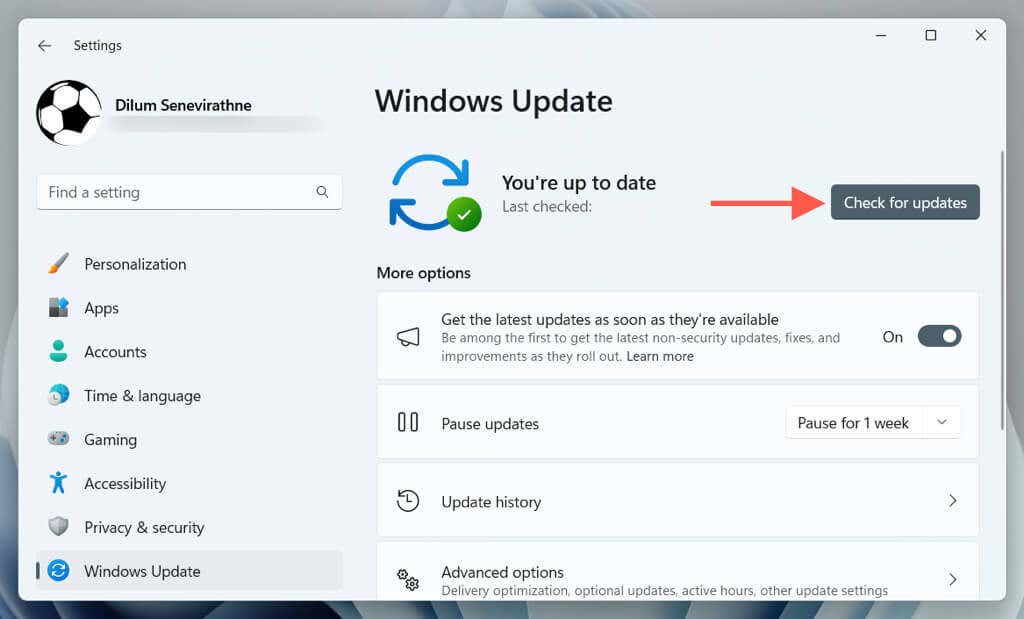
- Choose Windows Update and select the Check for updates button.
- If updates are available, select Download and install . Restart your computer after the updates are completed, and rerun the EA App installer.
Run the System File Checker
The System File Checker (SFC) is a built-in command-line tool that checks for corrupt system files. To run it:
- Right-click the Start button and select Windows PowerShell/Terminal (Admin) .

- Type sfc /scannow and press Enter .
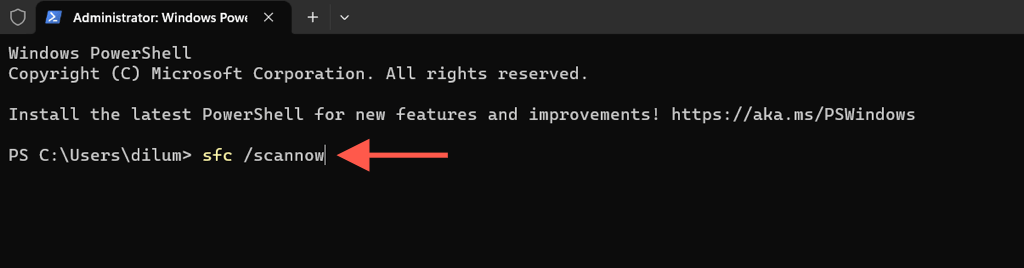
- Wait until the System File Checker checks and fixes any system file errors within the hard drive or SSD.
Follow up the System File Checker with a DISM (Deployment Image Servicing and Management tool) scan for better results.
Create a New Windows Account
If none of the fixes above work, the INST-14-1603 might stem from an underlying problem within your Windows account. To check, try installing the EA App on a new user account. Here’s what you must do:
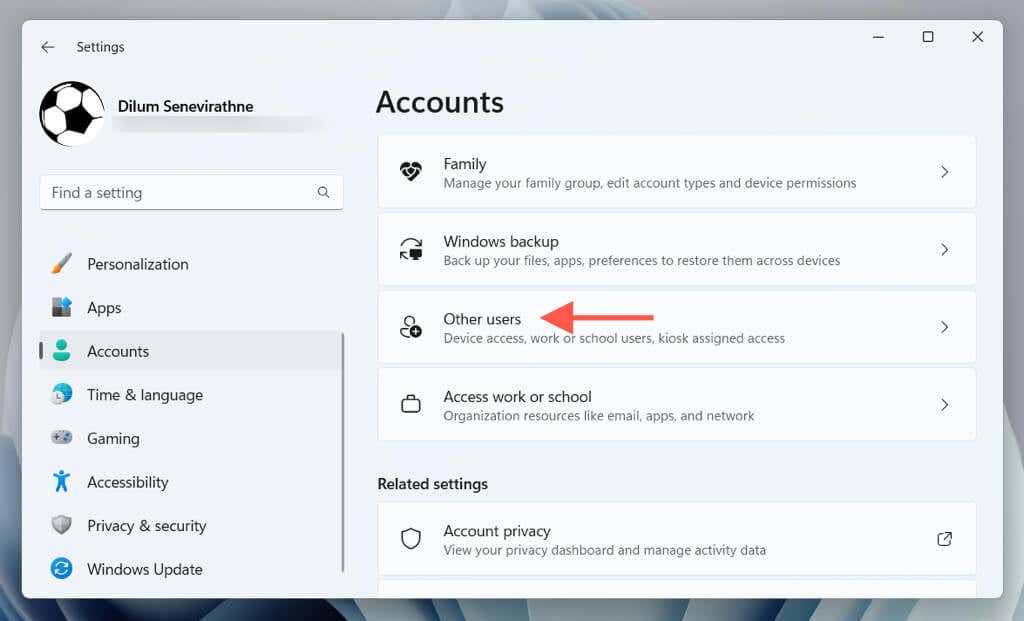
- Open the Settings app and navigate to Accounts > Other users .
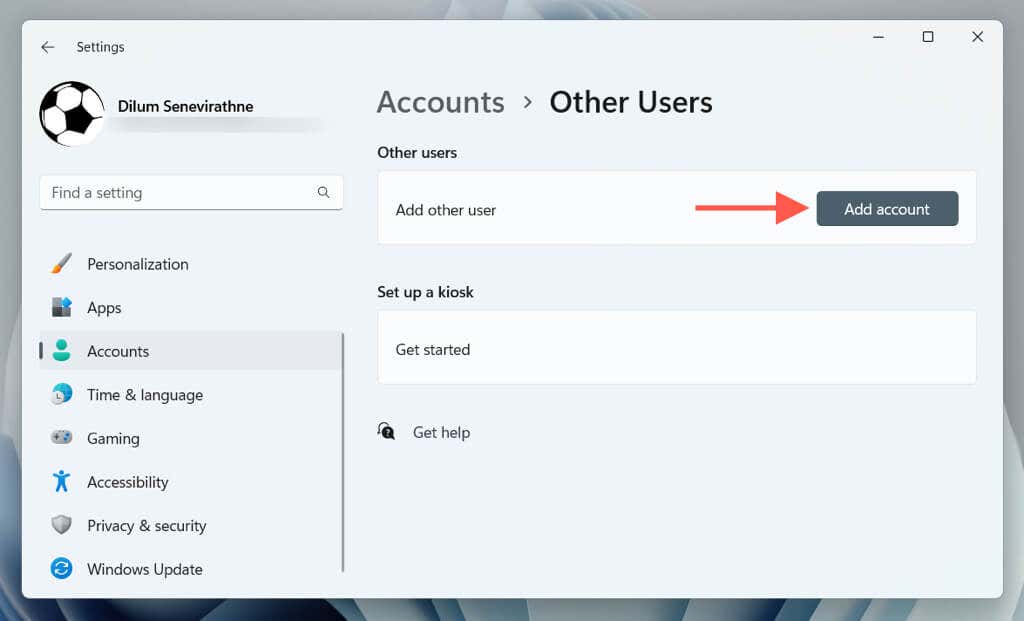
- Select the button labeled Add account .
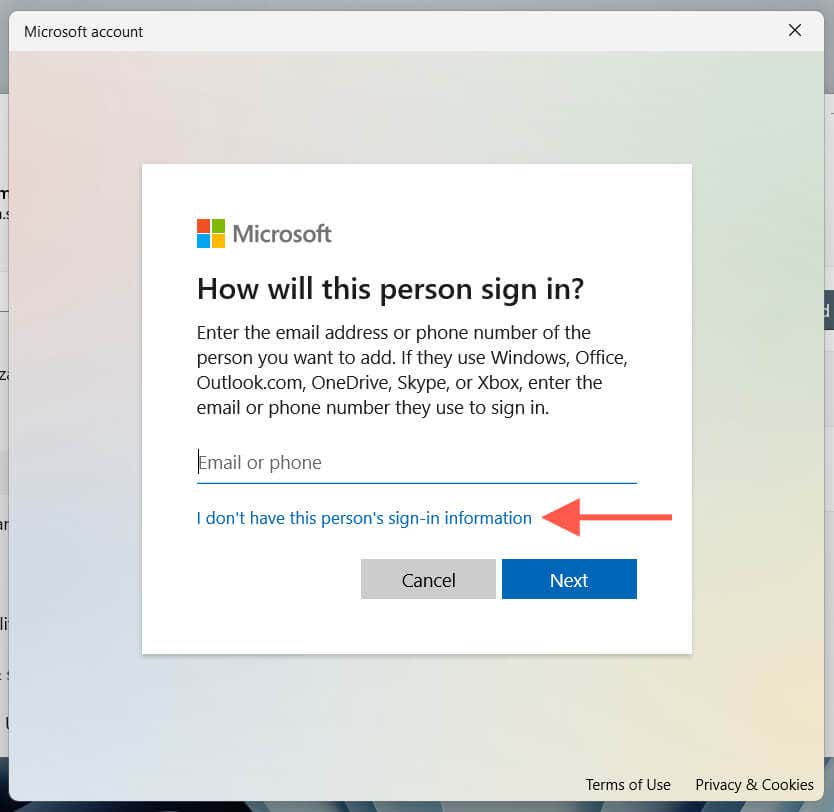
- Select I don’t have this person’s sign-in information .
- Select Add a user without a Microsoft account .

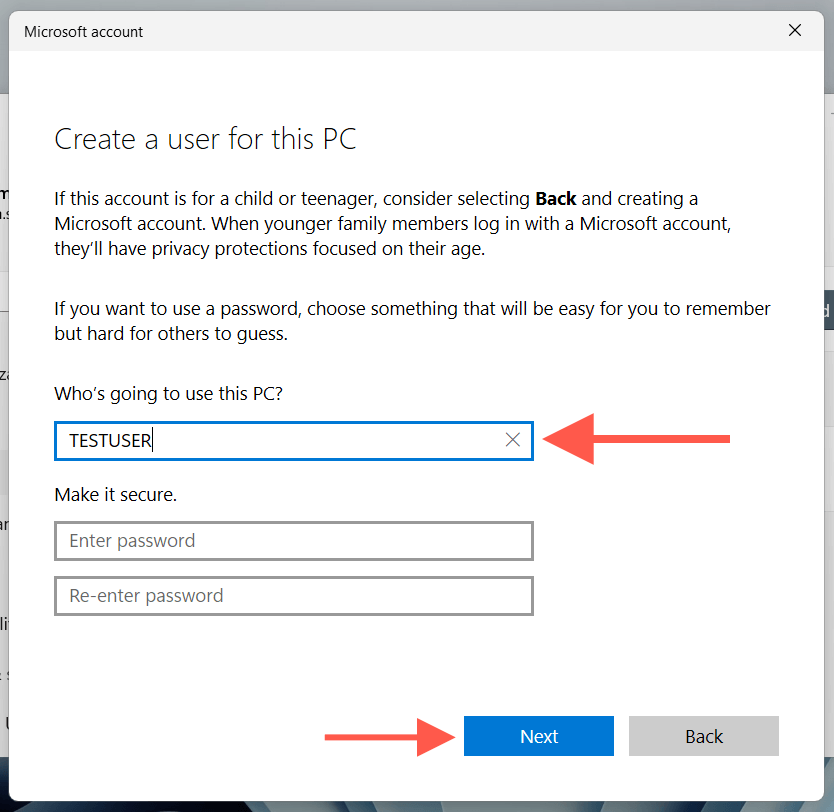
- Enter a username and password (optional) and select Next .
- Open the Start menu, select your user name, and log into the new account.

- Attempt to install the EA app again. If that fixes error code INST-14-1603, you should migrate your user profile data into the new account .
EA App Error Code INST-14-1603 Fixed
As you just learned, you know several methods to fix EA App error code INST-14-1603 on your Windows 10 or 11 PC. Whether it’s running the installer as an administrator, repairing the Visual C++ redistributables, or creating a new Windows account, one of the solutions above should work. If they don’t, it’s time to contact EA Support .
- What to Do if EA Desktop or Origin Won’t Open
- How to Optimize Your Windows 11 PC for Gaming
- Computer Freezes When Playing Games? 6 Ways to Fix
- Riot Client Not Opening? 6 Ways to Fix It
- How to Change Screenshot Button in Steam or Steam Deck
Dilum Senevirathne is a freelance tech writer and blogger with three years of experience writing for online technology publications. He specializes in topics related to iOS, iPadOS, macOS, and Google web apps. When he isn’t hammering away at his Magic Keyboard, you can catch him binge-watching productivity hacks on YouTube. Read Dilum’s Full Bio
