When HP Smart displays the “Printer status unknown” error, the app can’t communicate with your printer. Issues with your printer connection, firmware, or driver are often responsible for this error message. However, several other factors could also trigger it.
This tutorial covers seven ways to fix the “Printer status unknown” error in the HP Smart app for Windows.
Before you proceed, verify that your printer is compatible with the HP Smart app. Most wireless printers manufactured in 2009 or earlier aren’t supported. Visit this MyHPSupport webpage to check if the HP Smart app supports your printer model.
Reboot Your Devices
Restarting your printer and computer can set things right with the HP Smart application. Unplug the printer’s power cable and plug it back after a few seconds.
Power on the printer and check if the HP Smart app identifies your printer. Reboot your computer if the error message persists.
Use HP Diagnostics Tools
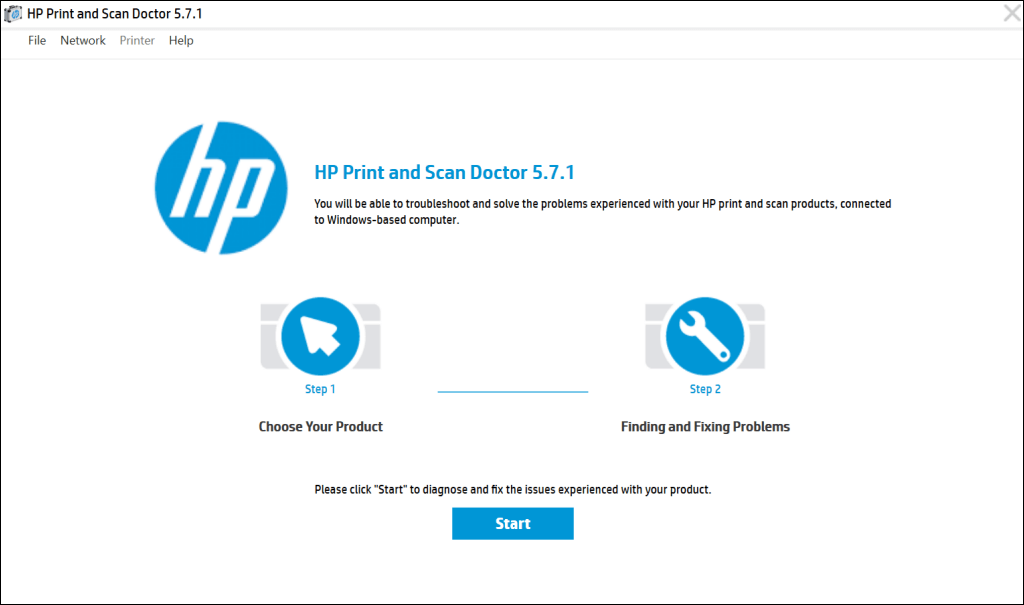
The “Print and Scan Doctor” app can diagnose and fix common problems with HP printers and scanners in minutes. Download and run the HP Print and Scan Doctor app, connect your printer to your PC and follow the diagnostic instructions.
HP Support Assistant is another diagnostic tool for troubleshooting HP printers in Windows and ChromeOS. The app is pre-installed on new HP notebooks and desktop computers. If you have a non-HP PC, download the HP Support Assistant tool from HP’s website.
Get Your Printer Online
HP Smart app might display the “Printer status unknown” error message if your printer is idle or offline. If your printer goes into sleep or standby mode after a period of inactivity, press the power button to “wake” it. Depending on your printer model, starting a print job from your computer will also wake it from sleep mode.
Additionally, ensure your printer and computer are on the same network (Wi-Fi or Ethernet) as your computer. Interference from nearby devices (microwave, telephones, etc.) and network issues can cause your printer to go offline. Reboot your router and disable any firewall or virtual private network (VPN) on your computer to get your printer online.
Refer to our tutorial on getting an offline printer back online for more troubleshooting solutions. Also, try these troubleshooting fixes for common printer problems in Windows 10 and 11.
Update Your Printer’s Firmware
HP releases periodic firmware updates for its printers. These updates help fix malfunctions and help you get the most out of your HP printer.
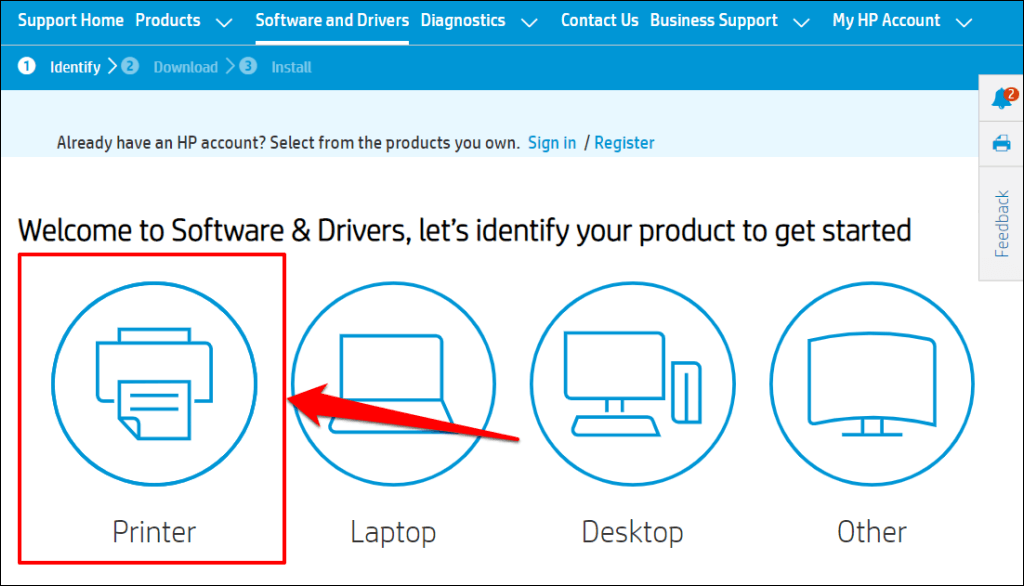
- Head to the Software and Driver Downloads page on HP’s website and select Printer .
- Enter your printer’s name or model in the dialog box and select Submit .
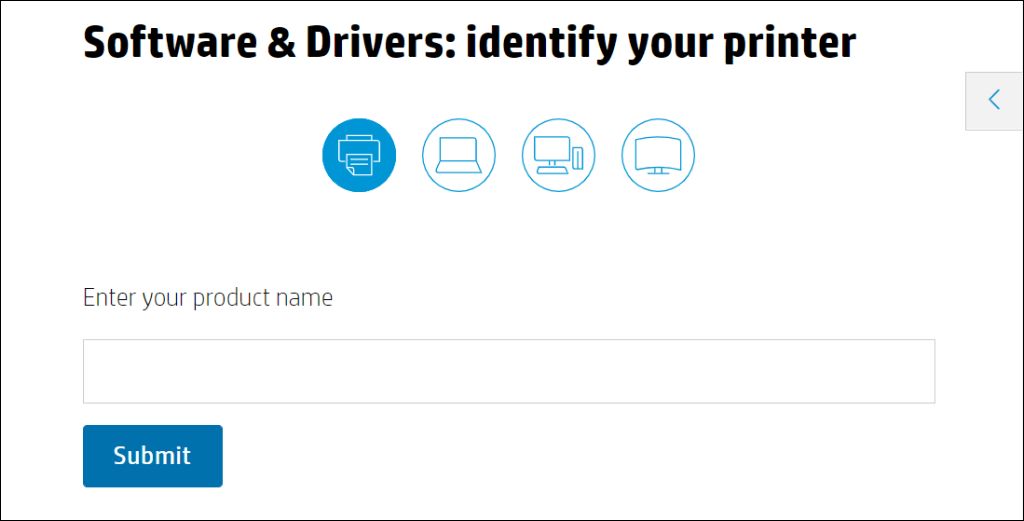
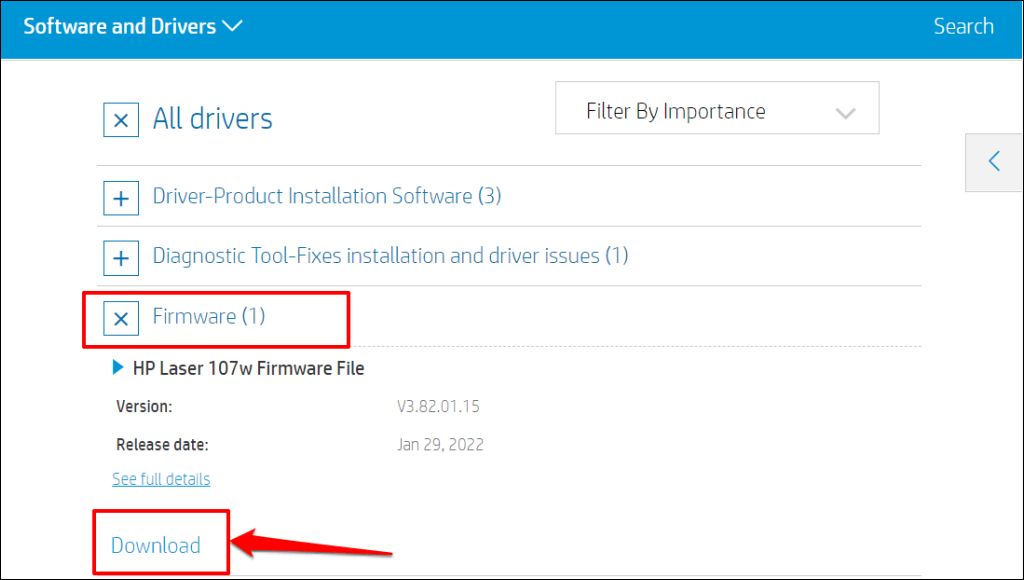
- Expand the “Firmware” section and download the latest version available for your computer.
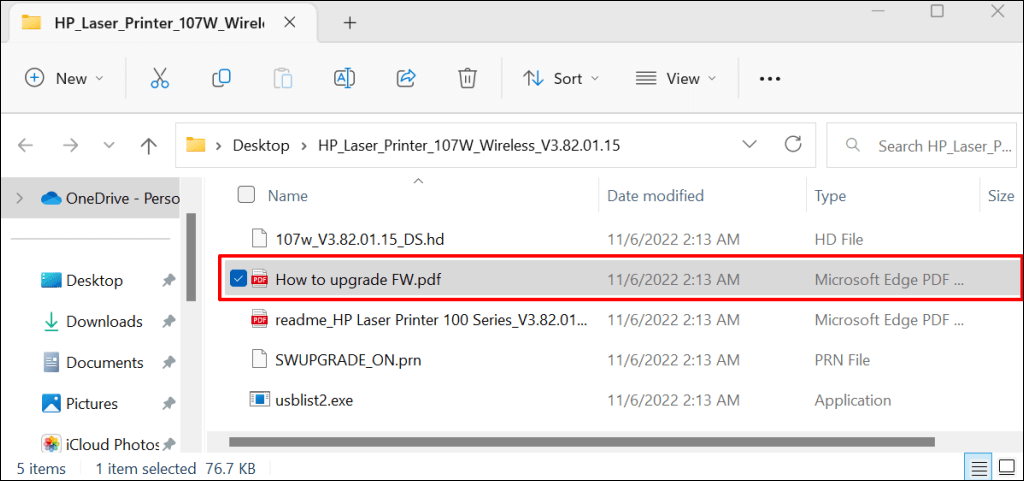
- Unzip the downloaded file and open the attached PDF file to learn how to install the firmware upgrade.
Refer to this HP Support tutorial to learn other ways to update the firmware on your HP printer.
Repair and Reset the HP Smart App
Windows has a built-in repair tool that diagnoses and fixes apps that aren’t working right. Repair the HP Smart app if it doesn’t recognize your printer. Reset the app if the “Printer status unknown” persists after the repair operation.
Close the HP Smart app and follow the steps below to repair or reset the app.
- Go to Settings > Apps > Installed apps , select the three-dot icon next to the HP Smart app, and select Advanced options .
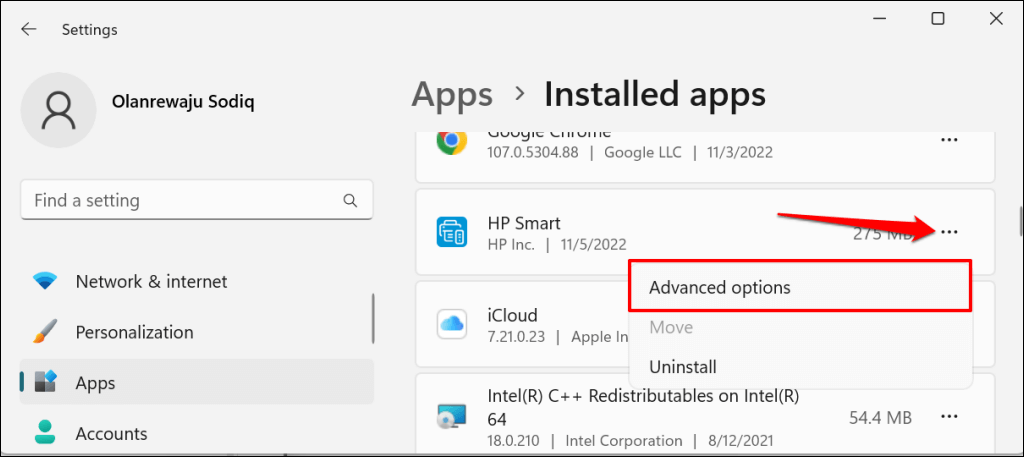
- Scroll to the “Reset” section and select the Repair button.
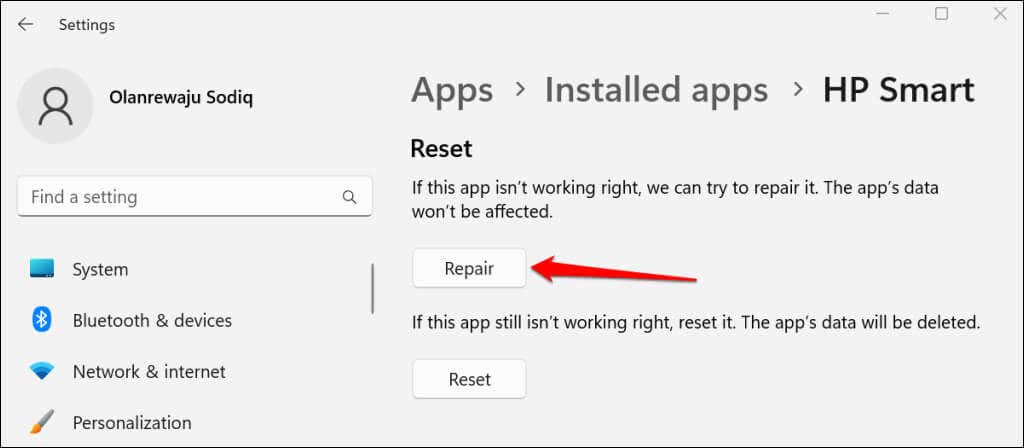
When the repair operation is complete, you’ll see a checkmark next to the Repair button. Relaunch the HP Smart app and check if the app now detects your printer.
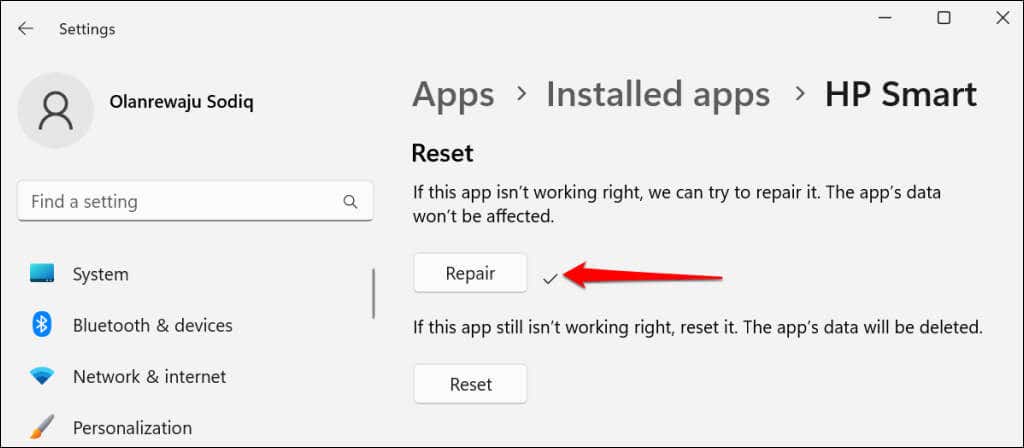
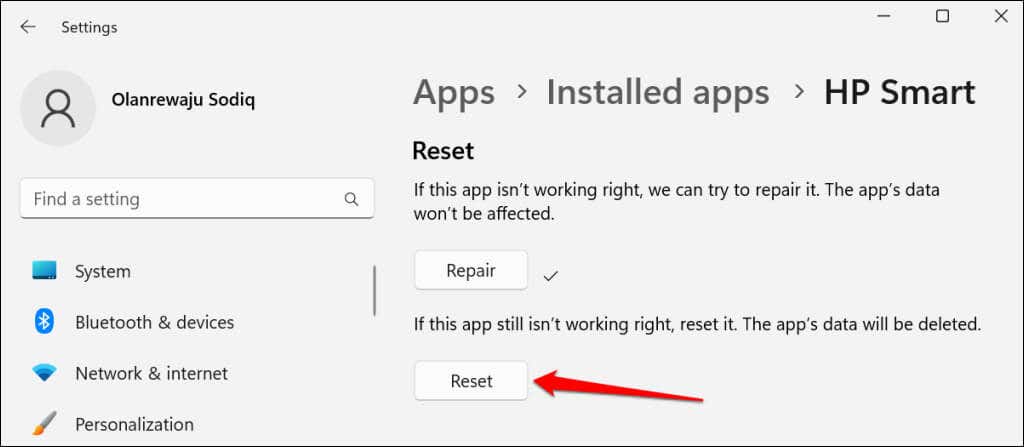
Close and reset the app if it still displays the “Printer status unknown” error. Resetting HP Smart deletes the app’s data, so you’ll need to set up your printer from scratch.
- Select the Reset button to reset the HP Smart app to its default settings.
- Select Reset on the pop-up to continue.
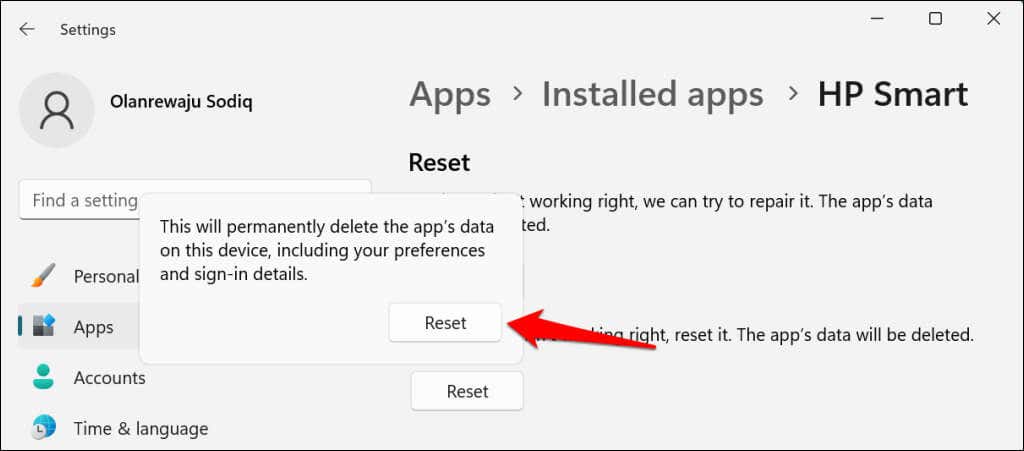
Relaunch HP Smart when you see a checkmark next to the reset button. Delete and reinstall the application if the issue persists.
Reinstall the HP Smart Application
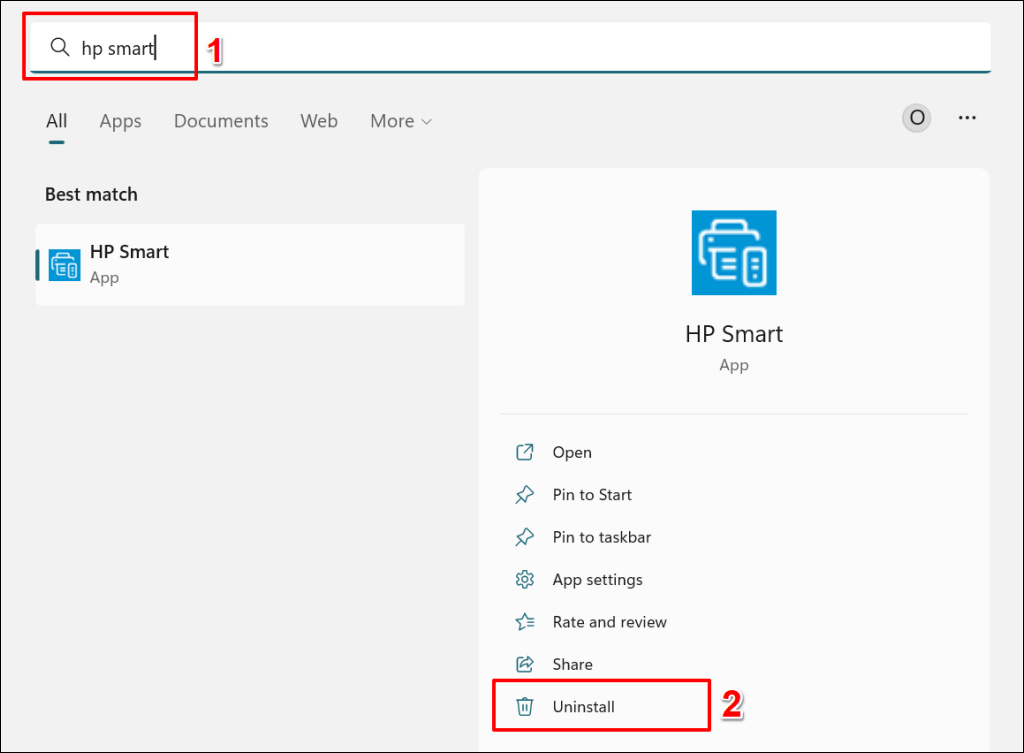
Open the Start menu , type hp smart in the search bar, and select Uninstall below the HP Smart application.
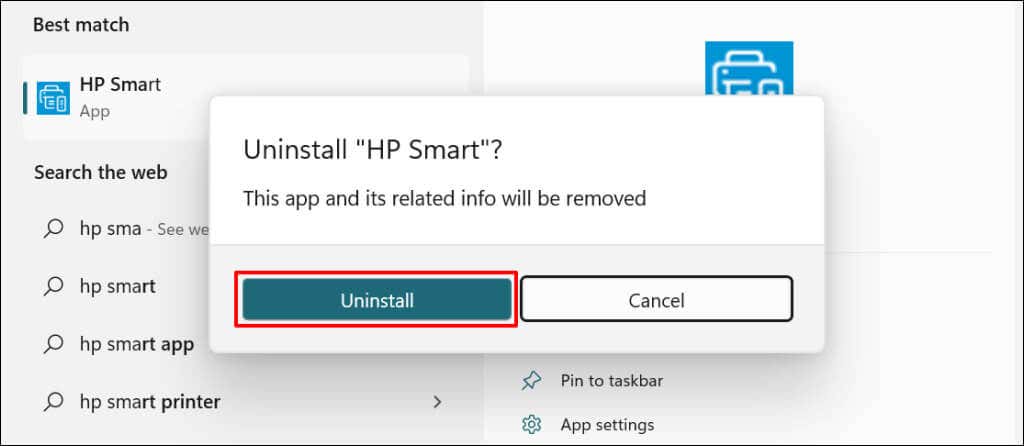
Select Uninstall on the pop-up to remove HP Smart and its data from your computer.
Reboot your computer, download the HP Smart setup file, and reinstall the app on your PC. Add your printer to the HP Smart app again and check if that resolves the “Printer status unknown” error.
Remove and Reinstall Your Printer
The HP Smart app may malfunction if your printer drivers are corrupt or obsolete. Delete the printer and its driver from your computer and set up the printer from scratch.
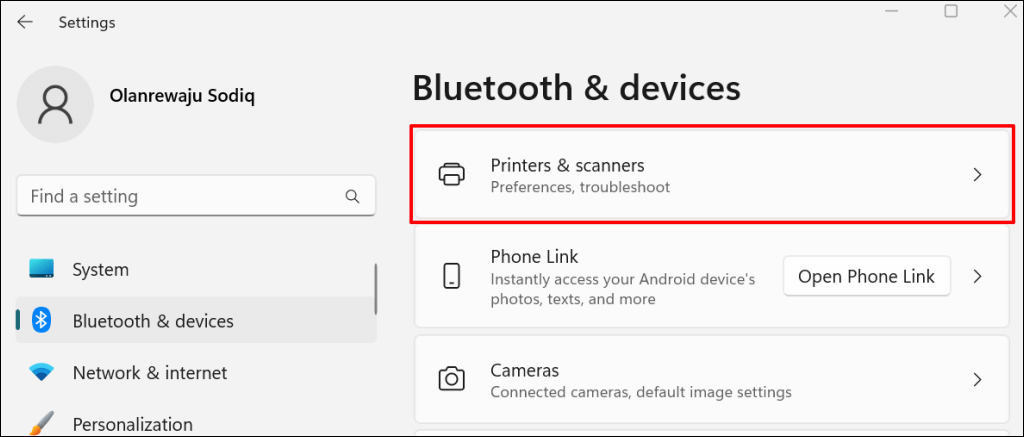
- Go to Settings > Bluetooth & devices > and select Printers & scanners .
- Select the affected printer.
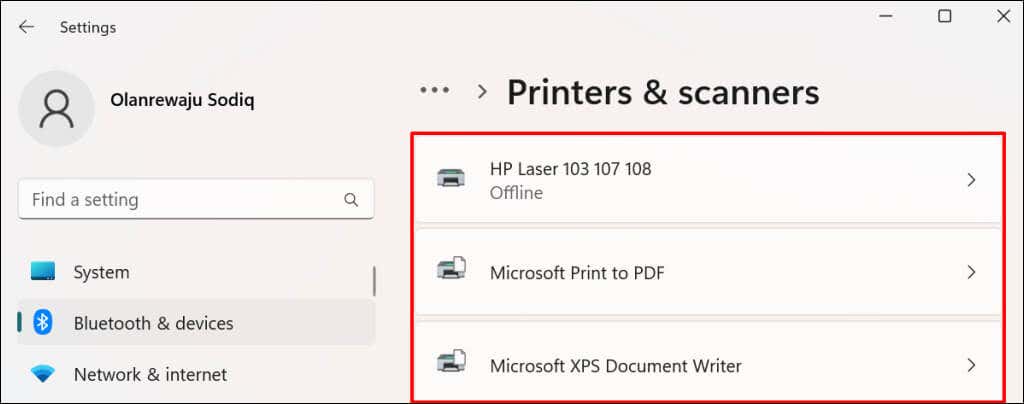
- Select Remove and select Yes on the confirmation prompt.
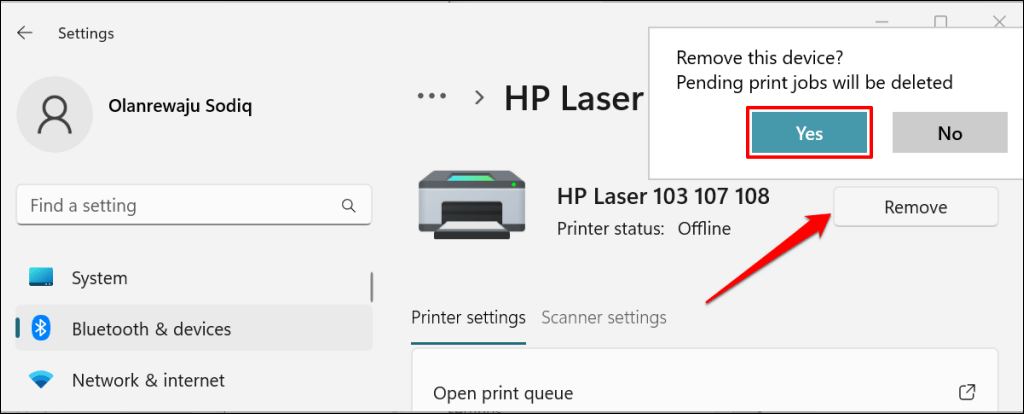
The next step is to remove the printer’s driver from your computer.
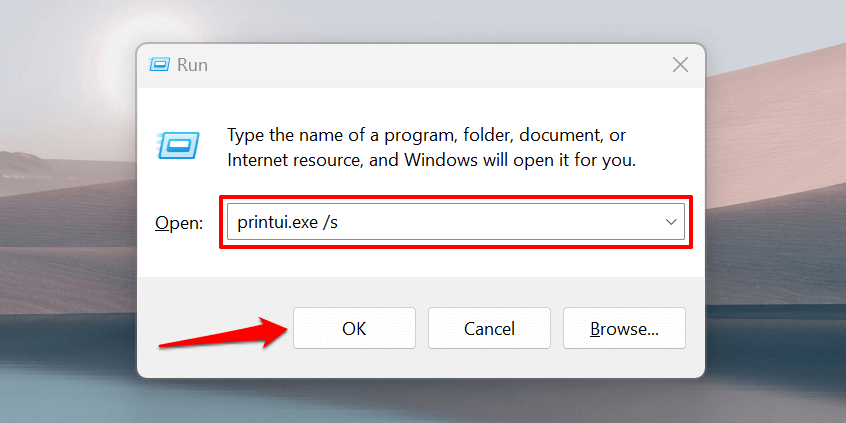
- Press the Windows key + R to open the Windows Run box . Type or paste printui.exe /s in the dialog box and select OK .
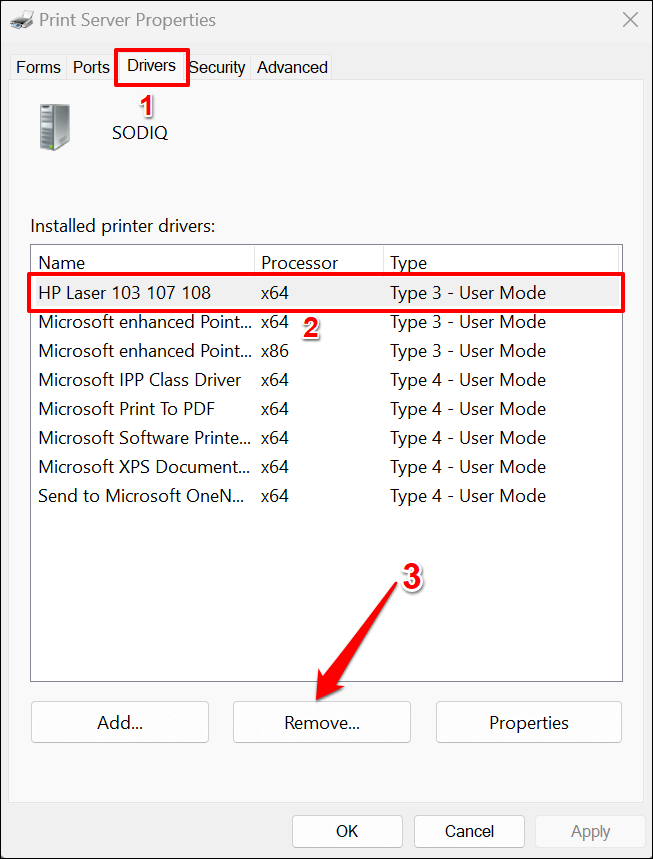
- Head to the “Drivers” tab, select the printer’s driver, and select Remove .
- Choose Remove driver and driver package and select OK .
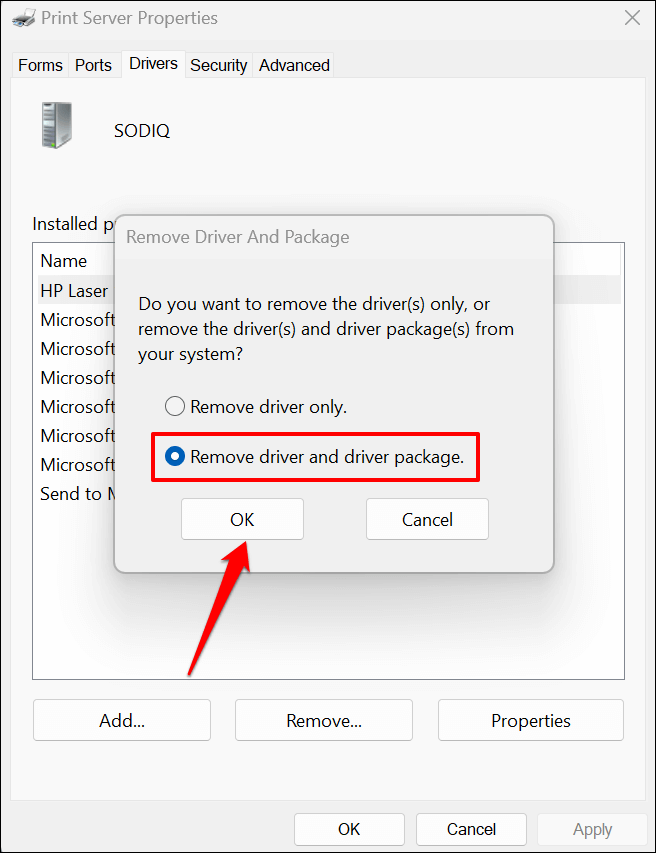
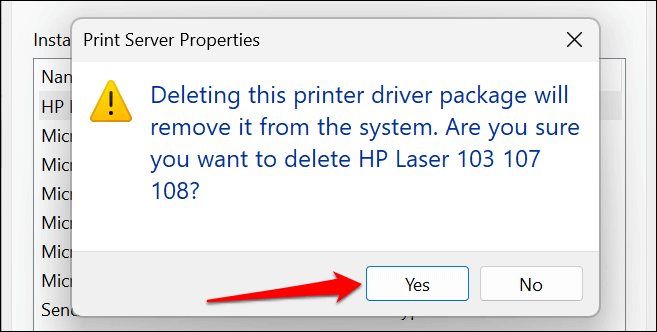
- Select Yes on the pop-up to remove the printer’s driver and driver packages from your computer.
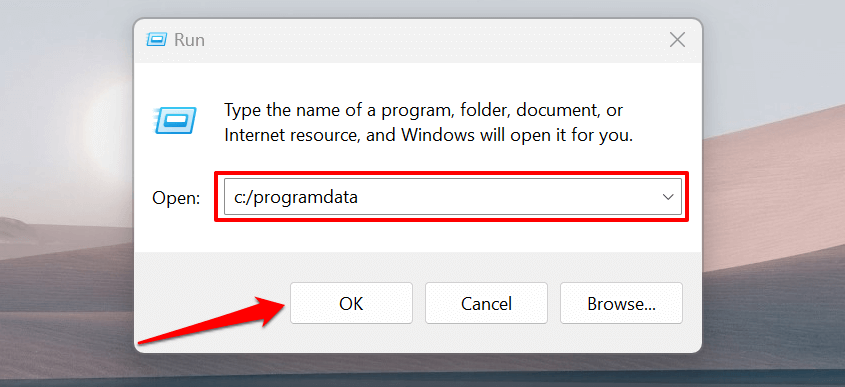
- The final step is deleting the printer’s leftover files. Open the Windows Run box ( Windows + R ), paste c:/programdata in the dialog box, and select OK .
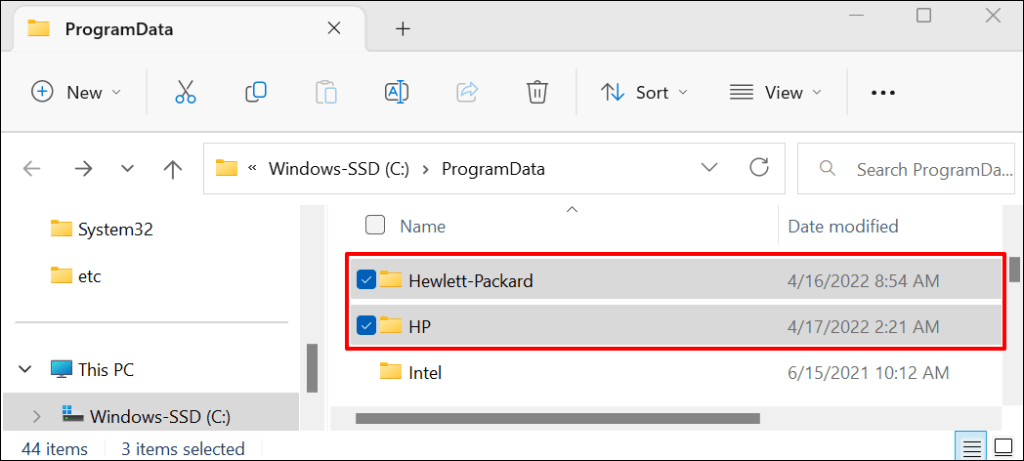
- Locate and open the HP or Hewlett-Packard folders.
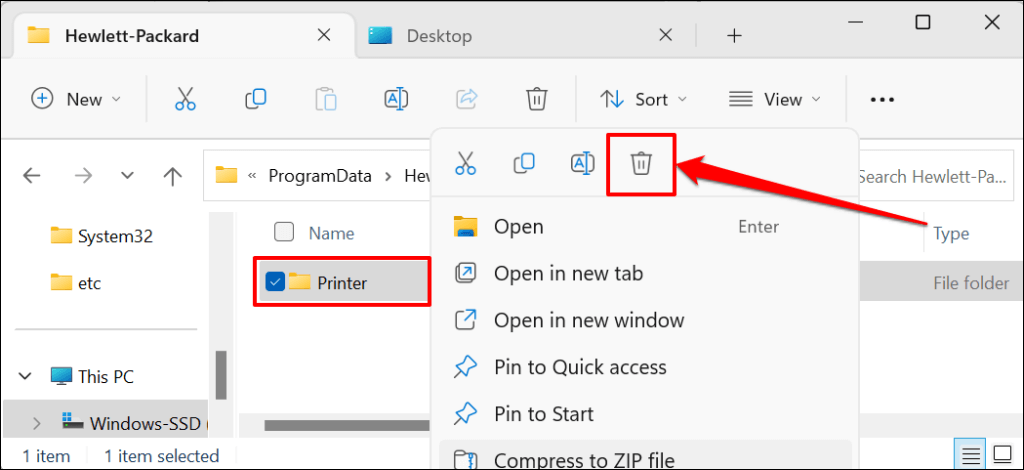
- Delete the Printer subfolder and any printer-related file or folder.
Reboot Windows and reconnect the printer to your computer . The printer should automatically install its driver when connected to your PC. Otherwise, download and reinstall the latest driver for your printer model from HP’s website .
Printer Status Still Unknown? Contact HP Support
Get in touch with an HP agent or visit an authorized HP service center near you if the HP Smart app still doesn’t recognize your printer.
- How to Fix the “Error – Printing” Status Error in Windows
- HP Printer Not Printing Black? 10 Fixes to Try
- How to Fix Missing or Failed Printhead Error on HP Printers
- How to Add a Printer to Your Chromebook
- How to Fix the Printer Error “0x0000011b” on Windows
Sodiq has written thousands of tutorials, guides, and explainers over the past 4 years to help people solve problems with Android, iOS, Mac, and Windows devices. He also enjoys reviewing consumer tech products (smartphones, smart home devices, accessories, etc.) and binge-watching comedy series in his spare time. Read Sodiq’s Full Bio
I’m a huge fan of HP printers and I think overall they are the best printers for businesses as well as consumers. However, they come bundled with the worst possible software that not only bloats and slows down your system, but doesn’t really help all that much in connecting your computer to your printer, which is the main goal of any printer.
Nowadays, a lot of printers are wireless or at least network-capable, meaning you can plug in a network cable and print without actually having to connect the printer to your computer via USB. It’s absolutely ridiculous if you buy a new printer today and it forces you to connect it to your computer for setup.
Unfortunately, setting up a network or wireless printer is far more complicated just because you now have to deal with all kinds of equipment in between the two devices. Even if you can print to your wireless printer today, you may not be able to a month from now if the IP address accidentality changes or if someone turns on a security feature on your router that prevents communication between devices on the network. There are literally hundreds of things that can go wrong.
In fact, I’ve previously written about troubleshooting WiFi printers and gave six possible solutions for fixing most WiFi printing issues. However, there are some issues that are just manufacturer-specific and at that point, it’s a good idea to simply use the diagnostic tools they have provided.
HP Print and Scan Doctor is a free software utility that helps you quickly address most printing and scanning issues with HP printers. This utility works on everything from Windows XP to Windows 10. Unfortunately, there is no Mac version of this utility yet.
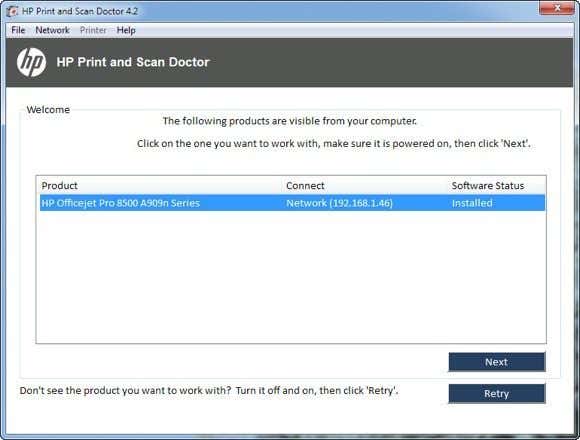
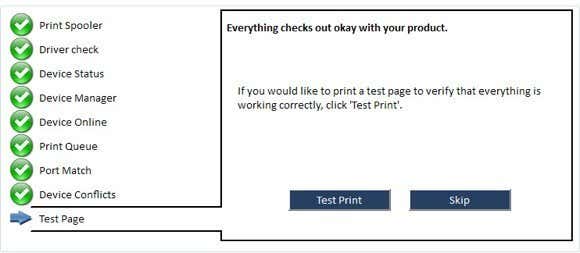
The program checks a bunch of stuff and actually replaces four separate utilities that HP used to have for diagnosing problems with printers. Here’s a quick list of items checked:
Connectivity – If connected via USB, it makes sure the printer is connected properly and if connected via the network, it makes sure your computer is actually connected to the network.
Device Status – Checks to make sure there are no printer errors like out of ink, paper jams, feed issues, etc.
Driver Check – Makes sure the driver is not corrupt or missing.
Device Manager – Checks for issues in Device Manager that could be causing issues.
Print Queue – Clears the print queue if there are stuck jobs.
Port Match/Device Conflicts – Checks the port settings for the printer and makes sure there are no device conflicts with the printer like other drivers or printer brands.
When you start the program up, it will go ahead and perform a search for any HP printer connected via USB, ethernet or wirelessly. Once it shows up, you can then click Next and continue to screen where you can diagnose problems with the printer.
Now what if you’re having issues even getting the printer to show up properly? In that case, the program won’t be able to find your printer and you’ll see this screen:
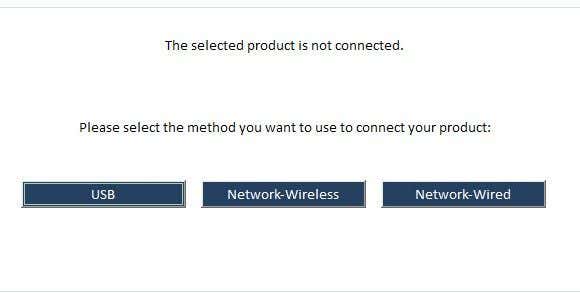
Depending on how you want to connect the printer, the program will give you tips for getting the printer connected. Unfortunately, until you get the printer online at least, the program can’t help you very much. If you have a wireless or network printer and have no idea why it’s not getting an IP address, then connect it to the computer using a USB cable first.
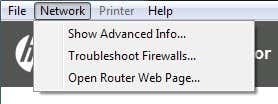
The program also has a menu option called Network where you can see advanced info about your network and you can disable the firewall ( Troubleshoot Firewalls ). That seems to be a major cause of communication errors, so they have that option built right into the program.
Now once your printer shows up in the list like in the first screenshot, go ahead and click Next . Here it’ll detect whether your printer is the default printer or not and give you the option to make it default by clicking a button.
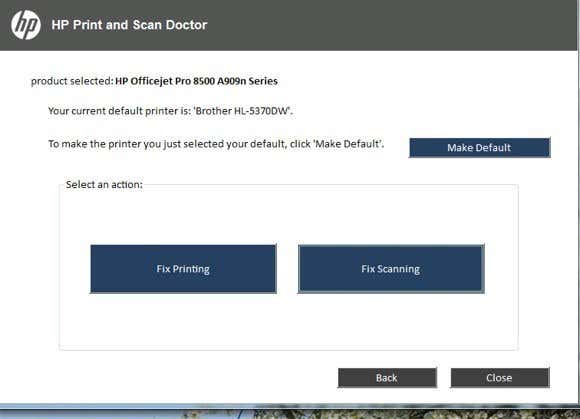
Now to diagnose and fix any problems, click on Fix Printing or Fix Scanning . If you have an HP All-in-One printer that can print and scan, then you can pick exactly which issue is causing problems.
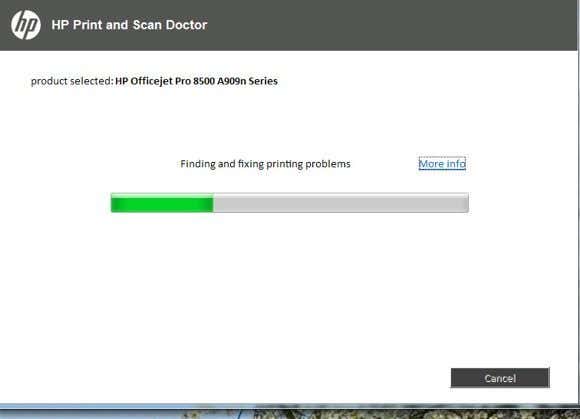
The program will go ahead and start analyzing the printer and your system to see what issues are preventing the printer from printing or scanning. If it finds problems, it will list them out and help you resolve them. If everything is ok, you should see a bunch of green check marks and the option to print a test page.
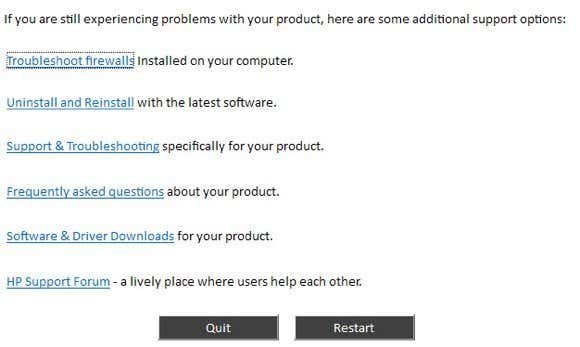
Lastly, the program has some last resort options if the printing issues have not been resolved. You can troubleshoot the firewall, uninstall and reinstall the printing software and get support information for your specific product.
Overall, it’s an excellent tool and makes me wish HP created driver packages for their printers like they created this tool: simple, sleek with no extra fluff. If you’re having issues printing with your HP printer, make sure to download and run the Print and Scan Doctor. Have any questions? Post a comment. Enjoy!
- Google One Explained: Is It Worth Subscribing To?
- What Is Stremio? A Faster Media Center for Your PC
- Stack Browser Review: How It Makes You More Efficient
- O&O ShutUp10 Review – Stop Microsoft From Spying on You
- NetSpot App Review – Professional WiFi Analyzer, Tester, and Troubleshooter
Founder of Help Desk Geek and managing editor. He began blogging in 2007 and quit his job in 2010 to blog full-time. He has over 15 years of industry experience in IT and holds several technical certifications. Read Aseem’s Full Bio
ÿØÿà JFIF ÿÛ „ “##! %*5-%‘2( .?/279«<$-BFA:F5;<
Printers experience several forms of malfunctions, some of which are easy to fix. Fixing printer issues can be a headache—especially on Windows devices—because there’s a wide range of things that could be wrong.
The problem could stem from your PC, the printer, or the connection between both devices. This tutorial highlights ten likely troubleshooting measures for printers that won’t print.
1. Check Paper Tray and Printer Connection
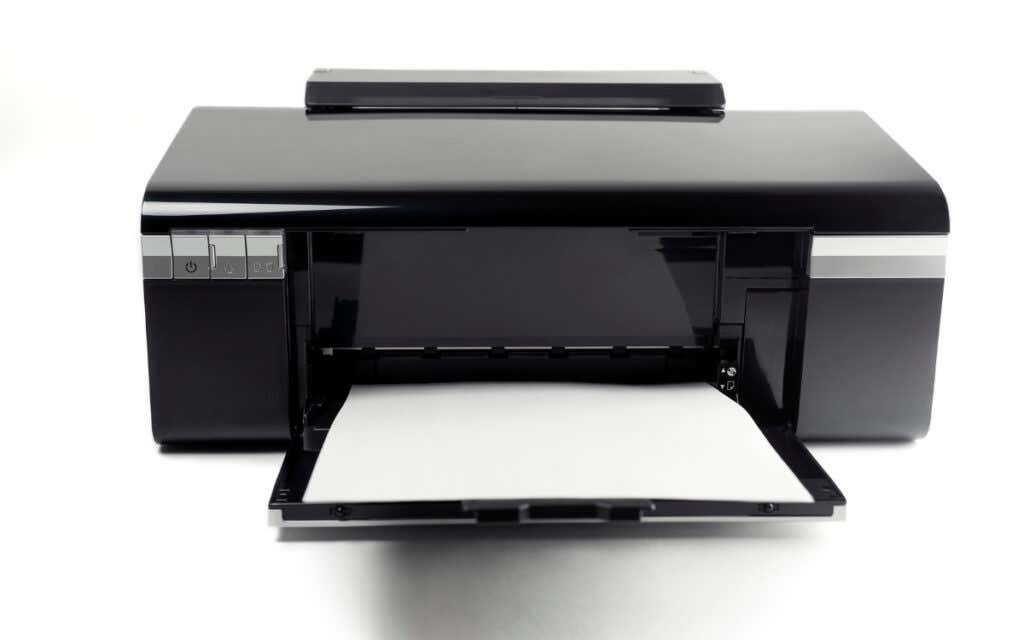
Many printer models won’t print if there’s a loose USB connection or if they’re out of ink or paper. Verify your printer’s ink levels, clean the printhead, fill the paper tray, and avoid using substandard paper. Low-quality paper can cause “Ghost Paper Jams” and other issues that stop your printer from printing documents.
For printers using a wired connection, ensure both cable ends are plugged firmly into your printer and computer. Go through the printer’s manual for instructions on connecting the device to your Windows or Mac computer.
Wireless printers won’t print documents if connected to the wrong Wi-Fi network. Make sure your printer and computer are on the same wireless network. Likewise, check your router settings, disable VPN connections, and make the printer’s IP address static. Refer to our tutorial on troubleshooting Wi-Fi (wireless) printers for more fixes.
2. Run the Printer Troubleshooter
Windows has a suite of troubleshooting tools that diagnoses and resolves hardware and software problems. We recommend running the Printer Troubleshooter before trying other more complex measures.
- Go to Settings > Bluetooth & devices > and select Printers & scanners .
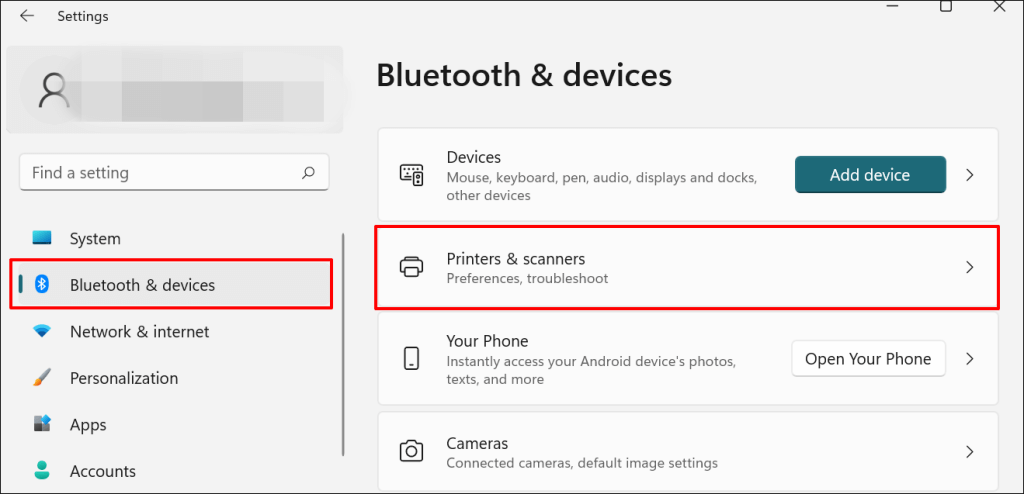
In Windows 10, go to Settings > Devices > Printers & scanners .
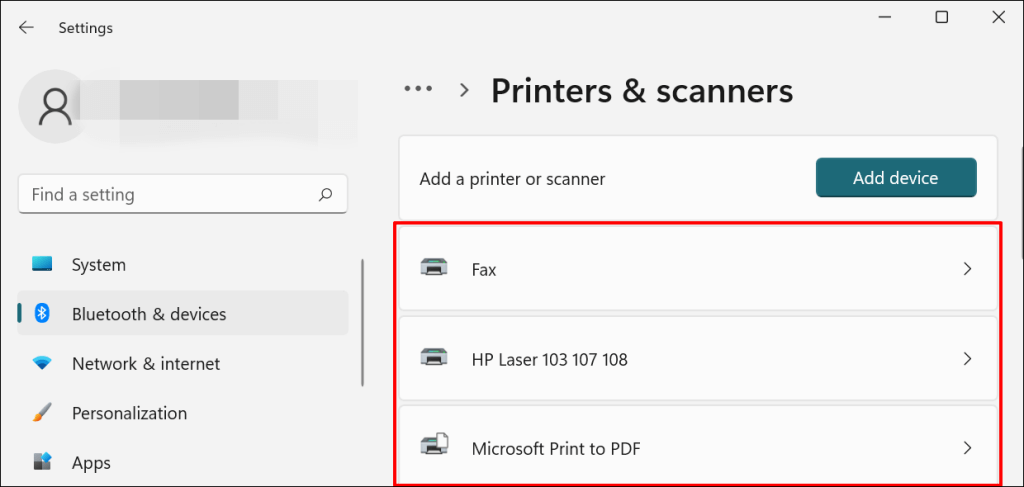
- Select the problem printer from the list of connected devices.
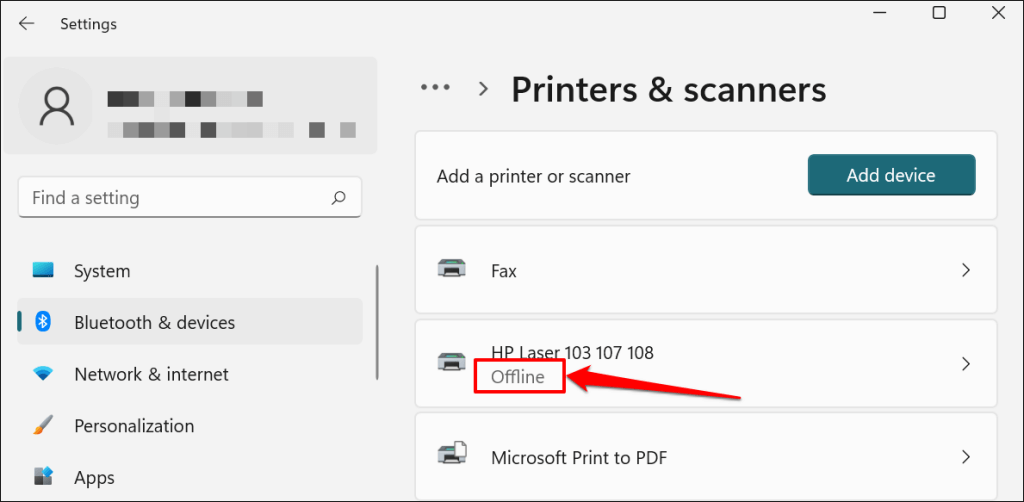
Note: If your printer status reads “Offline,” refer to our troubleshooting tutorial on getting an offline printer back online . Proceed to the next step if your printer is online.
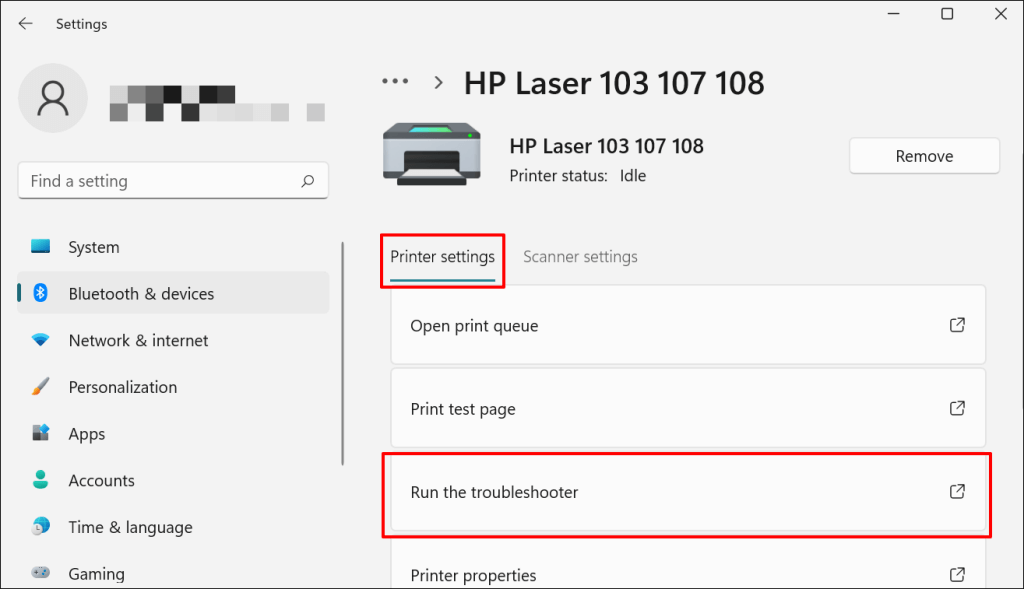
- Select Run the troubleshooter in the “Printer settings” tab.
There’s another way to access the printer troubleshooter in Windows 11. Go to Settings > System > Troubleshoot > Other troubleshooters and select Run next to “Printer.”
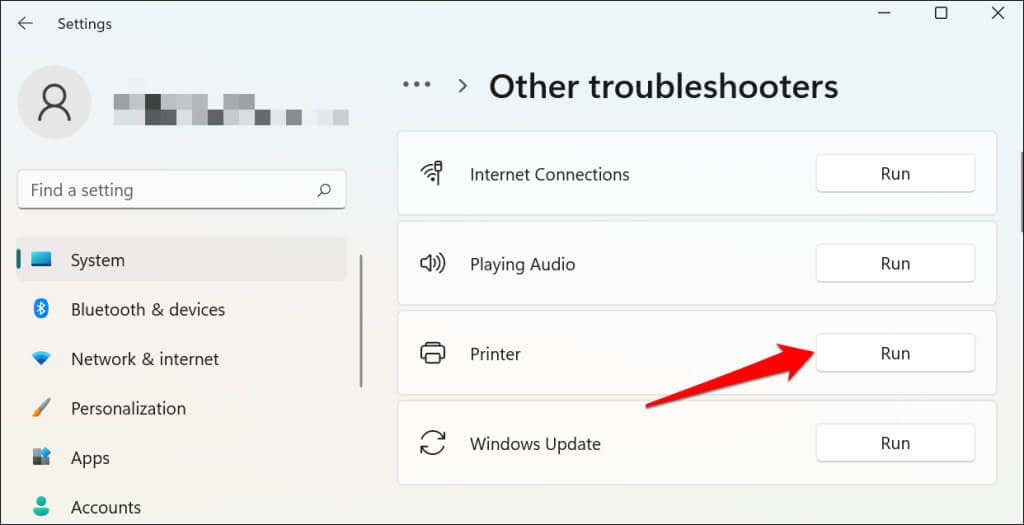
In Windows 10, go to Settings > Update & Security > Troubleshoot and select Additional troubleshooters > Printer > and select Run the troubleshooter .
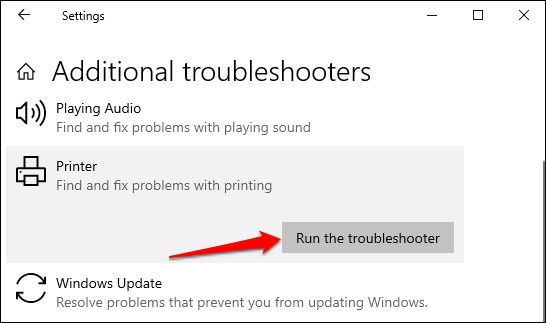
Wait for the troubleshooter to run the necessary check on the printer, its drivers, and other associated processes.
3. Set the Printer As Default
Windows has a feature that dynamically changes your PC’s default printing device based on your location and other factors. The feature is near-perfect but not failproof. If your PC doesn’t print documents, it might be that an inactive printer is the default printing device.
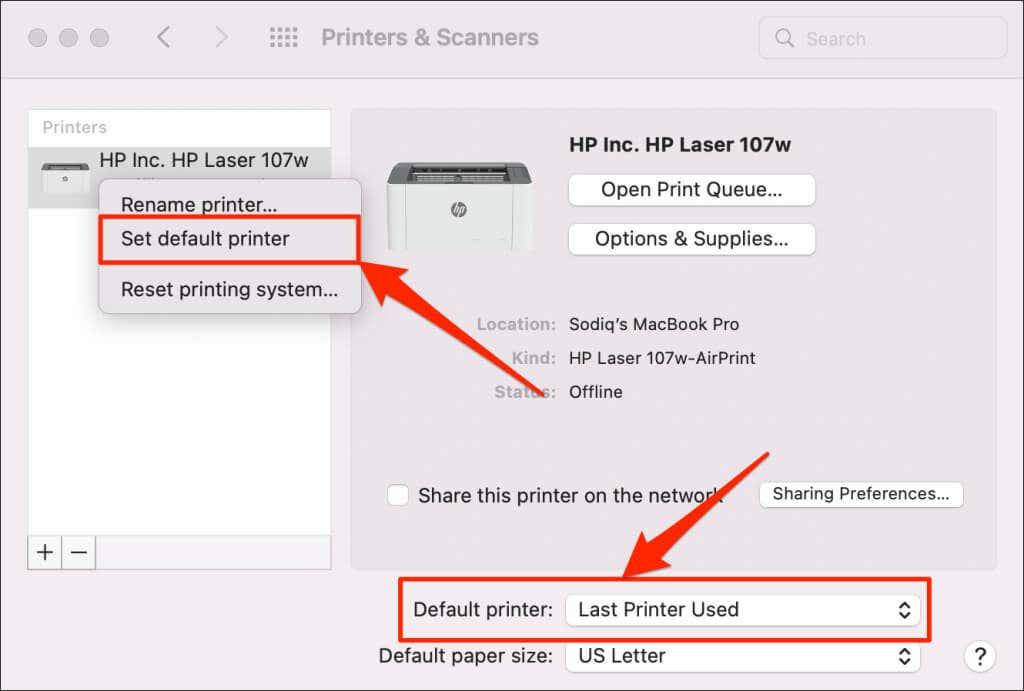
macOS also sets the last printer connected as your Mac’s default printer. Check your computer settings and ensure the active printer is the default device.
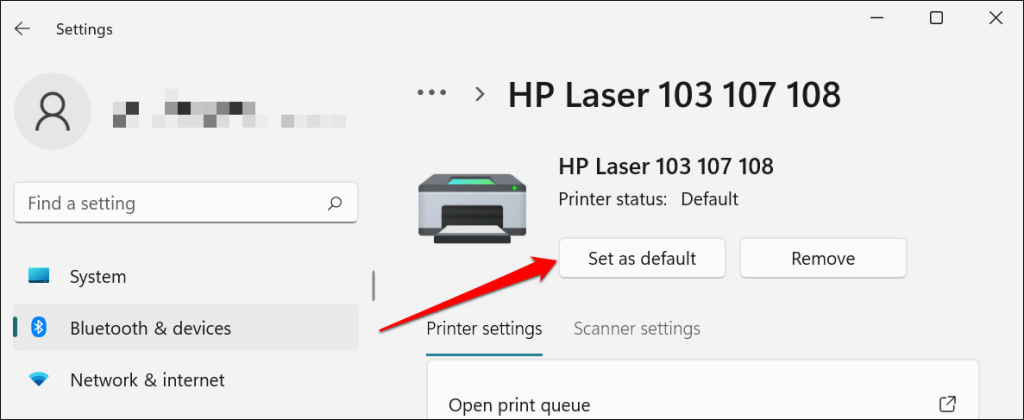
In Windows, go to Settings > Bluetooth & devices > Printers & scanners , select the printer, and select the Set as default button.
On Mac computers, go to System Preferences > Printers & Scanners on Mac computers , right-click the printer, and select Set default printer . Alternatively, open the Default printer drop-down menu and select the printer as the default.
4. Clear Your Computer’s Print Queue
When you send a document for printing, your computer first sends the “print job” to the print queue. The print job is immediately removed from the print queue when the printer prints the document. It’s usually a seamless process, but there are times when completed print jobs remain in the queue.
If that happens, subsequent print jobs will also get stuck in the queue and prevent your printer from printing files. Clearing your computer’s print queue might resolve the problem.
Clear Print Queue in Windows
- Go to Settings > Bluetooth & scanners > Printers & scanners and select your printer.
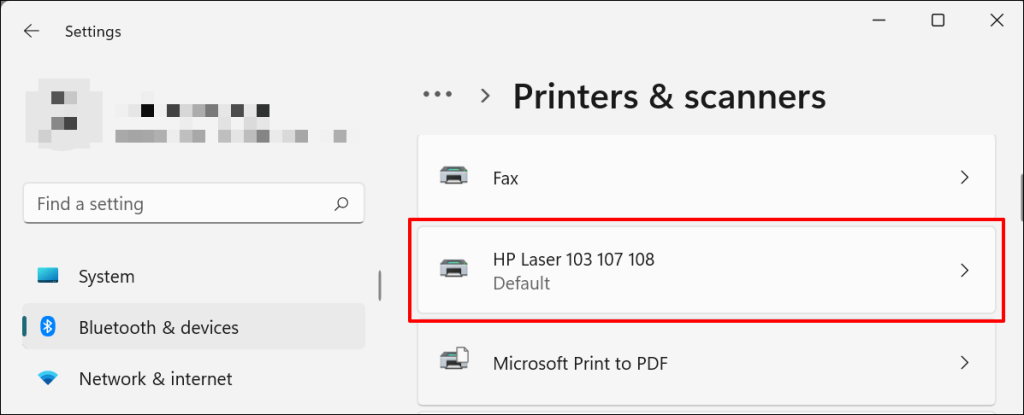
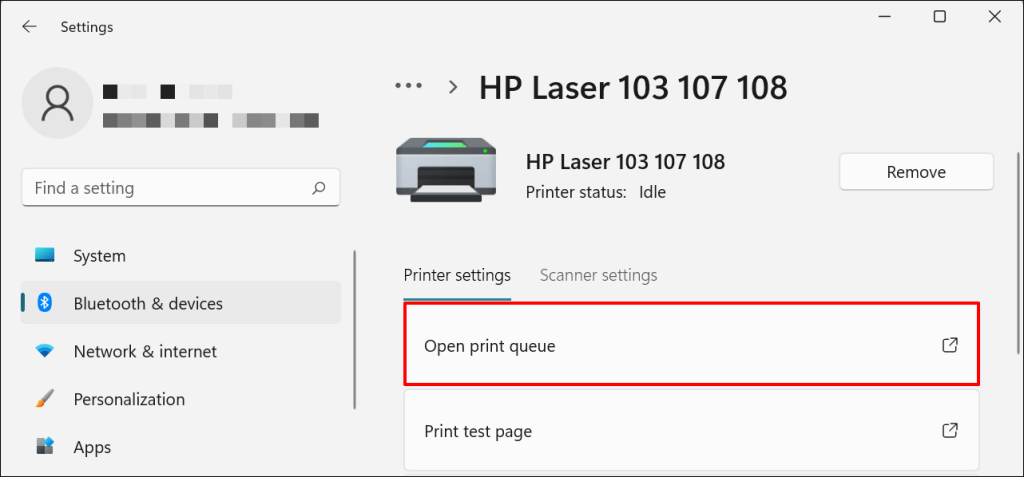
- Select Open print queue .
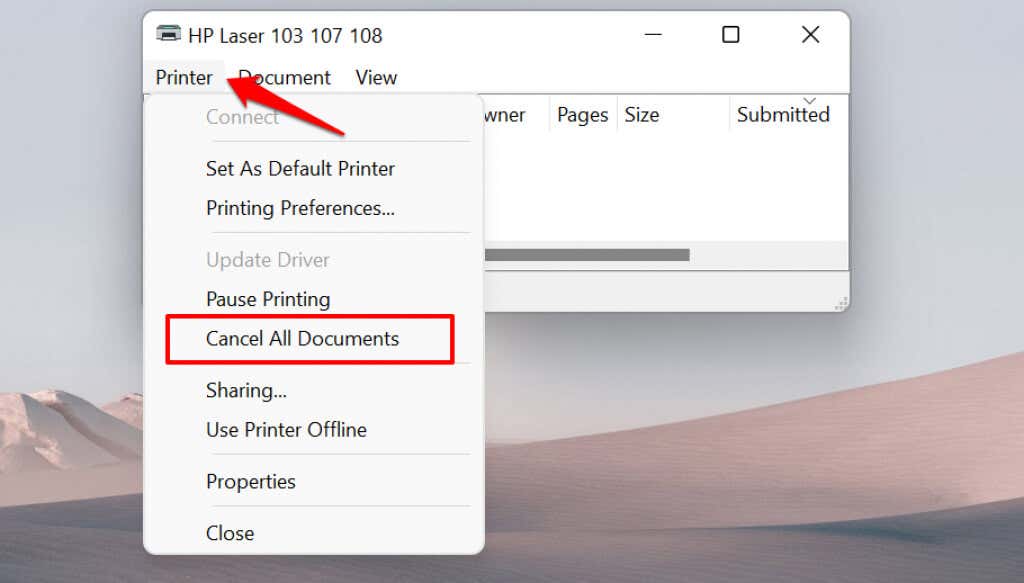
- Select Printer on the menu bar and select Cancel All Documents .
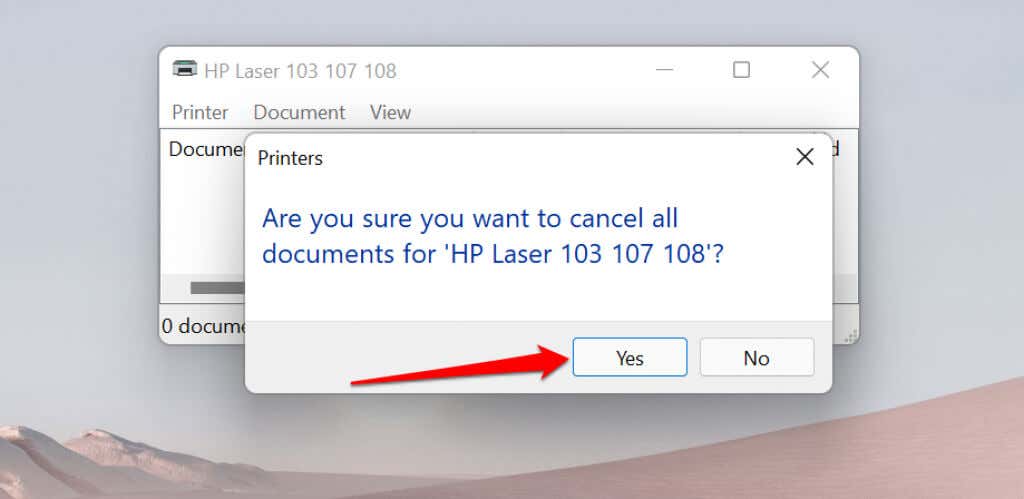
- Select Yes on the confirmation prompt.
[14-why-windows-pc-wont-print-documents]
Try printing any document or a test page and check if clearing the queue fixed the problem. Open the printer menu and select Print test page .
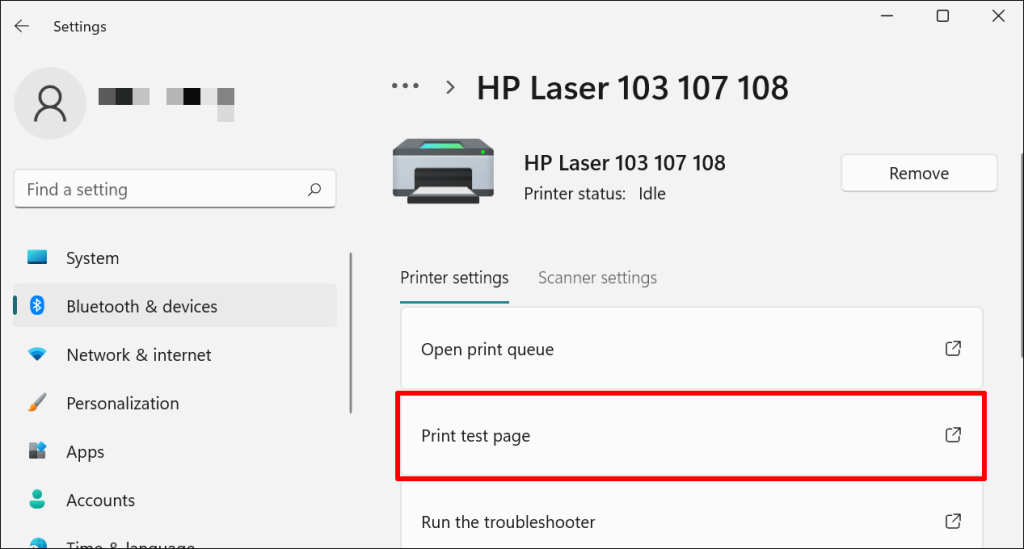
If completed documents remain in the print queue, refer to our troubleshooting tutorial on deleting stuck print jobs in Windows .
Clear Print Queue in macOS
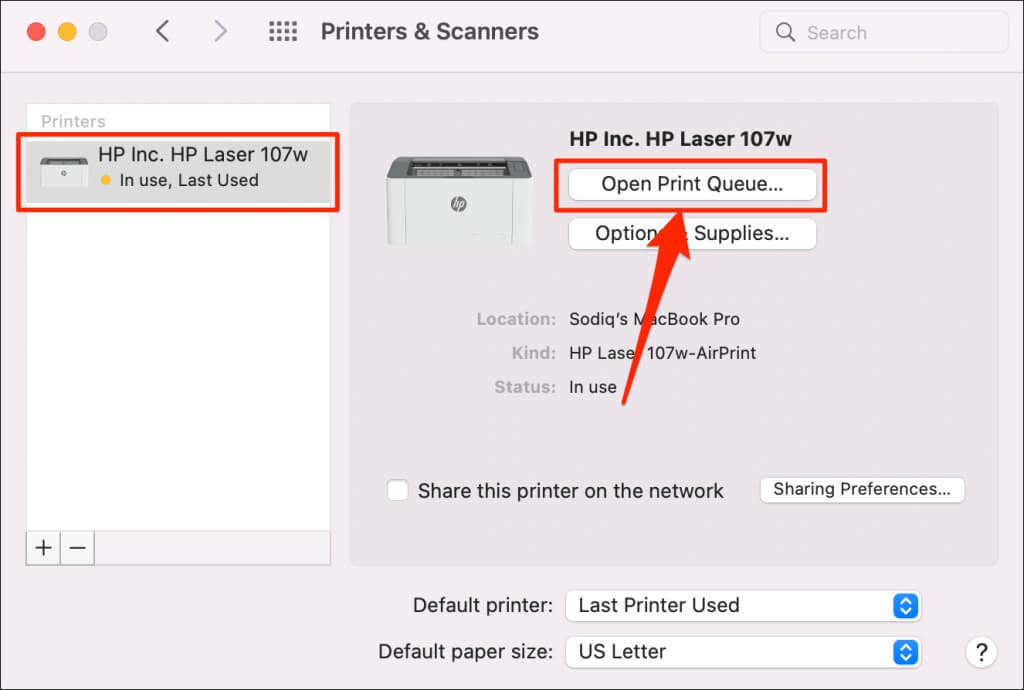
- Go to System Preferences > Printers & scanners , select the printer on the sidebar, and select Open Print Queue .
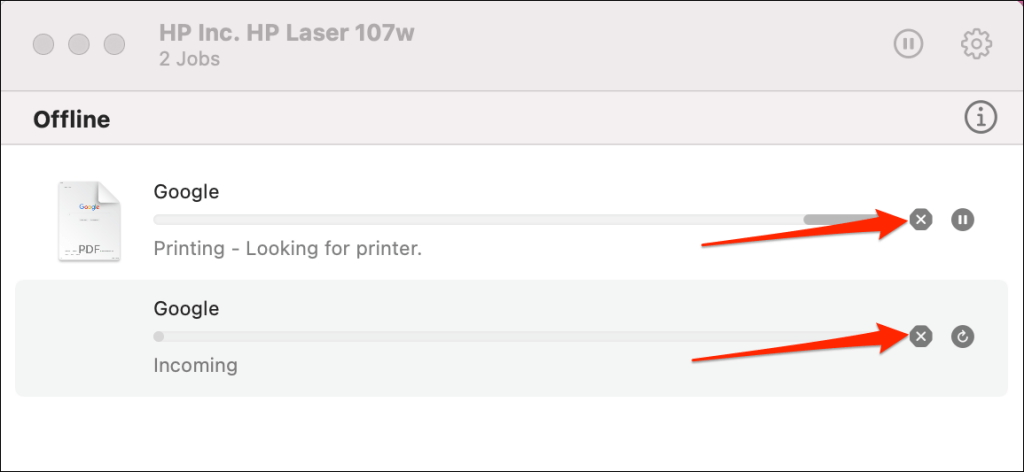
- Select the x icon next to the pending print jobs to remove them from the queue.
5. Update Printer Driver
Your printer might not receive print jobs from your PC if its driver is corrupt or outdated. Although Windows automatically installs driver updates, some factors (e.g., a metered internet connection) may prevent that from happening. Here’s how to manually install a driver from your computer or the internet.
Check the printer’s manufacturer website and download the latest driver updates for your printer model. Plug the printer into your computer and follow the steps below.
- Right-click the Start Menu or press the Windows key + X to open the Quick Access Menu. Select Device Manager to proceed.
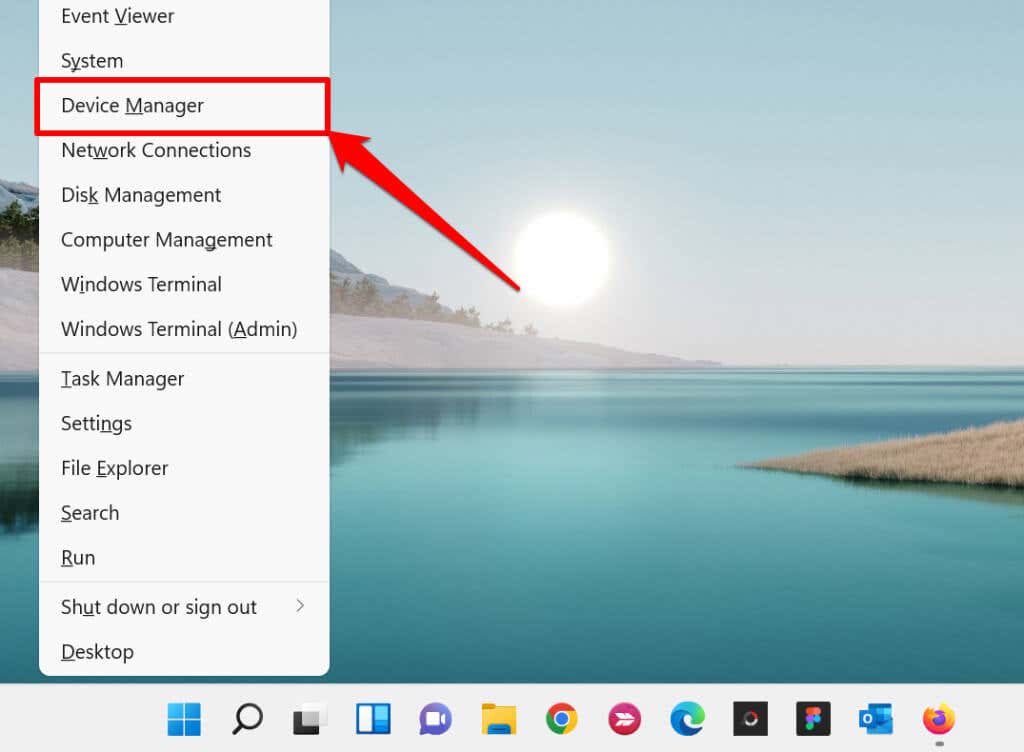
- Expand the “Printers” category, right-click the printer’s driver, and select Update driver .
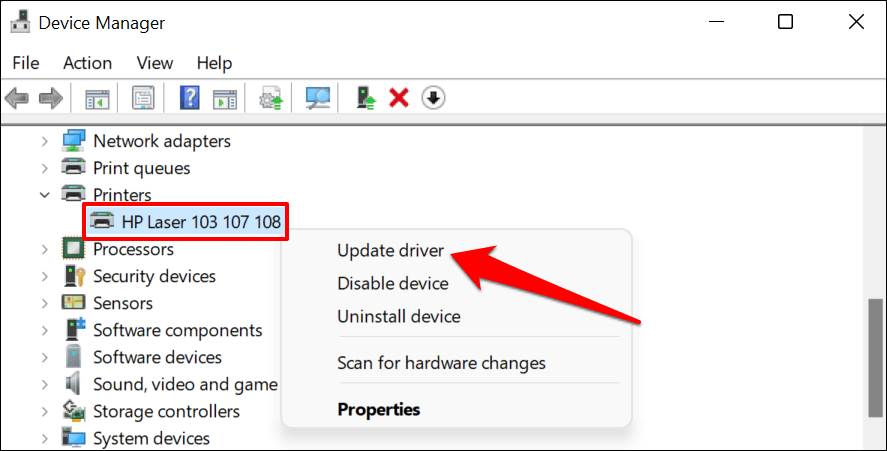
- Select Search automatically for drivers and wait for Windows to search for the best driver available for the printer. The process requires an internet connection, so ensure your PC is connected to a Wi-Fi or Ethernet network.
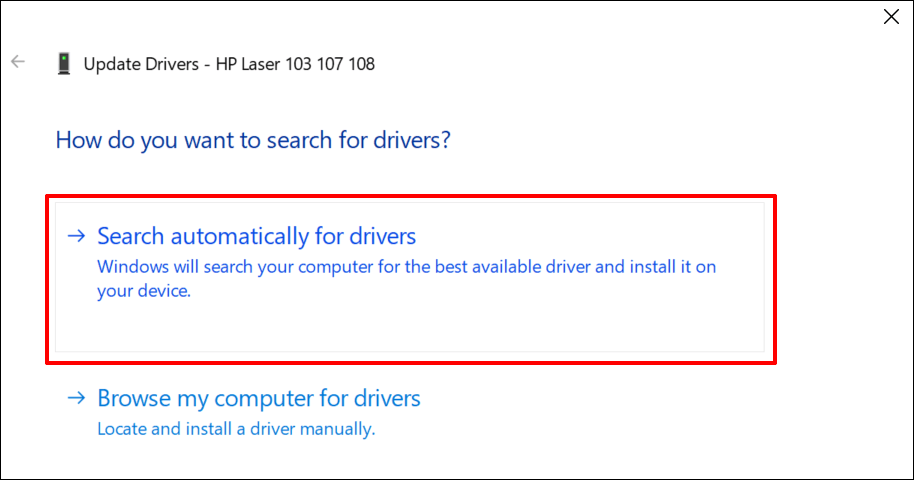
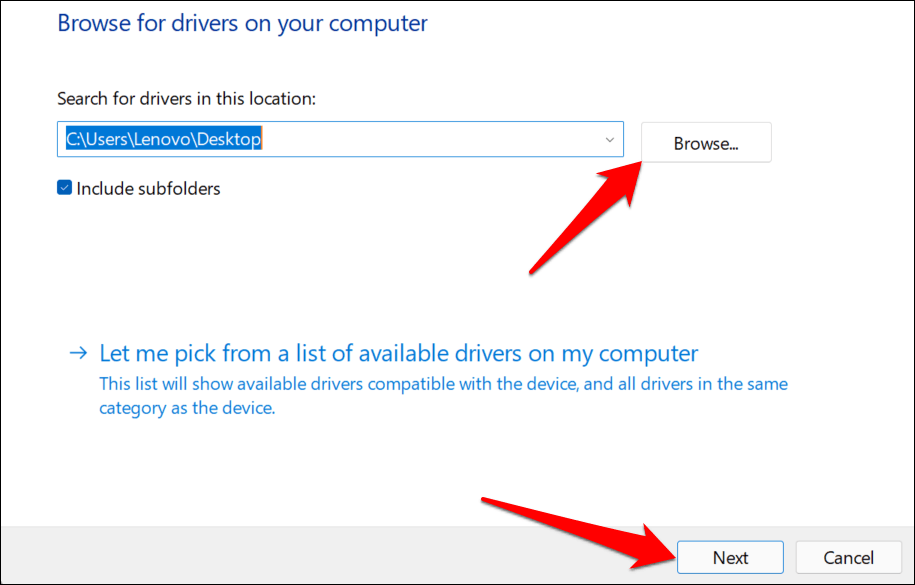
Alternatively, select Browser my computer for drivers to manually install a driver you downloaded from the printer manufacturer’s website. Afterward, choose Browse , navigate to the driver’s location on your PC, and select Next to install the update.
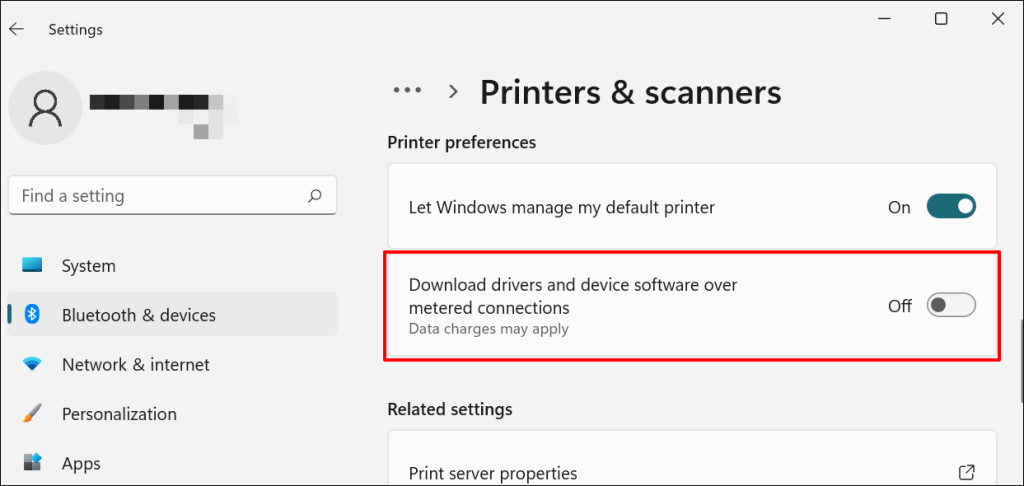
We recommend configuring Windows to automatically download drivers for your printer, especially if you’re using a metered connection.
Go to Settings > Bluetooth & devices > Printers & scanners and toggle on Download drivers and device software over metered connections .
If the Device Manager says the printer’s driver is up-to-date, check the manufacturer’s website for confirmation. You’ll find driver update history in the “Download,” “Software,” or “Drivers” section of the printer manufacturer’s website. Contact the manufacturer if you don’t know how to find, install, or update your printer’s driver update.
6. Reboot Your Devices
Power-cycling your printer and computer can help both devices re-establish a connection. Unplug your printer’s power cord and shut down your computer. Remember to close any open apps or documents so you don’t lose unsaved changes.
Restart both devices, connect your printer to your PC, and check if you can now print documents.
7. Reinstall Printer Driver
Reinstalling a faulty or corrupt driver can resolve issues causing your printer to malfunction. The operation entails deleting or uninstalling the printer driver , restarting your computer, and installing it from scratch. Note that this operation may affect any customizations made on the printer’s settings and preferences on your computer.
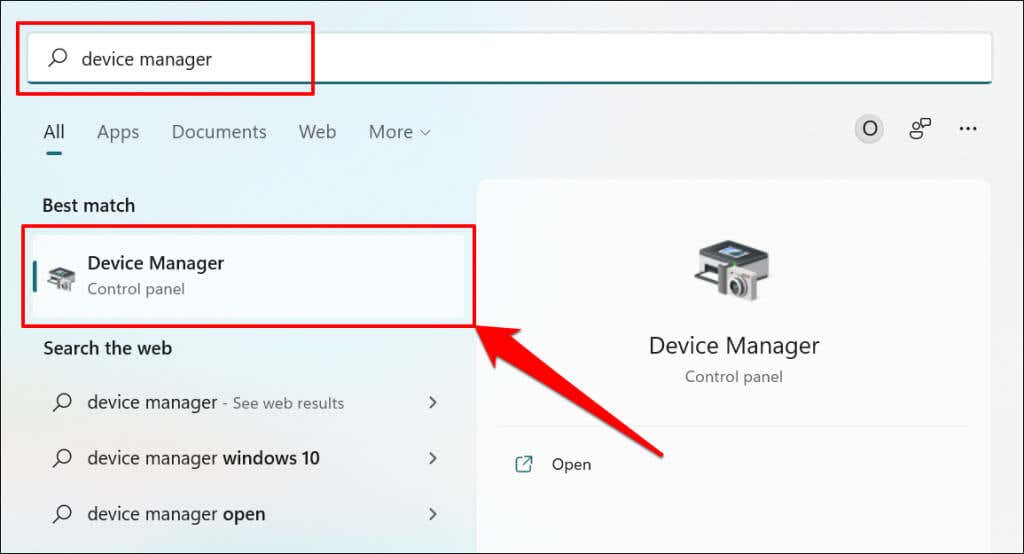
- Type device manager into Windows Search and select Device Manager .
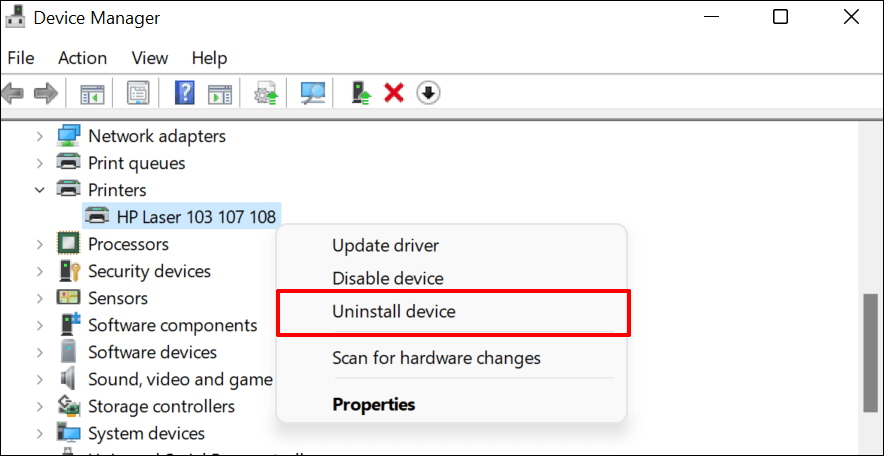
- Expand the “Printer” section, right-click the printer’s driver, select Uninstall device , and select Uninstall on the pop-up.
You should also remove the printer from your PC’s memory.
- Go to Settings > Bluetooth & devices > Printers and scanners , select the printer, and select the Remove button.
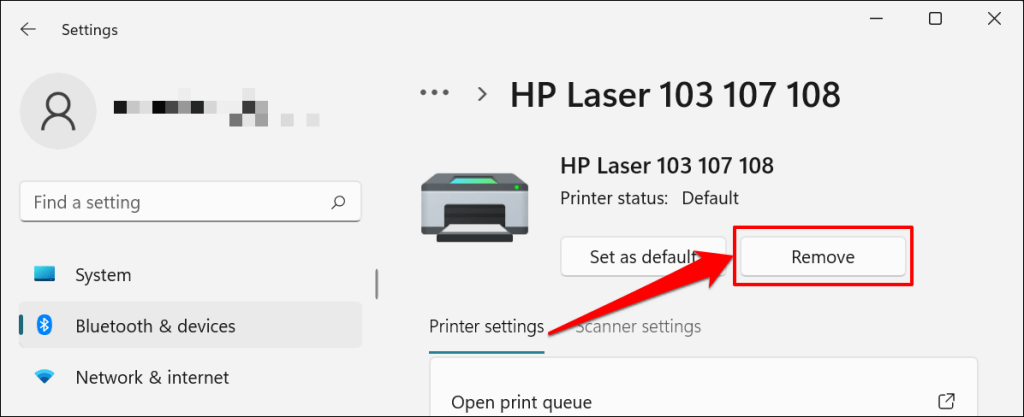
- Select Yes on the confirmation prompt.
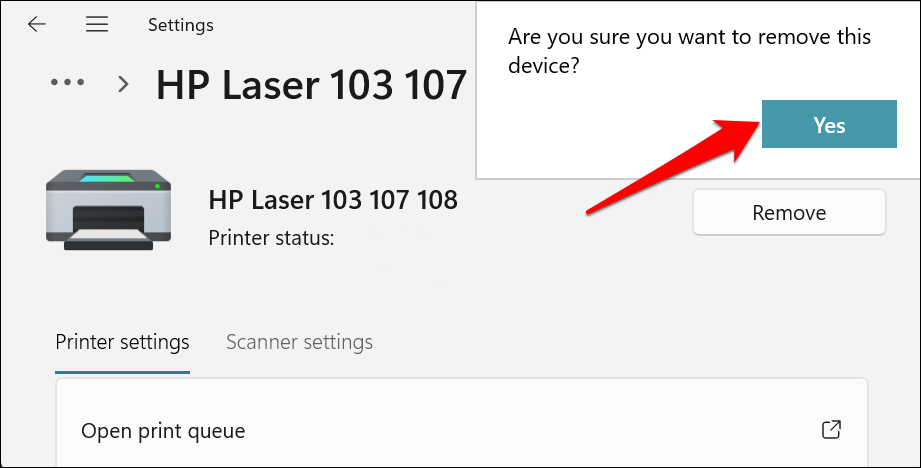
Restart Windows and reconnect the printer to your computer. Windows should automatically install the printer’s driver when it connects to your PC.
8. Restart the Printer Spooler
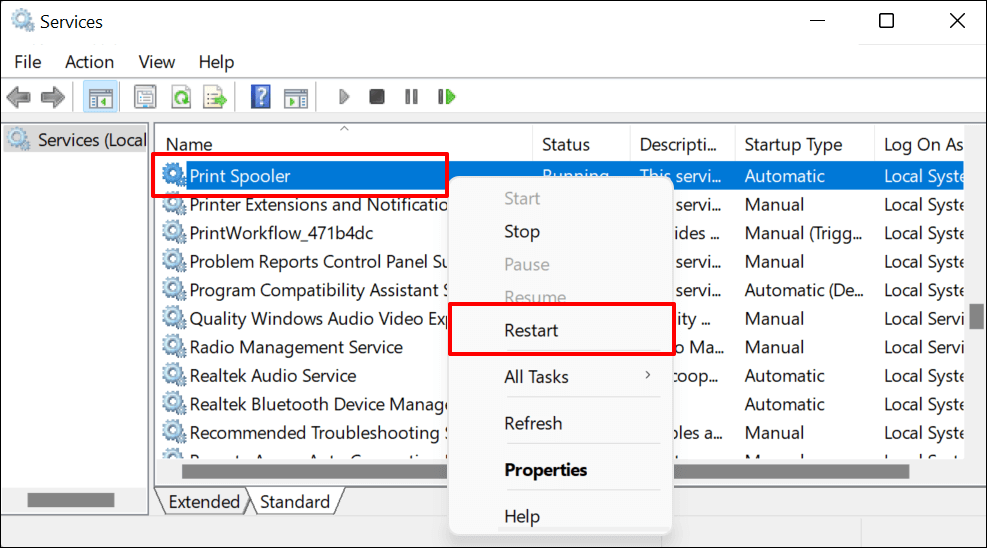
Printer Spooler is the system service that manages printers and print jobs on Windows devices. Temporary system glitches can affect the Printer Spooler’s performance and trigger printing-related problems. Restarting the print spooler service can restore the service to normalcy.
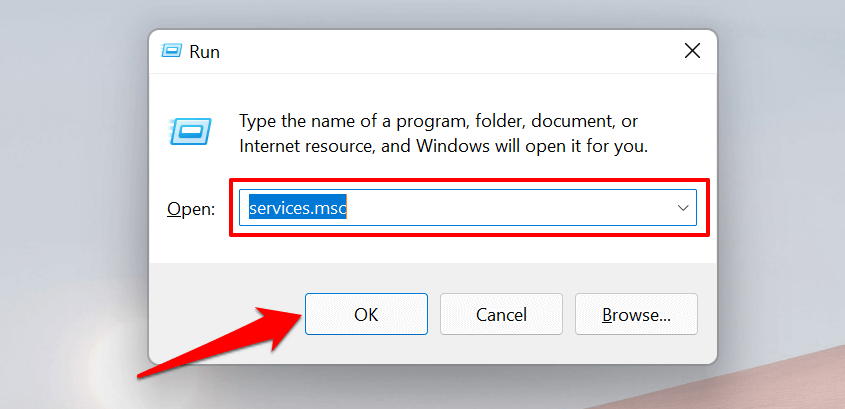
- Open the Windows Run box (press Windows key + R ), type services.msc in the dialog box, and press Enter .
- Right-click Printer Spooler and select Restart .
9. Update Your Computer
Asides from fixing software bugs, Windows Updates also updates outdated or buggy drivers. Head to the Windows Updates menu and install the latest Windows build or security patches available for your computer.
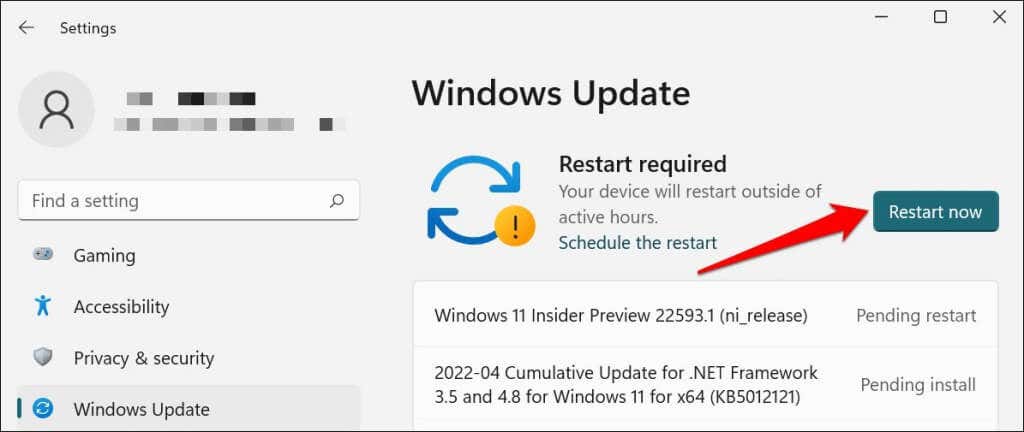
In Windows 11, go to Settings > Windows Update and wait for Windows to check for updates. You may need to restart your computer if Windows has already downloaded the update. Select Restart now to update and reboot your computer.
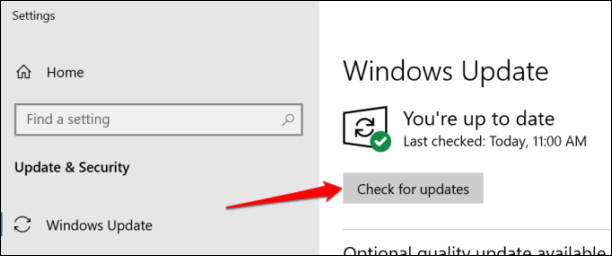
In Windows 10, head to Settings > Updates & Security > Windows Update and select Check for updates . Make sure your computer has an internet connection.
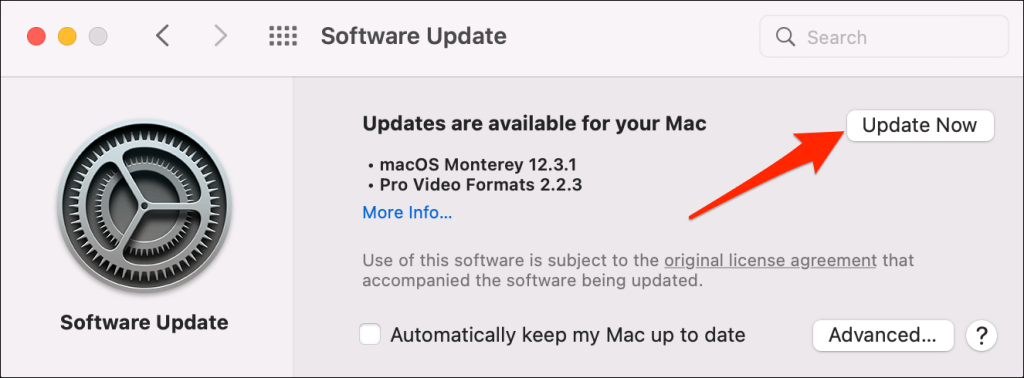
In macOS, go to System Preferences > Software Updates and select Update Now (or Upgrade Now ).
[32-update-mac-computer]
10. Run the Printer’s Utility Software
HP has a Print and Scan Doctor utility (HP Smart for Mac) that diagnoses problems with HP printers. The tool can detect empty ink cartridges, outdated driver software, blocked nozzles, print feed errors, and other printer problems.
Samsung Printer Experience is the utility that manages Samsung printers. The app has loads of troubleshooting guides for printing problems on Samsung printers. The Canon Inkjet Print Utility is also available for Canon inkjet printers.
Download and install your printer’s utility software on your computer and run the tool according to the manufacturer’s instructions.
Pay Attention to Physical Indicators
Printers have status lights or LCD screens that display error codes. These lights point out the root cause of some printing issues. Check the printer’s instruction manual to learn what the indicator lights and error codes mean and their respective solutions. Contact the printer manufacturer if your printer still won’t print after running these troubleshooting measures.
- How to Fix the “Error – Printing” Status Error in Windows
- HP Printer Not Printing Black? 10 Fixes to Try
- How to Fix Missing or Failed Printhead Error on HP Printers
- How to Add a Printer to Your Chromebook
- How to Fix the Printer Error “0x0000011b” on Windows
Sodiq has written thousands of tutorials, guides, and explainers over the past 4 years to help people solve problems with Android, iOS, Mac, and Windows devices. He also enjoys reviewing consumer tech products (smartphones, smart home devices, accessories, etc.) and binge-watching comedy series in his spare time. Read Sodiq’s Full Bio
