Do you keep running into an “iTunes could not connect to this iPhone. An unknown error occurred (0xE80000A)” dialog in Windows? Read on to learn why that happens and what you can do to establish a proper connection between the iTunes software and your iPhone.
iTunes’ error code 0xE80000A can show up while connecting an iPhone to a Windows PC for several reasons. For example, it could be a buggy instance of the iTunes app, corrupt iPhone permissions, or even a worn-out Lightning cable. A similar error can also show up while plugging in an iPad or iPod touch.
Work through the following troubleshooting tips to fix error 0xE80000A in iTunes on Windows 10 and 11.
Restart Apple Mobile Device Service
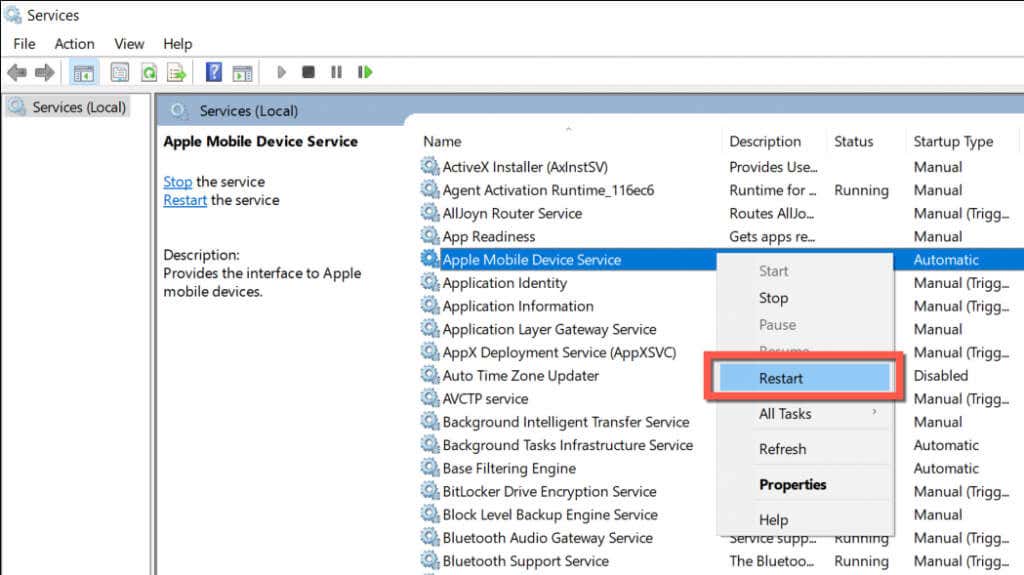
iTunes uses a background process called “Apple Mobile Device Service” to interact with Apple devices you connect to your Windows computer. Restarting it is a quick way to eliminate random glitches that result in the 0xE80000A error. To do that:
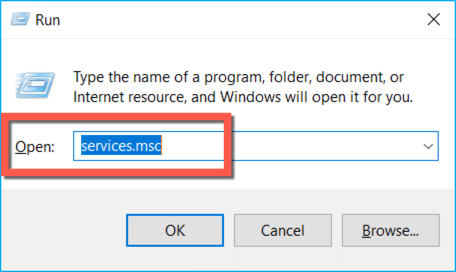
- Press Windows Key + R to open the Run box.
- Type services. msc and press Enter .
- Right-click Apple Mobile Device Service and select Restart .
Fully Quit and Relaunch iTunes
Another way to fix iTunes error 0xE80000A is to force-quit and relaunch iTunes. To do that:
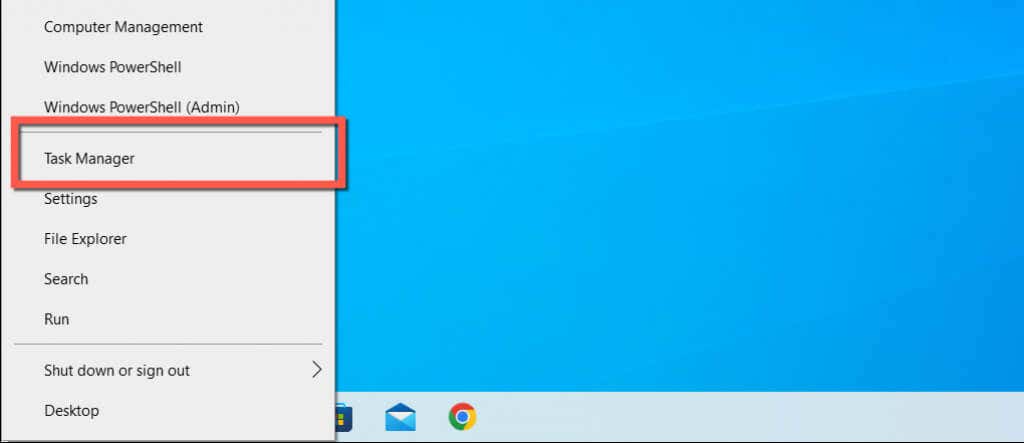
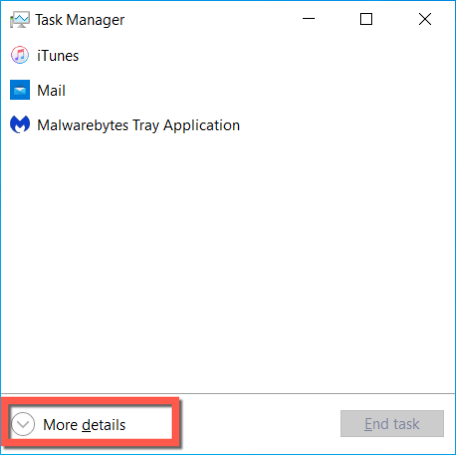
- Right-click the Start button and select Task Manager .
- Select More details to expand the default Task Manager view.
- Under the Processes tab, right-click iTunes and select End task .
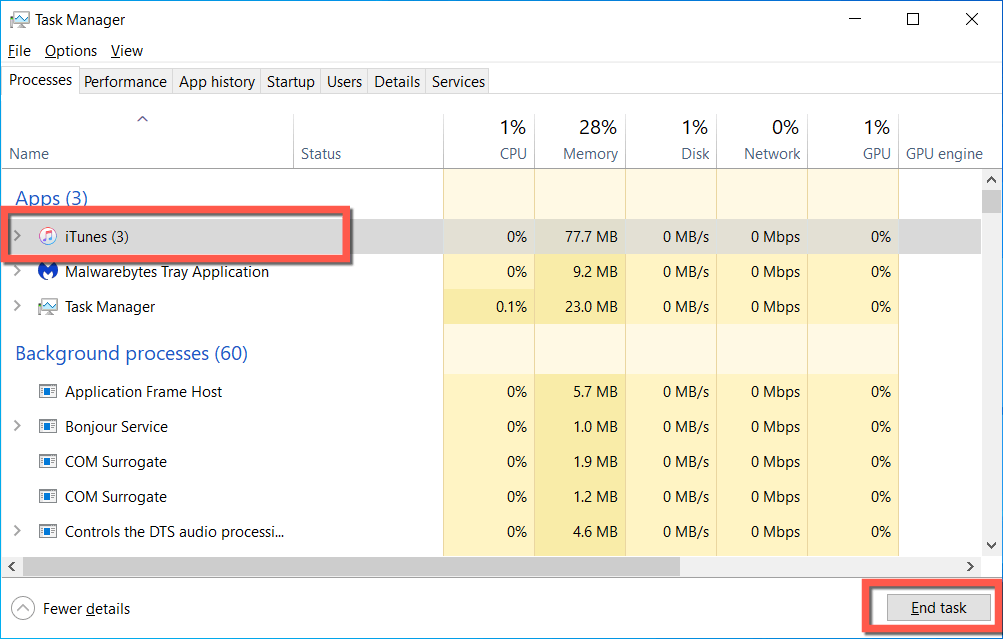
- Continue to shut down any stuck iTunes-related processes—e.g., MobileDeviceHelper and Bonjour Service . It’s also a good idea to quit other Apple software like iCloud for Windows.
- Relaunch iTunes and connect your iPhone.
Repair iTunes to Default Settings
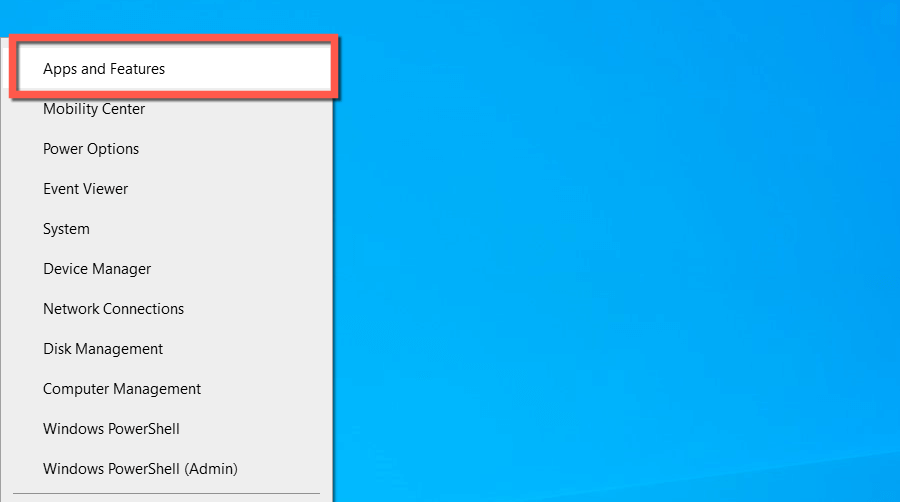
- Right-click the Start button and select Apps and Features .
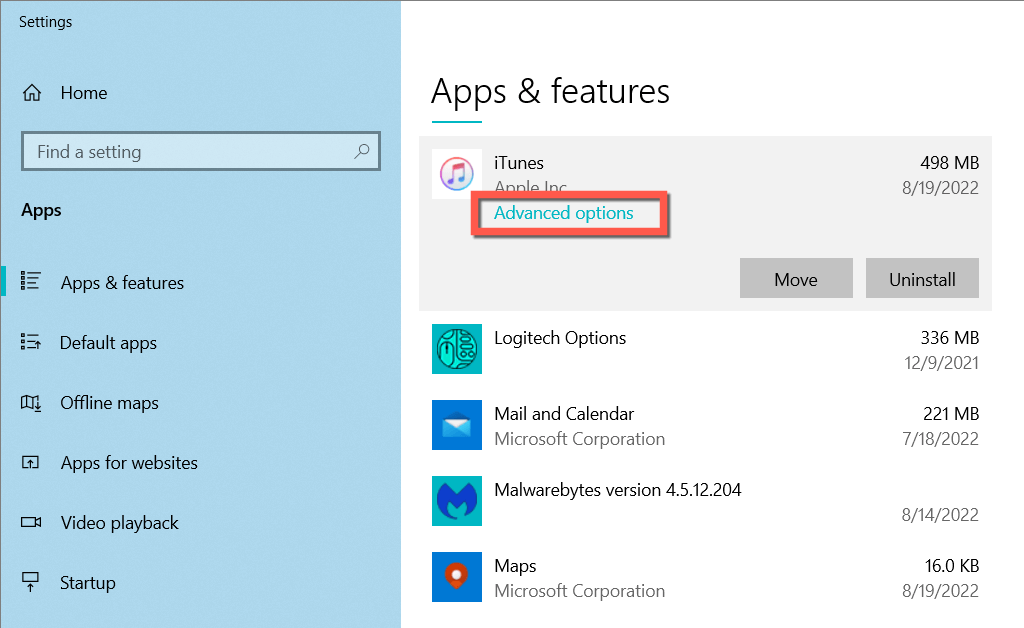
- Scroll down and select iTunes . In Windows 11, select the More icon (three dots) next to it.
- Select Advanced options .
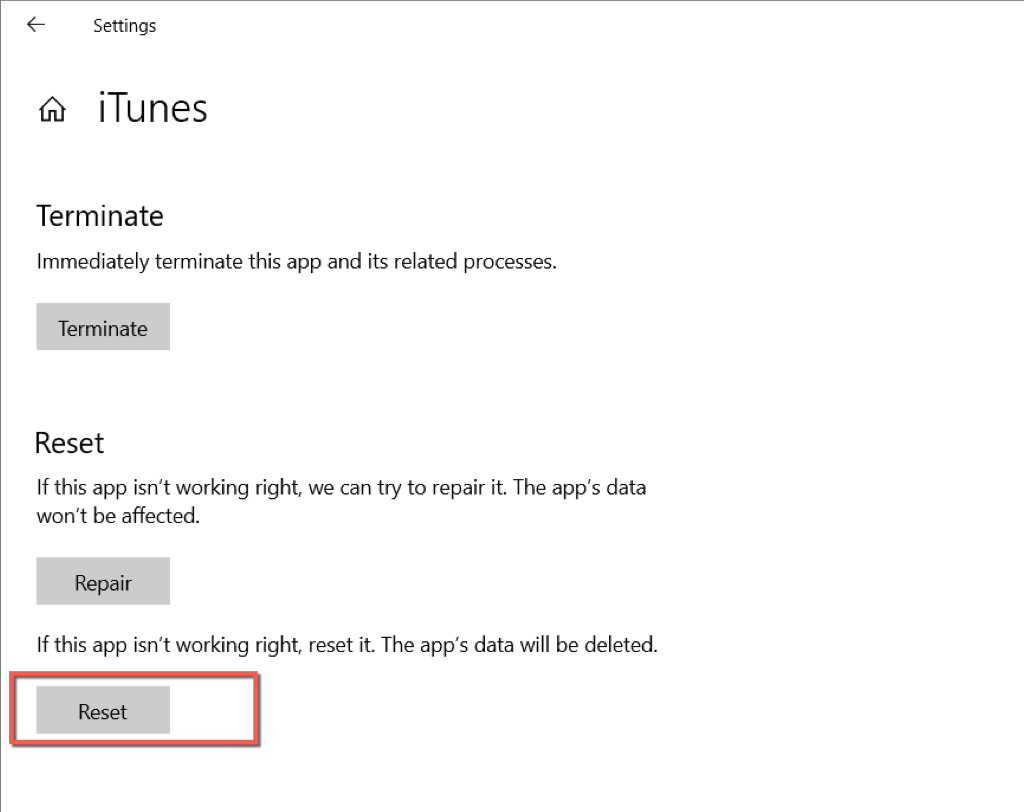
- Select Terminate to shut down all iTunes processes.
- Select Reset , and then Reset again to confirm.
Run iTunes as an Administrator
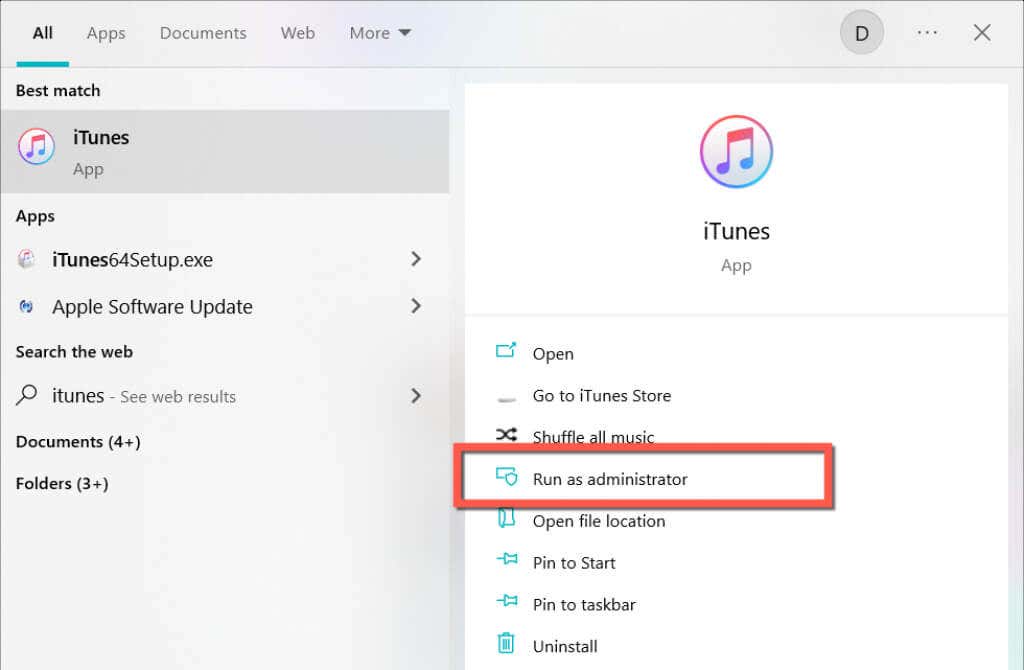
Running iTunes as an administrator can fix loads of errors and other issues with the application. To do that, search for iTunes on the Start menu and select Run as administrator .
If that fixes error 0xE80000A, consider setting up iTunes to launch with administrative privileges always .
Restart Your Windows PC
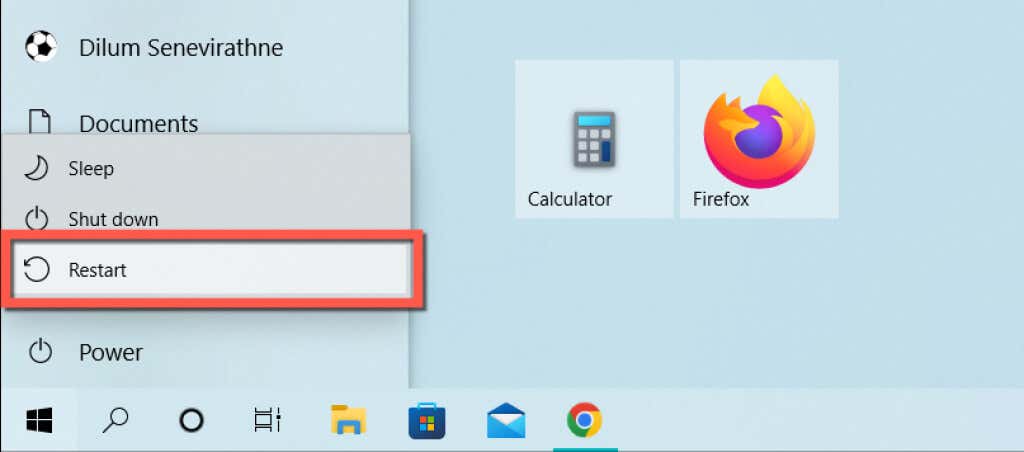
If the above tips didn’t help, try restarting your PC. That should get rid of minor connectivity issues preventing your iPhone from communicating with iTunes. To do that, open the Start menu and select Power > Restart .
Change USB Ports and Cable
Malfunctioning or damaged USB ports also result in iTunes errors, so try connecting your iPhone to a different port on your computer. Avoid USB hubs since they don’t provide sufficient power to devices and cause additional issues.
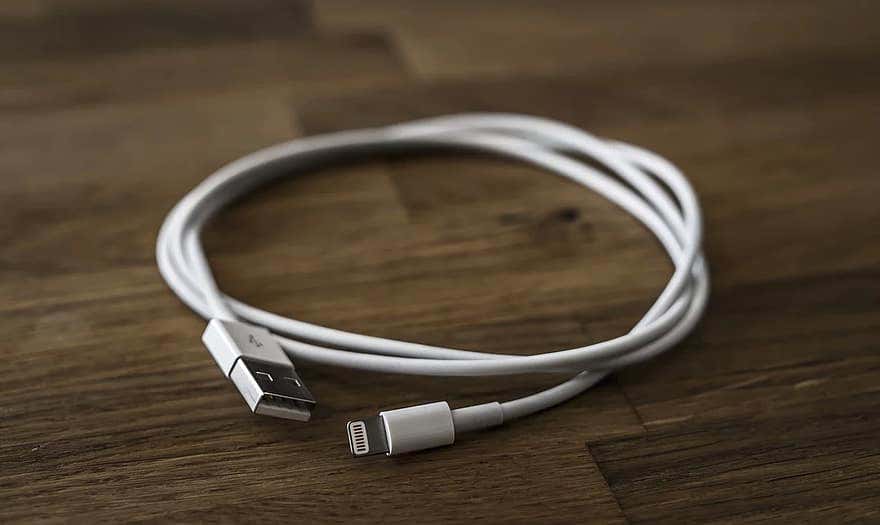
While you’re at it, closely examine your iPhone’s Lightning cable and make sure it’s not twisted, frayed, or broken. Use a different Lightning or third-party MFi-certified USB cable and check if that makes a difference.
Additionally, you may want to consider checking for and cleaning the Lightning port on your iPhone of any dust or lint. Compressed air (do not stick the can’s nozzle inside) or an interdental brush can help.
Reset Lockdown Folder in iTunes
If the iTunes error 0xe80000A persists, rename the folder that stores the authentication information and security certificates of Apple devices on your computer. That forces iTunes to recreate a new folder and helps rule out corruption issues. To do that:
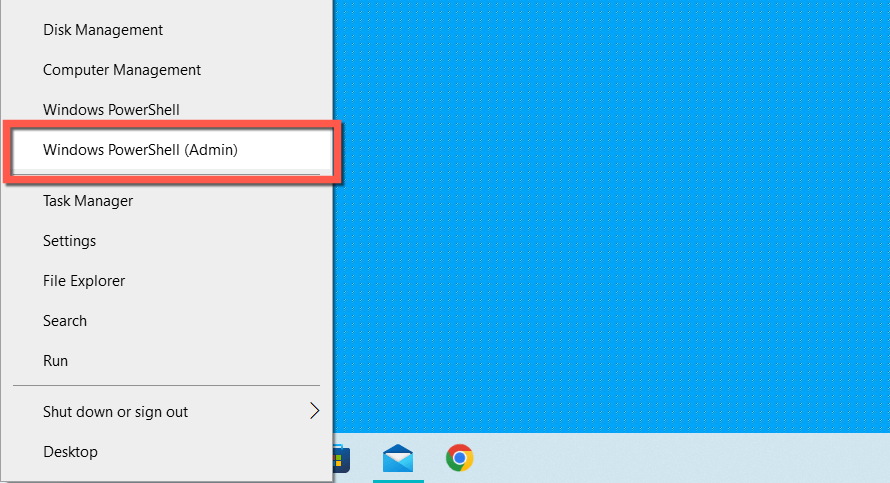
- Right-click the Start button and select Windows PowerShell (Admin) .
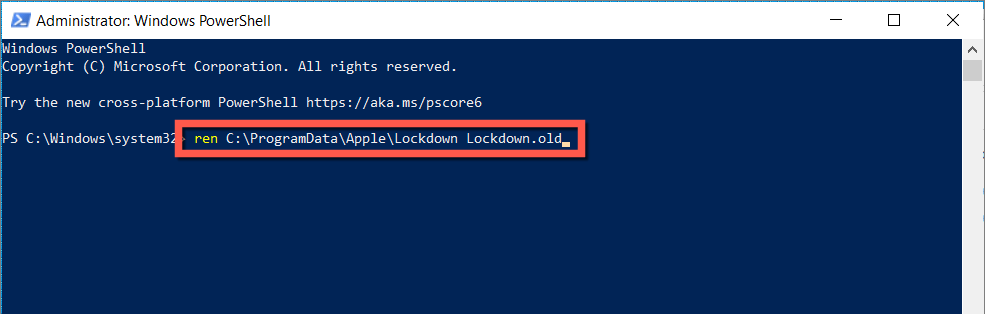
- Copy and paste the following command and press Enter :
ren C: ProgramData Apple Lockdown Lockdown.old
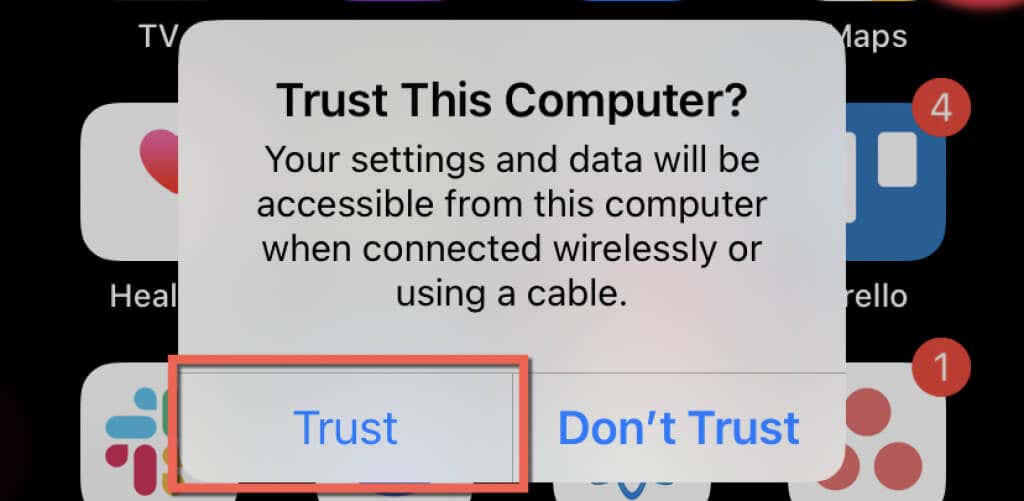
- Reconnect and unlock your iPhone. Then, unlock the device and tap Trust or Allow .
Note : If resetting the LockDown folder results in an iTunes 0xE8000003 error, revisit the relevant section above and reset iTunes. If you use the non-Microsoft Store version of iTunes, you must reinstall the app (more on that below).
Reset Location and Privacy Settings
Obsolete trust permissions in iOS also results in error 0xE80000A iTunes. To clear them:
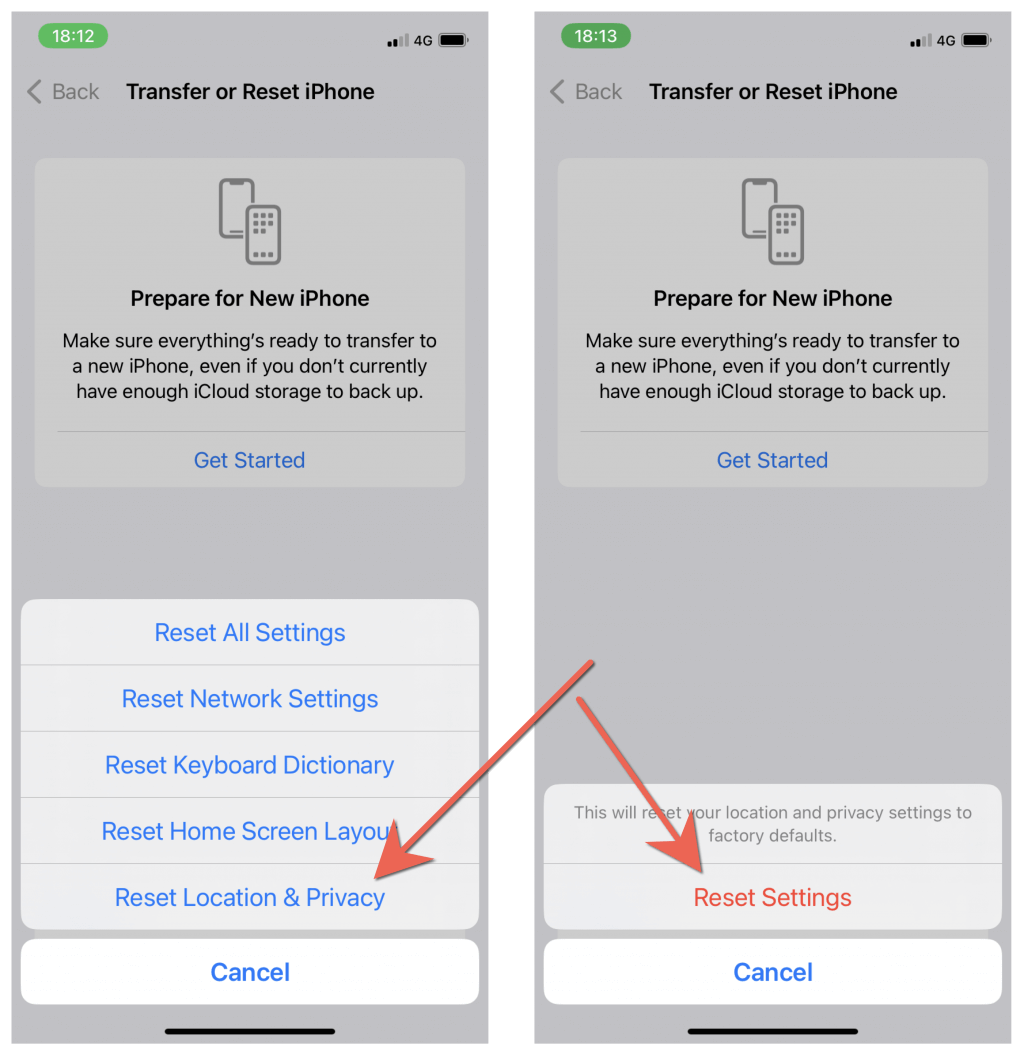
- Open the Settings app and tap General > Transfer or Reset iPhone > Reset .
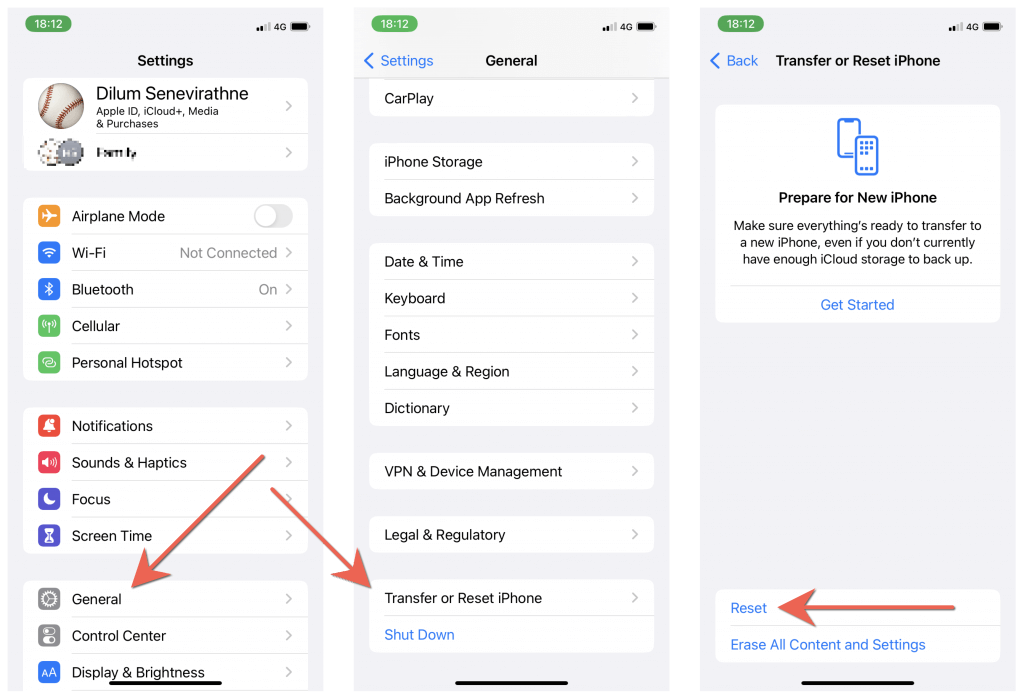
- Select Reset Location & Privacy .
- Enter your iPhone device passcode and select Reset Settings to confirm.
- Connect your iPhone to your computer.
- Unlock your iPhone and tap Trust or Allow on the “Trust this Computer?” pop-up.
Disable Third-Party Antivirus Software
If you have third-party security software installed on your computer, briefly pause all protection and check if that helps iTunes connect to your iPhone. If yes, you must use the program’s allow list to stop iTunes from being flagged as a security threat.
Update to the Latest Version of iTunes
Updating iTunes to its latest version is the best way to resolve persistent bugs, glitches, and incompatibilities that result in error 0XE80000A. The process differs depending on whether you use the Microsoft Store or the standard version of iTunes.
Update the Microsoft Store Version of iTunes
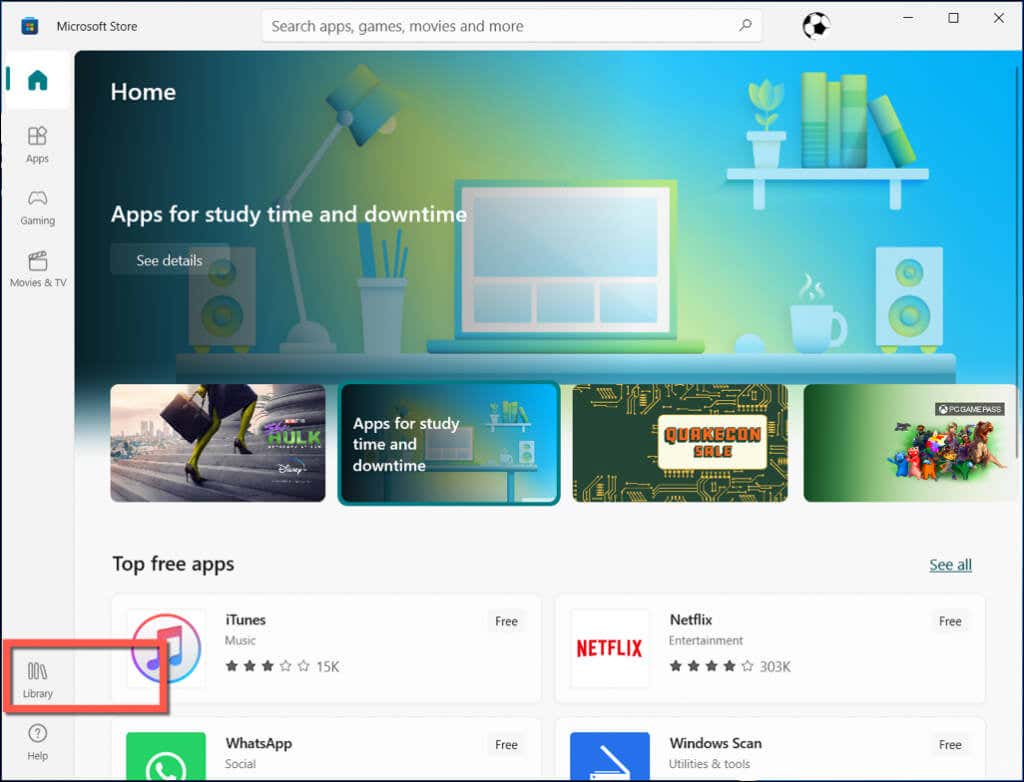
- Open the Microsoft Store .
- Select the Library option on the lower-left corner of the window.
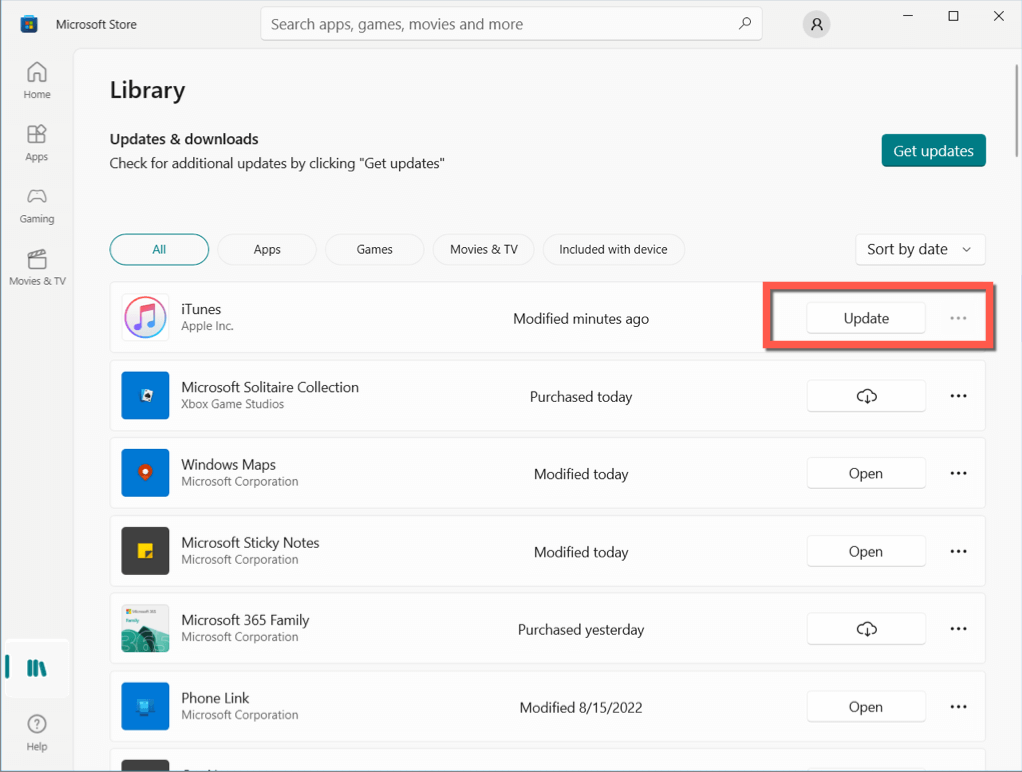
- Select the Update button next to iTunes .
Update the Standard Version of iTunes
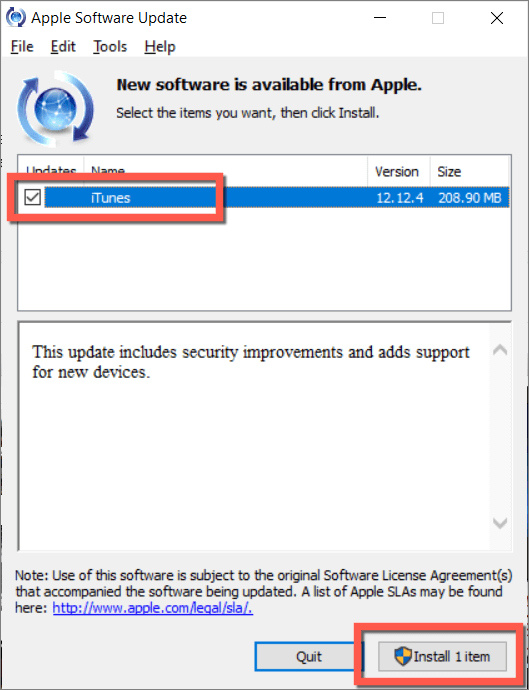
- Open the Start menu and select Apple Software Update from the list of programs on your computer.
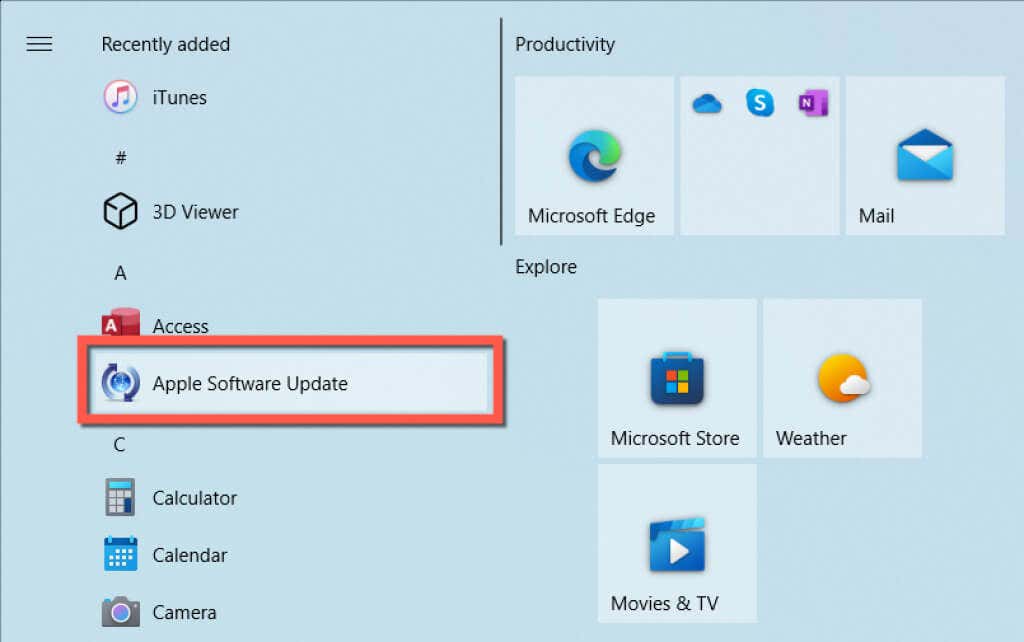
- Select any available iTunes updates.
- Select Install .
Update Windows and iOS
Continue by installing the latest Windows and iOS operating system updates.
Update Windows
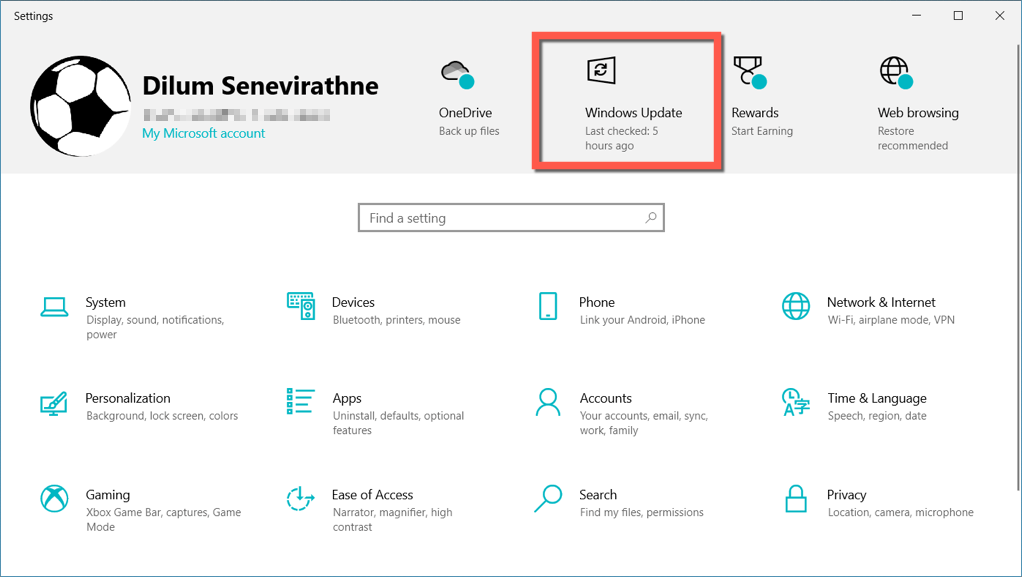
- Open the Settings app and select Update & Security > Windows Update . If you use Windows 11, select Windows Update on the left pane.
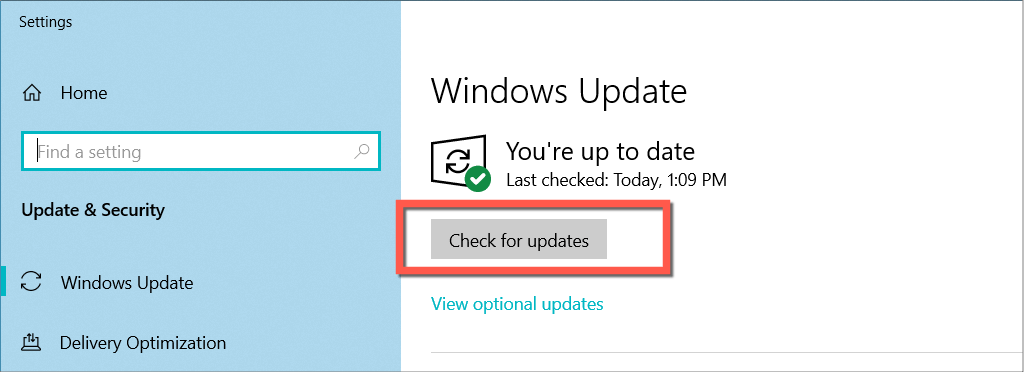
- Select Check for Updates .
- Select Download and Install .
Note : Select the View optional updates option, expand Driver updates , and install any pending mobile device driver updates.
Update iOS
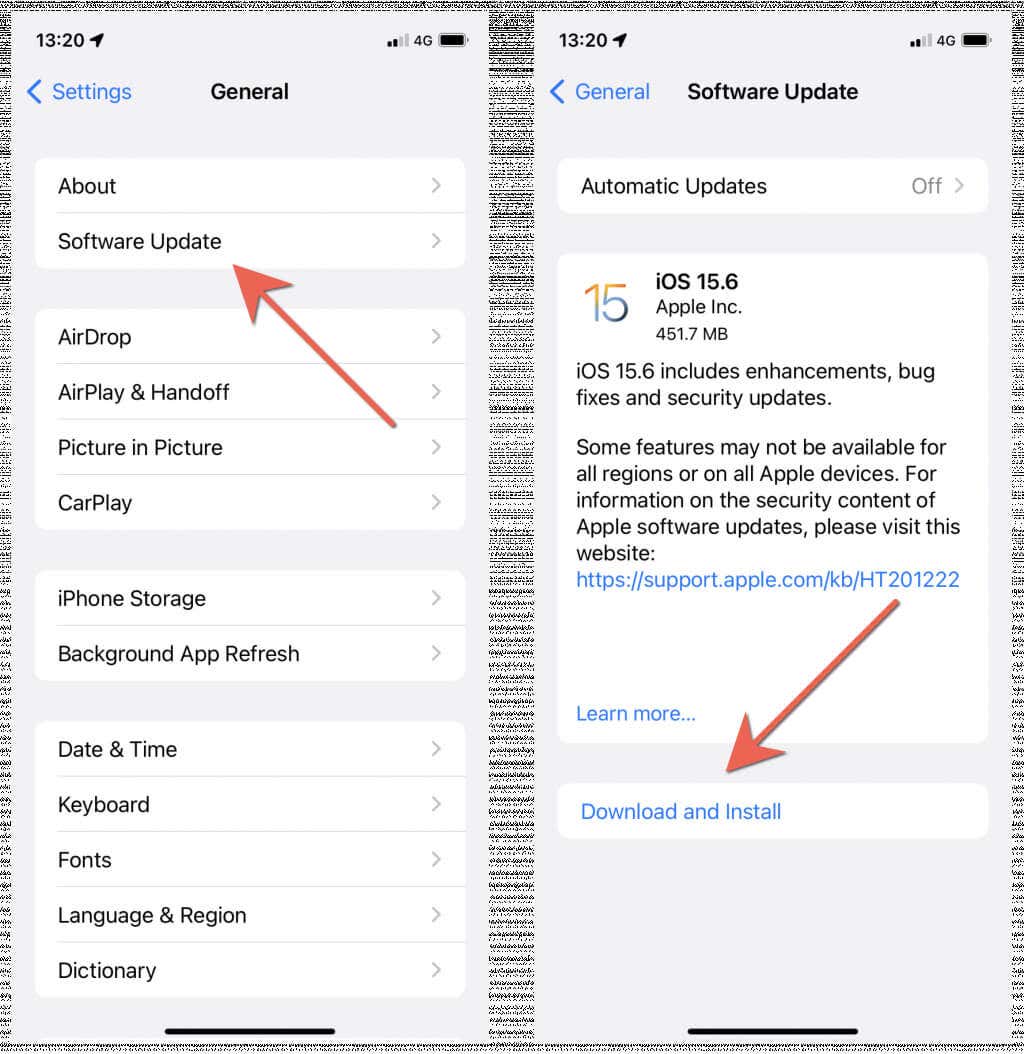
- Open the iPhone Settings app.
- Select General > Software Update .
- Tap Download & Install .
Uninstall and Reinstall iTunes
If none of the fixes above help, you might be dealing with a corrupt iTunes installation that only reinstalling the program can fix. You will not lose any iPhone backups during the process.
- Right-click the Start menu and select Apps and Features .
- Select iTunes > Uninstall .
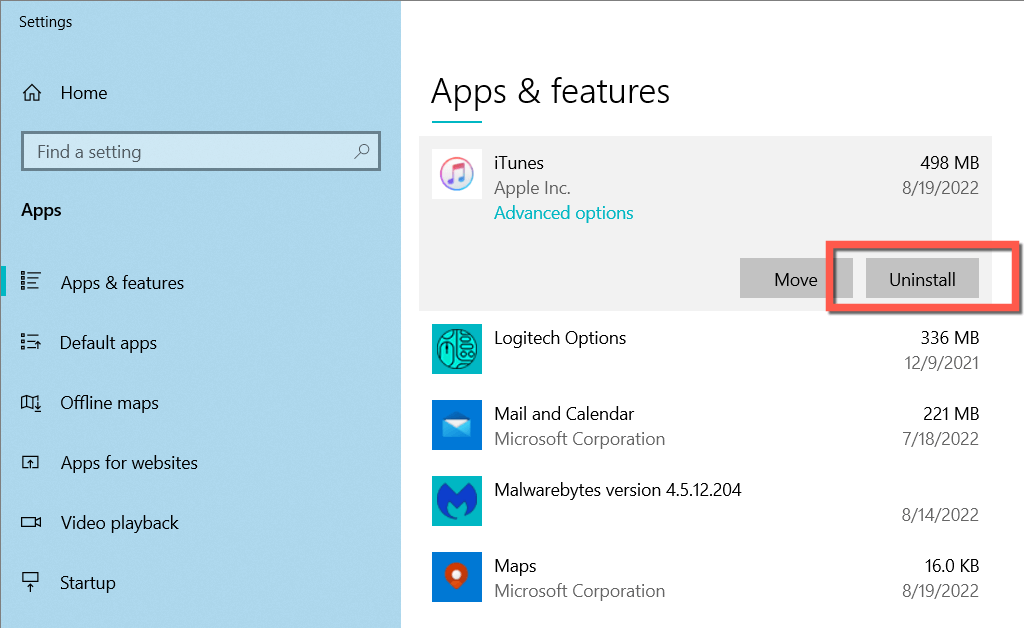
- Reinstall iTunes via the Microsoft Store or the Apple website . We recommend installing the Microsoft Store version since it’s faster and leaner.
iTunes 0xE80000A Error Fixed
Despite its cryptic nature, iTunes’ error 0xE80000A is fairly straightforward to solve. Just work your way through the fixes above, and you should be able to connect your iPhone successfully to your PC. Also, keep iTunes, Windows, and iOS up-to-date to minimize the chances of running into similar errors going forward.
- How to Update iTunes on Your Windows PC
- 13 Things to Try When iTunes Won’t Play Music
- How to Download and Install iTunes on Your Chromebook
- How to Backup an iPhone Without iCloud?
- Sluggish Windows 11 PC? Try These 5 Windows 11 Tricks to Free up Virtual Memory
Dilum Senevirathne is a freelance tech writer and blogger with three years of experience writing for online technology publications. He specializes in topics related to iOS, iPadOS, macOS, and Google web apps. When he isn’t hammering away at his Magic Keyboard, you can catch him binge-watching productivity hacks on YouTube. Read Dilum’s Full Bio
